
NHTSA ID Number: 11009689
Manufacturer Communication Number: 15-305-22R
TSB/Document Date: 2024-11-04
Summary
This bulletin following information announces reprogramming file availability and provides a software update installation procedure to optimize the new Gen 4.5 Denso CP1.5 Audio and Navigation head units utilized in the models listed.
•
Silicon Power®:
2 Pack USB 3.0/3.1 Gen1 USB Flash Drive Blaze B02
Continued...
Bulletin Number: 15-305-22R; Revised: 10/02/24
Page 8 of 76
Appendix 2
Download the Update Files to the USB
The files are available for download on Subarunet (see “A” below).
The applicable reprogramming files have also been sent directly to retailers by Nuspire in the same
way a Select Monitor Update would be pushed out. (see “B” below).
Follow “A” when using files downloaded from Subarunet.
Follow “B” when using the files sent directly to the SDS notebook from Nuspire.
“A” When using update files downloaded from Subarunet:
IMPORTANT: Files downloaded from Subarunet will be .zip files and must be unzipped before
they can be used. Using the normal audio / navigation system file update download procedure: Go to
Subarunet, select Service Operations and Technical>>Forms/Downloads>>Gen 4/Denso for Audio/
Navi then click on the applicable Hyperlink to download the file(s) to your SDS Notebook or PC:
Updates for Gen 4.5 Denso Audio and Navigation Head Units – 23-24MY LegacyOutback
23-24MYAscent24MYCrosstrek24MYImpreza24MYWRX
23-24MYLegacy23-24MYOutback23-24MYAscent24MYCrosstrek24MYImpreza24MYWRX Denso-CP1.5 AUDIO UPDATE- February 2024
•
Go to Downloads.
•
CAUTION: After download is complete, NEVER change the file or folder names.
•
Open / display the contents of File folder, for example: “F91WxM053-880”.
•
Click on “Extract All Files”.
Continued...
Bulletin Number: 15-305-22R; Revised: 10/02/24
Page 9 of 76
•
The screen similar to the one below will appear to set a destination for the extracted file.
•
Double-click on the required folder (for this example, used folder titled “F91WxM053-880”).
Copy all files then paste (or click / drag) it to the “clean” USB flash drive as listed (Removable Disk)
in the directory.
IMPORTANT NOTE: The update contains 3 folders and 2 files. When performing an update, the
USB must contain the matching number of folders and files and all files must be replaced.
ALWAYS use the latest files together as a set.
NEVER reuse or combine files from a prior update with a newer version.
Continued...
Bulletin Number: 15-305-22R; Revised: 10/02/24
Page 10 of 76
•
To avoid confusion, use a permanent marker to label the flash drive with the file contents (e.g.
Denso CP1.5 2023MY ALL).
•
Go to Step 4.
“B” When using update files sent directly from Nuspire:
•
Go to My Documents on the GUI screen click on the folder “Denso CP1 Audio-Navi Update
Files” to display the list of available update files shown below.
IMPORTANT: Always confirm there is a correct folder. If not, the SDS notebook hasn’t been
updated with the latest release. Please contact Nuspire to request they resend the update.”
•
CAUTION: After download is complete, NEVER change the file or folder names.
•
Double-click on the required folder (for this example, select the file entitled “CP15”) and the
update file will display as shown.
Select all folders and files and either copy / paste or click / drag them to the USB flash drive.
IMPORTANT NOTE: The update contains 3 folders and 2 files. When performing an update, the
USB must contain the matching number of folders and files and all files must be replaced.
ALWAYS use the latest files together as a set.
NEVER reuse or combine files from a prior update with a newer version.
Continued...
Bulletin Number: 15-305-22R; Revised: 10/02/24
Page 11 of 76
•
Once all files have been loaded onto the USB flash drive, right click on the drive and select
“Eject”.
CAUTION: NEVER change the file names.
•
Remove the USB flash drive after the prompt appears that says “Safe to Remove Hardware”.
•
Mark the USB to indicate the head unit it will update (Denso CP1.5 2023MY ALL in this
example).
•
Proceed to STEP 4 below.
Continued...
Bulletin Number: 15-305-22R; Revised: 10/02/24
Page 12 of 76
Appendix 3
Perform the software update by USB
4a) PRESS and HOLD the RIGHT-side temperature control buttons (both up and down) and press
the Tune / Scroll knob 6 times then release all to display the Dealership Mode Menu.
4b) Select Software Update from the Dealership Mode menu.
IMPORTANT NOTE: On a RARE occasion, the message “Software update setup is
initializing…” may be displayed. Should this occur, proceed to Appendix 5 (page 27) for further
instruction.
Continued...
Bulletin Number: 15-305-22R; Revised: 10/02/24
Page 13 of 76
4c) The screen below will be displayed.
4d) Insert reprogramming USB into the USB port and press OK.
NOTE: If after plugging in the USB, the screen displays a Software Loading Unsuccessful
message, confirm the USB device has been properly formatted and the software on the device
matches the system being reprogrammed (example: Base software is being used to update a Base
system) and retry.
Continued...
Bulletin Number: 15-305-22R; Revised: 10/02/24
Page 14 of 76
If you get the message Software Update Incomplete as shown below, please don’t replace the
hardware but retry updating the software according to the instructions in Appendix 6 (page 29).
4e) The screen below will be displayed. Press OK to start the software update.
NOTE: The actual software version displayed will be different from the picture shown below.
Continued...
Bulletin Number: 15-305-22R; Revised: 10/02/24
Page 15 of 76
Software Version Table
Continued...
Bulletin Number: 15-305-22R; Revised: 10/02/24
Page 16 of 76
4f) Once the update begins, the screen below will be displayed with a progress bar. It takes about 15
to 20 minutes for the update to complete.
VERY IMPORTANT: NEVER turn off the ignition while the software update is in process.
4g) When the software update is complete, the following screen will be displayed (the actual
software version will be different).
Continued...
Bulletin Number: 15-305-22R; Revised: 10/02/24
Page 17 of 76
IMPORTANT NOTE:
On rare occasions a “Software Update Incomplete” message may appear in this step which occurs
due to a bug in the software update procedure. Proceed to Step 4i below to confirm the software
version has been updated to the latest version.
4h) Select OK in the screen above then remove the H/U reprogramming USB from the USB port.
4i) Turn the Ignition OFF, open the driver’s door then close the driver’s door.
4j) Wait for 3 minutes, then turn the ignition ON.
4k) Access Dealership Mode following steps provided item 4a and using the tables below, confirm
the software update completed successfully.
NOTE: The new Software Version number must be entered when prompted at claim entry.
Software Version Table
4l) Turn the ignition OFF, open the driver’s door then close the driver’s door to complete the
procedure.
Continued...
Bulletin Number: 15-305-22R; Revised: 10/02/24
Page 18 of 76
Appendix 4
Perform the software update by SSM5-R and USB
REPROGRAMMING BY SSM5 FOR IMPREZA/CROSSTREK 24MY AND WRX 24MY
AND OUTBACK/LEGACY 25MY AND FORESTER 25MY
4-SSM5-a. Introduction
For Impreza/Crosstrek 24MY and WRX 24MY and Outback/Legacy 25MY and Forester 25MY it is
required to use SSM5-R to access Software Update setting in Dealership Mode Menu.
4-SSM5-b. Preparation
It is recommended to perform the reprogramming work with the Ignition ON and Engine OFF.
Preferably, it is also recommended to hook up a battery charger to the battery to maintain consistent
voltage in the electric circuits of the vehicle.
If the vehicle is Automatic (CVT) model, shift the select lever to N range and apply parking brakes
(EPB). With the gear in P range, the ignition switch is automatically turned off after about 1
hour. In case you perform the reprogramming work with Engine ON, make sure that the area is well
ventilated.
Continued...
Bulletin Number: 15-305-22R; Revised: 10/02/24
Page 19 of 76
Outline of the preparation steps:
•
Prepare USB flash drive to store software update files per the instructions in STEP 2 page 5.
•
Prepare an interface to connect the vehicle with the PC loaded with SSM software.
•
Install “Cloud Connector” to the PC.
•
Connect DST-i between the vehicle and the laptop to sync-up SSM5 with the vehicle.
•
Refer to TSB 14-28-21 “New Software Reprogramming Procedures / SSM5-R” for the setup
and configuration details with SSM5.
•
4-SSM5-c. Execution
i. Follow TSB 14-28-21 “New Software Reprogramming Procedures / SSM5-R” STEP
1- STEP 11 to connect the vehicle and the laptop with SSM5 access. When vehicle
information acquisition is completed, a list of on-board systems is displayed. Confirm that
either one of the two reprogramming availability option on the Cockpit Control Unit is
marked “Available” and click on it. See below.
Continued...
Bulletin Number: 15-305-22R; Revised: 10/02/24
Page 20 of 76
ii. Insert the USB flash drive containing the update data into the vehicle’s USB port and click
on [Start Reprogramming] to begin the reprogramming process.
iii. Follow TSB 14-28-21 “New Software Reprogramming Procedures / SSM5-R” STEP 12 STEP 15 to start the software update.
iv. The following progress bar will be displayed briefly (for a few seconds), and then it will
quickly reach 100% and switch to the next screen.
When the following screen is displayed, the software update starts within the CCU.
Continued...
Bulletin Number: 15-305-22R; Revised: 10/02/24
Page 21 of 76
At that time CID display changes to show software installation details and progress bar. Wait until
the CID screen displays “Software Update Complete”. See below.
Software Version Table
Continued...
Bulletin Number: 15-305-22R; Revised: 10/02/24
Page 22 of 76
Continued...
Bulletin Number: 15-305-22R; Revised: 10/02/24
Page 23 of 76
v. After “Software update complete” appears in the CID, click “OK” on the SSM5 screen.
vi. Confirmation screen will be displayed as shown below. Check the box and click [OK].
vii. Follow TSB 14-28-21 “New Software Reprogramming Procedures / SSM5-R” STEP 16 STEP 20 to complete update verification procedure. If the software update has been completed
correctly, it will display “Reprogramming completed”. Remove the USB drive from the
vehicle and click on “Back to Diagnosis Screen”.
Note: It is very important to complete software update verification for the server to get all
required details for the VIN and store that information for future applications. For example,
campaign or recall eligibility or claim eligibility verification etc.
Continued...
Bulletin Number: 15-305-22R; Revised: 10/02/24
Page 24 of 76
viii. Please verify that the Cockpit Control Unit’s Reprogramming availability is set to ‘Not
Available.’ The software update process is completed at this point.
CAUTION: Once you have performed a software update, you cannot start the next software update
until the “Software update setup is initializing…” process is completed. If the Initializing screen
is displayed, please wait for about 30 minutes until it is finished. While waiting for Initializing to
complete, it is possible to turn the ignition on and start the engine. See Appendix 5 (page 27) of this
bulletin if need additional information.
ix. Display the System Information/Version information following step 1b from page 4 to confirm
the software has been updated to match a new version from the Software Version Table below.
NOTE: The new Software Version number must be entered when prompted at claim entry.
Continued...
Bulletin Number: 15-305-22R; Revised: 10/02/24
Page 25 of 76
Software Version Table
x. Turn the ignition OFF, open the driver’s door then close the driver’s door to complete the
procedure.
Continued...
Bulletin Number: 15-305-22R; Revised: 10/02/24
Page 26 of 76
APPENDIX 5
Follow this procedure in the RARE case of “Software update setup is initializing…” message is displayed:
• If the screen shown below appears, WAIT for approximately 30 minutes or as long as necessary
(waiting for longer than 60 minutes might indicate system malfunction). In that case please
perform recovery according to the instructions in Appendix 6 (page 29) to allow the Software
update setup initialization process to complete.
Base
High/Mid
•
The screens shown below will be displayed when the process completes.
Base
High/Mid
Continued...
Bulletin Number: 15-305-22R; Revised: 10/02/24
Page 27 of 76
1. Turn the ignition OFF, open the driver’s door, close the driver’s door and WAIT for 3 or more
minutes before proceeding further.
2. Open the driver’s door again and either turn the ignition ON (if a charger is connected) or start the
engine.
3. Go to Dealership Mode menu again (PRESS and HOLD the RIGHT-side temperature control
buttons (both up and down) and press the Tune / Scroll knob 6 times then release all to display the
Dealership Mode) and select Software Update as in STEP 4c.
IMPORTANT NOTE: If this procedure is required, contact Techline as additional action may be
necessary.
Continued...
Bulletin Number: 15-305-22R; Revised: 10/02/24
Page 28 of 76
APPENDIX 6
In case of retrying the software update after the first attempt of update fails.
•
If the first attempt of update fails with the message below, follow the steps described below 1-2 to
1-8 before retrying the software update.
1-1. Select OK in the screen below
High/Mid
Base
1-2. Turn the ignition switch or the engine OFF, and turn it ON again.
Caution: Do not remove battery terminal and keep battery power supply.
Base
High/Mid
Continued...
Bulletin Number: 15-305-22R; Revised: 10/02/24
Page 29 of 76
1-3. Select Software Update in the Dealership Mode diagnostics screen.
Base
High/Mid
1-4. When you see the screen below, wait for approx. 15 minutes until the initialization is
complete
Base
High/Mid
Continued...
Bulletin Number: 15-305-22R; Revised: 10/02/24
Page 30 of 76
1-5. You will see the screen below when the initialization is complete.
Base
High/Mid
1-6. Turn the ignition switch or the engine OFF, open the driver side door and close the door
then wait for 3 minutes.
1-7. Open the driver side door then turn the ignition switch or the engine ON.
1-8. Go to Dealership Mode menu again (PRESS and HOLD the RIGHT-side temperature
control buttons (both up and down) and press the Tune / Scroll knob 6 times then release all to
display the Dealership Mode) and select Software Update as in STEP 4c.
Continued...
Bulletin Number: 15-305-22R; Revised: 10/02/24
Page 31 of 76
APPENDIX 7
In case the Gracenote update popup screen appears or software initializing screen does not go
away for more than 20 minutes, please perform steps 2-1 to 2-11.
High/Mid
2-1. Select “Settings” in the Dealership Mode diagnostics screen.
High/Mid
Base
Base
Continued...
Bulletin Number: 15-305-22R; Revised: 10/02/24
Page 32 of 76
2-2. Select “Memory Initialization”
High/Mid
2-3. Select “OK”
After Memory Initialization, all settings are reset to factory default.
High/Mid
Base
Base
Continued...
Bulletin Number: 15-305-22R; Revised: 10/02/24
Page 33 of 76
2-4. You will see the following screen
High/Mid
Base
2-5. After a few seconds, system restarts itself.
2-6. Select “Software Update” in the Dealership Mode diagnostics screen.
Base
High/Mid
Continued...
Bulletin Number: 15-305-22R; Revised: 10/02/24
Page 34 of 76
2-7. When you see the screen below, wait for about 15 minutes until the initialization is complete
Base
High/Mid
2-8. You will see the screen below when the initialization is complete.
High/Mid
Base
2-9. Turn the ignition switch or engine OFF, open the driver side door and close the door then
wait for 3 minutes.
2-10. Open the driver side door then turn the ignition swatch or engine ON.
2-11. Go to Dealership Mode menu again (PRESS and HOLD the RIGHT-side temperature
control buttons (both up and down) and press the Tune / Scroll knob 6 times then release all to
display the Dealership Mode) and select Software Update as in STEP 4c.
Continued...
Bulletin Number: 15-305-22R; Revised: 10/02/24
Page 35 of 76
APPENDIX 8
Denso Gen 4.5 Software Update Timeline (TSB Number: 15-305-22)
Update #
MY
Version
Release Date:
0
2023
0
9/1/2022
F61WHM013-280 (High model software)
F61WMM013-280 (Mid model software)
F61WBM013-280 (Base model software)
NEW Version ID #:
SOP for 23MY Outback/Legacy
Conditions Addressed:
1
2023
RC1
11/11/2022
F61WHM023-580 (High model software)
F61WMM023-580 (Mid model software)
F61WBM023-580 (Base model software)
- See “Conditions Addressed by Update #1” as
outlined in Appendix 9 (page 37) below
2
2023
RC2
2/24/2023
F61WHM033-681 (High model software)
F61WMM033-681 (Mid model software)
F61WBM033-680 (Base model software)
- See "Conditions Addressed by Update #1" as
outlined in Appendix 9 (page 37) below
RC2
(FOTA Software Version)
6/1/2023
F61WMM033-270 (MID FOTA SOFTWARE)
F61WMM033-570 (MID FOTA SOFTWARE)
F61WHM033-270 (HIGH FOTA SOFTWARE)
F61WHM033-570 (HIGH FOTA SOFTWARE)
3
2023-2024

- Advanced VCI Box, Industry-leading J2534 Pass-Thru...
- High-Speed OEM-Level Diagnostics & Programming: Unlock true...
- Coverage for 17 Car Brands & Ultra Reliability: Works...
- User-Friendly RLink Platform & Expert Support: TOPDON’s...
- 6.6 ft USB-C Cable & Portable Storage Case: The RLink J...
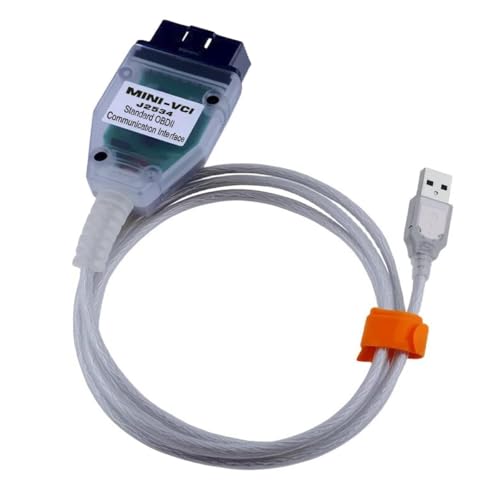
 VCI 16Pin Cable 1pc x CD...
Last update on 2026-06-12 / Affiliate links / Images from Amazon Product Advertising API
If the PDF is very large, it may not load in the preview below.
Some older TSBs had multiple PDFs — visit the NHTSA Website to view all PDFs.
If the TSB PDF does not show, download or view it on the NHTSA Website.
Click on the (+) Plus Sign
Then Click on Associated Document(s)
Search NHTSA Database for Recalls
Search NHTSA Database for Vehicle Investigations
View Latest Vehicle Investigations
Search NHTSA Database for Vehicle Complaints
View Latest Vehicle Complaints
TSB/Document ID: 15-305-22R
Replacement Service Bulletin Number:
MFR Communication Date: 2024-10-02
MFR Internal Campaign ID/Software Version:
Communication Type: Service Bulletin/Repair Instructions
NHTSA Components: ELECTRICAL SYSTEM
MFR Component System:
MFR Component Subsystem:
Previous TSB | Next TSB |
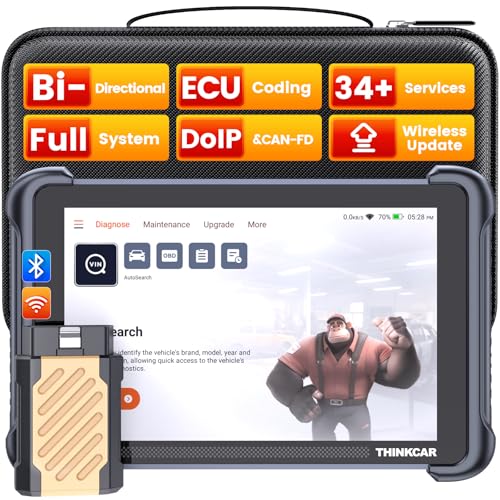
- [Notice] When you receive a used escaner automotriz device, it may be a customer return resold by Amazon without inspection. You can exchange it for a new one through Amazon. As this situation is unavoidable, we sincerely apologize. For any issues, contacting us via Amazon's "Messages" is the best way, and we’ll provide a solution within 24 hours. THINKSCAN 689BT Can Be Used Immediately After It is Turned On, Without Complicated Registration Process, Which is More Convenient & Quick.
- [Good News] THINKSCAN 689BT is the most competitive automotive scan tool to date, offering wireless updates with no subscription fees(valued 500Buc.ks) . With all the features of THINKTOOL PD8,PRO, built on Android 10 platform with 4-core CPU, 4GB RAM
 and 64GB ROM, serving up to 5X faster than older MAX/MINI/PLUS vehicle scanners escaner automotriz, no more slow and delayed feedbacks, it's time to update your garage tool.
 - [Big Money Saver] Premium THINKSCAN 689BT Wireless Diagnostic Scanner Escaner Automotriz, save up to 400USD per year, includes all useful features: Full bi-directional controls, ECU coding, 34+ services, OEM all system diagnostics, Worldwide vehicles coverage, CAN FD & DoIP, FCA AutoAuth(The 689BT only provides a login and purchase portal, and users are required to register for an FCA account and pay a membership fee in order to perform the relevant automotive diagnostics)
- [3000+ Active Tests]Active testing is one of the most useful features in automotive maintenance and greatly improves mechanic efficiency. THINKCAR 689BT bidirectional scanner can send action commends to vehicle sub-systems or components for active test without using vehicle controls. It can perform various tests such as: EVAP Test, Fuel Trim Reset, Injector Buzz Test, Window/ Mirror/ Door Lock Test, Pump and Value Tests, etc. Get functions from "Diagnose>Car Model>System>Active Test".
- [Hot Advanced Features] 689BT bidirectional tool newly adds ECU Coding, Power Balance, Flash Hidden Functions, Reset Adaptive Data, Match Replaced Components, Customize OE-Settings. Such as: 1. changing the color of interior lights 2. switching on/off the auto hold, 3. customizing dash kits 4. activating the auto side mirror folding function 5. disables auto start-stop. Note: Coding functions vary by model&year.

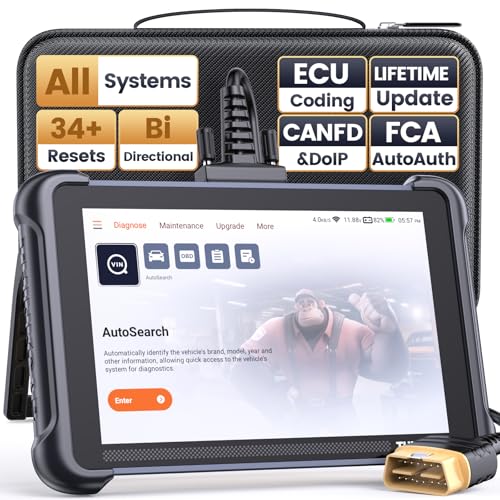
- 【Warm Tips】Wired THINKSCAN 689 is connected through a detachable OBDII cable, and we also have added OBD2 Extension Cable (about 60 cm/2 feet) as g ift, enabling customers handling vehicle repairs with ease. Just click "Bundles Item" above to get it. Note: FCA AutoAuth is a third-party service, additional cost may be required.
- 【Professional Car Diagnostic Tool】Tired of renew fees? Thinkscan 689 scanner provides dealer-level advanced functions without annual fees for auto mechanics and repair shops. 34+ Services, 3000+ Active Test, ECU Coding, 140+ Brands Coverage, FCA AutoAuth, CANFD&DOIP Protocol, Component Matching, Power Balance, V.A.G Guided, Compatible with Google Chrome integration, etc. With strong hardware backing, 64G Memory, Android 10, 4-core processors, and 4150mAh battery. Thinkscan 689 brings you the best as your daily business helper and never lets you drop the ball!
- 【Over 34 Reset Service, Adaptation + Relearn + Calibration + Initialization + Matching】Made for workshops, Thinkscan 689 scanner provides 34+ services for worldwide vehicles: such as Gear/SAS/EPB/TPMS/D.P.F/I.M.M.O/BMS/ETS/Oil/Brake/AFS/GEARBOX/SUNROOF/SUS Reset, ABS Bleed, Injector coding, etc. Warm tips: Compatibility may vary on vehicles' model and year, please contact seller before purchase to make sure it works well on your cars.
- 【Real Active Test】Thinkscan 689 scan tool features over 3000+ full bi-directional control ability, to send commands to vehicle’s systems/components, to verify system input/output without using the vehicle's controls, e.g. turn on the radiator fan, modulate the throttle, open/close windows, operate mirrors, Injector Buz Test, turn on interior&exterior lights, sound horn, test door lock actuators, turn on/off front/rear side ACM Solenoid, Vehicle level position calibration, Wheel Speed Sensor Supply.
- 【Comprehensive Solutions with Advanced Features】Take your vehicle customization to the next level with the Thinkscan 689's advanced ECU coding capabilities. This scan tool provides power balance, PMI, unlock more new features and enhance performance by activating dormant functions, customizing OE settings, matching replaced components, and reprogramming adaptive data to elevate your driving experience. Note: Compatibility varies by car models, please check before order.

- 【Cost-effective OBD2 scanner】 Thinkcar Thinkdiag2 is the most powerful wireless diagnostic tool for it's price! Equipped with multi-functions of Newly added CAN-FD protocol, BiDirectional control(Active Test), 15 Maintenance resets, All Systems diagnosis, Auto VIN, FCA AutoAuth, Unlock the protected FCA vehicle SGW module on Chrysler, Dodge, Jeep, Alfa Romeo, and Fiat vehicles manufactured after 2019.120+ Car brands coverage, No IP limited, etc. Good for workshops & DIYers. Kindly send us VIN to check compatibility before purchase
- 【OE-Level Full Systems Car Scanner with Added CAN FD Protocol】 Upgrade of Thinkdiag, Thinkdiag2 is a bluetooth diagnostic tool can diagnose Full System such as ECM, ABS, SRS, TCM, EPB, TPMS, SAS, A/C, BMS, etc. Thinkdiag2 can read/clear fault codes, read real-time data, read control module information,etc. As the only diagnostic scanner in this price range that supports the CAN-FD protocol, it suits for the latest GM(2019-) , saving $100 to buy a CAN FD adapter, reducing the risk of undetected errors to enhancing the user experience
- 【Bidirectional Test】This bidirectional scan tool Thinkdiag2 allows you to send commands from your smartphone directly to the vehicle's ECU for active testing, quickly locate problem areas, such as A/C clutch, windows, doors, sunroof, etc., reducing the diagnostic time and money. (Note: kindly send us VIN to check compatibility before order.)
- 【15+ Maintenance Functions】Thinkdiag2 OBDII code scanner is designed for individual car owners, DIYers, and small repair shops, which has a separate menu of 15 common special functions, such as Oil reset, EPB reset, SAS calibration, ABS bleeding, injector code, TPMS reset, etc. Enter from the all-system diagnostic menu to unlock more system special functions, and effectively handle the reset and relearn of most cars. Note: The Maintenance functions that each car can do may be different
- 【120+ car brands & FCA Autoauth+10 languages】Thinkcar thinkdiag2 helps you to troubleshoot the problems fast for 100 + US, European, Asian vehicle brands after 1996 that use the OBDII protocol. Only support 12V cars, including gasoline cars and diesel cars. Supporting Autoauth allows you to unlock the protected FCA vehicle SGW module on Chrysler, Dodge, Jeep, Alfa Romeo, Fiat vehicles, etc. (Note: Only provide AutoAuth login portal, and need purchase the registration number on the AutoAuth website by yourself.) Multilingual function allows workshop mechanics to avoid language barriers and use it around the world Without restriction
Last update on 2026-06-12 / Affiliate links / Images from Amazon Product Advertising API
This product presentation was made with AAWP plugin.