
NHTSA ID Number: 11009688
Manufacturer Communication Number: 15-301-22R
TSB/Document Date: 2024-11-04
Summary
This bulletin announces reprogramming file availability and provides a software update installation procedure to optimize the new Gen 4 Denso CP1 Audio and Navigation head units utilized in the models listed.
ATTENTION:
GENERAL MANAGER
q
PARTS MANAGER
q
CLAIMS PERSONNEL
q
IMPORTANT - All
Service Personnel
Should Read and
Initial in the boxes
provided, right.
SERVICE MANAGER
q
© 2020 Subaru of America, Inc. All rights reserved.
SERVICE BULLETIN
APPLICABILITY:
22-23MY WRX Models
NUMBER: 15-301-22R
SUBJECT:
Reprogramming File Availability for Optimization
of Gen 4 Denso CP1 Infotainment Systems
DATE: 09/09/22
REVISED: 10/02/24
INTRODUCTION:
The following information announces reprogramming file availability and provides a software
update installation procedure to optimize the new Gen 4 Denso CP1 Audio and Navigation head
units utilized in the models listed above. As in previous models, the procedure will involve either
downloading the software update files from Subarunet or using those sent directly from Nuspire to
the SDS Notebook and transferring them onto a USB flash drive for head unit installation.
It is VERY IMPORTANT to read and understand this information completely before proceeding.
CAUTION: VEHICLE SERVICE PERFORMED BY UNTRAINED PERSONAL COULD RESULT
IN THE EQUIPMENT DAMAGE OR EVEN SERIOUS INJURY.
Service Bulletin is intended for use by trained technicians ONLY. It informs technicians of
conditions, which may occur in some vehicles or provides information, which could assist with
proper servicing of the vehicle. Properly trained technicians have the equipment, tools, safety
instructions, and know-how to do the job correctly and safely.
A timeline chart along with a complete list of all the conditions addressed and enhancements included
in this and previous Denso software updates are provided in “Appendix D” and “Appendix E”
located at the end of this bulletin.
IMPORTANT NOTE: The update contains 3 folders and 1 file. When performing an update,
the USB must contain the matching number of folders and files and all files must be replaced.
ALWAYS use the latest files together as a set. Please note: The same set of software update files
will be used for BASE, MID and HIGH grade audio systems for 22-23WRX.
NEVER reuse or combine files from a prior update with a newer version.
CAUTION: VEHICLE SERVICING PERFORMED BY UNTRAINED PERSONS COULD
RESULT IN SERIOUS INJURY TO THOSE PERSONS OR TO OTHERS.
Subaru Service Bulletins are intended for use by professional technicians ONLY. They
are written to inform those technicians of conditions that may occur in some vehicles,
or to provide information that could assist in the proper servicing of the vehicle. Properly
trained technicians have the equipment, tools, safety instructions, and know-how to
do the job correctly and safely. If a condition is described, DO NOT assume that this
Service Bulletin applies to your vehicle, or that your vehicle will have that condition.
Subaru of America, Inc. is
ISO 14001 Compliant
ISO 14001 is the international standard for
excellence in Environmental Management
Systems. Please recycle or dispose of
automotive products in a manner that is friendly
to our environment and in accordance with all
local, state and federal laws and regulations.
Continued...
Bulletin Number: 15-301-22R; Revised: 10/02/24
Page 1 of 45
PART INFORMATION:
NOTE: High Level unit is equipped with Navigation option
(Map icon on Home screen)
-
11.6-Inch Display, Mid and High Level Units
-
Dual 7.0-Inch Display, Base Level Unit
Materials Required:
An empty, USB 2.0 or 3.0 storage device (flash drive) will be needed to perform the update
procedure. The device should be dedicated to storing and transferring these updating files only. It
must be a minimum of 64GB or more in size and contain a NTFS file format before downloading the
update files onto it. Be sure to locate and re-format any existing USB drives used for updating audio
units. They must be fully cleared before adding these new update files to them.
IMPORTANT NOTES:
•
NEVER change the update file names after downloading them.
•
NEVER save any other files on the same flash drive.
There are various types of USB flash drive available from many suppliers. If the head unit does
NOT recognize the USB drive during the reprogramming process due to Controller IC type of USB
drive or Compatibility with the head unit, confirm the flash drive format is NTFS. The flash drive
must be formatted for NTFS. If a recognition problem persists, use a USB flash drive from another
manufacturer.
•
Kingston®:
Kingston DataTraveler G3 Series DataTraveler 100 G3 DT100G3/64GB
Kingston DataTraveler SE9 Series DataTraveler SE9 G2 3.0 DTSE9G2/64GB
Kingston Digital 64GB Data Traveler 3.0 USB Flash Drive - Violet (DTIG4/64GB )
Continued...
Bulletin Number: 15-301-22R; Revised: 10/02/24
Page 2 of 45
•
SanDisk®:
SanDisk Ultra Series SDCZ48-064G-J57
SanDisk Cruzer Blade Series 64GB
SanDisk Cruzer Glide Series CZ60 SDCZ60-064G-B35 64GB
•
Transcend®:
JetFlash 790 Series TS64GJF790KBE
•
PNY®:
PNY Retract USB 3.0 Flash Drive, 64GB, black (P-FD64GTRTC-GE)
•
Silicon Power®:
2 Pack USB 3.0/3.1 Gen1 USB Flash Drive Blaze B02
IMPORTANT NOTE: The update contains 3 folders and 1 file. When performing an update,
the USB must contain the matching number of folders and files and all files must be replaced.
ALWAYS use the latest files together as a set. Please note: The same set of software update files
will be used for BASE, MID and HIGH grade audio systems for 22-23 WRX.
NEVER reuse or combine files from a prior update with a newer version.
SERVICE PROCEDURE / INFORMATION:
REMINDER: Customer satisfaction and retention starts with performing quality repairs.
STEP 1- VERY IMPORTANT: Before proceeding with the software updating procedure, the
currently installed software version ID MUST be confirmed by following the steps below:
1a) After starting the engine and system boot-up completes, from the HOME screen, touch the
Settings button.
Continued...
Bulletin Number: 15-301-22R; Revised: 10/02/24
Page 3 of 45
1b) Press the General button. Use the down arrow to scroll to System Information then press to
display the System Information / Version information.
The examples below identify the head unit model and the last 6 digits signify the software version
number.
If on a WRX, the software version number should read:
22-23MY Model
MY
22-23MY
Carline
WRX
F21SHMxxx-xxx(High model software)
F21SMMxxx-xxx(Mid model software)
F21SBMxxx-xxx(Base model software)
Trim/Grade
Older Software Versions
Latest Software Version
BASE
101-780
121-980
132-080
142-180
152-280
MID
101-780
121-980
132-080
142-180
152-280
HIGH
101-780
121-980
132-080
142-180
152-280
Continued...
Bulletin Number: 15-301-22R; Revised: 10/02/24
Page 4 of 45
If the software version number matches “Older Software Versions” proceed to STEP 2 below. If the
software version is “Latest Software Version” as the unit already has the latest software version
installed. Proceed to the WARRANTY / CLAIM INFORMATION section of the TSB and process
a claim for Version Check Only.
STEP 2- Prepare the USB:
CAUTION: Do not use any USB flash drive which utilizes file organizing software or an operating
system.
VERY IMPORTANT: Before attempting to download any data files, confirm the PC and flash drive
being used is not infected with any virus. The flash drive MUST be formatted for NTFS.
•
Make sure the USB flash drive contains no other files.
•
Right click on the corresponding “Removable Disk”.
•
Select “Format”.
•
From the File System drop-down menu, select “NTFS”
•
Check the “Quick Format” box (if not already done).
•
Click on “Start” to format the USB flash drive.
STEP 3- Download the Update Files to the USB:
The files are available for download on Subarunet (see “A” below).
The applicable reprogramming files have also been sent directly to retailers by Nuspire in the same
way a Select Monitor Update would be pushed out. (see “B” below).
Follow “A” when using files downloaded from Subarunet.
Follow “B” when using the files sent directly to the SDS notebook from Nuspire.
“A” When using update files downloaded from Subarunet:
A
Click Here to Access the Downloads
for Audio/Navigation
Information on Subarunet
Continued...
Bulletin Number: 15-301-22R; Revised: 10/02/24
Page 5 of 45
IMPORTANT: Files downloaded from Subarunet will be .zip files and must be unzipped before
they can be used. Using the normal audio / navigation system file update download procedure: Go to
Subarunet, select Service Operations and Technical>>Forms/Downloads>>Gen 4/Denso for Audio/
Navi then click on the applicable Hyperlink to download the file(s) to your SDS Notebook or PC:
Updates for Gen 4.0 Denso Audio and Navigation Head Units - 2022-2023MY WRX:
22-23 WRX-Denso-CP1 AUDIO UPDATE-March 2024
•
Go to Downloads.
•
CAUTION: After download is complete, NEVER change the file or folder names.
•
Open / display the contents of File folder, for example: “File name TBD”.
•
Click on “Extract All Files”.
•
The screen below will appear to set a destination for the extracted file.
Continued...
Bulletin Number: 15-301-22R; Revised: 10/02/24
Page 6 of 45
•
Double-click on the required folder
•
Copy all files then paste (or click / drag) it to the “clean” USB flash drive as listed
(Removable Disk) in the directory.
IMPORTANT NOTE: The update contains 3 folders and 1 file. When performing an update,
the USB must contain the matching number of folders and files and all files must be replaced.
ALWAYS use the latest files together as a set. Please note: The same set of software update files
will be used for BASE, MID and HIGH grade audio systems for 22-23 WRX.
NEVER reuse or combine files from a prior update with a newer version.
•
To avoid confusion, use a permanent marker to label the flash drive with the file contents
(e.g. 2022MY WRX CP1).
•
Go to Step 4.
“B” When using update files sent directly from Nuspire:
•
Go to My Documents on the GUI screen click on the folder “Denso CP1 Audio-Navi Update
Files” to display the list of available update files shown below.
IMPORTANT: Always confirm there is a correct folder. If not, the SDS notebook hasn’t
been updated with the latest release. Please contact Nuspire to request they resend the
update.”
Continued...
Bulletin Number: 15-301-22R; Revised: 10/02/24
Page 7 of 45
•
CAUTION: After download is complete, NEVER change the file or folder names.
•
Double-click on the required folder and the update file will display as shown.
•
Select all folders and files and either copy / paste or click / drag them to the USB flash drive.
IMPORTANT NOTE: The update contains 3 folders and 1 file. When performing an update,
the USB must contain the matching number of folders and files and all files must be replaced.
ALWAYS use the latest files together as a set. Please note: The same set of software update files
will be used for BASE, MID and HIGH grade audio systems for 22-23 WRX.
NEVER reuse or combine files from a prior update with a newer version.
•
Once all files have been loaded onto the USB flash drive, right click on the drive and select
“Eject”.
CAUTION: NEVER change the file names.
•
Remove the USB flash drive after the prompt appears that says “Safe to Remove Hardware”.
•
Mark the USB to indicate the head unit it will update (2022MY WRX CP1 in this example).
•
Proceed to STEP 4 below.
STEP 4- Perform the software update
CAUTIONS:
•
NEVER attempt to install the software immediately following an exchange module
installation.
Let the system restart first and operate for 20 minutes.
•
NEVER attempt to install the software a second time for 30 minutes following a
previously unsuccessful software installation.
•
NEVER attempt to install the software for at least 30 minutes after completing a
FOTA update.
Continued...
Bulletin Number: 15-301-22R; Revised: 10/02/24
Page 8 of 45
Best practice is to prevent USB software update conflicts with FOTA software update. Please
confirm “Automatically Check for Update” setting is turned off following the steps below, prior
to starting the software update via USB.
4a) Perform the update in a well ventilated location if updating with the engine running OR
with the ignition ON and a battery charger connected.
4b) PRESS and HOLD the RIGHT-side temperature control buttons (both up and down)
and press the Tune / Scroll knob 6 times then release all to display the Dealership Mode
Menu.
High/Mid
Base
Continued...
Bulletin Number: 15-301-22R; Revised: 10/02/24
Page 9 of 45
4c) Select Software Update from the Dealership Mode menu.
High/Mid
Base
IMPORTANT NOTE: On a RARE occasion, the message “Software update setup is
initializing…” may be displayed. Should this occur, proceed to “Appendix A” starting on pg. 16
of this bulletin for further instruction.
4d) The screen below will be displayed.
High/Mid
Base
Continued...
Bulletin Number: 15-301-22R; Revised: 10/02/24
Page 10 of 45
4e) Insert reprogramming USB into the USB port and press OK.
NOTE: If after plugging in the USB, the screen displays a Software Loading
Unsuccessful message, confirm the USB device has been properly formatted and the the
software on the device matches the system being reprogrammed (example: Base software is
being used to update a Base system) and retry.
High/Mid
Base
NG
OK
OK
NG
If you get the message Software Update Incomplete as shown below, please don’t replace the
hardware but retry updating the software according to the instructions in “Appendix B ” on
pg. 17.
High/Mid
Base
Continued...
Bulletin Number: 15-301-22R; Revised: 10/02/24
Page 11 of 45
4f) The screen below will be displayed. Press OK to start the software update.
NOTE: The actual software version displayed will be different from the picture shown below.
Base
High/Mid
Please refer to
the following
table.
Please refer to
the following
table.
Software Version Table
Continued...
Bulletin Number: 15-301-22R; Revised: 10/02/24
Page 12 of 45
4g) Once the update begins, the screen below will be displayed with a progress bar. It takes about
15 to 20 minutes for the update to complete.
VERY IMPORTANT: NEVER turn off the ignition while the software update is in process.
High/Mid
Base
4h) When the software update is complete, the following screen will be displayed (the actual
software version will be different).
Base
High/Mid
Press “OK”
Press “OK”
Continued...
Bulletin Number: 15-301-22R; Revised: 10/02/24
Page 13 of 45
IMPORTANT NOTE:
On a rare occasions a “Software Update Incomplete” message may appear in this step which occurs
due to a bug in the software update procedure. Proceed to Step 4i below to confirm the software
version has been updated to the latest version.
4i) Select OK in the screen above then remove the H/U reprogramming USB from the USB port.
4j) Turn the Ignition OFF, open the driver’s door then close the driver’s door.
4k) Wait for 3 minutes, then turn the ignition ON.
4l) Access Dealership Mode following steps provided item 4b and using the tables below, confirm
the software update completed successfully.
NOTE: The new Software Version number must be entered when prompted at claim entry.
Software Version Table
4m) Enable the setting “Automatically Check for Updates” as shown in the steps below.
4n) Turn the ignition OFF, open the driver’s door then close the driver’s door to complete the
procedure.
Continued...
Bulletin Number: 15-301-22R; Revised: 10/02/24
Page 14 of 45
WARRANTY / CLAIM INFORMATION:
For vehicles within the Basic New Car Limited Warranty period or covered by an active Subaru
Added Security Gold plan, this repair may be submitted using the following claim information:
Labor Description
Labor
Operation #
Labor
Time
Fail Codes
DENSO CP1 SOFTWARE UPDATE-INCLUDES VERSION CHECK
A831-186
1.0
ZTZ-48
(BASE, MID, HIGH)
REMINDER: The new Software Version number must be entered when prompted at claim entry.
NOTE: Retailers are now permitted to claim up to $5.00 per claim in Sublet to help offset the cost
of replacement USB drives. Repeated re-formatting of the USB drives used for reprogramming
can compromise their ability to operate properly. Over time, hardware connections can loosen and
stored data files can become corrupted. Retailers are responsible for replacing any worn or otherwise
inoperable USB drives as needed. This compensation is intended to help defray those costs.
IMPORTANT REMINDERS:
•
SOA strongly discourages the printing and/or local storage of service information as
previously released information and electronic publications may be updated at any time.
•
Always check for any open recalls or campaigns anytime a vehicle is in for servicing.
•
Always refer to STIS for the latest service information before performing any repairs.
Continued...
Bulletin Number: 15-301-22R; Revised: 10/02/24
Page 15 of 45
“APPENDIX A”
Follow this procedure in the RARE case of “Software update setup is initializing…” message is displayed:
• If the screen shown below appears, WAIT for approximately 30 minutes or as long as necessary
(waiting for longer than 60 minutes might indicate system malfunction). In that case please
perform recovery according to the instructions in “Appendix B ” to allow the Software update
setup initialization process to complete.
Base
High/Mid
•
The screens shown below will be displayed when the process completes.
Base


- [J2534 Pass-Thru Programmer] - TOPDON RLink J2534 is...
- [All-in-One OEM Reprogramming and Diagnostics] - When...
- [Tested, Trusted, and Proven for Accuracy] - TOPDON RLink...
- [One-Click Installation, Continuous Updates] - The exclusive...
- [Works with Windows Compatibility and OEM Software...

This product presentation was made with AAWP plugin.
If the PDF is very large, it may not load in the preview below.
Some older TSBs had multiple PDFs — visit the NHTSA Website to view all PDFs.
If the TSB PDF does not show, download or view it on the NHTSA Website.
Click on the (+) Plus Sign
Then Click on Associated Document(s)
Search NHTSA Database for Recalls
Search NHTSA Database for Vehicle Investigations
View Latest Vehicle Investigations
Search NHTSA Database for Vehicle Complaints
View Latest Vehicle Complaints
TSB/Document ID: 15-301-22R
Replacement Service Bulletin Number:
MFR Communication Date: 2024-10-02
MFR Internal Campaign ID/Software Version:
Communication Type: Service Bulletin/Repair Instructions
NHTSA Components: ELECTRICAL SYSTEM
MFR Component System:
MFR Component Subsystem:
Previous TSB | Next TSB |
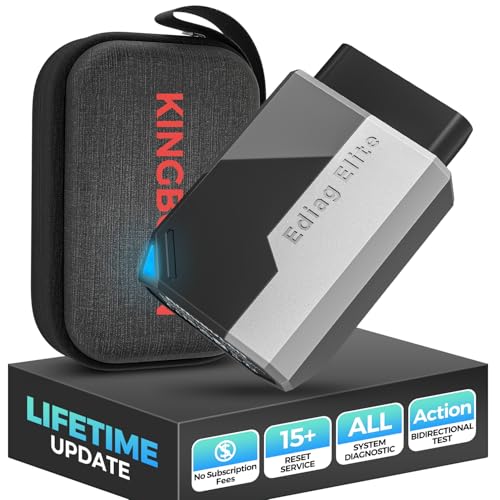
- OBD2 Bluetooth Scanner Lifetime Update: Ediag Elite offers revolutionary Advantage Lifetime Updates with unlimited access to the superior 15+ reset service, bidirectional testing and full system diagnostics.The Ediag Elite is an excellent Bluetooth OBD2 scanner diagnostic tool ideal for DIY's and private car owners.
- Bidirectional Test for Quickly Locating Problems: The Bidirectional Scan tool allows you to send commands directly from your smartphone to your vehicle for active testing. This feature helps to quickly narrow down problems such as air conditioning clutches, windows, doors, sunroofs, etc., reducing diagnostic time for mechanics and helping DIY users locate faults more easily. In addition, Ediag Elite provides fault analysis and repair guidance to help you solve problems efficiently.
- 15+ Maintenance Resets: The current version introduces 15+ popular special features: Oil Reset, Headlight Matching, Bleeding Reset, TPMS Reset, BMS Reset, Gear Box Relearn, Throttle Learning, Injector Coding, SAS Reset and more special functions in system diagnose menu. These functions make it easy for owners to carry out the necessary maintenance and servicing, ensuring that your vehicle stays in top condition, prolonging its service life and preventing common problems and breakdowns. Note: The Special function vary by model& year, Reach us check compatibility.
- Wide Compatibility CANFD & FCA
 Autoauth: Compatible with GM, Ford, Toyota, Chrysler, Honda, Mazda, Nissan, Mitsubishi, Hyundai, KIA with standard OBD2 port from 1996 to newer. More than 100+ car brands and features will be released gradually. Newest Ediag Elite scanner supports CANFD Protocol and FCA cars. Note: Coverage may vary on different vehicle by model& year ,Please contact us to confirm compatibility before purchase.
 - Perfect for Monitoring The Health of Your Vehicle: Ediag Elite is designed to make vehicle maintenance simple and efficient. With intelligent Auto VIN quick recognition, it is easy to connect to your car without the need for manual input. Real-time data is visualized in a variety of formats, including graphs, numeric, meter displays and clear 4-in-1 data charts, allowing you to effortlessly monitor real-time data. Data logging/reporting is available for playback and further analysis
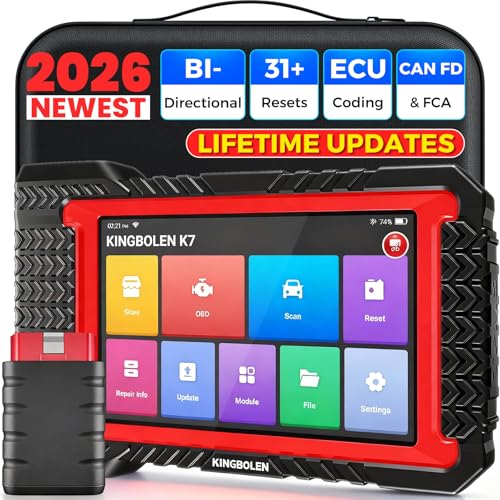
- No Annual Fees & 2026 Upgraded CAN FD: Why pay $199/year or more for updates? The 2026 newest Kingbolen K7 obd2 scanner features have been upgraded to Lifetime Updates without subscription fees, saving you significant costs in the long run. K7 scan tool also adds the CAN FD protocol for the latest GM models (2019+), enabling faster data transfer, reducing the risk of undetected errors
- 2026 Newest Top-tier Car Scanner: Kingbolen K7 diagnostic scan tool is equipped with most capabilities for daily repair/maintenance: Wireless diagnosis via Bluetooth, Bidirectional Test, ECU Online/Offline Code, 31+ Resets, PMI for Ford, Lincoln, Mazda, Global version for 100+ brand vehicles and 17 languages, no area limit, FCA AutoAuth
- OE-Level Full Systems Scan Tool: K7 professional diagnostic scanner with Auto Vin can do one-click to scan ECUs on most of vehicles, like pcm, ecm, eps, bcm, tpms, sas, a/c system... to read/clear code, view live data, freeze frame, read ecu info. 4-in-1 data stream graphics can make data viewing more intuitive. Detailed diagnostic reports will help you easily master the car situation as it can be shared by bluetooth or email! Adding workshop information can help your customers to know more
- Bidirectional Test/Active Test & ECU Code: Stop guessing and start fixing. Bidirectional scan tool Kingbolen K7 can perform real active test that can send commands to the vehicle's ECU to drive the actuators to work, like window, rear mirrors, sunroof, door, solenoids, wipers, headlamp, etc, helping you quickly find out bad parts and pinpoint faulty issues. K7 bidirectional scanner will be a good choice to save money and time on car repairs when performing complex maintenance and repair
- 31 Reset Functions: Avoid expensive dealership visits for simple services. Experience tells us that just a small repair service may cost a lot of money. Kingbolen K7 is a professional diagnostic scanner with 31 common maintenance services like Oil /SAS/EPB/TPMS Reset, Battery Matching, ABS Bleeding, Injector Code, etc. It effectively handles most of the car reset and relearning jobs, perfect for experienced DIYers and mechanics. Note: Functions in the menu vary across vehicles. Kindly check the compatibility before purchase
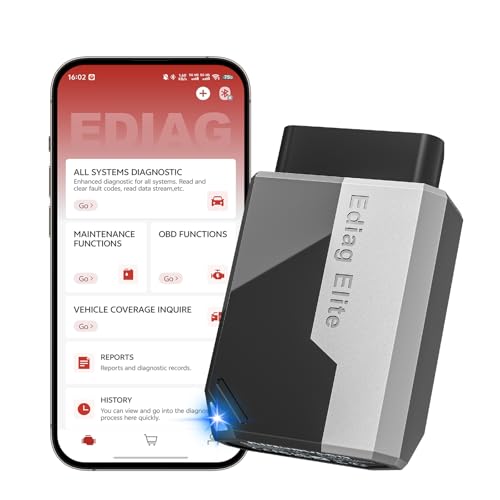
- 【Cost-effective Diagnostic Scan Tool】Lifetime updates without fee, No subscription fee required, No IP restrictions, Ediag Elite bluetooth scanner stands out. It can perform in-depth Full System diagnostics,15+ Reset Services, powerful Active Test, CANFD & FCA AutoAuth. Connect your phone via Bluetooth for diagnosis, providing a faster, smarter and smoother diagnostic experience. Easy to put in pocket, convenient to carry, keep track of the car's status anytime, anywhere. Best bang for your bucks.
- 【15+ Reset Service, Easy Problem Solving】 KINGBOLEN Ediag Elite obd2 scanner diagnostic scan tool comes with 15+ professional reset functions, including: Oil Reset, ABS Bleeding, Injector Code, SAS Reset, TPMS Reset, BMS Reset, AFS Reset, Sunroof Calibration, Brake Reset and more special functions in system diagnose menu. The ideal bluetooth scanner for mechanics and DIY enthusiasts, which can save unnecessary maintenance costs and significantly shorten repair time.
- 【Comprehensive Full Systems Diagnostic】 The Ediag Elite obd2 scanner bluetooth supports full system In-Depth diagnosis. It can read/clear fault codes, read real-time data/freeze frame, module information, and perform testing and reset functions for ECM, BCM, ABS, SRS, TPMS, TCM, BMS, SAS, A/C & RTM systems ect. It works with most car models after 1996, cover more than 150+ car brands. Supports 22 global languages for your convenience(EN, FR, ES, DE, IT, RU, PT, JP, TU...)
- 【Powerful Bidirectional Scan Tool & Active Test】 The obd2 code reader for Ediag Elite can perform real time active test that can send commands to the vehicle’s ECU to drive the actuators to work, such as turn on the radiator fan, modulate the throttle, open/close windows, etc. It can help you quickly find out the bad components and the cause of the fault, which can save you a lot of time. With BT 5.2 wireless connectivity, you can enjoy wireless diagnostics up to 33 feet.
- 【FCA AutoAuth & CANFD Compatibility】 Ediag Elite scan tool offers support with FCA Gateway Access, allowing you to perform protected functions on FCA vehicles, including Chrysler, Dodge, Jeep, Alfa Romeo, Fiat vehicles, etc.(Note:just allows you to access the FCA, but need to have your own FCA account) Supports the CAN-FD protocol, provide high-speed vehicle diagnostic communication and data transfer, working perfectly on GM vehicles produced after 2020, saving $100 to buy a CAN FD adapter.
This product presentation was made with AAWP plugin.
Last update on 2026-06-06 / Affiliate links / Images from Amazon Product Advertising API