
NHTSA ID Number: 11009688
Manufacturer Communication Number: 15-301-22R
TSB/Document Date: 2024-11-04
Summary
This bulletin announces reprogramming file availability and provides a software update installation procedure to optimize the new Gen 4 Denso CP1 Audio and Navigation head units utilized in the models listed.
High/Mid
1. Turn the ignition OFF, open the driver’s door, close the driver’s door and WAIT for 3 or more
minutes before proceeding further.
2. Open the driver’s door again and either turn the ignition ON (if a charger is connected) or start the
engine.
3. Go to Dealership Mode menu again (PRESS and HOLD the RIGHT-side temperature control
buttons (both up and down) and press the Tune / Scroll knob 6 times then release all to display the
Dealership Mode) and select Software Update as in STEP 4c beginning on pg. 10.
IMPORTANT NOTE: If this procedure is required, contact Techline as additional action may be
necessary.
Continued...
Bulletin Number: 15-301-22R; Revised: 10/02/24
Page 16 of 45
“APPENDIX B”
In case of retrying the software update after the first attempt of update fails.
•
If the first attempt of update fails with the message below, follow the steps described below 1-2 to
1-8 before retrying the software update.
1-1. Select OK in the screen below
High/Mid
Base
1-2. Turn the ignition switch or the engine OFF, and turn it ON again.
Caution: Do not remove battery terminal and keep battery power supply.
Base
High/Mid
Continued...
Bulletin Number: 15-301-22R; Revised: 10/02/24
Page 17 of 45
1-3. Select Software Update in the Dealership Mode diagnostics screen.
Base
High/Mid
1-4. When you see the screen below, wait for approx. 15 minutes until the initialization is
complete
Base
High/Mid
Continued...
Bulletin Number: 15-301-22R; Revised: 10/02/24
Page 18 of 45
1-5. You will see the screen below when the initialization is complete.
Base
High/Mid
1-6. Turn the ignition switch or the engine OFF, open the driver side door and close the door
then wait for 3 minutes.
1-7. Open the driver side door then turn the ignition switch or the engine ON.
1-8. Go to Dealership Mode menu again (PRESS and HOLD the RIGHT-side temperature
control buttons (both up and down) and press the Tune / Scroll knob 6 times then release all to
display the Dealership Mode) and select Software Update as in STEP 4c beginning on pg. 10.
Continued...
Bulletin Number: 15-301-22R; Revised: 10/02/24
Page 19 of 45
“APPENDIX C”
In case the Gracenote update popup screen appears or software initializing screen does not go
away for more than 20 minutes, please perform steps 2-1 to 2-11.
High/Mid
2-1. Select “Settings” in the Dealership Mode diagnostics screen.
High/Mid
Base
Base
Continued...
Bulletin Number: 15-301-22R; Revised: 10/02/24
Page 20 of 45
2-2. Select “Memory Initialization”
High/Mid
2-3. Select “OK”
After Memory Initialization, all settings are reset to factory default.
High/Mid
Base
Base
Continued...
Bulletin Number: 15-301-22R; Revised: 10/02/24
Page 21 of 45
2-4. You will see the following screen
High/Mid
Base
2-5. After a few seconds, system restarts itself.
2-6. Select “Software Update” in the Dealership Mode diagnostics screen.
Base
High/Mid
Continued...
Bulletin Number: 15-301-22R; Revised: 10/02/24
Page 22 of 45
2-7. When you see the screen below, wait for about 15 minutes until the initialization is complete
Base
High/Mid
2-8. You will see the screen below when the initialization is complete.
High/Mid
Base
2-9. Turn the ignition switch or engine OFF, open the driver side door and close the door then
wait for 3 minutes.
2-10. Open the driver side door then turn the ignition swatch or engine ON.
2-11. Go to Dealership Mode menu again (PRESS and HOLD the RIGHT-side temperature
control buttons (both up and down) and press the Tune / Scroll knob 6 times then release all to
display the Dealership Mode) and select Software Update as in STEP 4c beginning on pg. 10.
Continued...
Bulletin Number: 15-301-22R; Revised: 10/02/24
Page 23 of 45
“APPENDIX D”
Denso Gen 4 Software Update Timeline (TSB Number: 15-301-22)
Update #
Model Year:
Release
Date:
0
2022
2/1/2022
F21SHM101-780
F21SMM101-780
F21SBM101-780
- See “Conditions Addressed by Update #1” as
outlined in “Appendix E” below.
NEW Software Version ID #:
Conditions Addressed:
SOP for 22MY BRZ
1
2022
8/26/2022
F21SBM121-980
F21SBM121-980
F21SBM121-980
F21SMM121-770 (MID FOTA SOFTWARE)
F21SHM121-770 (HIGH FOTA SOFTWARE)
2
2022
11/16/2022
F21SHM132-080
F21SMM132-080
F21SBM132-080
- See “Conditions Addressed by Update #2” as
outlined in “Appendix E” below.
3
2022-2023
5/19/2023
F21SHM142-180
F21SMM142-180
F21SBM142-180
- See “Conditions Addressed by Update #3” as
outlined in “Appendix E” below.
4
2022-2023
3/18/2023
F21SHM152-280
F21SMM152-280
F21SBM152-280
- See “Conditions Addressed by Update #4” as
outlined in “Appendix E” below.
Continued...
Bulletin Number: 15-301-22R; Revised: 10/02/24
Page 24 of 45
“APPENDIX E”
Symptoms Addressed By Update #4:
Number
1
Symptoms to be Improved:
While welcome animation on CID is displayed and the driver's door is left open, if
turning ignition OFF/ON, the CID screen will be black screen.
2
After starting the engine, the loading animation remains and the screen does not
transition remaining blank.
3
When the “All” tab is pressed on the TravelLink Sports screen, a blank screen
appears.
4
During Bluetooth audio playing, the CID screen turns into a black picture.
5
The Information Display Area at the top of the CID screen displays a different
information screen from the last time.
6
Touch operation of the CID screen does not work.
The screen is displayed and sound is played, but the touch-screen operations are
not available.
7
Operation of the CID screen and reaction may become slow while using Bluetooth
audio.
8
Immediately after turning ignition on, it takes about 50 seconds to start SXM
playing.
9
The CID screen resets immediately or within 3 minutes after engine start.
Continued...
Bulletin Number: 15-301-22R; Revised: 10/02/24
Page 25 of 45
Number
10
11
12
13
14
Symptoms to be Improved:
If a same date is set to maintenance date, birthday, and anniversary date, pop-ups
will appear in sequence on the top of the CID after engine is started when the day
comes. Under this condition, if an operation is performed to delete the maintenance
date, birthday or anniversary date registration within a few seconds immediately
before the pop-up display, the CID screen will reset.
When the ignition is repeatedly turned ON/OFF in quick succession, CID screen
resets right after startup.
After turning the ignition ON, the CID screen resets approximately after 6 minutes
due to a communication issue within the CCU causing the radio tuner to become
unresponsive.
Repeated and consecutive operation of voice recognition activation, CarPlay
activation, and the HOME button operation cause the CarPlay screen to be black
screen for several seconds.
When the engine is started with the iPhone connected via USB, CarPlay does not
start even if the CarPlay icon on the home screen is pressed.
This can be resolved by reinserting the USB cable.
Continued...
Bulletin Number: 15-301-22R; Revised: 10/02/24
Page 26 of 45
Number
15
Symptoms to be Improved:
After performing operations 1 and 2 below from the CarPlay screen, returning to
the CarPlay screen causes the CarPlay screen to be black screen.
Operation 1: Switching to a pop-up screen such as the air conditioner screen
Operation 2: Interrupt pop-up screen display due to volume operation, etc.
16
CarPlay does not activate if the cable is disconnected or inserted while using
CarPlay and/or temporary contact failure occurs on the cable.
17
When an iPhone/iPod is connected via USB cable and connected as an iPod audio
device instead of CarPlay, the CID screen resets when the music information is
received.
(This occurs when some of the music information data sent by the iPhone/iPod is
missing.)
When using CarPlay, it suddenly disconnects and not reconnect even after
unplugging and plugging the USB cable.
18
19
CarPlay is not activated.
20
When volume is changed when using CarPlay, the speakers do not temporarily
sound.
21
When calling with CarPlay function, the other party's voice can be heard, but
user’s voice cannot reach the other party.
22
If there is no response from the iPhone/Android device for an extended period,
a pop-up is displayed, indicating that the screen cannot be shown due to
communication issue with the device.
While using AudroidAuto to play music, the sound comes from the device (smart
phone) itself instead of the vehicle speakers when the following steps (1) to (4) are
operated.
(1) Start a hands-free call while music is playing on the AndroidAuto App.
(2) ""See you"" is displayed on the CID screen after turning the ignition off, and
then the screen disappears.
(3) Turn the ignition on again without waiting for a long time.
(4) End the hands-free call.
23
Continued...
Bulletin Number: 15-301-22R; Revised: 10/02/24
Page 27 of 45
Number
24
25
26
27
28
Symptoms to be Improved:
Music does not sound on Android Auto if the following steps (1) to (3) are operated.
(1) Start hands-free call while music is playing on Android Auto.
(2) Turn off audio by pressing and holding the volume button.
(3) Press and hold the volume button again to turn ON and end the hands-free call.
This can be resolved by reinserting the USB cable.
During navigation with Android Auto, the map displays the vehicle's position on
the highway even after exiting the highway.
Improve error message in case of Bluetooth connection failure.
The error message that pops up in case of Bluetooth connection failure due to
corrupt pairing information is improved with added clarity to advise the user on
what to do.
After canceling the phonebook transfer that appears automatically when
connecting via Bluetooth, attempting to transfer a phonebook by manual operation
fails to initiate the transfer.
The date of receipt of a received message is displayed as “2000/1/1.”
This occurs on some models of phones with Android OS 13 or later.
29
When connecting Apple devices running iOS 16.4 or later, the short message
feature is not available.
30
Audio operation (audio playing, volume change, audio source switch) is not
available after engine starts.
31
No sound from all audio sources after engine starts, and "No Audio Playing" is
displayed on the CID screen.
32
The volume of the phone voice for hands-free calls is set to zero itself.
33
After pressing the radio icon from the HOME screen, the FM radio is not sound.
34
After ACC-OFF while SXM is playing, SXM does not play automatically the next
time ACC-ON.
35
When operating the navigation system by voice recognition, some regional place
names (states, cities, etc.) are not recognized.
Continued...
Bulletin Number: 15-301-22R; Revised: 10/02/24
Page 28 of 45
Number
Symptoms to be Improved:
36
The destination setting cannot be deleted even if "Cancel Route" or "Delete
Destination" is said with the voice recognition.
37
When a language other than English is set, the distance to the destination displayed
in the navigation destination is abnormal.
When the distance is greater than 1.0, the decimal point is rounded down.
When the distance is less than 1.0, the value becomes 0.1.
When the clock was set to "AUTO," the date and time are shifted to a date
approximately 20 years in the future due to anomalous values received from GPS
or other reasons. If it occurs, the date and time cannot be corrected manually and
have to be reset by disconnecting the battery terminal. As a countermeasure, a
setting screen to manually adjust the clock display in the "AUTO" setting is to be
added to the Dealership Mode (Dealership Mode->Settings->GNSS Data Setting).
38
39
When the preset channel on the SXM is pressed, a different channel is selected
instead of the registered channel.
40
Continuous operation of Preset Up/Down on SXM preset channels causes switching
to channel 0.
41
The radio preset list is lost completely.
42
(Specifications) If a music was being played via USB when the audio system
was turned off at the last time, the audio system is to resume playing the same
music automatically when the same USB is plugged in at the next time. (Trouble
Symptom) The system does not resume playing from the previously played music
and starts to play from the first music in the USB.
When resuming a USB audio playing after editing the folder structure and/or the
order of the music in the USB by PC, a mismatch between the played tracks and
the displayed track names occurs.
After indicating "Play Artist ******" via voice recognition, the user selects a
specific music on the displayed list to start USB audio playback. Then, instead of
the music on the list, the specific music from the first album of that artist will be
played.
43
44
Continued...
Bulletin Number: 15-301-22R; Revised: 10/02/24
Page 29 of 45
Number
45
46
47
48
49
Symptoms to be Improved:
After all music has been played by USB audio with the repeat function in “off”
position, music cannot be played after pressing search to switch the playing mode
(folder, artist, album, etc.) and selecting a music.
Voice recognition does not recognize certain SXM channel names.
When starting hands-free call using voice recognition commands, a warning
message "Please wait a minute" appears on the meter display and the call cannot
be initiated.
When using the voice recognition feature while playing audio or radio, the speaker
may not sound.
When updating the CCU software from Dealership Mode, a progress bar for the
installation stops in the middle of the process and the update is not completed.
New Functions and Enhancements included in Update #4:
Number
1
2
3
New Function or Enhancement:
To improve the chance of reestablishing the connection in case of connection failure
of Bluetooth and/or Android Auto due to error in the smartphone side, the CCU
sends a request to the smartphone device again as additional attempt.
CCU Support vertical screen displays for Android Auto, but the actual display
screen size differs depending on the Android device’s OS version.
Update against vulnerability in security of Bluetooth connection.
Continued...
Bulletin Number: 15-301-22R; Revised: 10/02/24
Page 30 of 45
Number
4
New Function or Enhancement:
When getting CCU USB logs at the Diagnostics Recorder screen in the Dealership
Mode, it was necessary to turn off "Begin Recording" to ""Export Data to USB."
And after the log acquisition, it was necessary to turn "Begin Recording" ON
again. The system interface is improved so that "Begin Recording" is automatically
switched ON after log acquisition has been accomplished.
Symptoms Addressed By Update #3:
Number
1
Symptoms to be Improved:
2
Unexpexted CP1 system reboot resulting from an inter reset to sync internal communication with Bluetooth module.
CID restarts itself right after engine is started.
3
CID resets and reboots.
4
Right after starting up, the CID is blank only displaying the background without
icons.
5
Loss of audio output for AM/FM
6
Loss of audio output from all sources. Voice from telematics, meter buzzer or beep
sound are not affected.
Continued...
Bulletin Number: 15-301-22R; Revised: 10/02/24
Page 31 of 45
Number
Symptoms to be Improved:
8
Sound is lost when playing Bluetooth audio even though the screen is displayed
without problem. It can occur when the audio source is switched repeatedly
between the Bluetooth and others.
SXM radio output is lost after terminating a handsfree phone call.
9

- Advanced VCI Box, Industry-leading J2534 Pass-Thru...
- High-Speed OEM-Level Diagnostics & Programming: Unlock true...
- Coverage for 17 Car Brands & Ultra Reliability: Works...
- User-Friendly RLink Platform & Expert Support: TOPDON’s...
- 6.6 ft USB-C Cable & Portable Storage Case: The RLink J...
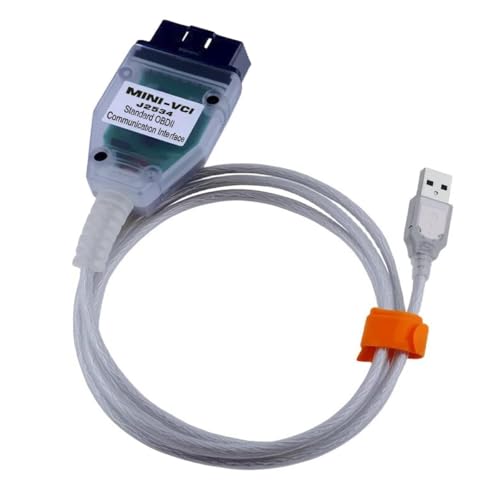
 VCI 16Pin Cable 1pc x CD...
Last update on 2026-06-12 / Affiliate links / Images from Amazon Product Advertising API
If the PDF is very large, it may not load in the preview below.
Some older TSBs had multiple PDFs — visit the NHTSA Website to view all PDFs.
If the TSB PDF does not show, download or view it on the NHTSA Website.
Click on the (+) Plus Sign
Then Click on Associated Document(s)
Search NHTSA Database for Recalls
Search NHTSA Database for Vehicle Investigations
View Latest Vehicle Investigations
Search NHTSA Database for Vehicle Complaints
View Latest Vehicle Complaints
TSB/Document ID: 15-301-22R
Replacement Service Bulletin Number:
MFR Communication Date: 2024-10-02
MFR Internal Campaign ID/Software Version:
Communication Type: Service Bulletin/Repair Instructions
NHTSA Components: ELECTRICAL SYSTEM
MFR Component System:
MFR Component Subsystem:
Previous TSB | Next TSB |

- [2026 Top-Tier Hardware and Software Upgrade]: Topdon ArtiDiag900 Lite scanner has enhanced hardware and latest features, including Android 11.0, 5x faster CPU, 10000mAh battery for 12 hours of continuous operation, stable wireless diagnosis with Bluetooth 5.0, 8-inch touchscreen. Added bi-directional control, wireless diagnosis, battery testing (optional), and DTC repair guide
- [TOPDON Bidirectional Scan Tool]: This bidirectional obd2 scanner sends commands to the vehicle's ECU for active testing, enabling users to accurately and quickly locate faulty components such as injectors, coolant pumps, windows, wipers, headlights, mirrors, etc. The bidirectional control scanner is the ideal choice for workshops/automotive repair shops as it significantly reduces mechanic's diagnostic time.
- [Wireless Bluetooth Diagnostic Experience]: The AD900 Lite scan tool comes with a Bluetooth 5.0 VCI, supporting a wireless diagnostic range of up to 33 feet (10 meters), allowing you to diagnose without being confined to cables or tight spaces. Stable and fast wireless diagnosis provides a comfortable repair environment. It also offers VCI cables to increase connectivity options.
- [DTC Repair Guide Function]: Easily diagnose issues with your vehicle and receive guidance on repairs with the topdon scan tool's fault code definitions for all systems,maximize your diagnostic capabilities. This function is compatible with Chrysler
 /Dodge/Jeep/Fiat 2010-2014 and expanding with continual updates,the AritDiag 900 Lite car diagnostic scanner is the must-have tool for any technician or DIY enthusiast.
 - [OE-Level Full System Diagnostics]:AritDiag900 Lite full system diagnostic scanner can scan ALL available modules(Engine, Transmission, Airbag, ABS, ESP, TPMS, Gateway, Steering, Radio, Air conditioning, ect.) to✔read ECU info, ✔read/clear codes, ✔view live data stream, ✔retrieves freeze-frame, ✔perform active tests, and more. With just a simple click, it provides you with accurate and in-depth diagnostics.

- Bi-Directional Control, Quickly Locate Problems: Turn your phone into a professional diagnostic tool. You can send commands from your phone to the ECU to test injectors, cooling fans, headlights, A/C clutch, windows, wipers, and more. See which one doesn't respond. Helps you quickly locate the problem and save time. No need to tear things apart, avoid blind disassembly.
- Flexible Subscription, Choose Advanced Features as Needed: TopScan Lite provides free-for-life access to core diagnostics, including full system scan, code reading, performance tests, and repair information. After purchase, advanced features (bi-directional control, service operations, live data, code clearing, and AI functions) are free-for-the-first-year. After the first year, if you want to use advanced features, you need to subscribe on a monthly, quarterly, or yearly basis. As new models and reset functions are updated, the tool will also be continuously upgraded.
- Full System Diagnostics, No Fault Hides: Unlike basic diagnostic tools that only cover 4 systems, TopScan can scan all systems. Read and clear trouble codes, view live data streams, and generate a complete vehicle health report – all issues are clear at a glance. Covers 10,000+ vehicle models and is compatible with 99.99% of vehicles.
- AI Assistant - TopFix: Think of TopFix as your personal AI mechanic. It leverages a repair database and OEM data to deliver clear, step-by-step repair solutions. Features include AI Q&A, one-click translation, and a full repair log, making your diagnostic process simpler and more efficient.
- 8+ Hot Resets, Keep Your Car in Top Shape: One-tap resets for oil, throttle, EPB, steering angle, DPF, ABS, BMS, and airbag. It enables car owners to easily perform essential maintenance, ensuring the vehicle stays in optimal condition and extends its service life.
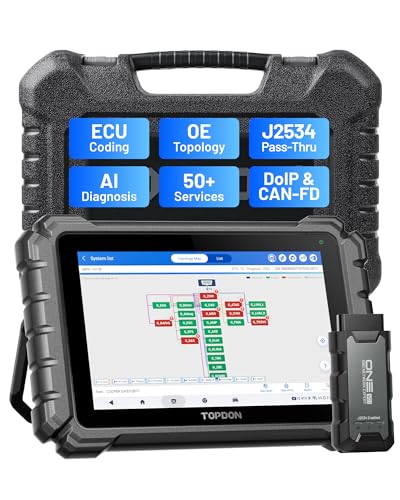
- Dual WiFi & 10.1" Touchscreen: Provides a stable, high-speed wireless link 3x faster than bluetooth, and a responsive, professional interface. Topdon ONE obd2 scanner diagnostic tool ensures smooth, non-lagging diagnostic scan, boosting mechanic efficiency
- J2534 Pass-Thru Support: The included ONE VCI supports the J2534 standard, allowing it to function as a pass-thru device when paired with OEM diagnostic software.Through TOPDON’s RLink platform, technicians can perform dealer-level coding, expanding in-house capabilities without investing in multiple factory automotive scan tools
- OE Topology Mapping: Visualize the vehicle’s ECU network exactly as it’s built.Zoom, pan, and highlight specific modules to pinpoint component issues with precision.Topology mapping displays real-time communication between modules
- 50 Plus Service Functions: Covers high-demand services like ADAS calibration, DPF regen, TPMS reset, ABS bleed, and throttle adaptation.Expands your service menu, allows you to charge premium rates, and turns away zero jobs due to lack of tooling. Vehicle-specific functionality may vary
- Advaned ECU Coding: 10 of the most serviced brands in North America, including full ECU coding and flash hidden support for BMW, VW, Au-di, Benz, Porsche, Toyota, Ni ssan and more. Enables module replacement, feature customization, and personal settings with automatic backup or restore.Lets your shop safely offer high-margin customization services, attracting more customers and boosting profit
Last update on 2026-06-12 / Affiliate links / Images from Amazon Product Advertising API
This product presentation was made with AAWP plugin.