
NHTSA ID Number: 11006912
Manufacturer Communication Number: 2024.26.100_082024.pdf
TSB/Document Date: 2024-09-04
Summary
Tesla does not provide physical owner's manual copies. Instead, all available owner’s manual content is integrated into the vehicle software, and only the content relevant for a given vehicle, based on vehicle configuration and software version installed, is displayed on its touchscreen. This file contains all available owner’s manual content for the vehicle converted to PDF format, and given the distribution method and NHTSA’s submission format requirements, it is the best available representative copy of owner’s manual content. However, a customer who accesses the owner’s manual via their vehicle’s touchscreen would only see the parts of this PDF file that are relevant to their vehicle.
292
Driving
• Navigation, temperature, lights and display settings.
• Autopilot and driving preferences.
Linking a Driver Profile to a Key
You can link a driver profile to a key (or keys) to allow Cybertruck to automatically select the correct driver profile when the
linked key is detected as you approach the vehicle and open the driver's door. To link a driver profile to a key, first ensure you
are using your desired driver profile, then touch Controls > Locks > Keys. You can toggle the driver icon to link or delete a key
to the desired driver profile. The name of the driver profile appears under the key to show that it is linked.
NOTE: Cybertruck supports up to 10 driver profiles. You can link multiple keys to a driver profile, but you cannot link multiple
driver profiles to a single key.
Easy Entry
You can define an Easy Entry setting that moves the steering wheel and driver's seat to make it easy to enter and exit
Cybertruck. Any driver can use the Easy Entry setting by associating it with their driver profile. When the Easy Entry setting is
associated with a driver profile, the steering wheel and driver's seat automatically adjust when in Park and the driver's seat belt
is unbuckled, allowing an easy exit from (and next entrance into) Cybertruck. When returning to the vehicle and stepping on
the brake pedal, settings automatically adjust back to the settings used by the most recent driver profile (or based on the key
if it's linked to a driver profile).
To use Easy Entry with a driver profile, ensure the Use Easy Entry box is checked.
WARNING: Never use Easy Entry to move the driver's seat to the full rearward position when a child safety seat is
installed on a rear seat located behind the driver's seat. With reduced clearance, the movement of the seat may impact a
child's legs, cause injury, or dislodge the seat.
NOTE: You can also make it easier to enter or exit Cybertruck by enabling Auto Lower. For more information, see Auto Lower
on page 290.
Valet Mode
When Cybertruck is in Valet mode, the following restrictions apply:
• Key card must be used to access and drive Cybertruck.
• Speed is limited to 70 mph (113 km/h).
• Maximum acceleration and power are limited.
• Front trunk and glovebox are locked.
• Home and Work locations are not available in the navigation system.
• Voice commands are disabled.
• Cruise control is disabled.
• Autopilot convenience features are disabled.
• The Allow Mobile Access setting cannot be changed.
• Driver Profiles are not accessible.
• Some apps, such as Toybox and Theater, are not accessible.
• The touchscreen does not display the list of keys that can access Cybertruck (see Managing Keys on page 202).
• Wi-Fi and Bluetooth are disabled. When Cybertruck is in Valet mode, you cannot pair new Bluetooth devices or view or
delete existing paired devices. However, if a Bluetooth-paired device or a known Wi-Fi network is within range, Cybertruck
connects to it.
Starting Valet Mode
With Cybertruck in Park, touch the driver profile icon at the top of the Controls screen, then touch Valet Mode.
The first time you enter Valet mode, the touchscreen prompts you to create a 4-digit PIN you will use to cancel Valet mode.
293
Owner's Manual
Driving
When Valet mode is active, the touchscreen displays the word Valet while the driver profile changes to Valet Mode on the
touchscreen.
You can also use the mobile app to start and cancel Valet mode (if Cybertruck is in Park). When using the mobile app, you do
not need to enter a PIN because you are already required to log into the app using your Tesla Account credentials.
NOTE: If PIN to Drive is enabled (see PIN to Drive on page 79), you must enter the driving PIN before you can define or enter a
Valet PIN. Once in Valet mode, Cybertruck can be driven without the valet needing to enter the driving PIN.
NOTE: The PIN to Drive setting is not available when Valet mode is active.
If you forget your valet PIN, reset it from inside Cybertruck by entering your Tesla Account credentials (which also cancels
Valet mode). You can also reset your PIN using the mobile app.
WARNING: Do not use Valet mode when towing a trailer. The torque limitations of Valet mode can make it difficult for
Cybertruck to pull a trailer up a hill.
Canceling Valet Mode
With Cybertruck in Park, touch the Valet Mode driver profile icon at the top of the Controls screen, and enter your 4-digit PIN.
When you cancel Valet mode, all settings associated with the most recently used driver profile and climate control settings are
restored, and all features are available.
NOTE: You do not need to enter a PIN to cancel Valet mode from the mobile app.
Owner's Manual
294
Driving
Trip Information
Displaying Trip Information
Trip information displays on the touchscreen in the "Cards" area on the vehicle status display, or when you touch Controls >
Trips. For the current trip, you can display distance, duration and average energy usage. You can also show distance and total
and average energy used since your last charge and for additional trips.
To name or rename a trip, touch the trip's name, enter a new name for the trip, then press Save. To reset a particular trip meter,
touch its associated Reset button.
Odometer
To display the odometer and view vehicle mileage, do either of the following:
• Touch Controls > Software.
• Touch Controls > Trips.
• Open the mobile app and scroll down to the bottom of the main screen.
295
Owner's Manual
Driving
Pedestrian Warning System
The Pedestrian Warning System causes Cybertruck to emit sound when driving below approximately 25 mph (40 km/h) or
while driving in reverse. Electric vehicles operate quietly and this sound helps to alert pedestrians of your oncoming vehicle.
The sound, which activates whenever Cybertruck is shifted out of Park, gets louder as speed increases.
WARNING: If sound cannot be heard, pedestrians may not be aware of your oncoming vehicle, which may increase the
likelihood of a collision resulting in serious injury or death. Never rely on the Pedestrian Warning System to make sure
that pedestrians are aware of your vehicle. If the Pedestrian Warning System is not operating, schedule a service
appointment.
Owner's Manual
296
Off-Roading
Off-Road Driving
Off-road driving is driving your vehicle on an unpaved surface such as sand, silt, dirt, or mud, or on rocky or snow-covered
surfaces. When Cybertruck is in Off-Road Mode, you have access to settings and drive modes that allow you to manage steep
ascents, descents, uneven terrain, shallow creeks, and other obstacles you may encounter.
The Off-Road app provides greater control over traction, stability, acceleration, and braking. Various modes and settings also
allow you to quickly adjust the ride height of Cybertruck (see Suspension on page 289).
CAUTION: Carefully read all cautions and warnings before driving Cybertruck off road (see Limitations and Warnings on
page 304). Always pay close attention and monitor the area to the front, rear, and sides of Cybertruck for obstacles
while off-road driving.
CAUTION: Any damage caused by off-road driving is not covered by the warranty.
Off-Road Modes and settings include the following:
• Overland: Maximizes traction on various terrains at low speeds. See Overland on page 299.
• Baja: Optimizes the suspension and traction control of Cybertruck for high speed driving on dirt roads or desert
environments. See Baja on page 299.
• Wade Mode: Raises the suspension and pressurizes the high voltage Battery to protect your vehicle from water and debris
while navigating shallow bodies of water. See Wade Mode on page 300.
• Trail Assist: Allows you to maintain your speed while driving on a trail. See Trail Assist on page 301.
• Locking Differentials: Engage for more traction while off-roading. See Locking Differentials on page 301.
Using the Off-Road App
WARNING: Only use Off-Road mode in off-road driving scenarios. Off-Road modes change how Cybertruck handles,
accelerates, and decelerates, and is not appropriate for public roads.
Use the Off-Road app, located in the app tray, to conveniently customize and monitor your off-road settings.
After carefully reading the pop-up window, touch Confirm.
In the Off-Road app, customize options such as:
• Off-Road Mode: Choose between Overland and Baja and customize your preferences. See Overland on page 299 and Baja
on page 299 for more information.
• Locking Differentials: Engage or disengage locking differentials. See Locking Differentials on page 301.
• Pitch, Roll: These angles determine how capable the vehicle is of climbing over an obstacle or up an incline.
NOTE: If you are approaching a large obstacle or change in incline, you can set the right ride height to Extract by touching
Controls > Ride Height > Extract. When the ride height is set to Extract, Cybertruck has increased approach, breakover, and
departure angles.
• Wade Mode
• Rear Steer: You can set Rear Steer to Off or Auto. Auto allows for a tighter turn radius while driving.
• Light Bar: Enable or disable the light bar, if installed.
• Ride Height: Customize your vehicle's ride height based on terrain and other drive settings. See Suspension on page 289.
NOTE: Cybertruck must be in Park to change the off-road drive modes and settings.
NOTE: Your off-road settings remain for approximately 15 minutes after you exit the vehicle. Always double check to ensure
your off-road settings are as intended prior to driving.
297
Owner's Manual
Off-Roading
CAUTION: The TPMS warning thresholds may be lowered to accommodate different off-road needs. Do not rely solely
on the TPMS warning indicator when in an Off-Road mode or setting, as these thresholds do not comply with Federal
TPMS standards. It is your responsibility to ensure tires are adequately inflated at all times and are inflated back to
normal levels before regular driving on roads.
Before Off-Road Driving
1. Plan your route: Carefully consult maps and weather reports before beginning an off-road expedition and familiarize
yourself with the different types of terrain you may encounter (gravel, sand, mud, snow, etc.). Research trails before setting
out and be aware that weather and environmental conditions can change quickly and unexpectedly. Ensure your vehicle has
ample range for your planned route.
2. Secure passengers and cargo: Wearing a seat belt is required by law. Ensure that all passengers are wearing their seat belts
properly (see Seat Belts on page 215). Make sure that loose items in the cabin are stowed or secured, and ensure that the
cargo bed is free of cargo, or that cargo is tightly secured. The tonneau cover can be open or closed while driving off road.
3. Evenly distribute vehicle load: While off-road driving, Cybertruck performs best when the weight of passengers and cargo
is distributed evenly across the front and rear axles (see Vehicle Loading on page 447). Detach large or heavily loaded
trailers before driving off road.
4. Lower tire pressure: Lower tire pressure to increase traction on softer surfaces such as sand or gravel, and on rocky
surfaces. Reducing tire pressure allows tires to make more contact with the terrain, increasing grip and decreasing the risk
of punctures.
WARNING: Avoid making hard turns and other sudden maneuvers when tires are inflated under the recommended
cold tire pressure. Before driving on public roads again, make sure to fill all tires to the recommended cold tire
pressure (see Tire Pressures on page 415).
5. Be prepared: Equip your Cybertruck with supplies in case of emergency, such as a spare tire, a jack, an air compressor, a
portable jump starter, and a flashlight.
6. Remove wheel fairings: Cybertruck has pieces of plastic trim that descend in front of the wheels from the rocker panels on
either side of the vehicle. These are the wheel fairings. The wheel fairings increase aerodynamic performance and range,
but may be damaged while driving off-road over rough, uneven surfaces, rocks, or obstacles. To prevent damage, remove
the front wheel fairings before off-road driving. For more information and instructions for removing the wheel fairings, refer
to the Do It Yourself Guide (see Do It Yourself Maintenance on page 137).
7. Remove wheel covers: To prevent damage, remove the wheel covers before driving off-road. For more information, see
Removing and Installing Wheel Covers on page 422.
While Off-Road Driving
Quickly access off-road settings and vitals from Cybertruck in the vehicle status area on the touchscreen. You can also keep
the Off-Road app open while driving to quickly change settings and preferences based on your driving situation. See quick
stats such as:
• Off-Road Status icons
• Tire Pressures
• Locking Differential status
• Battery and motor temperatures
• Ride Height
NOTE: When the ride height is set to Extract, vehicle speed is limited to 10 mph (16 km/h), and torque may be limited. The
ride height automatically resets to Very High once your driving speed exceeds 10 mph (16 km/h).
If your vehicle is covered in mud after off-roading, rinse the entire exterior of the vehicle with water. It is important to regularly
clean Cybertruck after off-roading because mud and debris can quickly build up and limit some vehicle functions. See
Cleaning Mud on page 127 for more information.
Owner's Manual
298
Off-Roading
Off-Road Modes
Overland
Overland maximizes traction on various terrains at low speeds. By selecting Overland, you can customize the following
settings:
Setting
Options
Description
Surface
All Purpose
Automatically adjusts tire slip based on the amount of available traction and sets the Preferred Ride Height to
High. All Purpose is best suited for mixed terrain driving.
Sand
Allows for high amounts of tire slip to provide optimal traction on soft, deformable surfaces like sand and sets
the Preferred Ride Height to High.
Gravel/
Deep Snow
Allows for medium amounts of tire slip to provide optimal traction on gravel or deep snow, and sets the
Preferred Ride Height to High.
Rock
Tightly manages tire slip to maximize grip in rock crawl conditions and sets the Preferred Ride Height to Very
High. When the ride height is Very High, the suspension system pneumatically connects the springs on the front
and rear axles, increasing suspension articulation for maximum traction.
Hold
Applies the brakes automatically when Cybertruck stops, without you having to put your foot on the brake
pedal. Whether stopped on a flat surface or a hill, Vehicle Hold keeps the brake applied, provided your foot
remains off the accelerator and brake pedals.
Stopping
Mode
WARNING: Never rely on Hold to adequately decelerate or fully stop your vehicle. Many factors can
contribute to a longer stopping distance, including downward slopes, and reduced or limited
regenerative braking (see Regenerative Braking on page 285). Always be prepared to use the brake
pedal to adequately decelerate or stop.
Roll
Allows Cybertruck to roll freely when close to, or at, a complete stop, like a vehicle in Neutral. Therefore, if
stopped on a slope, Cybertruck will roll downward. The brake does not engage, and the motors do not apply
torque (until the accelerator pedal is pressed).
Baja
When Cybertruck is in Baja, the ride height raises and adaptive damping dynamically adjusts based on your Terrain selection to
optimize performance on various off-road scenarios. The electronic stability control system also allows more tire slip on lowtraction surfaces. This is especially useful in high speed driving situations, such as desert or sand driving.
You can customize the following settings:
Setting
Options
Description
Handling Balance
Left
Adjusts the vehicle balance such that Cybertruck behaves more like a front-wheel-drive vehicle. When you
move the slider to the left, Cybertruck is more stable and is more susceptible to understeer (when you turn
the wheel and Cybertruck turns less than normal).
Right
Adjusts the vehicle balance such that Cybertruck behaves more like a rear-wheel-drive vehicle. When you
move the slider to the right, Cybertruck moves with more agility but less stability, and is susceptible to
oversteer (when you turn the wheel and Cybertruck turns more than normal).
Standard
Provides the maximum amount of stability control intervention*.
Reduced
Reduces the amount of stability control intervention.
Minimal
Provides a minimal amount of stability control intervention.
Stability Assist
WARNING: Drive with caution when customizing Stability Assist. If you lose control of Cybertruck,
less stability control intervention will be applied and the vehicle may not stabilize itself. Use only if
you have advanced experience driving beyond grip limits.
Terrain
Smooth
Sets ride height to Medium and increases damping for greater body control and responsive handling. Best
for drifting or high-speed driving on smooth or flat terrains (see Suspension on page 289).
Rugged
Sets ride height to High with damping optimized for rough terrain, medium-sized obstacles, and whoops.
Clearance Sets ride height to Very High for traversing large obstacles.
299
Owner's Manual
Off-Roading
Setting
Options
Deceleration Mode High
Description
Increases the amount of regenerative braking so Cybertruck slows down more dramatically when you
remove your foot from the accelerator pedal, allowing for more dynamic one-pedal driving.
WARNING: Setting the Deceleration Mode to High (located in Dynamics) may cause some loss of
traction on loose surfaces (such as snow).
Standard
Provides the normal level of regenerative braking, allowing Cybertruck to maintain traction on loose, lowtraction surfaces (such as sand, dirt, and gravel).
* Stability control intervention modifies motor torque and selectively applies the brakes to each wheel to make Cybertruck more stable and
help the driver maintain control of the vehicle. In this setting, stability control is reduced compared to on-road driving.
Wade Mode
Wade Mode allows Cybertruck to enter and drive through bodies of water, such as rivers or creeks.
CAUTION: It is your responsibility to gauge the depth of any body of water before entering. Damage or water ingress to
Cybertruck as a result of driving in water is not covered by the warranty.
CAUTION: Always inspect underwater conditions (such as debris, etc.) before entering and use your best judgment.
Take care to drive slowly and safely. If the water is too deep, return to more shallow water or dry land.
1. The maximum wade depth is approximately 32 in. (815 mm) measuring from the bottom of the tire.
Wade Mode must be used any time you are driving Cybertruck through a shallow body of water, such as a river. To enable
Wade Mode:
1. Ensure all doors and windows are fully closed, and your vehicle speed is less than 20 mph (32 km/h).
2. Access the Off-Road App.
3. Select Wade.
Owner's Manual
300
Off-Roading
When enabled, the Wade Mode icon appears on the touchscreen and starts a countdown for how long Wade
Mode is active. Wade Mode duration is limited to 30 minutes.
Wade Mode defaults the vehicle’s ride height to Very High and protects Cybertruck for up to approximately 32 in (815 mm) of
water, driving at slow speeds (1-3 mph (2-5 km/h)). As water depth changes, reduce your vehicle speed accordingly. Do not
disable Wade Mode until your vehicle is fully out of water.
In addition, the vehicle’s high voltage Battery automatically pressurizes to protect the Battery from water and debris.
Muddy waters can reduce the cooling system effectiveness by adhering to the radiator. See Cleaning Mud on page 127 for
information on how to clean your vehicle after a muddy excursion. Wash your vehicle immediately after wading to reduce
chances of bacteria buildup and mud hardening after drying. Vehicles driving in waters should be regularly inspected for signs
of water ingress or damage to components including (but not limited to) the brakes, horn, lights, etc.
CAUTION: On soft or muddy underwater surfaces, Cybertruck may sink in, effectively increasing the water level on the
vehicle. Take this possibility into account and prepare accordingly.
WARNING: Never stop or place the vehicle in Park when crossing water. Do not drive in water next to, or immediately
after, another vehicle. Currents created by other vehicles can lead to damage.
WARNING: Do not drive in deep, fast-flowing bodies of water (such as strong currents or rapids). Doing so can result in
damage, serious injury, or death.
Trail Assist
Trail Assist is available when Cybertruck is in Overland. It maintains the speed of the vehicle to provide greater
control during steep ascents and descents.
To enable, touch Controls > Dynamics > Off-Road > Trail Assist. Then you can quickly activate or deactivate Trail Assist when
needed by single-clicking the right scroll wheel button. You can set the Trail Assist speed between 1 mph (2 km/h) and 25 mph
(40 km/h). When active, you can change the set speed by swiping on the right scroll wheel. Small swipes increase the speed in
smaller increments, whereas large swipes increase the speed in larger increments.
You can also press the accelerator or brake pedal to temporarily increase or decrease your speed. Once you remove your foot
from the pedal, the vehicle returns to your set speed. If you simultaneously brake to a lower speed and swipe down on the
right scroll wheel, or accelerate and swipe up, the set speed will automatically snap to the current speed.
NOTE: Unlike other features that allow you to set a cruising speed (such as Traffic-Aware Cruise Control), pressing the brake
pedal does not disable Trail Assist. However, pressing and holding the brake pedal firmly while at a standstill disables Trail
Assist.
NOTE: Trail Assist disengages and returns to your normal driving settings if you accelerate above 30 mph (48 km/h). It reactivates when you drive below 30 mph (48 km/h).
CAUTION: Trail Assist does not detect objects in front of the vehicle. It is your responsibility to always monitor your
vehicle's surroundings and be prepared to brake or steer for unanticipated circumstances.
Locking Differentials
CAUTION: Do not use off-road locking differentials while driving on high-traction surfaces, such as asphalt. Using
locking differentials in inappropriate situations can cause significant damage to the vehicle. Damage to the vehicle due
to improper use of locking differentials is not covered by the warranty.
301
Owner's Manual
Off-Roading
Open Differentials
Most passenger vehicles are equipped with open differentials on the drive axles. When a vehicle with open differentials turns
on a corner or paved road, the wheels on the outside of the curve rotate more quickly than the wheels on the inside of the
curve to prevent wheel hop and reduce vehicle instability. However, in low-traction scenarios (such as off-roading or driving in
snow), additional torque can get directed towards the wheel(s) with less traction, which may lead to the vehicle getting stuck.
Locking Differentials
Cybertruck is equipped with locking differentials for increased traction during certain low traction and off-road conditions.
Locking differentials lock both wheels of an axle together, which forces the wheels to rotate at the same speed. This
distributes the torque across the same axle based on the available traction in each wheel. When one of the locked wheels has
significantly reduced traction (on sand, ice, etc.) more torque is applied to the wheel with greater traction. This distribution of
torque helps the vehicle continue moving in low traction environments.
Dual Motor Variants: are equipped with mechanical front and rear locking differentials.
Tri-Motor (Cyberbeast) Variants: are equipped with a mechanical front locking differential, and a virtual rear locking differential
to provide sufficient torque in each rear wheel. The rear locking differential automatically engages in certain drive modes and
speeds, and cannot be manually engaged or disengaged.
CAUTION: Loading Cybertruck to the Gross Vehicle Weight Rating (GVWR) and engaging the locking differentials may
result in damage to the drivetrain (see Vehicle Loading on page 447).
WARNING: Do not expect the locking differentials to provide sufficient traction if the vehicle does not have appropriate
tires for the conditions, or Cybertruck is in a situation where all four wheels are spinning.
Engaging Locking Differentials On Road
WARNING: Your vehicle's turning radius increases when locking differentials are engaged. It is your responsibility to be
aware of your surroundings and drive carefully.
Engaging locking differentials while driving on roads is intended for specific situations where you temporarily need extra grip
on loose or uneven terrain, such as getting un-stuck from a snow bank. Do not engage locking differentials unless it is needed
for the road conditions. Navigate to Controls > Dynamics > Engage Rear Locking Differential. When enabled, Slippery Surface
also enables (see Slippery Surfaces on page 288). Engage Rear Locking Differential should not be used for regular driving on
slick surfaces.
When you engage locking differentials while driving on roads, your speed is limited to 35 mph (56 km/h). The stability control
icon may appear momentarily while the locking differentials disengage (see Vehicle Status on page 179).
NOTE: This option is not available on Tri-Motor (Cyberbeast) vehicles.
Engaging Locking Differentials Off Road
Before you engage locking differentials, consider your driving situation (such as the terrain, weather, etc.). The rear locking
differentials are ideal for off-roading uphill or on level surfaces. Front locking differentials are typically used when you need
more traction at the front of the vehicle, like rock crawling. To engage:
1. Access the Off-Road app.
2. Select the locking differentials you want to enable.
For dual motor variants:
◦ All On
◦ Rear Only
◦ Off
For Tri-Motor (Cyberbeast) variants:
◦ Front Only
◦ Off
Owner's Manual
302
Off-Roading
Or touch the associated locking differential icon in the vehicle status area and select which locking differential(s) you want to
engage:
Gray: Locking differential is disengaged.
Orange: Locking differential is engaged. This icon may blink orange while the locking differential is engaging or
disengaging.
Orange question mark (?): Unknown locker position.
Red exclamation point (!): System fault or locking differential unavailable (see Troubleshooting on page 303).
You may need to drive a short distance to engage or disengage once enabled.
Once the locking differentials are fully engaged, the vehicle may slightly rock side to side when turning at low speeds. This is
normal behavior when the touchscreen indicates a fully engaged locker (solid orange icon).
The locking differentials may cancel or delay engaging in various cases. If the locking differentials are unable to engage, a
chime sounds and a message displays on the touchscreen. See Troubleshooting on page 303 for more information.
WARNING: Driving with locked differentials may reduce vehicle responsiveness to steering. Always monitor your
vehicle's behavior and the surroundings. Failure to do so may result in damage or serious injury.
Disengaging Locking Differentials
To disengage, touch the differential icon on the touchscreen and select Off. You may need to drive a short distance to
disengage. The locking differentials also automatically attempt to disengage whenever the vehicle shifts out of Drive, or when
a different drive mode is selected.
When you disengage the locking differentials, the icon may blink orange before disappearing from the touchscreen. Ensure
the locking differentials are disengaged before you drive on paved roads or at speeds higher than 35 mph (56 km/h). Check
the vehicle wheels are not skipping when turning.
Troubleshooting
Behavior
Action(s)
Locking differential(s) are not engaging.
Creep forward.
Wait for excessive wheel slip to reduce.
Turn the steering wheel to completely to the left and right, and back again,
several times while stationary.
Locking differential takes a long time to
disengage.
Creep forward.
Turn the steering wheel to the left and right while creeping forward.
Check tires on the axle for uneven wear.
303
Owner's Manual
Off-Roading
Behavior
Action(s)
Locking differential cannot disengage
after the first engagement.
This may occur if your vehicle has not been driven long enough with the locking
differential engaged. After the first engagement, drive Cybertruck (at least 100 ft)
while wriggling the steering wheel from left to right to calibrate. During this time,
any attempt to disengage is ignored until calibration is complete or times out.
Popping sound while engaging/
disengaging.
This is normal. The noise while engaging/disengaging can occur while the
mechanism is engaging or releasing.
Locking differential icon stays blinking.
Try performing a U-turn (where it is safe and legal to do so) when lockers are fully
disengaged.
Solid orange with an exclamation point
appears.
Try shifting into Park, then shift into Drive and try again.
Locking differentials cancel or delay
engagement.
The vehicle doesn't detect a difference in wheel spin between two wheels on the
same axle. Continue driving and wait before trying to re-engage.
Use the mobile app to schedule a service appointment.
The vehicle detects a very high difference in wheel spin between two wheels on
the same axle. Continue driving and wait before trying to re-engage.
Troubleshooting
Off-Road Troubleshooting
You may need to increase traction while off-roading (such as for getting unstuck or overcoming an obstacle). Follow these
general guidelines to provide more traction to Cybertruck:
1. Engage Overland (see Overland on page 299 for more information).
2. Adjust the suspension height. Raise the suspension until the vehicle is no longer obstructed. Avoid lowering the
suspension to prevent damage (see Suspension on page 289).
3. Customize Terrain based on the current surface conditions. For high traction terrains, select Rock. For looser terrains,
select Sand.
4. Engage the front and/or rear locking differentials (see Locking Differentials on page 301).
5. For softer terrain or steep inclines, engage Trail Assist for a steady progression through complex terrain (see Trail Assist on
page 301).
If you still need more traction, perform the following:
1. Decrease tire pressure to 36 PSI. This increases tire contact with the surface, which can help provide more traction.
CAUTION: The TPMS warning thresholds may be lowered to accommodate different off-road needs. Do not rely
solely on the TPMS warning indicator when in an Off-Road mode or setting, as these thresholds do not comply with
Federal TPMS standards. It is your responsibility to ensure tires are adequately inflated at all times and are inflated
back to normal levels before regular driving on roads.
2. Use traction aids, such as traction boards.
3. Tow your vehicle. See Instructions for Transporters on page 457 for more information on towing Cybertruck.
Limitations and Warnings
Off-road driving depends on the performance of the air suspension system, brakes, power steering, and other vehicle
systems. If there is a condition affecting the performance of any dependent system, a message displays on the touchscreen
and off-road driving modes are unavailable.
WARNING: Before driving off road, carefully survey the terrain and be aware of the weather forecast and other
environmental conditions. Exercise extreme caution when approaching steep ascents and descents. While driving off
road, always be aware of your surroundings and survey the terrain as necessary. Tesla is not liable for any damage to
Cybertruck resulting from off-road driving.
Owner's Manual
304
Off-Roading
WARNING: Never depend on the driving visualization to show you obstacles in front of, behind, or to the sides of
Cybertruck. Always use caution while driving off road and perform visual checks when necessary. The visualization
relies on the cameras mounted on Cybertruck (see Cameras on page 195). External factors (such as a dirty or obscured
lens) may affect the performance of a camera, and the cameras may not detect objects or barriers that can potentially
cause damage or injury.
WARNING: Visibility may be limited by sharp crests and uneven terrain. Always check what is at the top of a hill and over
the crest before driving over it, and be aware of steep descents or other obstacles.
WARNING: Before approaching an obstacle, ensure that Cybertruck has enough ground clearance to clear it. If the
bottom of Cybertruck is contacting the ground even with the ride height at the highest setting, reduce your speed or
avoid the obstacle altogether.
WARNING: Exercise extra caution when the terrain surface is wet, sandy, or slippery. Loose gravel, sand, and other
environmental conditions may affect the performance of Off-Road Modes.
WARNING: Before driving off road, make sure that loose items in the cabin are stowed or secured and ensure that the
cargo bed is free of cargo, or that cargo is tightly secured.


- Advanced VCI Box, Industry-leading J2534 Pass-Thru...
- High-Speed OEM-Level Diagnostics & Programming: Unlock true...
- Coverage for 17 Car Brands & Ultra Reliability: Works...
- User-Friendly RLink Platform & Expert Support: TOPDON’s...
- 6.6 ft USB-C Cable & Portable Storage Case: The RLink J...
Last update on 2026-06-23 / Affiliate links / Images from Amazon Product Advertising API
If the PDF is very large, it may not load in the preview below.
Some older TSBs had multiple PDFs — visit the NHTSA Website to view all PDFs.
If the TSB PDF does not show, download or view it on the NHTSA Website.
Click on the (+) Plus Sign
Then Click on Associated Document(s)
Search NHTSA Database for Recalls
Search NHTSA Database for Vehicle Investigations
View Latest Vehicle Investigations
Search NHTSA Database for Vehicle Complaints
View Latest Vehicle Complaints
TSB/Document ID: 2024.26.100_082024.pdf
Replacement Service Bulletin Number:
MFR Communication Date: 2024-08-31
MFR Internal Campaign ID/Software Version: 2024.26.100
Communication Type: Over The Air
NHTSA Components: UNKNOWN OR OTHER
MFR Component System:
MFR Component Subsystem:
Previous TSB | Next TSB |
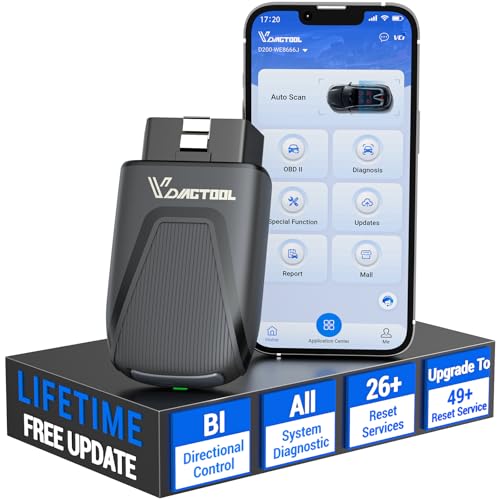
- 【OE-Level Full System Diagnostics-Lifetime F*REE Software Updates】The VDIAGTOOL D200 OBD2 Scanner for cars is a all system bidirectional scan tool that enjoy lifetime f*ree software updates, delivers complete system coverage. reading/clearing codes across engine, transmission, ABS, SAS, EPB, TPMS plus full access to body, chassis, powertrain and all control modules. This D200 Bidirectional car scanner works with most 1996+ OBD2 gasoline and hybrid
 cars and light trucks. It does NOT support pure electric and heavy-duty trucks. PLEASE CHECK COMPATIBILITY BEFORE ORDERING or Contact us with VIN to confirm compatibility.
 - 【Supports OBD2 Full Functions-ZERO Subscription Fees】D200 Bidirectional OBD2 Scanner is a upgarde of universal car code reader. It supports OBD2 full functions to help you turn off the annoying instrument fault indicator, such as read/clear codes, O2 sensor test, I/M readiness, on-board monitor test, datastream, freeze frame, E-VAP system test, and retrieve vehicle information. This professional obd2 scanner diagnostic tool can full access to diagnostics, reset tools and maintenance features with a single payment. NOTE: The fault code can only be cleared after the vehicle's malfunction has been repaired; please ensure the vehicle issue is fixed before clearing the code.
- 【D200 Hidden 2 Advantages: 1. $169 Expandable 49+ Advanced Resets. 2. $199 Get J2534 P*a*s*s-Thru Programming】Your core car diagnostics and 26 reset remain lifetime f*ree for everyday maintenance. When you need deeper repair capability, upgrade with 3-year access for $169 in Store on VDIAGTOOL App, gaining 49+ advanced resets. D200 configured with J2534 hardware, upgrade only when you need without replacing the entire device. You also can Lifetime Unlock for $199 in Store one-time, perform module programming, software re~flashing and ECU data updates directly. Supports 17+ major brands, including for BMW, for Audi, for GM, for Ford and more. Note:D200 does‘t provide any OE software.
- 【Full Bidirectional Control / Active Tests】The D200 car scanner diagnostic tool is a true bidirectional scan tool that lets you send commands directly to the vehicle’s ECU for active tests. Quickly test fuel pumps, relays, solenoids, injectors, cooling fans, windows, sunroofs and more to verify operation instantly. Get dealership-level diagnostic control at a fraction of the cost (ofter $100-200$ per diagnostic visit), reduce guessworkand confirm repairs faster, avoid unnecessary parts replacement, towing fees and wait times.
- 【26 F*ree Essential Reset & Relearn Functions – Everyday Maintenance Made Easy】Handle common maintenance and repair jobs without visiting the shop. The D200 code readers & scan tools includes 26 f*ree high-demand reset functions, including Oil Reset, EPB Service, SAS Calibration, ABS Brake Bleeding, Throttle Relearn, Injector Coding, Headlight Adjustment, Tire Size Reset and more. Perfect for home car owners, mechanics and DIYers – just plug and diagnose anytime, anywhere! Note: Service functions vary by vehicle model—please confirm compatibility.
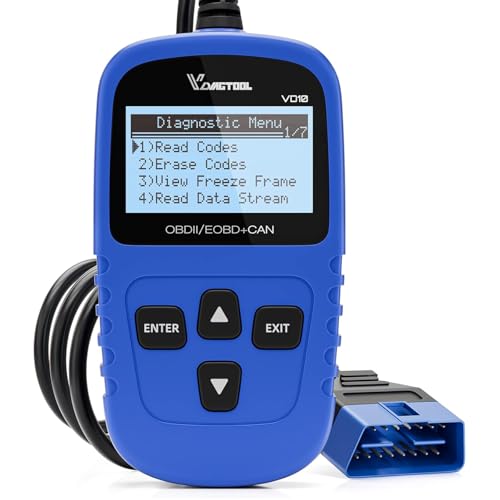
- 【A MUST-HAVE TOOL FOR DIYERS】 - VDIAGTOOL VD10 car code reader is an incredibly useful obd scanner for each car owner or hobbyist, even for those with little to no experience when it comes to vehicle mechanics! Similar to a fixd car diagnostic tool, using this car diagnostic scanner is extremely easy. All you have to do is attach it to your car OBDII port and you can diagnose car problems in seconds! Read Codes (DTCs); Clear Codes; Live Data; View Freeze Frame; I/M Readiness; Vehicle Information.
- 【KEEP ENGINE IN GOOD STATUS】 - VDIAGTOOL check engine code reader brings a fast access to scan, read the car fault code, show its definition on the screen instantly, troubleshooting to find the root causes of problems, erase the engine fault code and turn off the MIL (Malfunction Indicator Light). Similar to a fixd car diagnostic tool, this car code reader helps ensure your engine stays in top condition.
- 【READ/CLEAR CODES & DTC LOOKUP】- No search online & saving your time, this vehicle car code reader retrieves generic (P0, P2, P3, and U0), manufacturer specific (P1, P3, and U1) codes, pending codes and displays DTC definitions based on the built-in database(more than 3000 codes) on the TFT screen, find out the root causes and clear the codes after fixed.
- 【LIVE DATA & RETRIEVE FREEZE FRAME】 - This diagnostic scan tool for accurate diagnosis enables you to retrieve data from vehicle sensors, such as Engine RPM, Intake air temperature, Short/Long term fuel, Misfire data and etc. The freeze frame is stored in the PCM together with the diagnostic trouble code (DTC) related to the fault. Comparable to a fixd car diagnostic tool, the VD10 car code reader car scanner can be a valuable & practical diagnostic aid and also greatly help when diagnosing intermittent problems.
- 【I/M READINESS for THE S-nn-0-g CHECK】- OBDII vehicle may not pass the annual inspection unless the required monitors since reset are complete. So you should at least read the readiness monitors and make sure they are ready. This car obd2 scanner diagnostic tool is equipped with I/M readiness function to check the operations of the e-m-issi0n system on OBD2 compliant vehicles, run I/M monitor readiness test, checking if the pass vehicle s-m-0-g inspection.
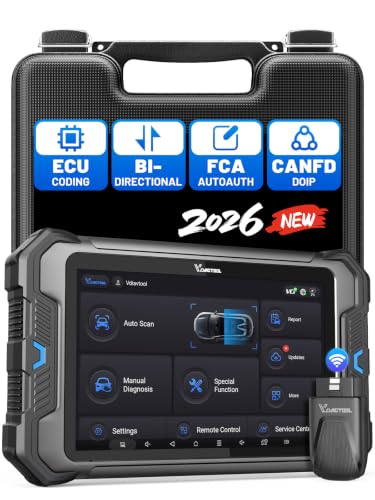
- 【Professional Diagnostics】 The VD80 BT Lite bidirectional obd2 scanner is a professional OBD2 scanner diagnostic tool, delivering vehicle diagnostics right in your own garage. It supports 4,000+ active diagnostic tests, 28+ maintenance service functions, ECU coding, PMI calibration, brake service reset, and OEM-grade full-system vehicle scanning—perfect for DIYers and pros looking for powerful automotive tools. The available function tests vary by model—please to confirm compatibility.
- 【ADVANCED ECU CODE, CUSTOMIZE OE-SETTINGS】As a complete car code reader and reset tool, the VD80 BT Lite bidirectional obd2 scanner supports ECU coding for VW, for Audi, for BMW, for Benz, for Mitsubishi and more. PMI function for Ford/for Lincoln/for Mazda, supports copy data into new module. Step-by-step Guided Diagnostics makes complex jobs easier—making this one of the most reliable code readers & scan tools on the market.
- 【100000+ Vehicles Compatibility – CAN FD/DOIP】 VD80 BT Lite Auto Scanner Compatible with 100,000+ vehicles worldwide, this bidirectiona car scanner works with all OBD2-compliant vehicles manufactured after 1996, covering more than 100 brands worldwide. It also supports CAN FD, DOIP and FCA Secure Gateway protocols, boost 2X faster data transfer, covers 99% of U.S., EU and Asian cars. With 22 languages and 2 years of f*ree updates—future-proofing your car reader diagnostic for all cars.
- 【28+ Maintenance Services & Calibration Functions】VD80 BT Lite scanner for car Supports 28 maintenance services, including resetting oil and service lights after routine maintenance, registering new batteries for proper system operation, and clear clogged filters and restore performance. Additionally, it calibrates TPMS sensors after tire rotations, resets brake systems after pad replacements, relearns steering angle sensors after alignments, and more. These functions help your vehicle quickly and accurately return to peak performance—without the costly dealer visits.
- 【True Bidirectional Control – Diagnose with Confidence】Standing out with full-system coverage and extensive active test capabilities, the VD80 BT Lite bidirectional scan tool retrieves data from electronic control units and performs a wide range of active tests. You can real-time control over modules like fuel pumps, windows, A/C clutches, and relays. Perform 100+ advanced functions including throttle adaptation, injector coding, VIN write, idle relearn, and ABS bleed—helping you fix it right the first time with this all-in-one car diagnostic scanner.
Last update on 2026-06-23 / Affiliate links / Images from Amazon Product Advertising API
This product presentation was made with AAWP plugin.