
NHTSA ID Number: 11006912
Manufacturer Communication Number: 2024.26.100_082024.pdf
TSB/Document Date: 2024-09-04
Summary
Tesla does not provide physical owner's manual copies. Instead, all available owner’s manual content is integrated into the vehicle software, and only the content relevant for a given vehicle, based on vehicle configuration and software version installed, is displayed on its touchscreen. This file contains all available owner’s manual content for the vehicle converted to PDF format, and given the distribution method and NHTSA’s submission format requirements, it is the best available representative copy of owner’s manual content. However, a customer who accesses the owner’s manual via their vehicle’s touchscreen would only see the parts of this PDF file that are relevant to their vehicle.
If you are having trouble importing contacts or pairing with Bluetooth, see Troubleshooting Bluetooth on page 23 for more
information.
Disconnecting or Unpairing a Bluetooth Device
If you want to disconnect your phone or Bluetooth device, but keep it paired, touch Disconnect in your phone's Bluetooth
settings dropdown on the touchscreen (Controls > Bluetooth > Paired Devices > Your phone). If you no longer want to use your
device with Cybertruck, touch Forget Device and follow the instructions. Once you forget a device, you must pair it again if
you want to use it with Cybertruck (see Pairing a Phone or Bluetooth Device on page 22).
NOTE: Your phone automatically disconnects when you leave Cybertruck.
NOTE: Unpairing the phone has no effect on using the phone as a key. To forget an authenticated phone, see Managing Keys
on page 202.
Switching Between Paired Devices
Cybertruck automatically connects to a phone that you designated as Priority Device. If you have not set a phone as a priority,
Cybertruck connects to the last phone to which is was connected, provided it is within operating range and has Bluetooth
turned on. If the last phone is not within range, it attempts to connect with the next phone that it has been paired with.
To connect to a different phone, touch Controls > Bluetooth > Paired Devices. Select the phone you want to connect to, then
touch Connect. If the phone you want to connect to is not listed, you must pair the phone. See Pairing a Phone or Bluetooth
Device on page 22.
When connected, the Bluetooth settings screen displays the Bluetooth symbol next to the phone's name to show that
Cybertruck is connected to the phone.
Troubleshooting Bluetooth
Your vehicle uses Bluetooth and BLE (Bluetooth Low Energy) to seamlessly connect your smartphone to Cybertruck. Due to
several potential factors, Bluetooth or BLE may sometimes disconnect or experience issues in the pairing process. Connecting
to Bluetooth allows your vehicle to use phone functions such as audio, phone calls, calendars, text messages, etc.
BLE is used for passive functions like phone key.
NOTE: Do not unpair your vehicle to your phone or remove it as phone key without a working key card nearby.
Try the following to troubleshoot Bluetooth, starting with your smartphone.
Smartphone Troubleshooting
Bluetooth may not connect due to settings and updates on your smartphone:
• Enable Bluetooth on your phone. If already enabled, disable and re-enable Bluetooth again.
• Ensure Airplane Mode is turned off.
• Charge your phone; if your phone battery is too low, it may not support Bluetooth functions.
• Pair your device properly. If already paired, try unpairing and re-pairing again.
• Update your phone to the latest software provided by the manufacturer.
• Check that your vehicle's sound system is selected as the audio output source.
• Ensure your phone's settings allow for Bluetooth (ex: data is turned on or you are connected to Wi-Fi).
Owner's Manual
258
Connectivity
• Turn your phone off and on again.
• Ensure location permissions set to “Always On” for the mobile app.
Tesla Mobile App Troubleshooting
Check the Tesla mobile app:
• Confirm the Tesla mobile app is up to date on software.
• Verify you're logged into the Tesla mobile app while using your phone key.
• Ensure the Tesla app is running in the background.
• Double check that you have completely set up your profile in the mobile app and properly configured your settings.
Vehicle Troubleshooting
Your vehicle's settings may affect its ability to pair with your smartphone:
• Charge Cybertruck: If the vehicle Battery is too low, you may lose Bluetooth function.
• Update vehicle software and make sure it is always up to date. Check for new software updates by navigating to Controls >
Software.
• Restart the touchscreen. See Touchscreen on page 4.
• Reboot your vehicle.
If Bluetooth still does not work, unpair from your vehicle AND smartphone. Then try re-pairing both again.
For BLE phone key issues, when in the vehicle, navigate to Controls > Locks and remove your phone as "Phone as Key". Then
set it back up again. But only do this while you are in the vehicle and have a reliable back up key available (such as a key card).
259
Owner's Manual
Connectivity
Phone, Calendar, and Web Conferencing
Using the Phone App
When your phone is connected to Cybertruck using Bluetooth (see Bluetooth on page 22), and you have
allowed access to information on your phone (see Importing Contacts and Recent Calls on page 22), you can
use the phone app to display and make a hands-free call to anyone listed on your phone.
• Calls: Displays recent calls in chronological order with the most recent call listed first.
• Messages: Displays message in chronological order with the most recent message listed first. You can view, send, and
receive text messages. Instead of typing a text message, touch the microphone button on the right side of the steering
wheel to enter text using your voice.
WARNING: To minimize distraction and ensure the safety of occupants as well as other road users, do not view or
send text messages when the vehicle is in motion. Pay attention to road and traffic conditions at all times when
driving.
• Contacts: Contacts are listed in alphabetical order and can be sorted by first name or last name. You can also choose a
letter on the right side of the list to quickly scroll to the names that begin with the selected character. When you touch a
name on your contacts list, the contact's available number(s) displays on the right pane, along with other available
information (such as address). Touch the contact's number to make a call.
• Favorites: Displays the contacts from your phone that you have identified as Favorites.
• Calendar: Displays calendar entries from your phone (see Calendar on page 26). If an entry includes a phone number or an
address, you can make a phone call, or navigate to a destination, by touching the corresponding information in the calendar
entry.
Making a Phone Call
You can make a phone call by:
• Speaking a voice command (see Voice Commands on page 6). Voice commands are a convenient, hands-free way to call or
text your contacts.
• Touching a phone number shown in a list in the phone app - Contacts, Calls, or Calendar.
• Using the Cybertruck on-screen dialer in the Phone app.
NOTE: If it is safe and legal to do so, you can also initiate a call by dialing the number or selecting the contact directly from
your phone.
NOTE: You can also make a phone call by touching a pin on the map and choosing the phone number (if available) on the popup
screen.
Receiving a Phone Call
When your phone receives an incoming call, the touchscreen displays the caller’s number or name (if the caller is in your
phone’s contact list and Cybertruck has access to your contacts).
Touch one of the options on the touchscreen to Answer or Ignore the call. Depending on the phone you are using and what
speakers you used for your most recent call, your phone may prompt you to choose which speakers you want to use for the
incoming call.
WARNING: Stay focused on the road at all times while driving. Using or programming a phone while driving, even with
Bluetooth enabled, can result in serious injury or death.
WARNING: Follow all applicable laws regarding the use of phones while driving, including, but not limited to, laws that
prohibit texting and require hands-free operation at all times.
Owner's Manual
260
Connectivity
In Call Options
When a call is in progress, the call displays on the touchscreen. To adjust the call volume, roll the left scroll button during a
call. Tilt the left scroll button left to mute/unmute and tilt right to end the call.
Calendar
The calendar displays scheduled events from your phone’s (iPhone® or Android™) calendar for the current and
next day. The calendar is conveniently integrated with the phone app so you can dial into your meeting from a
Calendar entry. It is also integrated with the navigation system so you can navigate to the event's location.
1. Ensure your phone is paired to Cybertruck.
2. Ensure you are logged into the Tesla mobile app.
3. In your Tesla mobile app, touch Profile > Settings > Calendar Sync.
NOTE: To ensure you have access to all of the calendar's features, it is recommended that you use the most recent version
of the mobile app.
4. On your phone, go to Settings and allow access/give permission to share your calendar with the Tesla mobile app. The
mobile app can then periodically (and automatically) send calendar data from your phone to Cybertruck.
If a calendar event includes an address, a navigation arrow displays to indicate that you can touch the address to navigate to
the event's location.
If an event has a uniquely specified address and takes place within two hours of you entering your vehicle and preparing to
drive, Cybertruck automatically routes you to the event's address (see Automatic Navigation on page 95).
Touch an event's information icon to display all notes associated with the event. If the notes include one or more phone
numbers, the information icon shows a phone icon and the calendar displays the first phone number found. Touch to initiate a
phone call. You can also initiate a phone call by touching any number in an event's notes popup screen (this is especially useful
for conference calls). If notes include a web link, you can touch the link to open it in the Web browser.
Zoom
Seamlessly take meetings and calls through your vehicle's touchscreen. To set up, touch the Zoom app and sign
in or enter the meeting ID. You can even access meetings shown on your calendar or in text messages by
touching the Zoom link. Your vehicle's cabin camera can be used in calls over Zoom only when Cybertruck is
Parked. When the vehicle is shifted out of Park in the middle of a Zoom call, the cabin camera turns off and you
switch to audio only. Use the touchscreen to turn on/off the video, mute/unmute yourself, and customize
various preferences for your meeting.
WARNING: Do not to use the video function when the vehicle is “temporarily parked” on a public road (such as when the
vehicle is parked along the curb or in a spot that is not a designated parking spot)..
WARNING: Stay focused on your surroundings and follow all applicable laws while driving, including, but not limited to,
laws that require hands-free operation at all times.
261
Owner's Manual
Connectivity
Smart Garage
myQ
If equipped, Cybertruck can intelligently connect to your myQ® smart garage.
myQ is a smart garage control system that works seamlessly with Cybertruck, and allows you to remotely monitor and control
your garage door from the vehicle's touchscreen or a paired phone. This is convenient if you forget to close your garage door,
want to allow friends and family inside, or need to open and close it remotely (such as when receiving a package). By linking
myQ with Cybertruck, the garage door can detect your vehicle nearby and automatically open or close to accommodate.
Follow these steps to set up myQ on your vehicle:
1. Your garage door must be myQ compatible. Navigate to Controls > Garage icon. Use the myQ Compatibility tool (https://
www.myq.com/app/myq-compatibility) to determine this.
2. Ensure your garage is Wi-Fi compatible. myQ uses Wi-Fi to communicate with your smart phone and vehicle. Some
garages will have a Wi-Fi or myQ symbol on the hub. Your garage must have a strong Wi-Fi signal to control and monitor
your garage through your vehicle.
NOTE: If your garage is not compatible, you may be able to purchase an external myQ hub to use this feature.
3. Download the myQ app from your smart phone's app store. Use the app to set up your account information and pair the
garage to your phone. myQ requires a paid subscription, which you can purchase in the app.
4. Check that your vehicle is running the latest available software version and has Wi-Fi or LTE connectivity.
5. Navigate to Controls > Locks > myQ Connected Garage > Link Account and follow the instructions to pair the garage with
Cybertruck. Once paired, monitoring and controlling the garage becomes available on the touchscreen, where you can
further customize myQ.
For more information, questions, or troubleshooting assistance, visit www.myQ.com/Tesla.
Owner's Manual
262
Driving
Starting and Powering Off
Starting
When you open a door to enter Cybertruck, the touchscreen powers on and you can operate all controls. To shift Cybertruck,
press the brake pedal and swipe up for Drive or down for Reverse on the touchscreen's drive mode strip (see Shifting on page
32).
If Auto Shift out of Park is enabled, Cybertruck automatically selects Drive or Reverse based on the detected surroundings .
Pressing the brake pedal shifts the vehicle into the selected drive mode displayed on the touchscreen's drive mode strip
(provided the driver's door is closed and the driver's seat belt is buckled), and pressing the accelerator moves the vehicle in
that direction.
NOTE: To turn Auto Shift out of Park on or off, touch Controls > Dynamics > Auto Shift out of Park.
Before accelerating when Auto Shift out of Park is enabled, check the touchscreen to make sure that Cybertruck has shifted
into the drive mode you want (Drive or Reverse). If the selection is not correct, or if Auto Shift out of Park is not enabled, swipe
up for Drive or down for Reverse on the touchscreen's drive mode strip to choose a new drive mode. See Shifting on page 32.
NOTE: If PIN to Drive is enabled (see PIN to Drive on page 79), you must enter a valid PIN on the touchscreen before you can
drive Cybertruck.
Everything you need to know when driving Cybertruck displays on the touchscreen.
Drive Disabled - Requires Authentication
If Cybertruck does not detect a key when you press the brake (a phone key is not detected or two minutes have passed since
you used the key card), the touchscreen displays a message telling you that driving requires authentication.
If you see this message, place the key card in either phone dock where the RFID transmitter can read it. The two-minute
authentication period restarts and you can start Cybertruck by pressing the brake pedal.
A number of factors can affect whether Cybertruck can detect a phone key (for example, the device's battery is low or dead
and is no longer able to communicate using Bluetooth).
Always keep your phone key or a key card with you. After driving, your key is needed to restart Cybertruck. And when you
leave the vehicle, you must bring your key with you to lock Cybertruck, either manually or automatically.
Powering Off
When you finish driving and shift into Park, simply exit the vehicle. When you leave Cybertruck with your phone key, it powers
off automatically, turning off the touchscreen.
263
Owner's Manual
Driving
Cybertruck also powers off automatically after being in Park for 30 minutes, even if you are sitting in the driver’s seat.
Although usually not needed, you can power off Cybertruck while sitting in the driver’s seat, provided the vehicle is not
moving. Touch Controls > Safety > Power Off. Cybertruck automatically powers back on after a short period if you press the
brake pedal or touch the touchscreen.
NOTE: Cybertruck automatically shifts into Park whenever it determines that you are exiting the vehicle (for example, the
driver's seat belt is unbuckled and the vehicle is almost at a standstill). If you shift into Neutral, your vehicle shifts into Park
when you open the door to exit. To keep your vehicle in Neutral, you will need to activate Transport Mode (see Instructions for
Transporters on page 457).
Power Cycling the Vehicle
You can power cycle Cybertruck if it demonstrates unusual behavior or displays a nondescript alert.
NOTE: If the touchscreen is unresponsive or demonstrates unusual behavior, reboot it before you power cycle the vehicle (see
Restarting the Touchscreen on page 176).
1. Shift into Park.
2. On the touchscreen, touch Controls > Safety > Power Off.
3. Wait for at least two minutes without interacting with the vehicle. Do not open the doors, touch the brake pedal, touch the
touchscreen, etc.
4. After two minutes, open the door to wake the vehicle.
Owner's Manual
264
Driving
Shifting
Shift Using the Touchscreen
When you press the brake pedal when Cybertruck is parked, the drive mode strip displays on the driver's side of the
touchscreen. Use the drive mode strip to shift Cybertruck: Swipe up for Drive, swipe down for Reverse, or press the drive
mode strip for Park.
The touchscreen always shows which gear Cybertruck is in, but the drive mode strip is hidden when driving at highway
speeds. To show the drive mode strip at any time, swipe right from the left edge of the touchscreen.
To shift into Park when driving below 5 mph (8 km/h), touch the drive mode strip while pressing the brake pedal. In emergency
situations when driving above 5 mph (8 km/h), press and hold the gear strip to slowly bring the vehicle to a stop.
NOTE: To shift from Drive into Reverse or vice versa, the driving speed must be less than 5 mph (8 km/h).
The touchscreen is the preferred method to manually shift. However, in the unlikely situation in which the touchscreen is
unavailable and therefore can't be used, the drive mode selector on the overhead console automatically activates and must be
used to shift (see Shift Using the Overhead Console on page 33).
If you try to shift when it is prohibited by the current driving speed, the touchscreen displays an alert, a chime sounds, and the
drive mode does not change.
Auto Shift out of Park
Auto Shift out of Park is a BETA feature and is disabled by default. When disabled, use the touchscreen or the overhead
console to manually shift. To enable Auto Shift out of Park, touch Controls > Dynamics > Auto Shift out of Park.
265
Owner's Manual
Driving
When Auto Shift out of Park is enabled, Cybertruck is designed to automatically select Drive or Reverse. The touchscreen
displays the selected drive mode when the driver's door is closed and seat belt is buckled.
To override the selection, press the brake pedal and use the drive mode strip on touchscreen to shift into your desired drive
mode (Drive, Reverse, Park; see Shift Using the Touchscreen on page 32).
Confirm the drive mode selection and follow the instructions on the touchscreen before you press the accelerator.
WARNING: As always, be aware of your vehicle and surroundings before driving. Never rely on Cybertruck to
automatically select a suitable drive mode without confirming the selection before you start to drive.
If Auto Shift out of Park is unavailable, the touchscreen displays a message.
Cybertruck automatically selects a drive mode when:
• Auto Shift out of Park is enabled.
• Cybertruck is in Park.
• The driver's seat belt is fastened.
• The brake pedal is pressed.
• All doors and trunks are closed.
• The drive mode selector on the overhead console is not activated (see Shift Using the Overhead Console on page 33).
• The cameras are free of obstructions (see Cameras on page 195) and Cybertruck has enough input to make a selection.
NOTE: Cybertruck does not automatically select drive modes in Valet Mode.
Shift Using the Overhead Console
In addition to manually shifting on the touchscreen, you can shift by pressing P, R, N or D located on the overhead console. In
most situations, these buttons are not available until you press one of the buttons to activate it. When active, the LEDs
associated with each button illuminate and when you select P, R, N or D, the associated LED illuminates.
In situations where the touchscreen is unavailable (for example, experiencing a technical issue), or Cybertruck is in Valet or
Transport Mode, the drive mode selector on the overhead console illuminates automatically and there is no need to touch it.
NOTE: You can also activate the drive mode selector on the overhead console by simultaneously and briefly pressing both
scroll buttons on the steering wheel. However, if you press and hold both buttons simultaneously, the drive mode selector
activates and the touchscreen restarts (see Restarting the Touchscreen on page 176).
NOTE: The front trunk must be closed to shift using the overhead console.
Owner's Manual
266
Driving
1. Park
2. Reverse
3. Neutral
4. Drive
NOTE: When the touchscreen is available for shifting and you have manually activated the drive mode selector on the overhead
console, the overhead console automatically deactivates if you don't shift after a short amount of time.
Park
To manually shift into Park, press the brake pedal and touch the Park button on the touchscreen's drive mode strip. If the
touchscreen is unavailable, press Park on the drive mode selector located on the overhead console.
Cybertruck automatically shifts into Park to prevent roll-away while driving in low speeds. This happens whenever you
connect a charge cable, unbuckle your seat belt, or open the door while in Drive or Neutral. Ensure the charge cable is
removed, buckle your seat belt, and close the door before shifting out of Park.
Attempting to engage the parking brake above 5 mph (8 km/h) will result in emergency braking (see Braking and Stopping on
page 284).
NOTE: In emergency situations, if the brakes are not functioning properly, you can press and hold the Park button on the
touchscreen's drive mode strip to apply the brakes and remove drive torque while the button is held. Do not use this method to
stop the vehicle unless absolutely necessary.
NOTE: You must always press the brake pedal to shift out of Park.
CAUTION: Cybertruck will not shift out of Park if a charge cable is plugged in, or if the charge port is unable to
determine whether a charging cable is plugged in. In situations when Cybertruck does not shift out of Park, check the
touchscreen for instructions on how to proceed.
WARNING: It is the driver's responsibility to always ensure the vehicle is in Park before exiting. Never rely on Cybertruck
to automatically shift into Park for you.
267
Owner's Manual
Driving
Drive
To manually shift into Drive, swipe up on the drive mode strip located on the touchscreen or, if the touchscreen is unavailable,
press D on the drive mode selector located on the overhead console. You can shift into Drive when Cybertruck is stopped or
moving less than 5 mph (8 km/h) in Reverse.
Reverse
To manually shift into Reverse, swipe down on the drive mode strip located on the touchscreen or, if the touchscreen is
unavailable, press R on the drive mode selector located on the overhead console. You can shift into Reverse when Cybertruck
is stopped or moving less than 5 mph (8 km/h) in Drive.
Neutral
Neutral allows Cybertruck to roll freely when you are not pressing the brake pedal. To shift into Neutral, do any of the
following:
• Open Controls, then press and hold the Neutral icon on the drive mode strip until Cybertruck engages Neutral.
• Choose Neutral from the drive mode selector on the overhead console.
NOTE: When Cybertruck is traveling over 5 mph (8 km/h) and you swipe up or down on the touchscreen's drive mode strip, a
Neutral icon displays at the bottom of the drive mode strip from which you can also choose to engage Neutral.
NOTE: You must press the brake pedal to shift out of Neutral if Cybertruck is moving slower than approximately 5 mph (8
km/h).
Cybertruck automatically shifts into Park when you open the driver's door to exit the vehicle unless the vehicle is in certain
modes such as Transport or Car Wash Mode which allows the vehicle to stay in Neutral even when you leave.
Keeping Your Vehicle in Neutral (Transport Mode)
To keep Cybertruck in Neutral when you exit, allowing it to roll freely (for example, pulling onto a flatbed truck), you must
activate Transport mode:
1. Shift into Park.
2. Press the brake pedal.
3. Touch Controls > Service > Towing. The touchscreen displays a message reminding you how to properly transport
Cybertruck.
4. Press the Transport Mode. It turns blue to show that Cybertruck is now in Transport Mode. Cybertruck is now free-rolling
and can slowly be rolled (no faster than walking speed) for short distances or winched (for example, onto a flatbed truck).
For more information on Transport Mode, see Activate Transport Mode on page 459.
NOTE: In Transport mode, Cybertruck does not shift into a drive mode. You must first cancel Transport mode by touching
Transport Mode again. Transport mode also cancels if you use the touchscreen or drive mode selector on the overhead
console to shift into Park or if you manually apply the parking brake by touching Controls > Safety > Parking Brake.
Owner's Manual
268
Driving
Steering Wheel
Adjusting the Steering Wheel Position
To adjust the steering wheel, touch Controls and touch the Steering icon.
Use the left scroll button on the steering wheel to move the steering wheel to the desired position:
• To adjust the height/tilt angle of the steering wheel, roll the left scroll button up or down.
• To move the steering wheel closer to you, or further away from you, press the left scroll button to the left or right.
You can also customize what you want the left scroll wheel button to control, such as Climate or Dashcam status.
WARNING: Do not make steering wheel adjustments while driving.
Overview of Buttons
Cybertruck features stalkless driving in which all controls you need when driving are accessible on the steering wheel.
269
Owner's Manual
Driving
Left buttons:
1. Right turn signal (see Turn Signals on page 280)
2. High beam headlights* (see Headlights on page 278)
3. Multi-functional button (non-functional)
4. Left scroll button (see Left Scroll Button on page 271)
5. Left turn signal (see Turn Signals on page 280)
Owner's Manual
270
Driving
Right Buttons:
1. Cameras (see Cameras on page 195)
2. Wiper* (see Windshield Wiper and Washers on page 282)
3. Right scroll button (see Right Scroll Button on page 272)
4. Voice commands (see Voice Commands on page 6)
5. Cruise control indicator (non-functional)
*The behaviors associated with the buttons for headlight high beams (Headlights on page 278) and wiper (Windshield Wiper
and Washers on page 282) vary depending on whether you press or press and hold the button.
NOTE: If you are experiencing issues with the touchscreen (such as a missing feed from the front- or rear-facing camera), hold
down both the left and right scroll buttons simultaneously while Cybertruck is parked to restart it (see Restarting the
Touchscreen on page 176).
NOTE: Some controls on the steering wheel are capacitive buttons, meaning they do not have a physical switch, but respond to
touch and provide haptic feedback (as a vibration). Do not rest your fingers on them unless intended. Unintentionally touching
these buttons can enable or disable them. If a button is mistakenly enabled, remove your fingers from the switches for several
seconds to resume normal operation.
Left Scroll Button
Use the left scroll button to adjust the position of the mirrors and steering wheel. The left scroll button also controls the wiper
and media player.
271
Owner's Manual
Driving
• When using media player, push the button to the left to go back to the previous song or station or push it to the right to
skip to the next song or station.
• Roll the scroll button up to increase and down to decrease the volume.
NOTE: The scroll button adjusts the volume for media and phone calls based on what is currently in use. As you adjust the
volume, the touchscreen displays the volume level and whether you are adjusting volume for media or phone.
• To mute the media volume, or to pause/play an audio file, push the scroll button.
• When adjusting mirrors, push the button to the left/right to move the associated mirror inward/outward and up/down to
position the mirror upward or downward (see Mirrors on page 275).
• When adjusting the position of the steering wheel, roll the button up/down to adjust the tilt/angle and press the button to
the left or right to move the steering wheel closer or further (see Adjusting the Steering Wheel Position on page 269).
• When a menu displays on the touchscreen from which you can choose options (for example, the wiper controls), use the
scroll button to choose an option (up, down, left, or right) and push the button to confirm your choice.
• For incoming calls, press the scroll button to answer. During the call, press the scroll button again to hang up.
• Hold down the left scroll button to access the default action set or configure a new default action. Follow the directions on
the touchscreen.
Left Scroll Button Customization
Choose from a list to create quick access to a function by touching Controls > Display > Scroll Wheel Function. Selecting a
function sets the default action when you long press the left scroll button, unless you select Ask each time.
Right Scroll Button
Use the right scroll button to control Autopilot features such as Autosteer and Traffic-Aware Cruise Control:
Owner's Manual
272
Driving
• When driving, push and release the button to engage Autosteer or Traffic-Aware Cruise Control (see Autopilot Features on
page 323). If Autopilot Activation is set to Double Click (touch Controls > Autopilot Activation > Autosteer Activation), a
single push engages Traffic-Aware Cruise Control only and you must push and release the button twice to engage
Autosteer. Once Autosteer or Traffic-Aware Cruise Control is active, pushing the button cancels it.
• When Traffic-Aware Cruise Control or Autosteer is engaged, roll the scroll button up to increase or down to decrease the
set speed, or push the button to the left or right to adjust the distance you want to maintain from a vehicle traveling ahead
of you (see While Using Autopilot on page 328).
Heated Steering Wheel
To warm up the steering wheel, touch the temperature icon on the touchscreen to display climate controls (see Operating
Climate Controls on page 363), then touch the steering wheel icon. When turned on, radiant heat keeps the steering wheel at
a comfortable temperature.
To turn the heated steering wheel off, use the climate controls or the Tesla mobile app (see Mobile App on page 18).
Horn
To sound the horn, press and hold the center pad on the steering wheel.
273
Owner's Manual
Driving
Steer-by-Wire
Cybertruck uses steer-by-wire technology, which means that there is no mechanical connection between the steering wheel
and the wheels. Instead, sensors in the steering column communicate electronically with the steering racks. As a result,
steering Cybertruck feels more responsive and requires less effort from the driver.
Cybertruck also has four-wheel steering. When the driver turns the steering wheel, all four wheels respond. This gives
Cybertruck a tighter turning radius.
Emergency Operation
The steer-by-wire system is controlled by multiple redundant sensors and actuators. In the unlikely case that Cybertruck
detects an issue, an alert displays on the touchscreen, a chime sounds, and Cybertruck gradually reduces drive torque while
informing you to pull over.
NOTE: This alert does not mean that Cybertruck has lost steering, or that the steer-by-wire system has failed. This alert
indicates a possible issue with one of the redundant systems.
Once pulled over, you can attempt to recover the system by performing a vehicle power cycle (see Power Cycling the Vehicle
on page 29). If the power cycle attempt is unsuccessful, an override is available for low-speed maneuvering to position the
vehicle for transporting on a flatbed truck (see Instructions for Transporters on page 457).
Owner's Manual
274
Driving
Mirrors
Adjusting Exterior Mirrors
Adjust the exterior mirrors by touching Controls > Mirrors. Press the left scroll button on the steering wheel to choose whether
you are adjusting the Left or Right mirror. Then, use the left scroll button as follows to adjust the selected mirror to its desired
position:
• To angle the mirror up or down, roll the left scroll button up or down.
• To angle the mirror inward or outward, press the left scroll button to the left or right.
275
Owner's Manual
Driving
You can save your side mirror position in your driver profile for your convenience.
Mirror Auto Tilt automatically tilts mirrors downward when backing up. To turn this feature on or off, touch Controls > Mirrors >
Mirror Auto Tilt. To adjust the auto-tilt position, make mirror adjustments with Cybertruck shifted into Reverse. When you shift
out of Reverse, mirrors tilt back to their normal (upward) position. But now that you have adjusted them for backing up, they
automatically tilt to the selected downward position whenever you shift into Reverse.
When certain environmental conditions are met, the exterior side mirrors dim automatically (for example, in low light
conditions or to reduce glare when driving at night). To enable or disable this feature, touch Controls > Mirrors > Mirror Auto
Dim.
NOTE: Both exterior mirrors have heaters that can be controlled through Climate.
Folding Mirrors
To manually fold and unfold exterior mirrors (for example, if parking in a narrow garage, tight space, etc.), touch Controls >
Fold/Unfold Mirrors.
Unfold the mirrors by touching Controls > Unfold Mirrors. If the mirrors are still folded when you begin driving, they will
automatically unfold when your speed reaches 31 mph (50 km/h). You cannot fold a mirror when driving over 31 mph (50
km/h).
To set the mirrors to fold automatically whenever you exit and lock Cybertruck touch Controls > Mirrors > Mirror Auto Fold.
The mirrors unfold automatically when you unlock Cybertruck.
You can also set mirrors to fold automatically whenever you arrive at a specific location, which saves you from having to
manually fold them each time you arrive at a frequented place. To set up, stop at the location you want to save (or drive at less
than 3 mph (6 km/h)), and fold the mirrors. Touch Save Location when it appears briefly on the Fold Mirrors control.
Owner's Manual
276
Driving
If you no longer want mirrors to fold automatically, touch Controls > Unfold Mirrors when they fold at the saved location, then
touch Remove Location.
When you leave the saved location, the mirrors will unfold automatically when your speed reaches 3 mph (6 km/h) or if you
touch Controls > Unfold Mirrors.
CAUTION: Mirrors may not automatically fold if you return to a saved location and are driving faster than 3 mph (6 km/h).
NOTE: You can override the automatic folding/unfolding of mirrors at any time (for example, Cybertruck has no power) by
pushing the mirror assembly away from you to unfold, or pulling it toward you to fold.
NOTE: If you expect ice to accumulate when Cybertruck is parked, turn off Mirror Auto Fold. Accumulation of ice can prevent
exterior side mirrors from folding or unfolding. See Cold Weather Best Practices on page 89 for information on how to ensure
your mirrors function properly in cold weather.
You can integrate auto-folding mirrors with MyQ (see Smart Garage on page 27).
Rear View Mirror
Adjust the rear view mirror manually.
Vanity Mirrors
To expose and illuminate the vanity mirror, fold the sun visor downwards, then use the tab to lower the mirror cover. The tab
can stick to the lower portion of the visor to keep it in place. After closing the mirror cover, the light turns off. See Sun Visors
and Vanity Mirrors on page 209 for more information.
277
Owner's Manual
Driving
Lights
Overview
Cybertruck has convenience lights that automatically turn on and off based on what you are doing. For example, interior lights,
marker lights, signature lights, door handle lights, and puddle lights turn on when you unlock Cybertruck, when you open a
door, and when you shift into Park. They turn off automatically after a minute or two when you shift out of Park, or when you
lock your vehicle.
Touch Controls > Lights to control the lights.
NOTE: You can also access an abbreviated lights menu while driving by touching the headlights button on the steering wheel.
A lights menu displays on the touchscreen, providing quick access to headlight controls.
• Headlights: Exterior lights (headlights, tail lights, signature lights, side marker lights, parking lights, and license plate lights)
are set to Auto each time you start Cybertruck. When set to Auto, exterior lights automatically turn on when driving in low
lighting conditions. If you change to a different setting, lights always revert to Auto on your next drive.
Touch one of these options to change the exterior light setting until adjusted again or the next time you drive:
◦ Off: Exterior lights turn off. When driving, daytime running lights may remain on based on regulations in various market
regions.
◦ Parking: Parking lights, side marker lights, the tail light bar, and license plate lights turn on.
◦ On: Low beam headlights, side marker lights, parking lights, signature lights, and license plate lights turn on.
• Dome Lights: Turn the interior dome (map) lights on or off. If set to Auto all interior dome lights turn on when you unlock


- Advanced VCI Box, Industry-leading J2534 Pass-Thru...
- High-Speed OEM-Level Diagnostics & Programming: Unlock true...
- Coverage for 17 Car Brands & Ultra Reliability: Works...
- User-Friendly RLink Platform & Expert Support: TOPDON’s...
- 6.6 ft USB-C Cable & Portable Storage Case: The RLink J...
Last update on 2026-06-23 / Affiliate links / Images from Amazon Product Advertising API
If the PDF is very large, it may not load in the preview below.
Some older TSBs had multiple PDFs — visit the NHTSA Website to view all PDFs.
If the TSB PDF does not show, download or view it on the NHTSA Website.
Click on the (+) Plus Sign
Then Click on Associated Document(s)
Search NHTSA Database for Recalls
Search NHTSA Database for Vehicle Investigations
View Latest Vehicle Investigations
Search NHTSA Database for Vehicle Complaints
View Latest Vehicle Complaints
TSB/Document ID: 2024.26.100_082024.pdf
Replacement Service Bulletin Number:
MFR Communication Date: 2024-08-31
MFR Internal Campaign ID/Software Version: 2024.26.100
Communication Type: Over The Air
NHTSA Components: UNKNOWN OR OTHER
MFR Component System:
MFR Component Subsystem:
Previous TSB | Next TSB |
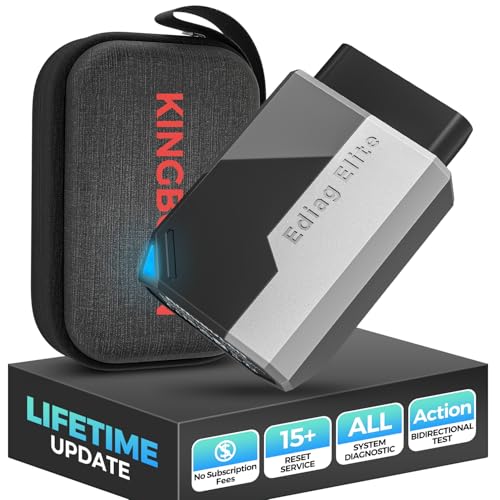
- Obd2 Bluetooth Scanner Lifetime Update: Ediag Elite offers revolutionary Advantage Lifetime Updates with unlimited access to the superior 15 reset service, bidirectional testing and full system diagnostics.The Ediag Elite is an excellent Bluetooth obd2 scanner diagnostic tool ideal for diy's and private car owners
- Bidirectional Control for Quickly Locating Problems: The Bidirectional Scan tool allows you to send commands directly from your smartphone to your vehicle for active testing. This feature helps to quickly narrow down problems such as air conditioning clutches, windows, doors, sunroofs, etc., reducing diagnostic time for mechanics and helping Diy users locate faults more easily. In addition, Ediag Elite provides fault analysis and repair guidance to help you solve problems efficiently.
- 15 Maintenance Resets: The current version introduces 15 popular special features: Oil Reset, Headlight Matching, Bleeding Reset, TPMS Reset, BMS Reset, Gear Box Relearn, Throttle Learning, Injector Coding, SAS Reset and more special functions in system diagnose menu. These functions make it easy for owners to carry out the necessary maintenance and servicing, ensuring that your vehicle stays in top condition, prolonging its service life and preventing common problems and breakdowns. Note: The Special function vary by model& year, Reach us check compatibility.
- Wide Compatibility CANFD & FCA
 Autoauth: Compatible with GM, Ford, Toyota, Chrysler, Honda, Mazda, Nissan, Mitsubishi, Hyundai, KIA with standard OBD2 port from 1996 to newer. More car brands and features will be released gradually. Newest Ediag Elite scanner supports CANFD Protocol and FCA cars. Note: Coverage may vary on different vehicle by model& year ,Please contact us to confirm compatibility before purchase.
 - Perfect for Monitoring The Health of Your Vehicle: Ediag Elite is designed to make vehicle maintenance simple and efficient. With intelligent AutoVIN quick recognition, it is easy to connect to your car without the need for manual input. Real-time data is visualized in a variety of formats, including graphs, numeric, meter displays and clear 4-in-1 data charts, allowing you to effortlessly monitor real-time data. Data logging/reporting is available for playback and further analysis.
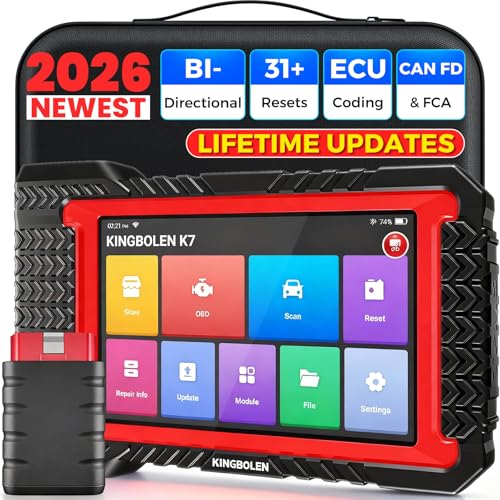
- No Annual Fees & 2026 Upgraded CAN FD: Why pay $199/year or more for updates? The 2026 newest Kingbolen K7 obd2 scanner features have been upgraded to Lifetime Updates without subscription fees, saving you significant costs in the long run. K7 scan tool also adds the CAN FD protocol for the latest GM models (2019+), enabling faster data transfer, reducing the risk of undetected errors
- 2026 Newest Top-tier Car Scanner: Kingbolen K7 diagnostic scan tool is equipped with most capabilities for daily repair/maintenance: Wireless diagnosis via Bluetooth, Bidirectional Test, ECU Online/Offline Code, 31+ Resets, PMI for Ford, Lincoln, Mazda, Global version for 100+ brand vehicles and 17 languages, no area limit, FCA AutoAuth
- OE-Level Full Systems Scan Tool: K7 professional diagnostic scanner with Auto Vin can do one-click to scan ECUs on most of vehicles, like pcm, ecm, eps, bcm, tpms, sas, a/c system... to read/clear code, view live data, freeze frame, read ecu info. 4-in-1 data stream graphics can make data viewing more intuitive. Detailed diagnostic reports will help you easily master the car situation as it can be shared by bluetooth or email! Adding workshop information can help your customers to know more
- Bidirectional Test/Active Test & ECU Code: Stop guessing and start fixing. Bidirectional scan tool Kingbolen K7 can perform real active test that can send commands to the vehicle's ECU to drive the actuators to work, like window, rear mirrors, sunroof, door, solenoids, wipers, headlamp, etc, helping you quickly find out bad parts and pinpoint faulty issues. K7 bidirectional scanner will be a good choice to save money and time on car repairs when performing complex maintenance and repair
- 31 Reset Functions: Avoid expensive dealership visits for simple services. Experience tells us that just a small repair service may cost a lot of money. Kingbolen K7 is a professional diagnostic scanner with 31 common maintenance services like Oil /SAS/EPB/TPMS Reset, Battery Matching, ABS Bleeding, Injector Code, etc. It effectively handles most of the car reset and relearning jobs, perfect for experienced DIYers and mechanics. Note: Functions in the menu vary across vehicles. Kindly check the compatibility before purchase
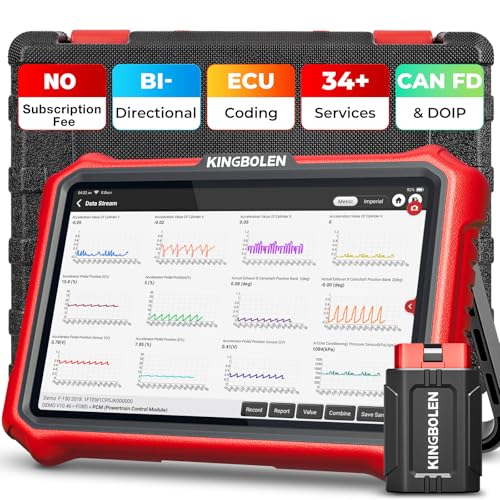
- 【Lifetime Database & Software Updates— No Subscription Fee, No Feature Lock, Save you $399/Y】KINGBOLEN K8 Pro's software can already be permanently upgraded and used for while software of other same price product still needs annual fee of almost $400. K8 pro scanner has packed all capabilities auto technicians would ever need for repair & maintenance services: Added CAN-FD & DOIP protocol, Bluetooth Wireless Diagnosis, Bidirectional Test, ECU Online/Offline Code & Guided Functions for VW, for Audi...34+ Restes, Autoauth for FCA SGW, Larger 4GB+64GB memory, 12600mAh battery, 8'' touch screen with 1280 * 800 Resolution. A Kickstand can allow the tablet to sit at a comfortable angle
- 【Newly Added CAN FD & DOIP Protocol】As Upgrade Version of Kingbolen K8, K8 Pro obd2 scanner supports CANFD and DOIP protocol, which will save you 200+ bucks as no need extra buy for special adapter. CANFD protocol suits for the latest GM(2019-), reducing the risk of undetected errors. The DoIP protocol (comes with DoIp cable) fits for 2017+ BMW(F&G chassis), for Jaguar & Land Rover after 2017, for Volvo after 2018. Plus, K8 Pro's Memory from 2G+32G expanded to 4G+64G, update period extended from 2 years to permanent
- 【34+ Hot Special Functions & V.A.G Guide】KINGBOLEN K8 pro bluetooth obd2 scanner covers almost all common services including Oil Reset, EPB, SAS, BMS Reset, ABS bleed, Throttle Reset, Suspension, Injector Code, Power Balance, Transmission Adaptation, Fuel Trim Learn, HVAC Control Module Calibrate, Language Change, A/F Settings, Stop/Start Reset, Crankshaft Sensor Relearn, TPMS, PMI function and etc. Imagine how much money and time you spend on car maintenance every year? K8 pro car scanner will be a good helper and saver for your car. V.A.G Guided function provides step-by-step guide to work for Volkswagen/Audi/Skoda. Note: Please send us model/year/vin to check compatibility before order
- 【Powerful Bidirectional Test/Active Test & ECU Code】As a bidirectional scan tool, KINGBOLEN K8 pro allows you to request information from a vehicle's ECU or send commands to the vehicle's modules to perform specific tests and functions, such as EVAP Tests, Turn on/off radiator fan, Window/Mirror/Door Lock Test, Pump and Value Tests, Sound horn Test, et. Without using the vehicle control system and dismantling car’s parts, it can quickly and accurately pinpoint the fault causes, simple operation saves time and money
- 【Wireless OE-Level All Systems Diagnostics】Equipped with Bluetooth VCI, you can do car diagnostics out of the car (up to 33F/10M) without being confined to a small space inside the car. Provides the convenience of Auto VIN, K8 pro allowing for easy access and diagnosis of all available modules on a wide range of vehicles, like PCM, ECM, BCM, TPMS, SAS, Fuel System, etc, to perform read/clear codes, view live data, freeze frame, perform active tests, and read ECU info... 12-In-1 Data Stream Graphics make data viewing more intuitive.Diagnostic reports can be shared via QR Code, Bluetooth or email.Built-in Browser and Fault Code Library allows you directly query the fault code when diagnosing
Last update on 2026-06-23 / Affiliate links / Images from Amazon Product Advertising API
This product presentation was made with AAWP plugin.