
NHTSA ID Number: 11006912
Manufacturer Communication Number: 2024.26.100_082024.pdf
TSB/Document Date: 2024-09-04
Summary
Tesla does not provide physical owner's manual copies. Instead, all available owner’s manual content is integrated into the vehicle software, and only the content relevant for a given vehicle, based on vehicle configuration and software version installed, is displayed on its touchscreen. This file contains all available owner’s manual content for the vehicle converted to PDF format, and given the distribution method and NHTSA’s submission format requirements, it is the best available representative copy of owner’s manual content. However, a customer who accesses the owner’s manual via their vehicle’s touchscreen would only see the parts of this PDF file that are relevant to their vehicle.
305
Owner's Manual
Towing
Towing a Trailer
NOTE: You cannot enable Off-Road Modes and Trailer Mode at the same time.
NOTE: If the towing capacity on the hitch label conflicts with the information provided in this owner's manual, this owner's
manual takes precedence.
Towing Guidelines
Towing a trailer puts additional load on the motors, drive train, brakes, tires, and suspension and significantly decreases range.
If you tow a trailer, follow these general guidelines:
• Reduce your driving speed and avoid sudden maneuvers. Keep in mind that when towing a trailer, steering, stability, turning
radius, stopping distances, and braking performance are different when compared to driving without a trailer.
• Increase your following distance by maintaining at least twice the typical distance from the vehicle ahead. This helps avoid
situations that require heavy braking. Sudden braking may result in skidding or jack-knifing, and loss of control.
• Avoid sharp turns. Sharp turns can cause the trailer to contact Cybertruck and cause damage. Make wider turns to prevent
the trailer from hitting curbs, road signs, trees, or other objects.
• Periodically check the trailer lights and turn signals to confirm that bulbs are still working (see Trailer Light Test on page
309). When towing a trailer, the turn signal arrows on the touchscreen flash as normal, even if the bulbs on the trailer are
burnt out.
• Periodically confirm the cargo is secure.
• Periodically confirm the trailer brakes are working (see Trailer Brakes on page 308).
• Avoid parking on a grade (see Parking with a Trailer on page 311).
• Regularly confirm that all towing components are secured.
Before Towing a Trailer
Before towing a trailer, you must do the following:
1. Review all regulations and legal requirements in your state/region that apply to towing a trailer. Failure to comply with
regulations can compromise your safety.
2. Inflate tires to the cold tire inflation pressure specified in Tire Pressures when Towing on page 307.
3. Set the suspension height to match the trailer height. Tesla recommends Low (Controls > Suspension > Low). You must
choose a ball mount suitable for your towing needs. See Ball Mount Specifications on page 312 for more information.
4. Adjust all mirrors to provide a clear rearward view without a significant blind spot.
NOTE: Use towing mirrors for larger trailers.
5. Confirm the trailer load is evenly distributed such that the trailer tongue weight is approximately 10% of the total trailer
weight, without exceeding the maximum tongue weights provided in Towing Capacity on page 307.
6. Engage Trailer Mode (see Trailer Mode on page 308).
7. Calibrate the trailer brakes (see Trailer Brakes on page 308).
Then, confirm the following:
1. Cybertruck rests horizontally with the trailer attached. If the vehicle is tipped up at the front, and down at the rear, check
that you are not exceeding the maximum towing capacity and tongue weights provided in Towing Capacity on page 307.
2. All trailer hitch parts and attachments, safety chains, and electrical connectors are in good condition and properly
connected. If any problems are apparent, do not tow the trailer.
3. Trailer lights (brake lights, turn signal lights, marker lights, etc.) are working properly.
4. The trailer tongue is securely connected to the hitch ball.
5. Safety chains are properly connected between the trailer and the vehicle. Cross the safety chains under the tongue of the
trailer to help prevent the tongue from contacting the road if it separates from the hitch. Leave enough slack in the safety
chains to allow for turns and ensure that the chains can never drag on the ground.
Owner's Manual
306
Towing
6. Wheel chocks are available and easy to access.
7. All cargo is secured.
NOTE: For general information about trailer safety provided by the National Highway Traffic Safety Administration, go to
https://one.nhtsa.gov/cars/problems/equipment/towing/index.htm.
WARNING: The trailer tongue weight must be approximately 10% of the total trailer weight without exceeding the
maximum tongue weights provided in Towing Capacity on page 307. Loads that are balanced over the wheels or heavier
in the rear can cause trailer sway, resulting in loss of vehicle control.
WARNING: Always ensure that cargo is secured in the trailer and will not shift. Dynamic load shifts can cause loss of
vehicle control, resulting in serious injury or death.
Towing Capacity
The total trailer weight (including all cargo and additional equipment), and the trailer tongue weight, must never exceed the
following:
Wheel Size
Maximum Towing Capacity
Maximum Tongue Weight*
20" x 9J
11,000 lb (4,990 kg)
1,100 lb (499 kg)
*The tongue weight is the downward force that the weight of the trailer exerts on the hitch. It must not exceed 10% of the
maximum towing capacity. Carrying a significant amount of equipment, passengers, or cargo in the tow vehicle can reduce the
tongue weight it can handle, which also reduces the maximum towing capacity. Maximum towing capacity is calculated
assuming the GVWR (Gross Vehicle Weight Rating) is not exceeded. For GVWR, see Vehicle Loading on page 447).
CAUTION: Tesla assumes no responsibility for damage or injuries resulting from towing a trailer, for any errors or
omissions in the instructions accompanying towing equipment, or for your failure to follow the proper instructions.
Damage caused by towing a trailer is not covered by the warranty.
WARNING: Do not overload the vehicle or trailer. Doing so can cause poor performance, vehicle damage and loss of
vehicle control, resulting in serious injury.
WARNING: Do not use the trailer hitch to tow/transport Cybertruck.
WARNING: Never operate a trailer with a negative tongue weight, where the trailer tongue pulls upward on the trailer
hitch. Negative tongue weights can significantly increase the risk of trailer sway or loss of stability.
Tire Pressures when Towing
When towing a trailer, tire pressures must be adjusted to accommodate the additional load. Keep tires inflated to the pressures
shown below (these pressures override the pressures that are provided on the Tire and Loading information label – see Vehicle
Loading on page 447):
Tires
Cold Tire Inflation Pressure
20" All Season
50 psi
20" All Terrain
65 psi
WARNING: Check tire pressures using an accurate pressure gauge when tires are cold (see Tire Pressures on page
415). Driving one mile (1.6 km) warms the tires sufficiently to affect tire pressures. Parking the vehicle in direct sunlight
or in hot weather can also affect tire pressures. If you must check warm tires, expect increased pressures. Do not let air
out of warm tires in an attempt to match recommended cold tire pressures. A hot tire at or below the recommended cold
tire inflation pressure is dangerously under-inflated.
WARNING: Never attempt to tow a trailer when a tire is faulty or has been inflated using a tire repair kit. A temporarily
repaired tire is not designed to sustain the towing load. Towing using a faulty or temporarily repaired tire can result in
tire failure and loss of vehicle stability.
307
Owner's Manual
Towing
Trailer Mode
Trailer Mode must always be active when towing a trailer. When you connect a trailer's electrical connection (see Electrical
Connections on page 312), Cybertruck automatically engages Trailer Mode. Trailer Mode disengages when you disconnect
the trailer's electrical connection. To engage or exit Trailer Mode manually, touch Controls > Towing & Hauling > Trailer Mode
on the touchscreen. One of the following indicators displays on the touchscreen:
Trailer Mode is active.
Cybertruck detects a connection for trailer lights but Trailer Mode is disabled. It is likely that a carrying
accessory has been connected.
Cybertruck detects a faulty electrical connection for the trailer lights. Some, or all, trailer lights may not be
functioning. Pull over as soon as safety permits and inspect the trailer lights for faulty cabling or connections. If
the issue is resolved and the red icon persists, manually turn Trailer Mode off and on again.
Some Autopilot features, and any feature that requires the use of the rear camera, may be unavailable when Trailer Mode is
enabled. In addition, some features may operate differently. For example:
• Autosteer (if equipped) is unavailable. Therefore, for Traffic-Aware Cruise Control availability, touch Controls > Autopilot >
Autopilot Activation > Double Click. This allows you to engage Traffic-Aware Cruise Control with a single click of the right
scroll button on the steering wheel.
• Traffic-Aware Cruise Control increases the following distance from the car in front of you.
• The air suspension system will not make speed-based adjustments from Medium to Low and does not automatically raise
ride height based on saved locations.
• Side collision warnings are active but automatic steering interventions are disabled.
• The braking force provided by Automatic Emergency Braking (see Collision Avoidance Assist on page 73) is significantly
limited.
NOTE: Trailer brakes are only available when Trailer Mode is engaged.
WARNING: Do not rely on Cybertruck to automatically detect a trailer in all cases. Always check that Trailer Mode is
engaged before towing a trailer.
WARNING: Remaining in Trailer Mode will help ensure Cybertruck remains stable in adverse conditions while towing. Do
not exit Trailer Mode while towing a trailer. Exiting Trailer Mode could result in loss of vehicle stability.
Trailer Alarm
When enabled, Cybertruck sounds an alarm if the vehicle detects the trailer is being unplugged while Trailer Mode is active
and the vehicle is locked.
Trailer Brakes
Cybertruck is equipped with a trailer brake controller which automatically applies the trailer brakes when you decelerate. To
update your trailer brake preferences, navigate to Controls > Towing & Hauling where you can:
Owner's Manual
308
Towing
• Enable/disable Trailer Mode on page 308.
• Customize Trailer Brake Gain on page 309.
NOTE: Tesla recommends always enabling the trailer brakes, otherwise stopping distance may be increased. To disable the
trailer brakes, first disable Trailer Mode or set the Trailer Brake Gain to 0.
• Choose how to manually apply the trailer brakes (either with the touchscreen or right scroll button). The trailer brake
activation button is unaffected.
• Adjust Trailer Brake Boost on page 309.
• Toggle Adaptive Regenerative Braking on page 309.
• Perform the Trailer Light Test on page 309.
You can also set up a shortcut for Towing & Hauling by adding it to your vehicle "Cards" area, near the bottom of the
touchscreen.
Trailer Brake Gain
The Trailer Brake Gain slider is a scale between 0 and 10 that calibrates the degree of trailer braking applied when you press
the brake pedal normally. 0 applies no trailer brakes, whereas 10 applies the full trailer brakes.
Set this up each time you connect a trailer to ensure your trailer brakes do not lock up:
1. Ensure the trailer is securely attached to the Cybertruck hitch assembly.
2. Drive Cybertruck in a safe, open area at low speeds (10-15mph or 15-25 km/h).
3. Use the right scroll button on the steering wheel or Trailer Brake Activation (set your preference in Towing & Hauling) to
apply the trailer brakes while moving. Adjust the Trailer Brake Gain as needed to ensure the trailer brakes do not lock up
when they are applied. If the wheels do lock up, decrease the amount of gain slightly and repeat this process.
The ideal Trailer Brake Gain varies depending on your trailer load, number of axles, and surface conditions. You must adjust as
needed if conditions change.
Trailer Brake Boost
Tesla recommends initially setting your Trailer Brake Boost to Low. Once Trailer Brake Gain is calibrated, adjust based on your
preferences by driving around in a safe, open area and applying the brakes as you would in normal traffic. Increasing will make
your brakes react more quickly, although the braking feels more harsh to passengers.
Adaptive Regenerative Braking
At the start of every drive, Cybertruck estimates the load to determine the proper level of regenerative braking. Regenerative
braking will start at the standard level and increase as the vehicle learns your trailer/cargo weight. This weight estimation
works best when driving in a straight line on a flat, smooth surface.
NOTE: Adaptive regenerative braking does not engage the trailer brakes. In order to engage the trailer brakes, you must press
the brake pedal or enable trailer brakes on the touchscreen.
WARNING: It is your responsibility to determine when to enable Adaptive Regenerative Braking. Always drive safely and
avoid situations that could require heavy braking.
WARNING: Towing increases your stopping distance. When towing, increase your following distance and avoid
situations that could potentially cause heavy braking. Failure to do so can result in a collision.
WARNING: Observe all regulations and legal requirements in your regional and national jurisdictions that apply
specifically to trailer towing and brake requirements. Many regions require a breakaway switch, located on the tongue of
the trailer, to activate the trailer brakes if the trailer separates from the vehicle. Failure to comply with regulations can
compromise your safety.
Trailer Light Test
Before towing, and periodically during towing, use Trailer Light Test to confirm the trailer lights are working as expected.
WARNING: Do not tow a trailer if the trailer lights or trailer brakes are not working properly.
309
Owner's Manual
Towing
Trailer Brake Controller Limitations
WARNING: It is your responsibility to understand your towing needs, proper towing procedures, trailer brakes (such as
their use and limitations), and the risks and limitations of towing. Do not tow with Cybertruck if you do not have towing
knowledge and experience; doing so may result in damage, injury or death. Damage as a result of improper towing is not
covered by the warranty.
Keep in mind the following brake controller limitations:
• Properly maintain and use trailer brakes as intended to prevent damage.
• The trailer brake controller and auxiliary output is 12V.
• Abusive or extensively long manual activations of the trailer brake controller may cause overheating with some trailer brake
loads.
• Maximum power draw - The onboard trailer controller is designed to support most trailer power applications. The power
allocations are:
Standard trailer brakes (when braking power is derived from brake output,
e.g. non-EOH Electric Drum brakes)
Lights: Max. 220 Watts total for all light
outputs combined.
Auxiliary power (AUX 12V+ Charging): Max.
270 Watts (20 Amps).
Trailer brakes: Max. 331 Watts
Electric over Hydraulic trailer brakes (braking power is derived from
auxiliary power output, e.g. EOH, Hydraulic disk brakes, see Electric Over
Hydraulic (EOH) Brakes on page 310)
Lights: Max. 220 Watts total for all light
outputs combined.
Auxiliary power (AUX 12V+ Charging): Max.
405 Watts (30 Amps).
Trailer brakes: Max. 48 Watts (Current draw
must be less than 3 Amps).
Cybertruck switches to the standard brakes if a 3A or higher load on the trailer brake connections is detected.
Electric Over Hydraulic (EOH) Brakes
Cybertruck supports standard electric brakes and Electric over Hydraulic (EOH) brakes. If using EOH brakes, Tesla
recommends connecting a battery in parallel with the auxiliary power output to the EOH unit.
The auxiliary output is capable of supplying up to 30 Amps when supporting an EOH trailer brake unit. You are responsible for
understanding the power needs of your EOH trailer brake unit. Using an EOH trailer brake controller that draws more than 30
Amps may result in a loss of power to the trailer brakes while braking.
The usage of only an EOH unit with the auxilary power port is supported for maximum braking availability. A battery in parallel
is recommended. The battery must be in good health and is expected to already be present in most states per DOT
regulations.
CAUTION: Tesla does not recommend using EOH trailer brakes simultaneously with other auxiliary power loads. Doing
so could lead to complications or loss of power to the EOH trailer brakes unit.
Owner's Manual
310
Whenever possible, avoid parking on a grade. However, if parking on a grade is absolutely necessary, place wheel chocks
under the trailer wheels:
1. One person presses and holds the brake pedal.
2. A second person places the wheel chocks under the wheels on the downgrade side of the trailer's tires.
3. When the chocks are in place, slowly release the brake pedal and ensure the chocks hold the weight of the vehicle and
trailer.
NOTE: When testing chocks, ensure that Vehicle Hold (see Vehicle Hold on page 286) is engaged. If Vehicle Hold is
braking Cybertruck, the associated indicator light appears on the touchscreen. To disengage Vehicle Hold, press and
release the brake pedal.
4. Place the vehicle in Park.
WARNING: If parking on a grade is necessary, ensure that all trailer wheels have been securely chocked. Failure to do so
can result in serious damage, injury, or death.
Trailer Sway Mitigation
When trailer sway is detected, your vehicle's electronic stability control system attempts to apply the appropriate amount of
braking to minimize trailer sway. The touchscreen briefly displays the traction control system indicator. Manually applying the
brakes (via right scroll button on the steering wheel or the Trailer Brake setting) when the system is actively braking to mitigate
trailer sway does not cancel this automatic braking. However, it is still your responsibility to drive carefully and brake when
needed, taking into consideration possible trailer sway.
Accessing the Trailer Hitch Assembly
The Cybertruck trailer hitch assembly is located behind the rear fascia of the vehicle, under the tailgate. Your vehicle is not
equipped with a ball mount, which must be purchased separately based on your towing needs.
311
Owner's Manual
Towing
The trailer hitch cover is attached to the body of the vehicle with three turn clips. Use a flat trim tool or non-marring
screwdriver to partially turn and unlock the clips, then remove the trailer hitch cover and place it in a secure, dry place. Once
removed, you can see where the ball mount can be installed.
When not actively towing, keep the cover installed to prevent dirt and debris from entering.
NOTE: The maximum permissible rear overhang for the coupling point is 49 in (1.25 m), measuring from the center of the rear
tire toward the hitch receiver.
NOTE: Always attach safety chains when towing. See your trailer Owner's Manual for more information.
Ball Mount Specifications
A ball mount must be purchased separately based on your towing needs. The Cybertruck hitch receiver supports a 2 in (5 cm)
ball mount. Follow the ball mount manufacturer's instructions for more information.
NOTE: Refer to the manufacturer's instructions to properly maintain the ball mount.
Electrical Connections
Cybertruck is equipped with a combination electrical outlet, located near the hitch assembly, that supports two types of
commonly-used trailer plugs without needing an adapter:
• 7-PIN - SAE J2863 - for heavier trailer loads requiring their own braking system.
• 4-PIN - SAE J1239 - for light trailer loads requiring lights only.
Owner's Manual
312
Towing
Regulations require that all trailers, at a minimum, are equipped with taillights and turn signals. These are provided on the 4pin connector, which is adequate when pulling a light load. For heavier loads, the trailer must also be equipped with brakes,
available on the 7-pin connector.
Plugging a trailer's wiring into either electrical outlet automatically engages Trailer Mode (see Trailer Mode on page 308).
NOTE: Use one outlet only according to your trailering needs. The covers prevent you from opening both outlets
simultaneously.
7-PIN Connector
1. Left Turn/Stop Light (Yellow)
2. "-" Ground (White)
3. Trailer Brake Output (Blue)
4. Right Turn/Stop Light (Green)
5. +12V Auxiliary Power (Orange)
6. Running (or Side Marker) Lights (Brown)
7. Reverse Lights (Gray)
4-PIN Connector
1. Ground (White)
2. Tail and License Plate lights (Brown)
3. Left Turn/Stop Light (Yellow)
4. Right Turn/Stop Light (Green)
313
Owner's Manual
Towing
Loss of trailer lights when towing may be the result of a fault in the trailer wiring or excessive power consumption by the lights
connected to the trailer output(s). When this occurs, the touchscreen displays a red Trailer Mode icon. Fix any issues with the
wiring and/or reduce the number of lights connected to the trailer output(s), then turn Trailer Mode off and on to try again.
CAUTION: Always ensure that the trailer's electrical cable does not contact or drag on the ground and there is enough
slack in the cable to allow for turns.
WARNING: Before towing, it is the driver's responsibility to ensure that all electrical connections are working, all trailer
lights are operating as expected, and the braking system is fully functioning. Cybertruck does not detect faulty
electrical connections. You must perform manual checks. Failure to do so can result in property damage, personal injury,
or death.
WARNING: Use only the electrical connection designed by Tesla. Do not attempt to directly splice or attempt to connect
trailer electrical wiring using any other method. Doing so can damage the vehicle electrical system and cause
malfunctions.
Impact on Range
Towing a trailer and carrying accessories increases vehicle weight and drag. As a result, driving range can decrease
significantly. Although Trip Planner attempts to adjust estimates based on Trailer Mode, actual energy consumption may vary.
Plan trip length and charging destinations accordingly.
Carrying Accessories and Crossbars
WARNING: Tesla assumes no responsibility for damage or injuries resulting from installing and using a carrier or
crossbars, for any omissions in the instructions accompanying a carrier or crossbar, or for your failure to follow the
instructions. Damage caused by using a carrier or crossbars is not covered by the warranty.
Carrying Accessories
CAUTION: The hitch assembly is designed to support vertical loads up to 160 lb (72 kg). Exceeding this maximum
weight can cause damage.
The hitch receiver is designed to support vertical loads up to 160 lb (72 kg). When carrying bicycles, skis, or other items on
the Cybertruck's hitch, always check to ensure that the maximum weight is not exceeded. When the carrier weighs 40 lbs (18
kg), the weigh threshold is sufficient for carrying two bicycles weighing approximately 60 lb (27 kg) each, or four items
weighing approximately 30 lbs (14 kg) each.
CAUTION: An accessory carrier attached to the rear of Cybertruck may obscure your view from the rear view mirror and
the rear camera.
Follow the instructions provided with your accessory carrier to install onto Cybertruck. Observe all regulations and legal
requirements in your state/region that apply to carrying accessories.
Cybertruck includes the wiring necessary for using an accessory carrier equipped with lights (see Electrical Connections on
page 312). Cybertruck also includes Trailer Mode software (see Trailer Mode on page 308).
When you connect an accessory carrier's wiring harness, Cybertruck detects a connection for trailer lights and
displays this indicator on the touchscreen to indicate that Trailer Mode is disabled.
When carrying accessories, periodically confirm that the accessory carrier and its cargo remain secure at all times, and if
applicable, that the lights on the accessory carrier are working.
Installing Brackets onto the Appliques
1. Open all 8 applique doors.
Owner's Manual
314
2. Use the provided torque wrench to loosen and remove the nuts that are fastened to the threaded studs located within the
applique doors.
3. Install a bracket by positioning the bracket so that the raised arrow on it is directed outward, away from the vehicle. Align it
with the threaded studs and set it in place.
4. Use the nuts that were removed in step 2 and tighten them back onto the threaded studs with the provided torque wrench.
315
Owner's Manual
5. Repeat steps 2-4 for the remaining applique doors.
NOTE: After installing the brackets once, you can leave them installed for future use, unless you want to move the
crossbars to different locations on the vehicle.
Installing Crossbars
NOTE: Installing the crossbars requires two people.
CAUTION: Crossbars must be installed in tandem. Failure to do so may cause damage.
CAUTION: It is your responsibility to ensure your accessories are secured to the crossbars. Periodically check to ensure
your accessories have not moved or loosened throughout your driving. See the in-box instructions that come with the
crossbars for more information.
CAUTION: If installing a crossbar on the front-most applique doors, make sure that the power feed harness on the
passenger side applique is not pinched during installation. If necessary, use a trim tool to release the applique and
maneuver the harness away from the studs.
To install the crossbars:
1. Locate the FRONT arrow embossed on the bottom of the crossbar. The arrow should point toward the front of the vehicle.
Owner's Manual
316
2. Lower one tower (edge of the crossbar) onto the bracket and extend the crossbar so that the other tower aligns with the
bracket on the opposite side.
3. Use the key to open the tower doors. Push down to seat both towers.
317
Owner's Manual
4. Once the towers are completely seated, close the tower doors securely using the key. You will hear and feel a “click” when
the tower door is closed completely. If there is resistance to closing or if the door physically cannot be closed, the tower
door is not seated properly. Turn the key to open the door, re-position, and use the key to close to door again.
5. Repeat this on the other side of the crossbar.
6. Repeat steps 1-5 to install your second crossbar directly in front of or behind the first one.
7. To test the secure installation of the crossbars, push and pull them in all directions. If any movement is observed at any of
the four towers, re-seat the affected crossbars, then retest the installation.
Owner's Manual
318
Towing
NOTE: Keep the key in a dry, safe area for future use.
Weight limits
The crossbars are capable of supporting up to 220 lbs per crossbar set. See the in-box instructions that come with the
crossbars for more information.
319
Owner's Manual
Autopilot
About Autopilot
Autopilot is a suite of advanced driver assistance features that are intended to make driving safer and less stressful. None of
these features make Cybertruck fully autonomous or replace you as the driver. Autopilot features come standard with all new
Tesla vehicles.
Basic Autopilot includes Traffic-Aware Cruise Control and Autosteer.
• Traffic-Aware Cruise Control: Maintains your speed and an adjustable following distance from the vehicle in front of you, if
there is one (see Traffic-Aware Cruise Control on page 324).
• Autosteer: Maintains your speed and distance from a leading vehicle while also intelligently keeping Cybertruck in its lane
(see Autosteer on page 324).
WARNING: Basic Autopilot is a hands-on feature. Keep your hands on the steering wheel at all times and be mindful of
road conditions, surrounding traffic, and other road users (such as pedestrians and cyclists). Always be prepared to take
immediate action. Failure to follow these instructions could cause damage, serious injury, or death.
Enhanced Autopilot includes additional features. Enhanced Autopilot Features are designed to further reduce driver workload
and make common actions, such as changing lanes or parking, easier.
• Auto Lane Change: Moves Cybertruck into an adjacent lane when you engage the turn signal and Autosteer is active (see
Auto Lane Change on page 325).
• Navigate on Autopilot: Actively guides Cybertruck from a highway’s on-ramp to off-ramp, including performing lane
changes, navigating interchanges, automatically engaging the turn signal, and taking the correct exit (see Navigate on
Autopilot on page 325).
• Autopark: Parks Cybertruck, either parallel or perpendicularly (see #unique_181 on page ).
• Summon: Moves Cybertruck forward or backward, even while you’re outside the vehicle. This is useful for parking in tight
parking spots (see #unique_182 on page ).
• Smart Summon: Moves Cybertruck out of a parking space and through more complex environments, maneuvering around
obstacles and other vehicles, to meet you or go to a predetermined target (see #unique_183 on page ).
WARNING: Enhanced Autopilot is a hands-on feature. Keep your hands on the steering wheel at all times and be mindful
of road conditions, surrounding traffic, and other road users (such as pedestrians and cyclists). Always be prepared to
take immediate action. Failure to follow these instructions could cause damage, serious injury or death.
Full Self-Driving Capability includes:
• Traffic Light & Stop Sign Control: Maintains your speed, keeps a following distance, and keeps Cybertruck in its lane while
also slowing down and stopping for traffic lights and stop signs (see Traffic Light and Stop Sign Control on page 53).
• Autosteer on City Streets (Full Self-Driving (Supervised)): Attempts to drive to your destination by following curves in the
road; stopping at and negotiating intersections, stop signs, and roundabouts; making left and right turns; and entering/
exiting highways (see Full Self-Driving (Beta) on page 59).
WARNING: Full Self-Driving Capability is a hands-on feature. Keep your hands on the steering wheel at all times and be
mindful of road conditions, surrounding traffic, and other road users (such as pedestrians and cyclists). Pay attention to
the road at all times and always be prepared to take immediate action. Failure to follow these instructions could cause
damage, serious injury or death.
Autopilot uses the cameras on Cybertruck, which monitor the surrounding area and detect other vehicles, pedestrians, road
markings, and obstacles such as barriers and curbs. There are cameras mounted on the front, rear, left, and right sides of
Cybertruck (see Cameras on page 195).
When Autopilot is engaged, Cybertruck shows a series of escalating warnings reminding you to keep your hands on the wheel
and pay attention to the road. If there is no response, Autopilot disengages and is unavailable for the remainder of the drive.
WARNING: Autopilot is designed for your driving comfort and convenience and is not a collision warning or avoidance
system. It is your responsibility to stay alert, drive safely, and be in control of the vehicle at all times. Never depend on
Autopilot to adequately slow down Cybertruck. Always watch the road in front of you and be prepared to take corrective
action at all times. Failure to do so can result in serious injury or death.
Owner's Manual
320
Autopilot
It is your responsibility to familiarize yourself with the limitations of Autopilot and be ready to take control at all times. For more
limitations, cautions, and warnings, see Limitations and Warnings on page 63.
321
Owner's Manual
Autopilot
Autopilot Conditions
Ensure all cameras are clean and free of obstructions before each drive and before using Autopilot features (see Cleaning a
Camera on page 198). Dirty cameras as well as environmental conditions such as rain and faded lane markings, can affect
Autopilot performance. If a camera is obstructed or blinded, Cybertruck displays a message on the touchscreen and Autopilot
features may not be available. For more information on specific alerts, see Troubleshooting Alerts on page 508.
Before you can use Autopilot features, and after some Service visits, you must drive a short distance to calibrate cameras. For
more information, see Drive to Calibrate Cameras on page 199.
In addition, these features may not work as intended when:
• The road has sharp curves or significant changes in elevation.
• Road signs and signals are unclear, ambiguous, or poorly maintained.
• Visibility is poor (due to heavy rain, snow, hail, etc. or poorly lit roadways at night)
• You are driving in a tunnel or next to a highway divider that interferes with the view of the camera(s)
• Bright light (such as from oncoming headlights or direct sunlight) interferes with the view of the camera(s).
The list above does not represent an exhaustive list of situations that may interfere with proper operation of Autopilot features.
For more information, see Limitations and Warnings on page 63.
Autopilot
Feature
Traffic-Aware
Cruise Control
Available When
• You are driving between 18 mph (30 km/h) and 90 mph (150 km/h)85 mph (140 km/h)
NOTE: You can activate Traffic-Aware Cruise Control at lower speeds if there is a vehicle detected at
least 5 feet (1.5 meters) ahead of Cybertruck.
Autosteer
• You are driving between 18 mph (30 km/h) and 90 mph (150 km/h)85 mph (140 km/h)
NOTE: You can activate Autosteer at lower speeds if there is a vehicle detected at least 5 feet (1.5
meters) ahead of Cybertruck.
NOTE: On a residential road, a road without a center divider, or a road that is not controlled access, the
maximum allowed cruising speed is limited and the displays a message. The restricted speed will be
the speed limit of the road plus 5 mph (10 km/h).
Navigate on
Autopilot
• You are driving between 18 mph (30 km/h) and 90 mph (150 km/h)85 mph (140 km/h).
NOTE: You can activate Navigate on Autopilot at lower speeds if there is a vehicle detected at least 5
feet (1.5 meters) ahead of Cybertruck.
• You are driving on a controlled-access highway. When you leave a controlled-access highway,
Navigate on Autopilot reverts to Autosteer.
Full Self-Driving
(Supervised)
• You are driving less than 85 mph (150 km/h).
NOTE: You can activate Full Self-Driving (Supervised) at lower speeds, including when Cybertruck is at
a standstill, whether or not there is a vehicle detected in front of Cybertruck.
Owner's Manual
322
Autopilot
Autopilot
Feature
Available When
• Headlights are set to On or Auto. Although Full Self-Driving (Supervised) is available both during the
day and in low light conditions (dusk or dark), it aborts or is unavailable if headlights are set to Off.


- Advanced VCI Box, Industry-leading J2534 Pass-Thru...
- High-Speed OEM-Level Diagnostics & Programming: Unlock true...
- Coverage for 17 Car Brands & Ultra Reliability: Works...
- User-Friendly RLink Platform & Expert Support: TOPDON’s...
- 6.6 ft USB-C Cable & Portable Storage Case: The RLink J...
Last update on 2026-06-23 / Affiliate links / Images from Amazon Product Advertising API
If the PDF is very large, it may not load in the preview below.
Some older TSBs had multiple PDFs — visit the NHTSA Website to view all PDFs.
If the TSB PDF does not show, download or view it on the NHTSA Website.
Click on the (+) Plus Sign
Then Click on Associated Document(s)
Search NHTSA Database for Recalls
Search NHTSA Database for Vehicle Investigations
View Latest Vehicle Investigations
Search NHTSA Database for Vehicle Complaints
View Latest Vehicle Complaints
TSB/Document ID: 2024.26.100_082024.pdf
Replacement Service Bulletin Number:
MFR Communication Date: 2024-08-31
MFR Internal Campaign ID/Software Version: 2024.26.100
Communication Type: Over The Air
NHTSA Components: UNKNOWN OR OTHER
MFR Component System:
MFR Component Subsystem:
Previous TSB | Next TSB |
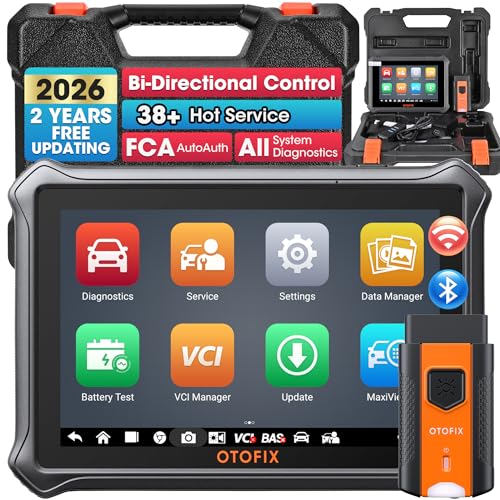
- 🎉[OTOFIX D1 Lite, Perfect Cost-effective Diagnostic Tool]: OTOFIX D1 Lite, a newest bidirectional scan tool from OTOFIX company, is a great choice for DIYers and repair shops. 👉This obd2 scanner diagnostic tool packs all practical functions: OE level all systems diagnoses, Bi-Directional Control, 38+ reset services fixing 99% of common problems, support DoIP & CANDF protocols and FCA
 AutoAuth, high-end hardware configuration. Worldwide vehicles and 🔥2 Years Free Updating🔥 covered.
 - 🎉[Bi-Directional Scan Tool, Active Test]: OTOFIX D1 Lite bluetooth obd2 scanner can also command ECUs and monitor the operation of the actuators to track down the problems of certain parts, like windows, sunroof, wipers, fuel pumps, etc., saving repair time & trouble. This makes OTOFIX D1 Lite the most cost-effective bidirectional scan tool.
- 🎉[2026 Newest, 38+ Hot Reset Functions]: Equipped with 38+ reset functions in one, the OTOFIX D1 lite automotive scanner diagnostic tool allows you to troubleshoot 99% of common vehicle problems. You can use this car diagnostic scanner holding enough functions to easily repair common vehicle models in your repair shops. Including Oil Reset, Injector Coding, Throttle, DPF Reset, SCR Reset, Gear Learning, Clutch Learning, Suspension, etc. Note* Reset functions vary by model.
- 🎉[OE Level Full Systems Diagnostics]: Unlike the 2-system and 4-system diagnostic tools, the OTOFIX auto scan tool can complete comprehensive system diagnostics within 5 minutes. It accesses and scans all available onboard systems like for Engine /AT /ABS /EPB /BMS /TPMS /SRS /SAS /Audio System /BCM /Air Conditioning / etc., to read & clear codes, view live data, and check ECU information. Note: Active test is not involved.
- 🎉[Powerful Hardware Configuration]: Designed with a fashion appearance & a 7” touchscreen and a weight of 463g, this OTOFIX D1 Lite OBD2 diagnostic scanner scan tool is convenient for everywhere and easy to use & store. Android9.0 OS and 2+64GB memory enhance multi-task smoothness and diagnostic operation, no more wasting too much time. 5800mAh battery allows hours-lasting use. WiFi & VCI1 also bring faster communication for your diagnostics.
- 🏆【2026 TOP OBD2 Scanner Diagnostic Tool】OTOFIX D1 Lite wireless obd2 scanner has upgraded hardware configuration and car coverage. The newly upgraded D1 Lite with 🔥OS Android 9.0🔥1.5Ghz 4 core high efficiency processor🔥2GB RAM+64GB ROM large storage🔥5800mAh large battery, more stable and longer lasting diagnostics🔥 38+ Reset🔥action tests🔥full system diagnostic🔥Supports MV105 endoscope🔥21+ Language Supports🔥100000+ vehicle coverage to meet all your daily maintenance needs.
- 👍【Bi-Directional Control / Active Test】D1 Lite obd2 scanner has bidirectional control(worth $300+), which is the most beloved feature among mechanic. If your headlights or car windows are broken, going to a repair shop will cost a lot of money. You can use D1 Lite to send execution commands to the ECU module and identify the repair status. Such as ABS, car windows, doors, valves, wipers, headlights, etc., effectively shorten diagnostic time and reduce diagnostic costs.
- 🔥【All Systems Diagnostics, In-depth Checking】This advanced OBD2 Scanner D1 Lite can perform OE-level diagnosis of all systems including engine, transmission, airbag, ABS, ESP, TPMS, gateway, steering, radio, and air conditioning for more than 100 brands. This diagnostic scanner supports essential functions, such as reading ECU version info, reading and clearing fault codes, and reading data streams.With just a simple click, it provides you with accurate and in-depth diagnostics.
- 🏆【38+ Reset Hot Functions】For repair workshops, holding an OTOFIX D1 Lite Auto scanner is a strong advantage over others. Its 38+ maintenance functions provide various solutions for all module repairs, including Oil Reset, TPMS Reset, Injector Coding, Suspension, Throttle Matching, etc., which will usher your repair business to a new pinnacle. Continuously updating will never make the functionality & compatibility out-of-date.
- 🏆【150+ Models, 10000+ Car Coverage & 16 Languages】D1 Lite is a comprehensive car diagnostic scan tool, help you to troubleshoot car issues fast for 95% US, European, Asian auto makes. ✅ With frequent updates and optimizations allow D1 Lite to cover more vehicles to meet your needs. ✅ Multilingual menu allows auto mechanics around the world to use it without language barriers. 🚩Note: Kindly send us the S/N of the device to authorize new language updates before changing the menu language.
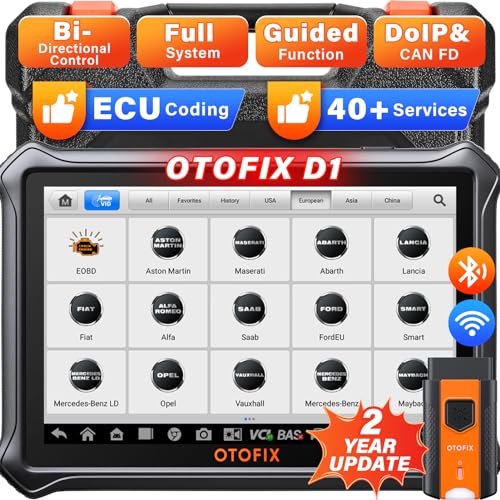
- 2026 Newest Wireless Bluetooth Scan Tool D1: OTOFIX D1 Diagnostic scanner is upgraded version with Enhanced Hardwares & Newest Functions, FASTER and SMARTER! ✅Alternative Bluetooth 5.0 +USB connect✅2G+64GB✅Android 9.0 OS✅5G & 2.4 GHz Dual WiFi✅5800mAh battery👍VAG Guided Function👍ECU Online Coding👍CANFD&DOIP👍40+ Services👍Bi-Directional Control👍Full Systems Diagnose👍2 Years Free Update👍150+ Vehicle Coverage🎁Contact to get gift: otofixaftersales-amz@ outlook.com
- ECU Coding to Unlock the Hidden Features: OTOFIX D1 obd2 scanner diagnostic tool newly adds ECU Coding which can Online Coding(ONLY for VW/Au.di/Sk0da), Variant Coding/Offline Programming, Flash Hidden Functions, Reset Adaptive Data, Match Replaced Components, Customize OE-Settings. Such as: halogen fog lamps retrofitted with xenon fog lamps, different capacity battery retrofit, disbale auto start-stop, sunroof initialization, injector calibration, etc. PS: Coding functions vary by model&year.
- Full Bidirectional Control for Active Car Tests: The D1 OTOFIX scanner also offers bi-directional control, allowing you to perform powerful active tests on car subsystems. This means that you can check the working status and functionality of open & close solenoids, energize injectors, turn cooling fan on & off, and more, all from the device itself.🚩The D1 bi-directional obd2 scanner can quickly help you to check if a system or component goes well,Improving 200% Efficiency.**Note that Active Tests available depend on the make/model/year of your car.
- 40+ Popular Maintenance Functions: OTOFIX D1 obd scanner for car performs 40+ hot services, including Oil Reset, EPB, TPMS, BMS, E.GR, G.PF, D.PF, SAS Calibration, ABS Bleeding, Injector Coding, Gearbox Match, Suspension, Crankshaft Relearn, Power Balance, etc., still growing. Great choice for DIYers, technician, repair shop. 🚩Get MORE special functions from "Car Brand>System>Service". Check compatibility before purchase via 📧 otofixaftersales-amz@ outlook.com.
- OE-Level All Systems Diagnostic + One-Click AutoVIN & AutoSCAN: OTOFIX D1 scanner automotriz gives you the ability to troubleshoot entire car systems including engion system,transmission system,body system,chassis,etc. 🚩One of the standout features of the D1 obd2 scanner diagnostic tool is the one-click AutoVIN & AutoScan function. This feature allows you to quickly and easily scan all diagnosable ECUs with just one click, and identify any problems hidden in your vehicle's systems.
Last update on 2026-06-23 / Affiliate links / Images from Amazon Product Advertising API
This product presentation was made with AAWP plugin.