
NHTSA ID Number: 11006912
Manufacturer Communication Number: 2024.26.100_082024.pdf
TSB/Document Date: 2024-09-04
Summary
Tesla does not provide physical owner's manual copies. Instead, all available owner’s manual content is integrated into the vehicle software, and only the content relevant for a given vehicle, based on vehicle configuration and software version installed, is displayed on its touchscreen. This file contains all available owner’s manual content for the vehicle converted to PDF format, and given the distribution method and NHTSA’s submission format requirements, it is the best available representative copy of owner’s manual content. However, a customer who accesses the owner’s manual via their vehicle’s touchscreen would only see the parts of this PDF file that are relevant to their vehicle.
When Full Self-Driving (Supervised) is engaged, Auto High Beam is automatically enabled (see
Headlights on page 278) and the wiper is set to Auto.
Autopilot Features
This topic describes how to enable and use the following driver assistance features.
• Traffic-Aware Cruise Control: Like traditional cruise control, Traffic-Aware Cruise Control maintains a set driving speed.
However, Traffic-Aware Cruise Control also slows down or accelerates Cybertruck as needed to maintain the following
distance from the vehicle in front of you. While Traffic-Aware Cruise Control is engaged, you are still responsible for
steering Cybertruck (see Traffic-Aware Cruise Control on page 324).
• Autosteer: Like Traffic-Aware Cruise Control, Autosteer maintains a set speed (if there is not a vehicle in front of you) or a
set following distance (if there is a vehicle in front of you). In addition, Autosteer detects lane markings, road edges, and
the presence of vehicles and objects to intelligently keep Cybertruck in its driving lane (see Autosteer on page 324).
NOTE: Autosteer is a BETA feature.
• Auto Lane Change: When you engage a turn signal while Autosteer is active, Auto Lane Change moves Cybertruck into the
adjacent lane in the direction indicated by the turn signal (see Auto Lane Change on page 325).
• Navigate on Autopilot: Navigate on Autopilot builds on the features of Traffic-Aware Cruise Control and Autosteer. While
Autosteer is active, Navigate on Autopilot allows Cybertruck to suggest and, if configured, automatically change lanes to
pass other vehicles and follow the navigation route (see Navigate on Autopilot on page 325).
NOTE: Navigate on Autopilot is a BETA feature.
Traffic-Aware Cruise Control and Autosteer use information from the cameras on Cybertruck to detect lane markings, road
edges, and other vehicles and road users around Cybertruck.
CAUTION: Ensure all cameras are clean and free of obstructions before each drive and before using Autopilot features
(see Cleaning a Camera on page 198). Dirty cameras as well as environmental conditions such as rain and faded lane
markings, can affect Autopilot performance. If a camera is obstructed or blinded, Cybertruck displays a message on the
touchscreen and Autopilot features may not be available. For more information on specific alerts, see Troubleshooting
Alerts on page 508.
CAUTION: It is your responsibility to familiarize yourself with the limitations of Autopilot and the situations in which
driver intervention may be needed. For more information, see Limitations and Warnings on page 63.
Autopilot Settings
Before you use Autopilot features, customize how they work by touching Controls > Autopilot.
• Set Speed: Choose whether Autopilot engages at the currently detected speed limit or your current driving speed. Touch
Controls > Autopilot > Set Speed and choose either Speed Limit or Current Speed.
• Offset: If you choose Speed Limit, you can specify an offset by touching Set Speed Offset. You can choose Fixed (the
cruising speed adjusts by a specific amount on all roads) or Percentage (the cruising speed is adjusted as a percentage of
the road's detected speed limit).
• Autopilot Activation: Choose how to activate Autosteer. If set to Single Click, both Traffic-Aware Cruise Control and
Autosteer engage when you single-press the right scroll wheel. If set to Double Click, you must double-press the right
scroll wheel to engage Autosteer.
NOTE: Autopilot Activation must be set to Double Click if you want to use Traffic-Aware Cruise Control independently of
Autosteer.
323
Owner's Manual
Autopilot
• Green Traffic Light Chime: In Canada and U.S.: If on, a chime will sound when you are waiting at a red traffic light and the
light turns green. If you are not actively using Traffic-Aware Cruise Control and are waiting at a red light with a car in front
of you, the chime sounds when the car ahead of you advances.
Traffic-Aware Cruise Control
Traffic-Aware Cruise Control is always enabled.
When Traffic-Aware Cruise Control is available but not engaged, the touchscreen displays the cruising speed in
gray. The number shown represents the speed that will be set when you engage Traffic-Aware Cruise Control.
When Traffic-Aware Cruise Control is actively cruising at a set speed, the speed is highlighted with blue text.
To engage Traffic-Aware Cruise Control, press the right scroll wheel, then release the accelerator pedal to allow Traffic-Aware
Cruise Control to maintain the cruising speed. A chime sounds to indicate that Traffic-Aware Cruise Control is now active. You
can apply the accelerator at any time to temporarily override the set cruising speed.
NOTE: If Autopilot Activation is set to Single Click, pressing the right scroll wheel once also activates Autosteer (which
includes Traffic-Aware Cruise Control). Touch Controls > Autopilot > Autopilot Activation and choose Double Click to use
Traffic-Aware Cruise Control independently of Autosteer when you single-press the right scroll wheel.
WARNING: Traffic-Aware Cruise Control is designed for your driving comfort and convenience and is not a collision
warning or avoidance system. It is your responsibility to stay alert, drive safely, and be in control of the vehicle at all
times. Never depend on Traffic-Aware Cruise Control to adequately slow down Cybertruck. Always watch the road in
front of you and be prepared to take corrective action at all times. Failure to do so can result in serious injury or death.
For more information, see Limitations and Warnings on page 63.
Autosteer
To enable Autosteer:
1. Touch Controls > Autopilot > Autopilot Features > Autosteer (Beta).
2. After carefully reading and understanding the popup window, touch Yes.
To indicate that Autosteer is available (but not actively steering Cybertruck), the top corner of the touchscreen
displays a gray Autosteer icon next to the driving gear. In situations where Autosteer is temporarily unavailable,
the Autosteer icon disappears. (For example, if your driving speed is not within the speed required for
Autosteer to operate.)
To initiate Autosteer, press the right scroll wheel.
NOTE: If the setting for Autopilot Activation is set to Double Click, you must double-press the right scroll wheel to engage
Autosteer (see Autopilot Settings on page 323).
Autosteer confirms activation with an audible chime and briefly displays a message on the touchscreen reminding you to pay
attention to the road and be ready to take over at any time.
To indicate that Autosteer is now active, the touchscreen displays the Autosteer icon in blue.
When Autosteer is able to detect lane markings, it displays the edges of the driving lane in blue on the touchscreen.
Whenever Autosteer is active, Traffic-Aware Cruise Control is active as well.
Owner's Manual
324
Autopilot
In situations where the speed limit cannot be detected when Autosteer is engaged, Autosteer reduces your driving speed and
limits the set cruising speed to 45 mph (70 km/h). Although you can manually accelerate to exceed the limited speed,
Cybertruck will not brake for detected obstacles as long as you are applying the accelerator pedal. Autosteer slows down to
the limited speed when you release the accelerator pedal. When you leave the road or disengage Autosteer by using the
steering wheel, you can increase your set speed again, if desired.
WARNING: Steering is limited when Autosteer is enabled. Therefore, Cybertruck may not be able to handle tight turns.
Be prepared to take control of the vehicle at all times.
WARNING: Autosteer is a hands-on assistance feature. Keep your hands on the steering wheel at all times, be mindful of
road conditions and surrounding traffic, and always be prepared to take immediate action. Failure to follow these
instructions could cause damage, serious injury or death. It is your responsibility to familiarize yourself with the
limitations of Autosteer and the situations in which it may not work as expected. For more information, see Limitations
and Warnings on page 63.
Auto Lane Change
If you engage a turn signal while Autosteer is active, Cybertruck moves into the adjacent lane in the direction indicated by the
turn signal, provided the following conditions are met:
• The turn signal is engaged.
• Lane markings indicate that a lane change is permitted.
• Midway through the lane change, Cybertruck must detect the target lane's outside lane marking. If this lane marking is not
detected, the lane change is aborted and Cybertruck returns to its original driving lane.
• The view of the camera(s) is not obstructed.
• Cybertruck does not detect a vehicle in its blind spot, or a vehicle or obstacle up to the center of the target lane. If a
vehicle or other obstacle is detected in the target lane, it is shown in red in the visualization on the touchscreen and
Cybertruck does not complete the lane change until it is safe to do so.
NOTE: Auto Lane Change cancels if the lane change cannot be completed in 5 seconds.
WARNING: Although Autopilot is designed to detect vehicles and obstacles in adjacent lanes, it is your responsibility to
always perform visual checks to make sure it is safe and appropriate to move into the target lane. If Autopilot cannot
change lanes due to inadequate data, the touchscreen displays a series of warnings. Therefore, when using Auto Lane
Change, always pay attention to the touchscreen and be prepared to manually steer Cybertruck.
The minimum speed at which Autopilot changes lanes may vary depending on region, adjacent lane speeds, and other factors.
Always be ready to manually steer and change lanes as necessary. When an automatic lane change is in progress, Overtake
Acceleration is activated, allowing Cybertruck to accelerate closer to a vehicle in front (see Overtake Acceleration on page
332).
When you engage a turn signal, Autopilot moves Cybertruck one lane at a time. Moving into an additional lane requires you to
engage the turn signal a second time after the first lane change is complete.
As Cybertruck changes lanes, it is important to monitor its performance by watching the driving path in front of you and the
surrounding area. Stay prepared to take over steering at any time. As you are crossing over into the adjacent lane, the
touchscreen displays the location in the lane that Cybertruck is moving into.
Navigate on Autopilot
To enable Navigate on Autopilot, touch Controls > Autopilot > Navigate on Autopilot (Beta). Then, to customize how you want
Navigate on Autopilot to operate, touch Customize Navigate on Autopilot:
• Enable at Start of Every Trip: Choose whether to automatically enable Navigate on Autopilot for every navigation route.
When enabled, the Navigate on Autopilot button on the turn-by-turn direction list is already enabled at the start of every
trip.
• Speed Based Lane Changes: Navigate on Autopilot is designed to perform both route-based and speed-based lane
changes. Speed-based lanes changes are optional. You can use this setting to disable speed-based lane changes or to
specify how assertively you want Navigate on Autopilot to change lanes to achieve the set cruising speed (Mild, Average, or
Mad Max).
325
Owner's Manual
Autopilot
• Exit Passing Lane: Choose whether you want Navigate on Autopilot to maneuver out of a passing lane when navigating to a
destination. In addition to route-based and speed-based lane changes, Navigate on Autopilot requests a lane change out
of a passing lane as a reminder to stay in a slower lane when you are not passing other vehicles. Choose No to disable this
and keep Cybertruck in a passing lane except when needed to stay on the navigation route.
• Require Lane Change Confirmation: By default, Navigate on Autopilot requires your confirmation before proceeding with a
lane change by pressing the appropriate turn signal. If you do not confirm the lane change within 3 seconds, a chime
sounds to remind you that Navigate on Autopilot requires your confirmation to change lanes.
• Lane Change Notification: You can specify if or how you want to be notified of lane changes (Off, Chime, Vibrate, or Both).
If Enable at Start of Every Trip is turned on, Navigate on Autopilot engages automatically when:
• Autosteer is active.
• You are navigating to a destination.
• You are on a controlled-access highway.
Once enabled, the Navigate on Autopilot button appears on the map’s turn-by-turn direction list whenever a navigation route
is active and the route includes at least one controlled-access highway.
If Enable at Start of Every Trip is turned off, touch the Navigate on Autopilot button above the turn-by-turn directions to enable
it. Once the Navigate on Autopilot is selected, it will engage whenever you engage Autosteer.
The Navigate on Autopilot icon shows in the turn-by-turn direction list when you are navigating to a destination
and Navigate on Autopilot is available but not active.
If Navigate on Autopilot is active, the icon is blue. If Enable at Start of Every Trip is turned on, the Navigate on
Autopilot icon is selected whenever you start navigation. Touch the icon to cancel Navigate on Autopilot and
revert to Autosteer.
Whenever Navigate on Autopilot is active, the Navigate on Autopilot button is blue and the touchscreen displays the driving
lane as a single blue line in front of Cybertruck:
The turn-by-turn directions display the Autosteer icon next to the maneuvers (such as off-ramps) that Navigate on Autopilot
will handle.
When Navigate on Autopilot is engaged Cybertruck automatically makes both speed-based and route-based lane changes
after driver confirmation.
• Speed Based Lane Changes: Navigate on Autopilot changes lanes to reduce driving time to your destination. For example, if
Cybertruck is behind a vehicle going below the set cruising speed, Navigate on Autopilot will move into the passing lane to
pass it. Speed-based lanes changes are optional.
• Route Based Lane Changes: Navigate on Autopilot changes lanes to route you to your destination. For example, Navigate on
Autopilot will move into the exit lane as Cybertruck approaches the off-ramp specified by the navigation route.
When the touchscreen displays a message asking you to confirm the lane change, engage the appropriate turn signal. If you
do not confirm the lane change within 3 seconds, a chime sounds to remind you that Navigate on Autopilot requires your
confirmation to change lanes. Auto Lane Change cancels if the lane change cannot be completed in 5 seconds.
If you ignore a route-based lane change suggestion (for example, you are driving in the left lane while approaching an offramp on the right side of the highway), Navigate on Autopilot is unable to maneuver onto the off-ramp and as a result, you are
re-routed to your destination.
NOTE: When determining navigation routes, and maneuvers at interchanges, Navigate on Autopilot considers whether or not
you want to use High Occupancy Vehicle (HOV) lanes. Therefore, ensure the Use HOV Lanes setting is appropriate for your
circumstances (see Maps and Navigation on page 92). If the setting is off, Navigate on Autopilot never uses a HOV lane,
regardless of time of day. If the setting is on, Navigate on Autopilot uses HOV lanes, whenever applicable.
Owner's Manual
326
Autopilot
CAUTION: Navigate on Autopilot may not always attempt to exit at an off-ramp or change lanes, even when an exit or
lane change is determined by the navigation route. Always remain alert and be prepared to manually steer onto an offramp, or make a lane change to prepare for, or to exit at, an off-ramp or interchange.
Navigate on Autopilot activates and deactivates based on the type of road you are driving on. When Navigate on Autopilot is
active and you approach an off-ramp or interchange along your navigation route, the appropriate turn signal engages and
Autosteer maneuvers Cybertruck onto the off-ramp or interchange.
When you leave a controlled-access highway Navigate on Autopilot reverts to Autosteer—a chime sounds and the
touchscreen displays the driving lane lines in blue (instead of the single blue in front of Cybertruck). When Navigate on
Autopilot deactivates, Autosteer remains active. Always be prepared to take appropriate action.
WARNING: Navigate on Autopilot is a hands-on feature. Keep your hands on the steering wheel at all times, be mindful
of road conditions and surrounding traffic, and always be prepared to take immediate action. Failure to follow these
instructions could cause damage, serious injury or death. It is your responsibility to familiarize yourself with the
limitations of Navigate on Autopilot and the situations in which it may not work as expected. For more information, see
Limitations and Warnings on page 63.
Canceling Autopilot
Traffic-Aware Cruise Control cancels when:
• You press the right scroll wheel on the steering wheel.
• You press the brake pedal.
• You exceed 90 mph (150 km/h).
• You shift into Reverse, Park, or Neutral.
• A door is opened.
• An Automatic Emergency Braking event occurs (see Collision Avoidance Assist on page 73).
• The driver's seatbelt is released, and/or the driver gets out of their seat.
When Traffic-Aware Cruise Control cancels, the cruising speed icon on the touchscreen turns gray to indicate that TrafficAware Cruise Control is no longer active.
Autosteer cancels when any of the above actions are taken. In addition, Autosteer cancels when:
• You exceed 85 mph (140 km/h).
• You take over steering manually.You apply rotational force to the steering wheel (even a slight amount).
WARNING: If Autopilot Activation is set to Double Click and Autosteer cancels because you started steering
manuallyapplied rotational force to the steering wheel, Traffic-Aware Cruise Control remains active. If Autopilot
Activation is set to Single Click and Autosteer cancels because you started steering manuallyapplied rotational force
to the steering wheel, Traffic-Aware Cruise Control also cancels.
• You do not respond to repeated reminders to keep your hands on the wheel and subsequent messages on the touchscreen
(see Driver Attentiveness on page 332).
When Autosteer cancels, a chime sounds and the Autosteer icon either turns gray to indicate that Autosteer is no longer
active, or disappears to indicate that it is not currently available.
Navigate on Autopilot cancels when Autosteer cancels, as described above. In addition, Navigate on Autopilot cancels when:
• You touch the Navigate on Autopilot button on the map’s turn-by-turn direction list. In this case, Autosteer is still active.
• You leave a controlled-access highway. When this happens, Autosteer is still active.
When Navigate on Autopilot cancels but Autosteer remains active, a chime sounds and the visualization goes from a single
blue line in the driving lane to two blue lines on either side of the lane.
When Traffic-Aware Cruise Control or Autosteer cancels, Cybertruck does not coast. Instead, regenerative braking slows
down Cybertruck in the same way as when you move your foot off the accelerator when driving without Traffic-Aware Cruise
Control (see Regenerative Braking on page 38).
327
Owner's Manual
Autopilot
While Using Autopilot
When Traffic-Aware Cruise Control is active and Autopilot is maintaining a set speed, the speed is highlighted with blue text
on the touchscreen.
When Autosteer is active, the steering wheel icon is blue and the lane markings are highlighted in blue on the visualization. If
Navigate on Autopilot is also active, the Navigate on Autopilot button is blue and the touchscreen displays the driving lane as a
single blue line in front of Cybertruck.
If unable to detect lane markings, Autosteer may determine the driving lane based on a vehicle you are following. In most
cases, Autosteer attempts to center Cybertruck in the driving lane. However, there may be situations in which Autosteer
follows a driving path that is offset from the center of the lane (for example, if guard rails are detected).
Maintaining the Set Speed
When Autopilot is active, Cybertruck maintains your set cruising speed whenever a vehicle is not detected in front of it. When
cruising behind a vehicle, Cybertruck accelerates and decelerates as needed to maintain a chosen following distance (see
Adjusting the Following Distance on page 329), up to the set speed.
You can manually accelerate at any time by pressing the accelerator pedal, but when you release the pedal Cybertruck
resumes cruising at the set speed.
Cybertruck also adjusts the cruising speed when entering and exiting curves.
When Cybertruck is actively slowing down to maintain the selected distance from the vehicle ahead, brake lights turn on. You
may notice slight movement of the brake pedal. However, when Cybertruck is accelerating, the accelerator pedal does not
move.
Changing the Set Speed
Roll the right scroll wheel up to increase, or down to decrease, the set speed.
Owner's Manual
328
Autopilot
It may take a few seconds for Cybertruck to reach the new cruising speed.
Adjusting the Following Distance
To adjust the following distance you want to maintain between Cybertruck and a vehicle traveling ahead of you, touch Controls
> Autopilot > Cruise Follow Distance or press the right scroll button on the steering wheel to the left or right.
329
Owner's Manual
Autopilot
The closest following distance is 2.The closest following distance is 1.
Each setting corresponds to a time-based distance that represents how long it takes for Cybertruck, from its current location,
to reach the location of the rear bumper of the vehicle ahead of you. Autopilot retains your setting until you change it again.
As you adjust the following distance, the touchscreen displays the current setting.
Stopping and Slowdowns
When moving significantly faster than vehicles in adjacent lanes, Cybertruck automatically reduces the driving speed. This is
especially helpful in heavy traffic situations or when vehicles are constantly merging into different lanes. When Cybertruck
detects other vehicles driving significantly slower, the touchscreen highlights the adjacent lanes with arrows and detected
vehicles in gray, and Cybertruck reduces the driving speed as appropriate. To temporarily override this feature, press the
accelerator pedal.
Owner's Manual
330
Autopilot
When following a vehicle, Autopilot remains active at low speeds, even when Cybertruck comes to a full stop. For example,
Autopilot remains active even if Cybertruck slows down to a complete or near-complete stop in heavy, stop-and-go traffic on
a highway. When traffic starts moving more rapidly, Autopilot again accelerates up to the set speed.
Sometimes when Cybertruck is at a full stop, Autopilot goes into a HOLD state. If this happens, briefly press the accelerator
pedal to resume cruising.
When the HOLD status is active, the touchscreen displays the HOLD icon and a message that indicates that you
need to resume cruise control.
Cybertruck goes into HOLD state while Autopilot is active in the following circumstances:
• Cybertruck has been at a standstill for 5 minutes.
• Cybertruck detects a pedestrian (the HOLD state may clear when the pedestrian is no longer detected).
• Cybertruck suddenly loses visibility of the vehicle in front of you.
• An obstacle is detected in front of Cybertruck.
Cruising Near or On Exits
When you are cruising near an exit on a controlled-access highway and engage the turn signal toward the off-ramp, Autopilot
assumes you are exiting and begins to slow down Cybertruck. If you do not drive onto the off-ramp, Autopilot resumes
cruising at the set speed.
In a region with right hand traffic, this occurs only when you engage the right turn signal when driving in the right-most lane
within 164 ft. (50 meters) of an exit. Likewise in regions with left hand traffic, this occurs when engaging the left turn signal
when driving in the left-most lane within 164 ft. (50 meters) of an exit.
NOTE: If Navigate on Autopilot is active, Cybertruck will perform a route-based lane change to enter the exit lane and take the
off-ramp as necessary to follow the navigation route.
When enabled while on a highway interchange or off-ramp, Traffic-Aware Cruise Control may reduce your set speed in 5 mph
(5 km/h) increments – to as slow as 25 mph (40 km/h) – to better match the reported speeds of other Tesla vehicles that have
driven at that specific location. To override this and continue cruising at your set speed, tap the accelerator pedal. The new set
speed is maintained for the duration of the interchange or off-ramp (unless you override it or cancel Autopilot). After the
interchange or off-ramp, the set speed may revert or change as necessary based on the new location. For example, if you
merged onto a different highway, the set cruising speed reverts to what it was before driving on the interchange.
331
Owner's Manual
Autopilot
WARNING: In some cases (such as having insufficient data), Traffic-Aware Cruise Control may not automatically reduce
the set speed on the highway interchange or off-ramp. Do not rely on Traffic-Aware Cruise Control to determine an
appropriate driving speed. Tesla recommends driving at a speed that is safe for road conditions and within posted speed
limits.
When cruising onto an on-ramp to a controlled-access highway, Autopilot automatically adjusts the set cruising speed to the
speed limit of the highway, plus any offset you have specified. If Navigate on Autopilot is engaged, it disengages as you leave
the controlled-access highway (see Canceling Autopilot on page 327). In this case, Autosteer remains active.
Overtake Acceleration
Engage the turn signal momentarily to accelerate Cybertruck towards the vehicle ahead of it. By momentarily holding the turn
signal, you can quickly accelerate up to your set speed without having to press the accelerator pedal as long as:
• Traffic-Aware Cruise Control is operating and detects a vehicle in front of you.
• No obstacles or vehicles are detected in the target lane.
• Cybertruck is traveling below the set speed, but over 45 mph (72 km/h).
NOTE: If Autosteer is active and you fully engage the turn signal, Cybertruck will change lanes automatically (see Auto Lane
Change on page 325).
Cybertruck stops accelerating when you reach your set cruising speed, if changing lanes takes too long, or if Cybertruck gets
too close the vehicle ahead. Cybertruck also stops accelerating if you disengage the turn signal.
Stop Light and Stop Sign Warning
While Autopilot is in use, Cybertruck displays a warning on the touchscreen and sounds a chime if it detects that you are likely
to run through a red stop light or stop sign. If this happens, TAKE IMMEDIATE CORRECTIVE ACTION!
The visual and audible warnings cancel after a few seconds or when you press the brake pedal, whichever comes first.
Stop Light and Stop Sign Warning provides warnings only. It does not slow down or stop Cybertruck at red traffic lights, stop
signs, road markings, etc. If equipped with Traffic Light and Stop Sign Control, you can enable this feature to automatically
stop Cybertruck at traffic lights and stop signs (see Traffic Light and Stop Sign Control on page 53).
Emergency Vehicles
Cybertruck automatically reduces driving speed when lights from an emergency vehicle are detected when using Autosteer at
night on a high speed road. When this happens, the touchscreen displays a message informing you of the slowdown. You will
also hear a chime, and see a reminder to keep your hands on the steering wheel. When the light detections pass by or cease to
appear, Autopilot resumes your cruising speed. Alternatively, you may tap the accelerator to resume your cruising speed.
Never depend on Autopilot features to determine the presence of emergency vehicles. Cybertruck may not detect lights from
emergency vehicles. Keep your eyes on your driving path and always be prepared to take immediate action.
Driver Attentiveness
Autosteer determines how best to steer Cybertruck. When active, Autosteer requires you to hold the steering wheel. If it does
not detect your hands on the steering wheel for a period of time, a flashing blue light appears at the top of the vehicle status
section of the touchscreen and the following message displays:
Steering yoke alert:
Steering wheel alert:
Apply slight turning force to steering wheel
Owner's Manual
332
Autopilot
When your hands are detected, the message disappears and Autosteer resumes normal operation. Autosteer detects your
hands by recognizing slight resistance as the steering wheel turns, or from you manually turning the steering wheel very lightly
(without enough force to take over steering). Autosteer also qualifies your hands as being detected if you engage a turn signal
or use a button or scroll wheel on the steering wheel.
Autosteer requires that you pay attention to your surroundings and remain prepared to take control at any time. If Autosteer
still does not detect your hands on the steering wheel, the flashing light on the vehicle status section of the touchscreen
increases in frequency and a chime sounds.
If you repeatedly ignore Autosteer's prompts to apply slight force to the steering wheel, Autosteer disables for the rest of the
drive and displays the following message requesting you to drive manually.
Autopilot unavailable for current drive. Autopilot Strikeout - Attention warnings ignored.
For the rest of the drive, you must steer manually. Autosteer is available again on your next drive (after you stop and shift
Cybertruck into Park).
If you don't resume manual steering, Autosteer sounds a continuous chime, turns on the warning flashers, and slows the
vehicle to a complete stop.
Autopilot Suspension
Use of Autopilot features will be suspended if improper usage is detected.
Use of Autosteer and Full Self-Driving (Supervised) is suspended for a week when you or another driver of your vehicle
receives Autopilot "strikeouts." A strikeout is when the Autopilot system disengages for the remainder of a trip after the driver
receives several audio and visual warnings for inattentiveness.
You can see how many strikeouts are remaining before Autopilot access is suspended by touching Controls > Autopilot.
A strikeout is forgiven after 7 days, as long as you don't receive another strikeout in that time.
NOTE: If your access to Autosteer and Full Self-Driving (Supervised) is suspended, you can still use Traffic-Aware Cruise
Control and all active safety features are still enabled.
There may be occasions where driver intervention is required and you must take over immediately to maintain safe driving.
Driver-initiated disengagements do not count as improper usage and are expected from the driver.
Take Over Steering Immediately
In situations where Autosteer is unable to steer Cybertruck, Autosteer sounds a warning chime and displays the following
message on the .
Take over immediately
When you see this message, TAKE OVER STEERING IMMEDIATELY.
333
Owner's Manual
Autopilot
Traffic Light and Stop Sign Control
NOTE: Traffic Light and Stop Sign Control is a BETA feature and works best on roads that are frequently driven by Tesla vehicles.
Traffic Light and Stop Sign Control attempts to stop at all traffic lights and may also stop at green lights.
Traffic Light and Stop Sign Control is designed to recognize and respond to traffic lights and stop signs, slowing Cybertruck
to a stop when using Traffic-Aware cruise control or Autosteer. This feature uses the vehicle's forward-facing cameras, in
addition to GPS data, and slows the car for all detected traffic lights, including green, blinking yellow, and off lights in addition
to stop signs and some road markings. As Cybertruck approaches an intersection, the touchscreen displays a notification
indicating the intention to slow down. You must confirm that you want to continue or Cybertruck stops at the red line
displayed on the touchscreen's driving visualization.
WARNING: NEVER make assumptions and predict when and where Traffic Light and Stop Sign Control will stop or
continue through an intersection or road marking. From a driver's perspective, the behavior of Traffic Light and Stop
Sign Control may appear inconsistent. Always pay attention to the roadway and be prepared to take immediate action. It
is the driver's responsibility to determine whether to stop or continue through an intersection. Never depend on Traffic
Light and Stop Sign Control to determine when it is safe and/or appropriate to stop or continue through an intersection.
Before Using
Before using Traffic Light and Stop Sign Control, you must:
• Ensure that forward-facing cameras are unobstructed (see Cleaning a Camera on page 198) and calibrated (see Drive to
Calibrate Cameras on page 199). Traffic Light and Stop Sign Control depends on the ability of the cameras to detect traffic
lights, stop signs, and road markings.
• Ensure that the latest version of maps has been downloaded to Cybertruck. Although Traffic Light and Stop Sign Control
primarily uses visual data received from the vehicle's cameras, greater accuracy is achieved when using the most recent
map data. To check which version of maps is currently downloaded, touch Controls > Software. You must connect to a WiFi network to receive updated maps (see Map Updates on page 98).
• Enable the feature. With the vehicle in Park, touch Controls > Autopilot > Traffic Light and Stop Sign Control. Once enabled,
Traffic Light and Stop Sign Control operates whenever Traffic-Aware Cruise Control or Autosteer is active.
How it Works
When Traffic Light and Stop Sign Control is enabled and you are using Autosteer, Traffic-Aware Cruise Control, or Full SelfDriving (Supervised), the touchscreen displays a popup message to inform you that an upcoming traffic light, stop sign, or
road marking has been detected. As it approaches the stop location, even at an intersection where the traffic light is green,
Cybertruck slows down and displays a red line to indicate where Cybertruck will stop. To continue through the intersection—
even if the traffic light is green —you must briefly press the accelerator pedal to give the vehicle permission to proceed. When
you've confirmed that you want to proceed, the red stop line turns gray and Cybertruck continues through the intersection
and resumes your set cruising speed.
NOTE: If Cybertruck is approaching a green light and detects that a vehicle in front of you is continuing through the
intersection, Cybertruck continues through the intersection without requiring your confirmation, provided you are not in a
turning lane and the vehicle can detect that your hands are on the steering wheel.
NOTE: If, after you briefly press the accelerator pedal to confirm that you want to continue through the intersection, the traffic
signal changes before you enter the intersection (for example, the light changes from green to yellow or from yellow to red),
Cybertruck may determine that it is not appropriate to proceed. Therefore, Cybertruck stops and you must press the
accelerator to proceed. At all times, it is your responsibility to ensure the vehicle stops or accelerates appropriately and safely.
WARNING: Traffic Light and Stop Sign Control DOES NOT turn Cybertruck through an intersection unless Full SelfDriving (Supervised) is engaged. When in a turning lane, Cybertruck stops at the red stop line. To proceed, briefly press
the accelerator pedal—Cybertruck continues straight through the intersection (even when in a turning lane), so you
MUST manually steer Cybertruck through the intersection (which cancels Autosteer).
Traffic Light and Stop Sign Control is designed to operate as described only when the following conditions are met:
• Autosteer, Full Self-Driving (Supervised), or Traffic-Aware Cruise Control is engaged.
• The cameras can detect an upcoming traffic light, stop sign or road marking (for example, cameras are unobstructed and
have a clear line-of-sight to the traffic light, stop sign, or road marking).
Owner's Manual
334
Autopilot
• The touchscreen on Cybertruck is displaying an upcoming traffic light in "bold" format. Cybertruck does not acknowledge
traffic lights that the touchscreen shows as faded. If a traffic light is not directly ahead of the camera (for example, it is
located at an angle of the camera's view, or located in an adjacent lane) the touchscreen displays it as faded and
Cybertruck does not slow down and stop for it.
WARNING: If the touchscreen is not displaying a red stop line at an upcoming intersection, Cybertruck does not slow
down or stop. It is the driver's responsibility to pay attention to upcoming intersections and monitor traffic conditions to
determine when and if the vehicle should stop and then to take appropriate action as needed.
WARNING: Never depend on Traffic Light and Stop Sign Control to determine whether to stop at, or proceed through, an
intersection. Drive attentively by watching the road and paying attention to the roadway, upcoming intersections, traffic
conditions, crosswalks, and other road users. It is always the driver's responsibility to determine whether to stop or
proceed. Be prepared to take immediate action. Failure to do so can result in injury or death.
WARNING: In some situations, Traffic Light and Stop Sign Control may inaccurately detect a traffic light or stop sign,
causing Cybertruck to slow down unexpectedly. Be prepared to take immediate action at all times.
WARNING: You must briefly press the accelerator pedal to confirm that you want to proceed through an intersection,
regardless of the status of the traffic light. If you do not confirm, Cybertruck stops at the red stop line displayed on the
touchscreen, even if stopping may be inappropriate. Stopping at a green light may confuse other drivers and may result
in a collision, injury or death. Therefore, always pay attention to upcoming intersections and be prepared to manually
brake or accelerate in response to surroundings.
WARNING: Never assume that your ability to see a traffic light, stop sign, or road marking (especially at a complex
intersection, or an intersection in which a traffic light or sign is partially obstructed, etc.) means that Cybertruck can
also see it and respond appropriately.
WARNING: Even the most recent map data does not include all traffic lights and stop signs. Therefore, Traffic Light and
Stop Sign Control relies heavily on the ability of the cameras to detect traffic lights, stop signs, road markings, etc. As a
result, Cybertruck may ignore an intersection that is blocked from the camera's view (for example, obstructed by a tree
or a large vehicle or object, or located near a steep hill or sharp curve).
WARNING: Traffic Light and Stop Sign Control is not a substitute for attentive driving and sound judgment.
335
Owner's Manual
Autopilot
Traffic Lights
When driving with Autosteer or Traffic-Aware Cruise Control engaged, and Traffic Light and Stop Sign Control enabled,
Cybertruck is designed to respond as follows when approaching intersections controlled by a traffic light:
Type of Traffic Light
Vehicle Intended Response
At a solid green traffic light, or at a traffic light that is currently off (not illuminated),
Cybertruck slows down.
If you are following a car in front of you that continues through the intersection, the
touchscreen displays a green stop line and provided your hands are detected on the
steering wheel, Cybertruck also continues. If a car is not in front of you, the touchscreen
displays a red stop line and you must confirm that you want to continue through the
intersection by briefly pressing the accelerator pedal. If you don’t confirm, Cybertruck
stops at the red stop line.
NOTE: Cybertruck resumes the set cruising speed when it continues through the
intersection, taking into consideration the speed of a vehicle in front of you.
Cybertruck slows down and comes to a complete stop at the red stop line displayed on
the touchscreen. When you want to continue through the intersection (for example, the
light turns green again, or once Cybertruck has come to a complete stop), you must
briefly press the accelerator pedal.
Cybertruck slows down and comes to a complete stop at the red stop line displayed on
the touchscreen. When you want to proceed through the intersection (for example, the
light turns green again), you must briefly press the accelerator pedal.
NOTE: If the traffic light changes after you've confirmed that you want to proceed (for
example, a green traffic light turns yellow), Cybertruck may stop instead of continuing,
especially if Cybertruck determines that it can safely stop before entering the
intersection.
NOTE: Cybertruck is not designed to proceed through an intersection when the traffic
light is red or if the light turns yellow in situations when there is adequate distance to
safely stop before entering the intersection.
NOTE: You can take over driving at any time by manually braking to cancel Autosteer or
Traffic-Aware Cruise Control.
Owner's Manual
336
Autopilot
Type of Traffic Light
Vehicle Intended Response
Cybertruck slows down. To proceed, you must briefly press the accelerator pedal. If you
don’t, Cybertruck stops at the red stop line displayed on the touchscreen.
NOTE: To prevent Cybertruck from stopping, and to minimize how much it slows down as
it approaches, you can confirm that you want to proceed by briefly pressing the
accelerator pedal at any time after the touchscreen displays the red stop line. Cybertruck
resumes your set cruising speed immediately after you confirm (taking into consideration
the speed of a vehicle in front of you).
WARNING: Approach attentively and be prepared to press the brake pedal to slow
down or stop.
Cybertruck slows down and comes to a complete stop at the red stop line displayed on
the touchscreen. When you want to proceed through the intersection (for example, traffic
laws and conditions indicate it is safe and legal to proceed), you must briefly press the
accelerator pedal.
337
Owner's Manual
Autopilot
Stop Signs and Road Markings
When driving with Autosteer or Traffic-Aware Cruise Control engaged, and Traffic Light and Stop Sign Control enabled,
Cybertruck is designed to respond as follows when approaching intersections controlled by stop signs, stop lines, or road
markings:
Type of Intersection
Vehicle Intended Response
Cybertruck assumes the right of way and continues straight without slowing down or
stopping.
No Traffic Control
Arm of T-junction
If Cybertruck detects a T-junction based on the map data, Cybertruck slows down and comes
to a complete stop at the red stop line displayed on the touchscreen. When you want to
proceed, you must take over steering and acceleration.
WARNING: Cybertruck may not stop at a T-junction that does not have a stop sign or
stop line, or if the T-junction is not included in the map data. Drive attentively and be
prepared to stop (when necessary and/or appropriate).


- Advanced VCI Box, Industry-leading J2534 Pass-Thru...
- High-Speed OEM-Level Diagnostics & Programming: Unlock true...
- Coverage for 17 Car Brands & Ultra Reliability: Works...
- User-Friendly RLink Platform & Expert Support: TOPDON’s...
- 6.6 ft USB-C Cable & Portable Storage Case: The RLink J...
Last update on 2026-06-23 / Affiliate links / Images from Amazon Product Advertising API
If the PDF is very large, it may not load in the preview below.
Some older TSBs had multiple PDFs — visit the NHTSA Website to view all PDFs.
If the TSB PDF does not show, download or view it on the NHTSA Website.
Click on the (+) Plus Sign
Then Click on Associated Document(s)
Search NHTSA Database for Recalls
Search NHTSA Database for Vehicle Investigations
View Latest Vehicle Investigations
Search NHTSA Database for Vehicle Complaints
View Latest Vehicle Complaints
TSB/Document ID: 2024.26.100_082024.pdf
Replacement Service Bulletin Number:
MFR Communication Date: 2024-08-31
MFR Internal Campaign ID/Software Version: 2024.26.100
Communication Type: Over The Air
NHTSA Components: UNKNOWN OR OTHER
MFR Component System:
MFR Component Subsystem:
Previous TSB | Next TSB |
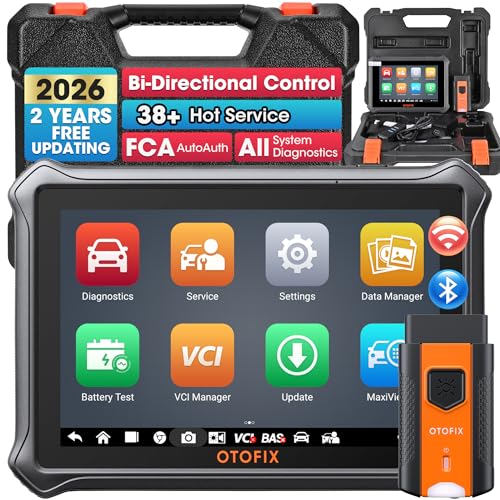
- 🎉[OTOFIX D1 Lite, Perfect Cost-effective Diagnostic Tool]: OTOFIX D1 Lite, a newest bidirectional scan tool from OTOFIX company, is a great choice for DIYers and repair shops. 👉This obd2 scanner diagnostic tool packs all practical functions: OE level all systems diagnoses, Bi-Directional Control, 38+ reset services fixing 99% of common problems, support DoIP & CANDF protocols and FCA
 AutoAuth, high-end hardware configuration. Worldwide vehicles and 🔥2 Years Free Updating🔥 covered.
 - 🎉[Bi-Directional Scan Tool, Active Test]: OTOFIX D1 Lite bluetooth obd2 scanner can also command ECUs and monitor the operation of the actuators to track down the problems of certain parts, like windows, sunroof, wipers, fuel pumps, etc., saving repair time & trouble. This makes OTOFIX D1 Lite the most cost-effective bidirectional scan tool.
- 🎉[2026 Newest, 38+ Hot Reset Functions]: Equipped with 38+ reset functions in one, the OTOFIX D1 lite automotive scanner diagnostic tool allows you to troubleshoot 99% of common vehicle problems. You can use this car diagnostic scanner holding enough functions to easily repair common vehicle models in your repair shops. Including Oil Reset, Injector Coding, Throttle, DPF Reset, SCR Reset, Gear Learning, Clutch Learning, Suspension, etc. Note* Reset functions vary by model.
- 🎉[OE Level Full Systems Diagnostics]: Unlike the 2-system and 4-system diagnostic tools, the OTOFIX auto scan tool can complete comprehensive system diagnostics within 5 minutes. It accesses and scans all available onboard systems like for Engine /AT /ABS /EPB /BMS /TPMS /SRS /SAS /Audio System /BCM /Air Conditioning / etc., to read & clear codes, view live data, and check ECU information. Note: Active test is not involved.
- 🎉[Powerful Hardware Configuration]: Designed with a fashion appearance & a 7” touchscreen and a weight of 463g, this OTOFIX D1 Lite OBD2 diagnostic scanner scan tool is convenient for everywhere and easy to use & store. Android9.0 OS and 2+64GB memory enhance multi-task smoothness and diagnostic operation, no more wasting too much time. 5800mAh battery allows hours-lasting use. WiFi & VCI1 also bring faster communication for your diagnostics.
- 🏆【2026 TOP OBD2 Scanner Diagnostic Tool】OTOFIX D1 Lite wireless obd2 scanner has upgraded hardware configuration and car coverage. The newly upgraded D1 Lite with 🔥OS Android 9.0🔥1.5Ghz 4 core high efficiency processor🔥2GB RAM+64GB ROM large storage🔥5800mAh large battery, more stable and longer lasting diagnostics🔥 38+ Reset🔥action tests🔥full system diagnostic🔥Supports MV105 endoscope🔥21+ Language Supports🔥100000+ vehicle coverage to meet all your daily maintenance needs.
- 👍【Bi-Directional Control / Active Test】D1 Lite obd2 scanner has bidirectional control(worth $300+), which is the most beloved feature among mechanic. If your headlights or car windows are broken, going to a repair shop will cost a lot of money. You can use D1 Lite to send execution commands to the ECU module and identify the repair status. Such as ABS, car windows, doors, valves, wipers, headlights, etc., effectively shorten diagnostic time and reduce diagnostic costs.
- 🔥【All Systems Diagnostics, In-depth Checking】This advanced OBD2 Scanner D1 Lite can perform OE-level diagnosis of all systems including engine, transmission, airbag, ABS, ESP, TPMS, gateway, steering, radio, and air conditioning for more than 100 brands. This diagnostic scanner supports essential functions, such as reading ECU version info, reading and clearing fault codes, and reading data streams.With just a simple click, it provides you with accurate and in-depth diagnostics.
- 🏆【38+ Reset Hot Functions】For repair workshops, holding an OTOFIX D1 Lite Auto scanner is a strong advantage over others. Its 38+ maintenance functions provide various solutions for all module repairs, including Oil Reset, TPMS Reset, Injector Coding, Suspension, Throttle Matching, etc., which will usher your repair business to a new pinnacle. Continuously updating will never make the functionality & compatibility out-of-date.
- 🏆【150+ Models, 10000+ Car Coverage & 16 Languages】D1 Lite is a comprehensive car diagnostic scan tool, help you to troubleshoot car issues fast for 95% US, European, Asian auto makes. ✅ With frequent updates and optimizations allow D1 Lite to cover more vehicles to meet your needs. ✅ Multilingual menu allows auto mechanics around the world to use it without language barriers. 🚩Note: Kindly send us the S/N of the device to authorize new language updates before changing the menu language.
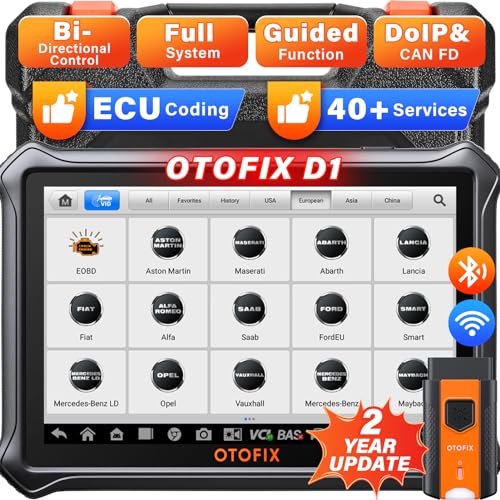
- 2026 Newest Wireless Bluetooth Scan Tool D1: OTOFIX D1 Diagnostic scanner is upgraded version with Enhanced Hardwares & Newest Functions, FASTER and SMARTER! ✅Alternative Bluetooth 5.0 +USB connect✅2G+64GB✅Android 9.0 OS✅5G & 2.4 GHz Dual WiFi✅5800mAh battery👍VAG Guided Function👍ECU Online Coding👍CANFD&DOIP👍40+ Services👍Bi-Directional Control👍Full Systems Diagnose👍2 Years Free Update👍150+ Vehicle Coverage🎁Contact to get gift: otofixaftersales-amz@ outlook.com
- ECU Coding to Unlock the Hidden Features: OTOFIX D1 obd2 scanner diagnostic tool newly adds ECU Coding which can Online Coding(ONLY for VW/Au.di/Sk0da), Variant Coding/Offline Programming, Flash Hidden Functions, Reset Adaptive Data, Match Replaced Components, Customize OE-Settings. Such as: halogen fog lamps retrofitted with xenon fog lamps, different capacity battery retrofit, disbale auto start-stop, sunroof initialization, injector calibration, etc. PS: Coding functions vary by model&year.
- Full Bidirectional Control for Active Car Tests: The D1 OTOFIX scanner also offers bi-directional control, allowing you to perform powerful active tests on car subsystems. This means that you can check the working status and functionality of open & close solenoids, energize injectors, turn cooling fan on & off, and more, all from the device itself.🚩The D1 bi-directional obd2 scanner can quickly help you to check if a system or component goes well,Improving 200% Efficiency.**Note that Active Tests available depend on the make/model/year of your car.
- 40+ Popular Maintenance Functions: OTOFIX D1 obd scanner for car performs 40+ hot services, including Oil Reset, EPB, TPMS, BMS, E.GR, G.PF, D.PF, SAS Calibration, ABS Bleeding, Injector Coding, Gearbox Match, Suspension, Crankshaft Relearn, Power Balance, etc., still growing. Great choice for DIYers, technician, repair shop. 🚩Get MORE special functions from "Car Brand>System>Service". Check compatibility before purchase via 📧 otofixaftersales-amz@ outlook.com.
- OE-Level All Systems Diagnostic + One-Click AutoVIN & AutoSCAN: OTOFIX D1 scanner automotriz gives you the ability to troubleshoot entire car systems including engion system,transmission system,body system,chassis,etc. 🚩One of the standout features of the D1 obd2 scanner diagnostic tool is the one-click AutoVIN & AutoScan function. This feature allows you to quickly and easily scan all diagnosable ECUs with just one click, and identify any problems hidden in your vehicle's systems.
Last update on 2026-06-23 / Affiliate links / Images from Amazon Product Advertising API
This product presentation was made with AAWP plugin.