
NHTSA ID Number: 11006912
Manufacturer Communication Number: 2024.26.100_082024.pdf
TSB/Document Date: 2024-09-04
Summary
Tesla does not provide physical owner's manual copies. Instead, all available owner’s manual content is integrated into the vehicle software, and only the content relevant for a given vehicle, based on vehicle configuration and software version installed, is displayed on its touchscreen. This file contains all available owner’s manual content for the vehicle converted to PDF format, and given the distribution method and NHTSA’s submission format requirements, it is the best available representative copy of owner’s manual content. However, a customer who accesses the owner’s manual via their vehicle’s touchscreen would only see the parts of this PDF file that are relevant to their vehicle.
Cybertruck is equipped with a rear-facing camera mounted on the tailgate.
Owner's Manual
196
Overview
Whenever you shift into Reverse, the touchscreen displays the view from the rear-facing camera. Lines show your driving path
based on the position of the steering wheel. These lines adjust as you move the steering wheel. The tailgate must be fully
closed in order to see the rear view and lines on the display.
You can choose to always show the rear view camera feed when the tonneau cover is closed by touching Controls > Display >
Rear View Camera > Auto.
If a black screen appears on the touchscreen instead of the rear view camera feed when in Reverse, use the rear view mirrors
and ensure your surroundings are safe before continuing to Reverse. If inoperability of the rear view camera persists, try
restarting the touchscreen (see Restarting the Touchscreen on page 176). If the camera feed still shows as a black screen after
that, use the mobile app to schedule a service appointment.
WARNING: Never depend on the cameras to inform you if the area around you is free of objects and/or people. The
cameras may not detect objects or barriers that can potentially cause damage or injury. In addition, several external
factors can reduce the performance of the cameras, including a dirty or obstructed lens. Therefore, depending on the
cameras to determine if Cybertruck is approaching an obstruction can result in damage to the vehicle and/or objects
and can potentially cause serious injury. Always inspect the area with your own eyes. When reversing, perform shoulder
checks and use all mirrors. Use the cameras for guidance purposes only. It is not intended to replace your own direct
visual checks and is not a substitute for careful driving.
Front-Facing Camera
Your Cybertruck is equipped with a front-facing camera located above the grille on the front fascia.
197
Owner's Manual
Overview
To display the view from the front-facing camera at any time, open the app launcher and touch the Camera app or touch the
camera icon on the right side of the steering wheel. Swipe up or down to switch betweeen the rear, front, and side camera
views.
WARNING: Never depend on the camera to inform you if the area around you is free of objects and/or people. The
camera may not detect objects or barriers that can potentially cause damage or injury. In addition, several external
factors can reduce the performance of the cameras, including a dirty or obstructed lens. Therefore, depending on the
cameras to determine if Cybertruck is approaching an obstruction can result in damage to the vehicle and/or objects
and can potentially cause serious injury. Always inspect the area with your own eyes. Use the camera for guidance
purposes only. It is not intended to replace your own direct visual checks and is not a substitute for careful driving.
Cabin Camera
Your Cybertruck is equipped with a cabin camera located above the rear view mirror.
The cabin camera can determine driver inattentiveness and enhances active safety features (such as Forward Collision
Warning). You can also view the feed from this camera in the Tesla mobile app when Sentry Mode Live Camera is enabled (see
Sentry Mode on page 82).
Data Sharing
By default, images and video from the camera do not leave the vehicle itself and are not transmitted to anyone, including Tesla,
unless you enable data sharing. If you enable data sharing and a safety critical event occurs (such as a collision), Cybertruck
shares short cabin camera video clips with Tesla to help us develop future safety enhancements and continuously improve the
intelligence of features that rely on the cabin camera. Data may also be shared if diagnostics are required on cabin camera
functionality. Cabin camera does not perform facial recognition or any other method of identity verification. To protect your
privacy, cabin camera data is not associated with your vehicle identification number.
To adjust your data sharing preferences touch Controls > Software > Data Sharing > Allow Cabin Camera Analytics. You can
change your data sharing settings at any time.
Cleaning a Camera
To ensure a clear picture, the camera lens must be clean and free of obstructions, condensation, or damage.
Condensation can form inside the camera enclosures, especially if you park outside in cold or wet conditions. The touchscreen
may display an alert stating that a camera is blocked and that some (or all) Autopilot features may be temporarily restricted
until the camera vision is clear. To proactively dry the condensation, precondition the cabin by setting it to a warm
temperature, turning the windshield defroster on, and directing the front air vents toward the door pillars (see Mobile App on
page 18).
Remove any build-up of dirt or debris by spraying water onto the camera lens and carefully drying it with a microfiber cloth.
Clean the camera lens at least weekly during wet weather (snow, rain, sleet) and every month during dry weather.
Owner's Manual
198
Overview
The front-facing camera is equipped with a sprayer nozzle. To clean the front-facing camera, touch the app
launcher, select the Camera app, and press the spray icon.
CAUTION: Do not use chemical-based or abrasive cleaners. Doing so can damage the surface of the lens.
Drive to Calibrate Cameras
Before some Autopilot features can be used for the first time or after some types of service repairs, cameras must complete a
self-calibration process. When the cameras are calibrating, the touchscreen displays a progress indicator. When calibration is
complete, Autopilot features are available for use.
Calibration typically completes after driving 20-25 miles (32-40 km), but the distance varies depending on the conditions.
Calibration completes more quickly when driving on a straight road that has multiple lanes and highly visible lane markings in
both the driving lane and adjacent lanes (at least two lanes over on each side of the vehicle). For best results, drive in the
middle lane of a multi-lane highway (ideally with at least five lanes) that has clear lane markings and minimal traffic.
Schedule a service appointment only if your Cybertruck has not completed the calibration process after driving approximately
100 miles (160 km) in the described conditions.
If a camera has shifted from its previously calibrated position (for example, the camera or windshield was replaced), clear the
calibration by touching Controls > Service > Camera Calibration > Clear Calibration. When the calibration is cleared,
Cybertruck repeats the calibration process.
NOTE: Cybertruck must repeat the calibration process if the cameras are serviced by Tesla, and in some cases after a software
update.
NOTE: If you attempt to use a feature that is not available until the calibration process is complete, the feature is not available
and the touchscreen displays a message.
199
Owner's Manual
Opening and Closing
Keys
Types of Keys
NOTE: In the event you lose both key cards, schedule a service appointment through the mobile app to replace and pair them.
Cybertruck supports the following types of keys:
• Phone key - You can set up your personal phone as a "phone key" that communicates with Cybertruck using Bluetooth
(BLE). A phone key supports automatic locking and unlocking.
• Key card - Tesla provides key cards that communicate with Cybertruck using short range radio-frequency identification
(RFID) signals. The key card is used to "authenticate" phone keys to work with Cybertruck and to add or remove other keys.
Unlike the phone key, the key card does not support automatic locking and unlocking and must be touched against a card
reader. In situations where your phone key has a dead battery, or is lost or stolen, use your key card to unlock, drive, and
lock Cybertruck.
Cybertruck supports a total of 19 keys, which can include phone keys and key cards.
CAUTION: Remember to bring a key (and a backup key) with you when you drive. Although you can drive Cybertruck
away from a detected key, you will be unable to power it back on after it powers off.
Phone Key
CAUTION: Do not leave your paired phone in your vehicle (for example, if you are hiking or at the beach). If you must
leave your phone in the vehicle, disable Bluetooth and/or turn the phone off and ensure that you keep a key card with
you.
Using your phone as a key is a convenient way to access your Cybertruck. As you approach your vehicle, the smartphone's
Bluetooth signal is detected and the doors unlock when you press a door open button. Likewise, when you exit and walk away
with the phone key, doors automatically lock (provided the Walk-Away Door Lock feature is turned on; see Walk-Away Door
Lock on page 206).
Before you can use a phone to access Cybertruck, follow these steps to authenticate it:
1. Download the Tesla mobile app to your phone.
2. Log into the Tesla mobile app using your Tesla account username and password.
NOTE: You must remain logged in to your Tesla account to use your phone to access Cybertruck.
NOTE: If multiple vehicles are linked to your Tesla account, Cybertruck opens the most recent vehicles in the mobile app for
easy accesss.
3. Confirm:
◦ Your phone's Bluetooth setting is turned on.
◦ The Tesla mobile app can access your phone's Bluetooth. On your phone, navigate to Settings, choose the Tesla mobile
app, and ensure the Bluetooth setting is turned on.
◦ Allow the Tesla mobile app to access your location. For the best experience, keep the mobile app running in the
background.
◦ Mobile access is enabled for your vehicle. On the touchscreen, touch Controls > Safety > Allow Mobile Access.
NOTE: Cybertruck communicates with your phone using Bluetooth. Keep in mind that your phone must have enough
battery power to support Bluetooth (some phones disable Bluetooth when the battery is low).
4. While inside or near the vehicle, open the Tesla mobile app and touch Set Up Phone Key on the main screen, or navigate to
Security > Set Up Phone Key. Follow the prompts on the mobile app and vehicle touchscreen to set up your phone key.
NOTE: You must have your key card available in order to set up a phone key.
To view a list of keys that can currently access Cybertruck, or to remove a phone key, touch Controls > Locks (see Managing
Keys on page 202).
Owner's Manual
200
Opening and Closing
Cybertruck can connect to three phone keys simultaneously. Therefore, if more than three phone keys are detected and you
want to authenticate or pair a different phone, move the other connected phone key(s) out of range or turn off its Bluetooth
setting.
Once a phone has been authenticated, it no longer requires an internet connection to be used as a phone key for Cybertruck.
However, to use the phone hands-free, access your phone's contacts, play media from it, etc., you must also pair it and
connect it as a Bluetooth device (see Bluetooth on page 22).
NOTE: Some Android smartphones with NFC capability can be used to lock/unlock your vehicle, just like using a key card.
Ensure the Tesla mobile app is correctly paired to your vehicle and enable the NFC function on your phone. Once enabled,
simply hold the phone to the driver's side door pillar to lock or unlock the door. Refer to your smartphone's instructions for
specific information on how to do this.
Key Card
Tesla provides you with two Cybertruck key cards, designed to fit in your wallet.
To use a key card to unlock or lock Cybertruck from outside, position the card as shown and tap it against the card reader
located approximately one third the way up of the driver's side door pillar. When Cybertruck detects the key card, the exterior
lights flash, the mirrors unfold or fold (if Fold Mirrors is on), the horn sounds (if Lock Confirmation Sound is on), and the doors
unlock or lock. You may need to hold the key card against the transmitter for a few seconds.
Once inside, power up Cybertruck by pressing the brake pedal within two minutes of scanning the key card (see Starting and
Powering Off on page 28). If you wait longer than two minutes, you must re-authenticate by placing the key card near one of
the card readers located on the wireless phone chargers on the center console. When your key card is detected, your twominute authentication period restarts.
201
Owner's Manual
Opening and Closing
NOTE: If enabled, Walk-Away Door Lock (see Walk-Away Door Lock on page 206) operates only when you walk away using a
phone key. When you walk away carrying your key card, Cybertruck does not automatically lock.
Managing Keys
To display a list of all keys that can access Cybertruck, touch Controls > Locks. An icon displays next to each key to indicate
whether the key is a phone key or a key card. Use this list to manage keys that have access to Cybertruck. To add or delete
keys, see Adding Keys from the Touchscreen on page 202.
Cybertruck supports up to 19 keys. When you reach this limit, you must delete a key before adding a new one.
NOTE: You can use the same key for more than one Tesla vehicle. This prevents you from having to deal with multiple keys
when you switch vehicles. If you customize the name of an authenticated key card on one vehicle (by touching the pencil icon),
any other vehicle to which the key card is authenticated also displays the changed name.
Adding Keys from the Touchscreen
If you have a key card that is already paired with your vehicle, you can pair a new key using the touchscreen.
1. On the touchscreen, touch Controls > Locks > Keys > Add Key.
2. Scan your key card on one of the card readers located on the wireless phone chargers on the center console.
3. Scan a key card that has already been paired to the vehicle to confirm new key pairing.
4. When complete, the key list includes the new key. Touch the associated pencil icon to customize the name of the key.
Adding Keys from the Mobile App
In the event that you don't have a working key card, you can add a new key using the mobile app.
NOTE: Only the owner of the vehicle is able to pair a new key using the mobile app.
NOTE: Pairing a key with the mobile app is supported with version 4.29.0 of the Tesla mobile app on vehicles with software
versions 2022.40 or higher.
1. While inside or near the vehicle, open the Tesla mobile app on your smartphone.
2. Touch Security & Drivers.
3. Touch Add Key Card.
4. Scan your key card on one of the card readers located on the wireless phone chargers on the center console.
Owner's Manual
202
Opening and Closing
5. When the key is paired successfully, the mobile app shows a confirmation message. Touch Done in the mobile app and
remove the key card from the card reader.
6. When complete, the key list on the touchscreen includes the new key. Touch the associated pencil icon to customize the
name of the key.
Removing Keys
When you no longer want a key to access Cybertruck (for example, you lost your phone or key card, etc.), follow these steps to
remove it.
1. On the touchscreen, touch Controls > Locks.
2. In the key list, find the key that you would like to delete and touch its associated trash icon.
3. When prompted, scan an authenticated key on the card reader to confirm the deletion. When complete, the key list no
longer includes the deleted key.
NOTE: Cybertruck requires at least one authenticated key card at all times. If only one key card remains on the key list, you
cannot delete it.
Replacing Key cards
If you lose a key card, you can purchase replacement ones on the Tesla Shop. When ready to pair, simply follow the steps in
Managing Keys on page 202. Remember to remove your old key cards from Controls > Locks > Keys for security purposes.
203
Owner's Manual
Opening and Closing
Doors
Opening and Closing Doors from Outside
Doors are electrically powered. When you approach Cybertruck carrying a phone key, the doors and tailgate automatically
unlock. To open a door, press the exterior door release button on the pillar to the right of each door.
The doors do not automatically lock/unlock when you approach Cybertruck carrying only a key card. You must manually lock/
unlock the vehicle. See Keys on page 200 for more information.
WARNING: Use caution around the panel edges on Cybertruck, including the doors, powered frunk, tailgate, and
surrounding panels.
WARNING: When pulling the door open, always grasp the door at the top, as shown. Keep hands and fingers away from
the opening edge and supervise children if they open and close the doors. This is especially important when handling a
front door where the opening edge can cause injury when opening or closing the associated rear door. Neglecting to
follow the correct opening procedure for front and rear doors can lead to injury.
Owner's Manual
204
Opening and Closing
Whenever a door is open, the Door Open indicator displays on the touchscreen. Also, the image of the
Cybertruck on the touchscreen's Controls window provides a visual representation of the open door(s).
To close a door from the outside, manually push it shut. Make sure no objects are in the way before closing the door.
Opening Doors from the Interior
To open a door while sitting inside, press interior door open button, located at the top of the interior door handle, and push the
door open.
NOTE: To prevent children from opening the rear doors, turn on child locks (see Child Locks on page 207).
205
Owner's Manual
Opening and Closing
NOTE: In the unlikely event that Cybertruck has no low voltage power, you will be unable to open the doors with the interior
door open button. See Opening Doors with No Power on page 475 for more information.
Interior Locking and Unlocking
While sitting inside Cybertruck, you can lock or unlock all doors, the tailgate, and the powered frunk by touching the lock icon
on the touchscreen.
The icon changes to indicate whether doors are locked or unlocked.
When you stop Cybertruck and engage Park, you can choose to unlock all doors. To turn this feature on or off, touch Controls
> Locks > Unlock on Park.
Cybertruck automatically locks all doors (including the powered frunk and tailgate) when your driving speed exceeds 5 mph
(8 km/h). The touchscreen displays a message if the tailgate remains open after the vehicle locks.
Walk-Away Door Lock
NOTE: Cybertruck will still lock, even if the tonneau cover is open. In other words, once the vehicle is locked, the tonneau
cover is locked in its current position and cannot be open/closed using the tonneau cover switch on the vehicle. Always double
check to make sure the tonneau cover is closed.
The doors, tailgate, and powered frunk can automatically lock when you walk away carrying your phone key. To turn this
feature on or off, touch Controls > Locks > Walk-Away Door Lock.
When the vehicle locks, the exterior lights flash once. To also sound a confirmation chime when Cybertruck locks, touch
Controls > Locks > Lock Confirmation Sound.
Cybertruck does not automatically lock if:
• You choose Exclude Home and Cybertruck is parked at the location you have designated as Home. For details on how to
designate a location as Home, see Home, Work, and Favorite Destinations on page 95.
• A key is detected inside Cybertruck (such as your phone or a key card resting on the card reader).
• A door or the powered frunk is not fully closed.
• The phone key's Bluetooth is not able to communicate with the vehicle or the phone's battery is dead.
• If Cybertruck detects an authenticated phone key for several minutes after you exit the vehicle and close all doors, WalkAway Lock disables and doors do not lock when you walk away. In this case, you must manually lock your vehicle using a
key card until after your next drive.
• The driver exits the vehicle without using the driver's door.
NOTE: It is your responsibility to ensure Cybertruck is locked, even when Walk-Away Door Lock is enabled. You can check if
Cybertruck is locked from the Tesla mobile app (see Mobile App on page 18).
Driver Door Unlock Mode
Enabling Controls > Locks > Driver Door Unlock Mode only unlocks the driver's door when you first unlock Cybertruck. To
unlock the remaining doors, long press the interior door open button, or use the touchscreen or mobile app.
Disabling Driver Door Unlock Mode unlocks all doors, the powered frunk, and the tailgate when you first unlock Cybertruck.
Car Left Open Notifications
Receive a mobile notification if a door, the powered frunk and/or windows are left open or if Cybertruck is left unlocked
unexpectedly. Touch Controls > Locks > Car Left Open Notifications.
Owner's Manual
206
Opening and Closing
NOTE: Cybertruck will still lock, even if the tonneau cover is open. Always double check to make sure the tonneau cover is
closed. Car Left Open Notifications may not notify you if the tonneau cover is left open.
Child Locks
Cybertruck has child locks on the rear doors to prevent them from being opened using the interior door open buttons. On the
touchscreen, touch Controls > Locks > Child Lock. You can choose Both to engage the child lock on both rear doors, or you
can choose Left or Right to engage it on just a specific door.
WARNING: Tesla recommends turning on child locks whenever a child is seated in a rear seat.
207
Owner's Manual
Opening and Closing
Windows
Opening and Closing
CAUTION: The windows automatically lower slightly when you open or close a door. This is normal and avoids damage to
the window when the door opens. If you manually raise a window when the door is open, ensure it is slightly lowered
before closing the door.
Press down on a switch to lower the associated window. Window switches operate at two levels:
• To lower a window fully, press the switch all the way down and immediately release.
• To lower a window partially, press the switch gently and release when the window is where you want it.
Similarly, pull a switch to raise the associated window:
• To raise a window fully, pull the switch all the way up and immediately release.
• To raise a window partially, pull the switch gently and release when the window is where you want it.
NOTE: If a window is fully lowered and you open the associated door, the window rises slightly. Likewise, if you fully lower a
window while the door is already open, it stops slightly above the edge of the door. To fully lower a window while the door is
open, press the switch again.
If a window is left open unintentionally, Cybertruck can send a notification to the mobile app (touch Controls > Locks > Car
Left Open Notification, then choose Doors & Windows). However, it is your responsibility to ensure windows are closed after
leaving the vehicle; do not rely on notifications to inform you.
Enable Close Windows on Lock by touching Controls > Locks > Close Windows on Lock to automatically close the windows
whenever the vehicle locks.
NOTE: See Cold Weather Best Practices on page 89 for information on preparing windows for cold weather.
WARNING: Before closing a window, it is the driver’s responsibility to ensure that all occupants, especially children, do
not have any body parts extended through the window’s opening. Failure to do so can cause serious injury.
WARNING: Never leave children unattended in Cybertruck.
Locking Rear Windows
To disable the rear window switches, touch Controls > Locks > Window Lock. Once locked, the rear windows can only be
controlled from the driver's window switch. Touch Window Lock again to re-enable the rear window switches.
Owner's Manual
208
Opening and Closing
WARNING: To ensure safety, it is recommended that you lock the rear window switches whenever children are seated in
the rear seats.
Calibrating Windows
In the unlikely event that a window behaves unexpectedly (fails to open or close properly, goes down more than normal when
the door opens, etc.), you can calibrate it to potentially fix the issue.
To calibrate a window:
1. Close the door with the affected window.
2. Sit in the driver's seat and close the driver door.
3. Using the window's switch on the driver's door, fully raise the affected window until it stops.
4. Using the window's switch on the driver's door, fully lower the affected window until it stops.
5. Repeat step 3 and fully raise the affected window until it stops.
If this does not resolve the issue after performing a few times, use your mobile app to schedule a Service appointment.
UV Index Rating
The windshield, windows, and glass roof in Cybertruck are excellent at protecting you from UV (ultraviolet) rays. The glass
components score less than two on the UV Index scale. Review your region’s UV Index specifications for more information.
WARNING: It is the occupant's responsibility to take the necessary precautions to ensure adequate UV protection.
Sun Visors and Vanity Mirrors
To protect occupants from sunlight coming through the windshield and side windows, flip the sun visor downward.
You can lower the extender or pivot the entire sun visor to the driver's window side provide maximum shade. Simply pull the
inboard side of the sun visor out of the magnetic clip and pivot toward the window. Pivot the sun visor to return it back to its
initial position and lock in place.
209
Owner's Manual
Opening and Closing
To expose the vanity mirror, lower the visor extender, then lower the mirror cover. While the cover is lowered, the mirror is
exposed and lights are illuminated.
Owner's Manual
210
Seating and Safety Restraints
Front and Rear Seats
Correct Driving Position
The seat, head support, seat belt and airbags work together to maximize your safety. Using these correctly ensures greater
protection.
Position the seat so you can wear the seat belt correctly, while being as far away from the front airbag as possible:
1. Sit upright with both feet on the floor and the seat back in an upright position.
2. Make sure you can easily reach the pedals and that your arms are slightly bent when holding the steering wheel. Your chest
should be at least 10 inches (25 cm) from the center of the airbag cover.
3. Place the shoulder section of the seat belt mid-way between your neck and your shoulder. Fit the lap section of the belt
tightly across your hips, not across your stomach.
Adjusting Front Seats
NOTE: Only front seats in Cybertruck can be adjusted. The rear bench seat is stationary.
211
Owner's Manual
Seating and Safety Restraints
1. Move seat forward/backward and adjust the seat’s height and tilt angle up/down.
2. Adjust backrest.
3. Adjust lumbar support.
WARNING: Before adjusting a front seat, check that the area around the seat is free of obstacles (people and objects).
WARNING: Do not adjust seats while driving. Doing so increases the risk of a collision.
WARNING: Riding in a moving vehicle with the seat back reclined too much can result in serious injuries in a collision, as
you could slide under the lap belt or be propelled into the seat belt. Ensure seat backs are reclined no more than 30
degrees when the vehicle is moving.
Owner's Manual
212
Seating and Safety Restraints
Head Supports
The front seats and the rear outboard seats are equipped with integrated head supports that you cannot adjust.
The rear center seat is equipped with an adjustable head support that you can raise and lower:
• When the seat is occupied by a passenger that is not in a child safety seat, align the center of the corresponding head
support with the center of the occupant's head, and ensure the head support is locked into position.
• When the seat is occupied by a child safety seat equipped with an upper tether strap, leave the head support in the raised
position after routing the upper tether straps under it.
To raise the head support, pull it upward to the desired position. To lower it, press and hold the button on the base of the post
on the right side of the head support while pushing the head support downward.
WARNING: To minimize the risk of severe injury or death in the event of a collision, ensure that the rear center head
support is positioned correctly before driving.
Removing/Installing the Rear Center Head Support
To remove the rear center head support:
1. Fully raise the head support by pulling it upward.
2. Press and hold the button located on the base at the right side of the head support.
3. Insert a short, flat object (such as a small flat-head screwdriver) into the opening in the base of the opposite post and pull
the head support upward.
213
Owner's Manual
Seating and Safety Restraints
To re-install the rear center head support:
1. With the front of the head support facing forward, align both posts into the corresponding holes on the seat back.
2. While holding the button on the base of the post, press downward on the head support until it clicks into place.
3. Pull upward on the head support to ensure that it is secure.
WARNING: Ensure that the head support is correctly installed before seating an occupant. Failure to do so increases the
risk of injury or death if a collision occurs.
Seat Heaters
All seats (except the rear center seat) are equipped with seat heaters that operate at three levels from 3 (highest) to 1 (lowest).
For details on how to operate the seat heaters, see Climate Controls on page 363.
WARNING: To avoid burns resulting from prolonged use, individuals who have peripheral neuropathy, or whose capacity
to feel pain is limited because of diabetes, age, neurological injury, or some other condition, should exercise caution
when using the climate control system and seat heaters.
Seat Covers
WARNING: Do not use seat covers on a seat equipped with a seat-mounted airbag (see Location of Airbags on page
230). Doing so could restrict deployment of the seat-mounted side airbags if a collision occurs. Also, if the vehicle is
equipped with an occupant detection system that is used to determine the status of the passenger front airbag, seat
covers may interfere with this system.
Owner's Manual
214
Seating and Safety Restraints
Seat Belts
Wearing Seat Belts
Using seat belts and child safety seats is the most effective way to protect occupants if a collision occurs. Therefore, wearing
a seat belt is required by law in most jurisdictions.
All seats are equipped with three-point inertia reel seat belts. Inertia reel belts are automatically tensioned to allow occupants
to move comfortably during normal driving conditions.
Seat Belt Reminders
The seat belt reminder on the touchscreen alerts you if a seat belt for an occupied driver or passenger seat is
unbuckled. If all occupants are buckled up and the reminder stays on, re-buckle seat belts to ensure they are
correctly latched. Also remove any heavy objects (such as a briefcase) from an unoccupied seat. If the reminder
light continues to stay on, schedule a service appointment.
You can temporarily disable a seat belt reminder associated with a rear seating position. This is useful when you are carrying
an object in a rear seat that triggers the seat belt reminder alert. To disable the reminder, touch the associated seat on the seat
belt reminder popup message that displays on the touchscreen when a seat belt reminder is active. When a reminder is
disabled, the seat belt reminder icon is replaced by a seat icon, for the current drive only. Touch the seat again to re-enable the
reminder.
WARNING: Seat belts must be worn by passengers in all seating positions. Do not disable a seat belt reminder when the
seating position is occupied by a passenger.
To Fasten a Belt
1. Ensure correct positioning of the seat (see Correct Driving Position on page 211).
2. Draw the belt out smoothly, ensuring the belt lays flat across the pelvis, chest and mid-point of your collar bone, between
the neck and shoulder. Ensure the belt is routed correctly and is not twisted. Never sit on the seat belt or any seat belt
component.
WARNING: A twisted or incorrectly routed seat belt can cause damage and interfere with the functionality of the seat
belt system.
3. Insert the latch plate into the buckle and press together until you hear a click indicating it is locked in place.
4. Pull the belt to check that it is securely fastened.
5. Pull the diagonal part of the belt toward the reel to remove excess slack.
215
Owner's Manual
Seating and Safety Restraints
To Adjust the Shoulder Anchor Height
Cybertruck is equipped with an adjustable shoulder anchor for each front seat to ensure that the seat belt is positioned
correctly. The seat belt should lay flat across the mid-point of your collar bone while in the correct driving position (see
Correct Driving Position on page 211). Adjust the height of the shoulder anchor if the seat belt is not positioned correctly:
1. To raise the shoulder anchor, slide it upwards.
2. To lower the shoulder anchor, press and hold the arrow above the shoulder anchor while sliding the anchor downward. The
arrow has a softer area underneath that engages a release button, allowing you to lower the anchor. Release the button
when the shoulder anchor is in the desired position.
3. Without pressing the button, pull firmly downward on the seat belt to check that it is locked into position.
WARNING: Ensure that the seat belt is positioned correctly and that the shoulder anchor is locked into position before
driving. Riding in a moving vehicle with the seat belt positioned incorrectly or with the shoulder anchor not locked into
position can reduce the effectiveness of the seat belt in a collision.
To Release a Belt
Hold the belt near the buckle to prevent the belt from retracting too quickly, then press the button on the buckle. The belt
retracts automatically. Ensure there is no obstruction that prevents the belt from fully retracting. The belt should not hang
loose. If a seat belt does not fully retract, schedule a service appointment.
Automatic Locking Retractor
All passenger seat belts include an automatic locking retractor (ALR) that you use to lock the seat belt in place. These selflocking retractors are typically used to securely hold a seat belt retained child safety seat (see Installing Seat Belt Retained
Child Seats on page 222). To engage the locking retractor:
1. Fully extract the seat belt webbing (beyond the length needed for a typical adult occupant).
2. Fasten the seat belt as you normally would (see To Fasten a Belt on page 215).
3. Allow the belt to retract. You will hear a clicking sound. The ALR mechanism operates as a ratchet, winding in slack and
preventing the seat belt from extending.
The automatic locking retractor disengages by unbuckling and fully retracting the seat belt. The belt can then be worn as a
normal belt, sliding freely in and out and locking tight only in an emergency.
WARNING: Do not use the automatic locking retractor (ALR) feature for booster seats in which a large child is restrained
by the vehicle's seat belts directly, and therefore not using a child safety seat's integrated restraints.
Owner's Manual
216
Seating and Safety Restraints
Wearing Seat Belts When Pregnant
Do not put the lap or shoulder sections of the seat belt over the abdominal area. Wear the lap section of the belt as low as
possible across the hips, not the waist. Position the shoulder portion of the belt between the breasts and to the side of the
abdomen. Consult your doctor for specific guidance.
WARNING: If the seat belt is uncomfortable, adjust the seating position instead of wearing the seat belt incorrectly.
WARNING: Never place anything between you and the seat belt to cushion the impact in the event of a collision.
Seat Belt Pre-tensioners
The front seat belts are equipped with pre‑tensioners that work in conjunction with the airbags in a collision. The
pre‑tensioners automatically retract both the seat belt lower anchor and the upper shoulder webbing, reducing slack in both
the lap and diagonal portions of the belts, resulting in reduced forward movement of the occupant.
217
Owner's Manual
Seating and Safety Restraints
The seat belts in all rear seating positions are equipped with shoulder pre-tensioners to retract the seat belt webbing to
reduce forward movement of the occupant. If the pre-tensioners and airbags did not activate in an impact, this does not mean
they malfunctioned. It usually means that the strength or type of force needed to activate them was not present.
WARNING: Do not bend, sit on, or interfere with the pre-tensioner assembly. Doing so can cause damage that interferes
with the proper functionality of the seat belt system.
WARNING: Once the seat belt pre-tensioners have been activated, they must be replaced. After any collision, have the
airbags, seat belt pre-tensioners and any associated components checked and, if necessary, replaced.
Testing Seat Belts
To confirm that seat belts are operating correctly, perform these simple checks on each seat belt:
1. With the seat belt fastened, give the webbing nearest the buckle a quick and forceful pull. The buckle should remain
securely locked.
2. With the seat belt fastened, give the webbing closest to the door a quick and forceful pull. The permanent seat belt


- Advanced VCI Box, Industry-leading J2534 Pass-Thru...
- High-Speed OEM-Level Diagnostics & Programming: Unlock true...
- Coverage for 17 Car Brands & Ultra Reliability: Works...
- User-Friendly RLink Platform & Expert Support: TOPDON’s...
- 6.6 ft USB-C Cable & Portable Storage Case: The RLink J...
Last update on 2026-06-23 / Affiliate links / Images from Amazon Product Advertising API
If the PDF is very large, it may not load in the preview below.
Some older TSBs had multiple PDFs — visit the NHTSA Website to view all PDFs.
If the TSB PDF does not show, download or view it on the NHTSA Website.
Click on the (+) Plus Sign
Then Click on Associated Document(s)
Search NHTSA Database for Recalls
Search NHTSA Database for Vehicle Investigations
View Latest Vehicle Investigations
Search NHTSA Database for Vehicle Complaints
View Latest Vehicle Complaints
TSB/Document ID: 2024.26.100_082024.pdf
Replacement Service Bulletin Number:
MFR Communication Date: 2024-08-31
MFR Internal Campaign ID/Software Version: 2024.26.100
Communication Type: Over The Air
NHTSA Components: UNKNOWN OR OTHER
MFR Component System:
MFR Component Subsystem:
Previous TSB | Next TSB |
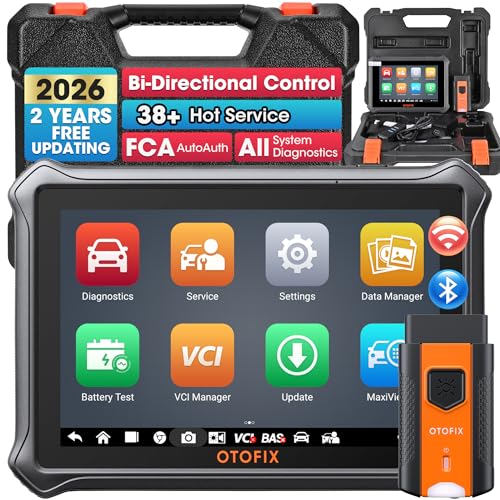
- 🎉[OTOFIX D1 Lite, Perfect Cost-effective Diagnostic Tool]: OTOFIX D1 Lite, a newest bidirectional scan tool from OTOFIX company, is a great choice for DIYers and repair shops. 👉This obd2 scanner diagnostic tool packs all practical functions: OE level all systems diagnoses, Bi-Directional Control, 38+ reset services fixing 99% of common problems, support DoIP & CANDF protocols and FCA
 AutoAuth, high-end hardware configuration. Worldwide vehicles and 🔥2 Years Free Updating🔥 covered.
 - 🎉[Bi-Directional Scan Tool, Active Test]: OTOFIX D1 Lite bluetooth obd2 scanner can also command ECUs and monitor the operation of the actuators to track down the problems of certain parts, like windows, sunroof, wipers, fuel pumps, etc., saving repair time & trouble. This makes OTOFIX D1 Lite the most cost-effective bidirectional scan tool.
- 🎉[2026 Newest, 38+ Hot Reset Functions]: Equipped with 38+ reset functions in one, the OTOFIX D1 lite automotive scanner diagnostic tool allows you to troubleshoot 99% of common vehicle problems. You can use this car diagnostic scanner holding enough functions to easily repair common vehicle models in your repair shops. Including Oil Reset, Injector Coding, Throttle, DPF Reset, SCR Reset, Gear Learning, Clutch Learning, Suspension, etc. Note* Reset functions vary by model.
- 🎉[OE Level Full Systems Diagnostics]: Unlike the 2-system and 4-system diagnostic tools, the OTOFIX auto scan tool can complete comprehensive system diagnostics within 5 minutes. It accesses and scans all available onboard systems like for Engine /AT /ABS /EPB /BMS /TPMS /SRS /SAS /Audio System /BCM /Air Conditioning / etc., to read & clear codes, view live data, and check ECU information. Note: Active test is not involved.
- 🎉[Powerful Hardware Configuration]: Designed with a fashion appearance & a 7” touchscreen and a weight of 463g, this OTOFIX D1 Lite OBD2 diagnostic scanner scan tool is convenient for everywhere and easy to use & store. Android9.0 OS and 2+64GB memory enhance multi-task smoothness and diagnostic operation, no more wasting too much time. 5800mAh battery allows hours-lasting use. WiFi & VCI1 also bring faster communication for your diagnostics.
- 🏆【2026 TOP OBD2 Scanner Diagnostic Tool】OTOFIX D1 Lite wireless obd2 scanner has upgraded hardware configuration and car coverage. The newly upgraded D1 Lite with 🔥OS Android 9.0🔥1.5Ghz 4 core high efficiency processor🔥2GB RAM+64GB ROM large storage🔥5800mAh large battery, more stable and longer lasting diagnostics🔥 38+ Reset🔥action tests🔥full system diagnostic🔥Supports MV105 endoscope🔥21+ Language Supports🔥100000+ vehicle coverage to meet all your daily maintenance needs.
- 👍【Bi-Directional Control / Active Test】D1 Lite obd2 scanner has bidirectional control(worth $300+), which is the most beloved feature among mechanic. If your headlights or car windows are broken, going to a repair shop will cost a lot of money. You can use D1 Lite to send execution commands to the ECU module and identify the repair status. Such as ABS, car windows, doors, valves, wipers, headlights, etc., effectively shorten diagnostic time and reduce diagnostic costs.
- 🔥【All Systems Diagnostics, In-depth Checking】This advanced OBD2 Scanner D1 Lite can perform OE-level diagnosis of all systems including engine, transmission, airbag, ABS, ESP, TPMS, gateway, steering, radio, and air conditioning for more than 100 brands. This diagnostic scanner supports essential functions, such as reading ECU version info, reading and clearing fault codes, and reading data streams.With just a simple click, it provides you with accurate and in-depth diagnostics.
- 🏆【38+ Reset Hot Functions】For repair workshops, holding an OTOFIX D1 Lite Auto scanner is a strong advantage over others. Its 38+ maintenance functions provide various solutions for all module repairs, including Oil Reset, TPMS Reset, Injector Coding, Suspension, Throttle Matching, etc., which will usher your repair business to a new pinnacle. Continuously updating will never make the functionality & compatibility out-of-date.
- 🏆【150+ Models, 10000+ Car Coverage & 16 Languages】D1 Lite is a comprehensive car diagnostic scan tool, help you to troubleshoot car issues fast for 95% US, European, Asian auto makes. ✅ With frequent updates and optimizations allow D1 Lite to cover more vehicles to meet your needs. ✅ Multilingual menu allows auto mechanics around the world to use it without language barriers. 🚩Note: Kindly send us the S/N of the device to authorize new language updates before changing the menu language.
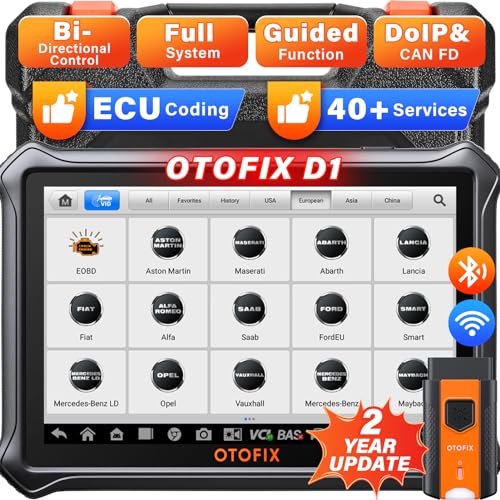
- 2026 Newest Wireless Bluetooth Scan Tool D1: OTOFIX D1 Diagnostic scanner is upgraded version with Enhanced Hardwares & Newest Functions, FASTER and SMARTER! ✅Alternative Bluetooth 5.0 +USB connect✅2G+64GB✅Android 9.0 OS✅5G & 2.4 GHz Dual WiFi✅5800mAh battery👍VAG Guided Function👍ECU Online Coding👍CANFD&DOIP👍40+ Services👍Bi-Directional Control👍Full Systems Diagnose👍2 Years Free Update👍150+ Vehicle Coverage🎁Contact to get gift: otofixaftersales-amz@ outlook.com
- ECU Coding to Unlock the Hidden Features: OTOFIX D1 obd2 scanner diagnostic tool newly adds ECU Coding which can Online Coding(ONLY for VW/Au.di/Sk0da), Variant Coding/Offline Programming, Flash Hidden Functions, Reset Adaptive Data, Match Replaced Components, Customize OE-Settings. Such as: halogen fog lamps retrofitted with xenon fog lamps, different capacity battery retrofit, disbale auto start-stop, sunroof initialization, injector calibration, etc. PS: Coding functions vary by model&year.
- Full Bidirectional Control for Active Car Tests: The D1 OTOFIX scanner also offers bi-directional control, allowing you to perform powerful active tests on car subsystems. This means that you can check the working status and functionality of open & close solenoids, energize injectors, turn cooling fan on & off, and more, all from the device itself.🚩The D1 bi-directional obd2 scanner can quickly help you to check if a system or component goes well,Improving 200% Efficiency.**Note that Active Tests available depend on the make/model/year of your car.
- 40+ Popular Maintenance Functions: OTOFIX D1 obd scanner for car performs 40+ hot services, including Oil Reset, EPB, TPMS, BMS, E.GR, G.PF, D.PF, SAS Calibration, ABS Bleeding, Injector Coding, Gearbox Match, Suspension, Crankshaft Relearn, Power Balance, etc., still growing. Great choice for DIYers, technician, repair shop. 🚩Get MORE special functions from "Car Brand>System>Service". Check compatibility before purchase via 📧 otofixaftersales-amz@ outlook.com.
- OE-Level All Systems Diagnostic + One-Click AutoVIN & AutoSCAN: OTOFIX D1 scanner automotriz gives you the ability to troubleshoot entire car systems including engion system,transmission system,body system,chassis,etc. 🚩One of the standout features of the D1 obd2 scanner diagnostic tool is the one-click AutoVIN & AutoScan function. This feature allows you to quickly and easily scan all diagnosable ECUs with just one click, and identify any problems hidden in your vehicle's systems.
Last update on 2026-06-23 / Affiliate links / Images from Amazon Product Advertising API
This product presentation was made with AAWP plugin.