
NHTSA ID Number: 11006912
Manufacturer Communication Number: 2024.26.100_082024.pdf
TSB/Document Date: 2024-09-04
Summary
Tesla does not provide physical owner's manual copies. Instead, all available owner’s manual content is integrated into the vehicle software, and only the content relevant for a given vehicle, based on vehicle configuration and software version installed, is displayed on its touchscreen. This file contains all available owner’s manual content for the vehicle converted to PDF format, and given the distribution method and NHTSA’s submission format requirements, it is the best available representative copy of owner’s manual content. However, a customer who accesses the owner’s manual via their vehicle’s touchscreen would only see the parts of this PDF file that are relevant to their vehicle.
Seating and Safety Restraints
Incorrect seating position - the passenger must not recline the backrest to a laying down position when the vehicle is moving:
237
Owner's Manual
Seating and Safety Restraints
Inflation Effects
WARNING: When airbags inflate, a fine powder is released. This powder can irritate the skin and should be thoroughly
flushed from the eyes and from any cuts or abrasions.
After inflation, the airbags deflate to provide a gradual cushioning effect for the occupants and to ensure the driver’s forward
vision is not obscured.
If airbags have inflated, or if your vehicle has been in a collision, always have the airbags, seat belt pre-tensioners and any
associated components checked and, if necessary, replaced.
In a collision, in addition to the airbags inflating:
• Doors unlock.
• Hazard warning lights turn on.
• Interior lights turn on.
• High voltage is disabled (you must contact Roadside Assistance to restore high voltage power).
• Seat belt pre-tensioners retract the seat belt anchor and seat belt webbing.
NOTE: Depending on the nature of the impact and the forces involved, doors may not unlock in a collision and/or damage may
prevent them from opening. In such cases, the door may need to be opened using the interior manual release, or other means
of extrication (for example, exiting through another door, breaking the window, etc.).
Airbag Warnings
WARNING: Do not place objects over or near airbags because any such objects could cause harm if the vehicle is in a
crash severe enough to cause the airbag to inflate.
WARNING: All occupants, including the driver, should always wear their seat belts, whether or not an airbag is also
provided at their seating position, to minimize the risk of severe injury or death in the event of a collision.
WARNING: Front seat occupants should not place their arms over the airbag module, as an inflating airbag can cause
fractures or other injuries.
WARNING: Airbags inflate with considerable speed and force, which can cause injury. To limit injuries, ensure that
occupants are wearing seat belts and are correctly seated, with the seat positioned as far back as possible. The National
Highway Traffic Safety Administration (NHTSA) recommends a minimum distance of 10 inches (25 cm) between an
occupant’s chest and an airbag.
WARNING: Children should not be seated on the front passenger seat unless permitted by regulations in your market
region. Follow all regulations in your region for the appropriate way to seat a child based on the child's weight, size, and
age. The safest place to seat infants and young children is in a rear seating position. Seating an infant or child in a rearfacing child restraint system on a seat equipped with an operational airbag can cause serious injury or death.
WARNING: To ensure correct inflation of the side airbags, maintain an unobstructed gap between an occupant’s torso
and the side of Cybertruck.
WARNING: Passengers shouldn't lean their heads against doors. Doing so can cause injury if a curtain airbag inflates.
WARNING: Do not allow passengers to obstruct the operation of an airbag by placing feet, knees or any other part of the
body on or near an airbag.
WARNING: Do not attach or place objects on or near the front airbags, the side of the front seats, the headliner at the
side of the vehicle, or any other airbag cover that could interfere with inflation of an airbag. These include but are not
limited to: steering wheel covers, decals, seat cushions or pillows, etc. Objects can cause serious injury if the vehicle is
in a collision severe enough to cause the airbag to inflate.
WARNING: Do not use seat covers on the front seats. Doing so could restrict deployment of the seat-mounted airbags if
a collision occurs.
WARNING: Following inflation, some airbag components are hot. Do not touch until they have cooled.
Owner's Manual
238
Storage Areas
Interior Storage
Center Console
In addition to housing wireless phone chargers, USB-C outlets, and a 120V power outlet (see Interior Electronics on page 186),
the center console includes cup holders, a storage compartment, and a rear touchscreen.
To open the main storage compartment, squeeze the latch and pivot the cover upward. To close, lower the cover and make
sure it latches shut.
Rear Console
Cybertruck has a rear console integrated in the center of the second row. This console can serve as an arm rest for rear
passengers and includes two cup holders.
To lower the console, pull the loop in the seat back and pull down the center seat head rest. The loop must be fully retracted
back into place in order to lock the arm rest in the lowered or raised positions.
239
Owner's Manual
Storage Areas
To raise the console, push the head rest all the way upward until the console securely latches into place.
Rear Seat Storage
To maximize cargo space in the second row, the seat cushions can be folded upwards. The rear seat is split into two sections.
While pulling the tab on the inside of the rear door, pull the front of the seat upwards until you hear a click.
To put the seats down again, pull the tab while pressing down on the corresponding seat cushion.
WARNING: When folding the rear seat cushion up, ensure that the area is clear of objects and hands and that they are
fully locked into place before driving. When folding the rear seat cushions down, ensure that they are fully folded down
and locked into place before a passenger sits down.
Owner's Manual
240
Storage Areas
Glovebox
To open the glovebox, touch Controls > Glovebox. The glovebox opens and the light turns on. You can also open the glovebox
with a voice command (see Voice Commands on page 6).
To close the glovebox, touch Glovebox again.
For additional glovebox security, touch Controls > Safety > Glovebox PIN to set a 4-digit PIN that must be re-entered to open
the glovebox (see Glovebox PIN on page 79).
NOTE: If you leave the glovebox open, its light eventually turns off.
NOTE: The glovebox locks whenever closed and you lock Cybertruck using the mobile app, key card, you leave Cybertruck
carrying your phone key (if Walk-Away Door Lock is turned on), or if Valet Mode is active (see Valet Mode on page 46). It does
not lock when Cybertruck is locked by touching the lock icon on the touchscreen.
WARNING: When driving, keep the glovebox closed to prevent injury to a passenger if a collision or sudden stop occurs.
Seat Pockets
A pocket on the back side of each front seat provides convenient storage for small items. Avoid placing sharp objects in the
seat pockets to prevent tears.
Door Panels
There is additional storage for small items on the inside of each front and rear door panel.
NOTE: In the unlikely event that Cybertruck has no low voltage power, a rear door manual release is located in each rear door
pocket. For more information, see Opening Doors with No Power on page 475.
Coat Hangers
Your Cybertruck has a coat hanger on each side of the vehicle above the rear window in the second row, next to the reading
light. Push the coat hanger to release it. Push it again to retract it.
241
Owner's Manual
Storage Areas
Owner's Manual
242
Storage Areas
Powered Frunk
Opening
WARNING: Before opening or closing the hood, it is important to check that the area around the hood is free of
obstacles (people and objects). Failure to do so may result in damage or serious injury.
WARNING: Use caution around the panel edges on Cybertruck, including the doors, powered frunk, tailgate, and
surrounding panels.
To open the powered frunk, ensure Cybertruck is in Park, and then do one of the following before opening the hood:
• Touch the associated Open icon on the touchscreen.
• Press the Frunk button in the mobile app.
• Press the center button under the hood closure.
NOTE: In the unlikely event that Cybertruck has no low voltage power, you will be unable to open the powered frunk using the
touchscreen or the button under the hood closure. Instead, see Opening the Powered Frunk with No Power on page 470.
243
Owner's Manual
Storage Areas
When a door or the powered frunk is open, the touchscreen displays the Door Open indicator light. The vehicle
avatar also shows the door, powered frunk, or tailgate status.
Adjust the Opening Height of the Powered Frunk
You can adjust the opening height of the powered frunk to make it easier to reach or to avoid low-hanging ceilings or objects
(for example, a garage door or light):
1. Open the powered frunk, then manually lower or raise it to the desired opening height.
2. Press and hold the powered frunk button on the front of the vehicle for three seconds until you hear a confirmation chime.
3. Confirm that you have set it to the desired height by closing the powered frunk, then reopening it.
Closing
WARNING: Before driving, you must ensure that the hood is securely latched in the fully closed position by carefully
trying to lift the front edge of the hood upward and confirming there is no movement. It is the driver's responsibility to
ensure that the powered frunk is properly closed before driving.
Close the powered frunk in any of the following ways:
• Press the center button under the hood closure.
• Press the emergency release button in the powered frunk.
• Press the Frunk button in the mobile app.
• Touch the associated Close icon on the touchscreen.
WARNING: Ensure that all hands and other objects are free of the powered frunk before closing it.
CAUTION: Do not try to manually close the powered frunk. Doing so may cause damage.
If the powered frunk is left open when you attempt to shift out of Park, a notification requiring you to confirm your intent to
drive appears on the touchscreen. If you choose to keep the powered frunk open while driving, your vehicle speed is limited.
The powered frunk locks when:
• You lock Cybertruck using the touchscreen, key or mobile app.
Owner's Manual
244
Storage Areas
• You leave Cybertruck carrying your phone key (if Walk-Away Door Lock on page 206 is turned on).
• Valet mode is active (see Valet Mode on page 46).
Load Limits
CAUTION: Never load more than 440 lbs (200 kg) in the powered frunk. Doing so can cause damage.
WARNING: When loading cargo, always consider the vehicle's GVWR and GAWR ratings (see Vehicle Loading on page
447). The GVWR is the maximum allowable total mass of the vehicle including all passengers, fluids, and cargo, and the
GAWR is the maximum allowable total mass permitted on an axle.
Interior Emergency Release
An illuminated interior release button inside the powered frunk allows a person locked inside to get out.
Press the interior release button to unlatch the powered frunk, then push up on the hood. If the powered frunk is already open,
pressing the interior release button closes it.
NOTE: The interior release button glows following a brief exposure to ambient light.
WARNING: People should never climb inside the powered frunk. Never shut the powered frunk when a person is inside.
WARNING: Care should be taken to ensure that objects inside the powered frunk do not bump against the release
button, causing the hood to accidentally open.
245
Owner's Manual
Storage Areas
Cargo Bed
Overview
WARNING: Passengers must always be seated in seats with seat belts fastened at all times when the vehicle is in motion.
Never allow passengers or pets to ride in the cargo bed, even with the tonneau cover closed. Doing so can result in
serious injury or death.
1. Tonneau cover (Accessing the Cargo Bed on page 247)
2. LED light bars (Lights on page 278)
3. Tailgate and tonneau cover switches (Accessing the Cargo Bed on page 247)
4. Charge port manual release (Manually Releasing Charge Cable on page 394)
5. Power outlets (Cargo Bed Outlets on page 190)
6. Tailgate emergency release (Tailgate Emergency Release on page 249)
7. L-tracks (Securing Cargo on page 250)
8. Front tie-downs (Securing Cargo on page 250)
9. Attachment points (Securing Cargo on page 250)
10. Rear tie-downs (Securing Cargo on page 250)
11. Sealed storage (Under Bed Compartment on page 250)
For dimensions, weight capacities, and storage volumes of the cargo bed and its associated components, see Dimensions,
Weights, and Cargo Capacity on page 451.
Owner's Manual
246
Storage Areas
CAUTION: Although the tonneau cover protects contents from the majority of water during rain, snow, etc., it does not
make the cargo bed waterproof. Water ingress and/or condensation can occur. Therefore, do not store items that can be
damaged by water under the tonneau cover. Store water-sensitive items in the cab, the Under Bed Compartment on
page 250, or the Powered Frunk on page 243.
WARNING: Never fill, store, or transport volatile solvents, chemicals, or liquids anywhere in the cargo bed or the under
bed compartment. Doing so can cause spills, or allow fumes to accumulate, resulting in damage, serious injury, or death.
Accessing the Cargo Bed
When Cybertruck is parked, use these exterior switches to access the cargo bed:
1. Tonneau Open - Fully press and release to fully open the tonneau cover. Press a second time to pause the cover. To open
the tonneau cover partially, press lightly and release the button when desired.
2. Tonneau Close - Fully press and release to fully close the tonneau cover. Press a second time to pause the cover. To close
the tonneau cover partially, press lightly and release when desired.
3. Tailgate Open - Press to release the tailgate latch. The tailgate drops but integrated struts prevent it from falling forcefully.
NOTE: If the tonneau cover does not open or close when you fully press and release the tonneau open or tonneau close button,
respectively, you may need to calibrate the tonneau cover. For more information, see Troubleshooting the Tonneau Cover on
page 248. You can still press lightly to partially open or close the tonneau cover.
You can also use the mobile app and the touchscreen to open and close the tonneau cover. On the touchscreen, touch
Controls > Tonneau.
CAUTION: Do not drop anything onto the tonneau cover or place objects on top that could fall off. Avoid allowing objects
or debris to enter the tracks or interfere with the motors.
To close the tailgate, first remove all objects and ensure the hinge area is free of debris. Then lift the tailgate from the bottom
with both hands and press it firmly against the cargo bed to ensure it latches into position. Pull the closed tailgate toward you
to ensure it is fully latched into position. If the tailgate is open or unlatched, the touchscreen displays a message.
247
Owner's Manual
Storage Areas
WARNING: When closing the tonneau cover, keep hands and objects away from the tonneau cover tracks. Failure to do
so can cause damage or injury.
WARNING: When closing the tailgate, keep hands and objects away from the perimeter, the hinges, etc. Failure to do so
can cause damage or serious injury.
Troubleshooting the Tonneau Cover
The tonneau cover does not open or close when:
• Cybertruck is locked, or is not in Park.
• There is an obstacle blocking the tonneau cover from closing. In this case, remove the object and try again.
WARNING: Although the tonneau cover is designed to stop moving if it detects an obstacle when closing, do not rely
on the tonneau cover to prevent damage or injury.
• Cybertruck has no low voltage power. In this case, it is necessary to open the powered frunk before attempting to jump
start Cybertruck. For more information, see If Vehicle Has No Power on page 458.
NOTE: The tonneau cover locks into place (whether opened or closed) when Walk-Away Door Lock is enabled. Always double
check that the tonneau cover is closed, or intentionally left open, before walking away from your vehicle (see Walk-Away Door
Lock on page 206 for more information). Car Left Open Notifications may not notify you if the tonneau cover is left open.
If the tonneau cover does not open or close as expected:
1. Make sure that Cybertruck is unlocked and in Park.
2. Wait several minutes and then try again.
3. Inspect the tracks to ensure there's no debris or object in the way of the tonneau cover.
Owner's Manual
248
Storage Areas
4. Calibrate the tonneau cover:
◦ Touch Calibrate on the touchscreen (on the exterior view of the vehicle, where you would normally touch to open or
close the tonneau cover) and follow the onscreen instructions.
NOTE: The Calibrate option only appears on the touchscreen when the tonneau cover needs to be calibrated.
◦ Or, to calibrate the tonneau cover manually: Press and hold the Open button (1) until the cover is fully open and wait for
it to stall. Then, press and hold the Close button (2) until the cover is fully closed and stalled.
If the tonneau cover still does not function as expected, schedule a Service appointment.
Tailgate Emergency Release
An interior release, located on the inside of the tailgate, allows a person trapped in the cargo bed to open the tailgate when
Cybertruck is parked.
To use the emergency release, flip the cover upward to access the pull strap, then pull the strap firmly toward you.
WARNING: People should never be inside the cargo bed when the Cybertruck is moving. Never shut the tailgate when a
person is inside.
249
Owner's Manual
Storage Areas
Under Bed Compartment
The cargo bed features a sealed storage compartment. To open:
1. Open the tailgate (see Accessing the Cargo Bed on page 247).
2. Grasp the handle and flip the cover fully upward.
Once open, integrated struts hold the cover in the raised position.
The under bed compartment features a drain plug that allows you to use it to store water and/or ice. To open the drain plug,
simply turn it counter-clockwise and pull it up. Remember to re-install the drain plug once the compartment is fully drained.
To close the under bed compartment, push it fully downward until the latch engages.
CAUTION: Take care when closing the lid to the under bed storage compartment. Slamming the lid shut may cause
damage or injury.
CAUTION: Do not load more than 220 lb (100 kg) in the under bed compartment. Doing so can cause damage.
Securing Cargo
Cybertruck features multiple options that make it easy to secure cargo:
• Two integrated L-track rails, running lengthwise along the top of each side of the cargo bed are compatible with standard
fittings (not included) and provide multiple anchoring options.
Owner's Manual
250
Storage Areas
• Four tie-down anchors - one at each bottom corner of the cargo bed.
CAUTION: Do not use the tie-down anchors or L-tracks for towing. They are intended to secure cargo such as a
spare tire. See Towing a Trailer on page 306 for more information.
CAUTION: The maximum force between any two anchor points must not exceed 707 lb (320 kg). Doing so may cause
damage.
• Eight attachment anchor points, four distributed on each side above the cab and on the rails of the cargo bed. These
anchor points are designed to accommodate accessory racks. To access the anchor points, press down on the inboard side
of the covers to pivot them to their open position. To close the covers, carefully pull the cover down towards the outboard
side of the vehicle until they are flush with the vehicle trim.
251
Owner's Manual
Storage Areas
WARNING: Before driving while carrying objects in the cargo bed, always ensure the cargo is evenly distributed and
adequately secured to prevent it from shifting or falling onto a roadway. Failure to do so can compromise vehicle
stability, damage the cargo bed, and cause serious personal injury or death to passengers and other road users.
Owner's Manual
252
Connectivity
Mobile App
The Tesla mobile app allows you to communicate with Cybertruck remotely using your iPhone® or Android™ phone.
NOTE: The information below may not represent an exhaustive list of the functions available on the Tesla mobile app. To ensure
access to new and improved features, download updated versions of the mobile app as they become available.
To Use the Mobile App
To set up the Tesla mobile app to communicate with your Cybertruck:
1. Download the Tesla mobile app to your phone.
2. Log in to the Tesla mobile app by entering your Tesla account credentials.
Your phone and vehicle must both be actively connected to cellular service or Wi-Fi for the mobile app to communicate with
your vehicle. Tesla recommends that you always have a functional physical key readily available if parking in an area with
limited or absent cellular service, such as an indoor parking garage.
NOTE: In the event that you require lockout assistance from Tesla due to a non-warranty issue, such as having limited cellular
connectivity and having no secondary key available, your expenses are not covered under the Roadside Assistance policy.
NOTE: Tesla does not support the use of third party applications to contact Cybertruck.
Overview
When both your phone and the vehicle have internet service, the Tesla mobile app's home screen allows you to:
• Lock or unlock your vehicle.
• Enable or disable the heating or air conditioning and monitor the cabin climate.
• Check your vehicle's charging information. Charging details also appear when a charging cable is plugged in.
• Open or close the charge port.
NOTE: Twisting red lines next to the Battery icon indicate that the Battery is actively heating up (including while charging or
preparing to charge).
• Open the tailgate.
• See where your vehicle is located.
• View your vehicle’s estimated range.
• View your vehicle’s odometer, VIN, and current software version.
You can configure the shortcut options on the home screen to include opening and closing the powered frunk and tonneau
cover.
Media settings appear on the mobile app to pause, play, rewind, fast forward, and adjust the volume of the media currently
playing in the vehicle. You may need to enable Media settings by touching Audio Settings > Options > Allow Mobile Control.
For supported video sources, send videos to Tesla Theater by sharing the link through the mobile app. Navigate to the movie,
show, or video you want to play on your phone and touch the share button. Share the video with the Tesla app and it appears
on the touchscreen if Cybertruck is in Park.
Profile
In the Profile tab located at the top corner, you can:
• Switch to a different vehicle associated with your Tesla account, if you have access to more than one.
• Navigate the Tesla Shop.
• Manage your account information and view your order history.
253
Owner's Manual
Connectivity
• View and customize notifications you receive under the Settings tab, such as Calendar sync, when your security alarm has
been triggered, charging updates, and new software updates. You can start updates from afar and check its progress.
Controls
The Controls tab allows you to do the following:
• Open or close the tonneau cover.
• Open the tailgate.
• Open or close the powered frunk.
• Turn on and check the status of the A/C power outlets.
• Control the bed lights.
• Lock or unlock Cybertruck from afar.
NOTE: Your vehicle does not automatically re-lock if you unlock from the mobile app.
• Open or close the charge port.
• Flash the lights or honk the horn to find where Cybertruck is parked.
• Enable Keyless Driving.
NOTE: Keyless Driving can be used when you do not have your key or to bypass PIN to Drive in cases where you forgot your
PIN or your touchscreen is unresponsive (see PIN to Drive on page 79).
• Vent the windows.
Climate
You can check the interior temperature and heat or cool the cabin before driving (even if it’s in a garage), control the seat
heaters, and defrost the windshield:
• Enable or disable Defrost Truck, which helps melt snow, ice, and frost on the windshield, windows, and mirrors, by swiping
up from the bottom of the screen.
• Enable or disable Dog Mode or Camp Mode.
• Enable Cabin Overheat Protection, which prevents the cabin from getting too warm in hot ambient conditions. You can
choose whether you want the A/C to run when the temperature in the cabin exceeds 105° F (40° C) or the selected
temperature (if available). See Operating Climate Controls on page 363.
• Vent or close the windows.
• Precondition the cabin to your desired temperature and turn on or off the steering wheel and seat heaters.
Using the mobile app to precondition Cybertruck also warms the Battery as needed. The mobile app will notify you once your
vehicle has reached the desired preconditioning temperature.
NOTE: In extremely cold weather or icy conditions, it is possible that your charge port latch may freeze in place. In cases where
you cannot remove or insert the charge cable, or the vehicle is not Supercharging due to the latch being frozen in place, use
your Tesla mobile app to enable Defrost Truck for approximately 30-45 minutes. This can help thaw ice on the charge port
latch so the charge cable can be removed or inserted.
Location
Locate Cybertruck with directions, or track its movement across a map.
Summon
You can park or retrieve Cybertruck using Summon (see ) or Smart Summon (see ).
Owner's Manual
254
Connectivity
Schedule
Enable scheduled charging or departure, and precondition the vehicle. See Scheduled Precondition and Charge on page 111
for more information. Scheduled charging or departure can also be saved based on a preferred location.
Security
The Security tab allows you to do the following:
• Enable or disable Sentry Mode (see How to Use Sentry Mode (With a USB Flash Drive) on page 82).
• Enable or disable Valet Mode (see Valet Mode on page 46).
• Enable or disable Speed Limit Mode and receive notifications when the vehicle's driving speed is within approximately 3
mph (5 km/h) of your selected maximum speed (see Speed Limit Mode on page 79).
• Disable Phone Key, if needed (such as when you do not want the vehicle to automatically unlock whenever your phone is
nearby).
Upgrades
View and purchase the latest upgrades available for your vehicle, such as full self-driving.
Service
See Schedule Service on page 118 for information on how to schedule service through the mobile app.
Roadside
View roadside resources and request roadside assistance (where applicable). For more information on Roadside Assistance,
see Contacting Tesla Roadside Assistance on page 145.
Granting Access to a Second Driver
Add and remove access permission for an additional driver from the Tesla mobile app.
To add an additional driver, in the Tesla mobile app from the vehicle home screen, go to Security > Add Driver and follow the
onscreen instructions.
NOTE: The additional driver has access to all app features except purchasing upgrades.
To remove access, use the mobile app and go to Security > Manage Drivers and follow the onscreen instructions.
255
Owner's Manual
Connectivity
Wi-Fi
Wi-Fi is available as a data connection method and is often faster than cellular data networks. Connecting to Wi-Fi is
especially useful in areas with limited or no cellular connectivity. To ensure fast, reliable delivery of software and map updates,
Tesla recommends leaving Cybertruck connected to a Wi-Fi network whenever possible (for example, when parked at home).
To connect to a Wi-Fi network:
1. Touch Controls > Wi-Fi. Cybertruck begins to scan and display detected Wi-Fi networks that are within range.
NOTE: If a known Wi-Fi network does not appear in the list, move Cybertruck closer to the access point or consider using a
range extender.
NOTE: When connecting to a 5GHz network (if available), check which channels are supported in your region.
5GHz Network Channels Supported
36-48
52-64
100-140
149-165
✓
✓
✓
✓
2. Find and tap the the Wi-Fi network you want to use in Searching for Wi-Fi Networks or add it manually in Add Wi-Fi
Networks, enter the password (if necessary), then touch Confirm. When successfully connected, the Wi-Fi network shows
in Known Wi-Fi Networks along with a green check. Whenever the network is within range, Cybertruck connects to it
automatically.
NOTE: Cybertruck does not currently support connections to captive Wi-Fi networks (a captive Wi-Fi, commonly used by
public hotspots, requires you to access a custom web portal and agree to terms of service prior to allowing you to log in).
NOTE: If more than one previously connected network is within range, Cybertruck connects to the one most recently used.
NOTE: At Tesla Service Centers, Cybertruck automatically connects to the Tesla Service Wi-Fi network.
Hotspots
Instead of a Wi-Fi network, you can also use a mobile hotspot (subject to fees and restrictions of your carrier). After
connecting to your hotspot, select Remain Connected in Drive, if you want to keep the connection active while you are driving.
Troubleshooting Tips
If your vehicle's Wi-Fi connection is slow or it fails to connect, try these tips.
• On the touchscreen, check the number of Wi-Fi icon bars (signal strength). If the bars are low, consider adding a Wi-Fi
access point closer to the vehicle to improve the signal.
• Restart the touchscreen (see Touchscreen on page 173).
• Remove the Wi-Fi connection and reconnect. Touch Controls > Wi-Fi, select your network and Forget Network then
reconnect by touching your network in Known Networks.
• Try a different Wi-Fi network.
Owner's Manual
256
Connectivity
Bluetooth
Bluetooth® Compatibility
You can use various Bluetooth devices in Cybertruck provided it is paired and within operating range. For
example, you can pair your Bluetooth-capable phone so you can use it hands-free. In addition to phones, you
can pair other Bluetooth-enabled devices with Cybertruck. For example, you can pair an iPod Touch, iPad,
Android tablet, etc. from which you can play music.
Before using your phone or other Bluetooth device with Cybertruck, you must pair it. Pairing sets up Cybertruck to
communicate with supported Bluetooth-capable devices. You can pair up to ten Bluetooth phones. Unless you've specified a
specific phone as a Priority Device, or if the phone specified as Priority Device is not within range, Cybertruck always connects
to the last phone that was used (provided it is within range). To connect to a different phone, see Switching Between Paired
Devices on page 23.
NOTE: Authenticating your phone to use as a key (see Keys on page 200) does not allow you to use the phone hands-free, play
media from it, etc. You must also pair it as described below.
NOTE: On many phones, Bluetooth turns off if the phone’s battery is low.
NOTE: Although Bluetooth typically supports wireless communication over distances of up to approximately 30 feet
(nine meters), performance can vary based on the phone, or other device, you are using.
NOTE: Cybertruck can pair up to twenty Bluetooth devices at a time but only allows two devices to connect simultaneously
(such as one phone and one controller or two controllers) to each front and rear touchscreen (if equipped).
CAUTION: Do not leave your paired phone in your vehicle (for example, if you are hiking or at the beach). If you must
leave your phone in the vehicle, disable Bluetooth and/or turn the phone off.
Pairing a Phone or Bluetooth Device
Pairing allows you to use your Bluetooth-capable phone hands-free to make and receive phone calls, access your contact list,
recent calls, etc. It also allows you to play media files from your phone. Once a phone is paired, Cybertruck can connect to it
whenever the phone is within range.
1. To pair a phone or a Bluetooth device, sit inside Cybertruck and ensure the touchscreen is on.
2. Unlock your phone and enable Bluetooth (typically in Settings on your phone).
NOTE: On some phones, this may require you to go to Bluetooth Settings for the remainder of the procedure.
3. On the touchscreen, touch Controls > Bluetooth to automatically start Bluetooth scanning for new devices.
4. Wait for your phone to be listed and touch Connect.
5. Check that the number displayed on your phone matches the number on the touchscreen. Then, on your phone, confirm
that you want to pair.
6. If prompted on your phone, specify whether you want to allow Cybertruck to access your personal information, such as
calendar, contacts and media files (see Importing Contacts and Recent Calls on page 22). When paired, Cybertruck lists
your phone under Controls > Bluetooth > Paired Devices.
To change the settings of a paired device, go to Controls > Bluetooth > Paired Devices and expand the dropdown next to the
device's name.
If you are experiencing issues importing or connecting to Bluetooth, see Troubleshooting Bluetooth on page 23 for more
information.
257
Owner's Manual
Connectivity
Importing Contacts and Recent Calls
Once a phone is paired, go to Controls > Bluetooth > Paired Devices and expand the dropdown next to the device's name to
specify whether you want to allow access to your phone’s contacts, recent calls and text messages. If you allow access, you
can use the phone app to make calls and send messages to people in your list of contacts and on your recent calls list (see
Phone, Calendar, and Web Conferencing on page 25). Before contacts can be imported, you may need to either set your
phone to allow syncing, or respond to a popup on your phone to confirm that you want to sync contacts. This varies depending
on the type of phone you are using. For details, refer to the documentation provided with your phone.


- Advanced VCI Box, Industry-leading J2534 Pass-Thru...
- High-Speed OEM-Level Diagnostics & Programming: Unlock true...
- Coverage for 17 Car Brands & Ultra Reliability: Works...
- User-Friendly RLink Platform & Expert Support: TOPDON’s...
- 6.6 ft USB-C Cable & Portable Storage Case: The RLink J...
Last update on 2026-06-23 / Affiliate links / Images from Amazon Product Advertising API
If the PDF is very large, it may not load in the preview below.
Some older TSBs had multiple PDFs — visit the NHTSA Website to view all PDFs.
If the TSB PDF does not show, download or view it on the NHTSA Website.
Click on the (+) Plus Sign
Then Click on Associated Document(s)
Search NHTSA Database for Recalls
Search NHTSA Database for Vehicle Investigations
View Latest Vehicle Investigations
Search NHTSA Database for Vehicle Complaints
View Latest Vehicle Complaints
TSB/Document ID: 2024.26.100_082024.pdf
Replacement Service Bulletin Number:
MFR Communication Date: 2024-08-31
MFR Internal Campaign ID/Software Version: 2024.26.100
Communication Type: Over The Air
NHTSA Components: UNKNOWN OR OTHER
MFR Component System:
MFR Component Subsystem:
Previous TSB | Next TSB |

- 💯【Conta.ct us for Support Directly】If you met any issues about: Received a registered device/ Language Changing/ Function not Support/ VCI150 Blueto-oth connector malfunction/ Subscription Renewal, please conta.ct us via 📞autelsupply @outlook. com🛣️, we will provide perfect solution for you. ⚠️Note: Autel MK900BT comes with 1-Year Free Software Update, most features will remain active after update subscription expires. 1. For questions regarding updates or need more useful accessories, please conta.ct us via 📞autelsupply @outlook.com🛣️. 2. If the device fails to charge or turn on, please conta.ct us via 📞autelsupply @outlook. com🛣️, we will handle it promptly.
- 🔥🔥🔥【2026 AUTEL FLAGSHIP MK900BT MK900-BT, NEW MODEL OF MK808S MK900 MX900 MK808BT MX808S】2026 newest Autel MK900BT retains all features of MK808S MX900 MX808S MK808Z MK808Z-BT MK808K-BT, while EXTRA added powerful functions (value 2000+ bucks). The Pro-level Autel MK900BT makes a big leaps: 28+➡40+, 50+➡3000+ Active Tests, 2026 NEW✅CAN FD & DOIP protocols ✅Pre&Post diagnostic report ✅WIFI Print ✅Auto VIN&Auto Scan 2.0 ✅Scan VIN/ License ✅Battery Test (Need purcha.se BT506). If found defect or us.ed, please conta-ct 📞autelsupply @outlook. com📞 get perf-ect solut.ion.
- 🚗【3000+ ACTIVE TESTS (50➡3000+), SAME AS MS906 PRO】Differ from MS906BT MS906 MP808 MK808 MX808 MK808BT only 50 tests, Autel scanner MK900BT escaner automotriz professional offers 3000+ active tests, it can send command to ECUs & monitor actuators operation, quickly locating faulty components. Bidirectional scanning takes your diagnostics to the next level with menu lists 3000+ active tests, such as windows, rear mirrors, sunroof, wipers, fuel injector, coolant fans, radiator fan, AC clutch, coolant pump and more. Note: Functions are not available for all vehicles, please send vehicle VIN to us check compatibility.
- 🚗【40+ HOT SERVICES FOR 150 MAKES (28+➡40+)】Full level-up of OBD2 code reader MaxiCOM MK808S MK808 MK808Z MX808 MK808Z-BT with 28 service, Autel scan tool MK900BT/ MK900-BT offers 40+ maintenance service on 150+ brands 10,000 vehicles from 1996-2025-2026. Hottest Services like: Oil Reset, ABS Bleed, SAS Calibration, Injector Coding, SRS, Throttle Reset, Gearbox Reset, Battery Registration etc. Added 12+ advanced resets: rain slash light sensor reset, HVA.C/ SUS calibration etc. Welcome to send Vehicle Make>Model>Year>VIN>Functions you required to 📞autelsupply @ outlook . com📞 check compatibility.
- 🚗【OE ALL SYSTEM DIAGNOSE, AUTO SCAN 2.0: SCAN LICENSE/ AUTO VIN】2026 new release Autel MaxiCOM MK900-BT scan tool embodies all system diagnostic with its 8in display for all vehicles. Like Sna.p-on tools, it can perform ✔Read/Clear Codes✔Displays 5-in-1 Live Data✔Record & Playback Data✔Retrieve Info on all available systems like ABS ECM BCM SRS TCM etc. In addition to Auto VIN technology, Autel MK900BT adds Scan License/ Auto Scan 2.0 to identify vehicle’s VIN/ license, make, year, model, no need manual input; One-click WiFi Printing of Pre&Post comparison diagnostic reports, highlight root causes of problems.
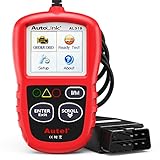
- 【TURN OFF CEL】 This AL319 car scanner diagnostic tool supports Reading and Clearing DTCs, DTC Look Up, displaying Live Data, Freeze Frame & I/M Readiness, view vehicle information, etc., to figure out the root cause of the Check Engine Light (CEL) and turn it off, helping you catch any potential issues early and avoid excessive costs from unnecessary repairs.
- 【EXTENSIVE APPLICATION】 Autel AL319 Compatible with 7 languages (English, French, Spanish, etc.) and various post-1996 OBD II protocol vehicles (Toyota
 , Nissan, Honda, Ford, etc.), this OBD II scanner provides accurate and fast diagnosis for worldwide car owners.
 - 【FOR END USER & DIYERS】 This error code reader AL319 is “plug and play” and comes with an easy interface. Even if you’re not familiar with vehicle repair, you can quickly take control of this obd2 scanner, and get the information you want.
- 【USER-FRIENDLY DESIGN】 This OBD2 scanner and check engine code reader features a patented One-Click I/M Readiness, TFT color display, built-in speaker, LED Indicator etc. The cable is long enough without being too long and getting in the way. No batteries are needed.
- 【HIGH-QUALITY SERVICES】 12 months war.ranty from the date of purchase and lifetime free update are offered by this Automobile OBDII scan tool. Welcome to contact us via Q&A, email, or hotline, and our after-sale-service team for technical support.
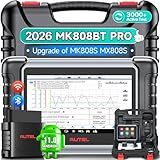
- 👨🎓Tips Before Order: 🚩All function are vehicle-specific - send VIN(17 digits)/Make/Model/Year & needed function via 📞auteldirect @ outlook . com📞 to check before order. 🚩Register tool: a) Follow on-screen guide; or b) Register em-ail on Autel we-b, then bind using SN(back of device) + verification code (find in tool settings or con-tact us via above em-ail). MK808BT PRO comes with ✅English, if need Spanish, please s.end device SN to add. ✅1-year war-ranty. ✅$150 worth 1yr fr-ee updates(New users: ignore renewal alerts). ⚠️📢Post-expiry: Most functions remain functional,for exclusions, refer to A+ Tips. ⚠️Fee for FCA AutoAuth Ga.teway(optional): $50/year, charged by AutoAuth,not Autel.
- 【2026 MK808BT PRO: Same as MK900BT, up of MK900 MX900 MK808S MX808S】Why pay more? 2026 MK808BT PRO functions as MK900BT and saves you 100USD. At same c0st, you now get diagnostic 8X faster and sup-port for 150+ models(1996-2026).💡Dramatically Improved: ✔️Faster & Smarter OS: Android 4.4➡ Android 11 ✔️More Services: 28+➡ 40+ ✔️Bidirectional Control: 50+➡ 3,000+ ✔️Enhanced Hardware: 1/32G➡ 4G/64G ✔️2.4GHz➡ 5G Dual WiFi ✔️Working range: 0.9m➡ 10m+ 🔋Battery test is clear on the large 7in display(BT506 required). 🔔Your Autel scanner is shipped brand new. For any issues(used, damaged, incompatible), e-m-a-il 📞auteldirect @ outlook . com📞 for priority resolution.
- 👍【New Next-Level Bidirectional Control, 50➡3000+ Tests, Covers Daily Repairs】Unlike the Autel DS708 DS808 MP808 MK808 and MX808 car diagnostic scanners, which offer only 50 functional tests, the Autel bidirectional scan tool MK808BT PRO is equipped with over 3000 active tests. These tests are widely used on car subsystems to help technicians quickly check if the car's actuators are functioning properly. Such as ABS, windows, rearview mirrors, wipers, sunroofs, fuel injectors, AC clutches, coolant fans, radiator fans, coolant pumps,etc. Tips📢: All functions are vehicle-specific, not universal to all vehicles,pls send VIN to 📞auteldirect @ outlook . com📞check compatibility before order.
- 👍【28+ Hot Services for 150+ Makes】Autel scan tool MK808BT PRO, upgraded with a BT VCI Mini(valued at 120USD), surpasses the old wired OBDII scanner MK808S MK900, by providing a convenient 33ft wireless working range, offering greater freedom and comfort compared to the 3.3ft cable limit of the MK900 MK808S MX808S car scanner. New features include VIN Check across different modules for comparison and 28+ resets, such as injector coding, ABS autobleed, Oil reset, SAS cali.bration, BMS, throttle relearn, suspension adjustments, etc. ⚠️📢Tips: Service functions are vehicle-specific, not universal to all vehicles, pls send VIN to 📞auteldirect @ outlook . com📞check compatibility before order.
- 👍【All Available Module Diagnosis - OE-Level Scanner】The OE versatile OBDII scan tool MK808BT PRO escaner para autos effectively works with all car systems: ABS, ECM, BCM, SRS, TCM,etc. It identifies vehicles via AutoVIN/manual input/select, like S.nap-on tools, it can ✔read/clear 7000+ DTCs, ✔read ECU info, ✔view 5-in-1 live data, ✔perform active tests, and ✔reset services. ✔Reports can be shared via QR-code and printed, working globally and 21+ multilingual. Supports 150+ US/EU/Asian makes, with ongoing updates from 2024 to 2026. ⚠️Note📢: The AutoVIN function usually works for post-2006 cars, depending on if the vehicle's VIN is stored in the ECU. You can always do manual input/select.
Last update on 2026-06-23 / Affiliate links / Images from Amazon Product Advertising API
This product presentation was made with AAWP plugin.