
NHTSA ID Number: 11006912
Manufacturer Communication Number: 2024.26.100_082024.pdf
TSB/Document Date: 2024-09-04
Summary
Tesla does not provide physical owner's manual copies. Instead, all available owner’s manual content is integrated into the vehicle software, and only the content relevant for a given vehicle, based on vehicle configuration and software version installed, is displayed on its touchscreen. This file contains all available owner’s manual content for the vehicle converted to PDF format, and given the distribution method and NHTSA’s submission format requirements, it is the best available representative copy of owner’s manual content. However, a customer who accesses the owner’s manual via their vehicle’s touchscreen would only see the parts of this PDF file that are relevant to their vehicle.
NOTE: Pressing the scroll buttons only restarts the touchscreen. It does not restart any other vehicle component and does not
power Cybertruck off and on.
Rear Touchscreen
177
Owner's Manual
Overview
The rear touchscreen provides rear passengers with access to:
1. Fan Speed: Touch the arrows to decrease/increase the fan speed.
NOTE: You can also use the front touchscreen to adjust climate settings in the rear cabin (see Operating Climate Controls
on page 363).
2. Power: Touch to turn the rear climate control system on or off.
3. Climate: Touch to turn the rear fan on or off and control the direction of air flow from the rear vents (see Adjusting the Front
and Rear Vents on page 368).
4. Seats: Control rear seat heaters and move the front passenger seat forward/rearward using the arrows.
5. Media: Play, pause, skip or rewind through the currently playing song (see Media on page 99).
6. Video: Access video streaming services.
7. Arcade: Play various video games on the rear touchscreen.
8. Settings: Touch to pair up to two sets of Bluetooth headphones, change the brightness or clean the display.
NOTE: Connect headphones to listen to audio from the rear touchscreen. The vehicle supports up to two Bluetooth devices
at a time (such as one phone and one headset).
9. Volume: Touch the arrows to adjust the volume.
NOTE: Adjusting the media and volume controls also adjusts the front cabin settings.
Rear Screen Remote Control
To control the rear screen from the front display, open the rear screen remote control app from the app
launcher. Besides audio, video and climate controls, you can lock the rear display in the app or by touching
Controls > Display > Lock Rear Display.
Customizing My Apps
For one-touch access to commonly used apps and controls, you can customize what displays in the My Apps area on the
touchscreen's bottom bar:
1. Enter customization mode by touching and holding any app or control in the My Apps area. If this area is empty, touch the
app launcher (the ellipsis icon).
2. Drag your desired app or control from the app tray onto the My Apps area in the bottom bar.
NOTE: Controls (for example, defrosters and seat heaters) appear in the app tray only when you enter customization mode
by touching and holding an app. Seat heaters selected from the app tray appear next to the temperature, instead of in the
My Apps area.
Remove an app or control from the My Apps area by touching and holding, then touching its associated "X".
When you've added the maximum number of apps or controls to My Apps, adding an additional app removes the rightmost
app.
Customizing Display and Sound Settings
Touch Controls > Display to adjust display settings to suit your preferences:
• Appearance: Customize the display to be Dark or Light. When set to Auto, the brightness changes automatically based on
ambient lighting conditions.
• Reduce Blue Light: When enabled, the display automatically adjusts to use warmer colors at night.
Owner's Manual
178
Overview
• Cybertruck Logo: When enabled, the display shows the Cybertruck logo when it is powered on. When disabled, the display
shows the Tesla logo when it is powered on.
• Brightness: Drag the slider to manually control the brightness level. If Display Mode is set to Auto, the touchscreen further
adjusts based on both the ambient lighting conditions and your brightness preference. Cybertruck remembers your chosen
brightness preference and adjusts the touchscreen accordingly.
• Rear View Camera: Choose when to display the feed from the rear view camera. When set to Auto, the rear view camera
feed displays automatically when the tonneau cover is closed.
• Screen Clean Mode: When enabled, your touchscreen darkens and temporarily disables to facilitate cleaning. Follow the
onscreen instructions to exit Screen Clean Mode.
• Touchscreen Language: Select the language that the touchscreen displays.
NOTE: Cybertruck must be in Park to change the language. When you change the language, you experience a brief delay as
the touchscreen restarts.
• Lock Rear Display: Lock access to the rear touchscreen.
• Time: Choose to display time in either 12 or 24 hour format.
• Energy Display: Choose to display remaining energy and charging units as either a percentage of battery energy remaining,
or as an estimate of the distance you can drive.
NOTE: When anticipating when you need to charge, use energy estimate as a general guideline only. Many factors have an
impact on energy consumption (see Getting Maximum Range on page 113).
• Distance: Choose to display range using miles or kilometers.
• Temperature: Choose to display temperature using Fahrenheit or Celsius.
• Tire Pressure: Choose to display tire pressures using BAR or PSI.
In addition to customizing the display, you can enable Joe Mode to reduce the volume of all chimes that are not related to
critical safety issues. Touch Controls > Safety > Joe Mode to enable.
Naming your Vehicle
To further personalize your vehicle, you can name it. Touch Controls > Software > Name Your Vehicle located on the right side
of the touchscreen below the image of your Cybertruck.
If your vehicle already has a name, touch the existing name to change it. Enter the new name in the popup and touch Save. The
name of your Cybertruck appears in the Tesla mobile app, where you can also change it.
Erasing Personal Data
You can erase all personal data (saved addresses, music favorites, etc.) and restore all customized settings to their factory
defaults. This is useful when transferring ownership of Cybertruck. Touch Controls > Service > Factory Reset. Before erasing,
Cybertruck verifies your credentials by prompting you to enter the user name and password associated with your Tesla
account.
Vehicle Status
Overview
The touchscreen displays the status of Cybertruck at all times. What you see depends on whether the vehicle is:
• Parked (see Touchscreen on page 173).
• Driving (see Driving Status on page 183).
• Charging (see Charging Status on page 390).
179
Owner's Manual
Overview
When Cybertruck is parked, the status area shows the drive mode, estimated range, suspension height and available
adjustments, and an exterior view of the vehicle with buttons you can touch to open the tonneau cover, tailgate, powered
frunk, and charge port door.
When you press the brake pedal, Cybertruck powers up and indicator lights flash briefly. Unless an indicator light applies to
the current situation (for example, a seat belt is not fastened), it should turn off. If an indicator light fails to turn on or off,
schedule a service appointment.
Cards
The bottom of the vehicle status display also shows shortcut "Cards" for quick access to Media, tire pressure data, trip
information, and more. Swipe the cards to the left or right to customize your cards shortcuts.
Indicator Lights
The following indicator lights illuminate to advise or alert you of a specific status or condition.
If the touchscreen displays this red brake indicator at any time other than briefly when you first start
Cybertruck, a brake system fault is detected, or the level of the brake fluid is low. Contact Tesla
immediately. Apply steady pressure and keep the brake pedal firmly pressed to stop the vehicle when safe
to do so.
USA:
If the touchscreen displays this red brake indicator at any time other than briefly when you first start
Cybertruck, a brake system fault is detected, or the level of the brake fluid is low. Contact Tesla
immediately. Apply steady pressure and keep the brake pedal firmly pressed to stop the vehicle when
safe to do so.
Canada:
When you manually apply the parking brake using the touchscreen, the red parking brake indicator lights
up on the touchscreen.
USA:
When you manually apply the parking brake using the touchscreen, the red parking brake indicator
lights up on the touchscreen.
Canada:
If the parking brake experiences an electrical issue, the amber parking brake indicator lights up and a fault
message displays on the touchscreen.
USA:
If the parking brake experiences an electrical issue, the amber parking brake indicator lights up and a
fault message displays on the touchscreen.
Canada:
A seat belt for an occupied seat is not fastened. See Seat Belts on page 215.
Airbag safety. If this indicator does not flash on briefly when Cybertruck prepares to drive, or if it remains on,
contact Tesla immediately. See Airbag Status Indicator on page 231.
Owner's Manual
180
Overview
A door or the powered frunk is open.
Cybertruck detects a faulty electrical connection for the trailer lights. Some, or all, trailer lights may not be
functioning. Pull over as soon as safety permits and inspect the trailer lights for faulty cabling or connections. If
the issue is resolved and the red icon persists, manually turn Trailer Mode off and on again. See Towing a Trailer
on page 306.
Tire pressure warning. The pressure of a tire is out of specification. If a fault with the Tire Pressure Monitoring
System (TPMS) is detected, the indicator flashes. For a TPMS fault, schedule a service appointment. See Tire
Pressures on page 415.
The tailgate is open. See Cargo Bed on page 246.
The powered frunk is open. See Powered Frunk on page 243.
This indicator flashes when the electronic stability control systems are actively minimizing wheel spin by
controlling brake pressure and motor power. See Traction Control on page 288. If this indicator remains on, a
fault is detected and you should immediately contact Tesla.
Electronic stability control systems are no longer minimizing wheel spin. See Off-Road Driving on page 297.
The ABS indicator briefly flashes amber on the touchscreen when you first start Cybertruck. If this
indicator lights up at any other time, an ABS fault has occurred and the ABS is not operating. Contact
Tesla. The braking system remains fully operational and is not affected by an ABS failure. However,
braking distances may increase. Drive cautiously and avoid heavy braking.
USA:
The ABS indicator briefly flashes amber on the touchscreen when you first start Cybertruck. If this
indicator lights up at any other time, an ABS fault has occurred and the ABS is not operating. Contact
Tesla. The braking system remains fully operational and is not affected by an ABS failure. However,
braking distances may increase. Drive cautiously and avoid heavy braking.
Canada:
The touchscreen displays this amber brake indicator if a brake booster fault is detected. Apply steady
pressure and keep the brake pedal firmly pressed to stop the vehicle when safe to do so. Hydraulic Boost
Compensation will be active (see Hydraulic Boost Compensation on page 285).
USA:
The touchscreen displays this amber brake indicator if a brake booster fault is detected. Apply steady
pressure and keep the brake pedal firmly pressed to stop the vehicle when safe to do so. Hydraulic
Boost Compensation will be active (see Hydraulic Boost Compensation on page 285).
Canada:
181
Owner's Manual
Overview
Vehicle power is currently being limited because the energy remaining in the Battery is low, the vehicle's
systems are being heated or cooled, or an error is detected by a drive inverter.
Rear fog lights are enabled. See Lights on page 278.
Cybertruck detects a connection for trailer lights but Trailer Mode is disabled. It is likely that a carrying
accessory has been connected. See See Towing a Trailer on page 306
Appears when regenerative braking is limited. See Regenerative Braking on page 285 for more information.
Fog lights are enabled. See Lights on page 278.
Parking lights are on (side marker lights, tail lights, and license plate lights). See Lights on page 278.
Low beam headlights are on. See Lights on page 278.
High beam headlights are on and Auto High Beam is disabled or currently unavailable. See Headlights on
page 278.
Auto High Beam is enabled and high beams are on. Cybertruck is ready to turn off the high beams if needed.
See Headlights on page 278.
Trailer Mode is active. See Towing a Trailer on page 306.
Some of the energy stored in the Battery may not be available due to cold weather conditions. In cold
weather, charging rates may also be limited. If Cybertruck is plugged in, you can heat your Battery by
turning on climate control with the mobile app. This icon disappears when the Battery is sufficiently warm.
Owner's Manual
182
Overview
Vehicle Hold is actively applying the brakes. See Vehicle Hold on page 286.
Pedestrian Warning System is disabled. See Pedestrian Warning System on page 49.
Auto High Beam is enabled but high beams are not on because another vehicle is detected in front of
Cybertruck. When there is no longer another vehicle detected, high beams automatically turn back on. See
Headlights on page 278.
See Popup Messages and Vehicle Alerts on page 176 for more information about alert popups on your vehicle's touchscreen.
Driving Status
When Cybertruck is driving (or ready to drive), the touchscreen shows your current driving status and real-time visualization
of the road as detected by the Autopilot components (see Cameras on page 195). The visualization automatically zooms in
and out to better utilize touchscreen space and inform you when a vehicle is detected in your blind spot.
183
Owner's Manual
Overview
The touchscreen also shows the following:
1. Total estimated driving distance (or energy) available. You can toggle between driving distance and percentage of Battery
energy remaining by touching the displayed value. You can also change how energy is displayed by touching Controls >
Display > Energy Display. When anticipating when you need to charge, use range estimates as a general guideline only.
2. Currently selected drive mode: Park, Reverse, Neutral, or Drive (see Shifting on page 32).
3. Driving speed.
4. The speed limit that is currently being detected by Speed Assist (see Speed Assist on page 76). The icon associated with
the detected speed limit reflects the style of speed limit signs used in your market region.
NOTE: A blue outline may appear around the speed limit icon to notify that you are above the speed limit.
5. Other cars detected on the road (as applicable).
6. Your Cybertruck. Colored lines radiate from the image of your Cybertruck as objects are detected (other motorists, guard
rails, etc.). The location of the lines correspond to the location of the detected object. The color of the lines (white, yellow,
orange, or red) represents the object's proximity to Cybertruck, with white being the farthest and red being very close and
requiring your immediate attention. See Lane Assist on page 69.
WARNING: Pay attention to important alert messages that display at the bottom of the vehicle status area of the
touchscreen. Ignoring these messages can result in serious injury or death.
Owner's Manual
184
Overview
WARNING: Although the touchscreen shows surrounding traffic, some vehicles may not be displayed. Never rely on the
detected displayed vehicles to determine if a vehicle is present (for example, in your blind spot). Always use your
mirrors and perform shoulder checks.
185
Owner's Manual
Overview
Interior Electronics
In addition to storage compartments and cup holders (see Interior Storage on page 239), the Cybertruck interior supports
various electronics such as an RFID transmitter that reads key cards (see Keys on page 200), USB-C ports, wireless phone
chargers, a power outlet in the center console, and a power outlet below the rear touchscreen.
USB-C Ports
Cybertruck has four USB ports.
There are three USB-C ports in the center console, each of which can provide up to 65W of power:
• One USB-C port is located in the front compartment of the center console. This port can be used to charge a USB-C
device.
• Two USB-C ports are located below the rear touchscreen and can be used to charge USB-C devices.
NOTE: Use USB 3.0 compliant cables to connect a device to a USB-C port. Using non-compliant cables may result in slower
charging, connection problems, or degraded performance.
Owner's Manual
186
Overview
NOTE: If all three USB-C ports are in use at the same time, power to each port will be reduced.
CAUTION: Do not use the USB-C ports to power a device with a power rating that exceeds the limits listed above.
There is also a USB-A port in the glovebox. This port is equipped with a USB-A flash drive. This port can be used to play media
from a phone or USB-A drive (see Playing Media from Devices on page 101) or to save Sentry Mode and Dashcam video
footage.
NOTE: Do not connect multiple devices using a USB hub. This can prevent connected devices from charging or from being
recognized by Media Player, Sentry Mode, Dashcam, etc.
Wireless Phone Chargers
Wireless phone chargers are integrated into the front console, providing up to 15W of power to charge Qi-enabled phones. To
charge your phone, place it on one of the two charge pads. The phone must be in direct contact with the wireless charger.
Your device may feel warm while charging, but this is a normal effect of inductive charging.
CAUTION: Before you charge, remove any objects (coins, keys, metal objects, etc.) between the phone and charger, as
well as any NFC cards (for example, the vehicle key card, credit cards, or hotel key) placed on or behind the phone (like
with integrated phone cases). Damage to NFC cards can occur when you charge the phone without first removing the
card.
NOTE: The wireless phone chargers are in the same location as the key card readers (see Key Card on page 201).
When placed on the wireless charger, your phone charges whenever the vehicle is powered on (the touchscreen is on and you
are in the vehicle). Your phone does not charge when you leave the vehicle unless a feature, such as Sentry Mode, is enabled.
187
Owner's Manual
Overview
NOTE: The phone must be in direct contact with the wireless charger. If you place objects between the phone and the charger
(for example, credit cards, key cards, coins, keys, metal objects, etc.), or if your phone case is too large or is made of metal,
the wireless charger may not work. Try removing the phone from its case before placing it on the charger.
NOTE: The wireless phone charger does not charge if the vehicle's high voltage Battery is discharged.
Interior Power Outlets
The Cybertruck center console is equipped with two NEMA 5-20 120V power outlets capable of providing up to 20A
combined. To enable power to the outlets, touch Controls > Outlets & Mods. Touch Enable Cabin Outlets on Entry to enable
them by default when you enter Cybertruck.
If an outlet is not providing power as expected, see Troubleshooting AC Outlets on page 191.
NOTE: The 120V power outlets provide 20A maximum draw between both outlets. If multiple devices are plugged in and
drawing power at the same time, power to each device may be reduced or interrupted.
NOTE: Power to AC outlets may be disabled in very low ambient temperatures.
NOTE: Power to AC outlets is disabled when an AC charging cable is connected to Cybertruck even if the vehicle is not
actively charging.
Power to AC outlets is still available when Cybertruck is DC charging (while Supercharging, for example). See Charging
Instructions on page 389.
NOTE: Two 120V power outlets are also located in the cargo bed, in addition to a 240V power outlet (see Cargo Bed Outlets
on page 190).
To access the front power outlet, open the front compartment of the center console (see Interior Storage on page 239). The
power outlet is located on the front wall of the compartment:
The rear power outlet is located below the rear touchscreen:
Owner's Manual
188
Overview
NOTE: To have the cabin outlets continue supplying power even when Cybertruck is not occupied, touch Controls > Outlets &
Mods and enable Keep On Cabin and Bed Outlets (see Keep On Cabin and Bed Outlets on page 191). You can also enable
CyberTent Mode and turn on outlets to keep them on when camping (see CyberTent Mode on page 191).
CAUTION: Leaving a device plugged in depletes the high voltage Battery. Power to the outlets shuts off when the
capacity of the high voltage Battery is very low.
CAUTION: Damage to a device or data loss (such as from a laptop or external drive) due to a sudden loss of power is not
covered by the warranty.
CAUTION: Always check each outlet for damage before use.
CAUTION: Damage to Cybertruck caused by an external device that is plugged in to an outlet is not covered by the
warranty.
WARNING: The power outlets and a device's plug can become hot.
WARNING: As with any outlet, do not leave children unattended near the cabin outlets.
WARNING: Do not insert any objects into the outlets other than electrical plugs. Treat the outlets on Cybertruck the
same as you would any other outlet, and take care to ensure proper handling. Misusing outlets can cause serious injury.
189
Owner's Manual
Overview
Cargo Bed Outlets
Your Cybertruck has three AC power outlets located in the cargo bed.
To access the outlets:
1. Open the tailgate (see Cargo Bed on page 246).
2. Locate the outlet cover on the left side of the bed.
3. Pull the left side of the panel to open the cover.
The outlet cover must be open in order for the outlets to provide power.
1. 120V power outlets (20A maximum draw, combined)
2. 240V power outlet (40A maximum draw, combined)
The 120V power outlets provide a maximum of 20A across both cargo bed outlets. This is independent from the 120V outlets
in the cabin which also provide a maximum of 20A across both cabin outlets (see Interior Power Outlets on page 188). It is
possible to pull 20A from the cabin and 20A from the cargo bed at the same time. All AC power outlets combined (120V cabin,
120V cargo bed, and the 240V cargo bed outlet) are limited to a combined maximum of 40A. If multiple devices are plugged in
and drawing power at the same time, power to each device may be reduced or interrupted.
The outlets stop providing power when Cybertruck is no longer occupied (when you leave the vehicle and close the doors).
To enable power to the outlets, touch Controls > Outlets & Mods on the touchscreen. From here you can toggle power to all
AC outlets and each power feed (see Connecting Accessories to the 48V Power Feeds on page 437). While the outlets are
supplying power, the touchscreen shows the amount of power being used.
You can also enable power to the outlets and power feeds using the mobile app.
NOTE: Leaving a device plugged in depletes the high voltage Battery. Even if nothing is plugged in, the outlets draw small
amounts of power from the Battery whenever they are enabled. When the charge level of the high voltage Battery is very low,
power to the outlets shuts off and a message is displayed on the touchscreen. Leaving a device plugged in does not deplete
the low voltage battery.
CAUTION: Do not use the AC outlets to power a device with a power rating that exceeds the limits listed above.
Owner's Manual
190
Overview
Keep On Cabin and Bed Outlets
If you want the outlets to continue supplying power even when the vehicle is not occupied, touch Controls > Outlets & Mods
and enable Keep On Cabin and Bed Outlets. After 12 hours, or once the high voltage Battery has less than 5% remaining
energy, the outlets shut off. Keep On Cabin and Bed Outlets is automatically enabled whenever you turn on the outlets using
the mobile app.
CyberTent Mode
After installing the CyberTent, enable CyberTent Mode for optimal comfort. CyberTent Mode:
• Levels the suspension.
• Opens the tonneau cover and keeps it open by disabling the switches.
• Displays controls to adjust the front and rear lights.
• Allows outlets to be kept on indefinitely.
NOTE: Using CyberTent Mode and keeping the outlets or lights on may increase power usage.
• Disables walk-away lock.
NOTE: It is your responsibility to ensure the vehicle is appropriately locked or attended to at all times.
To enable, touch Controls > Outlets & Mods > CyberTent Mode. Cybertruck cannot be driven while CyberTent Mode is enabled.
Overload Capability
The AC outlets on Cybertruck are all capable of providing additional surge current to start almost all devices (such as power
tools, motors, and compressors) up to 110LRA.
Troubleshooting AC Outlets
AC outlets may be disabled in the following scenarios:
• Very low ambient temperatures.
• When an AC charging cable is connected to Cybertruck even if the vehicle is not actively charging.
• The high voltage Battery does not have enough charge.
• GFCI or overcurrent detection has been tripped.
If one or more outlets unexpectedly stops providing power, first ensure that you have enabled power to the outlets (touch
Controls > Outlets & Mods) and that the high voltage Battery has enough remaining charge.
Each power outlet in Cybertruck is equipped with overcurrent detection and a ground fault circuit interrupter (GFCI), which
interrupts the power supply to an outlet if an issue is detected, such as a current leakage. In this case, the outlets will turn off.
Overcurrent detection may happen if multiple devices plugged in at once draw too much power from the AC power outlets.
CAUTION: Use only "UL" Listed devices with the AC power outlets in Cybertruck.
CAUTION: Damage to a device or data loss (such as from a laptop or external drive) due to a sudden loss of power is not
covered by the warranty.
If an outlet is still not providing power, the GFCI or overcurrent detection may have been tripped. When an outlet is faulted, an
option to reset the outlets becomes available. To reset:
1. Disconnect all devices from all AC outlets (three outlets in the cargo bed and two in the center console).
2. Touch Controls > Outlets & Mods > Reset.
3. Reconnect devices and re-enable power to the outlets by touching Controls > Outlets & Mods > AC Outlets.
NOTE: Power to AC outlets is still available when Cybertruck is DC charging (while Supercharging, for example). See Charging
Instructions on page 389.
191
Owner's Manual
Overview
Warnings and Cautions
CAUTION: Always check each outlet for damage before use.
CAUTION: Keep the outlet cover closed when the cargo bed outlets are not in use.
CAUTION: Keep the outlet cover closed when Cybertruck is AC charging, especially in wet weather. AC charging may be
disabled if moisture enters one of the outlets.
CAUTION: Damage to Cybertruck caused by an external device that is plugged in to an outlet is not covered by the
warranty.
CAUTION: Use caution when driving Cybertruck while devices are plugged into the cargo bed outlets. Ensure that all
objects in the cargo bed are properly secured (see Securing Cargo on page 250).
WARNING: A power outlet and a device's plug can become hot. Use caution when unplugging a device.
WARNING: Do not insert any objects into the outlets other than electrical plugs. Treat the outlets on Cybertruck the
same as you would any other outlet, and take care to ensure proper handling. Misusing outlets can cause serious injury.
WARNING: Protect the cargo bed outlets from moisture, water, and foreign objects at all times. If you see a foreign
object in an outlet, or if the outlets appear corroded or damaged, do not use them.
WARNING: Do not use the cargo bed outlets if they are wet or covered in snow.
WARNING: If rain falls while an accessory is plugged in and drawing power from the cargo bed outlets, do not allow rain
water to run along the length of charge cable, causing the outlets to become wet.
WARNING: Do not connect a power source (such as a solar panel or external battery) to a cargo bed outlet.
WARNING: As with any power outlet, do not leave children unattended near the cargo bed outlets and ensure the outlet
cover is closed when the outlets are not in use.
Owner's Manual
192
Overview
Voice Commands
Use voice commands to easily control settings and preferences without using the touchscreen. Voice commands are designed
to understand natural requests. The following is a non-exhaustive list of actions that you can perform with voice commands:
• Adjust climate preferences
• Tweak the windshield wiper speed and frequency
• Control various aspects of your vehicle
• Navigate to a location
• Call a contact
• Interact with apps and settings
To initiate a voice command, fully press the microphone button on the right side of the steering wheel. When a chime sounds,
make your request.
Examples of Voice Commands
Here is a list of example voice commands. This is not an exhaustive list. Tesla is constantly working to improve voice
commands.
NOTE: Your vehicle must be in Park to enable some voice commands (such as Sentry Mode, Dog Mode, etc.).
Climate Controls
Adjust your climate preferences:
• "Make it cooler"
• "Make it warmer"
• "Turn on/off the driver's seat heater"
• "Cool down the passenger"
• "Direct airflow to my face"
• "Sync climate"
193
Owner's Manual
Overview
• "Increase/decrease the fan speed"
• "Turn on/off rear defroster"
• "Set the temperature/fan..."
• "Turn on recirculate"
Windshield Wiper
Update the windshield wiper speed and frequency based on changing road and weather conditions:
• "Speed up the wiper"
• "Turn on/off the wiper"
• "Increase/decrease windshield wiper speed by..."
Vehicle Controls
Modify various controls in your vehicle:
• "Sentry Mode on/off"
• "Keep my truck safe"
• "Lock/unlock the doors"
• "Turn on Dog Mode"
• "Fold/unfold the mirrors"
• "Open/close charge port"
• "Start/stop charging"
• "Open service settings"
• "Open the glovebox"
Navigation
Search for or navigate to a location:
• "Where is [location]?"
• "Drive to [location]"
• "Navigate to [location]"
• "Show nearby Superchargers"
• "I'm feeling hungry/lucky" (see Maps and Navigation on page 92).
• "Stop navigation"
• "Mute voice guidance"
If you have defined a navigation address for your home or work locations, you can use a voice command to navigate there by
saying "Navigate home" or "Take me to work".
Contacts
To call or text a contact on your Bluetooth-connected phone (see Phone, Calendar, and Web Conferencing on page 25), say:
• "Call [contact name/phone number]"
• "Text [contact name/phone number]"
Media
Listen to media and adjust your playback preferences:
Owner's Manual
194
Overview
• "Listen to [song name]"
• "Lower/raise the volume"
• "Skip to next"
• "Pause/play song"
• "Change the source to [media source]"
To improve voice command recognition accuracy, provide multiple cues in your command, such as artist and song.
Apps and Settings
Easily navigate through your apps and settings:
• "Open [Toybox/browser/theater/phone]"
• "Search for..."
• "The screen is too bright"
• "Show me the Owner's Manual"
You can also file a bug report by saying "Report" , "Feedback", or "Bug report".
For more information on voice commands, go to https://www.tesla.com/support/voice-commands.
NOTE: To support ongoing quality improvements, Tesla captures and processes voice command transcriptions (such as “set
the temperature…”). Audio voice recordings are not collected, and transcriptions are not associated with your Tesla account or
with your vehicle's identification number. To further protect your privacy, voice commands containing personal data are not
captured (such as "Navigate to..." or "Make a call to...").
Cameras
Your Cybertruck includes the following components that actively monitor the surrounding area:
1. A camera is mounted on the tailgate.
2. A camera is mounted in each door pillar.
3. Two cameras are mounted to the windshield above the rear view mirror.
195
Owner's Manual
Overview
4. A camera is mounted above each front wheel.
5. A camera is mounted above the grille on the front bumper.
Viewing Camera Feeds
The Camera app shows the views from the side cameras, rear-facing camera, and front-facing camera. To open the Camera
app, you can either:
• Open the app launcher and touch the Camera app.
• Touch the camera icon on the right side of the steering wheel.
Swipe up or down to switch between the rear and front camera views.
The camera app opens automatically when you shift into Reverse.
Rear-Facing Camera


- Advanced VCI Box, Industry-leading J2534 Pass-Thru...
- High-Speed OEM-Level Diagnostics & Programming: Unlock true...
- Coverage for 17 Car Brands & Ultra Reliability: Works...
- User-Friendly RLink Platform & Expert Support: TOPDON’s...
- 6.6 ft USB-C Cable & Portable Storage Case: The RLink J...
Last update on 2026-06-23 / Affiliate links / Images from Amazon Product Advertising API
If the PDF is very large, it may not load in the preview below.
Some older TSBs had multiple PDFs — visit the NHTSA Website to view all PDFs.
If the TSB PDF does not show, download or view it on the NHTSA Website.
Click on the (+) Plus Sign
Then Click on Associated Document(s)
Search NHTSA Database for Recalls
Search NHTSA Database for Vehicle Investigations
View Latest Vehicle Investigations
Search NHTSA Database for Vehicle Complaints
View Latest Vehicle Complaints
TSB/Document ID: 2024.26.100_082024.pdf
Replacement Service Bulletin Number:
MFR Communication Date: 2024-08-31
MFR Internal Campaign ID/Software Version: 2024.26.100
Communication Type: Over The Air
NHTSA Components: UNKNOWN OR OTHER
MFR Component System:
MFR Component Subsystem:
Previous TSB | Next TSB |

- Stay Updated with Lifetime Access: This obd2 scanner includes lifetime free software updates for all app service functions. With a single payment, enjoy full access to diagnostics, reset tools, and maintenance features — zero subscription fees. A budget-friendly choice for weekend mechanics, home car owners, and DIYers, supporting vehicles from 1996 onward. Come to us with your VIN to check compatibility.
- Full Bidirectional Control/Active Tests & Stable Wireless Connectivity: This car code reader features full bidirectional control, allowing you to send commands to the vehicle's ECU for active tests on components such as fuel pumps, injectors, A/C clutches, windows, sunroofs, and more. This car scanner diagnostic tool helps DIYers quickly diagnose and test vehicle parts, cutting down troubleshooting and repair time. With BT 4.0 wireless connectivity, you can enjoy cable-free diagnostics up to 33 feet. Stand in your garage and test windows, wipers, or even engine components—all without needing to move around your car.
- Portable Car Scanner with 26 Special Functions: Scheduled vehicle maintenance with the A30M car diagnostic scanner can keep your vehicle in peak condition and save you big on dealership trips. The XTOOL A30M obd2 scanner diagnostic tool features essential reset and relearn functions, such as Oil Reset, EPB Reset (Electronic Parking Brake Release), SAS, ABS Brake Bleeding, Throttle Body Relearn, Injector Coding, Crank Sensor Relearn, Headlight Adjustment, and Tire Size Reset. Note: Service functions may vary by vehicle model – check compatibility beforehand!
- Wide Compatibility CAN FD & FCA
 Autoauth: This obd2 scanner diagnostic tool is compatible with over 85+ car brands from the U.S., Europe, and Asia, providing extensive coverage through a BT connection with your smartphone or iPad. Now upgraded to support the latest protocols, it includes FCA AutoAuth access for Chrysler, Jeep, Dodge, and Fiat (2018+), and supports CAN FD for GM (2020+) models, giving you greater access to newer vehicles and systems. Note: The FCA AutoAuth account is not included with the device. Users must register and pay separately through the official FCA AutoAuth website to access diagnostic functions for vehicles that require it.
 - Up to 8 Live Data Streams Graphing – Real-Time Graphing for Deeper Insight: This car scanner supports up to 8 live data streams simultaneously with intuitive, real-time graphing. Gain comprehensive insights into your vehicle’s performance, making it easier to spot issues, detect trends, and make informed diagnostic decisions with confidence.
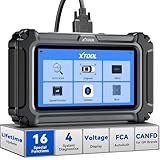
- Comprehensive OBD2 Scanner with 16 Resets: The XTOOL D5S car code reader and vehicle reset tool provides an advanced diagnostic solution with 16 commonly needed reset functions, including Electronic Parking Brake Reset (EPB Reset), SAS, BMS Reset (Battery Test), Throttle Body Relearn, TPMS Reset, ABS Bleeding, Injector Coding, Gearbox Match, Suspension Adjustment, Headlight, Window Initialization, Crank Sensor Relearn and more. Equipped with CAN FD Protocol and FAC AutoAuth, the D5S obd2 scanner diagnostic tool ensures compatibility with a broad range of modern vehicles, allowing users to address common maintenance needs quickly. NOTE: Please Check the Compatibility before ordering.
- 4 Main System Car Scanner & Full OBD2 Diagnostics: The XTOOL D5S car code reader is ideal for home mechanics, DIYers, and professionals, providing access to Transmission/Engine/ABS/SRS systems to read DTCs, Live data can be displayed in text or up to 4 PID data graphs, along with full OBD2 diagnostics to check the engine light on, other obd2 issues and routine maintenance. This car diagnostic scanner ensures you can keep your vehicles in top condition, avoiding costly repairs or unexpected breakdowns. NOTE: Some vehicles display three systems after connection because the transmission and engine of some vehicles are integrated into one.
- Check Engine Code Reader & Real-Time Engine Monitoring: Whether you're a car owner, a DIYer, or run a repair shop, the XTOOL D5S obd2 scanner diagnostic tool makes engine diagnostics fast and frustration-free, reading and explaining trouble codes in seconds—no confusion. Check live data like fuel trim, 02 sensor voltage, RPM, and coolant temp to pinpoint mis~fires, rough idle, or sensor issues. After repairs, simply use the D5S check engine code reader and reset tool to turn off the check engine light and confirm the problem’s fixed—saving time, money, and unnecessary shop visits. - Note: If the check engine light comes back on, it indicates the original problem still exists.
- Portable Car Scanner for ABS and SRS: XTOOL D5S gives you peace of mind when ABS or airbag warning lights come on. It reads and clears ABS codes to help you fix brake sensor, traction control, or wheel speed issues, and supports ABS bleeding after repairs like caliper or master cylinder replacement. For airbag systems, it scans and clears SRS codes related to airbags, seatbelt tensioners, and crash sensors. Whether you're doing repairs at home or running a small shop, the D5S is a cost-effective solution for safety diagnostics. Note: If a fault code returns after clearing, it usually means the issue hasn’t been fully resolved. Please check the compatibility before ordering.
- Transmission Warning Light ON? Here’s the Transmission Diagnostic and Reset Tool You Need: The XTOOL D5S is more than just a basic car scanner—it’s an easy-to-use transmission diagnostic tool. From rough shifts to slipping gears, the D5S lets you read and clear transmission trouble codes, monitor real-time TCM data, and perform transmission resets after fluid changes or repairs. Whether you’re a hands-on car owner or a pro running a busy shop, this OBD2 scanner with transmission functions helps you catch problems early—saving you time, money, and future headaches.. Note: Clearing fault codes is equivalent to a reset on some vehicles, but not all. For help, contact XTOOL Tech Support.
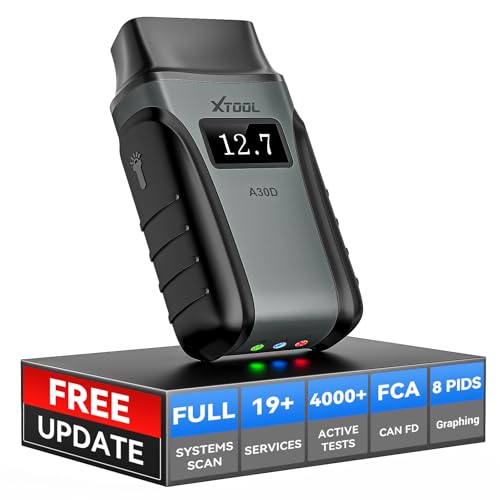
- Save $500+/Year with Pro-Level Diagnostics -No Subscriptions: The Portable XTOOL Anyscan A30D OBD2 scanner diagnostic tool includes free lifetime software updates for all app service functions, without extra cost. With a single payment, enjoy full access to diagnostics, relearn scan tools, and maintenance features. A cost-effective, smart choice for car owners and DIY enthusiasts, compatible with vehicles from 1996 onward. Please provide the car VIN and the special functions you need in advance so that we can confirm compatibility
- Bi-Directional Control for Faster Troubleshooting: Unlike a basic code reader, the A30D bi directional scan tool sends commands directly to your vehicle’s ECU to actively test components like fuel pump, valves, wipers, windows, doors, sunroof, and headlamps right from your smartphone. See component responses in real time without disassembly—perfect for brake jobs, electrical issues, and hard-to-find problems. This bidirectional obd2 scanner helps pinpoint faults faster, reduce guesswork, and avoid replacing good parts. An efficient, easy-to-use car scanner diagnostic tool built for DIYers, home garage users, and small-shop technicians who want real two-way scanner, not just codes
- 19 Reset Functions for Routine Maintenance: The A30D car diagnostic scanner provides 19 relearn functions without extra charges, including EPB Reset for parking brake replacement, TPMS Reset after tire changes, ABS Auto Bleeding, Oil Reset, SAS Reset, BMS Reset, Throttle Relearn, Injector C0ding, Gear Learning, Crank/Crankshaft/Cam/Ckp Sensor Relearn Tool, Transmission Match, Seat Calibration, Airbag Repair and more. This XTOOL A30D automotive scanner diagnostic tool supports preventive care, helping extend vehicle life and reduce costly shop visits. Functions vary by vehicle make and year—plz confirm compatibility before purchase
- Stable BT Connection & All-System & 8 Pids Live Data: The A30D wireless OBD2 scanner delivers a fast and stable wireless connection up to 33 feet, letting you move freely around the vehicle without tangled cables. Pair with with Android 9.0+ and iOS 10.0+ devices to turn your phone into a mobile auto scanner—perfect for home garages, driveways, or on-the-spot repairs. This full system scanner for cars provides real-time access to all major modules, including Engine, Gearbox, ABS, SRS, AC and more. with clear graphs, meters, and up to 8 PIDs displayed at once. This car code reader makes system monitoring visual, simple, easy to understand, and offering data logging for playback and deeper
- Wide Compatibility with CAN-FD & FCA Support: The A30D car computer diagnostic reader works with most 1996 and newer vehicles with a standard OBD2 port, including for Ford, for GM, for Toyota, for Honda, for Nissan,for Hyundai etc, with ongoing updates covering more car models and functions later. It also supports newer communication protocols like CAN-FD and FCA AutoAuth (Personal AutoAuth account and active subscription required, not included with the device!for Chrysler, for Dodge, for Jeep, for Fiat models). It is a future-ready automotive scanner diagnostic tool for households with multiple vehicles or part-time techs. Coverage vary by cars, plz check the compatibility first
Last update on 2026-06-23 / Affiliate links / Images from Amazon Product Advertising API
This product presentation was made with AAWP plugin.