
NHTSA ID Number: 10121067
Manufacturer Communication Number: VOS-16-02
TSB/Document Date: 2017-10-31
Summary
This document describes the mandatory existing version uninstallation, and installation of ODIS Service V3.0.0 on existing diagnostic laptop and tablet devices in workshop service only.
4. From the device folder on the Windows desktop (or alternate save location), Open the Hardware Key
document:
5. Select and Copy the first 32 characters (only) of the hardware key. Example:
The characters are saved in Windows “clipboard” memory.
6. Paste the 32-characters copied above into the Password: entry field, and then select Next:
................................
7. No action needed. Select Next:
(cont.)
Page 9 of 26
© 2016 Volkswagen Group of America, Inc.
All rights reserved. Information contained in this document is based on the latest information available at the time of printing and is subject to the copyright and other intellectual
property rights of Volkswagen Group of America, Inc., its affiliated companies and its licensors. All rights are reserved to make changes at any time without notice. No part of this
document may be reproduced, stored in a retrieval system, or transmitted in any form or by any means, electronic, mechanical, photocopying, recording, or otherwise, nor may these
materials be modified or reposted to other sites, without the prior expressed written permission of the publisher.
Service Information
8. Select Finish:
9. If this prompt appears, select Yes:
10. Click OK:
Page 10 of 26
© 2016 Volkswagen Group of America, Inc.
All rights reserved. Information contained in this document is based on the latest information available at the time of printing and is subject to the copyright and other intellectual
property rights of Volkswagen Group of America, Inc., its affiliated companies and its licensors. All rights are reserved to make changes at any time without notice. No part of this
document may be reproduced, stored in a retrieval system, or transmitted in any form or by any means, electronic, mechanical, photocopying, recording, or otherwise, nor may these
materials be modified or reposted to other sites, without the prior expressed written permission of the publisher.
Service Information
2.6 – Confirm Windows Update Setting
To ensure trouble-free ODIS Service software download and installation from the web-server, the
diagnostic device must not be downloading or installing Windows updates at the same time.
Confirm the preferred Windows update setting as instructed in the diagnostic device’s Unpacking and
Setup instructions. Proceed as follows:
1. Go to: Windows Start > Control Panel > Windows Update > Change Settings
2. In the Important Updates category, confirm that the update option: Check for updates but let me
choose whether to download and install them is selected as illustrated below:
If this option is selected, select Cancel:
If this option is not selected, select it now from the dropdown, and then select OK:
3. Close the remaining Control Panel Windows.
Note:
If it was necessary to change the update setting, check if a Windows update is currently in
process before installing ODIS Service. If a Windows update is in process, allow it to finish and
only then proceed with ODIS Service installation.
All Preparation steps completed. Proceed to Section 3.0 – Page 12
Page 11 of 26
© 2016 Volkswagen Group of America, Inc.
All rights reserved. Information contained in this document is based on the latest information available at the time of printing and is subject to the copyright and other intellectual
property rights of Volkswagen Group of America, Inc., its affiliated companies and its licensors. All rights are reserved to make changes at any time without notice. No part of this
document may be reproduced, stored in a retrieval system, or transmitted in any form or by any means, electronic, mechanical, photocopying, recording, or otherwise, nor may these
materials be modified or reposted to other sites, without the prior expressed written permission of the publisher.
Service Information
3.0 – Installation
3.1 – Download & Install V3.0.0 Application Data – “Single Setup”
1. Open Internet Explorer 11
2. Carefully type the following address in the browser’s address bar, and then click the “Go to” arrow:
https://mirrorserver2.vwhub.com/dav/
3. Select OK:
Note:
Issuer: VWGoA ODIS RootCA XXXX
Valid From: X/X/201X to X/X/201X
If multiple certificate confirmation
prompts appear, select and confirm
the one indicated as:
Click here to view certificate prope…
Issuer: VWGoA ODIS RootCA
4. Navigate through the server Indexes in the following order:
Odis > Trade-Retail > software > installation
5. From the installation Index, double-click the
OffboardDiagSetup-Service VWMCD 3 X X XXXXXXX.exe file:
(cont.)
Page 12 of 26
© 2016 Volkswagen Group of America, Inc.
All rights reserved. Information contained in this document is based on the latest information available at the time of printing and is subject to the copyright and other intellectual
property rights of Volkswagen Group of America, Inc., its affiliated companies and its licensors. All rights are reserved to make changes at any time without notice. No part of this
document may be reproduced, stored in a retrieval system, or transmitted in any form or by any means, electronic, mechanical, photocopying, recording, or otherwise, nor may these
materials be modified or reposted to other sites, without the prior expressed written permission of the publisher.
Service Information
6. Click the Save - dropdown selection arrow, and then select Save and Run:
Installation Tip for Pros:
The download is saved in the Download folder on Windows. To perform this step on subsequent
devices, consider copying and saving the downloaded file on a USB flash drive: Then, instead of
logging on to ServiceNet and downloading the file each time on the remaining devices, simply
insert the USB flash drive, download the file to the device from the flash drive directory, access the
file and then perform Steps 4 through 24.
In all cases, please ensure that the certificate is imported to Windows on all devices first.
7. No action needed:
8. When the download is complete, Close the browser session.
9. No action needed:
10. Confirm English (US) is selected, and then select OK:
(cont.)
Page 13 of 26
© 2016 Volkswagen Group of America, Inc.
All rights reserved. Information contained in this document is based on the latest information available at the time of printing and is subject to the copyright and other intellectual
property rights of Volkswagen Group of America, Inc., its affiliated companies and its licensors. All rights are reserved to make changes at any time without notice. No part of this
document may be reproduced, stored in a retrieval system, or transmitted in any form or by any means, electronic, mechanical, photocopying, recording, or otherwise, nor may these
materials be modified or reposted to other sites, without the prior expressed written permission of the publisher.
Service Information
11. Select Next:
12. Select Next: (and Yes where applicable):
13. Select Next:
(cont.)
Page 14 of 26
© 2016 Volkswagen Group of America, Inc.
All rights reserved. Information contained in this document is based on the latest information available at the time of printing and is subject to the copyright and other intellectual
property rights of Volkswagen Group of America, Inc., its affiliated companies and its licensors. All rights are reserved to make changes at any time without notice. No part of this
document may be reproduced, stored in a retrieval system, or transmitted in any form or by any means, electronic, mechanical, photocopying, recording, or otherwise, nor may these
materials be modified or reposted to other sites, without the prior expressed written permission of the publisher.
Service Information
14. Click the Target platform dropdown selection arrow, select the diagnostic device model number
or type that applies to the diagnostic device, and then select Next:
15. Click the Diagnostic interface dropdown selection arrow, select the applicable diagnostic
interface that will be used with the diagnostic device, and then select Next:
(cont.)
Page 15 of 26
© 2016 Volkswagen Group of America, Inc.
All rights reserved. Information contained in this document is based on the latest information available at the time of printing and is subject to the copyright and other intellectual
property rights of Volkswagen Group of America, Inc., its affiliated companies and its licensors. All rights are reserved to make changes at any time without notice. No part of this
document may be reproduced, stored in a retrieval system, or transmitted in any form or by any means, electronic, mechanical, photocopying, recording, or otherwise, nor may these
materials be modified or reposted to other sites, without the prior expressed written permission of the publisher.
Service Information
16. Click Next:
17. Ensure Copy license to the license folder is checked, and then click Browse…:
18. Open the device folder on the Windows desktop, and Open the “License” subfolder.
19. Select / highlight the license (.dat) file (DO NOT double-click), and then click Open:
Note:
DO NOT double-click the license file in
its saved location!
(cont.)
Page 16 of 26
© 2016 Volkswagen Group of America, Inc.
All rights reserved. Information contained in this document is based on the latest information available at the time of printing and is subject to the copyright and other intellectual
property rights of Volkswagen Group of America, Inc., its affiliated companies and its licensors. All rights are reserved to make changes at any time without notice. No part of this
document may be reproduced, stored in a retrieval system, or transmitted in any form or by any means, electronic, mechanical, photocopying, recording, or otherwise, nor may these
materials be modified or reposted to other sites, without the prior expressed written permission of the publisher.
Service Information
20. Ensure the license file directory path appears in the installation window. Select Next:
21. No action needed. Select Next:
22. Wait while several different phases of the installation take place:
(cont.)
Page 17 of 26
© 2016 Volkswagen Group of America, Inc.
All rights reserved. Information contained in this document is based on the latest information available at the time of printing and is subject to the copyright and other intellectual
property rights of Volkswagen Group of America, Inc., its affiliated companies and its licensors. All rights are reserved to make changes at any time without notice. No part of this
document may be reproduced, stored in a retrieval system, or transmitted in any form or by any means, electronic, mechanical, photocopying, recording, or otherwise, nor may these
materials be modified or reposted to other sites, without the prior expressed written permission of the publisher.
Service Information
23. Click Finish:
24. Confirm that the following icons appear on the Windows desktop:
Offboard Diagnostic Information System:
ODIS Service Diagnostic Interface Configuration:
Note:
If the ODIS Service Diagnostic Configuration icon does not appear on the desktop:
1. Go to: Start > All Programs
2a. Open the Softing D-PDU API for VCI VX.XX.XXX program. If the EDIC Configuration
Manager is present, right-click its icon and select Send to > Desktop (create shortcut).
Then proceed to Section 3.2.
2b. If the Softing D-PDU API for VCI VX.XX.XXX or EDIC Configuration Manager programs
are not present, repeat the clean utility (section 2.3), uninstallation (section 2.4) and singlesetup steps in order until the programs appears under All Programs as described above, or
the icon appears on the desktop. (This may need to be done more than once.)
If the Softing D-PDU API / EDIC Configuration Manager does not appear under All
Programs or on the desktop after multiple attempts suggested above, please contact
VWGoA Diagnostic Tester Software Support (DTSS).
Single-Setup steps completed. Proceed to Section 3.2 – Page 19
Page 18 of 26
© 2016 Volkswagen Group of America, Inc.
All rights reserved. Information contained in this document is based on the latest information available at the time of printing and is subject to the copyright and other intellectual
property rights of Volkswagen Group of America, Inc., its affiliated companies and its licensors. All rights are reserved to make changes at any time without notice. No part of this
document may be reproduced, stored in a retrieval system, or transmitted in any form or by any means, electronic, mechanical, photocopying, recording, or otherwise, nor may these
materials be modified or reposted to other sites, without the prior expressed written permission of the publisher.
Service Information
3.2 – Import Security Certificate to Application
Brand-specific diagnostic data is also downloaded from the VWAG Group Services web-server. To enable
this, the security certificate must be imported to the ODIS Service application.
The diagnostic device’s hardware key must be entered as a password during the certificate importation
process.
1. Double-click the Offboard Diagnostic Information System icon:
2. Wait while the application starts:
3. Select Installing the client certificate:
(cont.)
Page 19 of 26
© 2016 Volkswagen Group of America, Inc.
All rights reserved. Information contained in this document is based on the latest information available at the time of printing and is subject to the copyright and other intellectual
property rights of Volkswagen Group of America, Inc., its affiliated companies and its licensors. All rights are reserved to make changes at any time without notice. No part of this
document may be reproduced, stored in a retrieval system, or transmitted in any form or by any means, electronic, mechanical, photocopying, recording, or otherwise, nor may these
materials be modified or reposted to other sites, without the prior expressed written permission of the publisher.
Service Information
4. Click Select:
4. From the device folder on the Windows desktop, Open the “Certificate” subfolder:
5. Select / highlight the certificate (.pfx) file (DO NOT double-click), and then click Open:
Note:
DO NOT double-click the certificate file
in its saved location!
6. Ensure the certificate file directory path appears in the Certificate import window:
(cont.)
Page 20 of 26
© 2016 Volkswagen Group of America, Inc.
All rights reserved. Information contained in this document is based on the latest information available at the time of printing and is subject to the copyright and other intellectual
property rights of Volkswagen Group of America, Inc., its affiliated companies and its licensors. All rights are reserved to make changes at any time without notice. No part of this
document may be reproduced, stored in a retrieval system, or transmitted in any form or by any means, electronic, mechanical, photocopying, recording, or otherwise, nor may these
materials be modified or reposted to other sites, without the prior expressed written permission of the publisher.
Service Information
7. From the device folder on the Windows desktop, Open the “Hardware Key” text document:
8. Select and Copy the first 32 characters (only) of the hardware key. Example:
The characters are saved in Windows “clipboard” memory.
9. Paste the 32-characters copied above into the Password: entry field, and then select Import:
8. Click OK:
The PostSetup – Configuration data input dialog reappears.
Security Certificate Importation steps completed. Proceed to Section 3.3 – Page 22
Page 21 of 26
© 2016 Volkswagen Group of America, Inc.
All rights reserved. Information contained in this document is based on the latest information available at the time of printing and is subject to the copyright and other intellectual
property rights of Volkswagen Group of America, Inc., its affiliated companies and its licensors. All rights are reserved to make changes at any time without notice. No part of this
document may be reproduced, stored in a retrieval system, or transmitted in any form or by any means, electronic, mechanical, photocopying, recording, or otherwise, nor may these
materials be modified or reposted to other sites, without the prior expressed written permission of the publisher.
Service Information
3.3 – Download & Install Diagnostic Database – “Post-Setup”
1. Click the Forward Arrow button:
2. If additional user interface languages are desired, select them here. Heed the Note: below, and then
click the Forward Arrow button:
Note:
Selecting additional languages significantly
increases the download and installation time!
3. Wait while the connection is established:
(cont.)
Page 22 of 26
© 2016 Volkswagen Group of America, Inc.
All rights reserved. Information contained in this document is based on the latest information available at the time of printing and is subject to the copyright and other intellectual
property rights of Volkswagen Group of America, Inc., its affiliated companies and its licensors. All rights are reserved to make changes at any time without notice. No part of this
document may be reproduced, stored in a retrieval system, or transmitted in any form or by any means, electronic, mechanical, photocopying, recording, or otherwise, nor may these
materials be modified or reposted to other sites, without the prior expressed written permission of the publisher.
Service Information
4. Click the Forward Arrow button:
Note:
The diagnostic data version information
illustrated here is an example only! Versions
are updated regularly.
5. Wait while the diagnostic data download and installation takes place:
Notes:
• The Progress dialog window may appear to stall or lock at times during this process. This is
normal. Please be patient!
• Download times depend on single brand or dual brand data (dual = longer), the dealership
network download speed and network traffic (slower Mbps + busy = longer).
6. Read and close the Release Notes window.
7. Read the Warnings/notes information, scroll down and click OK.
The ODIS Service main window appears.
The VW brand design is displayed by default.
Postsetup – Diagnostic Data Installation steps completed. Proceed to Section 3.4 – Page 24
Page 23 of 26
© 2016 Volkswagen Group of America, Inc.
All rights reserved. Information contained in this document is based on the latest information available at the time of printing and is subject to the copyright and other intellectual
property rights of Volkswagen Group of America, Inc., its affiliated companies and its licensors. All rights are reserved to make changes at any time without notice. No part of this
document may be reproduced, stored in a retrieval system, or transmitted in any form or by any means, electronic, mechanical, photocopying, recording, or otherwise, nor may these
materials be modified or reposted to other sites, without the prior expressed written permission of the publisher.
Service Information
3.4 – Configure Connection Type
The Connection Type must be configured before returning the diagnostic device to service:
1. From the ODIS Service main screen, select Admin:
1. Select the Connections tab. The Brand settings subsection is displayed first by default:
(cont.)
Page 24 of 26
© 2016 Volkswagen Group of America, Inc.
All rights reserved. Information contained in this document is based on the latest information available at the time of printing and is subject to the copyright and other intellectual
property rights of Volkswagen Group of America, Inc., its affiliated companies and its licensors. All rights are reserved to make changes at any time without notice. No part of this
document may be reproduced, stored in a retrieval system, or transmitted in any form or by any means, electronic, mechanical, photocopying, recording, or otherwise, nor may these
materials be modified or reposted to other sites, without the prior expressed written permission of the publisher.
Service Information
2. Change the Connection type in the dropdown menu(s) from CPN to Internet as illustrated. (Change
must be applied to both brands where applicable.) Click Save / Yes:
IMPORTANT!
Failure to change the connection type from CPN to Internet will result in the inability to
transmit diagnostic logs and download online updates!
Connection Type configuration steps completed. Proceed to Section 3.5 below
3.5 – Additional Configurations
Perform the additional configurations specified below before returning the device to service.
3.5.1 – Configure ODIS Service Software
For detailed instructions refer to the applicable subsections in the Installation Phase 2 – Software
Installation & Configuration Instructions document (also posted on ServiceNet).
Brand Design > Phase 2 document - subsection 4.1.1
Language > Phase 2 document - subsection 4.1.2
Update Schedule > Phase 2 document - subsection 4.1.3
Dealer Data > Phase 2 document - subsection 4.1.4
Contact Data > Phase 2 document - subsection 4.2.1
Email Outgoing Server > Phase 2 document - subsection 4.2.2
Page 25 of 26
© 2016 Volkswagen Group of America, Inc.
All rights reserved. Information contained in this document is based on the latest information available at the time of printing and is subject to the copyright and other intellectual
property rights of Volkswagen Group of America, Inc., its affiliated companies and its licensors. All rights are reserved to make changes at any time without notice. No part of this
document may be reproduced, stored in a retrieval system, or transmitted in any form or by any means, electronic, mechanical, photocopying, recording, or otherwise, nor may these
materials be modified or reposted to other sites, without the prior expressed written permission of the publisher.
Service Information
3.5.2 – Configure Peripheral Hardware
Perform the VAS 5054A Diagnostic Interface EDIC Configuration:
Refer to Service Information – Diagnostic Device Hardware & Windows document title:
VAS 5054A Diagnostic Interface – Bluetooth & EDIC Configuration: Section 4.0
If a VAS 6356 Test Instruments Box was previously configured to the diagnostic device,
confirm its operation:
Refer to Service Information – Diagnostic Device Hardware & Windows document title:
VAS 6356 Test Instruments Box – Software Configuration
All ODIS Service Application & Diagnostic Data Installation steps completed.
Page 26 of 26
© 2016 Volkswagen Group of America, Inc.
All rights reserved. Information contained in this document is based on the latest information available at the time of printing and is subject to the copyright and other intellectual
property rights of Volkswagen Group of America, Inc., its affiliated companies and its licensors. All rights are reserved to make changes at any time without notice. No part of this
document may be reproduced, stored in a retrieval system, or transmitted in any form or by any means, electronic, mechanical, photocopying, recording, or otherwise, nor may these
materials be modified or reposted to other sites, without the prior expressed written permission of the publisher.

- 💯【Conta.ct us for Support Directly】If you met any...
- 🔥🔥🔥【2026 AUTEL FLAGSHIP MK900BT MK900-BT, NEW...
- 🚗【3000+ ACTIVE TESTS (50➡3000+), SAME AS MS...
- 🚗【40+ HOT SERVICES FOR 150 MAKES (28+➡40+)】Full...
- 🚗【OE ALL SYSTEM DIAGNOSE, AUTO SCAN 2.0: SCAN LICENSE...

- 【TURN OFF CEL】 This AL319 car scanner diagnostic tool...
- 【EXTENSIVE APPLICATION】 Autel AL319 Compatible with...
- 【FOR END USER & DIYERS】 This error code reader AL319 is...
- 【USER-FRIENDLY DESIGN】 This OBD2 scanner and check...
- 【HIGH-QUALITY SERVICES】 12 months war.ranty from the...
Last update on 2026-06-12 / Affiliate links / Images from Amazon Product Advertising API
If the PDF is very large, it may not load in the preview below.
Some older TSBs had multiple PDFs — visit the NHTSA Website to view all PDFs.
If the TSB PDF does not show, download or view it on the NHTSA Website.
Click on the (+) Plus Sign
Then Click on Associated Document(s)
Search NHTSA Database for Recalls
Search NHTSA Database for Vehicle Investigations
View Latest Vehicle Investigations
Search NHTSA Database for Vehicle Complaints
View Latest Vehicle Complaints
TSB/Document ID: VOS-16-02
Replacement Service Bulletin Number:
MFR Communication Date: 2016-01-19
MFR Internal Campaign ID/Software Version:
Communication Type: Service Bulletin/Repair Instructions
NHTSA Components: EQUIPMENT:OTHER:OWNERS/SERVICE/OTHER MANUAL
MFR Component System:
MFR Component Subsystem:
Previous TSB | Next TSB |
- 💯【Conta.ct us for Support Directly】If you met any issues about: Received a registered device/ Language Changing/ Function not Support/ VCI150 Blueto-oth connector malfunction/ Subscription Renewal, please conta.ct us via 📞autelsupply @outlook. com🛣️, we will provide perfect solution for you. ⚠️Note: Autel MK900BT comes with 1-Year Free Software Update, most features will remain active after update subscription expires. 1. For questions regarding updates or need more useful accessories, please conta.ct us via 📞autelsupply @outlook.com🛣️. 2. If the device fails to charge or turn on, please conta.ct us via 📞autelsupply @outlook. com🛣️, we will handle it promptly.
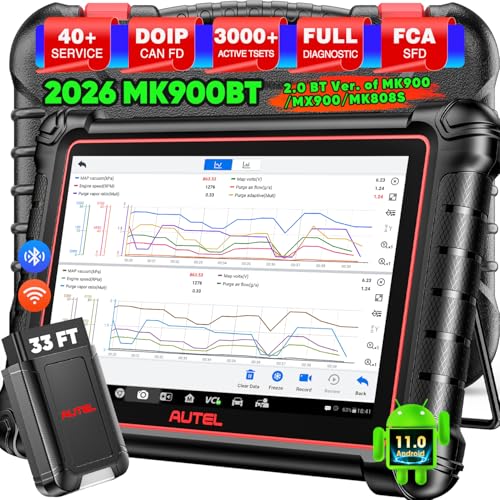
- 🔥🔥🔥【2026 AUTEL FLAGSHIP MK900BT MK900-BT, NEW MODEL OF MK808S MK900 MX900 MK808BT MX808S】2026 newest Autel MK900BT retains all features of MK808S MX900 MX808S MK808Z MK808Z-BT MK808K-BT, while EXTRA added powerful functions (value 2000+ bucks). The Pro-level Autel MK900BT makes a big leaps: 28+➡40+, 50+➡3000+ Active Tests, 2026 NEW✅CAN FD & DOIP protocols ✅Pre&Post diagnostic report ✅WIFI Print ✅Auto VIN&Auto Scan 2.0 ✅Scan VIN/ License ✅Battery Test (Need purcha.se BT506). If found defect or us.ed, please conta-ct 📞autelsupply @outlook. com📞 get perf-ect solut.ion.
- 🚗【3000+ ACTIVE TESTS (50➡3000+), SAME AS MS906 PRO】Differ from MS906BT MS906 MP808 MK808 MX808 MK808BT only 50 tests, Autel scanner MK900BT escaner automotriz professional offers 3000+ active tests, it can send command to ECUs & monitor actuators operation, quickly locating faulty components. Bidirectional scanning takes your diagnostics to the next level with menu lists 3000+ active tests, such as windows, rear mirrors, sunroof, wipers, fuel injector, coolant fans, radiator fan, AC clutch, coolant pump and more. Note: Functions are not available for all vehicles, please send vehicle VIN to us check compatibility.
- 🚗【40+ HOT SERVICES FOR 150 MAKES (28+➡40+)】Full level-up of OBD2 code reader MaxiCOM MK808S MK808 MK808Z MX808 MK808Z-BT with 28 service, Autel scan tool MK900BT/ MK900-BT offers 40+ maintenance service on 150+ brands 10,000 vehicles from 1996-2025-2026. Hottest Services like: Oil Reset, ABS Bleed, SAS Calibration, Injector Coding, SRS, Throttle Reset, Gearbox Reset, Battery Registration etc. Added 12+ advanced resets: rain slash light sensor reset, HVA.C/ SUS calibration etc. Welcome to send Vehicle Make>Model>Year>VIN>Functions you required to 📞autelsupply @ outlook . com📞 check compatibility.
- 🚗【OE ALL SYSTEM DIAGNOSE, AUTO SCAN 2.0: SCAN LICENSE/ AUTO VIN】2026 new release Autel MaxiCOM MK900-BT scan tool embodies all system diagnostic with its 8in display for all vehicles. Like Sna.p-on tools, it can perform ✔Read/Clear Codes✔Displays 5-in-1 Live Data✔Record & Playback Data✔Retrieve Info on all available systems like ABS ECM BCM SRS TCM etc. In addition to Auto VIN technology, Autel MK900BT adds Scan License/ Auto Scan 2.0 to identify vehicle’s VIN/ license, make, year, model, no need manual input; One-click WiFi Printing of Pre&Post comparison diagnostic reports, highlight root causes of problems.
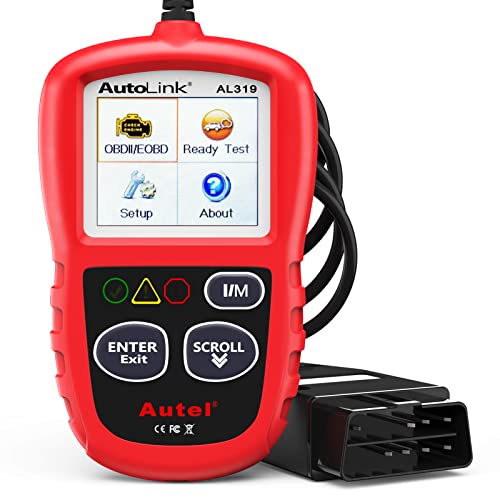
- 【TURN OFF CEL】 This AL319 car scanner diagnostic tool supports Reading and Clearing DTCs, DTC Look Up, displaying Live Data, Freeze Frame & I/M Readiness, view vehicle information, etc., to figure out the root cause of the Check Engine Light (CEL) and turn it off, helping you catch any potential issues early and avoid excessive costs from unnecessary repairs.
- 【EXTENSIVE APPLICATION】 Autel AL319 Compatible with 7 languages (English, French, Spanish, etc.) and various post-1996 OBD II protocol vehicles (Toyota
 , Nissan, Honda, Ford, etc.), this OBD II scanner provides accurate and fast diagnosis for worldwide car owners.
 - 【FOR END USER & DIYERS】 This error code reader AL319 is “plug and play” and comes with an easy interface. Even if you’re not familiar with vehicle repair, you can quickly take control of this obd2 scanner, and get the information you want.
- 【USER-FRIENDLY DESIGN】 This OBD2 scanner and check engine code reader features a patented One-Click I/M Readiness, TFT color display, built-in speaker, LED Indicator etc. The cable is long enough without being too long and getting in the way. No batteries are needed.
- 【HIGH-QUALITY SERVICES】 12 months war.ranty from the date of purchase and lifetime free update are offered by this Automobile OBDII scan tool. Welcome to contact us via Q&A, email, or hotline, and our after-sale-service team for technical support.
- 📞【Warm Tips】Dear friend, if you have any issues or need any tech support after receiving your MK900BT (received a registered item/ language changing/ functions compatibility/ renew subscription, etc.), please don't hesitate to tell us directly via 💌Autelonline @ outlook . com💌, we will do whatever we can to help you at first time. Besides, if you need other accessories, such as Autel endoscope MV108S, please don't hesitate to con-tact us.
- 🔥【Amazon Choice MK900BT, 2026 Newer of MK900 MX900 MS906 MK808BT PRO MP808S MK808S MX808S】Big News! 2026 Autel most cost-effective 8in All System & Bidirectional Scan Tool MK900BT is born! 619 only, yet featuring 40+ Hot Services same as MaxiSys Ultra/ Elite II/ MK908P/ MS906 PRO, among lots of advanced & newer functions: ✅3000+ Active Tests ✅CAN FD/ DoIP new protocols ✅Full Diagnosis ✅5-in-1 Live Data ✅Pre & Post Scan ✅Scan VIN/License ✅WiFi Print ✅FAC AutoAuth & Renault SGW, etc.
- 😊【Why Choose Autel Scanner MK900-BT, Not MK808S MK900 MX900?】➊ MK900BT escaner automotriz designs with Autel MaxiVCI V150, adopting advanced German Wireless Technology with more stable&faster data transmission, allowing you to work in and around vehicles with a 10M/33FT remote diagnostics. Instead, at almost the same b.udget, MK900 MK808S outdated wired code reader only with 1m cable, so you must curl up on the steering wheel! ➋ MK900BT can work with Autel BT506 to perform professional cranking charging system tests and in-vehicle & out-of-vehicle battery tests, but MK900 MK808S CANNOT. Some sellers say MK900 can work with BT506, pls don't believe it, who are not Autel a.uthorized sellers.
- 🚀【Upgraded Hardware 2.0, 10X F.aster than Ever】Based on old Android 4.4.4 ver. of MX808 MK808 MK808BT MP808 MP808BT MS906 MS906BT, Autel scan tool MK900-BT takes a big leap to 🟢f.astest OS 11 🟢4-core, 1.8GHz RK3566 speed boosted + lower power consumption🔋doubled 7700mAh Battery 🟢larger & sharper 8" 1280*800 touchscreen with intuitive user interface 🟢expanded 4+64G enough to save more files/data 🟢8M Rear camera gives clearer snapshot, etc. MK900BT scanner for car, is the best bang for your b.uck in the category.
- 📢【New Released: CAN FD/DoIP + WIFI Print + Pre & Post Scan + Scan VIN/ License】MK900BT OBD2 scanner diagnostic tool updates lots of advanced features previously available only for scanners above 2000 (MS906 Pro MS908S Pro, etc.) ✅New protocols CAN FD works for GM 2019+ ✅DOIP works for Volv.o 2018+, Jaguar&Land Rover 2017+, BM.W F&G chassis models ✅Same WIFI Print as MaxiSys Ultra ✅Detailed Pre/ Post scan reports to up repair efficiency ✅Scan VIN/License can identify your cars in seconds, more accurately! But Autel MK808S/ MK808BT PRO cannot.
Last update on 2026-06-12 / Affiliate links / Images from Amazon Product Advertising API
This product presentation was made with AAWP plugin.