
NHTSA ID Number: 10121068
Manufacturer Communication Number: VHW-16-02
TSB/Document Date: 2017-10-31
Summary
This document contains step-by-step instructions required to perform Windows 7 operating system recovery on VAS 6160X diagnostic tablet devices ONLY.
Service Information
Diagnostic Device Hardware & Windows®
Number: VHW-16-02
Subject: VAS Diagnostic Tablets - Windows 7 System Recovery
Instructions
Date: Jan. 22, 2016
Supersedes VHW-15-05 due to revised and new information.
Table of Contents
Section
1.0
Page
Introduction - MUST READ!
2
1.1
General Information
2
1.2
Process Overview
2
2.0
Additional Documentation
3
3.0
Preparation Checklist
3
4.0
Recovery
4
5.0
Post-Recovery Setup
6
5.1
Windows 7 Startup & Initial Setup
6
5.2
Windows Update Settings
11
5.3
Network Setup
12
5.4
Reinstall & Configure Offboard Diagnostic Information System
Service (ODIS Service) Diagnostic Software
13
5.5
Configure VAS 5054A Diagnostic Interface
13
5.6
Supplementary Setup & Function
14
5.7
Windows 7 Update Management & Internet Explorer Version
15
Notes:
• Please read these instructions carefully and in their entirety before performing any
procedures. If you do not understand these instructions, arrange to have a qualified person
perform these procedures.
• Heed all prerequisite requirements and notes, and follow all instruction steps in the Section
order given.
• Discard all printed copies of this document after use. Revised versions may be issued at any
time. Always check ServiceNet for the latest version.
Page 1 of 17
© 2016 Volkswagen Group of America, Inc.
All rights reserved. Information contained in this document is based on the latest information available at the time of printing and is subject to the copyright and other intellectual
property rights of Volkswagen Group of America, Inc., its affiliated companies and its licensors. All rights are reserved to make changes at any time without notice. No part of this
document may be reproduced, stored in a retrieval system, or transmitted in any form or by any means, electronic, mechanical, photocopying, recording, or otherwise, nor may these
materials be modified or reposted to other sites, without the prior expressed written permission of the publisher.
Service Information
1.0 – Introduction
1.1 – General Information
This document contains step-by-step instructions required to perform Windows 7 operating system
recovery on VAS 6160X diagnostic tablet devices ONLY.
Due to their function as diagnostic tools, VAS diagnostic tablets are equipped with a proprietary Windows
7 operating system. Unlike their commercially-available Panasonic equivalents, VAS tablets utilize a
partitioned hard drive.
The Windows 7 recovery instructions provided here supersede any information contained in
Panasonic manuals that may be included with the tablet.
1.2 – Process Overview
Recovery
Windows 7 recovery files are located on the device’s hard drive partition. The Windows recovery
procedure is initiated to overwrite the existing (corrupt or malfunctioning) Windows 7 boot files with a copy
from the hard drive partition.
All data on hard drive C:\ is erased and replaced. The Windows 7 recovery data resident on the hard
drive partition is retained if recovery is required in future.
Post-Recovery Setup
The post-recovery setup steps described here are specific to the device’s function as a diagnostic tester
with installed ODIS Service diagnostic software.
Various Windows settings and configurations are necessary to ensure optimum function of the diagnostic
software in the dealership workshop environment.
Diagnostic Software and Security Certificate Reinstallation
The Windows 7 recovery process deletes the previously-installed ODIS Service license and certificate
files. As a result, the license and security certificate files that were originally obtained and saved as
instructed in the Installation Phase 1 instructions document must be on hand for reinstallation. A text
document containing the device’s hardware key should also be on hand.
If the license file was not saved, a replacement license must be requested from eShop prior to reinstalling
ODIS Service. If the security certificate was not saved, a replacement must be requested from eCRMs and
imported to ODIS Service prior to placing the device back into service.
IMPORTANT!
If the Windows - Panasonic CDs originally included with the device when new were retained,
please LOCATE and DISCARD THESE DISCS NOW! Inadvertent use of the Panasonic CDs for
recovery will completely erase the device-specific data and partitioned image, and install a
standard, non-partitioned Windows XP or Windows 7 operating system.
Page 2 of 17
© 2016 Volkswagen Group of America, Inc.
All rights reserved. Information contained in this document is based on the latest information available at the time of printing and is subject to the copyright and other intellectual
property rights of Volkswagen Group of America, Inc., its affiliated companies and its licensors. All rights are reserved to make changes at any time without notice. No part of this
document may be reproduced, stored in a retrieval system, or transmitted in any form or by any means, electronic, mechanical, photocopying, recording, or otherwise, nor may these
materials be modified or reposted to other sites, without the prior expressed written permission of the publisher.
Service Information
2.0 – Additional Documentation
These instructions include references to the following Service Information (SI) documents that contain
additional instruction steps needed before returning the tablet to service. Locate and print as necessary.
SI Document
Document Titles
Category
Installation Phase 1 – Preparation, License & Security Certificate Process Instructions
ODIS Service
Installation Phase 2 - Software Installation & Configuration Instructions
Diagnostic
Device
Hardware &
Windows
VAS Diagnostic Device Computer Name Builder
VAS 5054A Diagnostic Interface - Bluetooth & EDIC Configuration
VAS 5054A Diagnostic Interface - USB Configuration
Additional Documentation steps completed. Proceed to Section 3.0 – below.
3.0 – Preparation Checklist
Complete the Preparation Checklist below. Additional checkboxes are provided throughout this
document to note the fulfillment of prerequisites, completion of sections etc..
Preparation Checklist
Print the additional documentation from ServiceNet as specified in Section 2.0.
Note the device type and model number.
Connect the A/C power adapter directly to the tablet.
If the device is capable of booting to Windows and starting ODIS Service: Finalize all saved
diagnostic sessions and transmit logs where applicable.
Disconnect the Ethernet (network) cable where applicable.
Switch the Wireless Operation Switch to the OFF position as illustrated -arrows-:
VAS 6160 & VAS 6160A
Upper left side behind SC/EX door
All Preparation steps completed. Proceed to Section 4.0 – Page 4.
Page 3 of 17
© 2016 Volkswagen Group of America, Inc.
All rights reserved. Information contained in this document is based on the latest information available at the time of printing and is subject to the copyright and other intellectual
property rights of Volkswagen Group of America, Inc., its affiliated companies and its licensors. All rights are reserved to make changes at any time without notice. No part of this
document may be reproduced, stored in a retrieval system, or transmitted in any form or by any means, electronic, mechanical, photocopying, recording, or otherwise, nor may these
materials be modified or reposted to other sites, without the prior expressed written permission of the publisher.
Service Information
4.0 – Recovery
Prerequisites:
All devices removed from their base station (port replicator) where applicable.
Confirm: Ethernet cable DISCONNECTED & wireless operation switch in the OFF POSITION!
ATTENTION!
The A/C power adapter must be connected directly to the device during recovery. DO NOT
recover on battery power alone!
1. Turn on the diagnostic device.
2. When the Panasonic logo is displayed, quickly press the F2 key on the keyboard to enter the setup.
A password prompt appears.
3. Enter password: vas6160 (exactly as shown, lower case, no spaces)
4. Press the keyboard (or onscreen keyboard) Enter key:
(cont.)
Page 4 of 17
© 2016 Volkswagen Group of America, Inc.
All rights reserved. Information contained in this document is based on the latest information available at the time of printing and is subject to the copyright and other intellectual
property rights of Volkswagen Group of America, Inc., its affiliated companies and its licensors. All rights are reserved to make changes at any time without notice. No part of this
document may be reproduced, stored in a retrieval system, or transmitted in any form or by any means, electronic, mechanical, photocopying, recording, or otherwise, nor may these
materials be modified or reposted to other sites, without the prior expressed written permission of the publisher.
Service Information
5. Use the right and left arrow keys to select the Exit tab:
6. Using the up and down arrow keys, select either:
Repair Your Computer OR
Recovery Partition
as applicable. Press the Enter key to continue:
After the Enter key is pressed, the system recovery starts. After approximately 2 minutes, the message
“System will be recovered” is displayed.
7. Press the 2 key, then press the Enter key to continue:
……
• Allow 30 – 90 minutes for device recovery (device-dependent).
• The progress window may appear to stall at 99% - 100%. Please be patient!
• When complete, the system will automatically reboot and display a series of automatic setup,
registry and service screens followed by the initial Windows setup screen.
Recovery steps completed. Proceed to Section 5.0 - Page 6.
Page 5 of 17
© 2016 Volkswagen Group of America, Inc.
All rights reserved. Information contained in this document is based on the latest information available at the time of printing and is subject to the copyright and other intellectual
property rights of Volkswagen Group of America, Inc., its affiliated companies and its licensors. All rights are reserved to make changes at any time without notice. No part of this
document may be reproduced, stored in a retrieval system, or transmitted in any form or by any means, electronic, mechanical, photocopying, recording, or otherwise, nor may these
materials be modified or reposted to other sites, without the prior expressed written permission of the publisher.
Service Information
5.0 – Post-Recovery Setup
5.1 – Windows 7 Startup & Initial Setup
Note:
The initial language selection made in Step 1 below cannot be changed after the device is placed in
service. Avoid having to repeat the recovery process by selecting the language carefully!
1. If the following Windows setup screen appears, carefully scroll down and select My language is
English and select Next: …otherwise, skip to Step 2.
2. Confirm the regional settings, time/currency and keyboard layout as illustrated, and then select Next:
(cont.)
Page 6 of 17
© 2016 Volkswagen Group of America, Inc.
All rights reserved. Information contained in this document is based on the latest information available at the time of printing and is subject to the copyright and other intellectual
property rights of Volkswagen Group of America, Inc., its affiliated companies and its licensors. All rights are reserved to make changes at any time without notice. No part of this
document may be reproduced, stored in a retrieval system, or transmitted in any form or by any means, electronic, mechanical, photocopying, recording, or otherwise, nor may these
materials be modified or reposted to other sites, without the prior expressed written permission of the publisher.
Service Information
3. If the license terms and conditions are displayed, accept by checking the appropriate boxes and
click Next: …otherwise skip to Step 4.
4. Set the Time Zone, Daylight Saving Time, Date and Time as applicable to your location. Click Next:
• Various settings are saved and the device automatically reboots to the Windows desktop.
• For convenience, the device can now be returned to its base station if desired (not mandatory).
• In all cases the A/C power adapter must remain connected for the following procedures. The
USB mouse and keyboard should also remain connected where applicable.
Page 7 of 17
© 2016 Volkswagen Group of America, Inc.
All rights reserved. Information contained in this document is based on the latest information available at the time of printing and is subject to the copyright and other intellectual
property rights of Volkswagen Group of America, Inc., its affiliated companies and its licensors. All rights are reserved to make changes at any time without notice. No part of this
document may be reproduced, stored in a retrieval system, or transmitted in any form or by any means, electronic, mechanical, photocopying, recording, or otherwise, nor may these
materials be modified or reposted to other sites, without the prior expressed written permission of the publisher.
Service Information
5.1.1 – Delete Non-Applicable Information
The Windows 7 desktop may include documents that are not applicable to the -US/CDN- market. If
present as described below, please delete these documents as follows:
1.
From the Windows desktop: Locate two document shortcut icons entitled:

- 💯【Conta.ct us for Support Directly】If you met any...
- 🔥🔥🔥【2026 AUTEL FLAGSHIP MK900BT MK900-BT, NEW...
- 🚗【3000+ ACTIVE TESTS (50➡3000+), SAME AS MS...
- 🚗【40+ HOT SERVICES FOR 150 MAKES (28+➡40+)】Full...
- 🚗【OE ALL SYSTEM DIAGNOSE, AUTO SCAN 2.0: SCAN LICENSE...

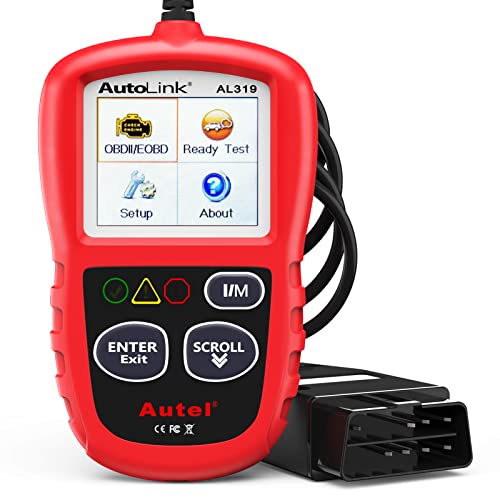
- 【TURN OFF CEL】 This AL319 car scanner diagnostic tool...
- 【EXTENSIVE APPLICATION】 Autel AL319 Compatible with...
- 【FOR END USER & DIYERS】 This error code reader AL319 is...
- 【USER-FRIENDLY DESIGN】 This OBD2 scanner and check...
- 【HIGH-QUALITY SERVICES】 12 months war.ranty from the...
This product presentation was made with AAWP plugin.
If the PDF is very large, it may not load in the preview below.
Some older TSBs had multiple PDFs — visit the NHTSA Website to view all PDFs.
If the TSB PDF does not show, download or view it on the NHTSA Website.
Click on the (+) Plus Sign
Then Click on Associated Document(s)
Search NHTSA Database for Recalls
Search NHTSA Database for Vehicle Investigations
View Latest Vehicle Investigations
Search NHTSA Database for Vehicle Complaints
View Latest Vehicle Complaints
TSB/Document ID: VHW-16-02
Replacement Service Bulletin Number:
MFR Communication Date: 2016-01-22
MFR Internal Campaign ID/Software Version:
Communication Type: Service Bulletin/Repair Instructions
NHTSA Components: ELECTRICAL SYSTEM:SOFTWARE
MFR Component System:
MFR Component Subsystem:
Previous TSB | Next TSB |

- [2026 Top-Tier Hardware and Software Upgrade]: Topdon ArtiDiag900 Lite scanner has enhanced hardware and latest features, including Android 11.0, 5x faster CPU, 10000mAh battery for 12 hours of continuous operation, stable wireless diagnosis with Bluetooth 5.0, 8-inch touchscreen. Added bi-directional control, wireless diagnosis, battery testing (optional), and DTC repair guide
- [TOPDON Bidirectional Scan Tool]: This bidirectional obd2 scanner sends commands to the vehicle's ECU for active testing, enabling users to accurately and quickly locate faulty components such as injectors, coolant pumps, windows, wipers, headlights, mirrors, etc. The bidirectional control scanner is the ideal choice for workshops/automotive repair shops as it significantly reduces mechanic's diagnostic time.
- [Wireless Bluetooth Diagnostic Experience]: The AD900 Lite scan tool comes with a Bluetooth 5.0 VCI, supporting a wireless diagnostic range of up to 33 feet (10 meters), allowing you to diagnose without being confined to cables or tight spaces. Stable and fast wireless diagnosis provides a comfortable repair environment. It also offers VCI cables to increase connectivity options.
- [DTC Repair Guide Function]: Easily diagnose issues with your vehicle and receive guidance on repairs with the topdon scan tool's fault code definitions for all systems,maximize your diagnostic capabilities. This function is compatible with Chrysler
 /Dodge/Jeep/Fiat 2010-2014 and expanding with continual updates,the AritDiag 900 Lite car diagnostic scanner is the must-have tool for any technician or DIY enthusiast.
 - [OE-Level Full System Diagnostics]:AritDiag900 Lite full system diagnostic scanner can scan ALL available modules(Engine, Transmission, Airbag, ABS, ESP, TPMS, Gateway, Steering, Radio, Air conditioning, ect.) to✔read ECU info, ✔read/clear codes, ✔view live data stream, ✔retrieves freeze-frame, ✔perform active tests, and more. With just a simple click, it provides you with accurate and in-depth diagnostics.
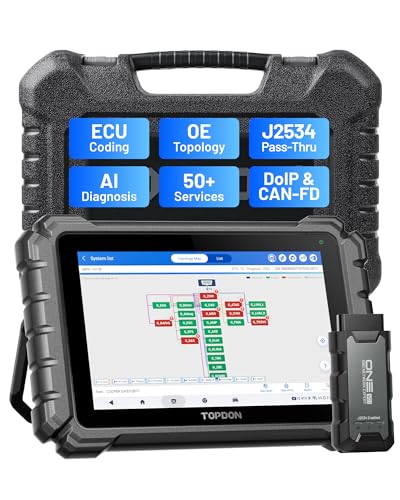
- Dual WiFi & 10.1" Touchscreen: Provides a stable, high-speed wireless link 3x faster than bluetooth, and a responsive, professional interface. Topdon ONE obd2 scanner diagnostic tool ensures smooth, non-lagging diagnostic scan, boosting mechanic efficiency
- J2534 Pass-Thru Support: The included ONE VCI supports the J2534 standard, allowing it to function as a pass-thru device when paired with OEM diagnostic software.Through TOPDON’s RLink platform, technicians can perform dealer-level coding, expanding in-house capabilities without investing in multiple factory automotive scan tools
- OE Topology Mapping: Visualize the vehicle’s ECU network exactly as it’s built.Zoom, pan, and highlight specific modules to pinpoint component issues with precision.Topology mapping displays real-time communication between modules
- 50 Plus Service Functions: Covers high-demand services like ADAS calibration, DPF regen, TPMS reset, ABS bleed, and throttle adaptation.Expands your service menu, allows you to charge premium rates, and turns away zero jobs due to lack of tooling. Vehicle-specific functionality may vary
- ECU Coding & Hidden Feature Activation for BMW, Benz & VW: Enables module replacement, feature customization, and personal settings with automatic backup or restore.Lets your shop safely offer high-margin customization services, attracting more customers and boosting profit

- Bi-Directional Control, Quickly Locate Problems: Turn your phone into a professional diagnostic tool. You can send commands from your phone to the ECU to test injectors, cooling fans, headlights, A/C clutch, windows, wipers, and more. See which one doesn't respond. Helps you quickly locate the problem and save time. No need to tear things apart, avoid blind disassembly.
- Flexible Subscription, Choose Advanced Features as Needed: TopScan Lite provides free-for-life access to core diagnostics, including full system scan, code reading, performance tests, and repair information. After purchase, advanced features (bi-directional control, service operations, live data, code clearing, and AI functions) are free-for-the-first-year. After the first year, if you want to use advanced features, you need to subscribe on a monthly, quarterly, or yearly basis. As new models and reset functions are updated, the tool will also be continuously upgraded.
- Full System Diagnostics, No Fault Hides: Unlike basic diagnostic tools that only cover 4 systems, TopScan can scan all systems. Read and clear trouble codes, view live data streams, and generate a complete vehicle health report – all issues are clear at a glance. Covers 10,000+ vehicle models and is compatible with 99.99% of vehicles.
- AI Assistant - TopFix: Think of TopFix as your personal AI mechanic. It leverages a repair database and OEM data to deliver clear, step-by-step repair solutions. Features include AI Q&A, one-click translation, and a full repair log, making your diagnostic process simpler and more efficient.
- 8+ Hot Resets, Keep Your Car in Top Shape: One-tap resets for oil, throttle, EPB, steering angle, DPF, ABS, BMS, and airbag. It enables car owners to easily perform essential maintenance, ensuring the vehicle stays in optimal condition and extends its service life.
This product presentation was made with AAWP plugin.
Last update on 2026-06-07 / Affiliate links / Images from Amazon Product Advertising API