
NHTSA ID Number: 10121067
Manufacturer Communication Number: VOS-16-02
TSB/Document Date: 2017-10-31
Summary
This document describes the mandatory existing version uninstallation, and installation of ODIS Service V3.0.0 on existing diagnostic laptop and tablet devices in workshop service only.
Service Information
Offboard Diagnostic Information System Service (ODIS Service)
Number: VOS-16-02
Subject: Version 3.0.0 – Mandatory Installation from Web-Server
Date: Jan. 19, 2016
Supersedes VOS-16-01 due to revised single-setup installation Note information (pg. 18).
Table of Contents
Page
Section
1.0
Introduction
2
1.1
General Information - Must Read!
2
1.2
Preparation Overview
2
1.3
Process Overview - Must Read!
2
2.0
Preparation
3
2.1
Diagnostic Device Hardware & Network Prerequisites
3
2.2
Software Download & Installation Prerequisites
3
2.3
Run Clean Utility
5
2.4
Uninstall ODIS Service
6
2.5
Import Security Certificate to Windows
8
2.6
3.0
®
Confirm Windows Update Setting
Installation & Configuration
11
12
3.1
Download & Install V3.0.0 Application Data – “Single-Setup”
12
3.2
Import Security Certificate to Application
19
3.3
Download & Install Diagnostic Data – “Post-Setup”
22
3.4
Configure Connection Type
24
3.5
Additional Configurations
25
Notes:
• Please read these instructions carefully and in their entirety before performing any
procedures. If you do not understand these instructions, arrange to have a qualified person
perform these procedures.
• Heed all prerequisite requirements and notes, and follow all instruction steps in the Section
order given.
• Discard all printed copies of this document after use. Revised versions may be issued at any
time. Always check ServiceNet for the latest version.
Page 1 of 26
© 2016 Volkswagen Group of America, Inc.
All rights reserved. Information contained in this document is based on the latest information available at the time of printing and is subject to the copyright and other intellectual
property rights of Volkswagen Group of America, Inc., its affiliated companies and its licensors. All rights are reserved to make changes at any time without notice. No part of this
document may be reproduced, stored in a retrieval system, or transmitted in any form or by any means, electronic, mechanical, photocopying, recording, or otherwise, nor may these
materials be modified or reposted to other sites, without the prior expressed written permission of the publisher.
Service Information
1.0 – Introduction
1.1 – General Information
ATTENTION - Please Read Carefully!
Starting December 17th, 2015, all installed versions of ODIS Service up to and including
V2.2.7 MUST BE uninstalled and V3.0.0 or newer installed from a Volkswagen AG Group
Services web-server.
This mandatory installation must be performed on all diagnostic devices
in workshop service.
• ODIS Service versions prior to 3.0.0 are not updatable if they remain installed after
December 17th!
• ODIS Service “Installation Version DVDs” are no longer used.
This document describes the mandatory existing version uninstallation, and installation of ODIS
Service V3.0.0 on existing diagnostic laptop and tablet devices in workshop service only.
Checkboxes are provided throughout this document to note completed prerequisites and sections.
1.2 – Preparation - Overview
The preparation guidelines:
• Ensure diagnostic device eligibility for ODIS Service installation and use.
• Ensure that the requisite license and certificate files are available for reinstallation.
• Address device physical, related Windows software and dealership network issues to ensure
trouble-free downloads and installations.
1.3 – Process Overview
Existing version uninstallation, and installation of V3.0.0 takes place in the following stages:
Confirm that copies of the license and certificate files, and recorded hardware key are available
Run Clean Utility
Uninstall existing ODIS Service version
Import certificate to Windows
Download and install V3.0.0 application data from VWAG Group Services web-server
Import certificate to application
Download and install diagnostic database from web-server
Configure ODIS Service installation*
Configure diagnostic interface (VAS 5054A etc.)*
*Instructions for these procedures must be obtained from additional documents posted on ServiceNet.
Page 2 of 26
© 2016 Volkswagen Group of America, Inc.
All rights reserved. Information contained in this document is based on the latest information available at the time of printing and is subject to the copyright and other intellectual
property rights of Volkswagen Group of America, Inc., its affiliated companies and its licensors. All rights are reserved to make changes at any time without notice. No part of this
document may be reproduced, stored in a retrieval system, or transmitted in any form or by any means, electronic, mechanical, photocopying, recording, or otherwise, nor may these
materials be modified or reposted to other sites, without the prior expressed written permission of the publisher.
Service Information
2.0 – Preparation
We recommend the following procedures be performed on one device at a time!
2.1 – Diagnostic Device Hardware & Network Prerequisites
Windows 7
Internet Explorer 11
Type of diagnostic interface in use is known, e.g.: VAS 5054A etc.
Network connection: Minimum 6 Mbps (single brand) or 8 Mbps (dual brand).)
Antivirus software and network firewall temporarily disabled (where applicable).
Device connected to A/C power adapter and booted to Windows desktop.
Diagnostic tablets mounted in base station with USB mouse and keyboard connected.
2.2 – Software Download & Installation Prerequisites
A backup copy of the ODIS Service License file is available for reinstallation.
A backup copy of the Security Certificate file is available for importation.
A text document containing the device’s hardware key is available for reference.
ATTENTION!
Software installation from the web-server is not possible without the device-specific
license and certificate files, and document with recorded hardware key!
The “Phase 1” instructions for the initial installation of ODIS Service recommended creating a
folder on the diagnostic device desktop to store backup copies of the license and certificate
files, and text document with the device hardware key. Locate the folder with backup files
now! If an alternate storage location was chosen for the backup copies, e.g.: USB flash drive,
determine that location now!
Proceed as applicable:
If backup copies of the above files and document ARE AVAILABLE: Skip to Section 2.3 Page 5
If backup copies of the above files and document ARE NOT AVAILABLE: Create a folder on the
device desktop with “License” and “Certificate” subfolders, along with a blank “Hardware Key”
text document. Then refer to the following procedures:
Retrieve License:
1. From the Windows desktop, go to: Start > Computer > Local Disc (C:) > Program Files (x86) >
Offboard_Diagnostic_Information_System_Service > license
2. Right-click the license (.dat) file, select Copy, then Paste it in the License subfolder created
earlier.
Page 3 of 26
© 2016 Volkswagen Group of America, Inc.
All rights reserved. Information contained in this document is based on the latest information available at the time of printing and is subject to the copyright and other intellectual
property rights of Volkswagen Group of America, Inc., its affiliated companies and its licensors. All rights are reserved to make changes at any time without notice. No part of this
document may be reproduced, stored in a retrieval system, or transmitted in any form or by any means, electronic, mechanical, photocopying, recording, or otherwise, nor may these
materials be modified or reposted to other sites, without the prior expressed written permission of the publisher.
Service Information
Retrieve Hardware Key:
1. Logon to ServiceNet and go to: Vehicle Diagnostics > ODIS Service > Hotfixes/software
2. Double-click the Hardware Key Executable link, and then select Run:
3. If this prompt appears, select Run:
4. Select OK:
The hardware key is saved in “clipboard” memory.
5. Paste the hardware key in the Hardware Key text document created earlier, then Save the
document.
Retrieve Security Certificate:
6. Logon to eCRMS and retrieve the certificate file that is specific to the device.
Locate the device-specific certificate from the dealer list in eCRMS by recognizing the name
assigned to the device and/or the hardware key (referenced in eCRMS as the “Hardware ID”).
For detailed instructions on how to retrieve the certificate, refer to Service Information - ODIS
Service document title: Installation Phase 1 – Preparation, License & Security Certificate
Process Instructions: Section 4.2
7. Paste the certificate file in the Certificate folder created earlier.
Page 4 of 26
© 2016 Volkswagen Group of America, Inc.
All rights reserved. Information contained in this document is based on the latest information available at the time of printing and is subject to the copyright and other intellectual
property rights of Volkswagen Group of America, Inc., its affiliated companies and its licensors. All rights are reserved to make changes at any time without notice. No part of this
document may be reproduced, stored in a retrieval system, or transmitted in any form or by any means, electronic, mechanical, photocopying, recording, or otherwise, nor may these
materials be modified or reposted to other sites, without the prior expressed written permission of the publisher.
Service Information
2.3 – Run Clean Utility
A cleanup utility must be run prior to the installation of V3.0.0. This utility searches for, and removes a
number of peripheral files that ODIS Service uninstallation is not configured to remove.
ATTENTION!
Running the clean utility may adversely affect the operation of alternate (unauthorized)
vehicle diagnostic software that may be installed.
1.
Logon to ServiceNet and go to: Vehicle Diagnostics > ODIS Service > Hotfixes/software
2.
Locate the Clean.zip link and Save it to the diagnostic device’s Windows desktop.
3.
From the Windows desktop, right-click the Clean.zip folder, and then select Extract All...
4.
Ensure the device’s Desktop appears as the destination, and then select Extract:
5.
Double click the CLEAN.BAT file to start the cleanup. (Ignore the other file.):
(cont.)
Page 5 of 26
© 2016 Volkswagen Group of America, Inc.
All rights reserved. Information contained in this document is based on the latest information available at the time of printing and is subject to the copyright and other intellectual
property rights of Volkswagen Group of America, Inc., its affiliated companies and its licensors. All rights are reserved to make changes at any time without notice. No part of this
document may be reproduced, stored in a retrieval system, or transmitted in any form or by any means, electronic, mechanical, photocopying, recording, or otherwise, nor may these
materials be modified or reposted to other sites, without the prior expressed written permission of the publisher.
Service Information
6.
Heed both of the Windows command warnings, and then press any key each time:
…
7.
Allow the utility to run, and then Close the Windows command window:
Note:
If messages in red script appear in the command window, disregard them
and skip to Step 8. (The red script messages indicate that the desired files
to be cleaned were not present. No further action is necessary.)
Clean Utility Tip for Pros:
To perform this step on subsequent devices, consider copying and saving the Clean.zip folder on a
USB flash drive: Then, instead of logging on to ServiceNet and downloading the Clean.zip folder
each time on the remaining devices, simply insert the USB flash drive, copy the saved Clean.zip
folder from the flash drive directory to the device desktop, and then perform Steps 3 through 10.
• In all cases however, please heed the IMPORTANT! Note below.
8.
From the Windows desktop, locate and right-click (select) BOTH of the Clean.zip folders, and then
select Delete from the dropdown.
9.
Confirm deletion of both folders, and then empty the Recycle Bin.
10. Restart the diagnostic device.
IMPORTANT!
Both Clean.zip folders must be deleted from the desktop before proceeding with the
remaining steps! Inadvertent use of the cleanup utility after ODIS Service installation will
result in software malfunctions.
Page 6 of 26
© 2016 Volkswagen Group of America, Inc.
All rights reserved. Information contained in this document is based on the latest information available at the time of printing and is subject to the copyright and other intellectual
property rights of Volkswagen Group of America, Inc., its affiliated companies and its licensors. All rights are reserved to make changes at any time without notice. No part of this
document may be reproduced, stored in a retrieval system, or transmitted in any form or by any means, electronic, mechanical, photocopying, recording, or otherwise, nor may these
materials be modified or reposted to other sites, without the prior expressed written permission of the publisher.
Service Information
2.4 – Uninstall ODIS Service
Uninstallation Tip for Pros:
If you are not aware of, or have not recorded the Email Outgoing Server configuration settings in
ODIS Service, please note them now to re-apply during post-setup configuration! Go to: ODIS
Service > Admin > Support > E-mail outgoing server …and record the various settings.
1. Go to: Start > All Programs > (ODIS Service) > ODIS Service Uninstallation Program > Continue
2. Check all boxes in the prompt window (scroll down), and then select Continue:
3. Wait while several stages of uninstallation take place, and then click Finish:
4. Select Yes:
Page 7 of 26
© 2016 Volkswagen Group of America, Inc.
All rights reserved. Information contained in this document is based on the latest information available at the time of printing and is subject to the copyright and other intellectual
property rights of Volkswagen Group of America, Inc., its affiliated companies and its licensors. All rights are reserved to make changes at any time without notice. No part of this
document may be reproduced, stored in a retrieval system, or transmitted in any form or by any means, electronic, mechanical, photocopying, recording, or otherwise, nor may these
materials be modified or reposted to other sites, without the prior expressed written permission of the publisher.
Service Information
2.5 – Import Security Certificate to Windows
Certificate importation to Windows authorizes Internet Explorer to access the VWAG web-server.
The device’s hardware key must be entered as a password during the certificate importation process.
1. From the device folder on the Windows desktop (or alternate save location on the device), Open the
Certificate subfolder and double-click the certificate (.pfx) file:
2. Select Next:
3. Select Next:
(cont.)
Page 8 of 26
© 2016 Volkswagen Group of America, Inc.
All rights reserved. Information contained in this document is based on the latest information available at the time of printing and is subject to the copyright and other intellectual
property rights of Volkswagen Group of America, Inc., its affiliated companies and its licensors. All rights are reserved to make changes at any time without notice. No part of this
document may be reproduced, stored in a retrieval system, or transmitted in any form or by any means, electronic, mechanical, photocopying, recording, or otherwise, nor may these
materials be modified or reposted to other sites, without the prior expressed written permission of the publisher.
Service Information

- 💯【Conta.ct us for Support Directly】If you met any...
- 🔥🔥🔥【2026 AUTEL FLAGSHIP MK900BT MK900-BT, NEW...
- 🚗【3000+ ACTIVE TESTS (50➡3000+), SAME AS MS...
- 🚗【40+ HOT SERVICES FOR 150 MAKES (28+➡40+)】Full...
- 🚗【OE ALL SYSTEM DIAGNOSE, AUTO SCAN 2.0: SCAN LICENSE...

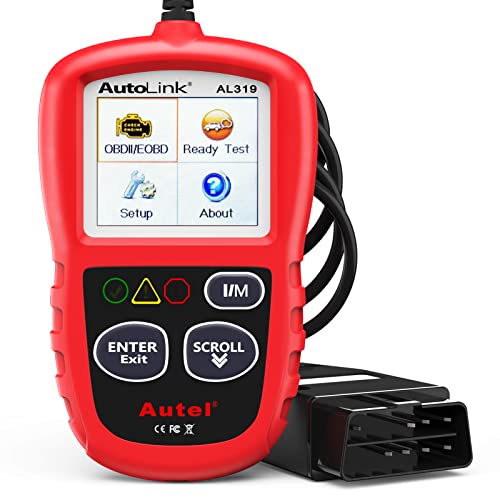
- 【TURN OFF CEL】 This AL319 car scanner diagnostic tool...
- 【EXTENSIVE APPLICATION】 Autel AL319 Compatible with...
- 【FOR END USER & DIYERS】 This error code reader AL319 is...
- 【USER-FRIENDLY DESIGN】 This OBD2 scanner and check...
- 【HIGH-QUALITY SERVICES】 12 months war.ranty from the...
Last update on 2026-06-12 / Affiliate links / Images from Amazon Product Advertising API
If the PDF is very large, it may not load in the preview below.
Some older TSBs had multiple PDFs — visit the NHTSA Website to view all PDFs.
If the TSB PDF does not show, download or view it on the NHTSA Website.
Click on the (+) Plus Sign
Then Click on Associated Document(s)
Search NHTSA Database for Recalls
Search NHTSA Database for Vehicle Investigations
View Latest Vehicle Investigations
Search NHTSA Database for Vehicle Complaints
View Latest Vehicle Complaints
TSB/Document ID: VOS-16-02
Replacement Service Bulletin Number:
MFR Communication Date: 2016-01-19
MFR Internal Campaign ID/Software Version:
Communication Type: Service Bulletin/Repair Instructions
NHTSA Components: EQUIPMENT:OTHER:OWNERS/SERVICE/OTHER MANUAL
MFR Component System:
MFR Component Subsystem:
Previous TSB | Next TSB |
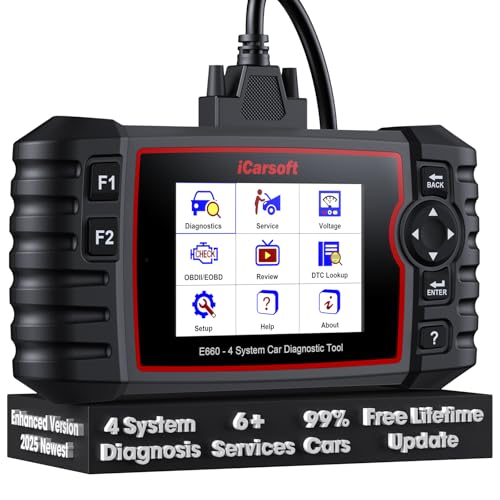
- 【Looking for More Professional Vehicle Scan Tool?】iCarsoft E660 2026 Upgrade Version OBD2 scan tool can do it all-reads and clears trouble codes on Engine system, ABS system, Transmission system and Airbag system, And with 6 reset function. It covers more than 59 vehicle makes from 1996-2023 models ( included most USA/ Asia / EU vehicle brand) with full OBDII. (As every car model has its-owned specific car system and ECUs, not all car models have full car ECUs which may prevent the scanner from performing all listed system diagnostics or reset services. Therefore, please email to us with car VIN and services required to do scanner's services for a compatibility check before purchasing.)
- 【OE-Level 4 Systems OBD2 Scanner】iCarsoft E660 2026 Upgrade Version diagnostic scanner offers comprehensive OBDII services, allowing you to quickly scan Engine system. It supports functions such as reading and erasing codes, checking I/M readiness, viewing freeze frame data, performing O2 sensor tests, conducting on-board monitoring, testing the evap system, auto VIN retrieval, and reading both generic and specific codes, as well as DTCs and battery tests.
- 【4 Systems Diagnosis for 10000+ Vehicles】 iCarsoft E660 2026 Upgrade Version adopts unique diagnostic software, works well for most Porsche
 , Benz, BMW, US Ford, Land Rover, Jaguar, Audi, VW, Volvo, Honda, Nissan, Infiniti, Toyota, Lexus, Scion, Isuzu, Hyundai, Kia, Daewoo, Mazda, Sprinter, Mini, Seat, Skoda, SAAB, EU Ford, Holden, AUS Ford, Acura, Subaru, Mitsubishi, Dacia, Renault, Fiat, GM, Chrysler, Citroen, Peugeot, Opel, Smart,Suzuki, Vauxhall, Alfa-Romeo, Lancia and etc.
 - 【6 Reset Services】iCarsoft E660 2026 Upgrade Version is a diagnostic tool that offers professional maintenance services, including Oil Reset, EPB, BMS, ETC, SAS, TPMS Reset. It can help you easily reset oil change indicators, recalibrate steering angle sensors, relearn replaced electric parking brake and so on. For optimal vehicle performance and maintenance convenience. (Tips: Please update the softwareafter receiving the product to obtain new service functions)
- 【118+ Real Time Record & Live Graph View】iCarsoft E660 2026 Upgrade Version can automatically record vehicle text history and identify vehicle information. Preserve real-time data information. View & Graph Live Data. Support Data Review and Print. 15 languages: English, German, Dutch, Spanish, French and so on. We promise to offer Lifetime updates (Lifetime free Update via PC), and confidence in products. We also provide 1 year warranty + extra lifetime hardware free repair if you need it in the future. We prioritize user experience & strive to meet your expectations. Please do feel free to reach out to us if you have any question or problem about the usage.
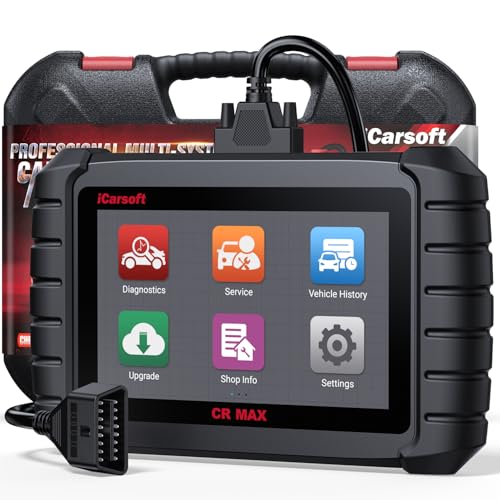
- WHY CHOOSE THE 2025 CR MAX -Upgrade the latest diagnostic capabilities for all vehicles after 1996: upgrade to 49+maintenance services; 46 extra specific functions; real all systems/all control modules diagnose; over 40K+ bidirectional actuation tests for diagnosing all control moduels of cars; Powerful full OBD2 Functions; built-in ECU Coding for BMW/ Audi/ VW/ RollsRoyce; Fr ee V.A.G Guide Function; Battery retistration for new battery adaptation and more. It covers all vehicle diagnostic services and some special professional vehicle maintenance servces, assists you to do home DIY vehicle maintenance or car repair as a pro technician.
- NEWEST IN INNOVATION FULL OBD2 SERVICES- iCarsoft auto car diagnostic scanner compatible with CAN-FD, CR MAX can do it all-reads and clears trouble codes, ALL SYSTEM DIAGNOSIS such as engine, transmission, ABS and airbag etc. CR MAX code reader for all cars can perform I/M Readiness, Live Data, Freeze Frame, Vehicle Information, Monitor Test, On-Board Monitor, E vap System Test,O2 Sensor Test,DTC Library Lookup,etc. (Warm Tips: If you car is after 2023,please contact us for compatibility; 3. It comes with 16PIN OBD2 diagnostic adapter, please check your car diagnostic socket if it is 16pin socket, if your car is 14pin diagnostic socket please contact us for the solution.)
- 49 RESET+ 46 SERVICES- Performs: Oil Reset, EPB,SAS,Throttle, D-P - F, Battery, ABS, Injector, TPMS, Suspension, AC, Head Lamp, Body Stablity, Engine, Tramsmission, Airbag, Seat, Door-Win-Roof, Fuel Pump, Door, E-G- R.+21 NEWEST SERVICES( Need update scanner)-AdBlue, Clutch, Crankshaft, High Voltage Battery, Cruise Control, NO xSensor, Rain Sensor, Stop And Start, Turbocharger, Head Up Display, Radar Camera, Vehicle Setup, Cyliner Misfire Check,Speedlimitassist, ControlUnitReset,OxygenSensor, Seatbelt. Extra 46+ extra services based on car brand.(Tips: Quantity of reset/ calibration fucitons are based on car system that your vehicle model has)
- REVOLUTIONARY 40000+BIDIRECTIONAL ACTIVE TESTS: Upgraded CR Max scanner equip with numberous of actuational test items for covering all available vehicle control modules, no longer only do simple light test or window test like other scanners, performs hardware modules test and software control modules test for checking car units or new updated control moduels work well or not after maintenance/ repair/ re-installation/ control system updated (Example for Benz- Roller Sun Blind test; Backup Camera test ;Self-test; EPB test; Transport Mode test;Boost Pressure Positioner test; Fuel Pump test; AND MORE!!).(Warm tip: The available test items are based on control modules your car has)
- ECU CODING+ BATTERY REGISTRATION- Powerful ECU Coding service for BMW/MINI/RollsRoyce / Audi/VW/Seat/Skoda/Bentley/Bugatti/Lamborghini, Improves Engine Power Performance and Optimizes Fuel Efficiency and Match New Hardware Unit to car and Customized a comfortable Driving Modes and Fixes & Updates Original Software Bug. The battery test function for checking car battery health, perform battery reset (BMS ) for replacing a damaged or aging car battery with a new one and register new battery to car ECU

- 【WHY CHOOSE CR PRO+】COST-EFFECTIVE BIDIRECTIONAL OBD2 SCANNER, COST 80 LESS THAN CR MAX, WITH THE SAME maintenance services as CR MAX, 49 Reset + 46 Brand-Specific services & ECU coding( for AU DI/BM W/ V W ONLY), OEM-level active tesing, multi-systems diagnostic(More than 4 basic systems), powerful full OBD2 functions. 2.0 GHz 4 core CPU, 16GB memory .Warm Tip: Some car models with FCA gateways, causing scanners failed diagnostic, please contact us for additional FCA adapter (please check the details in the following description)
- 【CONTACT US TO CONFIRM 】Few models need a special adapter cable, which will be available soon, please contact us for check if you are the following models: (2018&later) for Chrysler: 300, Great Jetdragon; for Dodge: Challenger, Warhorse, Durango, Cooley, Rams 1500, Rams 2500, Rams 3500, Rams 4500, Rams 5500; for JEEP: Grand Cherokee, Free Man, New Wrangler (JL), Grand Commander. (2019&later) for JEEP: Free Light, Compass. (2020&later)for JEEP: Gladiator. (2018&later) for Alfa Romeo: GIULIA; for Fiat: 500L, 500X, 500, Novo Uno fl, Toro. (2018&later) for Maserati. CONTACTING US FOR FCA GATEWAY ADAPTER.
- 【Bidirectional Test Covers 180,00+ vehicles】The CR Pro+ offers extensive actuator coverage, up to 9981 tests for AUDI A4, 4117 tests for Land Rover, 7092 tests for VW 0B-Magotan, 60776 tests for GM Chevrolet, 24611 for Benz S221, 3744 for Porsche, 114 for BMW. Beyond sending commands to basic control-units like headlights, mirrors, A/C clutches, fans, windows, doors and more, CR Pro+ CR Pro+ perform real-time bidirectional control with deeper ECU access, such as complex sensor or electronic responses or inner unit like fuel pump, injector, ignition coil, main relay, transmission coolant valve to catch potential issues. It enables you quickly locate the faults, avoid needless pa r.t swap.
- 【COST-EFFECTIVE 49 RESET SERVICE】iCarsoft Pro+features all Reset/ Adaptation/ Calibration/ Initialization service including ABS Reset/ Oil Reset/ EPB Reset/ ETC Reset/ INJ Reset/ SAS Reset/ BLD Reset/ BMS Reset/ LAP Reset/ SPS Reset/ TPMS Reset/ACS Reset/ AFS Reset/ FPP Reset/ IDL Reset/ BSC Reset/ Door Reset/ Seat Reset/ TCM Reset/ Service Interval Reset/ Brake Reset/ DWR Reset/ ECM Reset etc. IMPORTANT: CR PRO+ has been upgraded to provides numerous car maintenance functions for maintaining car systems/control units outside the systems corresponding to the above functions (in miscellaneous). NOTE:Above services vary by vehicle models, please contact us for the service list for your cars.
- 【OE MULTI-SYSTEMS DIAGNOSTICS】CR Pro+ can diagnose main vehicle systems like Engine, TCM, ABS, Airbag, Brake, BMS, Battery, windows, etc,AND ALSO diagnose vehicle specific systems like Antenna Module / Communication Control Module/ Parking Lock/Voice Control/ AC Reducing Agent Metering System,etc, helping to detect existing faults and potential faults, giving you complete vehicle health analysis. It displays module Info, real-time data graphs, such as transmission temperature, saves freeze frames to pinpoint intermittent faults. Note: Available systems vary by model. Each car model has unique systems. You can contact us for diagnoseable systems of your vehicle.
Last update on 2026-06-12 / Affiliate links / Images from Amazon Product Advertising API
This product presentation was made with AAWP plugin.