
NHTSA ID Number: 10121066
Manufacturer Communication Number: VOS-16-03
TSB/Document Date: 2017-10-31
Summary
The information in this document applies to ODIS Service versions from 3.0.0, and supplements or clarifies the information displayed in the Release Notes that appear on ODIS Service startup, as well as the User Guide installed with the application.
Service Information
Offboard Diagnostic Information System Service (ODIS Service)
Number: VOS-16-03
Subject: Release Notes Supplement – ODIS Service from V3.0.0
Date: Jan. 20, 2016
Table of Contents
Page
Section
1.0
Introduction
1.1
2.0
2
General Information - Must Read!
2
Installation & Reinstallation
2
2.1
General Information
2
2.2
Diagnostic Devices
2
2.3
Security Certificate Process
3
2.4
Diagnostic Interface Support
3
3.0
New & Revised Diagnostic Functions
3
3.1
Accessing Onboard Diagnostic (OBD) Functions
3
3.2
Hotfix Management
5
3.3
Support Requests
6
4.0
New & Revised Function Displays
7
4.1
Guided Fault Finding (GFF) Test Step Displays
7
4.2
Diagnostic Trouble Code (DTC) Memory Displays
9
4.3
Vehicle Connection Status Indicators
10
4.4
Connection Type Detection for Flash Process
10
4.5
Virtual Keyboard
11
4.6
Clamp-On Ammeter Measurement Prompt
11
4.7
Notes & Warnings
11
Page 1 of 11
© 2016 Volkswagen Group of America, Inc.
All rights reserved. Information contained in this document is based on the latest information available at the time of printing and is subject to the copyright and other intellectual
property rights of Volkswagen Group of America, Inc., its affiliated companies and its licensors. All rights are reserved to make changes at any time without notice. No part of this
document may be reproduced, stored in a retrieval system, or transmitted in any form or by any means, electronic, mechanical, photocopying, recording, or otherwise, nor may these
materials be modified or reposted to other sites, without the prior expressed written permission of the publisher.
Service Information
1.0 – Introduction
1.1 – General Information
The information in this document applies to ODIS Service versions from 3.0.0, and supplements or
clarifies the information displayed in the Release Notes that appear on ODIS Service startup, as well as
the User Guide installed with the application.
IMPORTANT: The information provided here is not definitive. For complete, detailed diagnostic
function instructions and display information, always refer to the ODIS Service User Guide.
Subsections with Revised or New information are marked accordingly.
2.0 – Installation & Reinstallation
2.1 – General Information
New: From December 17th, 2015, all installed versions of ODIS Service up to and including V2.2.7 must be
uninstalled, and version 3.0.0 or newer installed from a Volkswagen AG (VWAG) Group Services webserver. This mandatory installation must be performed on all diagnostic devices in workshop service.
ODIS Service versions prior to V3.0.0 are not updateable if they remain installed. An error message will be
displayed if an attempt to update a version prior to V3.0.0 is made.
“Installation Version DVDs” are no longer used for new installations and reinstallations. New installations
on new diagnostic devices and reinstallations on existing devices are performed by downloading and
installing the application and diagnostic database files from the VWAG Group Services web-server.
If reinstallation on an existing diagnostic device is necessary to resolve malfunctioning software:
• Backup copies of the license and security certificate files, as well as a text document containing the
diagnostic devices’ hardware key must be available.
• The existing version must always be uninstalled prior to reinstallation.
2.2 – Diagnostic Devices
2.2.1 – Hardware & Software Prerequisites
VAS Diagnostic Devices eligible for installing ODIS Service from V3.0.0:
VAS 6150 A through D Laptop platforms ONLY
All VAS 6160 Tablet platforms
Installation prerequisites for all platforms:
Windows® 7 64-bit
Internet Explorer (IE) 11.
Page 2 of 11
© 2016 Volkswagen Group of America, Inc.
All rights reserved. Information contained in this document is based on the latest information available at the time of printing and is subject to the copyright and other intellectual
property rights of Volkswagen Group of America, Inc., its affiliated companies and its licensors. All rights are reserved to make changes at any time without notice. No part of this
document may be reproduced, stored in a retrieval system, or transmitted in any form or by any means, electronic, mechanical, photocopying, recording, or otherwise, nor may these
materials be modified or reposted to other sites, without the prior expressed written permission of the publisher.
Service Information
2.2.2 – Provision for New Devices
New: The “Target platform” (diagnostic device) selection prompt that appears during the application
installation routine includes new VAS diagnostic laptop and tablet derivatives.
Example: Select VAS6150x – additional VAS6150 derivative when installing ODIS Service on a new
VAS 6150D laptop:
Select for VAS 6150D laptop
Select for VAS 6160B tablet
2.3 – Security Certificate Process
New: Prior to installing ODIS Service, the security certificate must be requested from eCRMS, stored
and then imported to Windows. This is necessary to enable a secure connection to the VWAG webserver for application file download and installation (“Single-setup”).
The certificate must also be imported to the ODIS Service application after installation. This is necessary to
enable a secure connection to the VWAG web-server for diagnostic data file download (“Post-setup”).
2.4 – Diagnostic Interfaces
2.4.1 – VAS 6154 Diagnostic Interface Support
New: The VAS 6154 Diagnostic Interface is now configurable for ODIS Service use on the dealership’s
Local Access Network. Wireless (WLAN) and cabled (LAN) operation are possible.
The VAS 5054A Diagnostic Interface continues to be supported for Bluetooth® and USB operation.
2.4.2 – Softing EDIC Configuration Manager
New: A new interface is used to configure the VAS 5054A and VAS 6154 diagnostic interface devices.
The Softing EDIC Configuration Manager is automatically installed during the application installation
routine, and is accessed from the Windows desktop.
Page 3 of 11
© 2016 Volkswagen Group of America, Inc.
All rights reserved. Information contained in this document is based on the latest information available at the time of printing and is subject to the copyright and other intellectual
property rights of Volkswagen Group of America, Inc., its affiliated companies and its licensors. All rights are reserved to make changes at any time without notice. No part of this
document may be reproduced, stored in a retrieval system, or transmitted in any form or by any means, electronic, mechanical, photocopying, recording, or otherwise, nor may these
materials be modified or reposted to other sites, without the prior expressed written permission of the publisher.
Service Information
3.0 – New & Revised Diagnostic Functions
3.1 – Accessing Onboard Diagnostic (OBD) Functions
Revised: For consistency, all Vehicle OBD and Control module OBD functions are now selectable
exclusively from the OBD operating mode via dedicated buttons located in the Control Module and
Component List displays. OBD access from modules listed in Diagnosis mode is no longer possible.
Highlight a module, select functions from the dropdown menu(s) and then click the green arrow button:
Vehicle OBD Functions:
Control Module OBD Functions:
(cont.)
Page 4 of 11
© 2016 Volkswagen Group of America, Inc.
All rights reserved. Information contained in this document is based on the latest information available at the time of printing and is subject to the copyright and other intellectual
property rights of Volkswagen Group of America, Inc., its affiliated companies and its licensors. All rights are reserved to make changes at any time without notice. No part of this
document may be reproduced, stored in a retrieval system, or transmitted in any form or by any means, electronic, mechanical, photocopying, recording, or otherwise, nor may these
materials be modified or reposted to other sites, without the prior expressed written permission of the publisher.
Service Information
The Control module OBD and Vehicle OBD functions are also selectable from the dropdown menu when
right-clicking any control module in the Control Module List:
Targeted OBD functions are available by double-clicking control modules in the Components List:
To enable faster navigation, the DTC Memory selection now appears at the top of the list:
Page 5 of 11
© 2016 Volkswagen Group of America, Inc.
All rights reserved. Information contained in this document is based on the latest information available at the time of printing and is subject to the copyright and other intellectual
property rights of Volkswagen Group of America, Inc., its affiliated companies and its licensors. All rights are reserved to make changes at any time without notice. No part of this
document may be reproduced, stored in a retrieval system, or transmitted in any form or by any means, electronic, mechanical, photocopying, recording, or otherwise, nor may these
materials be modified or reposted to other sites, without the prior expressed written permission of the publisher.
Service Information
3.2 – Hotfix Management
3.2.1 – Automatic Hotfix Deletion
New: Any existing Hotfix files that may be present are now automatically erased during the installation
of updated diagnostic database data downloaded from an online update. This prevents corruption of
the updated data.
3.2.2 – Hotfix Version Compatibility
New: If the Hotfix version being installed does not match that of the ODIS Service application version,
or if it is already resident in the version, a compatibility message is displayed:
You cannot use the hotfix because it was created for a different
application version. The data included in the hotfix may already
be included in the current version of the application.
3.3 – Support Requests
New: Support requests can now be saved when the brand and support email address fields are active in
the support inquiry window as illustrated.
When the Contact Data is configured in ODIS Service (Admin > Support > Contact Data), the brand is
selected and the support email address appears in the support request, select Save...:
(cont.)
Page 6 of 11
© 2016 Volkswagen Group of America, Inc.
All rights reserved. Information contained in this document is based on the latest information available at the time of printing and is subject to the copyright and other intellectual
property rights of Volkswagen Group of America, Inc., its affiliated companies and its licensors. All rights are reserved to make changes at any time without notice. No part of this
document may be reproduced, stored in a retrieval system, or transmitted in any form or by any means, electronic, mechanical, photocopying, recording, or otherwise, nor may these
materials be modified or reposted to other sites, without the prior expressed written permission of the publisher.
Service Information
Sent support requests are automatically saved in a default directory. If desired, an alternate save
location can be specified, e.g.: to a folder on the device desktop. Go to: Admin > Save locations >
Support, and then select Select…: Specify the new location as desired in the Browse for folder
dialog, and then select Save / Yes:
Sent support requests are saved by default. To disable this feature, uncheck Save when Sending?:
4.0 – New & Revised Function Displays
4.1 – Guided Fault Finding (GFF) Test Step Displays
Revised: To enable more room for GFF description texts, the GFF test step indicators that normally
appear in the left margin are no longer displayed by default:
(cont.)
Page 7 of 11
© 2016 Volkswagen Group of America, Inc.
All rights reserved. Information contained in this document is based on the latest information available at the time of printing and is subject to the copyright and other intellectual
property rights of Volkswagen Group of America, Inc., its affiliated companies and its licensors. All rights are reserved to make changes at any time without notice. No part of this
document may be reproduced, stored in a retrieval system, or transmitted in any form or by any means, electronic, mechanical, photocopying, recording, or otherwise, nor may these
materials be modified or reposted to other sites, without the prior expressed written permission of the publisher.
Service Information
Users wishing to review their progress in GFF can re-enable the test step indicators: Go to: Admin >
General > GFF Process. Check the Always display test steps feature and then select. Save / Yes:
(Note that this change remains in effect the next time ODIS Service is started. It can be disabled by
unchecking the feature.)
Test Step Indicators Re-Enabled:
Page 8 of 11
© 2016 Volkswagen Group of America, Inc.
All rights reserved. Information contained in this document is based on the latest information available at the time of printing and is subject to the copyright and other intellectual
property rights of Volkswagen Group of America, Inc., its affiliated companies and its licensors. All rights are reserved to make changes at any time without notice. No part of this
document may be reproduced, stored in a retrieval system, or transmitted in any form or by any means, electronic, mechanical, photocopying, recording, or otherwise, nor may these
materials be modified or reposted to other sites, without the prior expressed written permission of the publisher.
Service Information
4.2 – Diagnostic Trouble Code (DTC) Memory Displays
Revised: The default DTC memory displays are optimized for viewing of multiple DTC entries. On initial
display of DTC(s), the DTC’s Environment Detail window is reduced in size below the DTC window:
If desired, highlight the desired DTC entry, select the window divider frame and drag it up or down as
desired to view or hide the environment details:
Page 9 of 11
© 2016 Volkswagen Group of America, Inc.
All rights reserved. Information contained in this document is based on the latest information available at the time of printing and is subject to the copyright and other intellectual
property rights of Volkswagen Group of America, Inc., its affiliated companies and its licensors. All rights are reserved to make changes at any time without notice. No part of this
document may be reproduced, stored in a retrieval system, or transmitted in any form or by any means, electronic, mechanical, photocopying, recording, or otherwise, nor may these
materials be modified or reposted to other sites, without the prior expressed written permission of the publisher.
Service Information
4.3 – Vehicle Connection Status Indicators
4.3.1 – Connection Type Indicators
New: Icons to indicate the connection type in use are displayed in the vehicle connection status
window in the ODIS Service main display header:
Icon:
Connection Type Indicators:
• WLAN Infrastructure (wireless) connection
to VAS 6154 Diagnostic Interface
• WLAN Direct (wireless) connection to
VAS 6154 Diagnostic Interface
Bluetooth (wireless) connection to VAS 5054A
Diagnostic Interface
USB (cabled) connection to Diagnostic
Interface
4.3.2 – WLAN Connection Quality
New: When the VAS 6154 Diagnostic Interface is used in either of the WLAN operating modes, the
connection quality is indicated via the WLAN icon:
Poor connection
Sufficient connection
Good connection
1Excellent connection
4.4 – Connection Type Detection for Flash Process
New: Detection and warning of a wireless connection during flash processes is now implemented to
ensure uninterrupted data transfer.
If a Bluetooth or WLAN (wireless)
connection is detected during a flash
process, this message is displayed:
Page 10 of 11
© 2016 Volkswagen Group of America, Inc.
All rights reserved. Information contained in this document is based on the latest information available at the time of printing and is subject to the copyright and other intellectual
property rights of Volkswagen Group of America, Inc., its affiliated companies and its licensors. All rights are reserved to make changes at any time without notice. No part of this
document may be reproduced, stored in a retrieval system, or transmitted in any form or by any means, electronic, mechanical, photocopying, recording, or otherwise, nor may these
materials be modified or reposted to other sites, without the prior expressed written permission of the publisher.
Service Information
4.5 – Virtual Keyboard
Revised: The automatic installation of a separate, ODIS Service virtual keyboard for VAS 6160X tablet
devices is deleted from the application installation routine.
If necessary, enable the Panasonic tablet virtual keyboard by pressing the keyboard button symbol (A2) on
the tester -arrow A- or selecting the keyboard icon in the Windows toolbar -arrow B-:
B
A
The Windows 7 keyboard can also be accessed as follows:
Go to: Start > All Programs > Accessories > Tablet PC > Tablet PC Input Panel
4.6 – Clamp-On Ammeter Measurement Prompt
Revised: The calibration prompts before every clamp-on ammeter measurement event no longer appear.
The calibration prompt now appears one time only per test instruments session if multiple measurements
of other types etc. are necessary in between current draw measurements.
4.7 – Notes & Warnings
Revised: The contents of the individual Notes,
Cautions and Warnings selection buttons in the
Administration > Info submenu are now consolidated
into a single Description of symbols button:
Page 11 of 11
© 2016 Volkswagen Group of America, Inc.
All rights reserved. Information contained in this document is based on the latest information available at the time of printing and is subject to the copyright and other intellectual
property rights of Volkswagen Group of America, Inc., its affiliated companies and its licensors. All rights are reserved to make changes at any time without notice. No part of this
document may be reproduced, stored in a retrieval system, or transmitted in any form or by any means, electronic, mechanical, photocopying, recording, or otherwise, nor may these
materials be modified or reposted to other sites, without the prior expressed written permission of the publisher.

- 💯【Conta.ct us for Support Directly】If you met any...
- 🔥🔥🔥【2026 AUTEL FLAGSHIP MK900BT MK900-BT, NEW...
- 🚗【3000+ ACTIVE TESTS (50➡3000+), SAME AS MS...
- 🚗【40+ HOT SERVICES FOR 150 MAKES (28+➡40+)】Full...
- 🚗【OE ALL SYSTEM DIAGNOSE, AUTO SCAN 2.0: SCAN LICENSE...

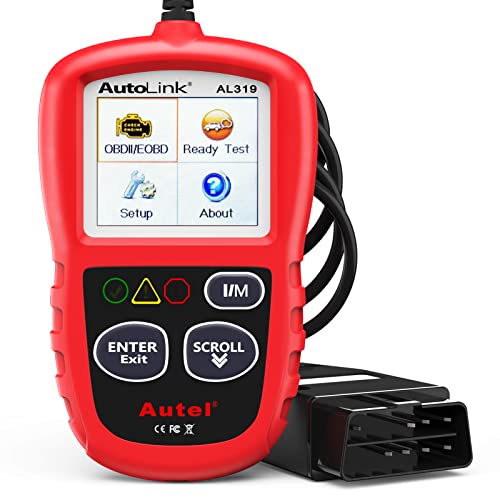
- 【TURN OFF CEL】 This AL319 car scanner diagnostic tool...
- 【EXTENSIVE APPLICATION】 Autel AL319 Compatible with...
- 【FOR END USER & DIYERS】 This error code reader AL319 is...
- 【USER-FRIENDLY DESIGN】 This OBD2 scanner and check...
- 【HIGH-QUALITY SERVICES】 12 months war.ranty from the...
If the PDF is very large, it may not load in the preview below.
Some older TSBs had multiple PDFs — visit the NHTSA Website to view all PDFs.
If the TSB PDF does not show, download or view it on the NHTSA Website.
Click on the (+) Plus Sign
Then Click on Associated Document(s)
Search NHTSA Database for Recalls
Search NHTSA Database for Vehicle Investigations
View Latest Vehicle Investigations
Search NHTSA Database for Vehicle Complaints
View Latest Vehicle Complaints
TSB/Document ID: VOS-16-03
Replacement Service Bulletin Number:
MFR Communication Date: 2016-01-20
MFR Internal Campaign ID/Software Version:
Communication Type: Service Bulletin/Repair Instructions
NHTSA Components: EQUIPMENT:OTHER:OWNERS/SERVICE/OTHER MANUAL
MFR Component System:
MFR Component Subsystem:
Previous TSB | Next TSB |
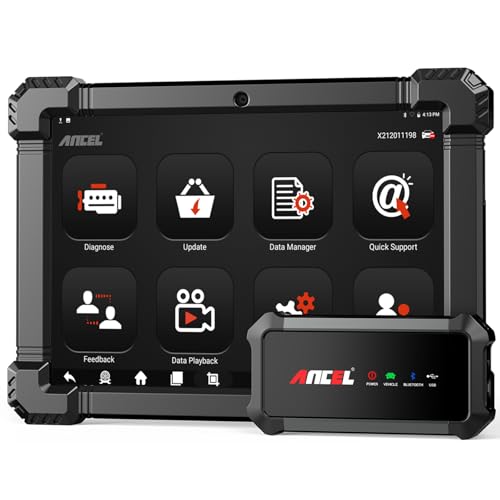
- 🔥🔥🔥2026 New Functions Making X7HD the Top Dog - Big Surprise!!! ANCEL X7HD truck scanner 10 major functional advantages .✅>Full HDOBD/OBD2 Function ✅>ALL System Diagnostic ✅>42+ Reset Function ✅>Active Test / Bi-Directional Control✅>ECU Coding✅>Graphing Live Data✅>Wide Compatibility ✅>2 Yrs Free Update✅>Remote Operation✅>Bluetooth 5.0 & Wifi In addition, 8 major hardware advantages: ✅>6000 mAh✅>10.1 inch Tablet✅>2G RAM
 ✅>32G ROM (Expandable to 128GB)✅>Data Record & Replay & Print✅>Android 10.0✅>Bluetooth 5.0 & Wifi✅>14 Languages
 - 🚛OEM DPF Forced Regen & Cylinder Cutout Test & more - ANCEL X7HD diesel scanner diagnostic tool not only supports DPF regeneration, DPF reset, DPF related information reset, DPR state reset, DPD forced regeneration etc, which helps you better solve the exhaust aftertreatment system problems, but also supports activate motor to do exhaust air in ABS Automatically. Moreover, it features TPMS activation, cylinder cut-off and learning functions
- 🚛Advanced ECU Coding & Programming - ANCEL X7HD 10.1inch truck scanner diagnostic tool is equipped with advanced ECU coding, supports Level calibration, Idle speed learning and Adjustment, Camshaft timing control learning, Control unit adaptations, Injector Codes, Read/Write VIN, Road speed limit optional vehicle speed set, etc... PLEASE NOTE that ECU codes are not compatible with all vehicles, please send us your VIN# to check vehicle compatibility
- 🚛42+ Reset Functions & Bidirectional Control - 2026 newest top heavy duty truck scan tool, comes with 42+ special services (ECU, Speed Limit and Idle Reset, Oil Reset, Injector Coding, EPB, ABS, SRS, Suspension, Throttle, etc. and always keep growing), which meet all your various needs for service and maintenance
- 🚛10 Inch All Systems Diesel Scanner & Full HDOBD/OBD2 Modes - ANCEL X7HD diesel truck scan tool supports all systems scan, such as Engine, Brake, Retarder, TECU Transmission, Tachograph, ABS, SRS, TPMS, EPB, SAS, ESP, and other vehicle systems, comes with 10 obd2 service modes: read/erase error codes, Data Stream, I/M Readiness, Vehicle Information, Actuations, DTC Lookup, EVAP, view freeze frame, etc
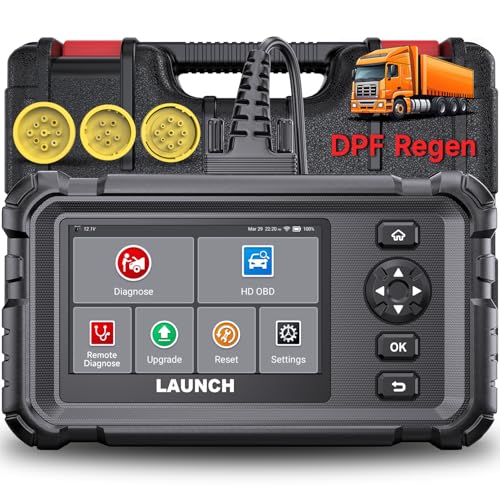
- Dealer-Level Diagnostics, Faster & Easier: The heavy duty truck scanner delivers full-system diagnostics for engine, ABS, transmission, and more, plus 7+ reset functions like DPF Regen and Speed Limit Adjust. Powered by a 1.3G CPU, 2GB RAM, 16GB storage, Android 8.1, and a 3000mAh battery, it runs smoothly for fast scanning, live data, reports, Auto VIN, Wi-Fi updates, and easy handheld use. It captures screenshots, replays live data, and generates reports to support your repair decisions.
- Diesel Truck DPF Regen & Reset Features: Experiencing loss of power, sluggish acceleration, or poor hill-climbing performance? These symptoms are often caused by a clogged or overloaded DPF. The truck diagnostic scanner offers OEM-level forced DPF regeneration, DPF reset, and DPD/DPR functions. This device extends DPF lifespan and efficiently diagnoses exhaust aftertreatment issues. It can significantly reduce diagnostic time and save you up to $3,000 or more in costly dealership fees.
- 7+ Resets - Perform Essential Procedures: The truck scanner features 7+ essential resets including DPF Regen clears carbon buildup; Oil Reset clears service light; Injector Coding matches new injectors; DEF Test checks urea injection; Speed Limit Adjust saves fuel; Cylinder Cutout pinpoints misfires; Clutch Relearn restores smooth engagement. Reset after maintenance or part replacement for proper truck operation. Vehicle compatibility varies. Email [email protected] to confirm before buying.
- One Tool for 50+ Truck Brands: The diesel scanner supports J1939, J1708, J1587, and OBD2/CAN protocols, delivering broad coverage for major diesel trucks and commercial vehicles including Cummins, Cat, Detroit, Paccar, Volvo, Freightliner, Kenworth, Peterbilt, International, Mack, Isuzu, Hino, Scania, Mercedes-Benz, and more. Also supports Allison, Aisin, Eaton, WABCO, and Bendix, helping you diagnose more vehicles, reduce equipment costs, and handle more jobs with one professional scan tool.
- Full System Diagnostic for Truck: The truck scanner diagnostic tool covers all systems like engine, ABS, transmission, SAS, SRS, TPMS and more. It reads fault codes and shows real-time data. Additionally, it includes full HD OBD and OBD2 modes: read/clear codes, live data stream, I/M readiness, freeze frame, DTC lookup, and more. When warning lights appear or performance issues arise, quickly identify which system is affected and gain the real-time data needed for accurate diagnosis.
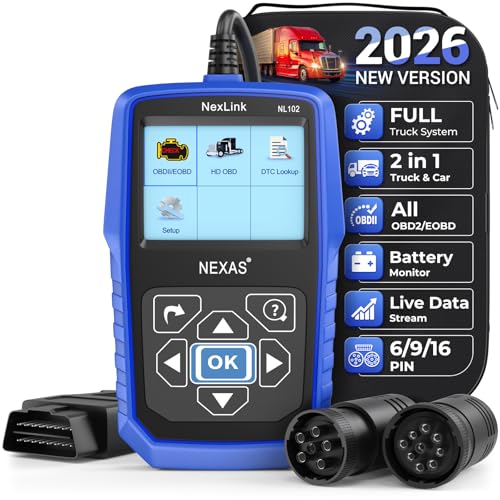
- Diagnose Heavy-Duty Truck Problems Fast — Read and clear fault codes and diagnose warning light issues on many Class 4–8 diesel trucks including Freightliner, Peterbilt, Kenworth, Volvo, Mack and Cummins-powered vehicles
- Help Reduce Downtime & Repair Costs — It offers full system diagnostics for major trucks meeting standard protocols, along with complete OBD2 functionality. Quickly check engine faults, view live truck data and identify issues before expensive repair shop visits or unnecessary repairs
- No complicated setup required — Simple menus and built-in DTC explanations make this truck code reader easy to use for owner-operators, mobile mechanics and small fleet maintenance
- Live Data & Built-in DTC Lookup — View real-time engine data and built-in truck fault code definitions directly on the scanner to help understand vehicle problems faster without searching through manuals
- Free Lifetime Updates & Technical Support — Includes free software updates plus responsive technical support for setup, compatibility and everyday truck diagnostics
Last update on 2026-06-10 / Affiliate links / Images from Amazon Product Advertising API
This product presentation was made with AAWP plugin.