
NHTSA ID Number: 11006912
Manufacturer Communication Number: 2024.26.100_082024.pdf
TSB/Document Date: 2024-09-04
Summary
Tesla does not provide physical owner's manual copies. Instead, all available owner’s manual content is integrated into the vehicle software, and only the content relevant for a given vehicle, based on vehicle configuration and software version installed, is displayed on its touchscreen. This file contains all available owner’s manual content for the vehicle converted to PDF format, and given the distribution method and NHTSA’s submission format requirements, it is the best available representative copy of owner’s manual content. However, a customer who accesses the owner’s manual via their vehicle’s touchscreen would only see the parts of this PDF file that are relevant to their vehicle.
A communication error occurred between the Wall Connector and the vehicle.
What to do:
Try charging again by disconnecting the Wall Connector from the vehicle and reconnecting.
1. If the issue persists, turn OFF the circuit breaker servicing the Wall Connector, wait 10 seconds, turn the circuit breaker ON
again, then try reconnecting the Wall Connector to the vehicle.
2. If the issue persists and other charging equipment is available, plug the vehicle into another Wall Connector or a Mobile
Connector to determine if the vehicle is able to communicate with other charging equipment.
3. If the issue persists, service is required.
For more information, see the installation guide for your Wall Connector.
CC_a016
Unable to charge - Vehicle connection issue
Insert charge handle fully into charge port
What this alert means:
A communication error occurred between the Wall Connector and the vehicle.
What to do:
Try charging again by disconnecting the Wall Connector from the vehicle and reconnecting.
1. If the issue persists, turn OFF the circuit breaker servicing the Wall Connector, wait 10 seconds, turn the circuit breaker ON
again, then try reconnecting the Wall Connector to the vehicle.
2. If the issue persists and other charging equipment is available, plug the vehicle into another Wall Connector or a Mobile
Connector to determine if the vehicle is able to communicate with other charging equipment.
3. If the issue persists, service is required.
For more information, see the installation guide for your Wall Connector.
CC_a017
Unable to charge - Vehicle connection issue
Insert charge handle fully into charge port
What this alert means:
A communication error occurred between the Wall Connector and the vehicle.
517
Owner's Manual
Troubleshooting
What to do:
Try charging again by disconnecting the Wall Connector from the vehicle and reconnecting.
1. If the issue persists, turn OFF the circuit breaker servicing the Wall Connector, wait 10 seconds, turn the circuit breaker ON
again, then try reconnecting the Wall Connector to the vehicle.
2. If the issue persists and other charging equipment is available, plug the vehicle into another Wall Connector or a Mobile
Connector to determine if the vehicle is able to communicate with other charging equipment.
3. If the issue persists, service is required.
For more information, see the installation guide for your Wall Connector.
CC_a018
Unable to charge - Vehicle connection issue
Insert charge handle fully into charge port
What this alert means:
A communication error occurred between the Wall Connector and the vehicle.
What to do:
Try charging again by disconnecting the Wall Connector from the vehicle and reconnecting.
1. If the issue persists, turn OFF the circuit breaker servicing the Wall Connector, wait 10 seconds, turn the circuit breaker ON
again, then try reconnecting the Wall Connector to the vehicle.
2. If the issue persists and other charging equipment is available, plug the vehicle into another Wall Connector or a Mobile
Connector to determine if the vehicle is able to communicate with other charging equipment.
3. If the issue persists, service is required.
For more information, see the installation guide for your Wall Connector.
CC_a019
Unable to charge - Vehicle connection issue
Insert charge handle fully into charge port
What this alert means:
A communication error occurred between the Wall Connector and the vehicle.
What to do:
Try charging again by disconnecting the Wall Connector from the vehicle and reconnecting.
1. If the issue persists, turn OFF the circuit breaker servicing the Wall Connector, wait 10 seconds, turn the circuit breaker ON
again, then try reconnecting the Wall Connector to the vehicle.
2. If the issue persists and other charging equipment is available, plug the vehicle into another Wall Connector or a Mobile
Connector to determine if the vehicle is able to communicate with other charging equipment.
3. If the issue persists, service is required.
For more information, see the installation guide for your Wall Connector.
CC_a020
Unable to charge - Wall Connector issue
Wall Connector needs service
What this alert means:
Owner's Manual
518
Troubleshooting
Wall Connector hardware issue. Possible issues include:
1. Contactor not working
2. Self-test of internal ground fault monitoring circuit failed
3. Thermal sensor disconnected
4. Other hardware component issues
What to do:
An internal issue was detected by the Wall Connector.
1. Try charging again by disconnecting the Wall Connector from the vehicle and reconnecting.
2. If the issue persists, turn OFF the circuit breaker for the Wall Connector, wait 10 seconds, and turn the circuit breaker ON
again. Then try reconnecting the Wall Connector to the vehicle.
3. If the issue persists, have an electrician make sure all wires are properly connected and torqued according to the
instructions in the Wall Connector Installation Manual.
4. Once your electrician has completed all work and restored power to the Wall Connector, try charging again by
reconnecting the Wall Connector to the vehicle.
5. If the issue persists, the Wall Connector requires service.
For more information, see the installation guide for your Wall Connector.
CC_a021
Unable to charge - No primary Wall Connector
Check that primary unit is powered and available
What this alert means:
Load sharing (circuit breaker sharing) network: Need one (and only one) Wall Connector set as primary.
What to do:
Only one Wall Connector can be set to a primary configuration. Have your electrician confirm:
1. Only one of the Wall Connectors is set as primary.
2. All other Wall Connectors linked to the primary unit are set to paired position (position F).
For more information, see the installation guide for your Wall Connector.
CC_a022
Unable to charge - More than 1 primary unit
Ensure only 1 Wall Connector is set as primary
What this alert means:
Load sharing (circuit breaker sharing) network: Need one (and only one) Wall Connector set as primary.
What to do:
Only one Wall Connector can be set to a primary configuration. Have your electrician confirm:
1. Only one of the Wall Connectors is set as primary.
2. All other Wall Connectors linked to the primary unit are set to paired position (position F).
For more information, see the installation guide for your Wall Connector.
519
Owner's Manual
Troubleshooting
CC_a023
Unable to charge - Too many Wall Connectors
Ensure no more than 3 units paired with primary
What this alert means:
Load sharing (circuit breaker sharing) network: More than three Wall Connectors are paired with the same primary unit.
What to do:
Consult your electrician to have one or more paired Wall Connectors moved to a different circuit and disconnected (unpaired)
from this load sharing (circuit breaker sharing) network.
For more information, see the installation guide for your Wall Connector.
CC_a024
Unable to charge - Low Wall Connector current
Primary unit current setting must be increased
What this alert means:
Incorrect rotary switch setting.
What to do:
Have your electrician adjust the Wall Connector’s internal rotary switch to a valid operating current setting. They should first
make sure there is no power to the Wall Connector. The correlation between switch setting and current should be printed on
the inside of the Wall Connector. Your electrician should also refer to the Set the Operating Current section in the Wall
Connector Installation Manual.
If the Wall Connector is set up for load sharing (circuit breaker sharing) and paired with other Wall Connectors, the rotary
switch of the primary unit must be set to an operating current setting that allows each paired Wall Connector to receive at
least 6A of charge current.
Example: Three Wall Connectors are paired for load sharing. The primary unit needs to be set to a current of at least 3 * 6A =
18A or greater.
For more information, see the installation guide for your Wall Connector.
CC_a025
Unable to charge - Wall Connector issue
Wall Connector needs service
What this alert means:
Wall Connector hardware issue. Possible issues include:
1. Contactor not working
2. Self-test of internal ground fault monitoring circuit failed
3. Thermal sensor disconnected
4. Other hardware component issues
What to do:
An internal issue was detected by the Wall Connector.
1. Try charging again by disconnecting the Wall Connector from the vehicle and reconnecting.
2. If the issue persists, turn OFF the circuit breaker for the Wall Connector, wait 10 seconds, and turn the circuit breaker ON
again. Then try reconnecting the Wall Connector to the vehicle.
Owner's Manual
520
Troubleshooting
3. If the issue persists, have an electrician make sure all wires are properly connected and torqued according to the
instructions in the Wall Connector Installation Manual.
4. Once your electrician has completed all work and restored power to the Wall Connector, try charging again by
reconnecting the Wall Connector to the vehicle.
5. If the issue persists, the Wall Connector requires service.
For more information, see the installation guide for your Wall Connector.
CC_a026
Unable to charge - Wall Connector issue
Wall Connector needs service
What this alert means:
Wall Connector hardware issue. Possible issues include:
1. Contactor not working
2. Self-test of internal ground fault monitoring circuit failed
3. Thermal sensor disconnected
4. Other hardware component issues
What to do:
An internal issue was detected by the Wall Connector.
1. Try charging again by disconnecting the Wall Connector from the vehicle and reconnecting.
2. If the issue persists, turn OFF the circuit breaker for the Wall Connector, wait 10 seconds, and turn the circuit breaker ON
again. Then try reconnecting the Wall Connector to the vehicle.
3. If the issue persists, have an electrician make sure all wires are properly connected and torqued according to the
instructions in the Wall Connector Installation Manual.
4. Once your electrician has completed all work and restored power to the Wall Connector, try charging again by
reconnecting the Wall Connector to the vehicle.
5. If the issue persists, the Wall Connector requires service.
For more information, see the installation guide for your Wall Connector.
CC_a027
Unable to charge - Wall Connector issue
Wall Connector needs service
What this alert means:
Wall Connector hardware issue. Possible issues include:
1. Contactor not working
2. Self-test of internal ground fault monitoring circuit failed
3. Thermal sensor disconnected
4. Other hardware component issues
What to do:
An internal issue was detected by the Wall Connector.
1. Try charging again by disconnecting the Wall Connector from the vehicle and reconnecting.
521
Owner's Manual
Troubleshooting
2. If the issue persists, turn OFF the circuit breaker for the Wall Connector, wait 10 seconds, and turn the circuit breaker ON
again. Then try reconnecting the Wall Connector to the vehicle.
3. If the issue persists, have an electrician make sure all wires are properly connected and torqued according to the
instructions in the Wall Connector Installation Manual.
4. Once your electrician has completed all work and restored power to the Wall Connector, try charging again by
reconnecting the Wall Connector to the vehicle.
5. If the issue persists, the Wall Connector requires service.
For more information, see the installation guide for your Wall Connector.
CC_a028
Unable to charge - Incorrect switch setting
Wall Connector rotary switch must be adjusted
What this alert means:
Incorrect rotary switch setting.
What to do:
Have your electrician adjust the Wall Connector’s internal rotary switch to a valid operating current setting. They should first
make sure there is no power to the Wall Connector. The correlation between switch setting and current should be printed on
the inside of the Wall Connector. Your electrician should also refer to the Set the Operating Current section in the Wall
Connector Installation Manual.
If the Wall Connector is set up for load sharing (circuit breaker sharing) and paired with other Wall Connectors, the rotary
switch of the primary unit must be set to an operating current setting that allows each paired Wall Connector to receive at
least 6A of charge current.
Example: Three Wall Connectors are paired for load sharing. The primary unit needs to be set to a current of at least 3 * 6A =
18A or greater.
For more information, see the installation guide for your Wall Connector.
CC_a029
Unable to charge - Vehicle connection issue
Insert charge handle fully into charge port
What this alert means:
A communication error occurred between the Wall Connector and the vehicle.
What to do:
Try charging again by disconnecting the Wall Connector from the vehicle and reconnecting.
1. If the issue persists, turn OFF the circuit breaker servicing the Wall Connector, wait 10 seconds, turn the circuit breaker ON
again, then try reconnecting the Wall Connector to the vehicle.
2. If the issue persists and other charging equipment is available, plug the vehicle into another Wall Connector or a Mobile
Connector to determine if the vehicle is able to communicate with other charging equipment.
3. If the issue persists, service is required.
For more information, see the installation guide for your Wall Connector.
CC_a030
Unable to charge - Primary / paired unit mismatch
Wall Connector current ratings must match
What this alert means:
Owner's Manual
522
Troubleshooting
Load sharing (circuit breaker sharing) network: The paired Wall Connectors have different maximum current capabilities.
What to do:
Only Wall Connectors with the same maximum current capabilities can be paired in a load sharing (circuit breaker sharing)
network. Have your electrician inspect the type labels on the Wall Connectors and make sure the current capabilities match. It
is further recommended that your electrician only pair Wall Connectors with the same part number, as an easy way to make
sure paired units are compatible.
For more information, see the installation guide for your Wall Connector.
CC_a041
Charge rate reduced - Wall connection hot
Outlet or Wall Connector wiring must be checked
What this alert means:
High temperature detected by Wall Connector alerts indicate the building connection to the Wall Connector is getting too
warm, so charging has been slowed to protect the wiring and Wall Connector.
This is not typically an issue with your vehicle or your Wall Connector, but rather an issue with the building wiring. This may be
caused by a loose building wiring connection to the Wall Connector and can be fixed quickly by an electrician.
What to do:
Contact an electrician to inspect the building wiring connection to the Wall Connector. They should make sure that all wires
are properly connected and torqued according to the installation guide for the Wall Connector.
For more information, see the installation guide for your Wall Connector.
CC_a043
Wall Connector configuration must be completed
Refer to Installation Guide to enable charging
What this alert means:
Wall Connector configuration is incomplete.
What to do:
The Wall Connector needs to be commissioned to appropriately configure the circuit breaker size and protective earth
connection type.
For more information, refer to Commissioning Procedure in the Wall Connector Installation Manual. If the issue persists,
contact an electrician to inspect the building wiring connection to the Wall Connector. They should make sure the power
output and grounding connections are properly configured according to the installation guide for the Wall Connector.
For more information, see the installation guide for your Wall Connector.
CP_a004
Charging equipment not recognized
Try again or try different equipment
What this alert means:
The charge port is unable to detect whether a charge cable is inserted, or the type of charge cable connected.
This alert is usually specific to external charging equipment and power sources and does not typically indicate an issue with
your vehicle that can be resolved by scheduling service.
What to do:
523
Owner's Manual
Troubleshooting
If this alert appears while a charge cable is connected, determine whether the issue is caused by the charging equipment or
the vehicle. Try charging the vehicle using different external charging equipment (including charge cable, charging station, or
charging stall).
• If the vehicle begins charging, the issue was likely with the equipment.
• If the vehicle still does not charge, the issue may be with the vehicle.
If this alert appears while a charge cable is not connected or if the issue is suspected to be with the vehicle, inspect the charge
port inlet and the charge cable connector for any obstructions, such as debris, moisture, and/or foreign objects. Make sure
any charge port inlet obstruction has been removed and any moisture has been allowed to dry, then try re-inserting the cable
into the charge port.
You can also try charging your vehicle using a Tesla Supercharger or Destination Charging location, all of which can be located
through the map on your vehicle's touchscreen display. See Maps and Navigation on page 92 for more details.
For more information on troubleshooting Mobile Connector or Wall Connector status lights, refer to the product's Owner's
Manual at Charging & Adapter Product Guides.
For more information on charging, see Charging Instructions on page 389.
CP_a010
Charging equipment communication error
Try again or try different equipment
What this alert means:
Your vehicle is unable to charge because it cannot communicate effectively with the external charging equipment. It cannot
sense a valid control pilot signal coming from the charging equipment.
This alert is usually specific to external charging equipment and power sources and does not typically indicate an issue with
your vehicle that can be resolved by scheduling service.
What to do:
First, confirm the lack of effective communication is caused by the external charging equipment rather than an issue with your
vehicle. This is usually the case.
Try charging the vehicle using different external charging equipment (including charge cable, charging station, or charging
stall).
• If the vehicle begins charging, the issue was likely with the equipment.
• If the vehicle still does not charge, the issue may be with the vehicle.
If the issue is suspected to be with the vehicle, inspect the charge port inlet and the charge cable connector for any
obstructions, such as debris, moisture, and/or foreign objects. Make sure any charge port inlet obstruction has been removed
and any moisture has been allowed to dry, then try re-inserting the cable into the charge port.
You can also try charging your vehicle using a Tesla Supercharger or Destination Charging location, all of which can be located
through the map on your vehicle's touchscreen display. See Maps and Navigation on page 92 for more details.
For more information on troubleshooting Mobile Connector or Wall Connector status lights, refer to the product's Owner's
Manual at Charging & Adapter Product Guides.
For more information on charging, see Charging Instructions on page 389.
CP_a043
Charge port door sensor fault
Charge port may not operate as expected
What this alert means:
Owner's Manual
524
Troubleshooting
One of the charge port door sensors is not functioning normally. When this occurs, the charge port may be unable to
accurately sense the charge port door position and the charge port may not operate as expected.
• The charge port latch may intermittently remain engaged when the charge port door is opened.
• The charge port light may illuminate only intermittently when the charge port door is opened.
What to do:
Try closing the charge port door and then opening it again.
For more information, see Opening the Charge Port on page 389.
For more information on charging, see Charging Instructions on page 389.
CP_a046
Charging equipment communication lost
Check power source and charging equipment
What this alert means:
Charging stopped because communication between the vehicle and the external charging equipment was interrupted.
This alert is usually specific to external charging equipment and power sources and does not typically indicate an issue with
your vehicle that can be resolved by scheduling service.
What to do:
Confirm whether the external charging equipment is powered by looking for any status lights, displays, or other indicators on
the equipment.
If the equipment is not powered, try to restore the external charging equipment’s power source.
• If attempting to charge at a public station and power is unable to be restored, contact the station operator.
• If attempting to charge at a private station (for example: charging at home) and power is unable to be restored, contact an
electrician.
If the equipment is powered, try charging the vehicle using different external charging equipment.
• If the vehicle begins charging, the issue was likely with the equipment.
• If the vehicle still does not charge, the issue may be with the vehicle.
You can also try charging your vehicle using a Tesla Supercharger or Destination Charging location, all of which can be located
through the map on your vehicle's touchscreen display. See Maps and Navigation on page 92 for more details.
For more information on troubleshooting Mobile Connector or Wall Connector status lights, refer to the product's Owner's
Manual at Charging & Adapter Product Guides.
CP_a051
Charge port may not open when pressed
Use another method to open the charge port
What this alert means:
One of the charge port door sensors is not communicating properly. The charge port may not recognize the request to open
when the charge port door is pressed.
What to do:
You can still use all other usual methods to open the charge port door:
525
Owner's Manual
Troubleshooting
• Use the vehicle touchscreen.
• Use the Tesla Mobile App.
• With your vehicle unlocked, press the charge handle button on any Tesla charge cable, including a Wall Connector, Mobile
Connector, or Supercharger.
For more information, see Opening the Charge Port on page 389.
CP_a053
Unable to charge - Charge station not powered
Check power source or try a different station
What this alert means:
Charging cannot begin because the charging equipment is not ready. A charge handle is detected, but the charging station is
not communicating with the vehicle. This issue could occur because:
• The charging station is not powered.
• The control pilot signal between the charging station and the vehicle is interrupted.
This alert is usually specific to external charging equipment and power sources and does not typically indicate an issue with
your vehicle that can be resolved by scheduling service.
What to do:
Try charging the vehicle with different charging equipment or at a different charging station.
• If the vehicle begins charging, the issue was likely with the equipment.
• If the vehicle still does not charge, the issue may be with the vehicle.
If using a Mobile Connector or Wall Connector, first check the status lights on the front. If no status lights are visible, check
the power source and contact an electrician to inspect the building wiring connection to the wall outlet or the Wall Connector
to confirm that all wires are properly connected and torqued.
If using other external charging equipment, consult the product's owner's manual to learn how to confirm that the station is
powered. Contact an electrician to inspect the building wiring and charging equipment as necessary.
For more information on troubleshooting Mobile Connector or Wall Connector status lights, refer to the product's Owner's
Manual at Charging & Adapter Product Guides.
You can also try charging your vehicle using a Tesla Supercharger or Destination Charging location, all of which can be located
through the map on your vehicle's touchscreen display. See Maps and Navigation on page 92 for more details.
CP_a054
Charge port latch not engaged
Fully insert charge cable or check for obstruction
What this alert means:
The charge port latch is unable to latch the charge cable in the charge port inlet. If the latch is not engaged, AC charging (for
example, charging with a Mobile Connector or Wall Connector) will be limited to 16A and DC Fast Charging / Supercharging
will be unavailable.
The charge port light will pulse amber if this alert appears during AC charging and will be solid amber if this alert appears
when attempting to DC Fast Charge / Supercharge.
This alert is usually specific to external charging equipment and power sources and does not typically indicate an issue with
your vehicle that can be resolved by scheduling service.
What to do:
Owner's Manual
526
Troubleshooting
Try re-inserting the charge cable fully into the charge port inlet.
If your vehicle begins charging and the charge port light pulses green, the charge cable may not have been fully inserted
before. AC charging should no longer be limited, and DC Fast Charging / Supercharging should be available.
If charging is still limited or the vehicle will not charge at all, inspect the charge port inlet and the charge cable connector for
any obstructions, such as debris, moisture, and/or foreign objects. Make sure any charge port inlet obstruction has been
removed and any moisture has been allowed to dry, then try re-inserting the cable into the charge port.
If charging is still limited or the vehicle will not charge at all, make sure the charge port manual release has not been actuated.
For more information on using the charge port manual release, see Manually Releasing Charge Cable on page 394.
You can also try charging your vehicle using a Tesla Supercharger or Destination Charging location, all of which can be located
through the map on your vehicle's touchscreen display. See Maps and Navigation on page 92 for more details.
For more information on troubleshooting Mobile Connector or Wall Connector status lights, refer to the product's Owner's
Manual at Charging & Adapter Product Guides.
For more information on charging, see Charging Instructions on page 389.
CP_a055
Charging equipment communication lost
Check power source and charging equipment
What this alert means:
Charging stopped because communication between the vehicle and the external charging equipment was interrupted.
This alert is usually specific to external charging equipment and power sources and does not typically indicate an issue with
your vehicle that can be resolved by scheduling service.
What to do:
Confirm whether the external charging equipment is powered by looking for any status lights, displays, or other indicators on
the equipment. For more information on troubleshooting Mobile Connector or Wall Connector status lights, refer to the
product's Owner's Manual at Charging & Adapter Product Guides.
If the equipment is not powered, try to restore the external charging equipment’s power source.
• If attempting to charge at a public station and power is unable to be restored, contact the station operator.
• If attempting to charge at a private station (for example: charging at home) and power is unable to be restored, contact an
electrician.
If the equipment is powered, try charging the vehicle using different external charging equipment.
• If the vehicle begins charging, the issue was likely with the equipment.
• If the vehicle still does not charge, the issue may be with the vehicle.
You can also try charging your vehicle using a Tesla Supercharger or Destination Charging location, all of which can be located
through the map on your vehicle's touchscreen display. See Maps and Navigation on page 92 for more details.
CP_a056
Charging stopped - Charge cable disconnected
Close charge port - Press brake pedal and retry
What this alert means:
Charging has stopped because your vehicle has detected that the connection between the charge port and charge cable has
been unexpectedly interrupted.
What to do:
527
Owner's Manual
Troubleshooting
Before disconnecting a charge cable, make sure you first stop charging.
With some external charging equipment, charging may be stopped by pressing the button on the charge handle.
You can also stop charging from your vehicle touchscreen, your Tesla Mobile App, or the charging station.
For more information, see Stopping Charging on page 392.
CP_a058
Unable to AC charge - Unplug and retry
Or try DC Fast Charging / Supercharging
What this alert means:
Your vehicle is unable to AC charge because it has detected one of the following conditions and has tried to charge too many
times without success:
• The charge port is unable to detect whether a charge cable is inserted or detect the type of charge cable connected.
• Your vehicle is unable to sense a valid pilot control signal coming from the charging station, so it cannot communicate
effectively with the external charging equipment.
• Communication between your vehicle and the external charging equipment has been interrupted.
• The external charging equipment has reported an error that prevents your vehicle from charging.
When this alert is present, there will always be at least one other alert present that identifies a more specific condition.
What to do:
For more information and troubleshooting suggestions, check in your vehicle touchscreen for other recent alerts that involve
charging.
CP_a066
Charging equipment not ready
See equipment instructions to start charging
What this alert means:
Charging cannot begin because the charging station is communicating to your vehicle that either the external charging
equipment is not ready or charging is not authorized. The control pilot signal that communicates between the charging station
and your vehicle indicates that your vehicle is not allowed to start charging.
This could occur because:
• The charging station is actively delaying charging. For example, this can happen because the station has a scheduled
charging feature activated.
• The charging station requires further activation before the charge session can begin. Some additional authentication may
be needed before the station starts charging your vehicle, such as a charging card, a mobile app, or a credit card.
This alert is usually specific to external charging equipment and power sources and does not typically indicate an issue with
your vehicle that can be resolved by scheduling service.
What to do:
Check the charging station for any instructions that explain the steps necessary to enable charging. For example, look for a
touchscreen terminal, LED status indicators, printed instructions, or a payment interface that might provide guidance. If you
cannot enable charging on the current charging station, try charging the vehicle with different charging equipment or at a
different charging station.
• If the vehicle begins charging, the issue was likely with the equipment.
• If the vehicle still does not charge, the issue may be with the vehicle.
Owner's Manual
528
Troubleshooting
You can also try charging your vehicle using a Tesla Supercharger or Destination Charging location, all of which can be located
through the map on your vehicle's touchscreen display. See Maps and Navigation on page 92 for more details.
For more information on troubleshooting Mobile Connector or Wall Connector status lights, refer to the product's Owner's
Manual at Charging & Adapter Product Guides.
For more information on charging, see Charging Instructions on page 389.
CP_a078
Cable blocked - Charge port latch may be frozen
Try using Defrost Car button in Mobile App
What this alert means:
The charge port latch cannot unlatch the charge cable, and cold ambient temperature is detected.
What to do:
To remove any strain on the cable, re-insert the charge cable fully into the charge port inlet. Try again to unlatch the charge
cable.
If the charge cable still cannot be removed, the charge port latch may be frozen.
To help thaw any ice on the charge port latch, press the Defrost Truck button in your Tesla Mobile App to defrost your vehicle
for approximately 30 to 45 minutes.
NOTE: Be sure to use Defrost Truck in your Mobile App to defrost your vehicle. Adjusting the climate control settings in your
vehicle's touchscreen is not as effective.
It may also be possible to thaw any ice affecting the charge port latch by warming up the side mirrors via your vehicle
touchscreen, as your vehicle is equipped with a charge port inlet heater that turns on when you turn on side mirror heating in
cold weather conditions.
For more information on charging in cold weather conditions, see Cold Weather Best Practices on page 89.
If the charge cable still cannot be removed, try the charge port manual release.
For more information on using the charge port manual release, see Manually Releasing Charge Cable on page 394.
For more information on charging, see Charging Instructions on page 389.
CP_a079
Charge rate reduced - Charge port may be frozen
Try using Defrost Car button in Mobile App
What this alert means:
The charge port latch is unable to secure the charge cable in the charge port inlet, and cold ambient temperature is detected.
If the latch is not engaged, AC charging (for example, charging with a Mobile Connector or Wall Connector) will be limited to
16A and DC Fast Charging / Supercharging will be unavailable.
The charge port light will pulse amber if this alert appears during AC charging and will be solid amber if this alert appears
when attempting to DC Fast Charge / Supercharge.
This alert is usually specific to external charging equipment and power sources and does not typically indicate an issue with
your vehicle that can be resolved by scheduling service.
What to do:
Try re-inserting the charge cable fully into the charge port inlet. If your vehicle begins charging and the charge port light
pulses green, the charge cable may not have been fully inserted before. AC charging should no longer be limited, and DC Fast


- Advanced VCI Box, Industry-leading J2534 Pass-Thru...
- High-Speed OEM-Level Diagnostics & Programming: Unlock true...
- Coverage for 17 Car Brands & Ultra Reliability: Works...
- User-Friendly RLink Platform & Expert Support: TOPDON’s...
- 6.6 ft USB-C Cable & Portable Storage Case: The RLink J...
Last update on 2026-06-23 / Affiliate links / Images from Amazon Product Advertising API
If the PDF is very large, it may not load in the preview below.
Some older TSBs had multiple PDFs — visit the NHTSA Website to view all PDFs.
If the TSB PDF does not show, download or view it on the NHTSA Website.
Click on the (+) Plus Sign
Then Click on Associated Document(s)
Search NHTSA Database for Recalls
Search NHTSA Database for Vehicle Investigations
View Latest Vehicle Investigations
Search NHTSA Database for Vehicle Complaints
View Latest Vehicle Complaints
TSB/Document ID: 2024.26.100_082024.pdf
Replacement Service Bulletin Number:
MFR Communication Date: 2024-08-31
MFR Internal Campaign ID/Software Version: 2024.26.100
Communication Type: Over The Air
NHTSA Components: UNKNOWN OR OTHER
MFR Component System:
MFR Component Subsystem:
Previous TSB | Next TSB |
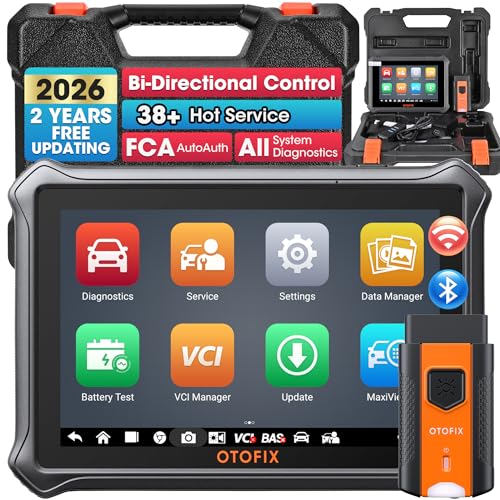
- 🎉[OTOFIX D1 Lite, Perfect Cost-effective Diagnostic Tool]: OTOFIX D1 Lite, a newest bidirectional scan tool from OTOFIX company, is a great choice for DIYers and repair shops. 👉This obd2 scanner diagnostic tool packs all practical functions: OE level all systems diagnoses, Bi-Directional Control, 38+ reset services fixing 99% of common problems, support DoIP & CANDF protocols and FCA
 AutoAuth, high-end hardware configuration. Worldwide vehicles and 🔥2 Years Free Updating🔥 covered.
 - 🎉[Bi-Directional Scan Tool, Active Test]: OTOFIX D1 Lite bluetooth obd2 scanner can also command ECUs and monitor the operation of the actuators to track down the problems of certain parts, like windows, sunroof, wipers, fuel pumps, etc., saving repair time & trouble. This makes OTOFIX D1 Lite the most cost-effective bidirectional scan tool.
- 🎉[2026 Newest, 38+ Hot Reset Functions]: Equipped with 38+ reset functions in one, the OTOFIX D1 lite automotive scanner diagnostic tool allows you to troubleshoot 99% of common vehicle problems. You can use this car diagnostic scanner holding enough functions to easily repair common vehicle models in your repair shops. Including Oil Reset, Injector Coding, Throttle, DPF Reset, SCR Reset, Gear Learning, Clutch Learning, Suspension, etc. Note* Reset functions vary by model.
- 🎉[OE Level Full Systems Diagnostics]: Unlike the 2-system and 4-system diagnostic tools, the OTOFIX auto scan tool can complete comprehensive system diagnostics within 5 minutes. It accesses and scans all available onboard systems like for Engine /AT /ABS /EPB /BMS /TPMS /SRS /SAS /Audio System /BCM /Air Conditioning / etc., to read & clear codes, view live data, and check ECU information. Note: Active test is not involved.
- 🎉[Powerful Hardware Configuration]: Designed with a fashion appearance & a 7” touchscreen and a weight of 463g, this OTOFIX D1 Lite OBD2 diagnostic scanner scan tool is convenient for everywhere and easy to use & store. Android9.0 OS and 2+64GB memory enhance multi-task smoothness and diagnostic operation, no more wasting too much time. 5800mAh battery allows hours-lasting use. WiFi & VCI1 also bring faster communication for your diagnostics.
- 🏆【2026 TOP OBD2 Scanner Diagnostic Tool】OTOFIX D1 Lite wireless obd2 scanner has upgraded hardware configuration and car coverage. The newly upgraded D1 Lite with 🔥OS Android 9.0🔥1.5Ghz 4 core high efficiency processor🔥2GB RAM+64GB ROM large storage🔥5800mAh large battery, more stable and longer lasting diagnostics🔥 38+ Reset🔥action tests🔥full system diagnostic🔥Supports MV105 endoscope🔥21+ Language Supports🔥100000+ vehicle coverage to meet all your daily maintenance needs.
- 👍【Bi-Directional Control / Active Test】D1 Lite obd2 scanner has bidirectional control(worth $300+), which is the most beloved feature among mechanic. If your headlights or car windows are broken, going to a repair shop will cost a lot of money. You can use D1 Lite to send execution commands to the ECU module and identify the repair status. Such as ABS, car windows, doors, valves, wipers, headlights, etc., effectively shorten diagnostic time and reduce diagnostic costs.
- 🔥【All Systems Diagnostics, In-depth Checking】This advanced OBD2 Scanner D1 Lite can perform OE-level diagnosis of all systems including engine, transmission, airbag, ABS, ESP, TPMS, gateway, steering, radio, and air conditioning for more than 100 brands. This diagnostic scanner supports essential functions, such as reading ECU version info, reading and clearing fault codes, and reading data streams.With just a simple click, it provides you with accurate and in-depth diagnostics.
- 🏆【38+ Reset Hot Functions】For repair workshops, holding an OTOFIX D1 Lite Auto scanner is a strong advantage over others. Its 38+ maintenance functions provide various solutions for all module repairs, including Oil Reset, TPMS Reset, Injector Coding, Suspension, Throttle Matching, etc., which will usher your repair business to a new pinnacle. Continuously updating will never make the functionality & compatibility out-of-date.
- 🏆【150+ Models, 10000+ Car Coverage & 16 Languages】D1 Lite is a comprehensive car diagnostic scan tool, help you to troubleshoot car issues fast for 95% US, European, Asian auto makes. ✅ With frequent updates and optimizations allow D1 Lite to cover more vehicles to meet your needs. ✅ Multilingual menu allows auto mechanics around the world to use it without language barriers. 🚩Note: Kindly send us the S/N of the device to authorize new language updates before changing the menu language.
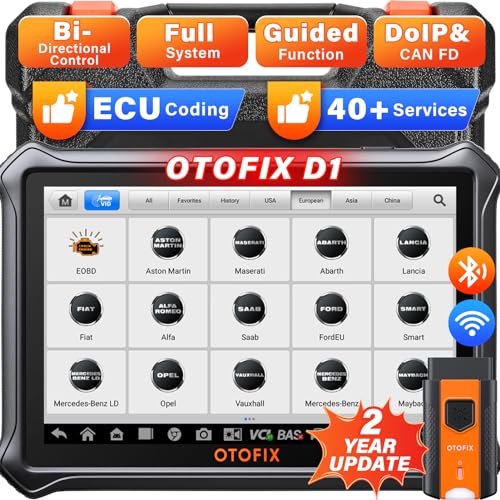
- 2026 Newest Wireless Bluetooth Scan Tool D1: OTOFIX D1 Diagnostic scanner is upgraded version with Enhanced Hardwares & Newest Functions, FASTER and SMARTER! ✅Alternative Bluetooth 5.0 +USB connect✅2G+64GB✅Android 9.0 OS✅5G & 2.4 GHz Dual WiFi✅5800mAh battery👍VAG Guided Function👍ECU Online Coding👍CANFD&DOIP👍40+ Services👍Bi-Directional Control👍Full Systems Diagnose👍2 Years Free Update👍150+ Vehicle Coverage🎁Contact to get gift: otofixaftersales-amz@ outlook.com
- ECU Coding to Unlock the Hidden Features: OTOFIX D1 obd2 scanner diagnostic tool newly adds ECU Coding which can Online Coding(ONLY for VW/Au.di/Sk0da), Variant Coding/Offline Programming, Flash Hidden Functions, Reset Adaptive Data, Match Replaced Components, Customize OE-Settings. Such as: halogen fog lamps retrofitted with xenon fog lamps, different capacity battery retrofit, disbale auto start-stop, sunroof initialization, injector calibration, etc. PS: Coding functions vary by model&year.
- Full Bidirectional Control for Active Car Tests: The D1 OTOFIX scanner also offers bi-directional control, allowing you to perform powerful active tests on car subsystems. This means that you can check the working status and functionality of open & close solenoids, energize injectors, turn cooling fan on & off, and more, all from the device itself.🚩The D1 bi-directional obd2 scanner can quickly help you to check if a system or component goes well,Improving 200% Efficiency.**Note that Active Tests available depend on the make/model/year of your car.
- 40+ Popular Maintenance Functions: OTOFIX D1 obd scanner for car performs 40+ hot services, including Oil Reset, EPB, TPMS, BMS, E.GR, G.PF, D.PF, SAS Calibration, ABS Bleeding, Injector Coding, Gearbox Match, Suspension, Crankshaft Relearn, Power Balance, etc., still growing. Great choice for DIYers, technician, repair shop. 🚩Get MORE special functions from "Car Brand>System>Service". Check compatibility before purchase via 📧 otofixaftersales-amz@ outlook.com.
- OE-Level All Systems Diagnostic + One-Click AutoVIN & AutoSCAN: OTOFIX D1 scanner automotriz gives you the ability to troubleshoot entire car systems including engion system,transmission system,body system,chassis,etc. 🚩One of the standout features of the D1 obd2 scanner diagnostic tool is the one-click AutoVIN & AutoScan function. This feature allows you to quickly and easily scan all diagnosable ECUs with just one click, and identify any problems hidden in your vehicle's systems.
Last update on 2026-06-23 / Affiliate links / Images from Amazon Product Advertising API
This product presentation was made with AAWP plugin.