
NHTSA ID Number: 10183209
Manufacturer Communication Number: 20NA211
TSB/Document Date: 2020-11-30
Summary
2021 Cadillac Escalade New Model Features
folding or power folding, depending on the trim level.
There are also heated, light-sensitive, and power
options, as in previous years.
Bulletin No.: 20-NA-211
October, 2020
Power Assist Steps (Running Boards)
Assist Step Controller System Components
The assist step controller system consists of the
following components:
• S148L Assist Step Kick Switch – Left
• S148R Assist Step Kick Switch – Right
• M48L Running Board Step – Left
• M48R Running Board Step – Right
• K4 Assist Step Control Module
Automatic and Manual Operation
Each assist step has a bi-directional motor and a
Hall-effect sensor to detect the step’s position. The
Hall-effect sensors are included in the motor assembly.
The polarity on each motor is switched to reverse the
direction of assist step travel.
In normal mode, the running boards operate
automatically. When a door opens, a power extend
operation will occur on the side of the vehicle where the
door opened. When both doors close on a side of the
vehicle, a power retract operation will occur on that
same side. Door ajar status input is received by the
assist step control module through the serial data line
from the BCM. The assist step controller receives the
gear position and vehicle speed inputs through the
serial data line.
The running boards can be manually deployed by
pressing the assist step switch while the transmission is
in PARK or NEUTRAL. The assist steps retract with a
second push of the assist step switch if the
transmission is shifted out of PARK or NEUTRAL or if
vehicle speed exceeds 8 km/h (5 MPH).
Pressing and holding down the assist step switch for
four seconds deactivates the running boards. Pressing
and holding the switch again for another four seconds
activates the running boards.
Object Detection
Each assist step reverses direction of travel when an
object is detected in the travel path. If an assist step is
moving in the retract direction, the assist step moves to
the full extend position if an object is detected. If a door
on the same side as the extended assist step is opened
and then closed, the assist step moves to the retract
position. The assist steps stop and hold if an object is
detected.
Service Considerations
If a door is ajar, the running boards may retract and
extend as the vehicle speeds change from above or
below 3 km/h (2 MPH). Verify proper operation of door
ajar switches, and ensure all doors are properly closed
and latched.
If the running boards are stuck in extended or retracted
position, verify there is nothing that can prohibit normal
operation, such as physical damage or a build-up of
mud, snow, or ice on boards and mechanical linkages.
Learn Procedure
When the assist step controller is replaced or loses
battery power, the assist step controller must learn the
position of both assist steps. At least one door must be
opened and closed on each side of the vehicle for both
Page 35
assist steps to go to a learn procedure. Each assist
step will extend and then retract after a door is opened
and closed on that assist step’s side of the vehicle.
Each assist step will learn its own position with the
learn procedure.
Shipping Mode Unlock Procedure
Power Assist Step ‒ Folded
Vehicles equipped with the power running boards are
shipped from the assembly plant in disabled mode. The
running boards are in the retracted position during
shipping. To enable the running boards for normal
operation, perform the following steps:
1. Ignition ON with all doors closed.
2. Enable the running boards in the vehicle settings.
3. The driver information center should display
“Running Boards Enabled”.
4. Open and close a driver and passenger door to
verify running boards extend and retract.
Note: The switch is integrated into the infotainment
system. Refer to the owner manual for more
information.
Power Sliding Console
5619559
Power Sliding Center Console (Rear Position)
The 2021 Cadillac Escalade is available with an all new
power sliding center console on uplevel trims. The
power sliding center console operates by pressing and
holding down the power sliding console switch located
on the overhead console. Once the switch is pressed,
the console slides rearward approximately 25.4 cm (10
inches).
When the vehicle is in valet mode, a drawer under the
main console storage is inaccessible. The sliding
console not only provides enhanced flexibility for
storing and securing contents but also provides the
second row seat passengers with easier access to the
cup holders and rear console controls when the
console is in the rearward position.
Page 36
October, 2020
Cooler Box Operation
The cooler box is located in the power sliding center
console. The cooler box uses a thermal electric device
to cool. The cooled temperature will vary based on the
ambient air temperature and the amount of contact to
the surrounding box surface.
The ignition must be ON for the cooler box to operate.
When the ignition is ON, a press of the momentary
switch sends a request to activate the box to the center
console compartment cooler control module.
When the cooler box is operating, the center console
compartment cooler control module illuminates the
indicator by providing ground. If the module detects a
low voltage condition, the cooler box will not activate
and the indicator flashes.
Bulletin No.: 20-NA-211
Trip Information
Headlamps
The standard LED headlamps improve driver visibility
in low light conditions, at night, and in inclement
weather.
The headlamps automatically turn the high-beam
headlamps on when ambient light is low enough and no
other traffic is present, at speeds above 40 km/h (25
MPH). It then turns the high beams off when ambient
light conditions warrant or when it senses another
vehicle may be affected by the high beams.
Each headlamp assembly contains an internal logic
that monitors the components within the headlamp
assembly. When a malfunction is detected, the K9 Body
Control Module sets the appropriate DTC for the
appropriate headlamp assembly.
5660154
Displays Trip 1 and Trip 2 information, such as
distance, on the touchscreen Control Panel. Press and
hold the ROAD icon or anywhere on the screen to reset
the information.
Cluster View Selection
IntelliBeam System
The IntelliBeam system uses the B174W Frontview
windshield camera to monitor the approaching traffic
headlights to determine if the high beams should be on
or off to prevent a glaring condition from the vehicle’s
high beams. To enable the IntelliBeam system, use the
multifunction switch on the steering column and
alternate from low to high beams twice within two
seconds, ensure the exterior lamp control is in AUTO
position or the headlamps are ON.
Driver Information and Entertainment
Overview
Introducing the all-new Cadillac user experience in the
2021 Escalade. This state-of-the-art system features an
exclusive three-screen OLED interface and premium
technologies such as Augmented Reality, proximity
sensing, one-touch pairing and much more. It is the
most advanced Cadillac user experience to date.
Control Panel
Overview
Left of the steering wheel, a 7.2-inch diagonal
touch-screen Control Panel allows you to view trip
information, select the cluster layout and access
Head-Up Display2 and Night Vision controls.
5660155
Use this menu to select the content you want to display
in the cluster:
• Gauge view (see CLUSTER DISPLAY for more
information)
• Map view (see NAVIGATION for more information)
• Augmented Reality view (see NAVIGATION for more
information)
• Night Vision view (if equipped)
Bulletin No.: 20-NA-211
October, 2020
Heads-Up Display Adjustment (If equipped)
Page 37
Blank Screen
For a simplified appearance, when on the Trip
Information page, you can swipe from right to left on the
Control Panel to reach a blank screen. Swipe from right
to left on the blank screen to return to the Control Panel
menus. Tap the ROAD icon multiple times to cycle
through pages.
Cluster Display
Overview
The 14.2-inch diagonal cluster display (nontouch) is
fully customizable with multiple view options.
Cluster Layouts
Select a cluster layout using the Control Panel left of
the steering wheel. Depending on your vehicle options,
choose from:
5660156
Once Head-Up Display is enabled, use this menu to
control the brightness and vertical height of the
Head-Up Display in the windshield.
Note: To turn Head-Up Display on or off, tap the
SETTINGS app icon on the Infotainment Screen, then
“Display,” then “Head-Up Display”
Night Vision Display Adjustment (If equipped)
5660161
• Gauge View
5660157
Use this menu to control the sharpness and brightness
of the Night Vision display in the cluster.
Note: This icon will only appear when the Night Vision
layout is selected.
5660159
• Map View
Page 38
October, 2020
Bulletin No.: 20-NA-211
display here when you use the button switchbank
located on the Instrument Panel left of the steering
wheel.
Infotainment Screen
The 16.9-inch diagonal infotainment touch-screen
features an all-new interface and unique layout. Control
the screen via touch (swipe, scroll, pinch/zoom) or
Rotary Controller.
App Tray
5660158
• Augmented Reality View
5660162
Along the left side of the screen, commonly used
features are represented by icons. Tap the HOME icon
at any time to return to the Home screen, or tap a
different icon for quick access to the app.
Tip: Press and hold, then drag and drop your favorite
icons from the Infotainment Screen into the App Tray.
Home View
5660160
• Night Vision View (if equipped)
Gauge View
When Gauge View is selected, you can customize the
content shown in the left and right zones of the cluster.
Here’s how:
Left Zone (Vehicle Information)
Displays Vehicle Information and status details. To
change this content, tap the VEHICLE INFORMATION
app icon on the infotainment system, browse and select
your desired content, then tap “Show in Cluster.” To
remove content from this zone, tap “Remove from
Cluster.”
Right Zone (Audio/Nav/Phone/Etc.)
Displays media content and notifications, including
audio selections, phone information, route guidance
and more. To change this content, use the controls on
the right side of the steering wheel. Content may also
5660163
Bulletin No.: 20-NA-211
October, 2020
Page 39
The Home screen farthest to the left (swipe from left to
right to reach it) features widgets that provide a
snapshot of common vehicle features. Tap any widget
to see additional details, or press and hold to replace
the widget.
Tip:
Rearrange the order of the apps on the screen by
pressing and holding, then dragging and dropping the
icons. To move an icon to a different page, first drag it
to the dashes on the bottom of the screen.
App View
Status Pane
5660164
Swipe to reach additional Home screen pages, which
display the features of the system represented by app
icons, such as AUDIO, PHONE and REAR CLIMATE.
Tap any icon to see additional details. The layout of the
screen automatically adjusts based on how you are
interacting with the system:
Touch: When you are interacting with the screen via
touch, apps appear in a traditional, linear layout
5660165
Rotary view: When you are using the Rotary
Controller, apps change to a carousel-style view for
easier control
5660166
View the time of day, outside air temperature and other
status indicators in the bottom-right corner of the
screen.
Personalization
There are many ways to customize the all-new Cadillac
user experience to your liking.
Personal Profile
View the time of day, outside air temperature and other
status indicators in the bottom-right corner of the
screen.
Set up your Personal Profile and associate it with your
key fob so your preferences and settings are stored.
• Tap the USERS icon and accept the User Terms and
Privacy Statement
• Tap “Create a Profile”
• Associate your profile with your key fob, if desired
• Enter the email address you use to log into Owner
Center
Note: If you skip profile setup, you will be using the
system as a Guest. Your settings will be saved but not
associated with your key fob.
Page 40
October, 2020
Bulletin No.: 20-NA-211
3. One-touch pair:
Requires Near Field Communication compatible phone.
Note: Not all NFC-capable phones are compatible with
the system. Visit MY.CADILLAC.COM/LEARN for a list
of compatible phones.
Ambient Lighting
• Enable Near Field Communication (NFC) and
Bluetooth in your phone’s settings
• Tap the PHONE icon on the Home screen of the
Infotainment Screen, then “+Connect Phone”
• Hold your unlocked phone with the NFC antenna near
the top of the Infotainment Screen in the location of
the arrow on the display
• Follow the prompts on the screen and on your phone
to complete pairing
5660167
Tap the AMBIENT LIGHTING icon on the Home screen
to select and control your preferred color for the interior
lighting.
Settings
Many system preferences are available in the Settings
menu. Tap the SETTINGS icon on the Home screen to
explore options. Examples of the options include:
• Select Settings > Display to set your Cluster Display
right zone content
• Select Settings > Conversation Enhancement to
adjust your settings for the feature, which amplifies the
volume of passengers’ voices in the vehicle.
Phone
Pairing a phone with the all-new Cadillac user
experience via Bluetooth®5 is simple and quick. Once
you complete pairing, you will have access to your
contacts, music and more through the system.
Pairing a Phone
There are three ways to pair a compatible phone:
1. Manually pair:
• Tap the PHONE app icon on the Home screen of the
infotainment system
• Select “+Connect Phone”
• Follow the prompts on the screen and on your phone
to complete pairing
2. Pair with voice recognition:
• Press and release the PUSH-TO-TALK button on the
steering wheel
• At the prompt, say “Pair phone”
• Follow the prompts on the screen and on your phone
to complete pairing
Augmented Reality View
Route guidance and upcoming turns appear as
graphics on top of the front camera image within the
cluster display. After you enter your destination and
start your route, select “AR Camera” from cluster
selection menu on the Control Panel (left of the steering
wheel) while navigating to see this view.
Voice Prompts
From the Navigation Settings menu, select “Navigation
Voice Control” to adjust the audible route prompts.
Choose “Directional Navigation” to hear the prompts
from the direction of the most relevant speaker in the
vehicle (e.g., from the right A-pillar speaker if there is a
right turn ahead; or from the left C-pillar speaker if you
have missed a left turn that is now behind you).
Google Street View
When searching for a destination on the Infotainment
Screen, use the center knob on the Rotary Controller or
swipe on the screen to virtually look around the street
and surrounding area at the selected address, if it is
available. The 360-degree view is powered by Google
Street View mapping service.
Note: Not available in cluster view.
Connected Navigation (Requires Trial or Paid Plan)
The available Connected Navigation services enhance
the embedded experience by providing up-to-date
information, including nearby Points of Interest (POIs),
traffic, fuel prices, parking assistance and more.
Bulletin No.: 20-NA-211
October, 2020
Page 41
Display Vehicle Information in the Cluster
Vehicle Information
5660169
5660168
A new VEHICLE INFORMATION app on the
Infotainment Screen displays important vehicle
statuses, such as tire pressure and fuel economy. You
can also choose to show this content in the cluster
display by making your selections on the Infotainment
Screen.
Tap the VEHICLE INFORMATION icon on the Home
screen to view content (depending on vehicle
equipment) such as:
• Air filter life
• Average speed
• Battery voltage
• Brake pad life
• Coolant temperature
• Date and time
• Diesel Exhaust Fluid (DEF) level
• Engine hours
• Fuel economy
• Fuel filter life
• Lane Change On-Demand
• Off road information
• Oil life
• Oil pressure
• Timer
• Tire pressure (excluding spare tire)
• Trailer brake controller
• Transmission fluid temperature
Choose vehicle information to display in the cluster by
selecting it from the VEHICLE INFORMATION app in
the Infotainment Screen—you will not use the steering
wheel controls to browse this information. To display
content, tap the VEHICLE INFORMATION icon on the
Home screen, find and select your desired content,
then select “Show in cluster.” To remove it, select
“Remove from cluster.”
Key Features
Android Auto
Connect your compatible phone to use Android Auto9
via wired or wireless connection:
• Wired connection: Plug your phone’s USB10
cable into a USB port and tap the ANDROID
AUTO icon on the infotainment system Home
screen; follow the prompts to connect
• Wireless connection: When pairing via
Bluetooth®; follow the prompts to start a wireless
Android Auto session
Apple Carplay
Connect your compatible phone to use Apple
CarPlay11 via wired or wireless connection:
• Wired connection: Plug your phone’s Lightning®
cable into a USB port and tap the APPLE
CARPLAY icon on the infotainment system Home
screen; follow the prompts to connect
• Wireless connection: When pairing via Bluetooth;
follow the prompts to start a wireless Apple
CarPlay session
• Add section of content (replaces Conversation
Enhancement)
Sirius XM with 360L
The SiriusXM with 360L12 interface provides an
enhanced in-vehicle listening experience for
subscribers, with unique channels, more relevant
personalized recommendations, visually appealing
screens and more ways to discover content.
Page 42
October, 2020
Camera Technology
Multiple camera views provide visibility around the
vehicle (depending on the camera equipment on the
vehicle). Tap the CAMERA app icon on the
Infotainment Screen, then toggle between different
available views.
Tip: In 3D Overhead View, you can rotate the vehicle
to see around the perimeter using the Rotary Controller
center knob.
AKG Audio System
The AKG Audio System integrates mind-opening sound
and technology to provide an undistorted, immersive
listening experience. The multichannel audio system
includes speakers and amplifiers, finely tuned to deliver
studio reference sound.
• Surround Technology: Provides studio reference
level, multidimensional sound experience, which
you can adjust based on your preferences
• Conversation Enhancement: Microphones and
speakers throughout the vehicle amplify the
speaking volume of passengers to help make
conversation between the front and back of the
vehicle easier. This feature varies depending on
the vehicle’s sound system.
– From the vehicle Settings menu, select
“Conversation Enhancement” to customize the
feature (On/Off; Rear Off; Normal/High)
– Or, use the CONVERSATION ENHANCEMENT
button on the steering wheel to turn the feature
on or off
– A white icon will indicate the system is inactive
due to an open door, window, liftgate or sunroof.
A green icon indicates the system is active
• Navigation Rendering: Helps make your
embedded Navigation instructions more intuitive
with directional prompts and intuitive sound
positioning
• Front Passenger Volume Control (with AKG
Studio Reference system only): The front-seat
passenger can independently control their audio
volume based on their preferences
Rear Seat Media
Rear Seat Media (if equipped) allows you to:
• Utilize HDMI ports and brought-in streaming
media devices to watch movies or television
shows
• Use the USB port to stream downloaded content
or music from USB media players (e.g., Roku® or
Firestick)
• Swipe/fling on the rear screens to easily share
content between the two rear screens
• Send Navigation suggestions to the driver or
check the estimated time of arrival
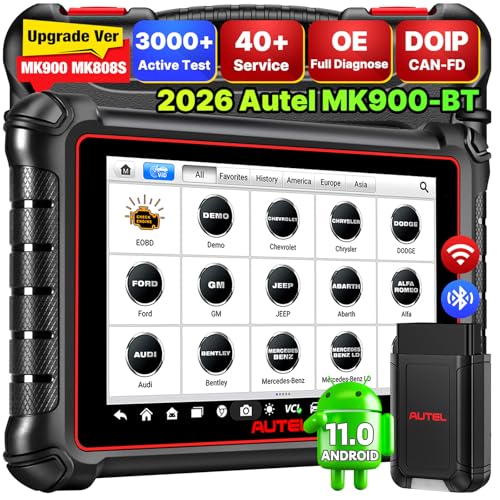
- 💯【Conta.ct us for Support Directly】If you met any...
- 🔥🔥🔥【2026 AUTEL FLAGSHIP MK900BT MK900-BT, NEW...
- 🚗【3000+ ACTIVE TESTS (50➡3000+), SAME AS MS...
- 🚗【40+ HOT SERVICES FOR 150 MAKES (28+➡40+)】Full...
- 🚗【OE ALL SYSTEM DIAGNOSE, AUTO SCAN 2.0: SCAN LICENSE...

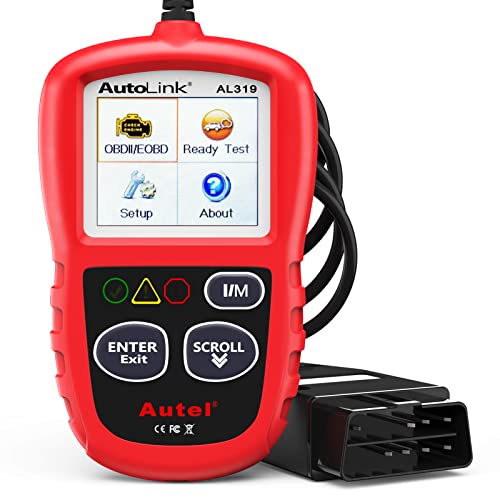
- 【TURN OFF CEL】 This AL319 car scanner diagnostic tool...
- 【EXTENSIVE APPLICATION】 Autel AL319 Compatible with...
- 【FOR END USER & DIYERS】 This error code reader AL319 is...
- 【USER-FRIENDLY DESIGN】 This OBD2 scanner and check...
- 【HIGH-QUALITY SERVICES】 12 months war.ranty from the...
If the PDF is very large, it may not load in the preview below.
Some older TSBs had multiple PDFs — visit the NHTSA Website to view all PDFs.
If the TSB PDF does not show, download or view it on the NHTSA Website.
Click on the (+) Plus Sign
Then Click on Associated Document(s)
Search NHTSA Database for Recalls
Search NHTSA Database for Vehicle Investigations
View Latest Vehicle Investigations
Search NHTSA Database for Vehicle Complaints
View Latest Vehicle Complaints
TSB/Document ID: 20NA211
Replacement Service Bulletin Number:
MFR Communication Date: 2020-10-19
MFR Internal Campaign ID/Software Version:
Communication Type: Service Bulletin/Repair Instructions
NHTSA Components: EQUIPMENT:OTHER:OWNERS/SERVICE/OTHER MANUAL
MFR Component System:
MFR Component Subsystem:
Previous TSB | Next TSB |

- [Notice] When you receive a used device, it may be a customer return resold by Amazon without inspection. You can exchange it for a new one through Amazon. As this situation is unavoidable, we sincerely apologize. For any issues, contacting us via Amazon's "Messages" is the best way. THINKSCAN 689BT Bidirectional Scan Tool Can Be Used Immediately After It is Turned On, Without Complicated Registration Process, Which is More Convenient & Quick.
- Full Bi-Directional Control & 3000+ Active Tests: Take control and test components like actuators, fuel injectors, relays, and cooling fans in real time. You’ll quickly see if the problem is in the part itself or the control module — saving you hours of guesswork and frustrating trial-and-error.
- Advanced ECU Coding Capabilities: Handle module matching and hidden feature activation with confidence. When you replace an ECU or want to customize settings, this obd2 scanner diagnostic bi directional tool gives you the professional-level capabilities you need without the dealership price tag.
- 34+ Useful Reset and Maintenance Functions: Complete everyday service tasks smoothly with a wide range of helpful reset and maintenance functions. Whether you’re keeping up with regular upkeep or tackling a specific job, this scanner makes maintenance simpler and less stressful for both DIYers and pros.
- Comprehensive Full System Diagnostics: Diagnose every major system — Engine, Transmission, ABS, SRS, TPMS, and more — all in one place. Finally stop wondering if you’re missing something important; get the full picture and clear codes with ease.

- Top Reasons to Choose the D7S OBD2 Scanner: XTOOL D7S car scan tool, an upgrade of XTOOL D7, offers comprehensive features for automotive technicians, workshops, and DIY enthusiasts 1. Upgraded Hardware: 2+64GB memory, rear camera, intuitive interface, foldable bracket 2. Complete Diagnostics: FCA
 Autoauth, OE-level all system scan, 39+ maintenance services, 4K+ bidirectional, CANFD/DoIP protocol 3. Advanced Capabilities: ECU c0ding, PMI functions 4. Wide Compatibility: Support 10,000+ models, covering 99% vehicle brands 5. Multi-language: Available in 22+ languages, No IP Restrictions 6. 3-Year Updates: Save 300 bucks on software updates for the latest features and optimizations
 - 2026 Upgraded D7S Car Scanner Features: The newly 2026 D7S V2.0 scanner for car brings exciting features for advanced vehicle diagnostics and enhanced user experience 1. FCA AutoAuth: Now supports FCA SGW module for Chrysler, for Jeep, for Dodge (2018+), for Fiat (2017+), enabling faster vehicle communication without gateway restrictions 2. PMI (Offline ECU Pr0gramming): Allows for Ford, for Lincoln, and for Mazda ECU pr0gramming for new modules 3. Optimized Diagnostic Report 2.0: Personalized reports with logos and customer info for auto shops. Note: Compatibility varies by cars, please check before order
- 39+ Services/Resets/Adaptations/Relearns/Calibrations: XTOOL D7S full system car scanner diagnostic tool tackles 99% of common car issues through its 36+ special functions, including Oil Reset, EPB, SAS, BMS, Throttle Reset, Injector C0ding, ABS Bleed, TPMS Reset, Power Balance, etc and also covers specific-vehicle functions like Crank Sensor Relearn, ABS Initialization, Cylinder Power Balance, Fuel Trim Reset, Idle Relearn etc. This car diagnostic scanner enhances efficiency, making repairs and maintenance hassle-free. Tip: DO NOT for All vehicles, please check compatibility first
- Cost-effective ECU C0ding Scan Tool for Specific Brands: Enhance your vehicle's performance with XTOOL D7S! This obd2 scanner all systems bidirectional offers advanced capabilities at an affordable price, supports online for BMW, for Benz and offline for BENZ, for MIT, along with PMI functions for Ford, for Mazda, and for Lincoln. Ideal for technicians and DIY enthusiasts, this automotive scanner diagnostic tool optimizes vehicle performance and enhances the driving experience. Note: Not for all cars and modules, please send car VIN to check the compatibility before purchase
- OE All System Diagnostic & 8 Pids Graphing: XTOOL D7S is a comprehensive all system bi directional obd2 scanner that delivers dealer-level diagnostics, completely controlling over your vehicle’s performance and health. This automotive scan tool can read and clear DTCs, view live data and ECU information, retrieve freeze frames, and perform active tests and full obd2 functions. This bi-directional scan tool can can identify your vehicle's make, model, and year information with just one click and show up to 8 PIDs live data with options for CSV viewing, playback, and recording for in-depth analysis. It is easy-to-use for both professionals and beginners, helping pinpoint issues efficiently

- 【✅Compared to BOSSCOMM IF742, IF745 Offers Full-System Diagnostics】The BOSSCOMM IF745 car diagnostic scanner is an upgraded model of IF742. In addition to supporting all OBD2 Code Reader functions and 6 reset options (ABS/EPB/SAS/BMS/Oil/Throttle), it expands diagnostics from 4 systems (Check Engine/ABS/SRS/Transmission) to vehicle All systems, including Steering, Suspension, and Body Electronics. This provides deeper, more comprehensive diagnostic capabilities.
- 【✨10 OBD2 Functions】The BOSSCOMM IF745 scan tool’s DTC Lookup instantly translates fault codes into user-friendly explanations, its I/M Readiness feature streamlines emissions testing with a single tap, and Freeze Frame lets you pinpoint the exact moment of a fault for in-depth root-cause diagnosis. Combined with a live data dashboard and advanced diagnostics (O2S, OBMon, EVAP), it delivers comprehensive insights for confident troubleshooting.
- 【✨Deep Diagnostics for All Vehicle System Modules】Beyond code reading/clearing and ECU information retrieval, our all-in-one data stream feature lets you inspect all current fault codes and their locations across the vehicle’s systems. This vehicle code reader helps you turn off dashboard warning lights and perform a comprehensive self-check of your car at home—no more back-and-forth trips to the repair shop or hefty inspection fees.
- 【✨6 Essential Resets: ABS Bleeding, Oil, EPB, SAS, Throttle, BMS】The BOSSCOMM IF745 obd2 scanner diagnostic tool swiftly purges air from brake lines to restore braking sensitivity, fine-tunes maintenance cycles to eliminate false alerts, resolves parking brake issues with one-click control, recalibrates steering sensors for stability, optimizes engine idling/acceleration for smoother performance, and deeply resets battery systems to extend lifespan and range via precise parameter adjustments.❗NOTE: Does NOT support bidirectional control, coding, or programming.
- 【✨10,000+ Car Models, AutoVIN, 13 Languages】The BOSSCOMM IF745 vehicle scanner diagnostic tool covers 73+ global car brands and offers support in 13 languages, making it perfect for DIYers, auto mechanics, or as a thoughtful gift. With a single-click AutoVIN feature, it instantly retrieves vehicle serial numbers, streamlining diagnostics for users globally. This adaptable tool balances user-friendliness with precision, catering to both personal and professional requirements.✅Unsure about compatibility? Compatibility will vary on vehicles' model and year, pls reach us via 📧 [email protected] 📧 before purchase.
This product presentation was made with AAWP plugin.