
NHTSA ID Number: 11025974
Manufacturer Communication Number: 24-NA-166
TSB/Document Date: 2025-12-02
Summary
This technical bulletin provides repair information to correct a customer concern of DTC C1171 C1172 C1173 C1174 Tire Pressure Monitor Sensor Unable to Relearn Ethernet Cable Overlay for TCP OnStar Module.
If the PDF is very large, it may not load in the preview below.
Some older TSBs had multiple PDFs — visit the NHTSA Website to view all PDFs.
If the TSB PDF does not show, download or view it on the NHTSA Website.
Click on the (+) Plus Sign
Then Click on Associated Document(s)

- 【Perfect Emergency Repair Solution】This kit includes...
- 【Premium Materials for Safe Repairs】Our tire screw plugs...
- 【2 Sizes for Every Puncture】Choose the right size for...
- 【5-Minute DIY Repair】Skip the auto shop and fix flats...
- 【Emergency-Ready Design】Compact & ready for...
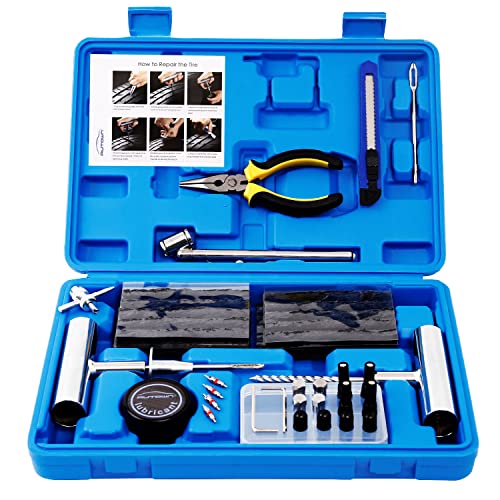
- [PROFESSIONAL QUALITY ] - AUTOWN Tire Repair Kits are made...
- [DURABLE & SAFE ] - The tire puncture repair set own great...
- [MULTIPLE USES ] - The AUTOWN 68 pcs tire repair heavy duty...
- [EASY TO USE ] - Our tire plug kits have everything you need...
- [QUICK ACTION] - We care about every customer's sense of...
This product presentation was made with AAWP plugin.
Search NHTSA Database for Recalls
Search NHTSA Database for Vehicle Investigations
View Latest Vehicle Investigations
Search NHTSA Database for Vehicle Complaints
View Latest Vehicle Complaints
TSB/Document ID: 24-NA-166
Replacement Service Bulletin Number:
MFR Communication Date: 2025-11-07
MFR Internal Campaign ID/Software Version:
Communication Type: Service Bulletin/Repair Instructions
NHTSA Components: ELECTRICAL SYSTEM
MFR Component System:
MFR Component Subsystem:
Previous TSB | Next TSB |
Bulletin No.: 24-NA-166
Service Bulletin
Date: November, 2025
TECHNICAL
Subject:
DTC C1171 C1172 C1173 C1174 Tire Pressure Monitor Sensor Unable to Relearn
Ethernet Cable Overlay for TCP OnStar Module
This Service Bulletin replaces PIT6188E. Please discard all versions of PIT6188.
Brand:
Model:
Model Year:
from
Enclave
2025
Build Date:
to
from
Engine:
to
2026
Traverse
2024
2026
Acadia
2024
2026
—
SOP
October 29,
2025
LK0
—
—
Involved Region or Country
North America, Middle East
Condition
Some customers may comment on a Tire Pressure lamp illuminated and/or message on
the dash. The dealer may also not be able to perform the tire pressure learn for one or
both front tires.
Note: If only the rear Tire Pressure Monitors are setting, then it is not related to this issue.
Technicians may find one or more of the following DTCs:
DTCs C1171, C1172, C11723, and/or C1174.
Important: This can cause fob-related issues when accompanied by one or more of the
DTCs listed above. If the customer is having intermittent fob issues and setting TPM codes, it is possible the new overlay in this procedure will resolve the fob concerns too.
Cause
The causes of the condition may be interference from the OnStar module due to an issue
grounding from the X7 connector on the Ethernet cable. This issue can also be
intermittent.
Correction
Replace Ethernet cable with overlay. Refer to the Service Procedure below.
Service Procedure
Important: Service agents must comply with all International , Federal, State, Provincial, and/or Local laws
applicable to the activities it performs under this bulletin, including but not limited to handling, deploying,
preparing, classifying, packaging, marking, labeling, and shipping dangerous goods. In the event of a
conflict between the procedures set forth in this bulletin and the laws that apply to your dealership, you
must follow those applicable laws.
Important: This technical service bulletin (TSB) can only be completed by certified repair facilities who have met all
specific training, tool and equipment requirements pertaining to the vehicle Brand and Model serviced. Repairs must
be performed by a technician who has successfully completed the required training.
1. Once confirmed the TPM sensors cannot be learned, gain access to the rear headlining trim panel. DO NOT
remove the headlining trim panel, only lower it to gain access. Refer to Headlining Trim Panel Replacement in
SI. Disconnect the X7 connector and attempt to learn the TPM sensors.
Copyright 2025 General Motors. All Rights Reserved.
Page 2
November, 2025
Bulletin No.: 24-NA-166
6720400
If the TPM sensors are able to learn, continue with Ethernet Cable replacement. Otherwise follow SI.
2. Transfer housing connectors.
3. Fold the 3rd row seats forward.
4. Remove the Rear Compartment Floor Stowage Compartment Divider. Refer to Rear Compartment Floor
Stowage Compartment Divider Replacement in SI.
5. Remove the Right-Hand Front Side Door Sill Garnish Molding. Refer to Front Side Door Sill Garnish Molding
Replacement in SI.
6. Remove the Right-Hand Rear Side Door Sill Garnish Molding. Refer to Rear Side Door Sill Garnish Molding
Replacement in SI.
7. Loosen the Center Pillar Lower Trim Panel from the vehicle. Refer to Center Pillar Lower Trim Panel
Replacement in SI.
Bulletin No.: 24-NA-166
November, 2025
Page 3
6699007
8. Fold and raise up the Right-Hand Rear seat. DO NOT REMOVE.
9. Remove the Right-Hand Quarter Upper and Lower Rear Trim Panel. Refer Quarter Lower Rear Trim Panel
Replacement (Right Side) in SI.
10. Loosen the Left-Hand Quarter Upper Trim Panel. Refer to Quarter Upper Trim Panel Replacement in SI.
Page 4
November, 2025
Bulletin No.: 24-NA-166
6709785
Bulletin No.: 24-NA-166
November, 2025
Page 5
6699008
11. Locate the X205 Ethernet Cable in the Right-Hand Front Passenger Compartment and disconnect.
Page 6
November, 2025
Bulletin No.: 24-NA-166
6699010
12. Locate the X7 Ethernet Cable at the Telematic Control Module and disconnect.
Bulletin No.: 24-NA-166
November, 2025
Page 7
6699012
Page 8
November, 2025
Bulletin No.: 24-NA-166
6699015
Caution: Use care to terminate the correct connector.
Note: The existing Ethernet cable is bundled with the body harness. The service ethernet cable will be routed next to
the body harness. The terminals must be removed from the existing ethernet cables to ensure they are not used in
future repairs.
13. Cut BOTH ends off the existing Ethernet Cable at X205 and X7 of the Telematic Control Module and wrap PVC
Electrical tape around both ends of the cable to prevent future use. The unused cable can remain bundled with
the body harness.
Important: Keep both ends and connectors. The housing will need to be transferred to the new cable.
14. Transfer both housings to the new cable. The new cable will come without the housings.
Bulletin No.: 24-NA-166
November, 2025
Page 9
6720419
15. Transferring the X205 housing.
15.1. Remove the rear clip by releasing both clips from the outer housing and remove it.
Important: Save this clip for the new cable.
6720403
Empty housing shell. Circle in red is the 1 release tab. Arrow shows the direction the tab needs to be
pressed to release the cable, moving it away from the middle.
Note: Very minimal pressure is needed.
Page 10
November, 2025
Bulletin No.: 24-NA-166
6720429
The X205 housing tab is very difficult to see with the cable installed.
6720432
Following the middle ridge to the back, this is where the housing locks onto the cable.
Bulletin No.: 24-NA-166
November, 2025
Page 11
6720428
6720401
The best way to get to the release tab is to follow the cable’s middle ridge to the back (do not ride the wall
of the housing or you will miss it, use the cable’s middle ridge to guide you). Using light pressure, press
away from the center towards the housing to release. Make sure to apply light pulling pressure to the
back of the cable so it can release while depressing the tab.
Note: Slide off the seal and save it for the new cable.
Page 12
November, 2025
Bulletin No.: 24-NA-166
6720420
16. Transferring the X205 housing.
Here is the empty housing shell. Circle in red is the 1 release tab. The arrow shows the direction the tab needs
to be pressed to release the cable. Moving it away from the middle.
Note: Very minimal pressure is needed.
6720422
The X7 housing tab is very difficult to see with the cable installed.
Bulletin No.: 24-NA-166
November, 2025
Page 13
6720426
Following the middle ridge to the back, this is where the housing locks onto the cable.
6720425
Page 14
November, 2025
Bulletin No.: 24-NA-166
6720417
The best way to get to the release tab is to follow the cable’s middle ridge to the back (do not ride the wall of the
housing or you will miss it, use the cable’s middle ridge to guide you.) Using light pressure, press away from the
center towards the housing to release. Make sure to apply light pulling pressure to the back of the cable so it
can release while depressing the tab.
6706059
17. Connect the Replacement Ethernet Cable the connector at X205.
Bulletin No.: 24-NA-166
November, 2025
Page 15
6706063
Page 16
November, 2025
Bulletin No.: 24-NA-166
6706066
Note: Replacement Ethernet Cable routing shown in Green.
Important: Use extreme care when handling the new service ethernet cables. Avoid kinks, sharp bends, pinch
points, and excessive wire tie tightness.
18. Begin to route the new Service cable starting at X205 and following the Body Wiring Harness running back
towards the Telematic Control Module. Use the diagrams above to reference cable routing.
Bulletin No.: 24-NA-166
November, 2025
Page 17
6706076
Page 18
November, 2025
Bulletin No.: 24-NA-166
6706090
19. Run the replacement Ethernet Cable through the body wiring harness clamshell and underneath the Front
Passenger Seat.
Bulletin No.: 24-NA-166
November, 2025
Page 19
6706097
Page 20
November, 2025
Bulletin No.: 24-NA-166
6706101
Bulletin No.: 24-NA-166
November, 2025
Page 21
6706111
20. Continue to route the replacement Ethernet Cable alongside the Body Wiring Harness in the rear passenger
compartment and up the C-Pillar.
Page 22
November, 2025
Bulletin No.: 24-NA-166
6706120
Bulletin No.: 24-NA-166
November, 2025
Page 23
6706125
21. Continue to route the replacement Ethernet Cable following the Body Wiring Harness through the Rear HVAC
area.
Page 24
November, 2025
Bulletin No.: 24-NA-166
6706129
Important: Ensure the replacement Ethernet Cable will have enough slack so that it is not pulling on the connector
at X7 of the Telematic Control Module. Failure to do so could damage the connector at the module.
22. Make a small loop to remove some of the excess cable and secure with a wire tie. Ensure to leave plenty of
slack so that the cable will not pull on the connector at X7 of the Telematic Control Module.
Bulletin No.: 24-NA-166
November, 2025
Page 25
6706144
Page 26
November, 2025
Bulletin No.: 24-NA-166
6706155
23. Follow the Body Wiring Harness up the rear of the vehicle and into the rear of the headlining.
Bulletin No.: 24-NA-166
November, 2025
Page 27
6706159
Note: If there is not an adequate amount of slack in the cable return to the loop made in Step 17 and gain extra
slack from the loop. Resecure the loop with a wire tie if necessary.
Important: Ensure the replacement cable has plenty of slack and is not pulling on the cable connector plug. Failure
to do so could damage the connector at the module.
24. Connect the replacement cable into X7 of the Telematic Control Module. Ensure that the cable has enough
slack left to not pull on the X7 connector.
Page 28
November, 2025
Bulletin No.: 24-NA-166
6706169
Important: Avoid excessive wire tie tightness on the replacement cable when securing to the Body Wiring Harness.
25. Add one wire tie around the old cable harness and the new replacement cable near the existing harness tie
down. This will aid in securing the connector into the X7 Terminal of the Telematic Control Module.
Important: Avoid excessive wire tie tightness on the replacement cable when securing on the Body Wiring Harness.
26. Secure the replacement cable to the Body Wiring Harness with wire ties. Ensure the replacement cable does
not move/rattle.
27. Reinstall the Headliner as necessary. Refer to Headlining Trim Panel Replacement in SI.
28. Reinstall the Left-Hand Quarter Upper Trim Panel. Refer to Quarter Upper Trim Panel Replacement in SI.
29. Reinstall the Right-Hand Quarter Upper and Lower Trim Panel. Refer to Quarter lower Rear Trim Panel
Replacement (Right Side) in SI.
30. Reposition the Right-Hand Rear Seat as necessary.
31. Reinstall the Right-Hand Center Pillar Upper and Lower Trim Panel. Refer to Center Pillar Lower Trim Panel
Replacement in SI.
32. Reinstall the Right-Hand Rear Side Door Sill Garnish Molding. Refer to Rear Side Door Sill Garnish Molding
Replacement in SI.
33. Reinstall the Right-Hand Front Side Door Sill Garnish Molding. Refer to Front Side Door Sill Garnish Molding
Replacement in SI.
34. Reinstall the Rear Compartment Floor Stowage Compartment Divider. Refer to Rear Compartment Floor
Stowage Compartment Divider Replacement in SI.
35. Fold the 3rd row seat back as necessary.
Bulletin No.: 24-NA-166
November, 2025
Page 29
Parts Information
Causal
Part
Description
X
Cable, Body
Wiring Harness
Modular Pair
Part
Number
Qty
26501515
1
Warranty Information
For vehicles repaired under the Bumper-to-Bumper coverage (Canada Base Warranty coverage), use the following
labor operation. Reference the Applicable Warranties section of Investigate Vehicle History (IVH) for coverage information.
Labor Operation
Description
Labor Time
2086678*
Ethernet Cable Overlay X7
2.4 Hrs.
*This is a unique Labor Operation for bulletin use only.
Version
7
Modified
Released September 05, 2024
Revised October 10, 2024 – Removed the GMC Canyon, Hummer EV and Savana,
added breakpoint and Middle East.
Revised October 25, 2024 – Added note to Condition Section.
Revised January 13, 2025 – Added the 2025 Model Year.
Revised May 01, 2025 – Updated the Concern section.
Revised October 21, 2025 – Added the 2026 Model Year to all vehicles.
Revised November 07, 2025 – Added a build date for vehicles.
GM bulletins are intended for use by professional technicians, NOT a "do-it-yourselfer". They are written to inform these
technicians of conditions that may occur on some vehicles, or to provide information that could assist in the proper
service of a vehicle. Properly trained technicians have the equipment, tools, safety instructions, and know-how to do a job
properly and safely. If a condition is described, DO NOT assume that the bulletin applies to your vehicle, or that your
vehicle will have that condition. See your GM dealer for information on whether your vehicle may benefit from the
information.
WE SUPPORT VOLUNTARY
TECHNICIAN
CERTIFICATION

- [2026 Top-Tier Hardware and Software Upgrade]: Topdon ArtiDiag900 Lite scanner has enhanced hardware and latest features, including Android 11.0, 5x faster CPU, 10000mAh battery for 12 hours of continuous operation, stable wireless diagnosis with Bluetooth 5.0, 8-inch touchscreen. Added bi-directional control, wireless diagnosis, battery testing (optional), and DTC repair guide
- [TOPDON Bidirectional Scan Tool]: This bidirectional obd2 scanner sends commands to the vehicle's ECU for active testing, enabling users to accurately and quickly locate faulty components such as injectors, coolant pumps, windows, wipers, headlights, mirrors, etc. The bidirectional control scanner is the ideal choice for workshops/automotive repair shops as it significantly reduces mechanic's diagnostic time.
- [Wireless Bluetooth Diagnostic Experience]: The AD900 Lite scan tool comes with a Bluetooth 5.0 VCI, supporting a wireless diagnostic range of up to 33 feet (10 meters), allowing you to diagnose without being confined to cables or tight spaces. Stable and fast wireless diagnosis provides a comfortable repair environment. It also offers VCI cables to increase connectivity options.
- [DTC Repair Guide Function]: Easily diagnose issues with your vehicle and receive guidance on repairs with the topdon scan tool's fault code definitions for all systems,maximize your diagnostic capabilities. This function is compatible with Chrysler
 /Dodge/Jeep/Fiat 2010-2014 and expanding with continual updates,the AritDiag 900 Lite car diagnostic scanner is the must-have tool for any technician or DIY enthusiast.
 - [OE-Level Full System Diagnostics]:AritDiag900 Lite full system diagnostic scanner can scan ALL available modules(Engine, Transmission, Airbag, ABS, ESP, TPMS, Gateway, Steering, Radio, Air conditioning, ect.) to✔read ECU info, ✔read/clear codes, ✔view live data stream, ✔retrieves freeze-frame, ✔perform active tests, and more. With just a simple click, it provides you with accurate and in-depth diagnostics.
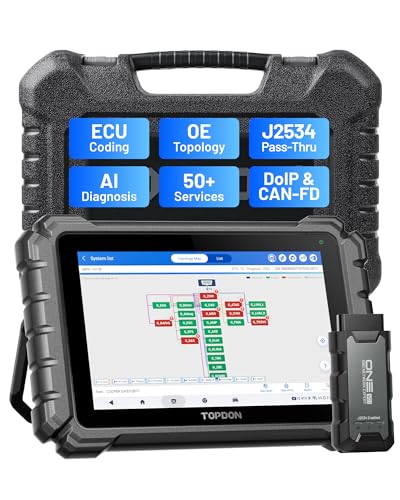
- Dual WiFi & 10.1" Touchscreen: Provides a stable, high-speed wireless link 3x faster than bluetooth, and a responsive, professional interface. Topdon ONE obd2 scanner diagnostic tool ensures smooth, non-lagging diagnostic scan, boosting mechanic efficiency
- J2534 Pass-Thru Support: The included ONE VCI supports the J2534 standard, allowing it to function as a pass-thru device when paired with OEM diagnostic software.Through TOPDON’s RLink platform, technicians can perform dealer-level coding, expanding in-house capabilities without investing in multiple factory automotive scan tools
- OE Topology Mapping: Visualize the vehicle’s ECU network exactly as it’s built.Zoom, pan, and highlight specific modules to pinpoint component issues with precision.Topology mapping displays real-time communication between modules
- Topfix AI Assistant: Covers 5 million plus fault codes and delivers instant causes, symptoms, and repair guidance with professional wiring diagrams for each code.Slashes diagnostic time, boosts first-time fix accuracy, and increases shop revenue
- 50 Plus Service Functions: Covers high-demand services like ADAS calibration, DPF regen, TPMS reset, ABS bleed, and throttle adaptation.Expands your service menu, allows you to charge premium rates, and turns away zero jobs due to lack of tooling. Vehicle-specific functionality may vary.

- Bi-Directional Control, Quickly Locate Problems: Turn your phone into a professional diagnostic tool. You can send commands from your phone to the ECU to test injectors, cooling fans, headlights, A/C clutch, windows, wipers, and more. See which one doesn't respond. Helps you quickly locate the problem and save time. No need to tear things apart, avoid blind disassembly.
- Full System Diagnostics, No Fault Hides: Unlike basic diagnostic tools that only cover 4 systems, TopScan can scan all systems. Read and clear trouble codes, view live data streams, and generate a complete vehicle health report – all issues are clear at a glance. Covers 10,000+ vehicle models and is compatible with 99.99% of vehicles.
- Flexible Subscription, Choose Advanced Features as Needed: TopScan Lite provides free-for-life access to core diagnostics, including full system scan, code reading, performance tests, and repair information. After purchase, advanced features (bi-directional control, service operations, live data, code clearing, and AI functions) are free-for-the-first-year. After the first year, if you want to use advanced features, you need to subscribe on a monthly, quarterly, or yearly basis. As new models and reset functions are updated, the tool will also be continuously upgraded.
- AI Assistant - TopFix: Think of TopFix as your personal AI mechanic. It leverages a repair database and OEM data to deliver clear, step-by-step repair solutions. Features include AI Q&A, one-click translation, and a full repair log, making your diagnostic process simpler and more efficient.
- 8+ Hot Resets, Keep Your Car in Top Shape: One-tap resets for oil, throttle, EPB, steering angle, DPF, ABS, BMS, and airbag. It enables car owners to easily perform essential maintenance, ensuring the vehicle stays in optimal condition and extends its service life.
This product presentation was made with AAWP plugin.
Last update on 2026-05-11 / Affiliate links / Images from Amazon Product Advertising API