
NHTSA ID Number: 11011550
Manufacturer Communication Number: SD-61-4963
TSB/Document Date: 2024-12-06
Summary
Bendix Wingman Fusion FLR-21 Radar Sensor Service Data, troubleshooting and diagnostics guide.
(FDA), or Impact Alert (IA)
warning (continuous tone) will
sound and a visual message/
icon typically appears on the
dash screen or DIU display.
A pedestrian, deer, or dog runs in
front of the truck.
None.
Another vehicle crosses the road
perpendicular to the vehicle's
path of travel – such as at an
intersection.
None.
None.
The driver must respond as needed.
None.
The driver must respond as needed.
If a collision is likely to occur, the
collision mitigation feature will apply the
vehicle’s brakes.
None.
The driver must respond as needed.
None.
The driver must respond as needed.
Call the Bendix Tech Team at 1‑800‑AIR‑BRAKE (1‑800‑247-2725), option 2, for troubleshooting assistance.
Table K1 – Part 1 - Operational Scenarios with the Bendix Wingman Fusion System
68
Appendix K
Part 1: All Driving Scenarios (Cruise Control is either “on” or “off”)
What to Expect
Situation
Typical System Indication/Alerts
Typical System Actions/Cautions
Lane Departure System Active (Lane detection icons being displayed)
The vehicle signals a lanechange and crosses a
lane-marking.
None.
Traveling below 37 mph / 59 kph,
the vehicle crosses a lane-marker
(without the corresponding turn
signal activated).
None.
Traveling above 37 mph / 59 kph,
the vehicle crosses a lane-marker
(without the corresponding turn
signal activated).
None.
None.
The driver must respond as needed.
None.
A “rumble strip” audible/
vibration/visual alert is initiated.
The driver must respond as needed.
(The driver must use the turn signal
when changing lanes and/or keep the
vehicle within the lane markings.)
Overspeed Alert & Action (OAA)
International travel: When changing between regions which post speeds in miles and those which post in kilometers,
the speed limit sign recognition feature will not function until the correct U.S./Metric selection has been made.
The vehicle passes a U.S. or
Canadian speed limit sign.
The DIU will display the posted
speed limit.
The vehicle exceeds the posted
speed limit by 5 to 9 mph
(8 to 14 kph).
An overspeed alert will be issued
and the posted speed limit will be
visually presented to the driver.
The vehicle exceeds the posted
speed limit by more than
10 mph / 16 kph.
An audible overspeed alert and
the posted speed limit will be
visually presented to the driver,
to signal that the vehicle should
slow down.
None.
None.
The driver must respond as needed.
If cruise control is NOT ON: A onesecond de‑throttle of the engine will occur.
The driver must respond as needed.
Call the Bendix Tech Team at 1‑800‑AIR‑BRAKE (1‑800‑247-2725), option 2, for troubleshooting assistance.
Table K1 – Part 1 - Operational Scenarios with the Bendix Wingman Fusion System
NOTE: The system indicators/alerts above are typical, but may vary from the descriptions shown here by vehicle
manufacturer, or earlier versions of the Fusion system.
NOTE: These are examples of situations and typical Wingman Fusion system responses. However,
this chart does not attempt to cover all possible situations.
Due to the inherent limitations of radar and camera technology, the enhanced Collision
Mitigation Technology – on rare occasions – may not detect moving vehicles or stationary vehicles
in the vehicle’s lane of travel. Alerts, warnings, or brake interventions may not occur.
Due to the inherent limitations of radar and camera technology, the enhanced Collision
Mitigation Technology – on rare occasions – may react to moving vehicles not in the vehicle’s lane
of travel. Alerts, warnings, or brake interventions may occur.
Appendix K
69
What to Expect (K1.8)
Part 2: Cruise Control “on” and speed “set”
Situation
Typical System Indication/Alerts
Typical System Actions/Cautions
Interactions with forward vehicles in the same lane of travel
With no detected forward
vehicle.
None.
The vehicle maintains the set speed.
With a detected forward vehicle.
The cruise control ON indicator is
illuminated and the detected forward
vehicle icon is illuminated.
The active cruise control with braking
feature will maintain the set speed and
following distance.
The detected forward vehicle
slows moderately.
The Following Distance Alert (FDA)
will sound and a visual message/icon
typically appears on the dash screen
or Bendix™ Driver Interface Unit (DIU™)
display.
The driver must respond as needed.
If the system intervenes, the vehicle
throttle will be reduced; the engine
retarder engaged; and the foundation
brakes applied, in that order.
*NOTE: When the foundation brakes
are applied, cruise control is cancelled.
The detected forward vehicle
slows rapidly.
The Impact Alert (IA) warning
(continuous tone) will sound and a
visual message/icon typically appears
on the dash screen or DIU display. The
FDA may also be heard.
The driver must respond as needed.
If the system intervenes, the vehicle
throttle will be reduced; the engine
retarder engaged; and the foundation
brakes applied, in that order.
*NOTE: When the foundation brakes
are applied, cruise control is cancelled.
The detected forward vehicle
cuts in front of the vehicle but
then speeds away.
Following Distance Alerts may be given
to the driver, depending on the exact
system configuration set for the vehicle,
and how close the vehicle cuts in front.
Vehicle maintains set speed.
The driver must respond as
needed.
Downhill grades
Going down a grade with a
detected forward vehicle.
DO NOT USE cruise control on
downhill grades.
DO NOT USE cruise control on
downhill grades.
Cruise control should NOT be
used on downhill grades - refer
to page 78.
(Refer to the CDL manual instructions on proper gear usage for downhill grades.)
Table K1 – Part 2 - Operational Scenarios with the Bendix® Wingman® Fusion™ System
NOTE: The system indicators/alerts above are typical, but may vary from the descriptions shown here by vehicle
manufacturer, or earlier versions of the Fusion system.
*It is possible that some Wingman Fusion applications allow the cruise control to automatically resume after
the Wingman Fusion system applies the foundation brakes during adaptive cruise. The driver is able to override
the auto resume feature by manually activating the brake pedal.
Call the Bendix Tech Team at 1‑800‑AIR‑BRAKE (1‑800‑247-2725), option 2, for troubleshooting assistance.
70
Appendix K
K1.9 HOW A DRIVER INTERACTS WITH THE BENDIX® WINGMAN® FUSION™ SYSTEM
Table K2 illustrates how the Bendix® Wingman® Fusion™ system will respond to various actions a driver may take when
using the Fusion system on the road.
The driver is always responsible for the control and safe operation of the vehicle at all times. The Bendix
Wingman Fusion system does not replace the need for a skilled, alert professional driver, reacting appropriately
and in a timely manner, and using safe driving practices.
How a Driver Interacts with the Bendix Wingman Fusion System (1.4)
If the driver does this:
Expect the Wingman Fusion system to do this:
Steps on the brake. (During a collision
mitigation event.)
The driver is always in control and is able to apply full braking power.
Steps aggressively on the accelerator.
(During a collision mitigation event.)
The driver is always in control. His/her actions override any Fusion
system actions. Note: If cruise control is engaged, it will be overridden
until the accelerator is released; then cruise control will resume the
original set speed automatically.
Steps on the brake. (When in cruise.)
Cruise control will be cancelled.
Steps on the accelerator.
(When in cruise.)
Cruise control will be overridden until the accelerator is released; then
cruise control will resume the original set speed automatically.
Switches on the cruise control.
Nothing. The active cruise control with braking feature will not engage
until the driver sets the cruise control speed.
Switches off the cruise control.
The active cruise control with braking feature will turn off; the collision
mitigation feature remains active and ready to intervene. The driver will
continue to hear all alerts as needed.
Sets the cruise control speed.
The active cruise control with braking feature is automatically activated.
The vehicle maintains a set speed and following distance behind the
vehicle ahead.
Covers or blocks the radar.
The Bendix Wingman Fusion system performance will be diminished or
even disabled when the radar is blocked. An audible and/or visual alert
will notify the driver of this condition. The driver should remove the radar
blockage and the Wingman system performance will return to normal.
Uses normal cruise control “+/-” switch.
Vehicle speed increased (+) or reduced (-) to achieve the new set speed
while actively maintaining following distance with the vehicle ahead, if one
is present within 500 feet (152 m).
Presses the Lane Departure Warning
(LDW) enable/disable switch.
The LDW system alerts will be suppressed for 15 minutes.
Call the Bendix Tech Team at 1‑800‑AIR‑BRAKE (1‑800‑247-2725), option 2, for troubleshooting assistance.
Table K2 – How a Driver Interacts with the Bendix Wingman Fusion System
NOTE: The system responses above are typical, but may vary from the descriptions shown here by vehicle
manufacturer, or earlier versions of the Fusion system. These are examples of driver actions and typical Wingman
Fusion system responses, however, this chart does not attempt to cover all possible situations.
Appendix K
71
THE FORWARD VEHICLE DETECTED ICON
When cruise control is switched on and set, and a vehicle
ahead is detected by the radar, the detected forward vehicle
icon – or similar – will illuminate on the vehicle dashboard.
This is an indication to the driver that the Bendix Wingman®
Fusion™ system is actively managing the distance between
the driver and the forward vehicle, and may intervene
automatically, if needed.
K1.11 LANE DEPARTURE WARNING
DIU STATUS SCREEN ICONS
See Figure K11. In the case of vehicles that use a Bendix™
Driver Interface Unit (DIU™), the top right corner of the
display is used to show an icon. For other OEM displays,
refer to the vehicle manual to find the method used to show
the system status.
During Start-Up – System Busy
See Figure K10 for examples.
The first symbol shows when the LDW
system is initializing.
Normal Operation
The LDW system is actively seeking
lane-markings.
ADJUSTING THE CRUISE CONTROL SPEED
This symbol appears when the LDW
system is actively tracking lanemarkings on both sides of the current
lane.
The vehicles' cruise control speed can be set using the
switch(es) provided by the vehicle manufacturer. When
adjusted, the set speed will typically be indicated on the
vehicle dash, message center, or speedometer.
This symbol indicates that the system
is currently tracking lane-markings on
the left only.
Figure K10 - Forward Vehicle Detected Icons
K1.10 FOLLOWING DISTANCE
Following distance refers to the time gap, measured in
seconds, between the driver and the vehicle ahead. The
actual physical distance between the two will vary based
on the speeds of both vehicles; however, the set gap will
remain the same for all set cruise speeds.
FOLLOWING DISTANCE
ADJUSTMENT SWITCH
This Wingman Fusion system feature has an option
that allows the driver to adjust the following-distance
or time‑gap. Feature availability is determined by the
vehicle manufacturer. The switch has an increase or
decrease function. Pressing increase (+) will provide a
larger following distance, measured in seconds. Pressing
decrease (-) will provide a shorter following distance.
This symbol indicates that the system
is currently tracking lane-markings on
the right only.
Figure K11 - Normal Bendix DIU Screens Showing LDW
System Status
If none of the LDW status icons shown in Figure K11 appear
on the DIU screen – and the driver has not pressed the
LDW disable switch (refer to Section 2.3) – this indicates
that the system using the Bendix™ AutoVue® FLC-20™
camera has detected a DTC and the system should be
serviced at the earliest opportunity. See Figure K12.
DTC Set
If no LDW status symbol is shown
– and the driver has not applied the
LDW disable switch – this indicates
that the system has detected a DTC.
Figure K12 – Bendix DIU Screen Showing LDW System Status
In these cases, the OE vehicle dash display will also alert
the operator that there is a DTC present.
72
Appendix K
K1.12 BENDIX® WINGMAN® FUSION™
SYSTEM COLLISION MITIGATION
FEATURE OPERATION
IMPACT ALERT (IA)/
COLLISION MITIGATION BRAKING (CMB)
Whenever the vehicle is traveling above 15 mph / 24 kph,
the Bendix® Wingman® Fusion™ system collision mitigation
feature is ready to intervene, if needed. It does not
require cruise control to be set. The collision mitigation
feature of the Wingman Fusion system will alert the driver
automatically, and apply the vehicle’s brakes if a collision
with the detected forward vehicle is likely to occur. The
driver must immediately act to potentially avoid, or lessen
the severity of, a collision.
Collision mitigation is ready to intervene as long as no DTCs
are active in either the brake system, the Fusion system,
or any other contributing vehicle system.
AUTOMATIC FOUNDATION
BRAKE APPLICATIONS
The vehicle automatically manages foundation braking
priorities among the various vehicle systems that use the
foundation brakes, such as the Bendix Wingman Fusion
system, Bendix® ESP® (Electronic Stability Program),
Bendix® ATC (Automatic Traction Control), and Bendix®
ABS (Antilock Braking System).
K1.13 ALERTS AND WARNINGS
The Impact Alert (IA)/Collision Mitigation Braking
(CMB) is the most severe warning issued by the
Bendix Wingman Fusion system. This alert indicates
that a collision with the detected forward vehicle
is likely and the driver must immediately act to
potentially mitigate, or lessen the severity of, a
collision.
The IA/CMB is ready to alert the driver whenever the
vehicle is moving above 15 mph / 24 kph.
When activated, the IA/CMB will sound and a visual
message/icon typically appears on the dash screen or
Bendix™ Driver Interface Unit (DIU™) display. The actual
sound/display method varies by vehicle manufacturer.
NOTE: The IA/CMB is typically accompanied by automatic
brake interventions. The Fusion system will apply the
vehicle’s brakes. The driver must apply additional braking,
when necessary, to maintain a safe distance from the
vehicle ahead.
See Figure K13 for an example of an Impact Alert Icon.
The Fusion system operates differently compared to
other cruise control/forward collision warning systems. It
is important that the driver fully understands the system’s
features, especially the alerts and warnings.
Three important warnings provided by the Bendix Wingman
Fusion system are the Following Distance Alert (FDA),
Impact Alert (IA), and Stationary Object Alert (SOA). The
driver will be alerted by any of the three warnings, whether
or not the cruise control is activated.
Refer to Appendix B, Sections 3.0–5.0, for more information
about how DIUs communicate alerts.
Figure K13 – Example of Impact Alert Icon
All Red LEDs Illuminated
Any audible and/or visual alert by the system
means that the vehicle is too close to the vehicle
or object ahead, and the driver must immediately
act to potentially avoid, or lessen the severity of, a
collision.
ACB REQUIRES
DRIVER INTERVENTION
Figure K14 – Impact Alert Text and Light
Pattern as Seen on the Bendix DIU
Appendix K
73
FOLLOWING DISTANCE ALERT (FDA)
Object Detected
The FDA is ready to alert
the driver whenever the
time between the vehicle
and the detected forward
vehicle is less than oneand-a-half (1.5) seconds*
and decreasing. Once the
audible alert is given, the
driver should increase the
distance between his/her
vehicle and the vehicle
ahead until the audible
alert stops.
Object Detected
STATIONARY OBJECT ALERT (SOA)
Stationary Object Alert (SOA) – The Bendix® Wingman®
Fusion™ system will give up to a three (3) second
alert to the driver when approaching a detected,
sizable, metallic (radar-reflective), stationary object
in the same lane of travel. This alert indicates that
a collision with a stationary object is likely and the
driver must immediately act to potentially avoid, or
lessen the severity of, a collision.
Object Detected
The FDA is ready to alert
the driver whenever the
vehicle is moving above
5 mph / 8 kph.
Driver Interface Unit
(DIU™) Showing
Examples of Following
Distance Alerts with
Progressively Faster
If the following distance Audible Alerts.
continues to decrease, the
driver will hear more rapid
audible alerts. When the
FDA reaches its highest
level, typically a red LED
also illuminates on the
instrument cluster. The
FDA may be accompanied
by a visual alert.
The SOA is ready to alert the driver whenever the vehicle
is moving above 10 mph / 16 kph. The driver should be
especially careful when approaching certain types of
vehicles or objects. The Fusion system radar may not be
able to detect objects with limited metal surfaces (such as
recreational vehicles, horse-drawn buggies, motorcycles,
logging trailers, etc.). NOTE: Entering a curve may reduce
the alert time to less than three (3) seconds.
Object Detected
Object
Figure K16 – Stationary Object Alert Displayed
*ONE-AND-A-HALF
(1.5) SECONDS
IS THE SYSTEM
DEFAULT AND
MAY VARY BY
FLEET/OEM.
Above: Examples of other vehicle
manufacturer’s displays.
Figure K15 – Following Distance Alert
74
Appendix K
STATIONARY VEHICLE BRAKING (SVB)
BRAKE OVERUSE ALERT
Stationary Vehicle Braking (SVB) – When a large,
stationary, metallic object in a vehicle’s lane of
travel is definitively identified as a vehicle, the driver
is notified up to 3.5 seconds before impact. If the
driver does not take action to address the potential
impact that caused the alert, the Bendix® Wingman®
Fusion™ system can automatically engage the brakes
to assist the driver in reducing the severity of or
potentially avoiding a collision with that stationary
vehicle. If the system cannot definitively identify
the stationary object as a vehicle — for example, if
the vehicle is not a licensed motorized vehicle, or
certain types of trailers — the driver will get up to
3.0 seconds of alert to address the situation ahead,
but no automatic braking will be applied. Stationary
Vehicle Braking is most useful when approaching a
line of stopped traffic or a stalled vehicle that is not
immediately recognized by the driver.
The SVB is ready to alert the driver whenever the vehicle
is moving above 15 mph / 24 kph. The driver should be
especially careful when approaching certain types of
vehicles or objects. The Fusion system radar may not be
able to detect vehicles with limited metal surfaces (such as
recreational vehicles, horse-drawn buggies, motorcycles,
logging trailers, etc.). NOTE: Entering a curve may reduce
the alert time.
The Bendix Wingman Fusion system provides a
warning when the system is intervening and using
the foundation brakes excessively. Overuse of the
foundation brakes can lead to the brakes overheating
and a potential loss of braking performance caused
by brake fade. Using cruise control on downhill runs will
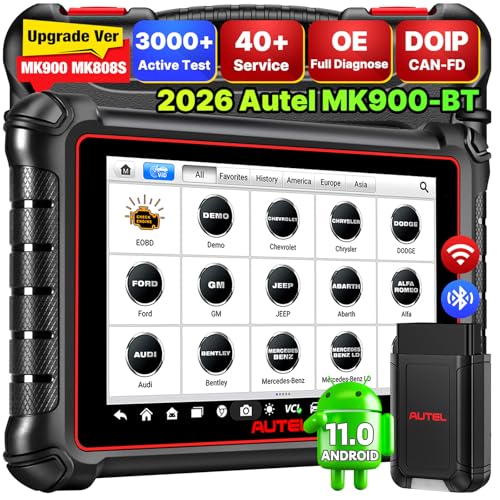
- 💯【Conta.ct us for Support Directly】If you met any...
- 🔥🔥🔥【2026 AUTEL FLAGSHIP MK900BT MK900-BT, NEW...
- 🚗【3000+ ACTIVE TESTS (50➡3000+), SAME AS MS...
- 🚗【40+ HOT SERVICES FOR 150 MAKES (28+➡40+)】Full...
- 🚗【OE ALL SYSTEM DIAGNOSE, AUTO SCAN 2.0: SCAN LICENSE...

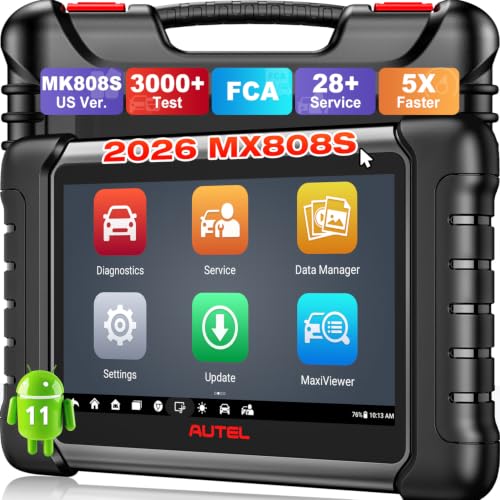
- 📌【We are Here for You】Dear valued customer, please be...
- 🚀【5X Faster Next-Level Hardware, Same as MK900/ MX...
- 🔥【3000+ Active Tests = MK900/MK900BT but...
- 📢【2026 U.S. Version, All-in-One as MK808S/ MK808Z...
- 🔥【28+ Hot Services for 150+ Brands】Same as MaxiCOM...
If the PDF is very large, it may not load in the preview below.
Some older TSBs had multiple PDFs — visit the NHTSA Website to view all PDFs.
If the TSB PDF does not show, download or view it on the NHTSA Website.
Click on the (+) Plus Sign
Then Click on Associated Document(s)
Search NHTSA Database for Recalls
Search NHTSA Database for Vehicle Investigations
View Latest Vehicle Investigations
Search NHTSA Database for Vehicle Complaints
View Latest Vehicle Complaints
TSB/Document ID: SD-61-4963
Replacement Service Bulletin Number:
MFR Communication Date: 2024-12-06
MFR Internal Campaign ID/Software Version:
Communication Type: Service Bulletin/Repair Instructions
NHTSA Components: FORWARD COLLISION AVOIDANCE: AUTOMATIC EMERGENCY BRAKING
MFR Component System:
MFR Component Subsystem:
Previous TSB | Next TSB |

- [Notice] When you receive a used device, it may be a customer return resold by Amazon without inspection. You can exchange it for a new one through Amazon. As this situation is unavoidable, we sincerely apologize. For any issues, contacting us via Amazon's "Messages" is the best way. THINKSCAN 689BT Bidirectional Scan Tool Can Be Used Immediately After It is Turned On, Without Complicated Registration Process, Which is More Convenient & Quick.
- Full Bi-Directional Control & 3000+ Active Tests: Take control and test components like actuators, fuel injectors, relays, and cooling fans in real time. You’ll quickly see if the problem is in the part itself or the control module — saving you hours of guesswork and frustrating trial-and-error.
- Advanced ECU Coding Capabilities: Handle module matching and hidden feature activation with confidence. When you replace an ECU or want to customize settings, this obd2 scanner diagnostic bi directional tool gives you the professional-level capabilities you need without the dealership price tag.
- 34+ Useful Reset and Maintenance Functions: Complete everyday service tasks smoothly with a wide range of helpful reset and maintenance functions. Whether you’re keeping up with regular upkeep or tackling a specific job, this scanner makes maintenance simpler and less stressful for both DIYers and pros.
- Comprehensive Full System Diagnostics: Diagnose every major system — Engine, Transmission
 , ABS, SRS, TPMS, and more — all in one place. Finally stop wondering if you’re missing something important; get the full picture and clear codes with ease.

- Top Reasons to Choose the D7S OBD2 Scanner: XTOOL D7S car scan tool, an upgrade of XTOOL D7, offers comprehensive features for automotive technicians, workshops, and DIY enthusiasts 1. Upgraded Hardware: 2+64GB memory, rear camera, intuitive interface, foldable bracket 2. Complete Diagnostics: FCA Autoauth, OE-level all system scan, 39+ maintenance services, 4K+ bidirectional, CANFD/DoIP protocol 3. Advanced Capabilities: ECU coding, PMI functions 4. Wide Compatibility: Support 10,000+ models, covering 99% vehicle brands 5. Multi-language: Available in 22+ languages, No IP Restrictions 6. 3-Year Updates: Save 300 bucks on software updates for the latest features and optimizations
- 2026 Upgraded D7S Car Scanner Features: The newly 2026 D7S V2.0 scanner for car brings exciting features for advanced vehicle diagnostics and enhanced user experience 1. FCA AutoAuth: Now supports FCA SGW module for Chrysler, for Jeep, for Dodge (2018+), for Fiat (2017+), enabling faster vehicle communication without gateway restrictions 2. PMI (Offline ECU Programming): Allows for Ford, for Lincoln, and for Mazda ECU programming for new modules 3. Optimized Diagnostic Report 2.0: Personalized reports with logos and customer info for auto shops. Note: Compatibility varies by cars, please check before order
- Cost-effective ECU Coding Scan Tool for Specific Brands: Enhance your vehicle's performance with XTOOL D7S! This obd2 scanner all systems bidirectional offers advanced capabilities at an affordable price, supports online for BMW, for Benz and offline for BENZ, for MIT, along with PMI functions for Ford, for Mazda, and for Lincoln. Ideal for technicians and DIY enthusiasts, this automotive scanner diagnostic tool optimizes vehicle performance and enhances the driving experience. Note: Not for all cars and modules, please send car VIN to check the compatibility before purchase
- OE All System Diagnostic & 8 Pids Graphing: XTOOL D7S is a comprehensive all system bi directional obd2 scanner that delivers dealer-level diagnostics, completely controlling over your vehicle’s performance and health. This automotive scan tool can read and clear DTCs, view live data and ECU information, retrieve freeze frames, and perform active tests and full obd2 functions. This bi-directional scan tool can can identify your vehicle's make, model, and year information with just one click and show up to 8 PIDs live data with options for CSV viewing, playback, and recording for in-depth analysis. It is easy-to-use for both professionals and beginners, helping pinpoint issues efficiently
- 3 Years Software Update, Value for Money: With 3 years of software updates and 22+ languages(no IP restrictions), XTOOL D7S auto scanner code scanner ensures ongoing compatibility for the latest car models and improved diagnostic functions. This all system vehicle diagnostic scanner comes with a 30-day return policy and a 24-month repair for dependable performance. XTOOL are dedicated to your satisfaction, so enjoy seamless support and lifetime expert assistance. Should you encounter any issues or concerns, don’t hesitate to reach out XTOOL. D7S with newest update with 22 languages freely transfer without authorization, check details from setting-language or from XTOOL

- 【✅Compared to BOSSCOMM IF742, IF745 Offers Full-System Diagnostics】The BOSSCOMM IF745 car diagnostic scanner is an upgraded model of IF742. In addition to supporting all OBD2 Code Reader functions and 6 reset options (ABS/EPB/SAS/BMS/Oil/Throttle), it expands diagnostics from 4 systems (Check Engine/ABS/SRS/Transmission) to vehicle All systems, including Steering, Suspension, and Body Electronics. This provides deeper, more comprehensive diagnostic capabilities.
- 【✨6 Essential Resets: ABS Bleeding, Oil, EPB, SAS, Throttle, BMS】The BOSSCOMM IF745 obd2 scanner diagnostic tool swiftly purges air from brake lines to restore braking sensitivity, fine-tunes maintenance cycles to eliminate false alerts, resolves parking brake issues with one-click control, recalibrates steering sensors for stability, optimizes engine idling/acceleration for smoother performance, and deeply resets battery systems to extend lifespan and range via precise parameter adjustments.❗NOTE: Does NOT support bidirectional control, coding, or programming.
- 【✨Deep Diagnostics for All Vehicle System Modules】Beyond code reading/clearing and ECU information retrieval, our all-in-one data stream feature lets you inspect all current fault codes and their locations across the vehicle’s systems. This vehicle code reader helps you turn off dashboard warning lights and perform a comprehensive self-check of your car at home—no more back-and-forth trips to the repair shop or hefty inspection fees.
- 【✨10 OBD2 Functions】The BOSSCOMM IF745 scan tool’s DTC Lookup instantly translates fault codes into user-friendly explanations, its I/M Readiness feature streamlines emissions testing with a single tap, and Freeze Frame lets you pinpoint the exact moment of a fault for in-depth root-cause diagnosis. Combined with a live data dashboard and advanced diagnostics (O2S, OBMon, EVAP), it delivers comprehensive insights for confident troubleshooting.
- 【✨10,000+ Car Models, AutoVIN, 13 Languages】The BOSSCOMM IF745 vehicle scanner diagnostic tool covers 73+ global car brands and offers support in 13 languages, making it perfect for DIYers, auto mechanics, or as a thoughtful gift. With a single-click AutoVIN feature, it instantly retrieves vehicle serial numbers, streamlining diagnostics for users globally. This adaptable tool balances user-friendliness with precision, catering to both personal and professional requirements.✅Unsure about compatibility? Compatibility will vary on vehicles' model and year, pls reach us via 📧 [email protected] 📧 before purchase.
This product presentation was made with AAWP plugin.