
NHTSA ID Number: 11011550
Manufacturer Communication Number: SD-61-4963
TSB/Document Date: 2024-12-06
Summary
Bendix Wingman Fusion FLR-21 Radar Sensor Service Data, troubleshooting and diagnostics guide.
4. S
elect “Print Preview” to generate and save the report.
•
Print DTC Report
•
Print Preview of the DTC Report
•
Submit DTC Report
F2: How to Read the Bendix® Wingman® Advanced™ System Diagnostic Trouble Code (DTC)
Reports with Bendix® ACom® Diagnostic Software
1. Connect a current version of the Bendix ® ACom®
Diagnostic Software with the vehicle.
2. O
nce the roll call is complete, you can view active and inactive
DTCs and clear DTCs from all vehicle components or only from
a selected Bendix controller.
3. To read and clear DTCs from all vehicle components at
4. To read and clear DTCs from a specific Bendix Electronic
the same time, select the vehicle on the roll call and click
Control Unit (ECU), select the Bendix ECU on the roll call and
‘“Clear Faults.”
click “Clear Faults.”
Call the Bendix Tech Team at 1‑800‑AIR‑BRAKE (1‑800‑247-2725), option 2, for troubleshooting assistance.
60
Appendix F
APPENDIX G - HOW TO READ KEY SYSTEM INDICATORS
AND RESET ALIGNMENT VALUES
Appendix G
How to Read Key System Indicators and Reset Alignment Values
Read System Key Indicators (Configuration)
1. Connect to a current version of the Bendix® ACom® Diagnostic Software and select “Bi-Directional” from the main menu.
2. Select the FLR20 controller from the menu.
3. Select the “Wingman FLR Configuration” from the available tests, which will display all the FLR-21 configuration parameters.
System Key Indicators
Refer to
Section:
Attribute
Description
ACC Lateral
Mounting Offset
This value should equal 0 if the radar sensor is mounted on the center line of the
vehicle. If the service technician believes the radar sensor should be mounted offset
from center, call 1-800-AIR-BRAKE (1-800-247-2725), option 2.
Stationary Object This is a status indicator for the function of stationary object warning. Available for use
Warning Indicator in Bendix® Wingman® Advanced™ system versions since 2010.
Following
Distance Alert
(FDA) Table
This indicates the distance setting and FDA that are configured for the vehicle. Refer
to Table 7 for setting information.
Appendix A
1.8
Appendix J
How To Reset The “Alignment Value”
1. In the “Bi-Directional” menu, select the FLR20 controller.
2. Select the “Reset Lateral Alignment Value” from the available tests.
3. Follow the instructions on the window and click “Reset.”
4. Cycle the vehicle ignition power to complete the process.
Call the Bendix Tech Team at 1‑800‑AIR‑BRAKE (1‑800‑247-2725), option 2, for troubleshooting assistance.
Appendix G
61
APPENDIX H- HOW TO CHANGE THE FOLLOWING DISTANCE ALERT
(FDA) SETTINGS AND ENABLE MOMENTARY BEEPING
Appendix H
How to Change the Following Distance Alert (FDA) Settings and Enable Momentary Beeping
Read Key System Indicators (Configuration)
1. Connect a current version of Bendix® ACom® Diagnostic Software and select “Bi-Directional” from the main menu.
2. Select the FLR20 controller from the menu.
3. Select the “Wingman FLR Configuration” from the available tests, which will display all the FLR20 configuration parameters.
4. To update the FDA settings, enter the desired value in “Update Value” and select “Write Values.”
5. Turn the “Momentary FDA” on or off as needed and select “Write Values.”
Call the Bendix Tech Team at 1‑800‑AIR‑BRAKE (1‑800‑247-2725), option 2, for troubleshooting assistance.
62
Appendix H
APPENDIX J - SITUATIONS THAT MAY CAUSE FALSE ALERTS BY THE
BENDIX® WINGMAN® FUSION™ SYSTEM
Appendix J
The following charts illustrate situations that may cause false alerts. The Bendix® Wingman®
Fusion™ system may unexpectedly issue warnings, apply braking, or not respond.
Obscured
Traffic
Signs
Driving
Through a
Curve or an
Exit Ramp
Other
Vehicles
Partially
Inside the
Lane of
Travel
Lane Changes and
Dynamic Steering Input
Stationary
Objects
Turning Vehicles
Call the Bendix Tech Team at 1‑800‑AIR‑BRAKE (1‑800‑247-2725) option 2, for troubleshooting assistance.
Appendix J
63
APPENDIX K - SYSTEM OPERATION
K1.0 OPERATION SECTION
K1.1 IMPORTANT SAFETY INFORMATION
K1.2 WHEN NOT TO USE THE BENDIX®
WINGMAN® FUSION™ SYSTEM
ACTIVE CRUISE CONTROL
WITH BRAKING
Read and follow the General Safety Guidelines shown on
page two of this document.
The active cruise control with braking feature in the
Bendix® Wingman® Fusion™ system is automatically
ready when normal cruise control is set.
Bendix safety technologies complement safe driving
practices. No commercial vehicle safety technology
replaces a skilled, alert driver exercising safe driving
techniques and proactive, comprehensive driver
training. Responsibility for the safe operation of the
vehicle remains with the driver at all times.
This vehicle’s cruise control must be used only in the
same conditions that are normally recommended for
ordinary cruise control. As noted below, there are certain
situations when cruise control should NOT be used.
This vehicle’s cruise control must be used only in the same
conditions that are normally recommended for ordinary
cruise control.
Vehicle manufacturers may use alerts, messages, and
dash arrangements that vary from the examples shown
here. Consult the vehicle operator’s manual for applicable
details regarding use and operation.
• Inclement Weather/Low Visibility
Situations – Do not use cruise control
in inclement weather or low visibility
conditions such as rain, snow, smoke, fog,
ice or other severe weather conditions that
may affect the performance of the Bendix
Wingman Fusion system.
• Dense Traffic – Do not use cruise control
in heavy traffic.
• Sharp Curves and Winding Roads –
Do not use cruise control when traveling
sharply curved or winding roadways.
CAUTION: Road curvature may impact
the radar’s ability to track vehicles ahead
in the same lane.
• Entrance or Exit Ramps – Do not use
cruise control when entering or exiting
roadways.
• Downhill Grades – Do not use cruise
control on downhill grades.
• Construction Zones – Do not use cruise
control in construction zones.
• Off-Road – Do not use cruise control in
off-road conditions.
• Smaller Forward Vehicles – Smaller
vehicles, such as motorcycles or certain
types of trailers, may be difficult for
the radar to identify. It is the driver’s
responsibility to be aware of these types
of vehicles and to slow down if necessary.
Visit the Wingman Fusion web page – under the Products tab of
B2Bendix.com – for more information, along with any updates to
these limitations and restrictions.
64
Appendix K
The Bendix AutoVue system supplies feedback to
the driver during Lane Departure Warning (LDW)
incidents using audible alerts and/or seat vibrations.
In the Bendix Fusion system, the camera supplies
supplemental visual data that – along with the radar
sensor – helps the system generate data about the
traffic and environment around the vehicle.
K1.3 AUTOMATIC FOUNDATION
BRAKE APPLICATIONS
The vehicle automatically manages foundation brake
priorities among the various vehicle systems that use the
foundation brakes, such as the Bendix® Wingman® Fusion™
system, Bendix ® ESP ® Electronic Stability Program,
Bendix® ATC (Automatic Traction Control) and Bendix®
ABS (Antilock Braking System).
3.
NOTE: Cruise Control will automatically cancel whenever
the Wingman Fusion system applies the foundation brakes.
The driver can verify that the cruise control is disengaged
by observing that the cruise-enabled icon is no longer
illuminated. The driver must resume or set cruise control
in order to regain normal cruise control functionality and
to reengage the active cruise control with braking feature
of the Fusion system.
A Bendix ESP EC-80 Controller – located in the cab
of the vehicle – controls the antilock braking and full
stability functions for the vehicle, using a set of wheelspeed, yaw, steering-angle and load sensors. In the
Bendix Wingman Fusion system, the Controller also
manages any actions requested by the Fusion system.
See Figure K3.
Additional information, and complete troubleshooting
procedures for the Bendix® ESP® EC-80™ Controller, can
be found in the Bendix Service Data Sheet SD-13-4986.
K1.4 SYSTEM COMPONENTS
Figure K3 – Component: Bendix ESP EC-80 Controller
The Bendix Wingman Fusion system. (See Figure 2) has
five major components, plus indicator switches and lamps.
4.
1.
A Bendix™ FLR-21™ radar is located at the front of the
vehicle – either on the bumper or just behind it on a
cross-member. See Figure K1.
A SafetyDirect® by Bendix CVS processor – located
close to the camera in the cab of the vehicle –
typically in an over the windshield compartment.
See Figure K4.
Figure K4 – Component: SafetyDirect Processor
The processor communicates data to the vehicle’s
telematics system for relay to the web servers.
Figure K1 – Component: Radar Sensor
The radar sensor is pre-aligned at the factory and
no adjustment should be needed. If the radar sensor
becomes misaligned (or a Diagnostic Trouble Code
[DTC] is issued), either a message – or light on the
dash, depending on the vehicle – lets the driver know
that service is needed.
2.
5.
An interface to communicate between the driver and
the Bendix Wingman Fusion system. Depending on
the OEM, the Bendix™ Driver Interface Unit (DIU™)
is used, or system messages are displayed via the
vehicle dashboard. See Figure K5.
A Bendix™ AutoVue® FLC-20™ Camera is a visible-light
spectrum camera mounted near the top and center of
the windshield of the vehicle. See Figure K2.
Camera Lens
Figure K5 – Bendix Driver Interface Unit (DIU™)
A set of visual, text, and audible indicators and alerts
will be provided by the Bendix DIU or OEM dash
display. For more about the Bendix DIU, refer to
Appendix B.
Figure K2 – Component: Camera
Appendix K
65
Vehicle
Sensors
Bendix™ Driver
Interface Unit
(DIU™)
Bendix®
ESP® EC-80™
Controller
J1939
Ground
Ignition 12V
4 - J1939 High / 3 - J1939 Low
1 - Battery
3
8 - Ignition
5 - Ground
9 - Ignition
8 - Ground
6 - Fusion Private Com. Low
7 - Fusion Private Com. Low / 2 - Fusion Private Com. High
7 - Fusion Private Com. High
2
4
9
10
LDW
5
(Enable/
Disable) Switch
Bendix™ FLR-21™ Radar Sensor
Bendix™ AutoVue® FLC-20™ Camera
Battery 12V
Radio
Mute
Video
GND (A)
SafetyDirect® by Bendix CVS Processor
1 - Battery
Connection
RS232 RX (C)
9 - Ignition
16 - Ground
Disconnect Harness
Here if OBC/T is Not in
Use. Refer to page 12.
13 - Fusion Private Com. Low
12 - Fusion Private Com. High
7 - Switch Input
8 - LSD Out (Mute)
OBC/T
5 - J1939 High
6 - J1939 Low
On Board Computer
(OBC)/Telematics
System
3 - RS232 TX
4 - RS232 RX
11 - Speaker Right (-)
2 - Speaker Common (+)
10 - Speaker Left (-)
15 - Haptic Left
Vibrating Seat
Motors
14 - Haptic Right
Figure K6 – Main Bendix® Wingman® Fusion™ System Component Schematic
66
Telematics
RS232 TX (B)
Appendix K
Also refer to the Indications and Alerts section of
Appendix K for more detailed information about the alerts.
K1.5 DASH SWITCHES AND LAMPS
Each OEM typically has a different arrangement to
display the system status and to allow the driver to
temporarily disable the Lane Departure Warning
(LDW) system. Refer to the OEM Operator’s Manual
for any system indicator lamp(s). See Figure K7 for
some examples of OEM icons used at the time this
document was published.
Dash/Switch Icon.
Refer to Section 2, “Troubleshooting," for more information.
See Figure K6 for a wiring schematic showing the
connections between the various system components.
K1.7 ACTIVATE THE BENDIX
WINGMAN FUSION SYSTEM
ACTIVE CRUISE CONTROL
To have the benefits of the active cruise control feature of
the Fusion system, the vehicle’s regular cruise control must
be switched on. See Figure K9 for examples of switches
that may be used.
(The design will
vary by vehicle
OEM. In some
cases, the switch
and lamps may be
separate.)
Mack®
* All trademarks shown here are the property of their
respective owners and are used for reference only.
Figure K7 – Dash Switch Icons
Figure K9 – Examples of Cruise Control Switches
K1.6 TEMPORARILY DISABLE THE LANE
DEPARTURE WARNING (LDW)
When the vehicle reaches the desired cruise speed, the
driver presses the cruise control set switch to activate the
system. The Wingman Fusion system will then engage and
help the driver maintain a set following distance behind the
vehicle traveling in front.
To avoid erroneous LDW warnings in areas such as work
zones – where the road markings present might cause
false alerts – Bendix® Wingman® Fusion™ systems feature
an enable/disable switch, either the Bendix design shown
below or a similar OEM switch. Applying the switch will
suppress alerts for fifteen minutes; the system auto-resets
afterwards.
The design will vary by
vehicle OEM. The switch and
lamps may be separate.
Once the cruise control speed is set, a cruise-enabled icon
(or similar) will illuminate on the instrument panel. If the
cruise-enabled or set (or similar) icon does not illuminate,
the Fusion system may not function normally. Refer to the
vehicle operator’s manual to double-check the location of
the icon, and for further troubleshooting information. There
will typically be a bulb-check for the icon at vehicle start-up.
The driver can switch off the Bendix Wingman Fusion active
cruise control system manually by either stepping on the
brake pedal or switching off the cruise control.
Figure K8 – Example of an LDW Enable / Disable Switch
Additionally, the system self-monitors and will set a
Diagnostic Trouble Code (DTC) that will typically alert
the driver using a similar icon on the dash display or by a
status lamp.
NOTE: It is possible that some Wingman Fusion applications
allow the cruise control to automatically resume after the
Wingman Fusion system applies the foundation brakes
during adaptive cruise. The driver is able to override the
auto resume feature by manually activating the brake pedal.
Appendix K
67
K1.8 WHAT TO EXPECT WHEN USING THE BENDIX® WINGMAN® FUSION™ SYSTEM
Table K1, parts 1–2, illustrate what to expect from the Bendix® Wingman® Fusion™ system in various driving situations.
Typical system indications and actions to expect from the system are illustrated.
Part 1: All Driving Scenarios (Cruise Control is either “on” or “off”)
What to Expect
Situation
Typical System Indication/Alerts
Typical System Actions/Cautions
Stationary objects/vehicles ahead in the lane of travel
None.
A stationary – non-vehicle – object
is detected ahead in the lane in
which the truck is traveling.
A Stationary Object Alert (SOA)
may be issued up to three (3)
seconds prior to impact.
The driver must immediately act
to potentially avoid, or lessen the
severity of, a collision.
A stationary motor vehicle is
detected ahead in the lane in
which the truck is traveling.
NOTE: Factors that can
potentially affect the system’s
ability to identify a stationary
vehicle include: environmental
factors (sun glare, dim/
dark lighting conditions,
precipitation, fog, etc.); if
the vehicle is not a licensed
motorized vehicle; or certain
types of trailers.
If the vehicle is traveling above
10 mph / 16 kph, a Stationary
Vehicle Alert (SVA) may be
issued up to three-and-a-half
(3.5) seconds prior to impact.
The driver must immediately act
to potentially avoid, or lessen the
severity of, a collision.
If the Wingman Fusion system detects
that a collision is likely to occur, the
system may provide a warning and/or
apply the vehicle’s brakes, to lessen the
severity of, or potentially prevent impact.
Moving objects/vehicles ahead in the lane of travel
The vehicle comes up fast behind
a slower-moving detected forward
vehicle.
The Following Distance Alert
(FDA) will sound and a visual
message/icon typically appears
on the dash screen or Bendix™
Driver Interface Unit (DIU™)
display. Depending on how close
the vehicle approaches, the
system may initiate an Impact
Alert (IA) warning.
The detected forward vehicle
slows rapidly.
The Following Distance Alert
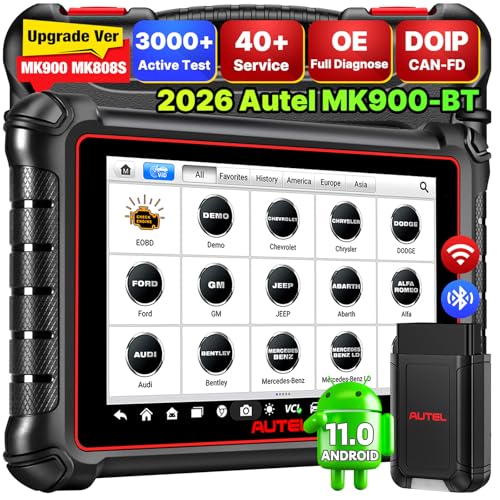
- 💯【Conta.ct us for Support Directly】If you met any...
- 🔥🔥🔥【2026 AUTEL FLAGSHIP MK900BT MK900-BT, NEW...
- 🚗【3000+ ACTIVE TESTS (50➡3000+), SAME AS MS...
- 🚗【40+ HOT SERVICES FOR 150 MAKES (28+➡40+)】Full...
- 🚗【OE ALL SYSTEM DIAGNOSE, AUTO SCAN 2.0: SCAN LICENSE...

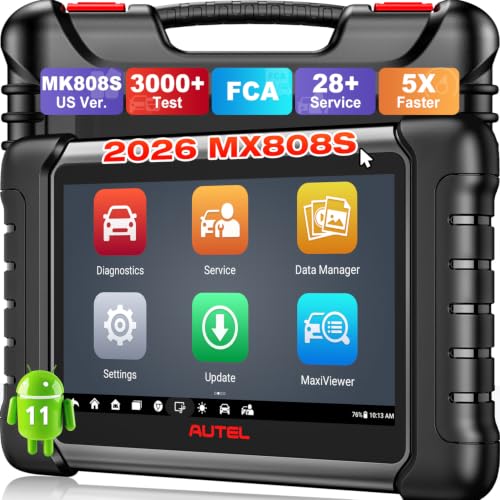
- 📌【We are Here for You】Dear valued customer, please be...
- 🚀【5X Faster Next-Level Hardware, Same as MK900/ MX...
- 🔥【3000+ Active Tests = MK900/MK900BT but...
- 📢【2026 U.S. Version, All-in-One as MK808S/ MK808Z...
- 🔥【28+ Hot Services for 150+ Brands】Same as MaxiCOM...
If the PDF is very large, it may not load in the preview below.
Some older TSBs had multiple PDFs — visit the NHTSA Website to view all PDFs.
If the TSB PDF does not show, download or view it on the NHTSA Website.
Click on the (+) Plus Sign
Then Click on Associated Document(s)
Search NHTSA Database for Recalls
Search NHTSA Database for Vehicle Investigations
View Latest Vehicle Investigations
Search NHTSA Database for Vehicle Complaints
View Latest Vehicle Complaints
TSB/Document ID: SD-61-4963
Replacement Service Bulletin Number:
MFR Communication Date: 2024-12-06
MFR Internal Campaign ID/Software Version:
Communication Type: Service Bulletin/Repair Instructions
NHTSA Components: FORWARD COLLISION AVOIDANCE: AUTOMATIC EMERGENCY BRAKING
MFR Component System:
MFR Component Subsystem:
Previous TSB | Next TSB |

- [Notice] When you receive a used device, it may be a customer return resold by Amazon without inspection. You can exchange it for a new one through Amazon. As this situation is unavoidable, we sincerely apologize. For any issues, contacting us via Amazon's "Messages" is the best way. THINKSCAN 689BT Bidirectional Scan Tool Can Be Used Immediately After It is Turned On, Without Complicated Registration Process, Which is More Convenient & Quick.
- Full Bi-Directional Control & 3000+ Active Tests: Take control and test components like actuators, fuel injectors, relays, and cooling fans in real time. You’ll quickly see if the problem is in the part itself or the control module — saving you hours of guesswork and frustrating trial-and-error.
- Advanced ECU Coding Capabilities: Handle module matching and hidden feature activation with confidence. When you replace an ECU or want to customize settings, this obd2 scanner diagnostic bi directional tool gives you the professional-level capabilities you need without the dealership price tag.
- 34+ Useful Reset and Maintenance Functions: Complete everyday service tasks smoothly with a wide range of helpful reset and maintenance functions. Whether you’re keeping up with regular upkeep or tackling a specific job, this scanner makes maintenance simpler and less stressful for both DIYers and pros.
- Comprehensive Full System Diagnostics: Diagnose every major system — Engine, Transmission
 , ABS, SRS, TPMS, and more — all in one place. Finally stop wondering if you’re missing something important; get the full picture and clear codes with ease.

- Top Reasons to Choose the D7S OBD2 Scanner: XTOOL D7S car scan tool, an upgrade of XTOOL D7, offers comprehensive features for automotive technicians, workshops, and DIY enthusiasts 1. Upgraded Hardware: 2+64GB memory, rear camera, intuitive interface, foldable bracket 2. Complete Diagnostics: FCA Autoauth, OE-level all system scan, 39+ maintenance services, 4K+ bidirectional, CANFD/DoIP protocol 3. Advanced Capabilities: ECU coding, PMI functions 4. Wide Compatibility: Support 10,000+ models, covering 99% vehicle brands 5. Multi-language: Available in 22+ languages, No IP Restrictions 6. 3-Year Updates: Save 300 bucks on software updates for the latest features and optimizations
- 2026 Upgraded D7S Car Scanner Features: The newly 2026 D7S V2.0 scanner for car brings exciting features for advanced vehicle diagnostics and enhanced user experience 1. FCA AutoAuth: Now supports FCA SGW module for Chrysler, for Jeep, for Dodge (2018+), for Fiat (2017+), enabling faster vehicle communication without gateway restrictions 2. PMI (Offline ECU Programming): Allows for Ford, for Lincoln, and for Mazda ECU programming for new modules 3. Optimized Diagnostic Report 2.0: Personalized reports with logos and customer info for auto shops. Note: Compatibility varies by cars, please check before order
- Cost-effective ECU Coding Scan Tool for Specific Brands: Enhance your vehicle's performance with XTOOL D7S! This obd2 scanner all systems bidirectional offers advanced capabilities at an affordable price, supports online for BMW, for Benz and offline for BENZ, for MIT, along with PMI functions for Ford, for Mazda, and for Lincoln. Ideal for technicians and DIY enthusiasts, this automotive scanner diagnostic tool optimizes vehicle performance and enhances the driving experience. Note: Not for all cars and modules, please send car VIN to check the compatibility before purchase
- OE All System Diagnostic & 8 Pids Graphing: XTOOL D7S is a comprehensive all system bi directional obd2 scanner that delivers dealer-level diagnostics, completely controlling over your vehicle’s performance and health. This automotive scan tool can read and clear DTCs, view live data and ECU information, retrieve freeze frames, and perform active tests and full obd2 functions. This bi-directional scan tool can can identify your vehicle's make, model, and year information with just one click and show up to 8 PIDs live data with options for CSV viewing, playback, and recording for in-depth analysis. It is easy-to-use for both professionals and beginners, helping pinpoint issues efficiently
- 3 Years Software Update, Value for Money: With 3 years of software updates and 22+ languages(no IP restrictions), XTOOL D7S auto scanner code scanner ensures ongoing compatibility for the latest car models and improved diagnostic functions. This all system vehicle diagnostic scanner comes with a 30-day return policy and a 24-month repair for dependable performance. XTOOL are dedicated to your satisfaction, so enjoy seamless support and lifetime expert assistance. Should you encounter any issues or concerns, don’t hesitate to reach out XTOOL. D7S with newest update with 22 languages freely transfer without authorization, check details from setting-language or from XTOOL

- 【✅Compared to BOSSCOMM IF742, IF745 Offers Full-System Diagnostics】The BOSSCOMM IF745 car diagnostic scanner is an upgraded model of IF742. In addition to supporting all OBD2 Code Reader functions and 6 reset options (ABS/EPB/SAS/BMS/Oil/Throttle), it expands diagnostics from 4 systems (Check Engine/ABS/SRS/Transmission) to vehicle All systems, including Steering, Suspension, and Body Electronics. This provides deeper, more comprehensive diagnostic capabilities.
- 【✨6 Essential Resets: ABS Bleeding, Oil, EPB, SAS, Throttle, BMS】The BOSSCOMM IF745 obd2 scanner diagnostic tool swiftly purges air from brake lines to restore braking sensitivity, fine-tunes maintenance cycles to eliminate false alerts, resolves parking brake issues with one-click control, recalibrates steering sensors for stability, optimizes engine idling/acceleration for smoother performance, and deeply resets battery systems to extend lifespan and range via precise parameter adjustments.❗NOTE: Does NOT support bidirectional control, coding, or programming.
- 【✨Deep Diagnostics for All Vehicle System Modules】Beyond code reading/clearing and ECU information retrieval, our all-in-one data stream feature lets you inspect all current fault codes and their locations across the vehicle’s systems. This vehicle code reader helps you turn off dashboard warning lights and perform a comprehensive self-check of your car at home—no more back-and-forth trips to the repair shop or hefty inspection fees.
- 【✨10 OBD2 Functions】The BOSSCOMM IF745 scan tool’s DTC Lookup instantly translates fault codes into user-friendly explanations, its I/M Readiness feature streamlines emissions testing with a single tap, and Freeze Frame lets you pinpoint the exact moment of a fault for in-depth root-cause diagnosis. Combined with a live data dashboard and advanced diagnostics (O2S, OBMon, EVAP), it delivers comprehensive insights for confident troubleshooting.
- 【✨10,000+ Car Models, AutoVIN, 13 Languages】The BOSSCOMM IF745 vehicle scanner diagnostic tool covers 73+ global car brands and offers support in 13 languages, making it perfect for DIYers, auto mechanics, or as a thoughtful gift. With a single-click AutoVIN feature, it instantly retrieves vehicle serial numbers, streamlining diagnostics for users globally. This adaptable tool balances user-friendliness with precision, catering to both personal and professional requirements.✅Unsure about compatibility? Compatibility will vary on vehicles' model and year, pls reach us via 📧 [email protected] 📧 before purchase.
This product presentation was made with AAWP plugin.