
NHTSA ID Number: 11006912
Manufacturer Communication Number: 2024.26.100_082024.pdf
TSB/Document Date: 2024-09-04
Summary
Tesla does not provide physical owner's manual copies. Instead, all available owner’s manual content is integrated into the vehicle software, and only the content relevant for a given vehicle, based on vehicle configuration and software version installed, is displayed on its touchscreen. This file contains all available owner’s manual content for the vehicle converted to PDF format, and given the distribution method and NHTSA’s submission format requirements, it is the best available representative copy of owner’s manual content. However, a customer who accesses the owner’s manual via their vehicle’s touchscreen would only see the parts of this PDF file that are relevant to their vehicle.
with regular use, wheels can get out of balance. Therefore, they should be balanced as required.
If tire wear is uneven (on one side of the tire only) or becomes abnormally excessive, check the wheel alignment.
Punctured Tires
A puncture eventually causes the tire to lose pressure, which is why it is important to check tire pressures frequently.
Permanently repair or replace punctured or damaged tires as soon as possible.
Your tubeless tires may not leak when penetrated, provided the object remains in the tire. If, however, you feel a sudden
vibration or ride disturbance while driving, or you suspect a tire is damaged, immediately reduce your speed. Drive slowly,
while avoiding heavy braking or sharp steering and, when safe to do so, stop the vehicle. Arrange to have Cybertruck
transported to a Tesla Service Center, or to a nearby tire repair center.
NOTE: In some cases, you can temporarily repair small tire punctures (under 1/4” (6 mm)) using an optional tire repair kit
available from Tesla. This allows you to slowly drive Cybertruck to Tesla or to a nearby tire repair facility.
WARNING: Do not drive with a punctured tire that has not been repaired, even if the puncture has not caused the tire to
deflate. A punctured tire can deflate suddenly at any time.
Flat Spots
If Cybertruck is stationary for a long period, tires can form flat spots. When Cybertruck is driven, these flat spots cause a
vibration which gradually disappears as the tires warm up and regain their original shape.
To minimize flat spots during storage, inflate tires to the maximum pressure indicated on the tire wall. Then, before driving,
release air to adjust tire pressure to the recommended levels.
Improving Tire Mileage
To improve the mileage you get from your tires, maintain tires at the recommended tire pressures, observe speed limits and
advisory speeds, and avoid:
• Pulling away quickly, or hard acceleration.
• Fast turns and heavy braking.
• Potholes and objects in the road.
• Hitting curbs when parking.
• Contaminating tires with fluids that can cause damage.
Replacing Tires and Wheels
Tires degrade over time due to the effects of ultraviolet light, extreme temperatures, high loads, and environmental conditions.
It is recommended that tires are replaced every six years, or sooner if required, even if tread depth is above the minimum.
When a tire set becomes worn, replace all four tires at the same time. Choose a Tesla-approved tire which is designed
specifically for your vehicle. Most Tesla-approved tires can be identified with a Tx specification (for example, T0, T1, T2).
Tesla-approved tires are designed to reduce road noise and optimize handling, ride, and range.
If tires need to be replaced early, for example due to a flat tire, we recommend replacing the tires in pairs unless the other tires
are within 2/32 in (1.5 mm) of tread depth of the new tire. When replacing tires, it is important to match the brand and model of
the older tires. Always place a pair of new tires on the rear if all four tires are the same size. Always balance the wheel and tire
after replacing a tire. Consult with a professional tire retailer and installer for further guidance. It may take up to 24 hours after
a tire replacement or repair before the tire lubricant is completely dry and tires achieve maximum adherence to the rims. Avoid
hard accelerations during this period to avoid tire slip on the rim.
NOTE: Regardless of the number of tires replaced, a complete set of matching tires is recommended for optimum
performance.
If tires other than those specified are used, ensure that the load and speed ratings marked on the tire (see Understanding Tire
Markings on page 141) equal or exceed those of the original specification.
For the specification of the original wheels and tires installed on Cybertruck, see Wheels and Tires on page 140.
Owner's Manual
122
Owners Manual
If you replace a wheel, the TPMS (Tire Pressure Monitoring System) sensors need to be reset to ensure they provide accurate
warnings when tires are under-inflated .
WARNING: For your safety, use only tires and wheels that match the original specification. Tires that do not match the
original specification can affect the operation of the TPMS.
WARNING: Never exceed the speed rating of your vehicle's tires. The speed rating is shown on the sidewall of your tires
(see Understanding Tire Markings on page 141).
Asymmetric Tires
Some Cybertruck tires are asymmetric and must be mounted on the wheel with the correct sidewall facing outward. The
sidewall of the tire is marked with the word OUTSIDE. When new tires are installed, make sure that the tires are correctly
mounted on the wheels.
TI-6279
WARNING: Road holding is seriously impaired if the tires are incorrectly installed on the wheels.
Removing and Installing Aero Covers
If your Cybertruck is equipped with aero covers, you must remove them to access the lug nuts.
To remove an aero cover:
1. Grasp the aero cover firmly with both hands.
2. Pull the aero cover toward you to release the retaining clips.
To install an aero cover:
1. Align the aero cover with the valve stem.
2. Firmly press the center of the cover to secure it in place, then work your way out to firmly pressing the outer perimeter of
each spoke. You may need to hold onto the opposite side of the cover until all spokes are secured.
3. Firmly press the center of the cap with your hands (do not hit the cover with your hands) to ensure it is secured.
4. As a final check, quickly pull each spoke to confirm they are secured in place.
For Gemini wheels, press on the perimeter of the cover until it aligns with the wheel surface. Press on the Tesla “T” in the
center until the cap snaps into place. See Parts and Accessories on page 136 for more information.
CAUTION: To prevent the aero cover from falling off, ensure that it is fully secured before driving.
Wheel Configuration
If you are installing new wheels or swapping them for different ones, update your vehicle's wheel configuration by touching
Controls > Service > Wheel & Tire > Wheels. This allows Cybertruck to learn the new wheels and provide more accurate status
updates on your vehicle. Select a wheel from the drop down menu that matches the new wheels you plan to install on
Cybertruck. Selecting new wheels in the wheel configuration also changes the wheels that appear on your vehicle's avatar on
the touchscreen.
NOTE: Changing your vehicle's wheel configuration can impact range estimates, tire pressure warning levels, and vehicle
visualization.
WARNING: Only use Tesla-approved wheels when installing or swapping wheels. Using non Tesla-approved wheels can
cause serious damage. Tesla is not liable for damage caused by using wheels not approved by Tesla.
Tire Pressure Monitoring
Each tire should be checked monthly when cold and inflated to the recommended pressures that are printed on the Tire and
Loading Information label located on the driver’s door pillar (see Maintaining Tire Pressures on page 120). If your vehicle has
tires of a different size than the size indicated on the vehicle placard or tire inflation pressure label, determine the proper tire
inflation pressure for those tires.
123
Owner's Manual
Owners Manual
As an added safety feature, your vehicle has been equipped with a TPMS that displays a tire pressure telltale (Tire Pressure
Warning) on the when one or more of your tires is significantly under-inflated. Accordingly, when the Tire Pressure indicator
light displays on the to alert you about tire pressure, stop and check your tires as soon as possible, and inflate them to the
proper pressure (see Maintaining Tire Pressures on page 120). Driving on a significantly under-inflated tire causes the tire to
overheat and can lead to tire failure. Under-inflation also reduces range efficiency and tire tread life, and may affect the
vehicle's handling and stopping ability.
If Cybertruck detects a fault with the TPMS, this indicator flashes for one minute whenever you power on
Cybertruck.
NOTE: Installing accessories that are not approved by Tesla can interfere with the TPMS.
WARNING: The TPMS is not a substitute for proper tire maintenance, including manually checking tire pressures and
regularly inspecting the condition of tires. It is the driver's responsibility to maintain correct tire pressure, even if underor over-inflation has not reached the level for the TPMS to trigger the Tire Pressure Warning on the .
Replacing a Tire Sensor
If the Tire Pressure warning indicator displays frequently, use the mobile app to schedule a service appointment to determine
if a tire sensor needs to be replaced. If a non-Tesla Service Center repairs or replaces a tire, the tire sensor may not work until
Tesla performs the setup procedure.
TPMS Malfunction
Cybertruck has also been equipped with a TPMS malfunction indicator to indicate when the system is not operating properly.
The TPMS malfunction indicator is combined with the tire pressure indicator light. When the system detects a
malfunction, the indicator flashes for approximately one minute, then remains continuously lit. This sequence
continues upon subsequent vehicle start-ups as long as the malfunction exists. When the TPMS malfunction
indicator is on, the system might not be able to detect or signal under-inflated tires as intended.
TPMS malfunctions can occur for a variety of reasons, including installing replacement or alternate tires or wheels that prevent
the TPMS from functioning properly. Always check the TPMS malfunction indicator light after replacing one or more tires or
wheels on your vehicle to ensure that the replacement tires or wheels allow the TPMS to continue to function properly.
NOTE: If a tire has been replaced or repaired using a different tire sealant than the one available from Tesla, and a low tire
pressure is detected, it is possible that the tire sensor has been damaged.
Seasonal Tire Types
Understand Your Tire Type
The type of tires that your vehicle is originally equipped with depends on vehicle model and market region. It is important to
understand the capabilities of your vehicle's tires and whether they are suited for summer, all-season, or winter driving. Check
the information on the sidewall of a tire for information about a tire's performance characteristics (see Understanding Tire
Markings on page 141).
Summer and All-Season Tires
Summer tires and all season tires are designed for maximum dry and wet road performance but are not designed to perform
well in winter conditions. All-season tires are designed to provide adequate traction in most conditions year-round, but may
not provide the same level of traction as winter tires in snowy or icy conditions. All-season tires can be identified by “ALL
SEASON" and/or "M+S” (mud and snow) on the tire sidewall.
If driving in cold temperatures or on roads where snow or ice may be present, Tesla recommends using winter tires.
WARNING: In cold temperatures or on snow or ice, summer and all-season tires do not provide adequate traction.
Selecting and installing the appropriate tires for winter conditions is important to ensure the safety and optimum
performance of your Cybertruck.
Owner's Manual
124
Owners Manual
Winter Tires
Use winter tires to increase traction in snowy or icy conditions. When installing winter tires, always install a complete set of
four tires at the same time. Winter tires must be the same diameter, brand, construction and tread pattern on all four wheels.
Winter tires can be identified by a mountain/snowflake symbol on the tire's sidewall.
When driving with winter tires, you may experience more road noise, shorter tread life, and less traction on dry roads.
Driving in Low Temperatures
Tire performance is reduced in low ambient temperatures, resulting in reduced grip and an increased susceptibility to damage
from impacts. Performance tires (summer applications) have reduced traction in ambient temperatures below 40° F (5° C),
and are not recommended in snow/ice conditions. Performance tires can temporarily harden when cold, causing you to hear
rotational noise for the first few miles (kilometers) until the tires warm up.
Using Tire Chains
Tesla has tested and approved the following tire chains (also called snow chains) to increase traction in snowy conditions. Tire
chains should only be installed on the rear tires. The approved tire chains can be purchased from Tesla.
CAUTION: Do not put tire chains on summer tires, doing so can cause damage.
When installing tire chains, follow the instructions and warnings provided by the tire chain manufacturer. Mount them evenly
and as tight as possible.
When using tire chains:
• Inspect the tire chains for loose fittings and damaged links before each use.
• Avoid heavily loading Cybertruck (heavy loads can reduce the clearance between the tires and the body).
• Do not drive the vehicle without the chains properly installed.
• Drive slowly. Do not exceed 30 mph (48 km/h).
• Remove the tire chains as soon as conditions allow.
NOTE: Tire chains are prohibited in some jurisdictions. Check local laws before installing tire chains.
CAUTION: Using non-recommended tire chains, or using tire chains on other sized tires can damage the suspension,
body, wheels, and/or brake lines. Damage caused by using non-recommended tire chains, or incorrectly installing tire
chains, is not covered by the warranty.
CAUTION: Do not use snow chains on the front tires.
CAUTION: Never deflate your tires to put on tire chains. When re-inflated, the chains might fit too tightly and cause tire
damage.
CAUTION: Ensure that the tire chains cannot touch suspension components or brake lines. If you hear the chains making
unusual noises that would indicate contact with Cybertruck, stop and investigate immediately.
125
Owner's Manual
Owners Manual
Cleaning
Cleaning the Exterior
To prevent damage to the exterior, immediately remove corrosive substances (such as grease, oil, bird droppings, tree resin,
dead insects, tar spots, road salt, industrial fallout, etc.). Do not wait until Cybertruck is due for a complete wash. If necessary,
use denatured alcohol to remove tar spots and stubborn grease stains, then immediately wash the area with water and a mild,
non-detergent soap to remove the alcohol.
NOTE: It is normal for the stainless steel exterior to mature over time, resulting in minor changes to the reflective properties
and color of the metal.
Dents and Scratches
The stainless steel exterior of Cybertruck is more resistant to dents and dings than most other vehicles. However, Cybertruck
does not have a clear coat on the surface of the exterior body panels, meaning any scratches that appear are in the stainless
steel panels themselves. Anyone performing scratch repair should refer to the applicable "Exterior Stainless Steel Panel
Refinishing" procedure within the Collision Repair Manual on service.tesla.com. In addition, do not use, and/or immediately
remove, chemical, corrosive, or non-pH neutral substances (including but not limited to: acidic liquids or materials, grease, oil,
tree resin, dead insects, tar spots, road salt, industrial fallout, etc.) as they can cause corrosion on the vehicle's exterior.
CAUTION: Tesla is not liable for any damage caused by failing to refer to official guidance.
Surface Contamination
Over time, you may notice contamination on the surface of the stainless steel body panels. These spots may appear as orange
or brown rust. However, it is important to note that your Cybertruck is not rusting. Refer to the DIY Guide for more
information.
Keep the exterior cameras free of dirt, condensation, or obstructions. These substances can cause unclear pictures or
Autopilot and safety features to stop working (see Cleaning a Camera on page 198).
Follow these steps when washing the exterior of Cybertruck:
1. Before washing, flush grime and grit from the vehicle using a hose. Flush away accumulations of mud in areas where debris
easily collects (such as wheel wells and panel seams). If salt has been used on the highways (such as during winter
months), thoroughly rinse all traces of road salt from the underside of the vehicle, wheel wells, and brakes.
2. Mix a mild, pH-neutral soap (such as car shampoo) with water until it gets soapy.
3. Soak a soft cleaning sponge in the soap mixture and hand wash Cybertruck.
CAUTION: Some cleaners and car shampoos contain chemicals that can cause damage or discoloration, especially
for plastic trim pieces, exterior lights, or camera lenses. For example, some car cleaning formulas contain hydroxide
or other highly alkaline or caustic ingredients that can damage exterior components. Do not use acidic products
either. Damage or discoloration resulting from cleaning products is not covered by the warranty.
4. After washing, rinse with clean water to prevent soap from drying on the surfaces.
5. Dry thoroughly with microfiber cloths (ensure the cloths are clean of sand, dirt, rocks, etc.), one in each hand, rotating in
circular motions until the surface is dry.
For a waterless wash:
1. Hand wash using a non-ionic pH-neutral waterless wash with a high quality microfiber towel.
2. Dry any streaks thoroughly with a chamois.
3. Remove oil and grease with an organic solvent, such as alcohol or ethyl alcohol.
NOTE: Do not use alcohol or ethyl alcohol on the head or tail lights.
For spot cleaning: Use a glass cleaner and microfiber cloth. Spray glass cleaner and wipe in a zig-zag motion when cleaning
large areas, such as entire panels.
Owner's Manual
126
Owners Manual
Use isopropyl alcohol wipes (such as those used to clean glasses or screens) to clean away small stains.
NOTE: Tesla does not recommend taking Cybertruck through an automatic car wash.
Cleaning Mud
If your vehicle is covered in mud, such as after off-roading, rinse the entire exterior of the vehicle with water. It is important to
regularly clean the exterior of Cybertruck after off-roading because mud and debris can quickly build up and limit some
vehicle functions.
For certain components, such as the underside, wheel wells, panel seams, and radiator, use a power washer to remove stuckon mud or debris. Then follow the rest of the regular cleaning on page 126 steps, as explained above. Wipe away mud from the
headlights, tail lights, and cameras, as it may affect your vehicle’s ability to drive safely.
Mud and rocks can get trapped between the wheel cover and wheel well. This may cause noise or vibration. Remember to
clear mud, dirt, and rocks from the wheel wells after off-roading.
CAUTION: Damage to the vehicle as a result of debris or mud buildup is not covered by the warranty.
Window Cleaning and Treatments
Clean windows and mirrors using an automotive glass cleaner. Do not scrape or use any abrasive cleaning fluid on glass or
mirrored surfaces. Follow the directions in Cleaning the Exterior on page 126 for best practices in cleaning the exterior glass.
To add a hydrophobic coating to your vehicle's windows, apply the coating only to the side and rear windows, not the front
windshield—doing so may affect the visibility of the autopilot cameras. Follow the hydrophobic coating manufacturer’s
instructions for application details.
NOTE: Tesla is not responsible for any damage associated with applying window treatments on your vehicle.
Car Wash
If taking Cybertruck to an automatic car wash is necessary, Car Wash Mode closes all windows, locks the charge port, and
disables windshield wipers, Sentry Mode, and walk-away door locking. To enable, touch Controls > Car Wash. Your vehicle
must be stationary and not actively charging.
If using an automatic car wash, Enable Free Roll keeps your vehicle in Neutral and activates free roll for the duration of the
wash, while preventing Cybertruck from applying the Parking brake if you leave the driver's seat. To enable, press on the brake
pedal and touch Enable Free Roll; or shift into Neutral.
Car Wash Mode disables if the vehicle's speed exceeds 9 mph (15 km/h) or by touching Exit on the touchscreen.
CAUTION: Failure to put Cybertruck in Car Wash Mode may result in damage (for example, to the charge port or
windshield wipers). Damage caused by car washes is not covered by the warranty.
Cautions for Exterior Cleaning
CAUTION: Do not wash in direct sunlight.
CAUTION: Do not use windshield treatment fluids. Doing so can interfere with wiper friction and cause a chattering
sound.
CAUTION: Do not use hot water, detergents, highly alkaline or caustic cleaning ingredients or solvents, specifically
those containing hydroxide.
CAUTION: If using a pressure washer, maintain a distance of at least 12" (30 cm) between the nozzle and the surface of
Cybertruck. Keep the nozzle moving and do not concentrate the water jet on any one area.
CAUTION: Do not aim water hoses directly at windows, door, or hood seals or at electronic modules or exposed cabling.
CAUTION: To avoid corrosive damage that may not be covered by the warranty, rinse away any road salt from the
underside of the vehicle, wheel wells, and brakes. After cleaning the vehicle, dry the brakes by going on a short drive
and applying the brakes multiple times.
CAUTION: Avoid using tight-napped or rough cloths, such as washing mitts. A high-quality microfiber cleaning cloth is
recommended.
127
Owner's Manual
Owners Manual
CAUTION: If washing in an automatic car wash, use touchless car washes only. These car washes have no parts (brushes,
etc.) that touch the surfaces of Cybertruck. Some touchless car washes use caustic solutions that, over time, can cause
discoloration of decorative exterior trim. Avoid exposure to soaps and chemicals above pH 13. If unsure, check the
product label or ask the staff at the car wash. Damage caused by improper washing is not covered by the warranty.
CAUTION: If washing in an automatic car wash, make sure the vehicle is locked. In addition, avoid using controls on the
touchscreen that can result in accidentally opening doors or trunks while the vehicle is being washed. Any damage
caused is not covered by the warranty.
CAUTION: Ensure the wipers are off before washing Cybertruck to avoid the risk of damaging the wipers.
CAUTION: Do not use chemical based wheel cleaners or pre-wash products. These can damage the finish on the wheels.
WARNING: Never spray liquid at a high velocity (for example, if using a pressure washer) towards the charge port while
Cybertruck is charging. Failure to follow these instructions can result in serious injury or damage to the vehicle,
charging equipment, or property.
Cleaning the Interior
Frequently inspect and clean the interior to maintain its appearance and to prevent premature wear. If possible, immediately
wipe up spills and remove marks. For general cleaning, wipe interior surfaces using a soft cloth (such as microfiber) dampened
with a mixture of warm water and mild non-detergent cleaner (test all cleaners on a concealed area before use). To avoid
streaks, dry immediately with a soft lint-free cloth.
Interior Glass
Do not scrape, or use any abrasive cleaning fluid on glass or mirrored surfaces. This can damage the reflective surface of the
mirror and the heating elements in the rear window.
Airbags
Do not allow any substance to enter an airbag cover. This could affect correct operation.
Dashboard and Plastic Surfaces
Do not polish the upper surfaces of the dashboard. Polished surfaces are reflective and could interfere with your driving view.
Interior Lighting
NOTE: The Tesla warranty does not cover damage caused by improper maintenance, including the use of cleaning solutions or
tools that are not recommended in this Owner's Manual.
Do not use any soap or chemical cleaning solutions on interior lighting. Common cleaning solutions and substances can
degrade the lenses or components of the lighting, causing cracks and damage over time. When you want to clean interior
lighting, Tesla recommends that you use a soft cloth moistened with warm water to gently wipe away soiled areas or stains.
Interior lighting includes, but is not limited to, these lights (if equipped):
• Footwell
• Puddle
• Projection
• Dome
• Accent
• Ambient
When you want to clean the interior with soap or a mild non-detergent cleaner, Tesla recommends that you first cover all
lighting with some form of protection, such as:
• Fabric.
• Masking tape.
• Plastic film.
• Protective covers for car interiors.
Owner's Manual
128
Owners Manual
Seats
NOTE: The Tesla warranty does not cover damage caused by improper maintenance, including the use of cleaning solutions or
tools that are not recommended in this Owner's Manual.
Your vehicle’s seats are made of a custom, sustainable, vegan leather which is softer than leather, yet far more durable and
stain resistant. Tesla recommends that you regularly clean and vacuum the interior of your vehicle to maintain performance
and an as-new appearance. You can purchase an all-purpose cleaning kit on the Tesla shop.
Avoid contact with harsh chemicals, including certain cosmetics. Such substances can cause damage, degradation, or
discoloration over time.
For general spills and stains, wipe spills and chemical residues from interior surfaces as soon as possible. Moisten a soft cloth
(preferably microfiber) with warm water and mild soap and gently wipe the stain in a circular motion. Then, wipe dry using a
soft, lint-free cloth. Do not blow dry. Anything more than soap can be too harsh. Using other cleaning agents, disinfectants,
conditioners, or protectants is not recommended.
For white seats: As a last resort, moisten a soft cloth (such as microfiber) with warm water and isopropyl alcohol and gently
wipe the stain in a circular motion (DO NOT use this method on black seats). Clean off any remaining isopropyl alcohol residue
with a soft, damp cloth. Aggressive or extended use of isopropyl alcohol will damage the top coat of the material, allowing
stains to occur more readily and violating the warranty.
CAUTION: Do not use products containing alcohol, bleach (sodium hypoclorite), citrus, naptha, or silicon-based
additives. Do not spray the seat directly with any spray. Do not get water into the seat belt mechanism.
A variety of clothing, accessories, and cosmetics may contain dyes or oils which can transfer onto the seats over time. These
stains are difficult to prevent and cannot always be safely cleaned off.
CAUTION: Do not use aftermarket, non-Tesla seat covers. Seat covers may cause staining or damage to the seats and
may inhibit the sensitivity of a seat's occupancy sensors or restrict deployment of airbags.
Carpets
Avoid over-wetting carpets. For heavily soiled areas, use a diluted upholstery cleaner.
Seat Belts
Extend the belts to wipe. Do not use any type of detergent or chemical cleaning agent. Allow the belts to dry naturally while
extended, preferably away from direct sunlight.
Door Seals
Wipe door seals with a damp cloth to remove any debris. Excessive debris on the door seals can cause damage when
contacting surrounding surfaces. Avoid using alcohol wipes or any chemical products that can potentially deteriorate the
coating on the door seals.
Front and Rear Touchscreens
Clean the touchscreen(s) using a soft lint-free cloth specifically designed to clean monitors and displays. Do not use cleaners
(such as a glass cleaner) or alcohol-based gel products (such as hand sanitizer) and do not use a wet wipe or a dry staticallycharged cloth (such as a recently washed microfiber). To wipe the front touchscreen without activating buttons and changing
settings, you can enable Screen Clean Mode. Touch Controls > Display > Screen Clean Mode. The display darkens to make it
easy to see dust and smudges. To exit Screen Clean Mode, press and hold HOLD TO EXIT.
Metal Surfaces
Polish, abrasive cleaners, alcohol-based gel products (such as hand sanitizer), and hard cloths can damage the finish on metal
surfaces.
Cautions for Interior Cleaning
CAUTION: Using solvents (including alcohol), alcohol-based gel products (such as hand sanitizer), bleach, citrus,
naphtha, or silicone-based products or additives on interior components can cause damage.
CAUTION: Statically-charged materials can cause damage to the touchscreen.
129
Owner's Manual
Owners Manual
WARNING: If you notice any damage on an airbag or seat belt, contact Tesla immediately.
WARNING: Do not allow any water, cleaners, or fabric to enter a seat belt mechanism.
WARNING: Do not use solvents or soap on interior accent lights.
WARNING: Exposure to chemical cleaners can be hazardous and can irritate eyes and skin. Read and observe the
instructions provided by the manufacturer of the chemical cleaner.
Using a Car Cover
To preserve the cosmetic appearance of the body when Cybertruck is not being used, use a genuine Tesla car cover. Car
covers can be purchased online from the Tesla Shop.
CAUTION: Use only a Tesla-approved car cover when Cybertruck is plugged in. Using a non-Tesla car cover can prevent
the Battery from being adequately cooled during charging.
Floor Mats
To extend the life of your carpet and make them easier to clean, use genuine Tesla floor mats available online at http://
www.tesla.com. Maintain floor mats by regularly cleaning them and checking that they are properly attached. Replace floor
mats if they become excessively worn.
WARNING: To avoid potential interference with a foot pedal, ensure that the driver’s floor mat is securely fastened, and
never place an additional floor mat on top of it. Floor mats should always rest on top of the vehicle carpeting surface and
not on another floor mat or other covering.
Owner's Manual
130
Owners Manual
Windshield Wiper Blades, Jets and Fluid
Topping Up Windshield Washer Fluid
The only reservoir into which you can add fluid is the windshield washer fluid reservoir, which is located behind the front trunk.
When the level is low, a message displays on the .
To top up the washer fluid:
1. Open the hood.
2. Clean around the filler cap before opening it to prevent dirt from entering the reservoir.
3. Open the filler cap.
4. While avoiding spilling, fill the reservoir until the fluid level is visible just below the filler neck.
5. Wipe up any spills immediately and wash the affected area with water.
6. Reinstall the filler cap.
CAUTION: Use only ethanol-based windshield washer fluid meant for automotive vehicles. Using other substances, such
as untreated water, can result in bacterial growth within the climate control system resulting in odor or potential damage
that is not covered by warranty.
NOTE: Some national or local regulations restrict the use of Volatile Organic Compounds (VOCs). VOCs are commonly used
as antifreeze in washer fluid. Use a washer fluid with limited VOC content only if it provides adequate freeze resistance for all
climates in which you drive Cybertruck.
CAUTION: Do not add formulated washer fluids that contain water repellent or bug wash. These fluids can cause
streaking, smearing, and squeaking or other noises.
WARNING: In temperatures below 40° F (4° C), use a washer fluid with antifreeze. In cold weather, using a washer fluid
without antifreeze can impair visibility through the windshield.
WARNING: Windshield washer fluid can irritate eyes and skin. Read and observe the instructions provided by the washer
fluid manufacturer.
Checking and Cleaning Wiper Blades
Periodically clean the edge of the wiper blades and check the rubber for cracks, splits, and roughness. If damaged, replace the
blade immediately to prevent damage to the glass and improve visibility.
Contaminants on the windshield, or on the wiper blades, can reduce the effectiveness of the wipers. Contaminants include
ice, wax spray from car washes, washer fluid with bug and/or water repellent, bird droppings, tree sap, and other organic
substances.
Follow these guidelines for cleaning:
• Clean the windshield and wiper blades using washer fluid, isopropyl (rubbing) alcohol, or non-abrasive glass cleaner
approved for use on automotive glass and rubber. Inappropriate products can cause damage or smears, and create glare on
the windshield.
• Lift the wiper arm a short distance away from the windshield, just far enough to access the wiper blade. Do not lift a wiper
arm beyond its intended position.
If the wipers remain ineffective after cleaning, replace the wiper blades.
Replacing Wiper Blades
For optimum performance, replace the wiper blades at least once a year. Replacement blades must meet the following criteria:
• The blade on the driver's side must be 26 inches (650 mm) long and long for the blade on the passenger's side.
• Ensure the connector on the replacement blade is the same as the original blade. Different connectors may prevent the
replacement blade from connecting to the wiper arm on the vehicle.
You can purchase replacement wiper blades on the Tesla Shop.
131
Owner's Manual
Owners Manual
NOTE: Only install replacement blades that are identical to the original blades. Using inappropriate blades can damage the
wiper system and windshield.
To replace the wiper blades:
1. Shift into Park and turn off the wipers.
2. Touch Controls > Service > Wiper Service Mode to move the wipers to the service position.
3. Lift the wiper arm a short distance away from the windshield, just far enough to access the wiper blade.
CAUTION: Wiper blades do not lock into a lifted position. Do not lift a wiper arm beyond its intended position.
4. Place a towel between the wiper arm and windshield to avoid scratching or cracking the windshield.
5. Hold the wiper arm and press the locking tab while sliding the blade down the arm.
6. Align the new wiper blade on the wiper arm and slide it toward the end of the wiper arm until it locks into place.
7. Turn Wiper Service Mode off to return the wipers to their normal position.
Cleaning Washer Jets
If a windshield washer jet becomes blocked, use a thin strand of wire to clear any blockages from the nozzles.
WARNING: Do not operate the washers while cleaning Cybertruck. Windshield washer fluid can irritate eyes and skin.
Read and observe the washer fluid manufacturer’s instructions.
Owner's Manual
132
Owners Manual
Jacking and Lifting
WARNING: Ensure the equipment you are using is rated for the weight of Cybertruck, including any cargo, installed
accessories, or upgrades before attempting to lift.
Follow the steps below to lift Cybertruck. Ensure that any non-Tesla repair facility is aware of these instructions, including lift
points and warnings.
Using a Jack and Jack Stand
1. Ensure Cybertruck is located in a flat, stable, and secure area with enough space surrounding the vehicle to jack it.
2. Ensure the vehicle ride height is set to Medium and enable Jack Mode (Controls > Service > Jack Mode see Jack Mode on
page 135) to disable self-leveling.
WARNING: You MUST enable Jack Mode, otherwise the vehicle may try to self-level while on the jack. Failing to
engage Jack Mode may cause serious injury or death.
3. If available, chock the wheel diagonal to the corner you're working on (for example, if you are replacing the rear driver's
side tire, chock the front passenger's side tire).
4. Remove the wheel cover from the wheel with the flat tire (see Removing and Installing Wheel Covers on page 422).
5. Use the lug nut wrench to break loose the lug nuts on the wheel.
6. Place the jack under the vehicle's lift point (shown in green) corresponding to the location you are working on.
WARNING: DO NOT position the jack under the Battery or side rails (shown in red).
Lift points:
7. Following the jack manufacturer's instructions, begin to lift the vehicle, making sure to constantly monitor the contact with
the lift point.
8. Place the jack stand under the appropriate jack stand location in the image corresponding to the area you're working on.
Ensure the jack stand is appropriately oriented and does not touch any of the red areas in the image. Adjust to meet the
jack's height. The vehicle should be able to be solely propped up with the jack stand.
WARNING: Do not get under the vehicle when it is propped up on the jack or jack stands. Doing so may cause serious
injury or death.
Jack stand points:
133
Owner's Manual
Owners Manual
9. Slowly lower the jack following manufacturer instructions, constantly monitoring the contact between the vehicle and the
jack stand. Then release the jack from the vehicle's lift point and check that it is secure.
10. To lower the vehicle off of the jack stand, use the jack to raise the vehicle until the jack stand is no longer supporting the
vehicle, remove the jack stand, and slowly lower the vehicle down.
11. Disengage Jack Mode by touching Controls > Service > Jack Mode.
Using a 2-Post Lift:
1. Ensure the vehicle ride height is set to Medium and enable Jack Mode (Controls > Service > Jack Mode see Jack Mode on
page 135) to disable self-leveling.
WARNING: You MUST enable Jack Mode, otherwise the vehicle may try to self-level while on the jack. Failing to
engage Jack Mode may cause serious injury or death.
2. Position the lift arm pads under the lift points at the locations shown.
WARNING: DO NOT position the lift arm pads under the Battery or side rails.
Lift points:
3. Lift the vehicle to working height.
4. Engage any lift safety locks. Follow the lift manufacturer's instructions for details.
WARNING: Failure to correctly engage the safety locks can result in serious injury or death.
5. When done, lower the vehicle down slowly and safely.
6. Disengage Jack Mode by touching Controls > Service > Jack Mode.
WARNING: Never raise Cybertruck when the charge cable is connected, even if charging is not in progress.
WARNING: Do not work on an incorrectly supported vehicle. Doing so can cause serious damage, bodily injury, or death.
CAUTION: It is your responsibility to be observant of the vehicle and it's surroundings. Ensure the area is clear when
lifting and lowering Cybertruck and that the doors, front trunk, and tailgate are closed as necessary to avoid damage.
Owner's Manual
134
Owners Manual
CAUTION: DO NOT lift from under the Battery or side rails. Place the lift arm pads under the designated body lift points
only. The locations shown are the only approved lifting points for Cybertruck. Lifting at any other points can cause
damage. Damage caused by incorrectly lifting Cybertruck is not covered by the warranty.
Jack Mode
WARNING: Failure to enable Jack Mode can result in the vehicle self-leveling, resulting in damage, injury, or death.
Cybertruck automatically self-levels, even when the vehicle is "asleep" and the touchscreen is powered off. Before enabling
Jack Mode:
1. Set the ride height to Medium to allow for enough ground clearance for the jack.
NOTE: Due to the large wheels and height of Cybertruck, setting the ride height to High or Very High may not provide
sufficient clearance for you to safely change the tire.
2. Enable Jack Mode (Controls > Service > Jack Mode).
3. To deactivate Jack Mode, press the brake pedal and touch Controls > Service > Jack Mode again. Jack Mode automatically
cancels when you start to drive.
NOTE: Jack mode may be unexpectedly enabled in situations where an object is supporting the vehicle's weight (for example
the bumper of the vehicle is resting on a curb).
135
Owner's Manual
Owners Manual
Parts and Accessories
Parts, Accessories, and Modifications
Use only genuine Tesla parts and accessories. Tesla performs rigorous testing on parts to ensure their suitability, safety, and
reliability. Purchase these parts from Tesla, where they are professionally installed and where you can receive expert advice
about modifications to Cybertruck. Accessories are available for purchase from Tesla stores or online at www.tesla.com.
NOTE: Some accessories may not be available in your market region.
Tesla is unable to assess parts manufactured by other distributors and therefore accepts no responsibility if you use non-Tesla
parts on Cybertruck.
WARNING: Installing non-approved parts and accessories, or performing non-approved modifications, can affect the
performance of Cybertruck and the safety of its occupants. Any damage caused by using or installing non-approved
parts, or by performing non-approved modifications, is not covered by the warranty.
WARNING: Tesla does not accept liability for death, personal injury or damage that occurs if you use or install nonapproved accessories or make non-approved modifications.
Body Repairs
If your Cybertruck is in a collision, contact Tesla or a Tesla-approved Body Shop to ensure that it is repaired with genuine Tesla
parts. Tesla has selected and approved body shops that meet strict requirements for training, equipment, quality, and
customer satisfaction.


- Advanced VCI Box, Industry-leading J2534 Pass-Thru...
- High-Speed OEM-Level Diagnostics & Programming: Unlock true...
- Coverage for 17 Car Brands & Ultra Reliability: Works...
- User-Friendly RLink Platform & Expert Support: TOPDON’s...
- 6.6 ft USB-C Cable & Portable Storage Case: The RLink J...
Last update on 2026-06-23 / Affiliate links / Images from Amazon Product Advertising API
If the PDF is very large, it may not load in the preview below.
Some older TSBs had multiple PDFs — visit the NHTSA Website to view all PDFs.
If the TSB PDF does not show, download or view it on the NHTSA Website.
Click on the (+) Plus Sign
Then Click on Associated Document(s)
Search NHTSA Database for Recalls
Search NHTSA Database for Vehicle Investigations
View Latest Vehicle Investigations
Search NHTSA Database for Vehicle Complaints
View Latest Vehicle Complaints
TSB/Document ID: 2024.26.100_082024.pdf
Replacement Service Bulletin Number:
MFR Communication Date: 2024-08-31
MFR Internal Campaign ID/Software Version: 2024.26.100
Communication Type: Over The Air
NHTSA Components: UNKNOWN OR OTHER
MFR Component System:
MFR Component Subsystem:
Previous TSB | Next TSB |

- Stay Updated with Lifetime Access: This obd2 scanner includes lifetime free software updates for all app service functions. With a single payment, enjoy full access to diagnostics, reset tools, and maintenance features — zero subscription fees. A budget-friendly choice for weekend mechanics, home car owners, and DIYers, supporting vehicles from 1996 onward. Come to us with your VIN to check compatibility.
- Full Bidirectional Control/Active Tests & Stable Wireless Connectivity: This car code reader features full bidirectional control, allowing you to send commands to the vehicle's ECU for active tests on components such as fuel pumps, injectors, A/C clutches, windows, sunroofs, and more. This car scanner diagnostic tool helps DIYers quickly diagnose and test vehicle parts, cutting down troubleshooting and repair time. With BT 4.0 wireless connectivity, you can enjoy cable-free diagnostics up to 33 feet. Stand in your garage and test windows, wipers, or even engine components—all without needing to move around your car.
- Portable Car Scanner with 26 Special Functions: Scheduled vehicle maintenance with the A30M car diagnostic scanner can keep your vehicle in peak condition and save you big on dealership trips. The XTOOL A30M obd2 scanner diagnostic tool features essential reset and relearn functions, such as Oil Reset, EPB Reset (Electronic Parking Brake Release), SAS, ABS Brake Bleeding, Throttle Body Relearn, Injector Coding, Crank Sensor Relearn, Headlight Adjustment, and Tire Size Reset. Note: Service functions may vary by vehicle model – check compatibility beforehand!
- Wide Compatibility CAN FD & FCA
 Autoauth: This obd2 scanner diagnostic tool is compatible with over 85+ car brands from the U.S., Europe, and Asia, providing extensive coverage through a BT connection with your smartphone or iPad. Now upgraded to support the latest protocols, it includes FCA AutoAuth access for Chrysler, Jeep, Dodge, and Fiat (2018+), and supports CAN FD for GM (2020+) models, giving you greater access to newer vehicles and systems. Note: The FCA AutoAuth account is not included with the device. Users must register and pay separately through the official FCA AutoAuth website to access diagnostic functions for vehicles that require it.
 - Up to 8 Live Data Streams Graphing – Real-Time Graphing for Deeper Insight: This car scanner supports up to 8 live data streams simultaneously with intuitive, real-time graphing. Gain comprehensive insights into your vehicle’s performance, making it easier to spot issues, detect trends, and make informed diagnostic decisions with confidence.
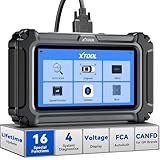
- Comprehensive OBD2 Scanner with 16 Resets: The XTOOL D5S car code reader and vehicle reset tool provides an advanced diagnostic solution with 16 commonly needed reset functions, including Electronic Parking Brake Reset (EPB Reset), SAS, BMS Reset (Battery Test), Throttle Body Relearn, TPMS Reset, ABS Bleeding, Injector Coding, Gearbox Match, Suspension Adjustment, Headlight, Window Initialization, Crank Sensor Relearn and more. Equipped with CAN FD Protocol and FAC AutoAuth, the D5S obd2 scanner diagnostic tool ensures compatibility with a broad range of modern vehicles, allowing users to address common maintenance needs quickly. NOTE: Please Check the Compatibility before ordering.
- 4 Main System Car Scanner & Full OBD2 Diagnostics: The XTOOL D5S car code reader is ideal for home mechanics, DIYers, and professionals, providing access to Transmission/Engine/ABS/SRS systems to read DTCs, Live data can be displayed in text or up to 4 PID data graphs, along with full OBD2 diagnostics to check the engine light on, other obd2 issues and routine maintenance. This car diagnostic scanner ensures you can keep your vehicles in top condition, avoiding costly repairs or unexpected breakdowns. NOTE: Some vehicles display three systems after connection because the transmission and engine of some vehicles are integrated into one.
- Check Engine Code Reader & Real-Time Engine Monitoring: Whether you're a car owner, a DIYer, or run a repair shop, the XTOOL D5S obd2 scanner diagnostic tool makes engine diagnostics fast and frustration-free, reading and explaining trouble codes in seconds—no confusion. Check live data like fuel trim, 02 sensor voltage, RPM, and coolant temp to pinpoint mis~fires, rough idle, or sensor issues. After repairs, simply use the D5S check engine code reader and reset tool to turn off the check engine light and confirm the problem’s fixed—saving time, money, and unnecessary shop visits. - Note: If the check engine light comes back on, it indicates the original problem still exists.
- Portable Car Scanner for ABS and SRS: XTOOL D5S gives you peace of mind when ABS or airbag warning lights come on. It reads and clears ABS codes to help you fix brake sensor, traction control, or wheel speed issues, and supports ABS bleeding after repairs like caliper or master cylinder replacement. For airbag systems, it scans and clears SRS codes related to airbags, seatbelt tensioners, and crash sensors. Whether you're doing repairs at home or running a small shop, the D5S is a cost-effective solution for safety diagnostics. Note: If a fault code returns after clearing, it usually means the issue hasn’t been fully resolved. Please check the compatibility before ordering.
- Transmission Warning Light ON? Here’s the Transmission Diagnostic and Reset Tool You Need: The XTOOL D5S is more than just a basic car scanner—it’s an easy-to-use transmission diagnostic tool. From rough shifts to slipping gears, the D5S lets you read and clear transmission trouble codes, monitor real-time TCM data, and perform transmission resets after fluid changes or repairs. Whether you’re a hands-on car owner or a pro running a busy shop, this OBD2 scanner with transmission functions helps you catch problems early—saving you time, money, and future headaches.. Note: Clearing fault codes is equivalent to a reset on some vehicles, but not all. For help, contact XTOOL Tech Support.
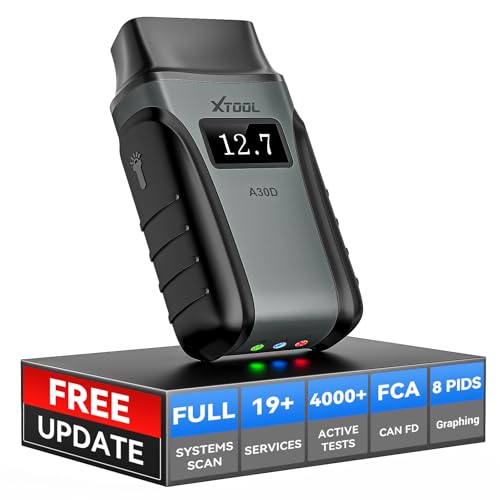
- Save $500+/Year with Pro-Level Diagnostics -No Subscriptions: The Portable XTOOL Anyscan A30D OBD2 scanner diagnostic tool includes free lifetime software updates for all app service functions, without extra cost. With a single payment, enjoy full access to diagnostics, relearn scan tools, and maintenance features. A cost-effective, smart choice for car owners and DIY enthusiasts, compatible with vehicles from 1996 onward. Please provide the car VIN and the special functions you need in advance so that we can confirm compatibility
- Bi-Directional Control for Faster Troubleshooting: Unlike a basic code reader, the A30D bi directional scan tool sends commands directly to your vehicle’s ECU to actively test components like fuel pump, valves, wipers, windows, doors, sunroof, and headlamps right from your smartphone. See component responses in real time without disassembly—perfect for brake jobs, electrical issues, and hard-to-find problems. This bidirectional obd2 scanner helps pinpoint faults faster, reduce guesswork, and avoid replacing good parts. An efficient, easy-to-use car scanner diagnostic tool built for DIYers, home garage users, and small-shop technicians who want real two-way scanner, not just codes
- 19 Reset Functions for Routine Maintenance: The A30D car diagnostic scanner provides 19 relearn functions without extra charges, including EPB Reset for parking brake replacement, TPMS Reset after tire changes, ABS Auto Bleeding, Oil Reset, SAS Reset, BMS Reset, Throttle Relearn, Injector C0ding, Gear Learning, Crank/Crankshaft/Cam/Ckp Sensor Relearn Tool, Transmission Match, Seat Calibration, Airbag Repair and more. This XTOOL A30D automotive scanner diagnostic tool supports preventive care, helping extend vehicle life and reduce costly shop visits. Functions vary by vehicle make and year—plz confirm compatibility before purchase
- Stable BT Connection & All-System & 8 Pids Live Data: The A30D wireless OBD2 scanner delivers a fast and stable wireless connection up to 33 feet, letting you move freely around the vehicle without tangled cables. Pair with with Android 9.0+ and iOS 10.0+ devices to turn your phone into a mobile auto scanner—perfect for home garages, driveways, or on-the-spot repairs. This full system scanner for cars provides real-time access to all major modules, including Engine, Gearbox, ABS, SRS, AC and more. with clear graphs, meters, and up to 8 PIDs displayed at once. This car code reader makes system monitoring visual, simple, easy to understand, and offering data logging for playback and deeper
- Wide Compatibility with CAN-FD & FCA Support: The A30D car computer diagnostic reader works with most 1996 and newer vehicles with a standard OBD2 port, including for Ford, for GM, for Toyota, for Honda, for Nissan,for Hyundai etc, with ongoing updates covering more car models and functions later. It also supports newer communication protocols like CAN-FD and FCA AutoAuth (Personal AutoAuth account and active subscription required, not included with the device!for Chrysler, for Dodge, for Jeep, for Fiat models). It is a future-ready automotive scanner diagnostic tool for households with multiple vehicles or part-time techs. Coverage vary by cars, plz check the compatibility first
Last update on 2026-06-23 / Affiliate links / Images from Amazon Product Advertising API
This product presentation was made with AAWP plugin.