
NHTSA ID Number: 11005737
Manufacturer Communication Number: 2024.20.200_0724.pdf
TSB/Document Date: 2024-08-06
Summary
Tesla does not provide physical owner's manual copies. Instead, all available owner’s manual content is integrated into the vehicle software, and only the content relevant for a given vehicle, based on vehicle configuration and software version installed, is displayed on its touchscreen. This file contains all available owner’s manual content for the vehicle converted to PDF format, and given the distribution method and NHTSA’s submission format requirements, it is the best available representative copy of owner’s manual content. However, a customer who accesses the owner’s manual via their vehicle’s touchscreen would only see the parts of this PDF file that are relevant to their vehicle.
CybertruckModel SModel XModel 3Model Y, either manually or automatically.
Powering Off
When you finish driving and shift into Park, simply exit the vehicle. When you leave CybertruckModel SModel XModel 3Model
Y with your phone key and key fob with your phone key with your phone key, it powers off automatically, turning off the
instrument panel and touchscreentouchscreen.
CybertruckModel SModel XModel 3Model Y also powers off automatically after being in Park for 30 minutes, even if you are
sitting in the driver’s seat.
Although usually not needed, you can power off CybertruckModel SModel XModel 3Model Y while sitting in the driver’s seat,
provided the vehicle is not moving. Touch Controls > Safety > Power Off. CybertruckModel SModel XModel 3Model Y
automatically powers back on after a short period if you press the brake pedal or touch the touchscreen.
374
Owner's Manual
Owners Manual
NOTE: CybertruckModel SModel XModel 3Model Y automatically shifts into Park whenever it determines that you are exiting
the vehicle (for example, the driver's seat belt is unbuckled and the vehicle is almost at a standstill). If you shift into Neutral,
your vehicle shifts into Park when you open the door to exit. To keep your vehicle in Neutral, see Instructions for Transporters
on page 911. To keep your vehicle in Neutral, you will need to activate Transport Mode (see Instructions for Transporters on
page 921Instructions for Transporters on page 1443).
Power Cycling the Vehicle
You can power cycle CybertruckModel SModel XModel 3Model Y if it demonstrates unusual behavior or displays a
nondescript alert.
NOTE: If the touchscreen is unresponsive or demonstrates unusual behavior, reboot it before you power cycle the vehicle (see
Restarting the Touchscreen or Instrument Panel on page 34Restarting the Touchscreen on page 1115).
1. Shift into Park.
2. On the touchscreen, touch Controls > Safety > Power Off.
3. Wait for at least two minutes without interacting with the vehicle. Do not open the doors, touch the brake pedal, touch the
touchscreen, etc.
4. After two minutes, press the brake pedal or open the door to wake the vehicle.
Owner's Manual
375
Owners Manual
Starting and Powering Off
Starting
When you open a door to enter CybertruckModel SModel XModel 3Model Y, the touchscreen powers on and you can operate
all controls. To shift CybertruckModel SModel XModel 3Model Y, press the brake pedal and swipe up for Drive or down for
Reverse on the touchscreen's drive mode strip (see Shifting on page 405).
If Auto Shift out of Park is enabled, CybertruckModel SModel XModel 3Model Y automatically selects Drive or Reverse based
on the detected surroundings . Pressing the brake pedal shifts the vehicle into the selected drive mode displayed on the
instrument paneltouchscreen's drive mode strip (provided the driver's door is closed and the driver's seat belt is buckled), and
pressing the accelerator moves the vehicle in that direction.
NOTE: To turn Auto Shift out of Park on or off, touch Controls > Pedals & Steering > Dynamics > Auto Shift out of Park.
NOTE: To turn Auto Shift out of Park on or off, touch Controls > Dynamics > Auto Shift out of Park.
Before accelerating when Auto Shift out of Park is enabled, check the instrument paneltouchscreen to make sure that
CybertruckModel SModel XModel 3Model Y has shifted into the drive mode you want (Drive or Reverse). If the selection is not
correct, or if Auto Shift out of Park is not enabled, swipe up for Drive or down for Reverse on the touchscreen's drive mode
strip to choose a new drive mode. See Shifting on page 405.
NOTE: If PIN to Drive is enabled (see PIN to Drive on page 659), you must enter a valid PIN on the touchscreen before you can
drive CybertruckModel SModel XModel 3Model Y.
Everything you need to know when driving CybertruckModel SModel XModel 3Model Y displays on the instrument
paneltouchscreen.
Drive Disabled - Requires Authentication
If CybertruckModel SModel XModel 3Model Y does not detect a key when you press the brake (a phone key is not detected or
two minutes have passed since you used the key card), the touchscreen displays a message telling you that driving requires
authentication.
If you see this message, place the key card in either phone dock where the RFID transmitter can read it. The two-minute
authentication period restarts and you can start CybertruckModel SModel XModel 3Model Y by pressing the brake pedal.
376
Owner's Manual
Owners Manual
A number of factors can affect whether CybertruckModel SModel XModel 3Model Y can detect a phone key (for example, the
device's battery is low or dead and is no longer able to communicate using Bluetooth).
Always keep your phone key or a key card with you. After driving, your key is needed to restart
CybertruckModel SModel XModel 3Model Y. And when you leave the vehicle, you must bring your key with you to lock
CybertruckModel SModel XModel 3Model Y, either manually or automatically.
Powering Off
When you finish driving and shift into Park, simply exit the vehicle. When you leave CybertruckModel SModel XModel 3Model
Y with your phone key and key fob with your phone key with your phone key, it powers off automatically, turning off the
instrument panel and touchscreentouchscreen.
CybertruckModel SModel XModel 3Model Y also powers off automatically after being in Park for 30 minutes, even if you are
sitting in the driver’s seat.
Although usually not needed, you can power off CybertruckModel SModel XModel 3Model Y while sitting in the driver’s seat,
provided the vehicle is not moving. Touch Controls > Safety > Power Off. CybertruckModel SModel XModel 3Model Y
automatically powers back on after a short period if you press the brake pedal or touch the touchscreen.
Owner's Manual
377
Owners Manual
NOTE: CybertruckModel SModel XModel 3Model Y automatically shifts into Park whenever it determines that you are exiting
the vehicle (for example, the driver's seat belt is unbuckled and the vehicle is almost at a standstill). If you shift into Neutral,
your vehicle shifts into Park when you open the door to exit. To keep your vehicle in Neutral, see Instructions for Transporters
on page 911. To keep your vehicle in Neutral, you will need to activate Transport Mode (see Instructions for Transporters on
page 921Instructions for Transporters on page 1443).
Power Cycling the Vehicle
You can power cycle CybertruckModel SModel XModel 3Model Y if it demonstrates unusual behavior or displays a
nondescript alert.
NOTE: If the touchscreen is unresponsive or demonstrates unusual behavior, reboot it before you power cycle the vehicle (see
Restarting the Touchscreen or Instrument Panel on page 34Restarting the Touchscreen on page 1115).
1. Shift into Park.
2. On the touchscreen, touch Controls > Safety > Power Off.
3. Wait for at least two minutes without interacting with the vehicle. Do not open the doors, touch the brake pedal, touch the
touchscreen, etc.
4. After two minutes, press the brake pedal or open the door to wake the vehicle.
378
Owner's Manual
Owners Manual
Steering WheelSteering Yoke (or Steering Wheel)
Adjusting the Steering WheelSteering Yoke (or Steering Wheel) Position
Depending on options purchased, you may have either a steering yoke or a steering wheel: the design may differ but the
function is the same.
To adjust the steering wheelsteering yoke (or steering wheel), touch Controls and touch the Steering icon.
Use the left scroll button on the steering wheelsteering yoke (or steering wheel) to move the steering wheelsteering yoke (or
steering wheel) to the desired position:
• To adjust the height/tilt angle of the steering wheelsteering yoke (or steering wheel), roll the left scroll button up or down.
• To move the steering wheelsteering yoke (or steering wheel) closer to you, or further away from you, press the left scroll
button to the left or right.
You can also customize what you want the left scroll button to control, such as Climate or Dashcam status. To customize, hold
down the left scroll button and navigate the menu on the instrument clustertouchscreen.
You can also customize what you want the left scroll button to control, such as Climate or Dashcam status. To customize, hold
down the left scroll button and navigate the menu on the instrument clustertouchscreen.
Owner's Manual
379
Owners Manual
WARNING: Do not make steering wheelsteering yoke (or steering wheel) adjustments while driving.
380
Owner's Manual
Owners Manual
Adjusting Steering Wheel Position
Adjust the steering wheel to the desired driving position by moving the control on the left side of the steering column. Using
this control, you can move the steering wheel forward and backward and up and down.
WARNING: Do not make adjustments while driving.
Adjusting Steering Weight
You can adjust the feel and sensitivity of the steering system to suit your personal preference:
1. On the touchscreen, touch Controls > Pedals & Steering > Dynamics > Steering Weight.
2. Choose a steering option:
◦ Light - Reduces the effort required to turn the steering wheelsteering yoke (or steering wheel). In town,
CybertruckModel SModel XModel 3Model Y feels easier to drive and park.
◦ Medium - Tesla believes that this setting offers the best handling and response in most conditions.
◦ Heavy - Increases the effort required to turn the steering wheelsteering yoke (or steering wheel). When driving at
higher speeds, CybertruckModel SModel XModel 3Model Y feels more responsive.
Owner's Manual
381
Owners Manual
Overview of Buttons
Your CybertruckModel SModel XModel 3Model Y features stalkless driving in which all controls you need when driving are
accessible on the steering yoke (or steering wheel).
1. Right turn signal (see Turn Signals on page 440).
2. High beam headlights* (see High Beam Headlights on page 436).
3. Left turn signal (see Turn Signals on page 440).
4. Left scroll button (see Left Scroll Button on page 382).
5. Horn (see Horn on page 390).
6. Identifier that is always illuminated to indicate that the right scroll wheel can be used with cruise control.
7. Wipers* (see Wipers and Washers on page 453).
8. Right scroll button (see Right Scroll Button on page 383).
9. Voice commands (see Voice Commands on page 97).
*The behaviors associated with the buttons for headlight high beams and wipers vary depending on whether you press or
press and hold the button. Refer to the corresponding sections in this Owner's Manual for details.
NOTE: Simultaneously holding down both the left and right scroll buttons while CybertruckModel SModel XModel 3Model Y is
parked causes the touchscreen to restart (see Restarting the Touchscreen or Instrument Panel on page 34).
NOTE: Some controls on the steering yoke (or steering wheel) are capacitive buttons, meaning they do not have a physical
switch, but respond to touch and provide haptic feedback (as a vibration). Do not rest your fingers on them unless intended.
Unintentionally touching these buttons can enable or disable them. If a button is mistakenly enabled, remove your fingers from
the switches for several seconds to resume normal operation.
Left Scroll Button
Use the scroll button on the left side of the steering yoke (or steering wheel) to adjust the position of the mirrors and steering
yoke (or steering wheel). It also controls the wipers and media player.
382
Owner's Manual
Owners Manual
• When using media player, push the button to the left to go back to the previous song or station or push it to the right to
skip to the next song or station.
• To increase/decrease the volume of the sound system, roll the button up/down respectively.
NOTE: The scroll button adjusts the volume for media and phone calls based on what is currently in use. As you adjust the
volume, the touchscreen displays the volume level and whether you are adjusting volume for media or phone.
• To mute the media volume, or to pause/play an audio file, push the scroll button.
• When adjusting mirrors, push the button to the left/right to move the associated mirror inward/outward and up/down to
position the mirror upward or downward (see Mirrors on page 394).
• When adjusting the position of the steering wheelsteering yoke (or steering wheel), roll the button up/down to adjust the
tilt/angle and press the button to the left or right to move the steering wheelsteering yoke (or steering wheel) closer or
further (see Adjusting the Steering WheelSteering Yoke (or Steering Wheel) Position on page 379).
• When a menu displays on the instrument panel from which you can choose options (for example, wipers), use the scroll
button to choose an option (up, down, left, or right).
• For incoming calls, press the scroll button to answer. During the call, press the scroll button again to hang up.
Right Scroll Button
Use the scroll button on the right side of the steering yoke (or steering wheel) to control Autopilot features such as Autosteer
and Traffic-Aware Cruise Control:
• When driving, push and release the button to engage Autosteer or Traffic-Aware Cruise Control (see Autosteer on page
557). If Autopilot Activation is set to Double Click (touch Controls > Autopilot > Autopilot Activation), a single push engages
Traffic-Aware Cruise Control (see Traffic-Aware Cruise Control on page 555) only and you must push and release twice to
engage Autosteer. Once engaged, pushing the button cancels Autosteer and/or Traffic-Aware Cruise Control.
• Scroll up and down when using Autopark on page 614 to select your desired parking space. Press the scroll button to
confirm and begin the Autopark maneuver.
Owner's Manual
383
Owners Manual
• When CybertruckModel SModel XModel 3Model Y is in Park, push the button twice to automatically engage Summon
before exiting the vehicle (see Summon on page 616).
• When Traffic-Aware Cruise Control is engaged, rolling the scroll button up/down increase/decreases the set cruising
speed respectively.
NOTE: There is currently no action associated with pushing the right scroll button to the left and right.
Using Left Steering Wheel Buttons
Use the buttons on the left side of the steering wheel to change radio stations, control media player volume, and to choose
what displays on the left side of the instrument paneltouchscreen (whenever the Navigation app is not displaying instructions).
1. Next
If you are listening to local or satellite radio and you have defined more than one radio preset, press to play the next preset
in the radio band that is currently playing. If you have not defined more than one preset, press to go to the next available
frequency.
If you are listening to Internet radio, or to an audio file on a connected Bluetooth or USB device, press to skip to the next
song or station.
If you have more than one favorite defined, press and hold to cycle through favorites.
2. Scroll Button
◦ To adjust the media volume, roll up or down.
NOTE: The scroll button adjusts the volume for media, navigation instructions and phone calls based on what is
currently in use. As you adjust volume, the instrument paneltouchscreen displays the volume level and whether you are
adjusting volume for media, navigation or phone.
◦ To mute the media volume, or to pause/play an audio file, tap the scroll button.
◦ To choose what displays on the left side of the instrument paneltouchscreen, hold the scroll button briefly until the
available options are displayed. Roll the scroll button to choose Empty, Car Status, Clock, Media, Energy, Trips,
Suspension, etc. When the option you want is highlighted, tap the scroll button.
NOTE: The option you choose to display using the left scroll button is retained until you manually change it.
NOTE: Car status displays information such as status of doors and trunks, and on newer model vehicles, the tire
pressure measurements.
3. Previous
Same as described above for Next, except it skips to the previous song or station. If you have more than one favorite
defined, press and hold to cycle through favorites.
NOTE: Regardless of how you customize the left side of the instrument paneltouchscreen, it automatically changes to display
navigation instructions (if applicable), or to let you know if a door or trunk is open when CybertruckModel SModel XModel
3Model Y is in Drive or Reverse.
384
Owner's Manual
Owners Manual
Using Right Steering Wheel Buttons
Use the buttons on the right side of the steering wheel to access call options while on a phone call, to choose what displays on
the right side of the instrument paneltouchscreen, to adjust CybertruckModel SModel XModel 3Model Y features, and to use
voice commands.
NOTE: Whenever you receive or make a phone call, the right side of the instrument paneltouchscreen automatically displays
call options to help you easily handle phone calls on your Bluetooth-connected phone.
1. Press to use a voice command to call a contact, navigate, or listen to Internet music. When you hear the tone, speak your
command. For details, see Voice Commands on page 97.
2. Scroll Button
◦ During a phone call, touch the scroll button to display call options that allow you to perform an action on the call.
◦ Roll the scroll button to adjust the most recently used feature from the feature list (see Menu button).
◦ To choose what displays on the right side of the instrument paneltouchscreen, hold the scroll button briefly until the
available options are displayed. Roll the scroll button to choose Empty, Car Status, Clock, Media, Energy, Trips,
Suspension, etc. When the option you want is highlighted, tap the scroll button.
NOTE: Car status displays information such as status of doors and trunks, and on newer model vehicles, the tire
pressure measurements.
NOTE: The option you choose to display using the right scroll button is retained until you manually change it.
◦ To restart the touchscreen, hold down both scroll buttons for approximately five seconds. See Restarting the
Touchscreen or Instrument Panel on page 34.
◦ Suspension. Display a real-time visualization of how the suspension system is dynamically adjusting each wheel’s
damping to account for changing road conditions. Roll the scroll button to choose Suspension and then press the scroll
button. See Air Suspension on page 472.
3. Menu button
Press to display a menu that allows you to control the following CybertruckModel SModel XModel 3Model Y:
◦ Temperature. Roll the scroll button to change the driver side temperature, or press the wheel to turn the climate control
system on and off.
◦ Fan Speed. Roll the scroll button to adjust the speed of the fan used to cool or heat the cabin.
◦ Display Brightness. Roll the scroll button to change the brightness level of the displays, or press the wheel to restore
default settings.
◦ Sunroof (if equipped). Roll the scroll button to adjust the position of the sunroof.
◦ Recent Calls. If your phone is paired to CybertruckModel SModel XModel 3Model Y, roll the scroll button to view your
recent calls. Press the scroll button to call the contact that's displayed. To pair your phone, see Pairing a Phone or
Bluetooth Device on page 360.
◦ Contacts. If your phone is paired to CybertruckModel SModel XModel 3Model Y, roll the scroll button to navigate to
contacts in your phone. Your contacts are listed alphabetically by their last name. To ensure
CybertruckModel SModel XModel 3Model Y can access your contacts, see Importing Contacts and Recent Calls on
page 361.
Press the menu button again to close the feature list.
Owner's Manual
385
Owners Manual
Scroll Buttons
A scroll button is located on each side of the steering wheelsteering yoke (or steering wheel). Use your thumb to press this
button to the right or left. You can also press the button or roll it up or down.
1. Use the left scroll button to:
◦ Control the volume. Press the scroll button to mute/unmute the volume, roll the scroll button up to increase the volume
or down to decrease the volume.
NOTE: The scroll button adjusts the volume for media, navigation instructions or phone calls based on what is currently
in use. As you adjust volume, the touchscreen displays the volume level and whether you are adjusting volume for
media, navigation or phone calls.
◦ Push the scroll button to the right to go to the next song, station, or Favorite (depending on what's playing). Push the
scroll button to the left to return to the previous selection.
◦ Adjust the position of the exterior mirrors (see Adjusting Exterior Mirrors on page 395).
◦ Adjust the position of the steering wheelsteering yoke (or steering wheel) (see Adjusting the Steering WheelSteering
Yoke (or Steering Wheel) Position on page 379).
◦ Adjust the angle of the headlights (see Headlight Adjustments on page 423).
2. Use the right scroll button to:
◦ Speak a voice command. Press the button to initiate a voice command (see Voice Commands on page 97).
◦ When using Traffic-Aware Cruise Control, adjust your set speed and the distance you want to maintain from a vehicle
traveling ahead of you (see Traffic-Aware Cruise Control on page 555). Or, if Full Self-Driving (Supervised) is active,
change the Full Self-Driving (Supervised) profile between Chill, Average, and Assertive (see Full Self-Driving
(Supervised) on page 604).
◦ Adjust your cruising speed (see Cruise Control on page 479).
NOTE: The arrows associated with the scroll buttons are backlit in low ambient lighting conditions. To turn this backlighting on
or off, touch Controls > Lights > Steering Wheel Lights.
To restart the touchscreen, press and hold both scroll buttons until after the touchscreen turns black. See Restarting the
Touchscreen or Instrument Panel on page 34.
Scroll Buttons
A scroll button is located on each side of the steering wheelsteering yoke (or steering wheel). Use your thumb to press this
button to the right or left. You can also press the button or roll it up or down.
386
Owner's Manual
Owners Manual
1. Use the left scroll button to:
◦ Control the volume. Press the scroll button to mute/unmute the volume, roll the scroll button up to increase the volume
or down to decrease the volume.
NOTE: The scroll button adjusts the volume for media, navigation instructions or phone calls based on what is currently
in use. As you adjust volume, the touchscreen displays the volume level and whether you are adjusting volume for
media, navigation or phone calls.
◦ Push the scroll button to the right to go to the next song, station, or Favorite (depending on what's playing). Push the
scroll button to the left to return to the previous selection.
◦ Adjust the position of the exterior mirrors (see Adjusting Exterior Mirrors on page 395).
◦ Adjust the position of the steering wheelsteering yoke (or steering wheel) (see Adjusting the Steering WheelSteering
Yoke (or Steering Wheel) Position on page 379).
◦ Adjust the angle of the headlights (see Headlight Adjustments on page 423).
2. Use the right scroll button to:
◦ Speak a voice command. Press the button to initiate a voice command (see Voice Commands on page 97).
◦ When using Traffic-Aware Cruise Control, adjust your set speed and the distance you want to maintain from a vehicle
traveling ahead of you (see Traffic-Aware Cruise Control on page 555). Or, if Full Self-Driving (Supervised) is active,
change the Full Self-Driving (Supervised) profile between Chill, Average, and Assertive (see Full Self-Driving
(Supervised) on page 604).
◦ Adjust your cruising speed (see Cruise Control on page 479).
NOTE: The arrows associated with the scroll buttons are backlit in low ambient lighting conditions. To turn this backlighting on
or off, touch Controls > Lights > Steering Wheel Lights.
To restart the touchscreen, press and hold both scroll buttons until after the touchscreen turns black. See Restarting the
Touchscreen or Instrument Panel on page 34.
Owner's Manual
387
Owners Manual
Steering Wheel Overview
Your CybertruckModel SModel XModel 3Model Y features stalkless driving in which all controls you need when driving are
accessible on the steering wheel.
The steering wheel design may vary but the function is the same.
1. Left turn signal (see Turn Signals on page 439)
2. Right turn signal (see Turn Signals on page 439)
3. High beam headlights (see High Beam Headlights on page 435)
4. Multifunction light (non-functional)
5. Cruise control light (non-functional)
6. Rear-facing camera button
7. Wipers (see Wipers and Washers on page 453)
8. Voice commands (see Voice Commands on page 97)
9. Right scroll wheel (see Right Scroll Wheel (Autopilot) on page 389)
10. Horn (see Horn on page 390)
11. Left scroll wheel (see Left Scroll Wheel (Multifunction) on page 389 )
NOTE: Some controls on the steering wheel are capacitive buttons, meaning they do not have a physical switch, but respond to
touch and provide haptic feedback (as a vibration). Do not rest your fingers on them unless intended. Unintentionally touching
these buttons can enable or disable them. If a button is mistakenly enabled, remove your fingers from the switches for several
seconds to resume normal operation.
388
Owner's Manual
Owners Manual
Scroll Wheels
The scroll wheel on the left side of the steering wheel controls functions such as mirror adjustment, volume control, and wiper
speed. The right scroll wheel controls Autopilot features, such as Autosteer initiation and max speed limit.
Left Scroll Wheel (Multifunction)
Mode
Action
Function
More Information
Normal
Press
Play/pause media
Media on page 707
Tilt left/right
Next/previous track
Scroll up/down
Adjust volume
Press
Confirm speed
Tilt left/right
Select wiper speed
Long press
Activate/set function
Tilt left/right
Navigate list
Scroll
Select function
Tilt left/right
Answer/decline a phone call
In a call, tilt left
Mute/unmute
In a call, tilt right
End a call
Wipers*
Multifunction
Phone call
Wipers and Washers on page 453
Left Scroll Wheel Customization on page 389
Using the Phone App on page 363
* First press the wiper button on steering wheel to activate.
Left Scroll Wheel Customization
Choose from a list to create quick access to a function by touching Controls > Display > Scroll Wheel Function. Selecting a
function sets the default action when you long press the left scroll button, unless you select Ask each time.
Right Scroll Wheel (Autopilot)
Mode
Action
Function
More Information
Single Click*
Press
Activate Autosteer
Autopilot Settings on page 554
Tilt left/right
Adjust follow distance
Scroll up/down
Adjust max speed
Press
Activate Traffic-Aware Cruise Control
Double press
Activate Autosteer
Tilt left/right
Adjust follow distance
Scroll
Adjust max speed
Press*
Activate Full Self-Driving (Supervised)
Double Click*
Full Self-Driving (Supervised) **
Full Self-Driving (Supervised) on page 604
* Choose how you want Autopilot features to be enabled by touching Controls > Autopilot > Autopilot Activation.
** First enable Full Self-Driving (Supervised) by touching Controls > Autopilot > Autopilot Features > Full Self-Driving
(Supervised).
Both Scroll Wheels
Mode
Action
Normal Press both briefly
Owner's Manual
Function
More Information
Activate secondary drive mode selector (P, R,
N, D)
Shift Using the Overhead Console on page 408
389
Owners Manual
Mode
Action
Function
Press both and hold Restart the touchscreen
More Information
Restarting the Touchscreen or Instrument Panel on page 34
Heated Steering WheelSteering Yoke (or Steering Wheel)
If CybertruckModel SModel XModel 3Model Y is equipped with the cold weather package, you can warm up the steering
wheel by touching climate controls on the touchscreen (see Operating Climate Controls on page 668). When turned on,
radiant heat keeps the steering wheel at a comfortable temperature.
To warm up the steering wheelsteering yoke (or steering wheel), touch the temperature icon on the touchscreen to display
climate controls (see Overview of Climate Controls on page 668), then touch the steering wheelsteering yoke (or steering
wheel) icon. When turned on, radiant heat keeps the steering wheelsteering yoke (or steering wheel) at a comfortable
temperature.
NOTE: Depending on date of manufacture, your Model S may not include a heated steering wheel, even when equipped with
the optional cold weather package.
Heated Steering Wheel
To warm up the steering wheel , touch the fan icon on the touchscreen to display climate controls (see Adjusting Climate
Control Settings on page 669), then touch the steering wheel icon. When on, radiant heat keeps the steering wheel at a
comfortable temperature.
NOTE: Depending on date of manufacture, your CybertruckModel SModel XModel 3Model Y may not be equipped with a
heated steering wheel.
NOTE: Depending on date of manufacture, your CybertruckModel SModel XModel 3Model Y may not be equipped with a
heated steering wheel.
Horn
To sound the horn, press and hold the center pad on the steering wheel.
For vehicles manufactured as of approximately January 2024: To sound the horn, press the middle of the steering
wheelsteering yoke (or steering wheel).
For vehicles manufactured prior to approximately January 2024: To sound the horn, press and hold the horn button on the
right side of the steering wheelsteering yoke (or steering wheel).
390
Owner's Manual
Owners Manual
Owner's Manual
391
Owners Manual
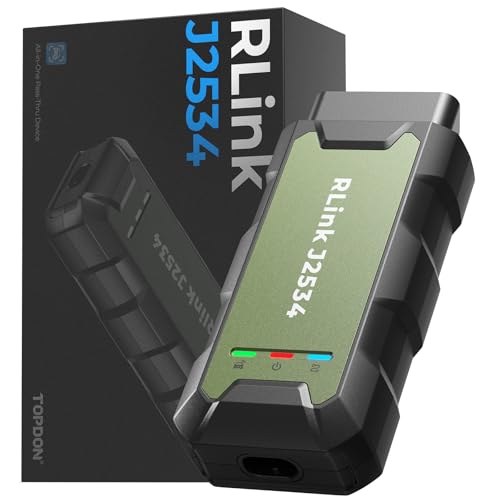
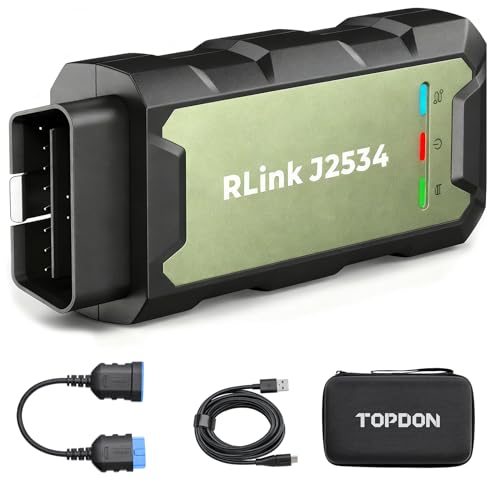
- Advanced VCI Box, Industry-leading J2534 Pass-Thru...
- High-Speed OEM-Level Diagnostics & Programming: Unlock true...
- Coverage for 17 Car Brands & Ultra Reliability: Works...
- User-Friendly RLink Platform & Expert Support: TOPDON’s...
- 6.6 ft USB-C Cable & Portable Storage Case: The RLink J...
If the PDF is very large, it may not load in the preview below.
Some older TSBs had multiple PDFs — visit the NHTSA Website to view all PDFs.
If the TSB PDF does not show, download or view it on the NHTSA Website.
Click on the (+) Plus Sign
Then Click on Associated Document(s)
Search NHTSA Database for Recalls
Search NHTSA Database for Vehicle Investigations
View Latest Vehicle Investigations
Search NHTSA Database for Vehicle Complaints
View Latest Vehicle Complaints
TSB/Document ID: 2024.20.200_0724.pdf
Replacement Service Bulletin Number:
MFR Communication Date: 2024-07-31
MFR Internal Campaign ID/Software Version: 2024.20.200
Communication Type: Over The Air
NHTSA Components: UNKNOWN OR OTHER
MFR Component System:
MFR Component Subsystem:
Previous TSB | Next TSB |

- [Notice] When you receive a used device, it may be a customer return resold by Amazon without inspection. You can exchange it for a new one through Amazon. As this situation is unavoidable, we sincerely apologize. For any issues, contacting us via Amazon's "Messages" is the best way. THINKSCAN 689BT Bidirectional Scan Tool Can Be Used Immediately After It is Turned On, Without Complicated Registration Process, Which is More Convenient & Quick.
- Full Bi-Directional Control & 3000+ Active Tests: Take control and test components like actuators, fuel injectors, relays, and cooling fans in real time. You’ll quickly see if the problem is in the part itself or the control module — saving you hours of guesswork and frustrating trial-and-error.
- Advanced ECU Coding Capabilities: Handle module matching and hidden feature activation with confidence. When you replace an ECU or want to customize settings, this obd2 scanner diagnostic bi directional tool gives you the professional-level capabilities you need without the dealership price tag.
- 34+ Useful Reset and Maintenance Functions: Complete everyday service tasks smoothly with a wide range of helpful reset and maintenance functions. Whether you’re keeping up with regular upkeep or tackling a specific job, this scanner makes maintenance simpler and less stressful for both DIYers and pros.
- Comprehensive Full System Diagnostics: Diagnose every major system — Engine, Transmission, ABS, SRS, TPMS, and more — all in one place. Finally stop wondering if you’re missing something important; get the full picture and clear codes with ease.

- Top Reasons to Choose the D7S OBD2 Scanner: XTOOL D7S car scan tool, an upgrade of XTOOL D7, offers comprehensive features for automotive technicians, workshops, and DIY enthusiasts 1. Upgraded Hardware: 2+64GB memory, rear camera, intuitive interface, foldable bracket 2. Complete Diagnostics: FCA
 Autoauth, OE-level all system scan, 39+ maintenance services, 4K+ bidirectional, CANFD/DoIP protocol 3. Advanced Capabilities: ECU c0ding, PMI functions 4. Wide Compatibility: Support 10,000+ models, covering 99% vehicle brands 5. Multi-language: Available in 22+ languages, No IP Restrictions 6. 3-Year Updates: Save 300 bucks on software updates for the latest features and optimizations
 - 2026 Upgraded D7S Car Scanner Features: The newly 2026 D7S V2.0 scanner for car brings exciting features for advanced vehicle diagnostics and enhanced user experience 1. FCA AutoAuth: Now supports FCA SGW module for Chrysler, for Jeep, for Dodge (2018+), for Fiat (2017+), enabling faster vehicle communication without gateway restrictions 2. PMI (Offline ECU Pr0gramming): Allows for Ford, for Lincoln, and for Mazda ECU pr0gramming for new modules 3. Optimized Diagnostic Report 2.0: Personalized reports with logos and customer info for auto shops. Note: Compatibility varies by cars, please check before order
- 39+ Services/Resets/Adaptations/Relearns/Calibrations: XTOOL D7S full system car scanner diagnostic tool tackles 99% of common car issues through its 36+ special functions, including Oil Reset, EPB, SAS, BMS, Throttle Reset, Injector C0ding, ABS Bleed, TPMS Reset, Power Balance, etc and also covers specific-vehicle functions like Crank Sensor Relearn, ABS Initialization, Cylinder Power Balance, Fuel Trim Reset, Idle Relearn etc. This car diagnostic scanner enhances efficiency, making repairs and maintenance hassle-free. Tip: DO NOT for All vehicles, please check compatibility first
- Cost-effective ECU C0ding Scan Tool for Specific Brands: Enhance your vehicle's performance with XTOOL D7S! This obd2 scanner all systems bidirectional offers advanced capabilities at an affordable price, supports online for BMW, for Benz and offline for BENZ, for MIT, along with PMI functions for Ford, for Mazda, and for Lincoln. Ideal for technicians and DIY enthusiasts, this automotive scanner diagnostic tool optimizes vehicle performance and enhances the driving experience. Note: Not for all cars and modules, please send car VIN to check the compatibility before purchase
- OE All System Diagnostic & 8 Pids Graphing: XTOOL D7S is a comprehensive all system bi directional obd2 scanner that delivers dealer-level diagnostics, completely controlling over your vehicle’s performance and health. This automotive scan tool can read and clear DTCs, view live data and ECU information, retrieve freeze frames, and perform active tests and full obd2 functions. This bi-directional scan tool can can identify your vehicle's make, model, and year information with just one click and show up to 8 PIDs live data with options for CSV viewing, playback, and recording for in-depth analysis. It is easy-to-use for both professionals and beginners, helping pinpoint issues efficiently

- 【✅Compared to BOSSCOMM IF742, IF745 Offers Full-System Diagnostics】The BOSSCOMM IF745 car diagnostic scanner is an upgraded model of IF742. In addition to supporting all OBD2 Code Reader functions and 6 reset options (ABS/EPB/SAS/BMS/Oil/Throttle), it expands diagnostics from 4 systems (Check Engine/ABS/SRS/Transmission) to vehicle All systems, including Steering, Suspension, and Body Electronics. This provides deeper, more comprehensive diagnostic capabilities.
- 【✨10 OBD2 Functions】The BOSSCOMM IF745 scan tool’s DTC Lookup instantly translates fault codes into user-friendly explanations, its I/M Readiness feature streamlines emissions testing with a single tap, and Freeze Frame lets you pinpoint the exact moment of a fault for in-depth root-cause diagnosis. Combined with a live data dashboard and advanced diagnostics (O2S, OBMon, EVAP), it delivers comprehensive insights for confident troubleshooting.
- 【✨Deep Diagnostics for All Vehicle System Modules】Beyond code reading/clearing and ECU information retrieval, our all-in-one data stream feature lets you inspect all current fault codes and their locations across the vehicle’s systems. This vehicle code reader helps you turn off dashboard warning lights and perform a comprehensive self-check of your car at home—no more back-and-forth trips to the repair shop or hefty inspection fees.
- 【✨6 Essential Resets: ABS Bleeding, Oil, EPB, SAS, Throttle, BMS】The BOSSCOMM IF745 obd2 scanner diagnostic tool swiftly purges air from brake lines to restore braking sensitivity, fine-tunes maintenance cycles to eliminate false alerts, resolves parking brake issues with one-click control, recalibrates steering sensors for stability, optimizes engine idling/acceleration for smoother performance, and deeply resets battery systems to extend lifespan and range via precise parameter adjustments.❗NOTE: Does NOT support bidirectional control, coding, or programming.
- 【✨10,000+ Car Models, AutoVIN, 13 Languages】The BOSSCOMM IF745 vehicle scanner diagnostic tool covers 73+ global car brands and offers support in 13 languages, making it perfect for DIYers, auto mechanics, or as a thoughtful gift. With a single-click AutoVIN feature, it instantly retrieves vehicle serial numbers, streamlining diagnostics for users globally. This adaptable tool balances user-friendliness with precision, catering to both personal and professional requirements.✅Unsure about compatibility? Compatibility will vary on vehicles' model and year, pls reach us via 📧 [email protected] 📧 before purchase.

This product presentation was made with AAWP plugin.