
NHTSA ID Number: 11001931
Manufacturer Communication Number: fsd-12-4_0524.pdf
TSB/Document Date: 2024-06-20
Summary
Tesla does not provide physical owner's manual copies. Instead, all available owner’s manual content is integrated into the vehicle software, and only the content relevant for a given vehicle, based on vehicle configuration and software version installed, is displayed on its touchscreen. This file contains all available owner’s manual content for the vehicle converted to PDF format, and given the distribution method and NHTSA’s submission format requirements, it is the best available representative copy of owner’s manual content. However, a customer who accesses the owner’s manual via their vehicle’s touchscreen would only see the parts of this PDF file that are relevant to their vehicle.
traveling.
CybertruckModel SModel XModel 3Model Y uses a 48V lithium-ion low voltage battery. The 48V battery powers the
windows, doors, touchscreen, and other low voltage vehicle systems when the high voltage Battery is unavailable. The 48V
battery also provides a redundant source of power for critical systems (such as power steering).
NOTE: 48V low voltage connectors are colored blue for easy identification, and wires that operate at 48V are marked with blue
tape.
By using a 48V low voltage battery instead of the 12V lead-acid battery found in many conventional vehicles,
CybertruckModel SModel XModel 3Model Y is able to operate more efficiently.
WARNING: Assume that the low voltage components of CybertruckModel SModel XModel 3Model Y, including all
cables and connectors, are always energized. Do not handle low voltage cables or connect/disconnect connectors when
the low voltage system is powered. Because the 48V low voltage system operates at a higher voltage than a typical low
voltage system, there is an increased risk of personal injury, arcing, or component damage if the low voltage
components of CybertruckModel SModel XModel 3Model Y are handled improperly.
Owner's Manual
1357
Charging and Energy Consumption
High Voltage Battery Information
CybertruckModel SModel XModel 3Model Y has one of the most sophisticated battery systems in the world. The most
important way to preserve the high voltage Battery is to LEAVE YOUR VEHICLE PLUGGED IN when you are not using it. This is
particularly important if you are not planning to drive CybertruckModel SModel XModel 3Model Y for several weeks.
NOTE: When left idle and unplugged, your vehicle periodically uses energy from the Battery for system tests and recharging
the low voltage battery when necessary.
There is no advantage to waiting until the Battery’s level is low before charging. In fact, the Battery performs best when
charged regularly.
NOTE: If you allow the Battery to discharge to 0%, other components may become damaged or require replacement (for
example, the low voltage battery). In these cases, you are responsible for repair and/or transporting expenses. Dischargerelated expenses are not covered by the warranty or under the Roadside Assistance policy.
The peak charging rate of the Battery may decrease slightly after a large number of DC Fast Charging sessions, such as those
at Superchargers. To ensure maximum driving range and Battery safety, the Battery charge rate is decreased when the Battery
is too cold, the Battery’s charge is nearly full, and when the Battery conditions change with usage and age. These changes in
the condition of the Battery are driven by battery physics and may increase the total Supercharging duration by a few minutes
over time. You can minimize the amount of charge time by using Trip Planner (if available in your market region) to warm the
Battery while driving to a Supercharger. See Trip Planner on page 699 for more information.
Battery Care
Never allow the Battery to fully discharge.
Even when CybertruckModel SModel XModel 3Model Y is not being driven, its Battery discharges very slowly to power the
onboard electronics. The Battery can discharge at a rate of approximately 1% per day, though the discharge rate may vary
depending on environmental factors (such as cold weather), vehicle configuration, and your selected settings on the
touchscreen. Situations can arise in which you must leave CybertruckModel SModel XModel 3Model Y unplugged for an
extended period of time (for example, at an airport when traveling). In these situations, keep the 1% in mind to ensure that you
leave the Battery with a sufficient charge level. For example, over a two week period (14 days), the Battery may discharge by
approximately 14%.
Discharging the Battery to 0% may result in damage to vehicle components. To protect against a complete discharge,
CybertruckModel SModel XModel 3Model Y enters a low-power consumption mode when the displayed charge level drops to
approximately 0%. In this mode, the Battery stops supporting the onboard electronics and auxiliary low voltage battery. Once
this low-power consumption mode is active, immediately plug in CybertruckModel SModel XModel 3Model Y to prevent a
jump start and low voltage battery replacement.
NOTE: If CybertruckModel SModel XModel 3Model Y is unresponsive and does not unlock, open, or charge, the low voltage
battery may be discharged. In this situation, try jump starting the low voltage battery (see Jump Starting on page 930Jump
Starting on page 1443). If the vehicle is still unresponsive, use the mobile app to schedule a service appointment.
Temperature Limits
For better long-term performance, avoid exposing CybertruckModel SModel XModel 3Model Y to ambient temperatures
above 140° F (60° C) or below -22° F (-30° C) for more than 24 hours at a time.
Energy Saving Feature
CybertruckModel SModel XModel 3Model Y has an energy-saving feature that reduces the amount of energy being
consumed by the displays when CybertruckModel SModel XModel 3Model Y is not in use. On newer vehicles, this feature is
automated to provide an optimal level of energy saving. However, on older vehicles, you can control the amount of energy
being consumed by the displays by touching Controls > Display > Energy Saving. For more information on maximizing range
and saving energy, see Getting Maximum Range on page 739.
Submerged Vehicle
As with any vehicle, if your Tesla has been exposed to flooding, extreme weather events or has otherwise been submerged in
water (especially in salt water), treat it as if it’s been in an accident and contact your insurance company for support. Do not
attempt to operate the vehicle before Tesla Service has inspected it, but you should tow or move it away from any structures.
1358
Owner's Manual
Charging and Energy Consumption
An unintentionally submerged vehicle is different than a vehicle that intentionally enters water while off-roading. In these
situations, use Wade Mode. See #unique_880 on page for more information.
NOTE: Damage caused by water is not covered under warranty.
Battery Warnings and Cautions
WARNING: The high voltage system must be serviced only by a trained technician. Under no circumstances should you
open or tamper with the Battery. Do not disassemble, remove or replace high voltage components, cables or
connectors. High voltage cables are typically colored orange for easy identification.
CAUTION: If the Battery’s charge level falls to 0%, you must plug it in. If you leave it unplugged for an extended period,
it may not be possible to charge or use CybertruckModel SModel XModel 3Model Y without jump starting or replacing
the low voltage battery. Leaving CybertruckModel SModel XModel 3Model Y unplugged for an extended period can
also result in permanent Battery damage. If you are unable to charge CybertruckModel SModel XModel 3Model Y after
attempting to jump start the low voltage battery, schedule a service appointment.
CAUTION: The Battery requires no owner maintenance. Do not remove the coolant filler cap and do not add fluid. If the
instrument paneltouchscreentouchscreen warns you that the fluid level is low, use the mobile app to schedule a service
appointment.
CAUTION: Do not use the Battery as a stationary power source. Doing so voids the warranty.
Owner's Manual
1359
Charging and Energy Consumption
Charging Instructions
Opening the Charge Port
The charge port is located above the driver's side rear wheel of CybertruckModel SModel XModel 3Model Y.
With CybertruckModel SModel XModel 3Model Y in Park and a valid key is detected, press and release the button on the Tesla
charge cable to open the charge port door.
You can also open the charge port door using any of these methods:
• On the touchscreen, touch the charge port on the vehicle avatar and touch Open.
• On the touchscreen, touch Controls > Charging > Open Charge Port.
• Press the charge port door when CybertruckModel SModel XModel 3Model Y is unlocked.
• When the vehicle is locked with an authenticated key in range, you can also press the button on the charge cable to open
the charge port door (see Keys on page 1133).
• Use voice commands. You can also use voice commands to close the charge port door, and begin or stop charging (see
Voice Commands on page 96).
• Use the mobile app.
The Cybertruck icon lights up white when you open the charge port door (see Charge Port Light on page 1363). If you do not
insert a charge cable into the charge port within a few minutes after opening the charge port door, the charge port door
closes. If this happens, open the charge port door again.
1360
Owner's Manual
Charging and Energy Consumption
NOTE: In extremely cold weather or icy conditions, it is possible that your charge port latch may freeze in place. If this
happens, you can thaw ice on the charge port latch by turning on the rear defrost or by enabling preconditioning using the
mobile app. To prevent this from occurring, use the Schedule settings, available on both the charging and climate control
screens, to set a departure time and enable preconditioning (see Schedule at this Location on page 1365).
CAUTION: Do not try to force the charge port door open.
During Charging
Tesla strongly recommends leaving CybertruckModel SModel XModel 3Model Y plugged in when not in use. This maintains
the Battery at the optimum level of charge.
During charging, the charge port light (the Cybertruck icon) pulses green, and the touchscreen displays real-time charging
status. The frequency at which the green charge port light pulses slows down as the charge level approaches full. When
charging is complete, the light stops pulsing and is solid green. If CybertruckModel SModel XModel 3Model Y is locked, the
charge port light does not light up. For more information, see Charge Port Light on page 1363.
If the charge port light turns red while charging, there is an issue with charging. Check the touchscreen for an alert describing
the issue. An issue can occur due to something as common as a power outage. If a power outage occurs, charging resumes
automatically when power is restored.
NOTE: The thermal system may produce steam while CybertruckModel SModel XModel 3Model Y charges. For example,
odorless steam can come from the front of your vehicle while charging at a Supercharger in cold temperatures. This is normal
and not a cause for concern. Likewise, it is normal to hear sounds during charging. Particularly at high currents, the refrigerant
compressor and fan operate as needed to keep the Battery cool.
NOTE: Air conditioning performance is generally not affected by charging. However, in some circumstances (for example,
charging at high currents during a particularly warm day), the air coming from the vents may not be as cool as expected and a
message displays on the touchscreen. This is normal and ensures that the Battery stays within an optimal temperature range
while charging to support longevity and optimum performance.
WARNING: Never spray liquid at a high velocity (for example, a pressure washer) towards the charge port while
charging. Doing so can result in serious injury or damage to the vehicle, charging equipment, or property.
WARNING: Do not use third-party charging adapters with CybertruckModel SModel XModel 3Model Y.
CAUTION: Keep the cargo bed outlet cover closed when Cybertruck is charging, especially in wet weather. Charging
may be disabled if moisture enters one of the outlets.
Charging Status
On the touchscreen, the charging status displays at the top of the vehicle status area when the charge port door is open.
Owner's Manual
1361
Charging and Energy Consumption
1. Charge limit: The set charge limit. The charge limit is the capacity at which CybertruckModel SModel XModel 3Model Y will
stop charging. To change the charge limit, touch Controls > Charging.
2. Time remaining: The estimated time remaining to charge to your set limit. Or, if you are navigating to a destination, the
estimated time remaining until you can continue your trip.
NOTE: When charging to 100%, the CybertruckModel SModel XModel 3Model Y may continue to charge with low power
when charging is displayed as complete. This is expected. Because the added energy beyond this point is low, it is usually
not beneficial to continue charging.
3. Range: The total estimated driving distance or energy percentage (depending on your display setting) available.
NOTE: To change how energy units are displayed, touch Controls > Display > Energy Display. You can also touch the driving
distance or energy percentage on the touchscreen to switch between them.
4. Charging: The amount of power currently being provided by the charger.
5. Charging rate: The speed at which the vehicle is charging, shown in range gained per hour.
6. Range gained: The estimated increase in driving distance achieved in the charging session.
1362
Owner's Manual
Charging and Energy Consumption
Charge Port Light
Above the charge port, the charge port light shows charging status. The charge port light turns off after a short period of time
if the vehicle is locked (for example, if you walk up to the vehicle after it has been charging for a while).
After you insert a charge cable into CybertruckModel SModel XModel 3Model Y, wait a few seconds and confirm that the
charge port light begins blinking green and that your vehicle is charging. If the light is amber or red, troubleshoot the issue
before you leave to ensure a successful charging session.
WHITE: The charge port door is open. CybertruckModel SModel XModel 3Model Y is ready to
charge and the connector is not inserted, or the charge port latch is unlocked and the connector
is ready to be removed.
BLUE, BLINKING: CybertruckModel SModel XModel 3Model Y is communicating with the charger
but has not started charging or providing power yet (such as when your vehicle is preparing to
charge, or when your vehicle is preparing to provide power from the high voltage Battery).
BLUE: The charger is connected, but CybertruckModel SModel XModel 3Model Y is not charging
(such as when scheduled charging is active).
PURPLE, BLINKING: CybertruckModel SModel XModel 3Model Y is providing power from the
high voltage Battery. The frequency of blinking corresponds to the amount of power that
Cybertruck is providing (more frequent blinks correspond to more power being provided). For
more information, see Powershare Home Backup on page 1371.
GREEN, BLINKING: Charging is in progress. As CybertruckModel SModel XModel 3Model Y
approaches a full charge, the frequency of the blinking slows.
GREEN, SOLID: Charging is complete.
AMBER, BLINKING: CybertruckModel SModel XModel 3Model Y is charging at a reduced current
because the connector is not fully plugged in.
AMBER, SOLID: CybertruckModel SModel XModel 3Model Y is not charging because the
connector is not fully plugged in. Realign the connector to the charge port and insert fully.
RED: A fault is detected and charging has stopped. Check the touchscreen for an alert. In some
cases, an alert can be easily cleared by unplugging the charge cable, returning it to the charger,
then trying again. In other cases (such as a tripped fuse or a faulty charger), you may need to
check the power source. If the red light persists, try using a different charger.
Stopping Charging
Stop charging at any time by pressing the button on the charge cable to disconnect, or touch Stop Charging on the
touchscreen or mobile app. To disconnect the charge cable:
1. Ensure your vehicle is unlocked. To prevent unauthorized unplugging of the charge cable, the charge cable latch remains
locked and CybertruckModel SModel XModel 3Model Y must be unlocked before you can disconnect the charge cable.
2. Press and hold the button on the connector handle to release the latch.
3. Pull the connector from the charge port. The charge port door automatically closes.
To disconnect the charge cable when using an adapter at a public charge station:
1. Unlock CybertruckModel SModel XModel 3Model Y.
2. While holding the public charging handle in one hand and the adapter in the other hand, press and hold the button on the
public charging handle and pull both outwards, removing the handle and adapter at the same time.
NOTE: If the charging station handle separates from the adapter, leaving the adapter in CybertruckModel SModel XModel
3Model Y, use the touchscreen to unlock the charge port.
3. Press and hold the button on the charging handle again to release the adapter from the public charging handle.
The charge port door closes automatically shortly after you remove the charge cable.
Owner's Manual
1363
Charging and Energy Consumption
Charge Settings
Access charge settings by touching Controls > Charging when CybertruckModel SModel XModel 3Model Y is in Park. You can
also touch the Battery icon on the touchscreen to access charge settings.
1. Energy available: Displays the remaining energy available in the high voltage Battery. To show the remaining energy as
estimated driving distance (miles or kilometers) rather than a percentage, touch Controls > Display > Energy Display.
2. Set charge limit: Adjust the charge slider to the level of charging you want. The setting you choose applies to immediate
and scheduled charging sessions.
NOTE: Refer to the information on the touchscreen (navigate to Controls > Charging) or mobile app (touch the Charging
icon) for recommended daily and trip charging limits.
NOTE: A portion of the Battery image may appear blue. This indicates that a small portion of the energy stored in the
Battery is not available because the Battery is cold. This is normal and no reason for concern. When the Battery warms up,
the blue portion no longer displays.
Open/Unlock Charge Port
When not charging, touch Open Charge Port or Unlock Charge Port to open the charge port door or to unlock the charge cable
from the charge port.
Stop Charging
Use Stop Charging when you are finished charging.
Charge Current at this Location
The current automatically sets to the maximum current available from the attached charge cable, unless it was previously
reduced to a lower level. If needed, touch - or + to change the current (for example, you may want to reduce the current if you
are concerned about overloading a domestic wiring circuit shared by other equipment). It is not possible to set the charging
current to a level that exceeds the maximum available from the attached charge cable. When you change the current,
CybertruckModel SModel XModel 3Model Y remembers the location.
NOTE: When charging with the Mobile Connector, your vehicle may automatically select a default charge current. Override this
default current to a higher setting by customizing Charge Current at this location or through the mobile app.
If CybertruckModel SModel XModel 3Model Y is charging and detects unexpected fluctuations in input power, the charging
current is automatically reduced by 25%. For example, a 40 amp current is reduced to 30 amps. This automatic current
reduction increases robustness and safety in situations when an external problem exists (for example, a home wiring system,
receptacle, adapter or cord is unable to meet its rated current capacity). As a precaution, when
CybertruckModel SModel XModel 3Model Y automatically reduces current, it saves the reduced current at the charging
location. Although you can manually increase it, Tesla recommends charging at the lower current until the underlying problem
is resolved and the charging location can provide consistent power.
Supercharging
1364
Owner's Manual
Charging and Energy Consumption
Displays Supercharger usage fees, the location, the time that charging started, and a cost estimate for the session. To reduce
congestion at high-usage Supercharger sites, you may be limited to a maximum charge of 80% when not using Trip Planner (if
available in your market region). See Supercharger Fees on page 1365.
NOTE: Tesla does not recommend using low-power charging equipment (such as a 120V NEMA 5-15 outlet and the Universal
Mobile Connector) to charge Cybertruck, especially in low ambient temperatures. Due to the size of the high voltage Battery,
charging with equipment that produces less than 2 kW of power will charge Cybertruck very slowly. If you are charging
Cybertruck with such a method, turn off climate to reduce idle power consumption while charging.
Schedule at this Location
Choose Off, Departure, or Charging. Think of Charging as "When do I want charging to start?" and Departure as "When do I
want charging to be complete?"
When you select Charging, touch + or - to choose when you want charging to begin.
When you select Departure, touch Schedule to choose when you want charging to be complete. Touch Settings for additional
options:
• Preconditioning warms the Battery for improved performance and ensures a comfortable cabin climate at your set
departure time.
• Off-Peak Charging prioritizes charging the Battery during off-peak hours to reduce energy costs, while still ensuring that
charging is complete before the scheduled departure time. Touch Change off-peak hours to choose when off-peak utility
rates end. Choosing Off-Peak Charging can reduce energy costs even in market regions where off-peak utility rates are not
applicable. For example, if charging starts as soon as you plug in, charging may complete much sooner. This causes the
Battery to cool down to ambient temperatures and requires energy to warm it back up by your departure time. Therefore,
even if off-peak utility rates are not applicable to you, it is recommended that you set Off-Peak Hours to the same time as
your departure time in order to reduce energy consumption. Scheduled charging and scheduled departure can be used
together, but only when Off-Peak Charging is not enabled.
NOTE: If there is not enough time to reach the charge limit, charging starts immediately in order to charge as much as
possible. Once charging has started and there is not enough time to complete charging during off-peak hours, charging
continues until the charge limit is reached.
Scheduled charging or scheduled departure settings are automatically saved at each location.
Supercharger Fees
When charging at a Tesla Supercharger, information about the charging session displays at the bottom of the charging screen.
This includes the location, the time that charging started, and a cost estimate for the session. When you stop Supercharging,
the estimated cost of the session displays until a new Supercharging session begins.
NOTE: Estimated cost may not reflect the final cost of the Supercharging session. Final pricing for Supercharging sessions can
be found in your Tesla account.
You are subject to additional fees after charging is complete or, at a busy Supercharger location, after your vehicle has
reached the congestion limit. Superchargers are designed for fast charging, and these fees encourage drivers to move their
vehicles when charging is complete.
Idle fees apply when half or more of the Superchargers at a site are occupied, and begin accruing when the vehicle reaches its
charge limit. The Tesla mobile app notifies you when charging is almost complete, and again when charging is complete.
Additional notifications are sent if idle fees are incurred. Idle fees are waived if you move your vehicle within five minutes of
when charging completed.
The rate structure for each site, including whether idle fees apply, can be found on the site’s popup on the touchscreen (see
Charging Locations on page 697) or in the Tesla mobile app.
Log into your Tesla account to view fees and details about Supercharger sessions, set up a payment method, and make
payments. Once a payment method is saved, fees are automatically paid from your account.
Owner's Manual
1365
Charging and Energy Consumption
Manually Releasing Charge Cable
CAUTION: Use the release cable only in situations where you can not release the charge cable using the usual methods.
Frequent use can damage the release cable or charging equipment.
WARNING: Do not perform this procedure when your vehicle is charging, or if any orange high voltage connectors are
exposed. Failure to follow these instructions can result in electric shock and serious injury or damage to the vehicle. If
you are uncertain as to how to safely perform this procedure, use the mobile app to schedule a service appointment.
If the usual methods for releasing a charge cable from the charge port (using the charge handle release button, touchscreen,
or mobile app) do not work, carefully follow these steps:
1. Ensure that CybertruckModel SModel XModel 3Model Y is not actively charging by navigating to Controls > Charging on
the touchscreen, or use the mobile app. If necessary, touch Stop Charging.
2. Open the tailgate.
3. Pull firmly on the edges of the panel on the left side of the bed to release the panel's clips and expose the release cable.
The panel does not fully come off, but can be pulled just far enough to reach the cable.
4. Pull the release cable to unlatch the charge cable.
WARNING: Do not pull the release cable while simultaneously attempting to remove the charge cable from the charge
port. Always pull the release cable before attempting to remove the charge cable. Failure to follow these instructions
can result in electric shock and serious injury.
1366
Owner's Manual
Charging and Energy Consumption
NOTE: The release cable may be recessed within the opening of the trim.
5. Pull and release the charge cable from the charge port.
6. Reinstall the panel, ensuring that the clips are fully engaged.
Charging Best Practices
• Avoid allowing the Battery to get too low (the Battery icon turns yellow when the capacity remaining in the Battery drops to
20% or below).
• Refer to the information on the vehicle touchscreen (navigate to Controls > Charging) or the mobile app (touch the
Charging icon) for recommended daily and trip charging limits.
• After you plug in your vehicle, confirm that the charge port light begins blinking green (indicating that
CybertruckModel SModel XModel 3Model Y is charging) before you walk away. If CybertruckModel SModel XModel
3Model Y does not begin charging after a few seconds, the connector may not be fully inserted into the charge port, or
there may be an issue preventing charging. Check the touchscreen for an alert with more information.
NOTE: If the charge port light begins blinking amber, CybertruckModel SModel XModel 3Model Y is charging at a reduced
current. If the charge port light is solid blue, the charger is connected but the vehicle is not charging (such as when
scheduled charging or scheduled departure is enabled). For more information, see Charge Port Light on page 1363.
Fast charging tips:
• Find fast chargers by filtering for three lightning bolts in the navigation search bar.
• Navigate to fast chargers to allow for preconditioning of the high voltage Battery. An optimal Battery temperature can help
speed up charging.
• Typically, a lower state of charge results in faster charging.
NOTE: It is your responsibility to monitor your vehicle's charge at all times. Do not wait until the vehicle is discharged to
plug it in. Always ensure you have more than enough charge to safely get to a charger.
• At Superchargers, leave some space between other vehicles, as neighboring stalls may share power.
Owner's Manual
1367
Charging and Energy Consumption
Getting Maximum Range
Factors Affecting Energy Consumption
While driving:
• Elevated driving speed.
• Environmental conditions such as cold or hot weather and wind.
• Using climate controls to heat or cool the cabin.
• Uphill travel: Driving uphill requires more energy and depletes range at a faster rate. However, driving downhill allows your
vehicle to regain a portion of its expended energy through regenerative braking (see Regenerative Braking on page
461Regenerative Braking on page 1227).
• Short trips or stop-and-go traffic: It takes energy to bring the cabin and Battery to a specified temperature when starting
the vehicle. You may see a higher average consumption when the vehicle is used for very short trips or in heavy traffic.
• Heavy cargo load.
• Windows rolled down.
• The Tonneau cover staying open.
• Towing a trailer.
• Driving on soft or sandy terrain (see Off-Road Driving on page 1240).
• Wheels and tires not maintained.
• Customized settings or third-party accessories (roof or trunk racks, third party wheels).
While parked and not plugged in to a charger:
• Preconditioning the cabin or using climate controls.
• Summon.
• Vehicle infotainment and climate controls system.
• Sentry mode.
• Tesla or third-party mobile app requests.
• The outlets in the cabin or the cargo bed are in use. For more information, see Interior Electronics on page 1116 and Cargo
Bed Outlets on page 1120.
Tips to Maximize Range
You can maximize your driving range using the same driving habits you use to conserve fuel in a gasoline-powered vehicle. To
achieve maximum range:
• Slow down your driving and avoid frequent and rapid acceleration. Consider using Chill Mode (touch Controls > Pedals &
Steering > Acceleration) and Speed Assist (see Speed Assist on page 646) to assist in controlling your acceleration and
speed.
• Slow down your driving and avoid frequent and rapid acceleration. Consider using Chill Mode (touch Controls > Pedals &
Steering > Acceleration) and Speed Assist (see Speed Assist on page 646) to assist in controlling your acceleration and
speed.
• If safe to do so, modulate the accelerator pedal instead of using the brake pedal when gradually slowing down. Whenever
CybertruckModel SModel XModel 3Model Y is moving and you are not pressing the accelerator pedal, regenerative
braking slows down the vehicle and feeds surplus energy back to the Battery (see Regenerative Braking on page
461Regenerative Braking on page 1227).
• Limit the use of resources such as heating and air conditioning. Using seat and steering wheelsteering yoke (or steering
wheel) heaters (if equipped) to keep warm is more efficient than heating the cabin using climate controls.
1368
Owner's Manual
Charging and Energy Consumption
• With your vehicle plugged in, use the mobile app to precondition your vehicle to ensure the cabin is at a comfortable
temperature and windows are defrosted (if needed) before your drive by touching Climate > On and customizing your
preferences (see Mobile App on page 355).
• Touch Schedule, available on both the charging and climate control screens, to set a time when you want your vehicle to be
ready to drive (see Scheduled Charging and Scheduled Departure on page 737Schedule at this Location on page 1365).
• Set Stopping Mode to Hold to gain the benefit of regenerative braking at low driving speeds.
• Set Stopping Mode to Hold to gain the benefit of regenerative braking at low driving speeds (see Stopping Mode on page
464).
• Set Stopping Mode to Hold to gain the benefit of regenerative braking at low driving speeds (see Stopping Mode on page
465).
• Ensure the wheels are aligned to specification, the tires are kept at the recommended inflation pressures (see Tire Care and
Maintenance on page 748Tire Pressures on page 1389), and are rotated when needed (see Maintenance Service Intervals
on page 744).
• Install aero covers (if equipped) to reduce wind resistance (see Removing and Installing Aero Covers on page 754).
• Install wheel covers (if equipped) to reduce wind resistance.
• Lighten your load by removing any unnecessary cargo.
• Fully raise all windows and close the tonneau cover.
• Turn on Range Mode (see Range Mode on page 742).
• Features such as Sentry Mode and Cabin Overheat Protection can impact range. Disable features when not needed.
• To prevent an excessive amount of energy consumption while the vehicle is idle, keep the vehicle plugged in when not in
use.
It is normal for estimated range to decrease slightly over the first few months before leveling off. Over time, you may see a
gradual, but natural, decrease in range at full charge – this depends on factors such as the mileage and age of the Battery.
Your CybertruckModel SModel XModel 3Model Y will inform you in the unlikely event a hardware issue is causing excessive
Battery or range degradation.
The power meter on the instrument paneltouchscreen provides feedback on energy usage.
Range Assurance
The driving range displayed in CybertruckModel SModel XModel 3Model Y is an estimate of the remaining battery energy
and, when set to Rated (Controls > Display > Energy Display), is based on EPA-rated consumptionor ECE R101 (depending on
market region). It may not account for your personal driving patterns or external conditions. The displayed range on the
instrument paneltouchscreen may decrease faster than the actual distance driven. To view estimated range based on your
recent energy consumption, open the Energy app to display the graph.
NOTE: Rated driving range is based on EPA-rated consumption in the United States, which deviates from tests advertised and
performed in other jurisdictions.
Your vehicle continuously monitors its energy level and proximity to known charging locations.
Touch Chargers in the Navigation search bar to toggle between types of chargers, including Superchargers and
destination charging sites.
When you are at risk of driving beyond the range of known charging locations, the touchscreen displays a message giving you
the opportunity to display a list of charging locations that are within range. When you select a charging location from the list,
CybertruckModel SModel XModel 3Model Y provides navigation instructions and the turn-by-turn direction list displays the
predicted amount of energy that will remain when you arrive at the charging destination.
Trip Planner (if available in your market region) routes you through Supercharger locations to minimize the amount of time you
spend charging and driving. To enable, touch Controls > Navigation > Trip Planner.
Owner's Manual
1369
Charging and Energy Consumption
Energy App
The Energy app provides a visual representation of your vehicle's real-time and projected energy usage.
Touch to open the Energy app and choose from the different tabs. The energy chart's colored line represents your actual
driving energy consumption whereas the gray line represents predicted usage. You can customize the chart units by touching
Controls→ Display→ Energy Display.
Drive: Monitor the amount of energy being used while driving. You can track the real-time energy consumption broken down
by categories, compare against different baseline projections, and view range tips tailored to your drive to understand how to
improve energy efficiency.
• Choose Trip while navigating to a destination to compare the actual usage against the estimated projection.
• Choose Rated to compare the actual energy or range usage against the estimated driving distance (or energy) available.
• Choose between Current Drive to view data from your current drive or Since Last Charged to include data since the vehicle
was last charged.
• View Range Tips to understand impacts on battery consumption and suggestions to maximize range and efficiency.
Park: Monitors the amount of energy lost while CybertruckModel SModel XModel 3Model Y is parked.
• Choose between Since Last Drive or Since Last Charge.
• View how much idle energy has been consumed while your vehicle is parked and suggestions to decrease energy loss.
Energy App
The Energy app provides a visual representation of your vehicle's real-time and projected energy usage.
1. Locate the Energy app in the bottom bar by touching the app launcher (the three dots).
2. Touch to open the Energy app and choose from the different tabs. The energy chart's colored line represents
your actual driving energy consumption whereas the gray line represents predicted usage.
NOTE: You can customize the chart values by touching Controls > Display > Energy Display.
• Drive: Monitor the amount of energy being used while driving. You can track the real-time energy consumption broken
down by categories, compare against different baseline projections, and view range tips tailored to your drive to
understand how to improve energy efficiency.
1. Choose Trip while navigating to a destination to compare the actual usage against the estimated projection.
2. Choose Rated to compare the actual energy or range usage against the estimated driving distance (or energy) available.
3. Choose between Current Drive to view data from your current drive or Since Last Charged to include data since the
vehicle was last charged.
4. View Range Tips to understand impacts on battery consumption and suggestions to maximize range and efficiency.
• Park: Monitors the amount of energy lost while CybertruckModel SModel XModel 3Model Y is parked.
1. Choose between Since Last Drive or Since Last Charge.
2. View how much idle energy has been consumed while your vehicle is parked and suggestions to decrease energy loss.
• Consumption: Display how much energy CybertruckModel SModel XModel 3Model Y has consumed over the past 5, 15 or
30 miles (10, 25 or 50 km).
1370
Owner's Manual
Charging and Energy Consumption
1. Touch Instant Range to adjust the projected range estimation. Instant Range uses only the latest few data points to
estimate the projected range.
2. Touch Average Range to use the past 5, 15 or 30 miles (10, 25 or 50 km) of energy consumption to provide a more
accurate projected range.
Energy App
The Energy app provides a visual representation of your vehicle's real-time and projected energy usage. To use the Energy
app, navigate to Application Launcher > Energy on the touchscreen. Choose from two types of charts:
• Consumption: Display how much energy CybertruckModel SModel XModel 3Model Y has consumed over the past 5, 15 or
30 miles (10, 25 or 50 km).
Touch Instant Range or Average Range to adjust the projected range estimation. Instant Range uses only the latest few data
points to estimate the projected range, whereas Average Range uses the past 5, 15 or 30 miles (10, 25 or 50 km) of energy
consumption to provide a more accurate projected range.
• Trip: You can monitor the amount of energy being used while navigating to a destination. You can track actual usage
against the initial prediction. The green line represents the actual usage whereas the gray line represents predicted usage.
To change the zoom level, touch the zoom icon located in the top right corner of the chart.
NOTE: The Trip chart displays energy usage only if you are currently navigating to a destination.
Range Mode
Range Mode conserves energy by limiting the power of the climate control system and turns off the signature lights. Turn
Range Mode on by touching Controls > Driving > Range Mode.When turned on in an All-Wheel Drive vehicle, Range Mode also
optimizes torque distribution between the motors to maximize range.
Saving Energy
CybertruckModel SModel XModel 3Model Y has an energy-saving feature that reduces the amount of energy being
consumed when CybertruckModel SModel XModel 3Model Y is not in use. On newer vehicles, this feature is automated to
provide an optimal level of energy saving. However, on older vehicles, you can touch Controls > Display > Energy Saving and
choose from the following options:
• OFF - CybertruckModel SModel XModel 3Model Y automatically shifts to the energy-saving mode only at night (10 pm to
5 am). Idle energy consumption may increase.
• ON - Significantly less energy is consumed whenever CybertruckModel SModel XModel 3Model Y is not in use. The startup time of the instrument paneltouchscreen and Bluetooth could be slower.
• Always Connected - Preserves cellular connectivity when energy saving is active. This allows the mobile app to connect to
CybertruckModel SModel XModel 3Model Y quicker, and provides immediate internet access when entering the car.
Slightly more energy is consumed.
Powershare Home Backup
Prerequisites
Before you can use Powershare Home Backup, make sure that the following requirements are met:
• CybertruckModel SModel XModel 3Model Y is running vehicle firmware 2024.14 or later.
• You have the Tesla mobile app version 4.31 or later (see Mobile App on page 355).
• You have the Tesla Universal Wall Connector with Powershare Gateway installed in your home.
For more information about installation and to purchase a Tesla Universal Wall Connector, go to the Tesla shop: https://
shop.tesla.com/.
Owner's Manual
1371
Charging and Energy Consumption
To Use Powershare Home Backup
Before using Powershare Home Backup, enable it from your vehicle's instrument clustertouchscreen by touching Controls >
Charging > Powershare Home Backup .
Once Powershare Home Backup is enabled, your CybertruckModel SModel XModel 3Model Y automatically begins to provide
power to your house when:
• The electric grid stops providing power to your home (there is a power outage).
CAUTION: When the grid first stops providing power to your home, your home may lose power briefly as
CybertruckModel SModel XModel 3Model Y prepares to begin Powershare Home Backup.
• The high voltage Battery has more energy remaining than the Powershare discharge limit (see Setting the Discharge Limit
on page 1373).
• CybertruckModel SModel XModel 3Model Y is connected to the Universal Wall Connector.
When Powershare Home Backup is actively providing power to your home, the instrument clustertouchscreen
displays the Tesla Powershare icon.
The charge port status light is also purple to indicate that CybertruckModel SModel XModel 3Model Y is providing power
from the high voltage Battery (see Charge Port Light on page 1363).
You can also see the status of the high voltage Battery on the instrument clustertouchscreen, or in the mobile app.
1372
Owner's Manual
Charging and Energy Consumption
1. Energy remaining: The total estimated driving distance or energy percentage (depending on your display setting) available.
The amount of energy available to Powershare Home Backup (the amount remaining above the Powershare limit) is shown
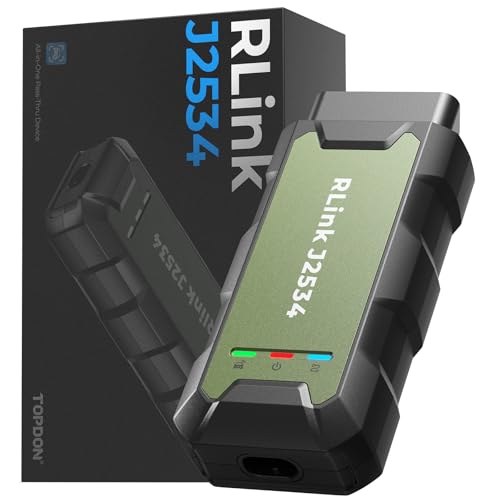
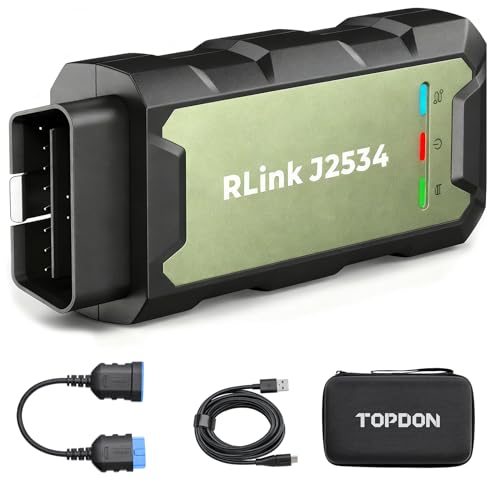
- Advanced VCI Box, Industry-leading J2534 Pass-Thru...
- High-Speed OEM-Level Diagnostics & Programming: Unlock true...
- Coverage for 17 Car Brands & Ultra Reliability: Works...
- User-Friendly RLink Platform & Expert Support: TOPDON’s...
- 6.6 ft USB-C Cable & Portable Storage Case: The RLink J...
If the PDF is very large, it may not load in the preview below.
Some older TSBs had multiple PDFs — visit the NHTSA Website to view all PDFs.
If the TSB PDF does not show, download or view it on the NHTSA Website.
Click on the (+) Plus Sign
Then Click on Associated Document(s)
Search NHTSA Database for Recalls
Search NHTSA Database for Vehicle Investigations
View Latest Vehicle Investigations
Search NHTSA Database for Vehicle Complaints
View Latest Vehicle Complaints
TSB/Document ID: fsd-12-4_0524.pdf
Replacement Service Bulletin Number:
MFR Communication Date: 2024-04-30
MFR Internal Campaign ID/Software Version: fsd-12-4
Communication Type: Over The Air
NHTSA Components: UNKNOWN OR OTHER
MFR Component System:
MFR Component Subsystem:
Previous TSB | Next TSB |

- [Notice] When you receive a used device, it may be a customer return resold by Amazon without inspection. You can exchange it for a new one through Amazon. As this situation is unavoidable, we sincerely apologize. For any issues, contacting us via Amazon's "Messages" is the best way. THINKSCAN 689BT Bidirectional Scan Tool Can Be Used Immediately After It is Turned On, Without Complicated Registration Process, Which is More Convenient & Quick.
- Full Bi-Directional Control & 3000+ Active Tests: Take control and test components like actuators, fuel injectors, relays, and cooling fans in real time. You’ll quickly see if the problem is in the part itself or the control module — saving you hours of guesswork and frustrating trial-and-error.
- Advanced ECU Coding Capabilities: Handle module matching and hidden feature activation with confidence. When you replace an ECU or want to customize settings, this obd2 scanner diagnostic bi directional tool gives you the professional-level capabilities you need without the dealership price tag.
- 34+ Useful Reset and Maintenance Functions: Complete everyday service tasks smoothly with a wide range of helpful reset and maintenance functions. Whether you’re keeping up with regular upkeep or tackling a specific job, this scanner makes maintenance simpler and less stressful for both DIYers and pros.
- Comprehensive Full System Diagnostics: Diagnose every major system — Engine, Transmission, ABS, SRS, TPMS, and more — all in one place. Finally stop wondering if you’re missing something important; get the full picture and clear codes with ease.

- Top Reasons to Choose the D7S OBD2 Scanner: XTOOL D7S car scan tool, an upgrade of XTOOL D7, offers comprehensive features for automotive technicians, workshops, and DIY enthusiasts 1. Upgraded Hardware: 2+64GB memory, rear camera, intuitive interface, foldable bracket 2. Complete Diagnostics: FCA
 Autoauth, OE-level all system scan, 39+ maintenance services, 4K+ bidirectional, CANFD/DoIP protocol 3. Advanced Capabilities: ECU c0ding, PMI functions 4. Wide Compatibility: Support 10,000+ models, covering 99% vehicle brands 5. Multi-language: Available in 22+ languages, No IP Restrictions 6. 3-Year Updates: Save 300 bucks on software updates for the latest features and optimizations
 - 2026 Upgraded D7S Car Scanner Features: The newly 2026 D7S V2.0 scanner for car brings exciting features for advanced vehicle diagnostics and enhanced user experience 1. FCA AutoAuth: Now supports FCA SGW module for Chrysler, for Jeep, for Dodge (2018+), for Fiat (2017+), enabling faster vehicle communication without gateway restrictions 2. PMI (Offline ECU Pr0gramming): Allows for Ford, for Lincoln, and for Mazda ECU pr0gramming for new modules 3. Optimized Diagnostic Report 2.0: Personalized reports with logos and customer info for auto shops. Note: Compatibility varies by cars, please check before order
- 39+ Services/Resets/Adaptations/Relearns/Calibrations: XTOOL D7S full system car scanner diagnostic tool tackles 99% of common car issues through its 36+ special functions, including Oil Reset, EPB, SAS, BMS, Throttle Reset, Injector C0ding, ABS Bleed, TPMS Reset, Power Balance, etc and also covers specific-vehicle functions like Crank Sensor Relearn, ABS Initialization, Cylinder Power Balance, Fuel Trim Reset, Idle Relearn etc. This car diagnostic scanner enhances efficiency, making repairs and maintenance hassle-free. Tip: DO NOT for All vehicles, please check compatibility first
- Cost-effective ECU C0ding Scan Tool for Specific Brands: Enhance your vehicle's performance with XTOOL D7S! This obd2 scanner all systems bidirectional offers advanced capabilities at an affordable price, supports online for BMW, for Benz and offline for BENZ, for MIT, along with PMI functions for Ford, for Mazda, and for Lincoln. Ideal for technicians and DIY enthusiasts, this automotive scanner diagnostic tool optimizes vehicle performance and enhances the driving experience. Note: Not for all cars and modules, please send car VIN to check the compatibility before purchase
- OE All System Diagnostic & 8 Pids Graphing: XTOOL D7S is a comprehensive all system bi directional obd2 scanner that delivers dealer-level diagnostics, completely controlling over your vehicle’s performance and health. This automotive scan tool can read and clear DTCs, view live data and ECU information, retrieve freeze frames, and perform active tests and full obd2 functions. This bi-directional scan tool can can identify your vehicle's make, model, and year information with just one click and show up to 8 PIDs live data with options for CSV viewing, playback, and recording for in-depth analysis. It is easy-to-use for both professionals and beginners, helping pinpoint issues efficiently

- 【✅Compared to BOSSCOMM IF742, IF745 Offers Full-System Diagnostics】The BOSSCOMM IF745 car diagnostic scanner is an upgraded model of IF742. In addition to supporting all OBD2 Code Reader functions and 6 reset options (ABS/EPB/SAS/BMS/Oil/Throttle), it expands diagnostics from 4 systems (Check Engine/ABS/SRS/Transmission) to vehicle All systems, including Steering, Suspension, and Body Electronics. This provides deeper, more comprehensive diagnostic capabilities.
- 【✨10 OBD2 Functions】The BOSSCOMM IF745 scan tool’s DTC Lookup instantly translates fault codes into user-friendly explanations, its I/M Readiness feature streamlines emissions testing with a single tap, and Freeze Frame lets you pinpoint the exact moment of a fault for in-depth root-cause diagnosis. Combined with a live data dashboard and advanced diagnostics (O2S, OBMon, EVAP), it delivers comprehensive insights for confident troubleshooting.
- 【✨Deep Diagnostics for All Vehicle System Modules】Beyond code reading/clearing and ECU information retrieval, our all-in-one data stream feature lets you inspect all current fault codes and their locations across the vehicle’s systems. This vehicle code reader helps you turn off dashboard warning lights and perform a comprehensive self-check of your car at home—no more back-and-forth trips to the repair shop or hefty inspection fees.
- 【✨6 Essential Resets: ABS Bleeding, Oil, EPB, SAS, Throttle, BMS】The BOSSCOMM IF745 obd2 scanner diagnostic tool swiftly purges air from brake lines to restore braking sensitivity, fine-tunes maintenance cycles to eliminate false alerts, resolves parking brake issues with one-click control, recalibrates steering sensors for stability, optimizes engine idling/acceleration for smoother performance, and deeply resets battery systems to extend lifespan and range via precise parameter adjustments.❗NOTE: Does NOT support bidirectional control, coding, or programming.
- 【✨10,000+ Car Models, AutoVIN, 13 Languages】The BOSSCOMM IF745 vehicle scanner diagnostic tool covers 73+ global car brands and offers support in 13 languages, making it perfect for DIYers, auto mechanics, or as a thoughtful gift. With a single-click AutoVIN feature, it instantly retrieves vehicle serial numbers, streamlining diagnostics for users globally. This adaptable tool balances user-friendliness with precision, catering to both personal and professional requirements.✅Unsure about compatibility? Compatibility will vary on vehicles' model and year, pls reach us via 📧 [email protected] 📧 before purchase.

This product presentation was made with AAWP plugin.