
NHTSA ID Number: 10252509
Manufacturer Communication Number: SA-017-24
TSB/Document Date: 2024-04-03
Summary
Some customers may complain about any of the following: 1. Infotainment Center Display does not provide the Authorization Code (OTP) during the MyMazda App Connected Vehicle enrollment. 2. Remote function(s) inoperative. Engine Start / Stop, Door Lock / Unlock, Lights ON / OFF, Climate control
Advise that, for customer’s safety and
Page 21 of 44
03/18/2024 03:09 PM tlawrenc
opens vehicle door.
11
security, vehicle is designed to shut-off
automatically when the vehicle door is
opened.
• Low Tire pressure will not clear
after correcting tire pressue.
• Vehicle status is inaccurate.
MyMazda App is not real time.
• Customer must go to MyMazda
app’s Inbox and read/open all
the messages related to the low
tire pressure alert, then the
“Low tire pressure” alert will
clear from MyMazda app’s
Health Report
• Message will clear after next
drive cycle.
CX-5, CX-9
The MyMazda App does not display tire
air pressures
12
CX-5 and CX-9 Normal Operation No action Needed
Mazda Connected Vehicle Viewer (MCVV) One Time Passcode (OTP) Troubleshooting
(Vehicles built after July 1, 2021 (20 TCU, AT&T)
OTP Request
MCVV Vehicle Communication Line Status Reference
Status
New Vehicle Inventory (TCU no enrollment ever)
Status: Opened
Status Detail: Open Completed (with no date)
OTP request successful.
If not, go to No One Time
Passcode (OTP) -> OTP
Troubleshooting -> Step
2.
1
2
Next Step
Status: Open Requested
400S19
Page 22 of 44
03/18/2024 03:09 PM tlawrenc
Status Detail: Processing
Status: Open Requested
Status Detail: Request Failed
400S25
With new App
3
400S25
With old App
Status: Open Requested
Status Detail: Open Failed
Phone carrier connection
is processing.
4
The customer needs to
wait for the completion of
the activation.
If no change after waiting
12 hours, go to No One
Time Passcode (OTP) ->
OTP Troubleshooting ->
Step 2.
Status: Open Flag Setting Requested
Status Detail: Processing
5
Phone carrier connection
is complete.
System waiting for:
a. Ignition ON.
b. Flag Setting
The customer needs to
wait for the completion of
the flag download and
Page 23 of 44
03/18/2024 03:09 PM tlawrenc
Status: Open Flag Setting Requested
Status Detail: Request Failed
IG-ON.
If not:
a. Disconnect 12V
battery 5-10
minutes, then
retry OTP request.
6
Status: Open Flag Setting Requested
Status Detail: Flag Setting Failed
b. go to No One
Time Passcode
(OTP) -> OTP
Troubleshooting > Step 2.
7
TCU has history of enrollment
Status: Opened
Status Detail: Open Completed (with date)
8
OTP request successful.
If not, go to No One Time
Passcode (OTP) -> OTP
Troubleshooting -> Step
2.
TCU Activation
Page 24 of 44
03/18/2024 03:09 PM tlawrenc
1. Select “hamburger menu” on top right of screen
2. From the MYMAZDA dropdown, select My
Vehicles
Page 25 of 44
03/18/2024 03:09 PM tlawrenc
3. Select “menu” on top right of screen
4. Select "Add Vehicle"
Page 26 of 44
03/18/2024 03:09 PM tlawrenc
5. Select "SCAN VIN"
6. Select "SCAN"
Note: You can also manually enter the VIN if
preffered. Select "ENTER VIN"
Page 27 of 44
03/18/2024 03:09 PM tlawrenc
7. Select "NEXT"
8. Select "VALIDATE"
Page 28 of 44
03/18/2024 03:09 PM tlawrenc
9. Select "NEXT"
10. Enter Vehicle Name and select local dealer. Then
select "SUBMIT"
Page 29 of 44
03/18/2024 03:09 PM tlawrenc
11. Select "ENROLL"
12. Select "START"
Page 30 of 44
03/18/2024 03:09 PM tlawrenc
13. Agree to the Terms & Conditions, then select
"AGREE"
14. You will see a message stating "Activation
Process in Progress", Select "CLOSE"
Page 31 of 44
03/18/2024 03:09 PM tlawrenc
15. You will receive a message saying "Connectivity
is Complete"; however, it is actually not complete.
OK to close this window. Go to next step.
16. Turn the ignition OFF for 10 minutes or longer.
17. Turn the ignition ON.
18. Check the Connected Vehicle reception strength icon:
• Reception strength icon shows normal
strength. TCU is now active. Proceed to
Enrollment.
Page 32 of 44
03/18/2024 03:09 PM tlawrenc
• Reception strength icon shows "X". TCU
activation is still processing. Repeat steps 16
-18.
Note:
• This step may need to be repeated a few times
until normal strength is shown.
• If steps 16-18 was repeated several times with
no change, disconnect 12V battery for 5-10
minutes, then recheck reception strength icon.
ODR Data Collection Procedure
1. ID the vehicle using MDARS
---
2. Select "Toolbox"
3. Select Vehicle Icon
Page 33 of 44
03/18/2024 03:09 PM tlawrenc
4. Expand "Collect Diagnostic
Information"
5. Select Collecting diagnostic information
"Run".
6. Turn the ignition ON, then select "Next"
Page 34 of 44
03/18/2024 03:09 PM tlawrenc
7. Wait for collection to complete.
8. Confirm that the ODR collection has
been successful. Select “Next” to exit.
Page 35 of 44
03/18/2024 03:09 PM tlawrenc
Activating Remote Control by Smart Phone (links TCU to BCM)
NOTE: This procedure cannot be performed if the key transmitter power saving function is enabled. See SA-040/20.
1. Connect MDARS.
2. Use MDARS to verify if the Telematics Control Unit (TCU) is at the latest software level (Toolbox > Software Update
> Run > TCU).
Is the TCU at the latest software level?
• Yes: Go to step 3.
• No: Update TCU software, then go to step 3.
3. Select the following:
a. Toolbox
b. Repair icon
c. MAZDA CONNECT
d. Activating Remote Control by Smart Phone
e. RUN.
4. Follow the on-screen instructions and wait for
process to complete.
NOTE: If the Activating Remote Control by Smart
Phone shows "Incomplete", the possible causes
are:
a. The advanced key is not in the vehicle.
b. The connected Vehicle Maintenance Mode is
Page 36 of 44
03/18/2024 03:09 PM tlawrenc
enabled.
c. The Key transmitter power saving function is
enabled.
d. The pacemaker radio wave interference
prevention function is enabled.
5. Select Quick Check (A), then start the engine
and select the DTC Clear icon (B).
CAUTION: If the engine is not started, DTC P2610
is stored and cannot be erased.
TCU Software Version Check
1. Press and hold the Volume knob, then press
and hold the Entertainment and Favorite buttons
at the same time for 3-5 seconds and the Factory/
Service Inspection screen will appear.
CX-5 and CX-9
Except CX-5 and CX-9
Page 37 of 44
03/18/2024 03:09 PM tlawrenc
2. Select Service Information.
3. Select TCU Linked information.
4. Scroll down to TCU Software Version and
confirm the software version is up to date. Go to
Telematics Communication Unit (TCU) Updates
Is the TCU software version correct?
• Yes: TCU Software Version Check is
complete.
• No: Go to Telematics Communication Unit
(TCU) Updates to update the TCU software
version.
TCU Remote Service Flag Information Check
1. Press and hold the Volume knob, then press and
hold the Entertainment and Favorite buttons at the
same time for 3-5 seconds and the Factory/Service
Inspection screen will appear.
CX-5 and CX-9
Except CX-5 and CX-9
Page 38 of 44
03/18/2024 03:09 PM tlawrenc
2. Select Service Information.
3. Select TCU Linked information.
4. Scroll down to Remote Service Flag Information.
Is the Remote Service Flag Information 1101... or
0000...?
or
• 1101... - Disconnect 12V battery for 1 hour,
then retry connected vehicle enrollment.
• 0000... - Contact Hotline for technical support.
Page 39 of 44
03/18/2024 03:09 PM tlawrenc
Customer Opt-Out
Some customers may request to stop data communication from their vehicle. Use this procedure to manually deactivate
the TCU.
1.
Check Connected vehicle reception
strength icon
Infotainment Center displays “X”
No action needed.
Inform the customer that TCU is already deactivated. Data communication is
not being transmitted from the vehicle
Infotainment Center displays normal reception.
Go to next step
2.
Yes - MCVV shows customer enrollment
Is the customer currently enrolled into Go to step 4.
Connected Vehicle services?
Page 40 of 44
03/18/2024 03:09 PM tlawrenc
No - MCVV shows no customer enrollment
Go to next step 3.
Go to Connected Vehicle Owner’s Manual:
Enroll into Connected Vehicle
services.
3.
Note: This step can be performed by
dealer or customer.
• Registering Vehicle Information
• Registering Connected Service
• After enrollment, go to step 4.
4. After enrollment, using the MyMazda
App, delete VIN.
a.
From the main screen, select menu.
Page 41 of 44
03/18/2024 03:09 PM tlawrenc
b.
From the MYMAZDA drop down, select My Vehicles
c.
Select Edit Vehicle
Page 42 of 44
03/18/2024 03:09 PM tlawrenc
d.
Select Delete Vehicle
5. Turn the ignition OFF and wait 5-10 minutes
Turn the ignition on and confirm that
6. the connected vehicle
reception strength icon shows “X”
Inform the customer that TCU is deactivated. Data communication is not
being transmitted from the vehicle
Note: The following functions have been disabled
• Connected Vehicle Services (Remote Functions, Find My
Car....etc)
• In-car WiFi
• Recall Notifications
• Over the Air (OTA) software updates*
• Alexa*
• Hybrid Navigation*
*Some Models
Page 43 of 44
03/18/2024 03:09 PM tlawrenc
Educational Videos
Overview
Using MyMazda App
In-car Wi-Fi hotspot
MyMazda remote
Notifications
Saftey features
Resources
Connected Vehicle Online Enrollment Information
1. Installing the MyMazda APP
2. Registering Your User Information
3. Registering Vehicle Information
4. Registering Connected Service
SA-015/23 - MAZDA CONNECTED SERVICES - FREQUENTLY ASKED QUESTIONS (FAQ)
Dealer Connected Vehicle Questionnaire
Connected Services Owner's Manual
MAZDA CONNECT and MAZDA CONNECTED SERVICES USER GUIDE
MAZDA CONNECTED VEHICLE VIEWER (MCVV) USER GUIDE
MAZDA CONNECT ESSENTIALS (30076WBT)
MAZDA CONNECT & CONNECTED SERVICES FOCAL POINT (30093FOC)
MAZDA CONNECTED SERVICES SMART CARDS
MAZDA CONNECTED SERVICES: CUSTOMER OUTREACH
Page 44 of 44
03/18/2024 03:09 PM tlawrenc
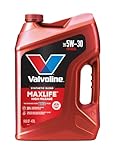


- Advanced protection against the four main causes of engine...
- Delivers 40% stronger wear protection than industry...
- Provides 15% better deposit defense vs. industry standards...
- Up to 2.5X better heat protection vs. industry standards to...
- Engineered for excellent low-temperature flow, reducing...
If the PDF is very large, it may not load in the preview below.
Some older TSBs had multiple PDFs — visit the NHTSA Website to view all PDFs.
If the TSB PDF does not show, download or view it on the NHTSA Website.
Click on the (+) Plus Sign
Then Click on Associated Document(s)
Search NHTSA Database for Recalls
Search NHTSA Database for Vehicle Investigations
View Latest Vehicle Investigations
Search NHTSA Database for Vehicle Complaints
View Latest Vehicle Complaints
TSB/Document ID: SA-017-24
Replacement Service Bulletin Number:
MFR Communication Date: 2024-03-14
MFR Internal Campaign ID/Software Version:
Communication Type: Service Bulletin/Repair Instructions
NHTSA Components: ELECTRICAL SYSTEM
MFR Component System:
MFR Component Subsystem:
Previous TSB | Next TSB |

- [Notice] When you receive a used device, it may be a customer return resold by Amazon without inspection. You can exchange it for a new one through Amazon. As this situation is unavoidable, we sincerely apologize. For any issues, contacting us via Amazon's "Messages" is the best way. THINKSCAN 689BT Bidirectional Scan Tool Can Be Used Immediately After It is Turned On, Without Complicated Registration Process, Which is More Convenient & Quick.
- Full Bi-Directional Control & 3000+ Active Tests: Take control and test components like actuators, fuel injectors, relays, and cooling fans in real time. You’ll quickly see if the problem is in the part itself or the control module — saving you hours of guesswork and frustrating trial-and-error.
- Advanced ECU Coding Capabilities: Handle module matching and hidden feature activation with confidence. When you replace an ECU or want to customize settings, this obd2 scanner diagnostic bi directional tool gives you the professional-level capabilities you need without the dealership price tag.
- 34+ Useful Reset and Maintenance Functions: Complete everyday service tasks smoothly with a wide range of helpful reset and maintenance functions. Whether you’re keeping up with regular upkeep or tackling a specific job, this scanner makes maintenance simpler and less stressful for both DIYers and pros.
- Comprehensive Full System Diagnostics: Diagnose every major system — Engine, Transmission, ABS, SRS, TPMS, and more — all in one place. Finally stop wondering if you’re missing something important; get the full picture and clear codes with ease.

- Top Reasons to Choose the D7S OBD2 Scanner: XTOOL D7S car scan tool, an upgrade of XTOOL D7, offers comprehensive features for automotive technicians, workshops, and DIY enthusiasts 1. Upgraded Hardware: 2+64GB memory, rear camera, intuitive interface, foldable bracket 2. Complete Diagnostics: FCA
 Autoauth, OE-level all system scan, 39+ maintenance services, 4K+ bidirectional, CANFD/DoIP protocol 3. Advanced Capabilities: ECU coding, PMI functions 4. Wide Compatibility: Support 10,000+ models, covering 99% vehicle brands 5. Multi-language: Available in 22+ languages, No IP Restrictions 6. 3-Year Updates: Save 300 bucks on software updates for the latest features and optimizations
 - 2026 Upgraded D7S Car Scanner Features: The newly 2026 D7S V2.0 scanner for car brings exciting features for advanced vehicle diagnostics and enhanced user experience 1. FCA AutoAuth: Now supports FCA SGW module for Chrysler, for Jeep, for Dodge (2018+), for Fiat (2017+), enabling faster vehicle communication without gateway restrictions 2. PMI (Offline ECU Programming): Allows for Ford, for Lincoln, and for Mazda ECU programming for new modules 3. Optimized Diagnostic Report 2.0: Personalized reports with logos and customer info for auto shops. Note: Compatibility varies by cars, please check before order
- Cost-effective ECU Coding Scan Tool for Specific Brands: Enhance your vehicle's performance with XTOOL D7S! This obd2 scanner all systems bidirectional offers advanced capabilities at an affordable price, supports online for BMW, for Benz and offline for BENZ, for MIT, along with PMI functions for Ford, for Mazda, and for Lincoln. Ideal for technicians and DIY enthusiasts, this automotive scanner diagnostic tool optimizes vehicle performance and enhances the driving experience. Note: Not for all cars and modules, please send car VIN to check the compatibility before purchase
- OE All System Diagnostic & 8 Pids Graphing: XTOOL D7S is a comprehensive all system bi directional obd2 scanner that delivers dealer-level diagnostics, completely controlling over your vehicle’s performance and health. This automotive scan tool can read and clear DTCs, view live data and ECU information, retrieve freeze frames, and perform active tests and full obd2 functions. This bi-directional scan tool can can identify your vehicle's make, model, and year information with just one click and show up to 8 PIDs live data with options for CSV viewing, playback, and recording for in-depth analysis. It is easy-to-use for both professionals and beginners, helping pinpoint issues efficiently
- 3 Years Software Update, Value for Money: With 3 years of software updates and 22+ languages(no IP restrictions), XTOOL D7S auto scanner code scanner ensures ongoing compatibility for the latest car models and improved diagnostic functions. This all system vehicle diagnostic scanner comes with a 30-day return policy and a 24-month repair for dependable performance. XTOOL are dedicated to your satisfaction, so enjoy seamless support and lifetime expert assistance. Should you encounter any issues or concerns, don’t hesitate to reach out XTOOL. D7S with newest update with 22 languages freely transfer without authorization, check details from setting-language or from XTOOL

- 🔥 Historical lowest pr-ice now on sa-le--hot se-lling.
- 【🎈𝗜𝗙𝟳𝟰𝟱 𝗽𝗲𝗿𝗳𝗼𝗿𝗺𝘀 𝟲 𝗲𝘀𝘀𝗲𝗻𝘁𝗶𝗮𝗹 𝗿𝗲𝘀𝗲𝘁 𝗳𝘂𝗻𝗰𝘁𝗶𝗼𝗻𝘀—𝗔𝗕𝗦 𝗕𝗹𝗲𝗲𝗱𝗶𝗻𝗴, 𝗢𝗶𝗹 𝗥𝗲𝘀𝗲𝘁, 𝗘𝗣𝗕, 𝗦𝗔𝗦, 𝗧𝗵𝗿𝗼𝘁𝘁𝗹𝗲 𝗥𝗲𝗹𝗲𝗮𝗿𝗻, 𝗮𝗻𝗱 𝗕𝗠𝗦—𝗽𝘂𝘁𝘁𝗶𝗻𝗴 𝗽𝗿𝗼𝗳𝗲𝘀𝘀𝗶𝗼𝗻𝗮𝗹-𝗴𝗿𝗮𝗱𝗲 𝗺𝗮𝗶𝗻𝘁𝗲𝗻𝗮𝗻𝗰𝗲 𝗯𝗮𝗰𝗸 𝗶𝗻 𝘆𝗼𝘂𝗿 𝗵𝗮𝗻𝗱𝘀.】Spongy brakes? Stuck oil light? Parking brake won't release? Off-center steering? Rough idle after battery disconnect? Draining battery? IF745 handles all with a few taps. One tool covers six dealer-level resets, saving hundreds in labor costs. ❗ NOTE: Does NOT support bidirectional control, coding, or programming.
- 【✨ 𝗜𝗙𝟳𝟰𝟱 𝗴𝗼𝗲𝘀 𝗯𝗲𝘆𝗼𝗻𝗱 𝗯𝗮𝘀𝗶𝗰 𝗰𝗼𝗱𝗲 𝗿𝗲𝗮𝗱𝗶𝗻𝗴 𝘄𝗶𝘁𝗵 𝟭𝟬 𝗶𝗻𝘁𝗲𝗴𝗿𝗮𝘁𝗲𝗱 𝗳𝘂𝗻𝗰𝘁𝗶𝗼𝗻𝘀—𝗗𝗧𝗖 𝗟𝗼𝗼𝗸𝘂𝗽, 𝗜/𝗠 𝗥𝗲𝗮𝗱𝗶𝗻𝗲𝘀𝘀, 𝗙𝗿𝗲𝗲𝘇𝗲 𝗙𝗿𝗮𝗺𝗲, 𝗟𝗶𝘃𝗲 𝗗𝗮𝘁𝗮, 𝗢𝟮𝗦, 𝗢𝗕𝗠, 𝗘𝗩𝗔𝗣, 𝗮𝗻𝗱 𝗺𝗼𝗿𝗲. 】Pulling a code tells you something is wrong. IF745 tells you what the code means, when the fault happened, and what data surrounds it. Pass emissions with one I/M Readiness tap. Freeze the fault moment with Freeze Frame. Monitor live sensor data in real time. Turn cryptic codes into clear answers.
- 【🛒 𝗜𝗙𝟳𝟰𝟱 𝗽𝗲𝗿𝗳𝗼𝗿𝗺𝘀 𝗳𝘂𝗹𝗹-𝘀𝘆𝘀𝘁𝗲𝗺 𝗱𝗶𝗮𝗴𝗻𝗼𝘀𝘁𝗶𝗰𝘀 𝗮𝗰𝗿𝗼𝘀𝘀 𝗮𝗹𝗹 𝗺𝗼𝗱𝘂𝗹𝗲𝘀—𝗲𝗻𝗴𝗶𝗻𝗲, 𝗔𝗕𝗦, 𝗮𝗶𝗿𝗯𝗮𝗴, 𝘁𝗿𝗮𝗻𝘀𝗺𝗶𝘀𝘀𝗶𝗼𝗻, 𝘀𝘁𝗲𝗲𝗿𝗶𝗻𝗴, 𝘀𝘂𝘀𝗽𝗲𝗻𝘀𝗶𝗼𝗻, 𝗯𝗼𝗱𝘆 𝗲𝗹𝗲𝗰𝘁𝗿𝗼𝗻𝗶𝗰𝘀, 𝗮𝗻𝗱 𝗺𝗼𝗿𝗲. 】Warning lights on but you don't know why? Skip the $100+ diagnostic fee at the shop. Run a complete self-check from your driveway. IF745 reads and clears fault codes, retrieves ECU info, and displays live data from every accessible module—delivering a full vehicle health report in minutes, without leaving home.
- 【✅𝗜𝗙𝟳𝟰𝟱 𝗳𝗲𝗮𝘁𝘂𝗿𝗲𝘀 𝗮 𝟳-𝗶𝗻𝗰𝗵 𝗱𝗶𝘀𝗽𝗹𝗮𝘆, 𝗲𝗿𝗴𝗼𝗻𝗼𝗺𝗶𝗰 𝗱𝗲𝘀𝗶𝗴𝗻, 𝗪𝗶-𝗙𝗶 𝘂𝗽𝗱𝗮𝘁𝗲𝘀, 𝗮𝗻𝗱 𝘇𝗲𝗿𝗼 𝘀𝘂𝗯𝘀𝗰𝗿𝗶𝗽𝘁𝗶𝗼𝗻 𝗳𝗲𝗲𝘀 𝗳𝗼𝗿 𝗵𝗮𝘀𝘀𝗹𝗲-𝗳𝗿𝗲𝗲 𝗱𝗶𝗮𝗴𝗻𝗼𝘀𝘁𝗶𝗰𝘀.】Large screen means no squinting. Intuitive navigation and customizable data displays put key info at your fingertips. Wi-Fi delivers lifetime free updates without a computer. No recurring fees. No hidden costs. Just a reliable tool that works as hard as you do.
This product presentation was made with AAWP plugin.