
NHTSA ID Number: 10235737
Manufacturer Communication Number: SD-61-4963
TSB/Document Date: 2023-05-05
Summary
Bendix Wingman Fusion FLR-21 Radar Sensor Service Data sheet. Radar is part of forward collision warning and active cruise control systems
SD-61-4963
Bendix® Wingman® Fusion™ FLR-21™ Radar Sensor
Radar Beam
Windshield-mounted
Camera
Front Bumpermounted Radar
Detected Forward
Vehicle
Vehicle Equipped with the Bendix®
Wingman® Fusion™ System
NOT TO SCALE
The DARK GRAY area approximates the
zone where the Wingman Fusion system
is ready to alert – and intervene with the
vehicle's brakes – as long as the vehicle
is traveling above 15 mph (24 kph).
The STRIPED area approximates the
zone where the Active Cruise with
Braking (ACB) feature is ready to
alert – and intervene with the vehicle's
brakes – when the cruise control is set.
Figure 1 – Bendix ® Wingman® Fusion™ System
IMPORTANT
Bendix ®-brand Electronic Control Units (ECUs)
are not designed to store data for purposes of
accident reconstruction, and Bendix® ACom® PRO™
Diagnostic Software is not intended to retrieve data
for purposes of accident reconstruction. Bendix
makes no representations as to the accuracy of
data or video retrieved and interpreted from ECUs
for purposes of accident reconstruction. Bendix
does not offer accident reconstruction services or
interpretation of stored data. Bendix ECUs are not
protected from fire, loss of power, impact damage,
or other conditions that may be sustained in a crash
situation and may cause data to be unavailable or
irretrievable.
The Bendix™ FLR-21™ radar sensor is part of the Bendix®
Wingman® Fusion™ system, which integrates a camera,
radar, and brakes. The Wingman Fusion system provides
the following alerts and actions:
• Stationary Vehicle Braking (SVB)
• Enhanced Collision Mitigation Braking (CMB)
• Active Cruise with Braking (ACB)
• Overspeed Alert and Action (OAA)
• Lane Departure Warnings (LDW)
• Stationary Object Alerts (SOA)
• Alert Prioritization
NOTE: Depending on configuration, the system may record
data and video of certain events and, when integrated
with a telematics provider, can transmit this information
for viewing on the SafetyDirect ® by Bendix CVS web
portal. Currently, the system does not integrate alerts
from Bendix™ BlindSpotter ® or SmarTire ® Tire Pressure
Monitoring System (TPMS) by Bendix CVS.
1
SD Sheet Index
Bendix® Wingman® Fusion™ Driver Assistance System Overview . . . . . . . . . . . . . . . . .
1.0
2.0
3.0
1-5
Introduction to Troubleshooting . . . . . . . . . . . . . . . . . . . . . . . . . . . . . . . . . . . . 6
1.1
Troubleshooting Basics . . . . . . . . . . . . . . . . . . . . . . . . . . . . . . . . . . . . 6
1.2
Narrowing Down The Problem . . . . . . . . . . . . . . . . . . . . . . . . . . . . . . . . . 9
1.3
Overview of Possible Issues . . . . . . . . . . . . . . . . . . . . . . . . . . . . . . . . . . 11
1.4
Important Note on Telematics Wiring . . . . . . . . . . . . . . . . . . . . . . . . . . . . . 12
Troubleshooting/Diagnostics Section . . . . . . . . . . . . . . . . . . . . . . . . . . . . . . . . .12
2.1
Bendix® ACom® PRO™ Diagnostic Software . . . . . . . . . . . . . . . . . . . . . . . . . .12
2.2
Reading Diagnostic Trouble Codes (DTCs) . . . . . . . . . . . . . . . . . . . . . . . . . .13
2.3
Reading The System Software Version . . . . . . . . . . . . . . . . . . . . . . . . . . . .13
2.4
How to Generate a Diagnostic Trouble Code (DTC) Report . . . . . . . . . . . . . . . . . 13
2.5
Table of Bendix Wingman Fusion DTCs . . . . . . . . . . . . . . . . . . . . . . . . . . . .15
2.6
Clearing DTCs . . . . . . . . . . . . . . . . . . . . . . . . . . . . . . . . . . . . . . . . .30
2.7
Troubleshooting DTCs: Power Supply . . . . . . . . . . . . . . . . . . . . . . . . . . . . .30
2.8
Serial Data (J1939) Communications Link . . . . . . . . . . . . . . . . . . . . . . . . . . 30
2.9
Private Communications Network Test Procedure . . . . . . . . . . . . . . . . . . . . . . 30
2.10
Engine Communications (J1939) Test Procedure . . . . . . . . . . . . . . . . . . . . . . .31
2.11
J1939 Troubleshooting Procedure . . . . . . . . . . . . . . . . . . . . . . . . . . . . . . .31
2.12
Troubleshooting Wiring Harnesses . . . . . . . . . . . . . . . . . . . . . . . . . . . . . . 31
Other System Features . . . . . . . . . . . . . . . . . . . . . . . . . . . . . . . . . . . . . . . .32
3.1
Reading Bendix Wingman Fusion System Key Indicators . . . . . . . . . . . . . . . . . . 32
3.2
Bendix Wingman Fusion System DTC Self-Clearing . . . . . . . . . . . . . . . . . . . . .32
3.3
Following Distance Adjustment Switch (Optional) . . . . . . . . . . . . . . . . . . . . . . .32
3.4
Configuring Bendix Wingman Fusion System Following Distance Alerts . . . . . . . . . . .32
Appendices
Appendix A - Radar Mounting and Installation . . . . . . . . . . . . . . . . . . . . . . . . . . . . .34
Appendix B - Radar Alignment . . . . . . . . . . . . . . . . . . . . . . . . . . . . . . . . . . . . .36
Appendix C - Radar Alignment Using a Bendix® Alignment Clip and Tool . . . . . . . . . . . . . . . 43
Appendix D - Dynamic Radar Alignment . . . . . . . . . . . . . . . . . . . . . . . . . . . . . . . .47
Appendix E - Driver Interface Unit (DIU™): Displays and Alerts . . . . . . . . . . . . . . . . . . . . 48
Appendix F - How to Generate, Read, and Reset the Bendix Wingman System
Diagnostic Trouble Codes (DTCs) Using Bendix ACom PRO Diagnostic Software . . .60
Appendix G - How to Read Key System Indicators and Reset Alignment Values . . . . . . . . . . .61
Appendix H - How to Change the Following Distance Alert (FDA) Settings and
Enable Momentary Beeping . . . . . . . . . . . . . . . . . . . . . . . . . . . . . . .62
Appendix J - Situations That May Cause False Alerts by the Bendix Wingman Fusion System . . . .63
Appendix K - System Operation . . . . . . . . . . . . . . . . . . . . . . . . . . . . . . . . . . . . 64
Appendix L - Maintenance Section . . . . . . . . . . . . . . . . . . . . . . . . . . . . . . . . . . .78
Appendix M - SPN and FMI Codes, Descriptions, and Service Actions . . . . . . . . . . . . . . . . 79
2
GENERAL SAFETY GUIDELINES
WARNING! PLEASE READ AND FOLLOW THESE INSTRUCTIONS
TO AVOID PERSONAL INJURY OR DEATH:
When working on or around a vehicle, the following guidelines should be observed AT ALL TIMES:
▲ Park the vehicle on a level surface, apply the ▲ Never connect or disconnect a hose or line
parking brakes, and always block the wheels.
containing pressure; it may whip and/or cause
Always wear personal protection equipment.
hazardous airborne dust and dirt particles. Wear
eye protection. Slowly open connections with
▲ Stop the engine and remove the ignition key
care, and verify that no pressure is present. Never
when working under or around the vehicle.
remove a component or plug unless you are
When working in the engine compartment,
certain all system pressure has been depleted.
the engine should be shut off and the ignition
key should be removed. Where circumstances ▲ Use only genuine Bendix ® brand replacement
parts, components, and kits. Replacement
require that the engine be in operation, EXTREME
hardware, tubing, hose, fittings, wiring, etc.
CAUTION should be used to prevent personal
must be of equivalent size, type, and strength as
injury resulting from contact with moving,
original equipment and be designed specifically
rotating, leaking, heated, or electrically charged
for such applications and systems.
components.
▲ Do not attempt to install, remove, disassemble, ▲ Components with stripped threads or damaged
parts should be replaced rather than repaired.
or assemble a component until you have read,
Do not attempt repairs requiring machining or
and thoroughly understand, the recommended
welding unless specifically stated and approved
procedures. Use only the proper tools and
by the vehicle and component manufacturer.
observe all precautions pertaining to use of those
tools.
▲ Prior to returning the vehicle to service, make
certain all components and systems are restored
▲ If the work is being performed on the vehicle’s
to their proper operating condition.
air brake system, or any auxiliary pressurized air
systems, make certain to drain the air pressure ▲ For vehicles with Automatic Traction Control
from all reservoirs before beginning ANY work
(ATC), the ATC function must be disabled (ATC
on the vehicle. If the vehicle is equipped with
indicator lamp should be ON) prior to performing
a Bendix ® AD-IS® air dryer system, a Bendix ®
any vehicle maintenance where one or more
DRM™ dryer reservoir module, a Bendix® AD-9si®,
wheels on a drive axle are lifted off the ground
®
™
AD-HF , or AD-HFi air dryer, be sure to drain the
and moving.
purge reservoir.
▲ The power MUST be temporarily disconnected
▲ F o l l o w i n g t h e v e h i c l e m a n u f a c t u r e r ’s
from the radar sensor whenever any tests USING
recommended procedures, deactivate the
A DYNAMOMETER are conducted on a vehicle
electrical system in a manner that safely removes
equipped with a Bendix® Wingman® system.
all electrical power from the vehicle.
▲ Never exceed manufacturer’s recommended
pressures.
▲ You should consult the vehicle manufacturer's operating and service manuals, and any related literature,
in conjunction with the Guidelines above.
Improper use of the Bendix® Wingman® Fusion™ Driver
Assistance System can result in a collision causing
property damage, serious injuries, or death. Be sure to
read, understand, and carefully follow the instructions
in the Operator’s Manual (BW2681) on b2bendix.com.
Due to the inherent limitations of image recognition
technology, camera-based safety technology — on
rare occasions — may not be able to detect or may
misinterpret lane markings. At these times, alerts
may not occur, or erroneous alerts may occur.
Bendix safety technologies complement safe driving
practices. No commercial vehicle safety technology
replaces a skilled, alert driver exercising safe driving
techniques and proactive, comprehensive driver
training. Responsibility for the safe operation of the
vehicle remains with the driver at all times.
IMPORTANT
It is the responsibility of the driver to remain
vigilant and change driving practices depending
on traffic and road conditions.
3
Bendix™ FLR-21™
Radar Sensor
Bendix™ Driver
Interface Unit
(DIU™)
Once cruise control is set and the system is maintaining a
set following distance between the vehicle and the forward
detected vehicle, if the forward detected vehicle slows
down below the cruise control’s set speed, the Fusion
system will intervene as necessary in this order in an
attempt to maintain the set following distance behind the
vehicle ahead:
(a) Reduce the engine throttle; then
(b) Apply the engine retarder; then
(c) Apply the foundation brakes.
SafetyDirect
Processor by
Bendix CVS
®
Bendix ESP
EC-80™ Controller
®
®
Bendix™
AutoVue®
FLC-20™
Camera
For more information, refer to the following Service Data Sheets on
b2bendix.com:
• SD-64-20124, Bendix™ AutoVue® FLC-20™ Camera
• SD-13-4986, Bendix® ESP® EC-80™ Controller
• SD-65-21025, SafetyDirect® By Bendix CVS Processor
Figure 2 – Major Bendix® Wingman® Fusion™ System
Components
The major components that are used in the Bendix ®
Wingman ® Fusion™ Driver Assistance System are
the Bendix ® ESP ® EC-80 ™ Controller, the Bendix ™
FLR-21 ™ Radar Sensor, the Bendix ™ AutoVue ®
FLC-20 ™ Camera (powered by the Mobileye ®
System-on-Chip EyeQ processor with state-of-the-art
vision algorithms), the Bendix™ Driver Interface Unit (DIU™)
or OEM dash display, the SafetyDirect® processor by
Bendix CVS, and the vehicle’s telematics system. See
Figure 2.
FEATURES OF THE BENDIX WINGMAN
FUSION SYSTEM
ACTIVE CRUISE CONTROL WITH BRAKING
The Active Cruise with Braking (ACB) feature is an
additional upgrade of ordinary cruise control. When using
cruise control, the Wingman Fusion system will maintain
the set speed, and will also intervene – as needed – to
help maintain a set following distance behind a detected
forward vehicle.
Using the FLR-21 radar sensor mounted to the front of the
vehicle – with a range of approximately 500 ft (152 m) – the
Fusion system reacts to detected forward vehicles in the
same lane, traveling in the same direction. See Figure 1.
The active cruise control with braking feature is designed to
help maintain a set following distance between the vehicle
and a detected forward vehicle when cruise control is set.
See the striped "Radar Beam" area in Figure 1.
4
NOTE: If during the intervention it is necessary to apply
the foundation brakes, or the vehicle speed falls below
the minimum cruise speed allowed, the vehicle will not
automatically resume the cruise control set speed.
EXCEPTION: It is possible that some Fusion system
applications allow the cruise control to automatically
resume after the Fusion system applies the foundation
brakes during cruise control. The driver is able to override
the auto resume feature by manually activating the brake
pedal.
If the vehicle ahead slows below the cruise control’s set
speed, but then accelerates away – and the Fusion system
did not need to use the foundation brakes – the system will
automatically accelerate back to the original cruise control
set speed and maintain a set following distance behind any
detected forward vehicles.
Because the Wingman Fusion system operates along with
normal cruise control, all the typical features built into cruise
control work as usual. For example, limits imposed by
factory-set road speed governors, etc. are fully supported
by the Fusion system.
ALERTS
The Wingman Fusion system assists by giving audible and
visual alerts, whether or not cruise control is on. Refer to
Appendix E and Appendix K for more information on the
types of alerts the driver may hear and/or see.
COLLISION MITIGATION TECHNOLOGY
See the striped area in Figure 1. The Fusion system’s
collision mitigation technology is designed to be ready to
alert the driver to detectable objects in front of the vehicle
(whether or not cruise control is set) and react to the
presence of stationary/moving vehicles in the lane ahead.
Collision mitigation interventions provide the driver with
an alert before an intervention occurs. The driver must
immediately act to potentially avoid – or lessen the severity
of – a collision.
OVERSPEED ALERT AND ACTION (OAA)
The Bendix® Wingman® Fusion™ Driver Assistance System
has the ability to assist the driver by recognizing U.S.
and Canadian speed limit signs. This allows the system
to display the current posted speed limit and alert the
driver when overspeed thresholds are detected. When
changing between regions which post speeds in miles
and those which post in kilometers, the speed limit sign
recognition feature will not function until the correct
U.S./metric selection has been made.
LANE DEPARTURE WARNING (LDW)
The Wingman Fusion system will monitor the visible lane
markings on the road, and when an unexpected lane change
– a lane change without an activated turn signal – takes
place, the system will alert the driver to make a correction.
Tired, distracted, or inattentive drivers are alerted and can
take remedial actions.
SAFETY DATA RECORDING AND TRANSMISSION
Many Fusion-equipped vehicles use the SafetyDirect®
by Bendix CVS processor and the vehicle’s telematics
processor to record vehicle and driver safety data after
safety system events. Data collected includes signals on
the vehicle communication network, images, video from
the Bendix™ AutoVue® FLC-20™ camera, and internally
generated data. Telematics devices transmit this data and
video to the SafetyDirect web portal.
5
1.0 I NTRODUCTION TO
TROUBLESHOOTING
This section introduces three (3) initial steps to accurately
troubleshoot the Bendix ® Wingman ® Fusion ™ Driver
Assistance System.
Read this introductory section – as well as the
Troubleshooting/Diagnostics Section (2.0) – before
performing any troubleshooting.
When diagnosing the Fusion system, a current version of
Bendix® ACom® PRO™ Diagnostic Software is required.
This software is available as a download at b2bendix.com.
NOTE: Prior to troubleshooting, all aftermarket-installed
components should be removed from the vehicle and the
vehicle must be returned to factory specifications. Once the
vehicle is returned to factory specifications, the fault should
be recreated prior to performing troubleshooting steps.
1.1 TROUBLESHOOTING BASICS
Refer to SD-64-20124, Bendix ® AutoVue ® FLC-20 ™
Camera, on b2bendix.com for camera diagnostics.
Troubleshooting Basics (1.1)
Questions/Instructions
1. Have the driver run the
Power-up Self-test.
Next Steps
Power-up Self-test
This is a self-diagnostic check to determine if the system operation is normal.
1.
2.
3.
4.
5.
2. Does the driver hear a
long warning beep?
Park the vehicle. Power off.
Put the key into the ignition and turn to the “ignition power” position.
Toggle the cruise control switch at least once, and leave it in the “on” position.
Start the vehicle, but do not drive away.
Note that if the cruise control is in the “off” position, or if the vehicle is
moving, this test will not run.
The self-test will start after 15 seconds, and takes approximately 5 seconds to
complete.
(Note that other vehicle system self-tests [i.e. the ABS “chuff” test] may run during
the initial 15 seconds after ignition “on.”)
As the Bendix Wingman Fusion system self-test runs, the driver should hear a
short set of beeps. The test checks the engine, transmission, and brake systems
to make sure they are communicating. In addition, depending on the vehicle, the
test may briefly display a Following Distance Alert (FDA) alert message and/or
cause the Forward Vehicle Detected icon in the instrument cluster to illuminate;
this is normal.
If no problem is found and the test is passed, no additional beeps/lamps will be
displayed nor will a Diagnostic Trouble Code (DTC) be set.
If the system has found an issue that will prevent it from functioning properly, a long
warning beep will sound to alert the driver, and a DTC will be logged in the system
(typically with a status indicator/dash icon illuminated). For descriptions of all DTCs,
refer to Section 2.5: Diagnostic Trouble Codes.
3. Have the driver describe
the system behavior that
they believe shows it is not
working properly.
When diagnosing the system, especially in cases where there are no DTCs logged,
find out which part of the system behavior appears to be operating improperly.
NOTE: False brake applications are often misdiagnosed and are, in fact, not brake
applications, but rather loss of engine throttle caused by a J1939 communication failure
on the vehicle. This is frequently caused by aftermarket components installed in the
vehicle CAN line (i.e. electronic drivers logs [EDLs], GPS, or telematics systems).
4. Fill out the Troubleshooting
Checklist (pages 7–8)
and create a DTC report
(Appendix F).
The Checklist and DTC Report will clarify the problem and be necessary if a call to
the Bendix Tech Team is needed.
Refer to Section 1.2: Narrowing Down the Problem.
Call the Bendix Tech Team at 1-800-AIR-BRAKE (1-800-247-2725), option 2, for troubleshooting assistance.
Table 1 – Troubleshooting Basics
6
Troubleshooting Checklist
WARNING: The Troubleshooting Checklist should not be completed while the vehicle is in motion
and while the driver is completing the scenarios and tests.
Detailed Scenarios and Tests
Record Driver’s Answers for
Follow-up with Bendix
Are there any active faults or lamps illuminated on the dash?
Yes
No
_____________
Are there any aftermarket components installed on the vehicle?
Yes
No
_____________
Does the vehicle maintain its set speed when the cruise control
is switched on and set?
Yes
No
_____________
Is the cruise control “set” icon displayed?
Yes
No
_____________
Is the “forward vehicle detected” icon displayed?
Yes
No
_____________
What color is the icon?
Icon Color______________
When the forward vehicle slows down, does the truck also slow down to
maintain the set distance?
Yes
No
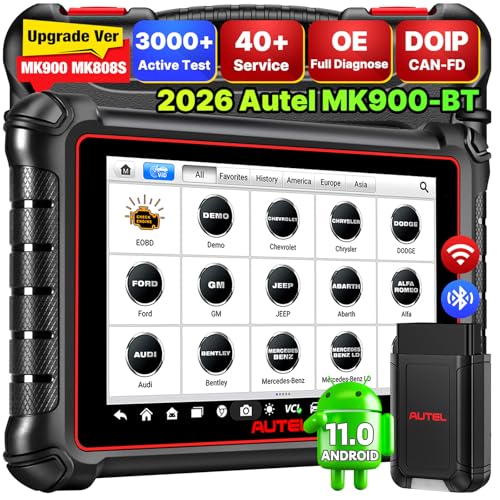
- 💯【Conta.ct us for Support Directly】If you met any...
- 🔥🔥🔥【2026 AUTEL FLAGSHIP MK900BT MK900-BT, NEW...
- 🚗【3000+ ACTIVE TESTS (50➡3000+), SAME AS MS...
- 🚗【40+ HOT SERVICES FOR 150 MAKES (28+➡40+)】Full...
- 🚗【OE ALL SYSTEM DIAGNOSE, AUTO SCAN 2.0: SCAN LICENSE...

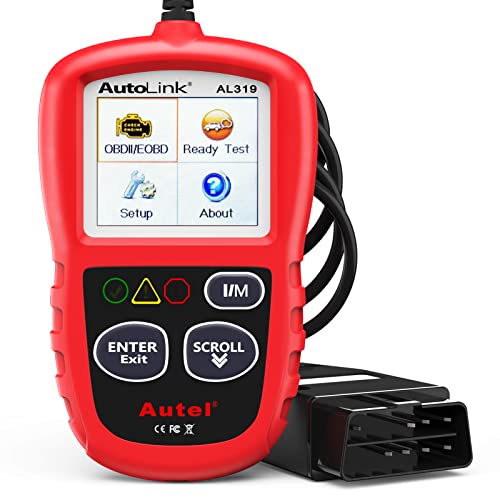
- 【TURN OFF CEL】 This AL319 car scanner diagnostic tool...
- 【EXTENSIVE APPLICATION】 Autel AL319 Compatible with...
- 【FOR END USER & DIYERS】 This error code reader AL319 is...
- 【USER-FRIENDLY DESIGN】 This OBD2 scanner and check...
- 【HIGH-QUALITY SERVICES】 12 months war.ranty from the...
If the PDF is very large, it may not load in the preview below.
Some older TSBs had multiple PDFs — visit the NHTSA Website to view all PDFs.
If the TSB PDF does not show, download or view it on the NHTSA Website.
Click on the (+) Plus Sign
Then Click on Associated Document(s)
Search NHTSA Database for Recalls
Search NHTSA Database for Vehicle Investigations
View Latest Vehicle Investigations
Search NHTSA Database for Vehicle Complaints
View Latest Vehicle Complaints
TSB/Document ID: SD-61-4963
Replacement Service Bulletin Number:
MFR Communication Date: 2023-04-28
MFR Internal Campaign ID/Software Version:
Communication Type: Service Bulletin/Repair Instructions
NHTSA Components: FORWARD COLLISION AVOIDANCE
MFR Component System:
MFR Component Subsystem:
Previous TSB | Next TSB |

- [Notice] When you receive a used device, it may be a customer return resold by Amazon without inspection. You can exchange it for a new one through Amazon. As this situation is unavoidable, we sincerely apologize. For any issues, contacting us via Amazon's "Messages" is the best way. THINKSCAN 689BT Bidirectional Scan Tool Can Be Used Immediately After It is Turned On, Without Complicated Registration Process, Which is More Convenient & Quick.
- Full Bi-Directional Control & 3000+ Active Tests: Take control and test components like actuators, fuel injectors, relays, and cooling fans in real time. You’ll quickly see if the problem is in the part itself or the control module — saving you hours of guesswork and frustrating trial-and-error.
- Advanced ECU Coding Capabilities: Handle module matching and hidden feature activation with confidence. When you replace an ECU or want to customize settings, this obd2 scanner diagnostic bi directional tool gives you the professional-level capabilities you need without the dealership price tag.
- 34+ Useful Reset and Maintenance Functions: Complete everyday service tasks smoothly with a wide range of helpful reset and maintenance functions. Whether you’re keeping up with regular upkeep or tackling a specific job, this scanner makes maintenance simpler and less stressful for both DIYers and pros.
- Comprehensive Full System Diagnostics: Diagnose every major system — Engine, Transmission, ABS, SRS, TPMS, and more — all in one place. Finally stop wondering if you’re missing something important; get the full picture and clear codes with ease.

- Top Reasons to Choose the D7S OBD2 Scanner: XTOOL D7S car scan tool, an upgrade of XTOOL D7, offers comprehensive features for automotive technicians, workshops, and DIY enthusiasts 1. Upgraded Hardware: 2+64GB memory, rear camera, intuitive interface, foldable bracket 2. Complete Diagnostics: FCA
 Autoauth, OE-level all system scan, 39+ maintenance services, 4K+ bidirectional, CANFD/DoIP protocol 3. Advanced Capabilities: ECU c0ding, PMI functions 4. Wide Compatibility: Support 10,000+ models, covering 99% vehicle brands 5. Multi-language: Available in 22+ languages, No IP Restrictions 6. 3-Year Updates: Save 300 bucks on software updates for the latest features and optimizations
 - 2026 Upgraded D7S Car Scanner Features: The newly 2026 D7S V2.0 scanner for car brings exciting features for advanced vehicle diagnostics and enhanced user experience 1. FCA AutoAuth: Now supports FCA SGW module for Chrysler, for Jeep, for Dodge (2018+), for Fiat (2017+), enabling faster vehicle communication without gateway restrictions 2. PMI (Offline ECU Pr0gramming): Allows for Ford, for Lincoln, and for Mazda ECU pr0gramming for new modules 3. Optimized Diagnostic Report 2.0: Personalized reports with logos and customer info for auto shops. Note: Compatibility varies by cars, please check before order
- 39+ Services/Resets/Adaptations/Relearns/Calibrations: XTOOL D7S full system car scanner diagnostic tool tackles 99% of common car issues through its 36+ special functions, including Oil Reset, EPB, SAS, BMS, Throttle Reset, Injector C0ding, ABS Bleed, TPMS Reset, Power Balance, etc and also covers specific-vehicle functions like Crank Sensor Relearn, ABS Initialization, Cylinder Power Balance, Fuel Trim Reset, Idle Relearn etc. This car diagnostic scanner enhances efficiency, making repairs and maintenance hassle-free. Tip: DO NOT for All vehicles, please check compatibility first
- Cost-effective ECU C0ding Scan Tool for Specific Brands: Enhance your vehicle's performance with XTOOL D7S! This obd2 scanner all systems bidirectional offers advanced capabilities at an affordable price, supports online for BMW, for Benz and offline for BENZ, for MIT, along with PMI functions for Ford, for Mazda, and for Lincoln. Ideal for technicians and DIY enthusiasts, this automotive scanner diagnostic tool optimizes vehicle performance and enhances the driving experience. Note: Not for all cars and modules, please send car VIN to check the compatibility before purchase
- OE All System Diagnostic & 8 Pids Graphing: XTOOL D7S is a comprehensive all system bi directional obd2 scanner that delivers dealer-level diagnostics, completely controlling over your vehicle’s performance and health. This automotive scan tool can read and clear DTCs, view live data and ECU information, retrieve freeze frames, and perform active tests and full obd2 functions. This bi-directional scan tool can can identify your vehicle's make, model, and year information with just one click and show up to 8 PIDs live data with options for CSV viewing, playback, and recording for in-depth analysis. It is easy-to-use for both professionals and beginners, helping pinpoint issues efficiently

- 【✅Compared to BOSSCOMM IF742, IF745 Offers Full-System Diagnostics】The BOSSCOMM IF745 car diagnostic scanner is an upgraded model of IF742. In addition to supporting all OBD2 Code Reader functions and 6 reset options (ABS/EPB/SAS/BMS/Oil/Throttle), it expands diagnostics from 4 systems (Check Engine/ABS/SRS/Transmission) to vehicle All systems, including Steering, Suspension, and Body Electronics. This provides deeper, more comprehensive diagnostic capabilities.
- 【✨10 OBD2 Functions】The BOSSCOMM IF745 scan tool’s DTC Lookup instantly translates fault codes into user-friendly explanations, its I/M Readiness feature streamlines emissions testing with a single tap, and Freeze Frame lets you pinpoint the exact moment of a fault for in-depth root-cause diagnosis. Combined with a live data dashboard and advanced diagnostics (O2S, OBMon, EVAP), it delivers comprehensive insights for confident troubleshooting.
- 【✨Deep Diagnostics for All Vehicle System Modules】Beyond code reading/clearing and ECU information retrieval, our all-in-one data stream feature lets you inspect all current fault codes and their locations across the vehicle’s systems. This vehicle code reader helps you turn off dashboard warning lights and perform a comprehensive self-check of your car at home—no more back-and-forth trips to the repair shop or hefty inspection fees.
- 【✨6 Essential Resets: ABS Bleeding, Oil, EPB, SAS, Throttle, BMS】The BOSSCOMM IF745 obd2 scanner diagnostic tool swiftly purges air from brake lines to restore braking sensitivity, fine-tunes maintenance cycles to eliminate false alerts, resolves parking brake issues with one-click control, recalibrates steering sensors for stability, optimizes engine idling/acceleration for smoother performance, and deeply resets battery systems to extend lifespan and range via precise parameter adjustments.❗NOTE: Does NOT support bidirectional control, coding, or programming.
- 【✨10,000+ Car Models, AutoVIN, 13 Languages】The BOSSCOMM IF745 vehicle scanner diagnostic tool covers 73+ global car brands and offers support in 13 languages, making it perfect for DIYers, auto mechanics, or as a thoughtful gift. With a single-click AutoVIN feature, it instantly retrieves vehicle serial numbers, streamlining diagnostics for users globally. This adaptable tool balances user-friendliness with precision, catering to both personal and professional requirements.✅Unsure about compatibility? Compatibility will vary on vehicles' model and year, pls reach us via 📧 [email protected] 📧 before purchase.
This product presentation was made with AAWP plugin.