
NHTSA ID Number: 10192784
Manufacturer Communication Number: ITB13026E
TSB/Document Date: 2021-05-10
Summary
SERVICE INFORMATION If the Display Control Unit (DCU) needs to be replaced on an Applied Vehicle for any reason, follow the steps in the Service Procedure of this bulletin. See this bulletin for further detail.
Classification:
Reference:
Date:
EL13-023e
ITB13-026e
March 23, 2016
2014-2016 Q50 AND Q50 HYBRID ;
;
DISPLAY CONTROL UNIT (UPPER DISPLAY SCREEN) REPLACEMENT
This bulletin has been amended. The APPLIED VEHICLES was updated, and the information on page 3 was clarified.
Please discard all previous versions of this bulletin.
APPLIED VEHICLES: 2014-2016 Q50 (V37)
2014-2016 Q50 Hybrid (V37)
SERVICE INFORMATION
If the Display Control Unit (DCU) needs to be replaced on an
Applied Vehicle for any reason, follow the steps in the Service
Procedure to:
Confirm proper diagnosis and repair with TECH LINE to
obtain DCU order approval, then place the order with
DENSO.
Configure the Multi AV system.
Register the replacement DCU. DCU registration is
necessary whether or not the vehicle has an active Infiniti
InTouch Apps subscription.
Display
Control
Unit
NOTE: The original DCU must be installed in the vehicle while performing part of this procedure.
DO NOT remove the original DCU until instructed.
Infiniti Bulletins are intended for use by qualified technicians, not 'do-it-yourselfers'. Qualified technicians are properly trained
individuals who have the equipment, tools, safety instruction, and know-how to do a job properly and safely. NOTE: If you believe
that a described condition may apply to a particular vehicle, DO NOT assume that it does. See your Infiniti dealer to determine if this
applies to your vehicle.
1/14
SERVICE PROCEDURE
Before starting, make sure your ASIST has been synchronized to the current date and all CONSULT-III plus
(C-III plus) upgrades have been installed.
Parts of the Procedure
PART 1: Confirm Proper Diagnosis and Repair with TECH LINE to Obtain Display Control Unit Order Approval,
Then Place The Order With DENSO
PART 2: Record Multi AV Configuration Values of Original Display Control Unit; Replace Display Control Unit
PART 3: Configure the Multi AV System
PART 4: Manually Configure the Multi AV System (if needed)
PART 5: Register the Replacement Display Control Unit
PART 6: 2014 model year vehicles only: Check the software version – confirm it is the newest version – update
if needed
PART 1:
Confirm Proper Diagnosis and Repair With TECH LINE to Obtain Display Control Unit Order Approval,
Then Place the Order With DENSO.
To improve customer satisfaction by providing the correct repair on the first visit, Infiniti has put in place a
procedure for ordering an “exchange” or “new” DCU.
To ensure a proper diagnosis and repair, the technician will need to call TECH LINE to confirm (or assist
with) their diagnosis and the proper repair prior to ordering the DCU.
DENSO will require a confirmation from TECH LINE prior to shipping an exchange DCU.
New DCUs will be put on parts restriction and will need to be cleared prior to the order shipping. In the
event that a new DCU is required, the warranty claims call center will verify that TECH LINE has
recommended replacement.
This process applies to vehicles equipped with a Navigation system as well as non-Navigation vehicles.
TECH LINE has the support of engineering and DENSO in diagnosis, if needed.
Most DCUs ordered should be an exchange unit versus a new unit.
The requirement of calling TECH LINE for confirmation to replace a DCU will be monitored to ensure the most
effective and accurate method of repair. Future changes or adjustments may be made to this process to
increase repair timeliness and/or customer satisfaction.
A new DCU is required only if:
The vehicle has not yet been sold.
The customer requests a new DCU on a non-warranty repair.
The exchange DCU is not available.
Insurance claim replacement.
NOTE: Infiniti also recommends using this procedure for non-warranty repairs to ensure that proper diagnosis
and repair is performed.
2/14
ITB13-026e
Contact TECH LINE to Confirm DCU Replacement is Needed
NOTE: Contacting TECH LINE is done to confirm diagnosis. An exchange DCU must be ordered by your
parts department directly from DENSO. See Order an Exchange DCU Form DENSO below.
1. Duplicate and verify the customer’s concern if possible. If duplication is not possible, gather as much
information about the issue as possible from the service advisor/writer or customer.
2. Check for any connected devices (phone, iPod, MP3 player, etc.) or determine if a connected device is
present during the concern. Gather model and software version information if possible.
3. Call TECH LINE, after gathering preliminary information of the concern. After a diagnosis of the concern
has been performed, and the technician and TECH LINE agree that the DCU should be replaced, go to
step 4.
4. Provide the following information to TECH LINE:
DCU part number _______________________________________
NOTE: The DCU part number can be found on the label on the back of the DCU, or
with CONSULT-III plus by going to Diagnosis (One System) > MULTI AV > ECU
Identification.
Is the vehicle equipped with a Navigation System? _____________
Dealer name and fax number ______________________________
Dealer contact name _____________________________________
5. TECH LINE will confirm with DENSO, by email, that the diagnosis has occurred and a DCU replacement is
approved.
NOTE: TECH LINE does not send an email or fax to your parts department.
Order an Exchange DCU From DENSO
6. After steps 1 – 5 above have been completed, your parts department will order the replacement
exchange DCU as follows:
a. Fill out the Exchange Order Form and fax or email it to DENSO.
Order forms are found on nnanet.com:
a.
b.
c.
d.
Log onto nnanet.com.
Confirm Brand View is Infiniti.
Select Workspace.
In the Warranty section, select Electronic Exchange Information.
b. After the order is submitted, and after TECHLINE has submitted authorization by email, then DENSO
will fax the confirmation form back to your parts department.
NOTE: If you are logged on to nnanet.com, clicking on this link will take you directly to the form.
https://www.nnanet.com/wps/myportal/DPInfinitiElectronicExchangeInformation
3/14
ITB13-026e
PART 2:
Record Multi AV Configuration Values of Original Display Control Unit; Replace Display Control Unit
7. Prepare the vehicle:
Make sure the shift selector is in Park, and the parking brake is set.
Connect the GR8 to the 12V battery and select ECM Power Supply Mode.
Connect the C-III plus VI to the vehicle
Launch C-III plus on the CONSULT PC.
Turn the ignition ON:
For Q50 vehicles
Cycle the ignition to ON. DO NOT start the engine.
For Q50 Hybrid vehicles
Cycle the ignition to ON. DO NOT cycle to Ready Mode.
8. Select Re/programming Configuration.
Step
8
Figure 1
4/14
ITB13-026e
9. Read the Precautions.
When finished, touch the “Confirmed
instructions” box to insert a check mark,
then select Next.
Step
9
Figure 2
10. Select the Manual Selection (Vehicle
Name) tab, then select the applicable
Model and Year.
NOTE: If the screen shown in Figure 3
does not display, proceed to step 12.
Step
10
11. Select Select.
Step
11
Figure 3
12. Confirm the correct Model Name and
Model Year are displayed.
When finished, select Confirm.
xxxxxxxxxxxxxxxxx
Step
12
Figure 4
5/14
ITB13-026e
13. After system call completes, confirm the
correct VIN is displayed.
When finished, select Confirm.
NOTE: If the VIN displayed is incorrect,
input the correct VIN. When finished,
select Confirm.
Step
13
Figure 5
14. Select MULTI AV.
Step
14
Figure 6
15. Select Read/Write Configuration.
Step
15
Figure 7
6/14
ITB13-026e
16. Select Before Replace ECU.
Step
16
Figure 8
17. Confirm current configuration and write
it down.
Configuration can also be printed
with the Print Screen button or
Screen Capture button.
Write down / print this
information
Use the scroll arrow if more than one
page of information is available.
NOTE: Configurable options will differ
between models. Your screen may look
different.
Figure 9
18. Select Save.
Step
18
NOTE: If the configuration data cannot
be saved, replace the DCU as instructed
in the applicable Electronic Service
Manual (ESM) and then proceed to
PART 4: Manually Configure the Multi
AV System (if needed) on page 9 of this
bulletin.
xxxxxxxxxxxxxxxxxxxxx
xxxxxxxxxxxx
19. Select End.
Step
19
Figure 10
7/14
ITB13-026e
20. Replace the DCU Unit as instructed in the applicable ESM.
Refer to section AV > DISPLAY CONTROL UNIT > Removal and Installation.
PART 3:
Configure the Multi AV System
21. Perform steps 7-15.
22. When you get to the screen shown in
Figure 11, select Confirm.
Step
22
Figure 11
23. Select After Replace ECU.
Step
23
Figure 12
8/14
ITB13-026e
24. Select OK.
After performing step 24
If an error message does not display:
Proceed to step 37 on page 12.
If an error message does display:
Figure 13
Proceed to PART 4: Manually
Configure the Multi AV System (if
needed), below.
Step
24
PART 4:
Manually Configure the Multi AV System (if needed)
NOTE: If the screen in Figure 14 is not
displayed, click on the Home icon.
25. Select Re/programming Configuration.
Step
25
Figure 14
9/14
ITB13-026e
26. Read the Precautions.
When finished, touch the “Confirmed
instructions” box to insert a check mark,
then select Next.
Step
26
Figure 15
27. Select the Manual Selection (Vehicle
Name) tab, then select the applicable
Model and Year.
NOTE: If the screen shown in Figure 16
does not display, proceed to step 29.
Step
27
28. Select Select.
Step
28
Figure 16
29. Confirm the correct Model Name and
Model Year are displayed.
When finished, select Confirm.
xxxxxxxxxxxxxxxxx
Step
29
Figure 17
10/14
ITB13-026e
30. Confirm the correct VIN is displayed.
When finished, select Confirm.
NOTE: If the VIN displayed is incorrect,
input the correct VIN. When finished,
select Confirm.
Step
30
Figure 18
Step
31
31. Select MULTI AV.
Figure 19
32. Select Manual Configuration.
Step
32
Figure 20
11/14
ITB13-026e
33. Use the drop down menus to select the
Configuration options that were printed
or written down in step 17.
Step
33
Use the scroll arrow if more than one
page of information is available.
NOTE: Configurable options will differ
between models. Your screen may look
different from Figures 21 and 22.
34. Select Next.
Figure 21
Step
34
35. Confirm the configuration displayed is
correct, then select OK.
Step
35
Figure 22
36. Turn the ignition OFF, then start the engine or Ready, and wait for about 30 seconds.
37. Use C-III plus to clear any codes from the Multi AV system.
a. Select Home on the C-III plus screen.
b. Select Diagnosis (One System) > Multi AV > Self Diagnosis Results.
c. Clear any codes that may be present.
12/14
ITB13-026e
38. Write down the Unit ID number as follows (see Figure 23):
NOTE: The unit ID number will be used in Part 5 of the procedure.
a. Select ECU Identification on the C-III plus screen.
b. Write down the UNIT ID number.
Step
38a
Step
38b
Figure 23
39. Close C-III plus and disconnect the plus VI from the vehicle.
40. Check that the operation of the DCU and, if equipped, RearView Monitor camera images (fixed guide lines
and predictive course lines) are normal.
13/14
ITB13-026e
PART 5:
Register the Replacement Display Control Unit
41. Register the replacement DCU by calling Infiniti Owner Services at 1-855-444-7244. Listen to the
prompts and select the option for the “Infiniti Connection Specialist.”
During this call you will be asked for the Unit ID number (see step 38) and the VIN.
Infiniti Owner Services hours of operation are:
Monday – Saturday: 8:00am to Midnight EST
Closed Thanksgiving, Christmas, and New Years Day
IMPORTANT: Step 41 MUST be performed to register the replacement DCU. If this step is not performed,
the Infiniti InTouch Apps feature – if the vehicle has an active subscription – will not function. Perform this step
even if the vehicle does not have an active Infiniti InTouch Apps subscription, as future enrollment will also be
affected.
42. Disconnect the GR8 from the 12V battery.
PART 6:
2014 Model Year Vehicles Only: Check the Software Version – Confirm it is the Newest Version –
Update if Needed.
NOTE: PART 6 does NOT apply to 2015-2016 model year vehicles.
Click
Here:
This will link you to the General Procedure for Infiniti InTouch Software Update.
14/14
ITB13-026e

- 💯【Conta.ct us for Support Directly】If you met any...
- 🔥🔥🔥【2026 AUTEL FLAGSHIP MK900BT MK900-BT, NEW...
- 🚗【3000+ ACTIVE TESTS (50➡3000+), SAME AS MS...
- 🚗【40+ HOT SERVICES FOR 150 MAKES (28+➡40+)】Full...
- 🚗【OE ALL SYSTEM DIAGNOSE, AUTO SCAN 2.0: SCAN LICENSE...

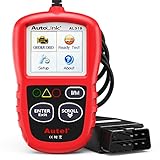
- 【TURN OFF CEL】 This AL319 car scanner diagnostic tool...
- 【EXTENSIVE APPLICATION】 Autel AL319 Compatible with...
- 【FOR END USER & DIYERS】 This error code reader AL319 is...
- 【USER-FRIENDLY DESIGN】 This OBD2 scanner and check...
- 【HIGH-QUALITY SERVICES】 12 months war.ranty from the...
Last update on 2026-06-23 / Affiliate links / Images from Amazon Product Advertising API
If the PDF is very large, it may not load in the preview below.
Some older TSBs had multiple PDFs — visit the NHTSA Website to view all PDFs.
If the TSB PDF does not show, download or view it on the NHTSA Website.
Click on the (+) Plus Sign
Then Click on Associated Document(s)
Search NHTSA Database for Recalls
Search NHTSA Database for Vehicle Investigations
View Latest Vehicle Investigations
Search NHTSA Database for Vehicle Complaints
View Latest Vehicle Complaints
TSB/Document ID: ITB13026E
Replacement Service Bulletin Number:
MFR Communication Date: 2016-03-23
MFR Internal Campaign ID/Software Version:
Communication Type: Service Bulletin/Repair Instructions
NHTSA Components: ELECTRICAL SYSTEM:ADAS:AUTONOMOUS/SELF DRIVING:SOFTWARE
MFR Component System:
MFR Component Subsystem:
Previous TSB | Next TSB |

- Stay Updated with Lifetime Access: This obd2 scanner includes lifetime free software updates for all app service functions. With a single payment, enjoy full access to diagnostics, reset tools, and maintenance features — zero subscription fees. A budget-friendly choice for weekend mechanics, home car owners, and DIYers, supporting vehicles from 1996 onward. Come to us with your VIN to check compatibility.
- Full Bidirectional Control/Active Tests & Stable Wireless Connectivity: This car code reader features full bidirectional control, allowing you to send commands to the vehicle's ECU for active tests on components such as fuel pumps, injectors, A/C clutches, windows, sunroofs, and more. This car scanner diagnostic tool helps DIYers quickly diagnose and test vehicle parts, cutting down troubleshooting and repair time. With BT 4.0 wireless connectivity, you can enjoy cable-free diagnostics up to 33 feet. Stand in your garage and test windows, wipers, or even engine components—all without needing to move around your car.
- Portable Car Scanner with 26 Special Functions: Scheduled vehicle maintenance with the A30M car diagnostic scanner can keep your vehicle in peak condition and save you big on dealership trips. The XTOOL A30M obd2 scanner diagnostic tool features essential reset and relearn functions, such as Oil Reset, EPB Reset (Electronic Parking Brake Release), SAS, ABS Brake Bleeding, Throttle Body Relearn, Injector Coding, Crank Sensor Relearn, Headlight Adjustment, and Tire Size Reset. Note: Service functions may vary by vehicle model – check compatibility beforehand!
- Wide Compatibility CAN FD & FCA
 Autoauth: This obd2 scanner diagnostic tool is compatible with over 85+ car brands from the U.S., Europe, and Asia, providing extensive coverage through a BT connection with your smartphone or iPad. Now upgraded to support the latest protocols, it includes FCA AutoAuth access for Chrysler, Jeep, Dodge, and Fiat (2018+), and supports CAN FD for GM (2020+) models, giving you greater access to newer vehicles and systems. Note: The FCA AutoAuth account is not included with the device. Users must register and pay separately through the official FCA AutoAuth website to access diagnostic functions for vehicles that require it.
 - Up to 8 Live Data Streams Graphing – Real-Time Graphing for Deeper Insight: This car scanner supports up to 8 live data streams simultaneously with intuitive, real-time graphing. Gain comprehensive insights into your vehicle’s performance, making it easier to spot issues, detect trends, and make informed diagnostic decisions with confidence.
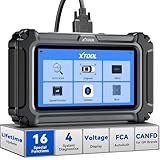
- Comprehensive OBD2 Scanner with 16 Resets: The XTOOL D5S car code reader and vehicle reset tool provides an advanced diagnostic solution with 16 commonly needed reset functions, including Electronic Parking Brake Reset (EPB Reset), SAS, BMS Reset (Battery Test), Throttle Body Relearn, TPMS Reset, ABS Bleeding, Injector Coding, Gearbox Match, Suspension Adjustment, Headlight, Window Initialization, Crank Sensor Relearn and more. Equipped with CAN FD Protocol and FAC AutoAuth, the D5S obd2 scanner diagnostic tool ensures compatibility with a broad range of modern vehicles, allowing users to address common maintenance needs quickly. NOTE: Please Check the Compatibility before ordering.
- 4 Main System Car Scanner & Full OBD2 Diagnostics: The XTOOL D5S car code reader is ideal for home mechanics, DIYers, and professionals, providing access to Transmission/Engine/ABS/SRS systems to read DTCs, Live data can be displayed in text or up to 4 PID data graphs, along with full OBD2 diagnostics to check the engine light on, other obd2 issues and routine maintenance. This car diagnostic scanner ensures you can keep your vehicles in top condition, avoiding costly repairs or unexpected breakdowns. NOTE: Some vehicles display three systems after connection because the transmission and engine of some vehicles are integrated into one.
- Check Engine Code Reader & Real-Time Engine Monitoring: Whether you're a car owner, a DIYer, or run a repair shop, the XTOOL D5S obd2 scanner diagnostic tool makes engine diagnostics fast and frustration-free, reading and explaining trouble codes in seconds—no confusion. Check live data like fuel trim, 02 sensor voltage, RPM, and coolant temp to pinpoint mis~fires, rough idle, or sensor issues. After repairs, simply use the D5S check engine code reader and reset tool to turn off the check engine light and confirm the problem’s fixed—saving time, money, and unnecessary shop visits. - Note: If the check engine light comes back on, it indicates the original problem still exists.
- Portable Car Scanner for ABS and SRS: XTOOL D5S gives you peace of mind when ABS or airbag warning lights come on. It reads and clears ABS codes to help you fix brake sensor, traction control, or wheel speed issues, and supports ABS bleeding after repairs like caliper or master cylinder replacement. For airbag systems, it scans and clears SRS codes related to airbags, seatbelt tensioners, and crash sensors. Whether you're doing repairs at home or running a small shop, the D5S is a cost-effective solution for safety diagnostics. Note: If a fault code returns after clearing, it usually means the issue hasn’t been fully resolved. Please check the compatibility before ordering.
- Transmission Warning Light ON? Here’s the Transmission Diagnostic and Reset Tool You Need: The XTOOL D5S is more than just a basic car scanner—it’s an easy-to-use transmission diagnostic tool. From rough shifts to slipping gears, the D5S lets you read and clear transmission trouble codes, monitor real-time TCM data, and perform transmission resets after fluid changes or repairs. Whether you’re a hands-on car owner or a pro running a busy shop, this OBD2 scanner with transmission functions helps you catch problems early—saving you time, money, and future headaches.. Note: Clearing fault codes is equivalent to a reset on some vehicles, but not all. For help, contact XTOOL Tech Support.
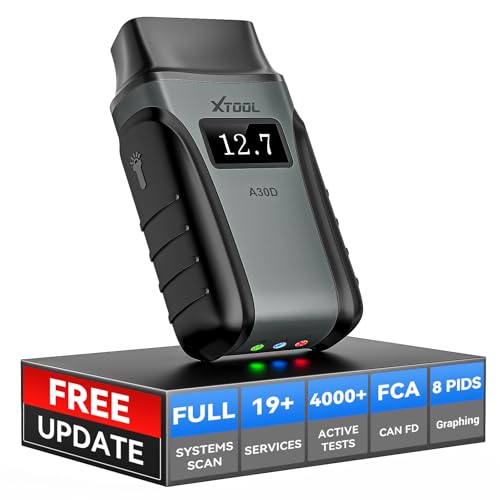
- Save $500+/Year with Pro-Level Diagnostics -No Subscriptions: The Portable XTOOL Anyscan A30D OBD2 scanner diagnostic tool includes free lifetime software updates for all app service functions, without extra cost. With a single payment, enjoy full access to diagnostics, relearn scan tools, and maintenance features. A cost-effective, smart choice for car owners and DIY enthusiasts, compatible with vehicles from 1996 onward. Please provide the car VIN and the special functions you need in advance so that we can confirm compatibility
- Bi-Directional Control for Faster Troubleshooting: Unlike a basic code reader, the A30D bi directional scan tool sends commands directly to your vehicle’s ECU to actively test components like fuel pump, valves, wipers, windows, doors, sunroof, and headlamps right from your smartphone. See component responses in real time without disassembly—perfect for brake jobs, electrical issues, and hard-to-find problems. This bidirectional obd2 scanner helps pinpoint faults faster, reduce guesswork, and avoid replacing good parts. An efficient, easy-to-use car scanner diagnostic tool built for DIYers, home garage users, and small-shop technicians who want real two-way scanner, not just codes
- 19 Reset Functions for Routine Maintenance: The A30D car diagnostic scanner provides 19 relearn functions without extra charges, including EPB Reset for parking brake replacement, TPMS Reset after tire changes, ABS Auto Bleeding, Oil Reset, SAS Reset, BMS Reset, Throttle Relearn, Injector C0ding, Gear Learning, Crank/Crankshaft/Cam/Ckp Sensor Relearn Tool, Transmission Match, Seat Calibration, Airbag Repair and more. This XTOOL A30D automotive scanner diagnostic tool supports preventive care, helping extend vehicle life and reduce costly shop visits. Functions vary by vehicle make and year—plz confirm compatibility before purchase
- Stable BT Connection & All-System & 8 Pids Live Data: The A30D wireless OBD2 scanner delivers a fast and stable wireless connection up to 33 feet, letting you move freely around the vehicle without tangled cables. Pair with with Android 9.0+ and iOS 10.0+ devices to turn your phone into a mobile auto scanner—perfect for home garages, driveways, or on-the-spot repairs. This full system scanner for cars provides real-time access to all major modules, including Engine, Gearbox, ABS, SRS, AC and more. with clear graphs, meters, and up to 8 PIDs displayed at once. This car code reader makes system monitoring visual, simple, easy to understand, and offering data logging for playback and deeper
- Wide Compatibility with CAN-FD & FCA Support: The A30D car computer diagnostic reader works with most 1996 and newer vehicles with a standard OBD2 port, including for Ford, for GM, for Toyota, for Honda, for Nissan,for Hyundai etc, with ongoing updates covering more car models and functions later. It also supports newer communication protocols like CAN-FD and FCA AutoAuth (Personal AutoAuth account and active subscription required, not included with the device!for Chrysler, for Dodge, for Jeep, for Fiat models). It is a future-ready automotive scanner diagnostic tool for households with multiple vehicles or part-time techs. Coverage vary by cars, plz check the compatibility first
Last update on 2026-06-23 / Affiliate links / Images from Amazon Product Advertising API
This product presentation was made with AAWP plugin.