
NHTSA ID Number: 10180928
Manufacturer Communication Number: SA-61-1429
TSB/Document Date: 2020-10-12
Summary
Introduction of Apple CarPlay
ASTON MARTIN CLIENT SERVICES
SERVICE ACTION
Reference number:
SA-61-1429
Issued: 30 September, 2020
Subject:
Introduction of Apple CarPlay
Model(s):
DBX
VIN Range:
Refer to the separately published list of affected Vehicle Identification Numbers (VINs)
Applicable to:
All
Distribute to:
After Sales Manager
Executive Manager
Service Manager
Sales Manager
Warranty Staff
Technician(s)
Parts Staff
Reason for this Service Action
Aston Martin is pleased to announce a new software for the Head Unit (HU) which includes the introduction of Apple
CarPlay.
Do the workshop procedure that follows to update the HU software.
Workshop Procedure
CAUTIONS:
CONNECT THE AMDS 2.0 EQUIPMENT TO AN ELECTRICAL SUPPLY WHEN YOU DO THE
PROCEDURE THAT FOLLOWS. IF THE LAPTOP BATTERY VOLTAGE DECREASES DURING THE
UPDATE, THE UPDATE CAN FAIL AND CAN CAUSE DAMAGE TO THE MODULE.
YOU MUST CONNECT A BATTERY CHARGER TO THE VEHICLE BEFORE YOU DO DIAGNOSTIC
PROCEDURES. IF THE VEHICLE BATTERY VOLTAGE DECREASES DURING THE PROCEDURE, THE
SOFTWARE UPDATE CAN FAIL AND CAN CAUSE DAMAGE TO THE MODULE.
Notes:
Make sure that the AMDS 2.0 software has updated to the latest version. The AMDS 2.0 software will
need a good Internet connection (minimum broadband speed of 2 Mbit/second) to make sure that
the software is updated correctly.
A high output battery charger (minimum of 80 A) is necessary to meet the demand of the radiator
cooling fan. The battery charger must also be compatible with Absorbent Glass Mat (AGM) type
batteries.
You will need a USB device that has a minimum of 3.4 GB storage space to do parts of this software
update procedure.
Make sure that the USB device does not have files on it from other software updates.
1.
On Technical Hub, navigate to ‘Technical Communications > Campaigns > Campaign Support Files’ and
download the below ZIP files.
Title
2.
Source ID
SA-QN-61-1429 Software part 1/2
SAQN611429zip1
SA-QN-61-1429 Software part 2/2
SAQN611429zip2
Extract the files from the ZIP files.
30 September, 2020
Page 1 of 9
SERVICE ACTION
3.
Make sure that there are no other files from
previous updates on the USB device.
4.
Copy the extracted files on to the USB device.
(refer to Figure 1).
Note: Make sure that the files are copied to
the top level of the USB device. Do not copy
the files into a subfolder.
SA-61-1429
Figure 1
5.
Place the vehicle key in the space (A). (refer to
Figure 2).
Figure 2
6.
Set the ignition to ON but do not start the engine.
7.
Connect the Vehicle Communication Interface (VCI) to the vehicle with the Diagnostic Link Cable (DLC).
8.
Start the AMDS 2.0 software and, if necessary, update to the latest version.
9.
In AMDS 2.0 click the “Special Apps” button
(refer to Figure 3).
Figure 3
10. Select the “HU23” module then click the “OK”
button (refer to Figure 4).
Figure 4
30 September, 2020
Page 2 of 9
SERVICE ACTION
SA-61-1429
11. Select ‘Read Engineering Mode’ (refer to
Figure 5).
Figure 5
12. Select ‘Activate Engineering Mode’ (refer to
Figure 6).
Note: The HU will start again.
Figure 6
13. Check Engineering mode is active (refer to
Figure 7).
Figure 7
14. Disconnect the (VCI) from the vehicle and shut down AMDS 2.0.
30 September, 2020
Page 3 of 9
SERVICE ACTION
SA-61-1429
15. Install the USB device into a vehicle USB port.
Note: Make sure that there are no other USB devices connected to USB ports in the vehicle.
16. In the Head Unit home screen, go to the
‘System’ icon, but do not select. (refer to
Figure 8).
Figure 8
17. Press and hold ‘Enter’ on the Control Dial for a minimum of 6 seconds. The screen will display engineering mode.
Note: If engineering mode is not displayed, it may not be activated. Check the parameter using AMDS 2.0 and
repeat this process.
18. Select ‘6. Update’ (refer to Figure 9).
Figure 9
19. Select ‘6.1 Software Update’ (refer to Figure 10).
Figure 10
20. The HU will go into ‘Bootloader active’ mode.
The software version number will be shown.
(refer to Figure 11).
Figure 11
30 September, 2020
Page 4 of 9
SERVICE ACTION
SA-61-1429
21. Select ‘Start’ to begin the update. (refer to
Figure 12).
CAUTIONS: SWITCH THE IGNITION ON
EVERY 15 MINUTES TO KEEP POWER
SUPPLY TO THE HU WHEN YOU DO THIS
UPDATE. IF YOU DO NOT, THE UPDATE
PROCESS WILL NOT COMPLETE
CORRECTLY.
DO NOT REMOVE THE USB DEVICE WHEN
YOU DO THIS UPDATE. IF YOU DO, THE
UPDATE PROCESS WILL NOT COMPLETE
CORRECTLY.
Figure 12
Notes: Push left on the control dial to change
selection.
The display will show which part of the
software is being downloaded. Ignore all
messages during this update.
The update will take approximately 40
minutes.
22. When the update has completed and the icons display on the screen, remove the USB device from the vehicle.
23. Connect the Vehicle Communication Interface (VCI) to the vehicle with the Diagnostic Link Cable (DLC).
24. Start the AMDS 2.0 software and, if necessary, update to the latest version.
25. In AMDS 2.0 click the “Special Apps” button
(refer to Figure 13).
Figure 13
26. Select the “HU23” module then click the “OK”
button (refer to Figure 14).
Figure 14
30 September, 2020
Page 5 of 9
SERVICE ACTION
SA-61-1429
27. Select ‘Read Engineering Mode’ (refer to
Figure 15).
Figure 15
28. Select ‘Deactivate Engineering Mode’ (refer to
Figure 16).
Note: The HU will start again.
Figure 16
29. Check ‘Engineering Mode’ is off. (refer to
Figure 17).
Figure 17
30 September, 2020
Page 6 of 9
SERVICE ACTION
SA-61-1429
30. Select ‘ECU Coding’. (Refer to Figure 18).
Figure 18
31. Select the “HU23” module then click the “OK”
button (refer to Figure 19).
Figure 19
32. Select “Get coding from AML Server” (refer to
Figure 20).
Coding will appear in the main display.
Note: Make sure the correct VIN is displayed.
Figure 20
30 September, 2020
Page 7 of 9
SERVICE ACTION
SA-61-1429
33. Select “Save Coding To ECU(s)” (refer to
Figure 21).
Figure 21
34. Click the “DTC/OBD” button (refer to
Figure 22).
Figure 22
35. In the “DTC Read” window, click the ‘Read
DTC’ button, (refer to Figure 23).
Figure 23
36. Check to make sure there are no diagnostic trouble codes (DTCs) stored for the HU module.
37. Disconnect the (VCI) from the vehicle and shut down AMDS 2.0.
30 September, 2020
Page 8 of 9
SERVICE ACTION
SA-61-1429
38. In the Head Unit home screen, check that the
‘Connect’ icon is shown. (refer to Figure 24).
Figure 24
39. Set the ignition to Off.
Warranty Data
Procedure and Labour Time
Description
Labour Time
Head Unit Software Update.
0.7 hours
If you have any questions related to this document, please refer to the 'Contact Us' link on this webpage,
or contact your local Dealer or After Sales Manager.
The English version of this Service Action is written in
Simplified Technical English to ASD-STE100™.
30 September, 2020
Page 9 of 9

- 💯【Conta.ct us for Support Directly】If you met any...
- 🔥🔥🔥【2026 AUTEL FLAGSHIP MK900BT MK900-BT, NEW...
- 🚗【3000+ ACTIVE TESTS (50➡3000+), SAME AS MS...
- 🚗【40+ HOT SERVICES FOR 150 MAKES (28+➡40+)】Full...
- 🚗【OE ALL SYSTEM DIAGNOSE, AUTO SCAN 2.0: SCAN LICENSE...

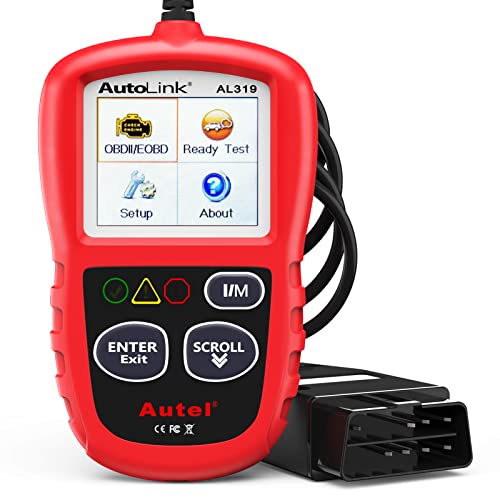
- 【TURN OFF CEL】 This AL319 car scanner diagnostic tool...
- 【EXTENSIVE APPLICATION】 Autel AL319 Compatible with...
- 【FOR END USER & DIYERS】 This error code reader AL319 is...
- 【USER-FRIENDLY DESIGN】 This OBD2 scanner and check...
- 【HIGH-QUALITY SERVICES】 12 months war.ranty from the...
Last update on 2026-06-12 / Affiliate links / Images from Amazon Product Advertising API
If the PDF is very large, it may not load in the preview below.
Some older TSBs had multiple PDFs — visit the NHTSA Website to view all PDFs.
If the TSB PDF does not show, download or view it on the NHTSA Website.
Click on the (+) Plus Sign
Then Click on Associated Document(s)
Search NHTSA Database for Recalls
Search NHTSA Database for Vehicle Investigations
View Latest Vehicle Investigations
Search NHTSA Database for Vehicle Complaints
View Latest Vehicle Complaints
TSB/Document ID: SA-61-1429
Replacement Service Bulletin Number:
MFR Communication Date: 2020-09-30
MFR Internal Campaign ID/Software Version:
Communication Type: Service Bulletin/Repair Instructions
NHTSA Components: EQUIPMENT
MFR Component System:
MFR Component Subsystem:
Previous TSB | Next TSB |
- 💯【Conta.ct us for Support Directly】If you met any issues about: Received a registered device/ Language Changing/ Function not Support/ VCI150 Blueto-oth connector malfunction/ Subscription Renewal, please conta.ct us via 📞autelsupply @outlook. com🛣️, we will provide perfect solution for you. ⚠️Note: Autel MK900BT comes with 1-Year Free Software Update, most features will remain active after update subscription expires. 1. For questions regarding updates or need more useful accessories, please conta.ct us via 📞autelsupply @outlook.com🛣️. 2. If the device fails to charge or turn on, please conta.ct us via 📞autelsupply @outlook. com🛣️, we will handle it promptly.
- 🔥🔥🔥【2026 AUTEL FLAGSHIP MK900BT MK900-BT, NEW MODEL OF MK808S MK900 MX900 MK808BT MX808S】2026 newest Autel MK900BT retains all features of MK808S MX900 MX808S MK808Z MK808Z-BT MK808K-BT, while EXTRA added powerful functions (value 2000+ bucks). The Pro-level Autel MK900BT makes a big leaps: 28+➡40+, 50+➡3000+ Active Tests, 2026 NEW✅CAN FD & DOIP protocols ✅Pre&Post diagnostic report ✅WIFI Print ✅Auto VIN&Auto Scan 2.0 ✅Scan VIN/ License ✅Battery Test (Need purcha.se BT506). If found defect or us.ed, please conta-ct 📞autelsupply @outlook. com📞 get perf-ect solut.ion.
- 🚗【3000+ ACTIVE TESTS (50➡3000+), SAME AS MS906 PRO】Differ from MS906BT MS906 MP808 MK808 MX808 MK808BT only 50 tests, Autel scanner MK900BT escaner automotriz professional offers 3000+ active tests, it can send command to ECUs & monitor actuators operation, quickly locating faulty components. Bidirectional scanning takes your diagnostics to the next level with menu lists 3000+ active tests, such as windows, rear mirrors, sunroof, wipers, fuel injector, coolant fans, radiator fan, AC clutch, coolant pump and more. Note: Functions are not available for all vehicles, please send vehicle VIN to us check compatibility.
- 🚗【40+ HOT SERVICES FOR 150 MAKES (28+➡40+)】Full level-up of OBD2 code reader MaxiCOM MK808S MK808 MK808Z MX808 MK808Z-BT with 28 service, Autel scan tool MK900BT/ MK900-BT offers 40+ maintenance service on 150+ brands 10,000 vehicles from 1996-2025-2026. Hottest Services like: Oil Reset, ABS Bleed, SAS Calibration, Injector Coding, SRS, Throttle Reset, Gearbox Reset, Battery Registration etc. Added 12+ advanced resets: rain slash light sensor reset, HVA.C/ SUS calibration etc. Welcome to send Vehicle Make>Model>Year>VIN>Functions you required to 📞autelsupply @ outlook . com📞 check compatibility.
- 🚗【OE ALL SYSTEM DIAGNOSE, AUTO SCAN 2.0: SCAN LICENSE/ AUTO VIN】2026 new release Autel MaxiCOM MK900-BT scan tool embodies all system diagnostic with its 8in display for all vehicles. Like Sna.p-on tools, it can perform ✔Read/Clear Codes✔Displays 5-in-1 Live Data✔Record & Playback Data✔Retrieve Info on all available systems like ABS ECM BCM SRS TCM etc. In addition to Auto VIN technology, Autel MK900BT adds Scan License/ Auto Scan 2.0 to identify vehicle’s VIN/ license, make, year, model, no need manual input; One-click WiFi Printing of Pre&Post comparison diagnostic reports, highlight root causes of problems.
- 【TURN OFF CEL】 This AL319 car scanner diagnostic tool supports Reading and Clearing DTCs, DTC Look Up, displaying Live Data, Freeze Frame & I/M Readiness, view vehicle information, etc., to figure out the root cause of the Check Engine Light (CEL) and turn it off, helping you catch any potential issues early and avoid excessive costs from unnecessary repairs.
- 【EXTENSIVE APPLICATION】 Autel AL319 Compatible with 7 languages (English, French, Spanish, etc.) and various post-1996 OBD II protocol vehicles (Toyota
 , Nissan, Honda, Ford, etc.), this OBD II scanner provides accurate and fast diagnosis for worldwide car owners.
 - 【FOR END USER & DIYERS】 This error code reader AL319 is “plug and play” and comes with an easy interface. Even if you’re not familiar with vehicle repair, you can quickly take control of this obd2 scanner, and get the information you want.
- 【USER-FRIENDLY DESIGN】 This OBD2 scanner and check engine code reader features a patented One-Click I/M Readiness, TFT color display, built-in speaker, LED Indicator etc. The cable is long enough without being too long and getting in the way. No batteries are needed.
- 【HIGH-QUALITY SERVICES】 12 months war.ranty from the date of purchase and lifetime free update are offered by this Automobile OBDII scan tool. Welcome to contact us via Q&A, email, or hotline, and our after-sale-service team for technical support.
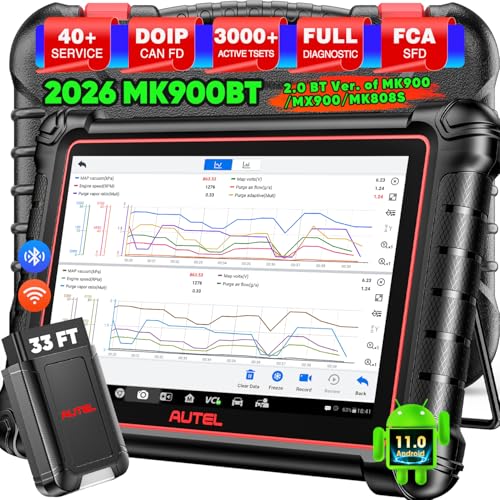
- 📞【Warm Tips】Dear friend, if you have any issues or need any tech support after receiving your MK900BT (received a registered item/ language changing/ functions compatibility/ renew subscription, etc.), please don't hesitate to tell us directly via 💌Autelonline @ outlook . com💌, we will do whatever we can to help you at first time. Besides, if you need other accessories, such as Autel endoscope MV108S, please don't hesitate to con-tact us.
- 🔥【Amazon Choice MK900BT, 2026 Newer of MK900 MX900 MS906 MK808BT PRO MP808S MK808S MX808S】Big News! 2026 Autel most cost-effective 8in All System & Bidirectional Scan Tool MK900BT is born! 619 only, yet featuring 40+ Hot Services same as MaxiSys Ultra/ Elite II/ MK908P/ MS906 PRO, among lots of advanced & newer functions: ✅3000+ Active Tests ✅CAN FD/ DoIP new protocols ✅Full Diagnosis ✅5-in-1 Live Data ✅Pre & Post Scan ✅Scan VIN/License ✅WiFi Print ✅FAC AutoAuth & Renault SGW, etc.
- 😊【Why Choose Autel Scanner MK900-BT, Not MK808S MK900 MX900?】➊ MK900BT escaner automotriz designs with Autel MaxiVCI V150, adopting advanced German Wireless Technology with more stable&faster data transmission, allowing you to work in and around vehicles with a 10M/33FT remote diagnostics. Instead, at almost the same b.udget, MK900 MK808S outdated wired code reader only with 1m cable, so you must curl up on the steering wheel! ➋ MK900BT can work with Autel BT506 to perform professional cranking charging system tests and in-vehicle & out-of-vehicle battery tests, but MK900 MK808S CANNOT. Some sellers say MK900 can work with BT506, pls don't believe it, who are not Autel a.uthorized sellers.
- 🚀【Upgraded Hardware 2.0, 10X F.aster than Ever】Based on old Android 4.4.4 ver. of MX808 MK808 MK808BT MP808 MP808BT MS906 MS906BT, Autel scan tool MK900-BT takes a big leap to 🟢f.astest OS 11 🟢4-core, 1.8GHz RK3566 speed boosted + lower power consumption🔋doubled 7700mAh Battery 🟢larger & sharper 8" 1280*800 touchscreen with intuitive user interface 🟢expanded 4+64G enough to save more files/data 🟢8M Rear camera gives clearer snapshot, etc. MK900BT scanner for car, is the best bang for your b.uck in the category.
- 📢【New Released: CAN FD/DoIP + WIFI Print + Pre & Post Scan + Scan VIN/ License】MK900BT OBD2 scanner diagnostic tool updates lots of advanced features previously available only for scanners above 2000 (MS906 Pro MS908S Pro, etc.) ✅New protocols CAN FD works for GM 2019+ ✅DOIP works for Volv.o 2018+, Jaguar&Land Rover 2017+, BM.W F&G chassis models ✅Same WIFI Print as MaxiSys Ultra ✅Detailed Pre/ Post scan reports to up repair efficiency ✅Scan VIN/License can identify your cars in seconds, more accurately! But Autel MK808S/ MK808BT PRO cannot.
Last update on 2026-06-12 / Affiliate links / Images from Amazon Product Advertising API
This product presentation was made with AAWP plugin.