
NHTSA ID Number: 10164631
Manufacturer Communication Number: SC-19-95
TSB/Document Date: 2019-09-10
Summary
The reason for this software update is to update various controllers. All the included Proterra Catalyst E2 vehicles require a change to the software/configuration for the following items: Battery Pack Software, Charge Controller, ESM Software, Powertrain Controller, DWP/Dash Software, and Body Controller (ZR)
12. The ESM Controller software update is now complete.
23 | P a g e
Headquarters: 1815 Rollins Road, Burlingame, CA 94010
East Coast Manufacturing: 1 Whitlee Court, Greenville, SC 29607
West Coast Manufacturing: 383 Cheryl Lane, City of Industry, CA 91789
Verify and Update Charge Controller Software Version
This procedure checks the Charge Controller software version and upgrades as necessary.
Verify Current Software Version
Note: Single Charge Port or Dual Port bus will have different software. The middle integer in the
software version delineates which is which.
-
If single port, your bus should have version (2.1.4).
If dual port, your bus should have version (2.0.4).
1. Connect Proterra Diagnostics tool to either front or rear OBDII connector.
2. Navigate to High Voltage Tab.
3. Verify the Charge Controller Software version is 2.0.4 or 2.1.4.
4. In this screenshot, the charge controller software version (middle right hand side) is 2.1.2.
a. The numbers after the “2.1.2” are a software version hash for engineering tracking.
5. If the version is not 2.0.4 or 2.1.4, proceed to the next section to update the controller software.
24 | P a g e
Headquarters: 1815 Rollins Road, Burlingame, CA 94010
East Coast Manufacturing: 1 Whitlee Court, Greenville, SC 29607
West Coast Manufacturing: 383 Cheryl Lane, City of Industry, CA 91789
Update Using the Proterra Diagnostic tool
6. Ensure you have the latest software file CC**.srec to a known location on the service technician’s
computer (Folder or Desktop).
IMPORTANT! NEVER access the software from the USB memory device, ALWAYS copy the
software files to your computer hard drive and access the software from this location.
7. Turn ON the 12/24V rear Master Disconnect located behind the vehicle curbside rear upper
access panel.
8. Turn OFF the bus High-Voltage Master Switch at the Driver's Workplace and ensure the Dash
screen is OFF.
9. Once connected to the vehicle with the Proterra Diagnostics tool, Click on the “Configuration
Button” to open the Configuration tab and then click the Charge Controller “Start Flash” Button.
Click
Configuration
Beside Charge
Controller, Click
Start Flash
25 | P a g e
Headquarters: 1815 Rollins Road, Burlingame, CA 94010
East Coast Manufacturing: 1 Whitlee Court, Greenville, SC 29607
West Coast Manufacturing: 383 Cheryl Lane, City of Industry, CA 91789
10. The following screen will be displayed. Navigate to the location where you stored the
configuration file earlier. Select the file and click “Open” to load the file.
Select the file and
Click Open
11. The Proterra Diagnostic Tool will attempt to connect to the device.
NOTE: You may receive an error on the first attempt. If so, retry by clicking the Charge
Controller Start Flash button again.
Error message on
failed first attempt
12. When the software update begins, and the following screens will be displayed.
13. The software update may take several minutes to complete. When the update is complete the
following screen will be displayed. Click the “OK” button to complete the update process.
Click OK
14. The software update is now complete.
26 | P a g e
Headquarters: 1815 Rollins Road, Burlingame, CA 94010
East Coast Manufacturing: 1 Whitlee Court, Greenville, SC 29607
West Coast Manufacturing: 383 Cheryl Lane, City of Industry, CA 91789
Update Using Microboot (alternate method)
The purpose of this procedure is to update the Charge Controller software version.
1. Ensure you have the latest Microboot program and software file CC**.srec to a known location
on the service technician’s computer (Folder or Desktop).
IMPORTANT! NEVER access the software from the USB memory device, ALWAYS copy the
software files to your computer hard drive and access the software from this location.
2. Turn ON the 12/24V rear Master Disconnect located behind the vehicle curbside rear upper
access panel.
3. Turn OFF the bus High-Voltage Master Switch at the Driver's Workplace and ensure the Dash
screen is OFF.
4. Power up (boot) the Proterra-supplied laptop containing the MicroBoot executable file.
5. Connect the octopus cable to the OBD port located in the Rear Deck of the bus.
6. Connect the PCAN dongle to the PCAN connection on the octopus cable.
7. Verify no other CAN utilities are running on the laptop; close PCAN Explorer, Proterra
Diagnostic Tool, etc.
8. Connect PCAN dongle to the USB port on the laptop.
9. Launch MicroBoot on the laptop.
10. Use the “Browse” button to navigate to and select the SREC file to be loaded.
a. The software will load automatically from this point.
11. The software update may take several minutes to complete. When the update is complete the
following screen will be displayed. Click the “OK” button to complete the update process.
12. The software update is now complete.
27 | P a g e
Headquarters: 1815 Rollins Road, Burlingame, CA 94010
East Coast Manufacturing: 1 Whitlee Court, Greenville, SC 29607
West Coast Manufacturing: 383 Cheryl Lane, City of Industry, CA 91789
Verify and Update Powertrain Software Version
This procedure checks the Powertrain Controller software version and upgrades as necessary.
Verify Current Software Version
1. Connect Proterra Diagnostics tool to either front or rear OBDII connector.
2. Navigate to the Powertrain Tab.
3. Verify the Powertrain Software version is 2.4.1, as shown in this screenshot (middle top).
4. If the version is not 2.4.1, proceed to the next section to update the controller software.
28 | P a g e
Headquarters: 1815 Rollins Road, Burlingame, CA 94010
East Coast Manufacturing: 1 Whitlee Court, Greenville, SC 29607
West Coast Manufacturing: 383 Cheryl Lane, City of Industry, CA 91789
Update Powertrain Software
5. Ensure you have the latest software file ***.hex to a known location on the service technician’s
computer (Folder or Desktop).
IMPORTANT! NEVER access the software from the USB memory device, ALWAYS copy the
software files to your computer hard drive and access the software from this location.
6. Turn ON the 12/24V rear Master Disconnect located behind the vehicle curbside rear upper
access panel.
7. Turn ON to low voltage the bus High-Voltage Master Switch at the Driver's Workplace and
ensure the Dash screen is ON.
8. Once connected to the vehicle with the Proterra Diagnostics tool, Click on the “Configuration
Button” and then click the Powertrain Firmware “Start Flash” Button.
Click
Configuration
Beside
Powertrain
Firmware, Click
Start Flash
9. The following screen will be displayed. Navigate to the location where you stored the
configuration file earlier. Select the file and click “Open” to load the file.
Select the file and
Click Open
29 | P a g e
Headquarters: 1815 Rollins Road, Burlingame, CA 94010
East Coast Manufacturing: 1 Whitlee Court, Greenville, SC 29607
West Coast Manufacturing: 383 Cheryl Lane, City of Industry, CA 91789
10. The Proterra Diagnostic Tool will attempt to connect to the device.
11. When the software update begins, and the following screens will be displayed.
12. The software update may take several minutes to complete. When the update is complete the
following screen will be displayed. Click the “OK” button to complete the update process.
Click OK
13. The software update is now complete.
30 | P a g e
Headquarters: 1815 Rollins Road, Burlingame, CA 94010
East Coast Manufacturing: 1 Whitlee Court, Greenville, SC 29607
West Coast Manufacturing: 383 Cheryl Lane, City of Industry, CA 91789
Verify and Update Dash Software Version
This procedure checks the Dash Controller software version and upgrades as necessary.
Verify Current Software Version
1. With the vehicle powered on and the dash awake, read the software version from the
Maintenance menu for the “Dash”
a. To access this menu:
b. Press and hold the down arrow for three seconds.
c. Navigate up/down to “Maintenance” and press the select “O” button.
d. Navigate up/down to “Software Versions” and press the select “O” button.
2. In this screenshot, the Dash software version (middle) is Proterra Part number 044843. “The v
007” is just for Engineering tracking purposes.
3. If the version is 200126 or anything else, proceed to the next section to update the controller
software.
31 | P a g e
Headquarters: 1815 Rollins Road, Burlingame, CA 94010
East Coast Manufacturing: 1 Whitlee Court, Greenville, SC 29607
West Coast Manufacturing: 383 Cheryl Lane, City of Industry, CA 91789
Update Dash Software
The purpose of this procedure is to update the driver workplace (dash screens) configuration to
deploy the new look of the Proterra Dash.
4. Ensure you have the latest software file 044843_rev8.ZIP to the service technician’s laptop’s
local drive.
NOTICE: DO NOT Unzip the archive to a directory on your computer’s hard drive. The
download will use the zip file. Simply copy the zip file to your computer’s hard drive.
5. Connect the USB-Serial Port adapter to your computer. Connect the K-Line Adapter to the
USB to serial adapter. Connect the K-Line Adapter to the OBD Breakout “K-Line” programming
port (and connect it to the OBD connection at the street side front wheel well).
NOTE: Make sure you have the K-Line adapter connected to the K-Line connection to the
OBD Breakout cable and not the PCAN DB9.
USB TO LAPTOP
DB9 TO SSWW or
ECAB “K- Line”
Connection for
DWP
6. Open the “Parametereditor” version 3 software. If you do not have this version, please contact
Proterra Engineering.
7. On the Parametereditor toolbar, select “Extras” and then “Communications Parameter”.
32 | P a g e
Headquarters: 1815 Rollins Road, Burlingame, CA 94010
East Coast Manufacturing: 1 Whitlee Court, Greenville, SC 29607
West Coast Manufacturing: 383 Cheryl Lane, City of Industry, CA 91789
8. Ensure the communication parameters are correctly set. Your COM port may be a different
number.
9. On the Parametereditor toolbar, select “File” and then “Load Project”.
10. Open the folder where the Driver Work Place configuration is stored, and select the
appropriate *.ZIP file from above.
11. Switch the vehicle Low Voltage On to give power to the Driver’s Work Place.
12. IMPORTANT! Before downloading the selected software:
- Ensure that the 12/24V rear Master Disconnect is switched ON.
- Ensure the Driver’s Workplace Master Switch is switched OFF.
- Ensure the Driver’s Hazard switch is switched ON and the Dash screen is ON.
13. Select “Load All” (the large down arrow with no letter label next to it):
33 | P a g e
Headquarters: 1815 Rollins Road, Burlingame, CA 94010
East Coast Manufacturing: 1 Whitlee Court, Greenville, SC 29607
West Coast Manufacturing: 383 Cheryl Lane, City of Industry, CA 91789
14. The download should begin and takes about 10 minutes (approximately):
a. The vehicle dash may flash on and off a few times during the process.
b. The low voltage contactors may cycle on and off a few times during the process.
c. Ensure that the 12/24V batteries remain charged during the download.
15. When “Select Devices” screen appears, select the double arrows to the right and click “OK”.
16. Wait about 1 minute.
34 | P a g e
Headquarters: 1815 Rollins Road, Burlingame, CA 94010
East Coast Manufacturing: 1 Whitlee Court, Greenville, SC 29607
West Coast Manufacturing: 383 Cheryl Lane, City of Industry, CA 91789
17. An Error screen may appear, which is normal, simply click “OK”.
18. Wait 1 minute.
19. When the download is complete, the lights on the dash should stop flashing.
20. The DMUX/DWP is now configured and you can proceed to the next task.
35 | P a g e
Headquarters: 1815 Rollins Road, Burlingame, CA 94010
East Coast Manufacturing: 1 Whitlee Court, Greenville, SC 29607
West Coast Manufacturing: 383 Cheryl Lane, City of Industry, CA 91789
Verify and Update Body Software Version
This procedure checks the Powertrain Controller software version and upgrades as necessary.
Verify Current Software Version
1. Connect Proterra Diagnostics tool to the front OBDII connector, and navigate to the Powertrain
Tab.
2. Verify the Vehicle Software version is 60.5 or 60.5x02.
3. In this screenshot, the Body Controller software version (Under the vehicle block at the bottom)
is 60.5x2.
Alternative method:
4. With the vehicle powered on and the dash awake, read the software version from the
Maintenance menu for the “Dash”.
a. To access this menu:
b. Press and hold the down arrow for three seconds.
c. Navigate up/down to “Maintenance” and press the select “O” button.
d. Navigate up/down to “Software Versions” and press the select “O” button.
36 | P a g e
Headquarters: 1815 Rollins Road, Burlingame, CA 94010
East Coast Manufacturing: 1 Whitlee Court, Greenville, SC 29607
West Coast Manufacturing: 383 Cheryl Lane, City of Industry, CA 91789
5. In this screenshot, the Body software version is 60.05 and the “002” in the Body Parameters is
the “x02” revision identifier.
6. If the version is not 60.5 or 60.05x02, proceed to the next section to update the controller
software.
37 | P a g e
Headquarters: 1815 Rollins Road, Burlingame, CA 94010
East Coast Manufacturing: 1 Whitlee Court, Greenville, SC 29607
West Coast Manufacturing: 383 Cheryl Lane, City of Industry, CA 91789
Update Body Controller Software
This procedure updates the Body Controller software version and maintains the body controller
parameter configuration data across the flash download of new software.
12. Ensure you have the latest software file 047344.ZR32A_A in a known location on the service
technician’s computer (Folder or Desktop).
IMPORTANT! NEVER access the software from a remote server or from a USB memory device,
ALWAYS copy the software files to your computer hard drive and access the software from this
location.
13. Turn ON the 12/24V rear Vehicle Master Disconnect located behind the vehicle curbside rear
upper access panel.
14. Turn OFF the bus Master Switch at the Driver's Workplace and ensure the Dash screen is
OFF.
15. Turn ON the bus “programming switch” inside the street side wheel well box.
16. After connecting to the vehicle using the Proterra Diagnostic tool at the front OBDII Port
(SSWW Ecab), navigate to the Configuration Tab
17. Wait at least 10 seconds after starting the tool, then click the “Get Parameters” button at the
top of the page.
a. NOTE: This ensures that we have a backup copy of the original configuration
parameters stored in a “zip” file, contained in the C:/Logs folder on your
computer in case we need to refer to it later.
18. After the parameters file is saved, and the parameter list is fully populated, write down the
following values from the list:
a. NOTE: These will have to be manually cross checked at the end of this download
process to ensure they are consistent after flash.
38 | P a g e
Headquarters: 1815 Rollins Road, Burlingame, CA 94010
East Coast Manufacturing: 1 Whitlee Court, Greenville, SC 29607
West Coast Manufacturing: 383 Cheryl Lane, City of Industry, CA 91789
b. If not checked and updated after this download, the software download process
will deploy the default values.
c. Additional point: With updated 5 Position switch logic, the front door will now be
able to “auto close” after a sensitive edge / obstruction trip event. This new
feature may affect the customer’s desire to have the front sensitive edge
disabled. Please verify with a customer representative and demonstrate this new
door control behavior.
EEPROM / Parameter Name:
Value (before
software download):
Default Value
EP_bo_DOOR_FSensitiveEdgeReopenDisable
False (0)
EP_bo_EXLI_DaytimeRunningLightsActive
False (0)
EP_bo_RAMP_ParkBrakeForRamp
True (1)
19. Now we are ready to click the Body Firmware “Start Flash” Button.
Beside Body
Firmware, Click
Start Flash
20. The following screen will be displayed. Navigate to the location where you stored the
configuration file earlier. Select the software file downloaded previously and click “Open” to
load the file.
39 | P a g e
Headquarters: 1815 Rollins Road, Burlingame, CA 94010
East Coast Manufacturing: 1 Whitlee Court, Greenville, SC 29607
West Coast Manufacturing: 383 Cheryl Lane, City of Industry, CA 91789
Select the file and
Click Open
21. The Proterra Diagnostic Tool will connect to the device, and the following screens are
displayed.
22. The software update will take several minutes to complete. When the update is complete the
following screen will be displayed. Click the “Finish” button to complete the update process.
40 | P a g e
Headquarters: 1815 Rollins Road, Burlingame, CA 94010
East Coast Manufacturing: 1 Whitlee Court, Greenville, SC 29607
West Coast Manufacturing: 383 Cheryl Lane, City of Industry, CA 91789
41 | P a g e
Headquarters: 1815 Rollins Road, Burlingame, CA 94010
East Coast Manufacturing: 1 Whitlee Court, Greenville, SC 29607
West Coast Manufacturing: 383 Cheryl Lane, City of Industry, CA 91789
Store/Import Customer Configuration Dataset
After completing the first vehicle in a customer’s fleet, it is recommended that you download the final
body controller parameters for that vehicle in order to use them to ensure consistency with the rest of
the fleet.
Store Parameters
1. After first vehicle has been completed and verified, disconnect the Proterra Diagnostic tool and
then re-connect.
2. Navigate to the Configuration tab and click the “Get Parameters” button. This will download the
latest parameter set to the “C:\Logs” folder on your machine.
3. In windows file explorer, navigate to the C:\Logs folder. Copy the latest downloaded *.zip file to
your desktop location with the Service Bulletin files
Copy!
4. Add a name to the end of the file so that you can more easily remember to which fleet it
applies.
5. Copy this parameter file back up to the network folder location for uploading configuration files:
\\BUS.local\files\Engineering\Service Bulletins\Service Bulletin Files for SC-1995\Configuration_Upload
42 | P a g e
Headquarters: 1815 Rollins Road, Burlingame, CA 94010
East Coast Manufacturing: 1 Whitlee Court, Greenville, SC 29607
West Coast Manufacturing: 383 Cheryl Lane, City of Industry, CA 91789
Import Parameters
For the second and rest of the fleet vehicles, use the configuration file that was created previously for
this customer configuration. In this example, we are using “Greenlink”:
1. After downloading vehicle software, disconnect and re-connect the Proterra diagnostic tool.
2. Once connected, wait at least ten seconds then click the “Configuration” Button to open the
configuration screen, and click the “IMPORT PARAMS” button at the top of the screen.
Click IMPORT
PARAMS
Button
Click Configuration
Button
3. In the pop-up window, select the file created previously:
4. Click OK, and the EEPROM Parameters and Values from the vehicle will be downloaded and
saved to the body controller.
5. When this process has finished, disconnect the diagnostic tool by clicking “Disconnect” on the
Home Tab.
6. Turn off the Programming switch and all dash switches, and allow the Body Controller 10
seconds to go to sleep. Verify at the ZR32 mounted on the ECAB that the very dim orange
blinking light inside the A connector has extinguished (this indicates fully asleep).
Dim Orange
Blinking Light
43 | P a g e
Headquarters: 1815 Rollins Road, Burlingame, CA 94010
East Coast Manufacturing: 1 Whitlee Court, Greenville, SC 29607
West Coast Manufacturing: 383 Cheryl Lane, City of Industry, CA 91789
Verification of Customer Configuration
For all customer vehicles, please verify after programming that any customer-specific features or
functions operate as expected.
Particularly, ensure these three EEPROMs have been updated properly for this customer’s
desired configuration:
EEPROM / Parameter Name:
EP_bo_DOOR_FSensitiveEdgeReopenDisable
EP_bo_EXLI_DaytimeRunningLightsActive
EP_bo_RAMP_ParkBrakeForRamp
IMPORTANT! After verifying customer configuration, ensure that the vehicle powers up with no faults
and is capable of Charging at the Charge Station.
44 | P a g e
Headquarters: 1815 Rollins Road, Burlingame, CA 94010
East Coast Manufacturing: 1 Whitlee Court, Greenville, SC 29607
West Coast Manufacturing: 383 Cheryl Lane, City of Industry, CA 91789
Verify Traction Motor Software Version
This procedure checks the Traction Motor Inverter software version for verification purposes only.
Firmware update was covered in a previous service bulletin but is important to have consistent for
proper vehicle software operation.
Verify Current Software Version
1. Connect Proterra Diagnostics tool to either front or rear OBDII connector, and navigate to the
Powertrain Tab.
2. Verify the Traction Motor Inverter Software version is 4.12.7, shown in the screenshot below
at the bottom middle of the page.
3. If the Traction Motor Inverter software version is not 4.12.7, contact Proterra Customer Service
for assistance with updating this device. It requires special tools that are not available at every
customer location.
45 | P a g e
Headquarters: 1815 Rollins Road, Burlingame, CA 94010
East Coast Manufacturing: 1 Whitlee Court, Greenville, SC 29607
West Coast Manufacturing: 383 Cheryl Lane, City of Industry, CA 91789
Check List for Software Versions Deployed
The following check list should be used for verifying the software versions downloaded during the
Service Campaign.
Device
Software Version
BMS - Pack 1 SC
117340A
BMS - Pack 2 SC
117340A
BMS - Pack 3 SC
117340A
BMS - Pack 4 SC
117340A
BMS - Pack 1 Main
117340D
BMS - Pack 2 Main
117340D
BMS - Pack 3 Main
117340D
BMS - Pack 4 Main
117340D
Battery Master ESM
2.0.0
Charge Controller
2.0.4 or
Verified By
Name and Date
2.1.4
Powertrain
2.4.1
Dash
44843
Body Controller
60.5x2
Traction Motor
4.12.7
46 | P a g e
Headquarters: 1815 Rollins Road, Burlingame, CA 94010
East Coast Manufacturing: 1 Whitlee Court, Greenville, SC 29607
West Coast Manufacturing: 383 Cheryl Lane, City of Industry, CA 91789


- Advanced VCI Box, Industry-leading J2534 Pass-Thru...
- High-Speed OEM-Level Diagnostics & Programming: Unlock true...
- Coverage for 17 Car Brands & Ultra Reliability: Works...
- User-Friendly RLink Platform & Expert Support: TOPDON’s...
- 6.6 ft USB-C Cable & Portable Storage Case: The RLink J...
Last update on 2026-06-23 / Affiliate links / Images from Amazon Product Advertising API
If the PDF is very large, it may not load in the preview below.
Some older TSBs had multiple PDFs — visit the NHTSA Website to view all PDFs.
If the TSB PDF does not show, download or view it on the NHTSA Website.
Click on the (+) Plus Sign
Then Click on Associated Document(s)
Search NHTSA Database for Recalls
Search NHTSA Database for Vehicle Investigations
View Latest Vehicle Investigations
Search NHTSA Database for Vehicle Complaints
View Latest Vehicle Complaints
TSB/Document ID: SC-19-95
Replacement Service Bulletin Number:
MFR Communication Date: 2019-08-13
MFR Internal Campaign ID/Software Version:
Communication Type: Service Bulletin/Repair Instructions
NHTSA Components: ELECTRICAL SYSTEM
MFR Component System:
MFR Component Subsystem:
Previous TSB | Next TSB |
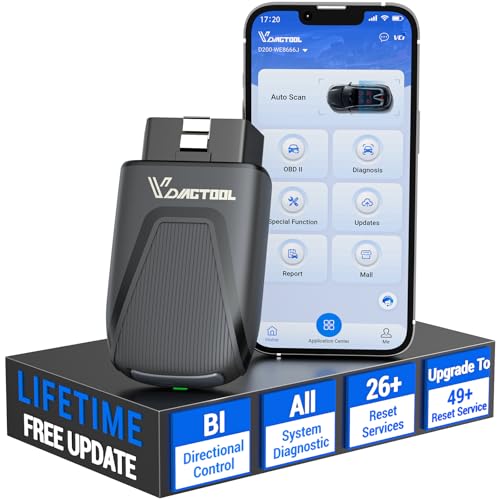
- 【OE-Level Full System Diagnostics-Lifetime F*REE Software Updates】The VDIAGTOOL D200 OBD2 Scanner for cars is a all system bidirectional scan tool that enjoy lifetime f*ree software updates, delivers complete system coverage. reading/clearing codes across engine, transmission, ABS, SAS, EPB, TPMS plus full access to body, chassis, powertrain and all control modules. This D200 Bidirectional car scanner works with most 1996+ OBD2 gasoline and hybrid
 cars and light trucks. It does NOT support pure electric and heavy-duty trucks. PLEASE CHECK COMPATIBILITY BEFORE ORDERING or Contact us with VIN to confirm compatibility.
 - 【Supports OBD2 Full Functions-ZERO Subscription Fees】D200 Bidirectional OBD2 Scanner is a upgarde of universal car code reader. It supports OBD2 full functions to help you turn off the annoying instrument fault indicator, such as read/clear codes, O2 sensor test, I/M readiness, on-board monitor test, datastream, freeze frame, E-VAP system test, and retrieve vehicle information. This professional obd2 scanner diagnostic tool can full access to diagnostics, reset tools and maintenance features with a single payment. NOTE: The fault code can only be cleared after the vehicle's malfunction has been repaired; please ensure the vehicle issue is fixed before clearing the code.
- 【D200 Hidden 2 Advantages: 1. $169 Expandable 49+ Advanced Resets. 2. $199 Get J2534 P*a*s*s-Thru Programming】Your core car diagnostics and 26 reset remain lifetime f*ree for everyday maintenance. When you need deeper repair capability, upgrade with 3-year access for $169 in Store on VDIAGTOOL App, gaining 49+ advanced resets. D200 configured with J2534 hardware, upgrade only when you need without replacing the entire device. You also can Lifetime Unlock for $199 in Store one-time, perform module programming, software re~flashing and ECU data updates directly. Supports 17+ major brands, including for BMW, for Audi, for GM, for Ford and more. Note:D200 does‘t provide any OE software.
- 【Full Bidirectional Control / Active Tests】The D200 car scanner diagnostic tool is a true bidirectional scan tool that lets you send commands directly to the vehicle’s ECU for active tests. Quickly test fuel pumps, relays, solenoids, injectors, cooling fans, windows, sunroofs and more to verify operation instantly. Get dealership-level diagnostic control at a fraction of the cost (ofter $100-200$ per diagnostic visit), reduce guessworkand confirm repairs faster, avoid unnecessary parts replacement, towing fees and wait times.
- 【26 F*ree Essential Reset & Relearn Functions – Everyday Maintenance Made Easy】Handle common maintenance and repair jobs without visiting the shop. The D200 code readers & scan tools includes 26 f*ree high-demand reset functions, including Oil Reset, EPB Service, SAS Calibration, ABS Brake Bleeding, Throttle Relearn, Injector Coding, Headlight Adjustment, Tire Size Reset and more. Perfect for home car owners, mechanics and DIYers – just plug and diagnose anytime, anywhere! Note: Service functions vary by vehicle model—please confirm compatibility.
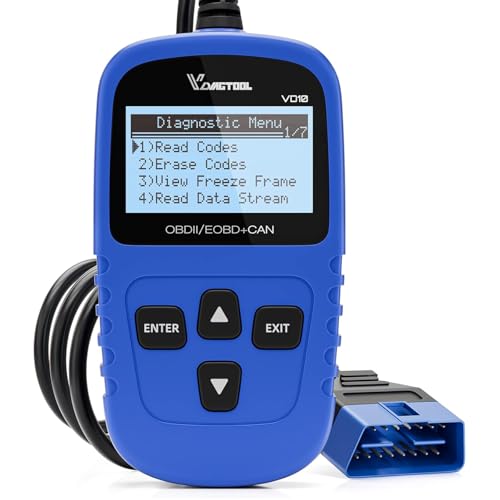
- 【A MUST-HAVE TOOL FOR DIYERS】 - VDIAGTOOL VD10 car code reader is an incredibly useful obd scanner for each car owner or hobbyist, even for those with little to no experience when it comes to vehicle mechanics! Similar to a fixd car diagnostic tool, using this car diagnostic scanner is extremely easy. All you have to do is attach it to your car OBDII port and you can diagnose car problems in seconds! Read Codes (DTCs); Clear Codes; Live Data; View Freeze Frame; I/M Readiness; Vehicle Information.
- 【KEEP ENGINE IN GOOD STATUS】 - VDIAGTOOL check engine code reader brings a fast access to scan, read the car fault code, show its definition on the screen instantly, troubleshooting to find the root causes of problems, erase the engine fault code and turn off the MIL (Malfunction Indicator Light). Similar to a fixd car diagnostic tool, this car code reader helps ensure your engine stays in top condition.
- 【READ/CLEAR CODES & DTC LOOKUP】- No search online & saving your time, this vehicle car code reader retrieves generic (P0, P2, P3, and U0), manufacturer specific (P1, P3, and U1) codes, pending codes and displays DTC definitions based on the built-in database(more than 3000 codes) on the TFT screen, find out the root causes and clear the codes after fixed.
- 【LIVE DATA & RETRIEVE FREEZE FRAME】 - This diagnostic scan tool for accurate diagnosis enables you to retrieve data from vehicle sensors, such as Engine RPM, Intake air temperature, Short/Long term fuel, Misfire data and etc. The freeze frame is stored in the PCM together with the diagnostic trouble code (DTC) related to the fault. Comparable to a fixd car diagnostic tool, the VD10 car code reader car scanner can be a valuable & practical diagnostic aid and also greatly help when diagnosing intermittent problems.
- 【I/M READINESS for THE S-nn-0-g CHECK】- OBDII vehicle may not pass the annual inspection unless the required monitors since reset are complete. So you should at least read the readiness monitors and make sure they are ready. This car obd2 scanner diagnostic tool is equipped with I/M readiness function to check the operations of the e-m-issi0n system on OBD2 compliant vehicles, run I/M monitor readiness test, checking if the pass vehicle s-m-0-g inspection.

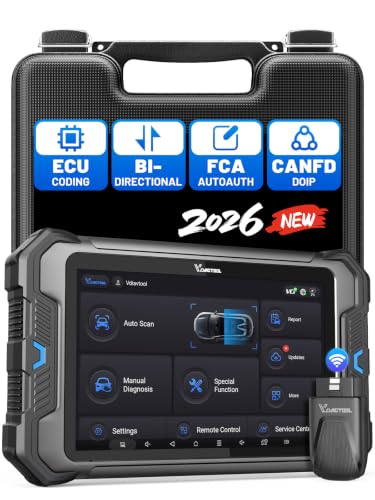
- 【Professional Diagnostics】 The VD80 BT Lite bidirectional obd2 scanner is a professional OBD2 scanner diagnostic tool, delivering vehicle diagnostics right in your own garage. It supports 4,000+ active diagnostic tests, 28+ maintenance service functions, ECU coding, PMI calibration, brake service reset, and OEM-grade full-system vehicle scanning—perfect for DIYers and pros looking for powerful automotive tools. The available function tests vary by model—please to confirm compatibility.
- 【ADVANCED ECU CODE, CUSTOMIZE OE-SETTINGS】As a complete car code reader and reset tool, the VD80 BT Lite bidirectional obd2 scanner supports ECU coding for VW, for Audi, for BMW, for Benz, for Mitsubishi and more. PMI function for Ford/for Lincoln/for Mazda, supports copy data into new module. Step-by-step Guided Diagnostics makes complex jobs easier—making this one of the most reliable code readers & scan tools on the market.
- 【100000+ Vehicles Compatibility – CAN FD/DOIP】 VD80 BT Lite Auto Scanner Compatible with 100,000+ vehicles worldwide, this bidirectiona car scanner works with all OBD2-compliant vehicles manufactured after 1996, covering more than 100 brands worldwide. It also supports CAN FD, DOIP and FCA Secure Gateway protocols, boost 2X faster data transfer, covers 99% of U.S., EU and Asian cars. With 22 languages and 2 years of f*ree updates—future-proofing your car reader diagnostic for all cars.
- 【28+ Maintenance Services & Calibration Functions】VD80 BT Lite scanner for car Supports 28 maintenance services, including resetting oil and service lights after routine maintenance, registering new batteries for proper system operation, and clear clogged filters and restore performance. Additionally, it calibrates TPMS sensors after tire rotations, resets brake systems after pad replacements, relearns steering angle sensors after alignments, and more. These functions help your vehicle quickly and accurately return to peak performance—without the costly dealer visits.
- 【True Bidirectional Control – Diagnose with Confidence】Standing out with full-system coverage and extensive active test capabilities, the VD80 BT Lite bidirectional scan tool retrieves data from electronic control units and performs a wide range of active tests. You can real-time control over modules like fuel pumps, windows, A/C clutches, and relays. Perform 100+ advanced functions including throttle adaptation, injector coding, VIN write, idle relearn, and ABS bleed—helping you fix it right the first time with this all-in-one car diagnostic scanner.
Last update on 2026-06-23 / Affiliate links / Images from Amazon Product Advertising API
This product presentation was made with AAWP plugin.