
NHTSA ID Number: 10164631
Manufacturer Communication Number: SC-19-95
TSB/Document Date: 2019-09-10
Summary
The reason for this software update is to update various controllers. All the included Proterra Catalyst E2 vehicles require a change to the software/configuration for the following items: Battery Pack Software, Charge Controller, ESM Software, Powertrain Controller, DWP/Dash Software, and Body Controller (ZR)
ISSUE DATE:
SERVICE BULLETIN SUBJECT:
VINs or MODELS AFFECTED:
COMPLETE BY:
SERVICE CAMPAIGN #:
8/12/2019
E2 Ver2 Software Verification and Update
Catalyst 40 with ProDrive BTMS and All Catalyst 35 E2
Vehicles
Next Available Service Opportunity
SC-19-95
NOTICE! It is expected that this process may require up to 3 hours per bus. Please
schedule appropriately to minimize vehicle downtime.
VEHICLE SOFTWARE VERIFICATION AND UPDATE
Description
The reason for this software update is to update various controllers. All the included Proterra Catalyst
vehicles require a change to the software/configuration for the following items:
•
•
•
•
•
•
•
Battery Pack Software
Charge Controller
ESM Software
Powertrain Controller
DWP/Dash Software
Body Controller (ZR)
Verify Only – Traction Motor Inverter Firmware Version
Summary of Software Changes
This update is to verify the latest software versions are installed for all controllers on the vehicle.
•
•
•
•
•
•
Battery Pack Software
o Improved recovery from INTCAN CAN Errors
o Additional Range Modes to allow for higher resolution SOH updates
o Balancing disabled during fast charge to prevent temperature de-rates to charging
o HVIL improvements to prevent sudden loss of power when only one string is enabled
Charge Controller
o Improved high power charge handling
o Broadcast of version numbers and EVSE parameters on CAN
ESM Software
o Improved SOC calculations and low voltage performance
Powertrain Controller
o Hill hold improvements
o Updates to enable 315 tire installation
DWP/Dash Software
o Added voltage display for 24V batteries
o Added support for Brake Wear indications (if installed)
Body Controller (ZR)
o Improved handling of 5 position door switch input
▪ Doors will now support automatic “re-close” after obstruction (if enabled)
o Added support for three door vehicles
o Added support for new dash content
o Hill hold feature improvements
▪ New feature: Press-to-set hill hold activation and audible hill hold alert (if
enabled)
o Support for Auxiliary heating (fuel fired heater) system
o Support for cabin HVAC pre-conditioning (if supported by vehicle telemetry system)
o Improved Ride Height configuration handling
o Customer-requested updates
▪ SWAT switch functionality
▪ ADA chime to discrete output
▪ Aux Heat disable while charging feature
2|Page
Headquarters: 1815 Rollins Road, Burlingame, CA 94010
East Coast Manufacturing: 1 Whitlee Court, Greenville, SC 29607
West Coast Manufacturing: 383 Cheryl Lane, City of Industry, CA 91789
Tools/Programs Required
Tools Required:
• Laptop Computer
• K-line USB Adapter (dash programming)
• USB to Serial Adapter (dash programming)
• Proterra OBD Breakout cable “Octopus”
• PCAN USB dongle
• Nexiq USB-Link or USB-Link 2
NOTE: IT IS NOT PERMITTED to use the Logena Service tool to perform the Body Controller
software update: this tool has been obsoleted. This tool does not maintain configuration
information and may result in unsafe/undesirable vehicle operation if used to flash body
controller software.
Programs Required:
• BMS flashing utility (MonacoUDSClient)
• Proterra Diagnostic Tool
• CAVTAN Parameter Editor v3.03 (dash programming)
3|Page
Headquarters: 1815 Rollins Road, Burlingame, CA 94010
East Coast Manufacturing: 1 Whitlee Court, Greenville, SC 29607
West Coast Manufacturing: 383 Cheryl Lane, City of Industry, CA 91789
Software Files Required / Preparation
It is recommended that you copy the entire “service bulletin files” folder to your local machine in order
to more effectively keep track of the software versions you are deploying:
\\bus.local\files\Engineering\Service Bulletins\Service Bulletin Files for SB-19-95\
•
Body Controller Version 60.05:
o 047344.ZR32A_A
•
Powertrain:
o Main Version 2.4.1
o 042887.hex
•
CCS Charger Controller:
o Dual Port
▪ Part number 047977.zip
▪ CC_2_0_4.srec
o Single Port
▪ Part Number 047978.zip
▪ CC_2_1_4.srec
•
ESM Controller Version 2.0.0:
o Part Number 043836
o ESM_Catalyst_2_0_0_release_04_11_2019.srec
•
BMS (E2 Pack) Software:
o Part Number 038975
o 0117340DE_MonacoBMS_Main.mbms
o 0117340AE_MonacoSC_Safety.mbms
•
Dash Software - Version 8:
o 044843_rev08.zip
4|Page
Headquarters: 1815 Rollins Road, Burlingame, CA 94010
East Coast Manufacturing: 1 Whitlee Court, Greenville, SC 29607
West Coast Manufacturing: 383 Cheryl Lane, City of Industry, CA 91789
Contents
Description ............................................................................................................................................ 1
Summary of Software Changes ......................................................................................................... 2
Tools/Programs Required.................................................................................................................. 3
Software Files Required .................................................................................................................... 4
Connect to the Vehicle to Start the Proterra Diagnostics Tool .............................................................. 6
Verify and Update the BMS (Battery Pack) Software ............................................................................ 9
Verify Current Software Version ........................................................................................................ 9
Update Using the Proterra Diagnostic Tool ..................................................................................... 10
Update Using MonacoUDS Client (Alternate Method) ..................................................................... 13
Verify and Update ESM Controller Software Version: ......................................................................... 20
Verify Current Software Version ...................................................................................................... 20
Update Using the Proterra Diagnostic Tool ..................................................................................... 21
Update Using Microboot (alternate method) .................................................................................... 23
Verify and Update Charge Controller Software Version ...................................................................... 24
Verify Current Software Version ...................................................................................................... 24
Update Using the Proterra Diagnostic tool ...................................................................................... 25
Update Using Microboot (alternate method) .................................................................................... 27
Verify and Update Powertrain Software Version ................................................................................. 28
Verify Current Software Version ...................................................................................................... 28
Update Powertrain Software............................................................................................................ 29
Verify and Update Dash Software Version .......................................................................................... 31
Verify Current Software Version ...................................................................................................... 31
Update Dash Software .................................................................................................................... 32
Verify and Update Body Software Version .......................................................................................... 36
Verify Current Software Version ...................................................................................................... 36
Update Body Controller Software .................................................................................................... 38
Store/Import Customer Configuration Dataset................................................................................. 42
Verification of Customer Configuration ............................................................................................ 44
Verify Traction Motor Software Version .............................................................................................. 45
Verify Current Software Version ...................................................................................................... 45
Check List for Software Versions Deployed ........................................................................................ 46
5|Page
Headquarters: 1815 Rollins Road, Burlingame, CA 94010
East Coast Manufacturing: 1 Whitlee Court, Greenville, SC 29607
West Coast Manufacturing: 383 Cheryl Lane, City of Industry, CA 91789
Connect to the Vehicle to Start the Proterra Diagnostics Tool
This process will guide the user to connect to the vehicle with the Proterra Diagnostics Tool.
1. Turn ON the 12/24V rear Vehicle Master Disconnect located behind the vehicle curbside rear
charge port access panel.
2. Turn ON the bus Master Run Switch at the Driver's Workplace and ensure the Dash screen is
ON to display “KEY ON”.
a. This places the vehicle into Key On / Low Voltage state for controller versions to be
checked prior to software flash.
3. For Body Controller Programming:
a. Turn OFF the Master Run Switch at the Driver’s Workplace and ensure the dash screen
is OFF.
b. Turn ON the bus “programming switch” inside the street side wheel well box.
4. Using a T30 Torx screwdriver or appropriate tools, remove the two access covers:
a. Street side wheel well electronics cabinet (ECAB) panel for access to the OBDII Port.
b. Rear deck access panel for OBDII Diagnostic port (NOTE: on E2-35 foot buses this is
located behind the rear barn doors on the left hand side).
5. Power up (boot) the Proterra-supplied laptop containing the Proterra Diagnostic Tool.
6|Page
Headquarters: 1815 Rollins Road, Burlingame, CA 94010
East Coast Manufacturing: 1 Whitlee Court, Greenville, SC 29607
West Coast Manufacturing: 383 Cheryl Lane, City of Industry, CA 91789
6. Connect the Nexiq USB Link2 device to the laptop and to the appropriate OBDII Diagnostic
Port.
7. For example, here is the Nexiq USB Link connected to the Diagnostic Port located on the
street side wheel well electronics cabinet (eCab):
Diagnostic Port
Nexiq USB Link
8. On the laptop, double-click on the Proterra Diagnostics Tool software icon to
start the software.
9. When the program opens, read and click OK for the prompt.
10. On the Home tab, select the appropriate device from the drop down and click “Connect”.
7|Page
Headquarters: 1815 Rollins Road, Burlingame, CA 94010
East Coast Manufacturing: 1 Whitlee Court, Greenville, SC 29607
West Coast Manufacturing: 383 Cheryl Lane, City of Industry, CA 91789
11. Once the diagnostic tool has connected to the vehicle, you will have a VIN number and
connection status displayed on the home screen, and tabs available to navigate.
8|Page
Headquarters: 1815 Rollins Road, Burlingame, CA 94010
East Coast Manufacturing: 1 Whitlee Court, Greenville, SC 29607
West Coast Manufacturing: 383 Cheryl Lane, City of Industry, CA 91789
Verify and Update the BMS (Battery Pack) Software
This procedure checks the Body Controller software version and maintains the body controller
parameter configuration data across the flash download of new software.
Verify Current Software Version
1. With the Diagnostic tool connected to the vehicle at the front or rear deck OBDII Port, navigate
to the “Battery Packs” Tab and view the Main and SC SW Versions.
a. If these do not read 117340A and 117340D, as shown below, you must download
battery pack firmware.
b. Be sure you check for each Pack using the drop down in the upper right corner.
Click
Battery Packs
Software
Versions
Pack
Selection
c. NOTE: This pack version will only refresh if you cycle power to the controller (by turning
off the Master Disconnect at the rear of the Vehicle) and also disconnect/reconnect the
Proterra Diagnostic tool.
9|Page
Headquarters: 1815 Rollins Road, Burlingame, CA 94010
East Coast Manufacturing: 1 Whitlee Court, Greenville, SC 29607
West Coast Manufacturing: 383 Cheryl Lane, City of Industry, CA 91789
Update Using the Proterra Diagnostic Tool
1. Ensure the laptop battery is full or it is connected to AC power. The procedure can take up to
ten minutes per pack to complete.
2. Ensure you have the latest software file **.mbms to a known location on the service technician’s
computer (Folder or Desktop).
IMPORTANT! NEVER access the software from the USB memory device, ALWAYS copy the
software files to your computer hard drive and access the software from this location. Secure the bus
with the Vehicle Master Disconnect in the rear ON.
3. Turn the dash Master Switch to ON. Do not press START. Use the hazard lights if necessary
to maintain bus power.
4. With the Proterra diagnostic tool connected to either the front or rear diagnostic port (must
have BCAN data available), navigate to the Configuration tab.
Click
Configuration
Beside Battery
Mgmt System,
Click Start Flash
NOTE: If desired, you can now turn the Master Switch to “OFF”. The battery system remains
active as long as the 12/24V switch is on. This may improve software download speed.
5. Select the option for Battery Management System “Start Flash”.
6. In the pop-up window, select one of the following software configurations to load the
appropriate software into the two controllers for each pack:
a. Pack Safety Controller (SC): 117340A.
b. Main Pack Controller: 117340D.
7. A popup window will appear, “Scanning for available battery management systems”.
10 | P a g e
Headquarters: 1815 Rollins Road, Burlingame, CA 94010
East Coast Manufacturing: 1 Whitlee Court, Greenville, SC 29607
West Coast Manufacturing: 383 Cheryl Lane, City of Industry, CA 91789
8. Once it is finished scanning, a window with a drop-down list box appears:
9. Select a controller from the drop down list:
a. Safety Controller should display the following per pack, once properly updated:
b. Main controller should display the following per pack, once properly updated:
10. Select a pack controller and click the “Flash” button.
11. The Programming window will come up and may take a few minutes to complete.
11 | P a g e
Headquarters: 1815 Rollins Road, Burlingame, CA 94010
East Coast Manufacturing: 1 Whitlee Court, Greenville, SC 29607
West Coast Manufacturing: 383 Cheryl Lane, City of Industry, CA 91789
12. When the Programming screen completes, the version numbers will update in the list to show
you have completed that pack (BMS1 Safety has been updated below):
13. After all packs have been updated, cycle power to the bus.
14. Disconnect the diagnostic tool on the home tab and again click Connect.
a. This will refresh the pack version information and allow you to verify all four packs are
properly updated on the “Battery Pack” tab.
Click
Battery Packs
Software
Versions
Pack
Selection
12 | P a g e
Headquarters: 1815 Rollins Road, Burlingame, CA 94010
East Coast Manufacturing: 1 Whitlee Court, Greenville, SC 29607
West Coast Manufacturing: 383 Cheryl Lane, City of Industry, CA 91789
Update Using MonacoUDS Client (Alternate Method)
1. Ensure the laptop battery is full or it is connected to AC power. The procedure can take up to
ten minutes per pack to complete.
2. Download the archive file (.zip or .rar) containing the flashing utility, BMS files, and instructions
to your laptop hard drive.
3. Extract the archive file to a folder at a location of your choosing; remember this location for
future steps.
4. Connect the PCAN dongle to the laptop.
5. Close all CAN utilities running on the laptop: PCAN Explorer, DST, CANalyzer, etc.
Note: These programs can interfere with the tool’s ability to use the PCAN dongle and will
prevent the tool from correctly flashing the BMS.
6. Launch the flashing tool: MonacoUDSClient.exe.
Note: Do not attempt to run the tool straight from the archive file; extract it first, then run it from
the extracted folder.
13 | P a g e
Headquarters: 1815 Rollins Road, Burlingame, CA 94010
East Coast Manufacturing: 1 Whitlee Court, Greenville, SC 29607
West Coast Manufacturing: 383 Cheryl Lane, City of Industry, CA 91789
7. Click the “Connect” button beside the Connection drop-down menu. If this button is “grayed
out” or not available, you may need to restart your computer to correctly connect to the dongle.
8. The button should change to “Disconnect” once proper communication is established.
NOTE: You will also get a “Connection Successful” message in the status window at the
bottom.
9. Proceed to the next section: Connecting to the bus.
14 | P a g e
Headquarters: 1815 Rollins Road, Burlingame, CA 94010
East Coast Manufacturing: 1 Whitlee Court, Greenville, SC 29607
West Coast Manufacturing: 383 Cheryl Lane, City of Industry, CA 91789
Connecting to the Bus
10. Secure the bus with the Vehicle Master Disconnect in the rear ON.
11. Turn the dash Master Switch to ON. Do not press START. Use the hazard lights if necessary
to maintain bus power.
12. Remove the rear deck access cover behind the back seats using a T30 Torx driver, or square
key if the bus is so equipped.
13. Connect the OBD to DB adapter cable to the rear diagnostic port, then connect the PCAN
dongle to the BCAN port on the cable.
14. Click on the “Scan Dialog” button, then “Start Scan” on the window that pops up.
Note: This will scan for all connected BMS units. On a 4 pack bus you should see 8 instances
of “true” in the first column, as seen below.
15. Once all four packs’ Safety and Main controllers are verified as online, you may proceed with
the flashing procedure.
15 | P a g e
Headquarters: 1815 Rollins Road, Burlingame, CA 94010
East Coast Manufacturing: 1 Whitlee Court, Greenville, SC 29607
West Coast Manufacturing: 383 Cheryl Lane, City of Industry, CA 91789
Flashing the BMS
16. Select the file to flash, under “Select Image.” Click on “Select,” then navigate to the files you
extracted in Step 2 of setup. Select the file labeled “0117340AE_MonacoSC_Safety.mbms”
Note: Each pack will need to be flashed twice, once for the MAIN and once for the SAFETY
controller. The order in which these are done does not matter.
17. Under “Select Device to Flash” use the drop-down menu to select the BMS you are working
on; in the example images, this is BMS01.
16 | P a g e
Headquarters: 1815 Rollins Road, Burlingame, CA 94010
East Coast Manufacturing: 1 Whitlee Court, Greenville, SC 29607
West Coast Manufacturing: 383 Cheryl Lane, City of Industry, CA 91789
18. Click on the “Enter Bootloader Mode” button. A dialog box will appear to ask for confirmation.
Select “Yes” to confirm and proceed. A second dialog box will appear to notify you the
application reset command was sent, click OK to dismiss it.
19. Click “Flash Device” to load new software into the BMS. A dialog box will appear to ask for
confirmation to proceed, select “Yes” to continue. Another dialog box will appear when flashing
is complete, click OK to continue.
17 | P a g e
Headquarters: 1815 Rollins Road, Burlingame, CA 94010
East Coast Manufacturing: 1 Whitlee Court, Greenville, SC 29607
West Coast Manufacturing: 383 Cheryl Lane, City of Industry, CA 91789
20. Click “Restart Device” to send a reset command to the BMS. A confirmation box will appear,
click “Yes” to confirm the command.
Note: You will NOT receive a notification box after this, but the Status window will indicate the
restart commands were sent.
21. Repeat step 1-5, this time selecting the file labeled “0117340DE_MonacoBMS_Main.mbms” as
the image to be loaded.
22. Verify the new software load by using the “Scan Dialog” option on the client main screen. You
should see new App Version numbers for the BMS you just flashed, matching the 7-digit
number from the file names selected.
Note: If you do not see these new version numbers, or a pack does not show as present, you
will need to run the flashing procedure again and verify that the controllers reset.
23. Repeat steps 1-6 for the other packs on the bus to update the BMS boards.
18 | P a g e
Headquarters: 1815 Rollins Road, Burlingame, CA 94010
East Coast Manufacturing: 1 Whitlee Court, Greenville, SC 29607
West Coast Manufacturing: 383 Cheryl Lane, City of Industry, CA 91789
Verification and Close-out
24. Run the Scan Dialog once the all the packs have been updated and verify that all packs
installed are Present and the version numbers for all Safety Controllers are the same and
version numbers for all Main Controllers are the same.
25. Close out of the MonacoBMS client, then disconnect the PCAN dongle and adapter cable.
26. Turn the bus Dash Master Switch to OFF, then the Vehicle Master Disconnect to OFF.
Note: Wait 30 seconds.
27. Turn the Vehicle Master Disconnect switch back to ON.
28. Turn the Dash Master Switch ON, then press START.
29. Verify no battery faults are present when the bus reaches RUNNING status.
19 | P a g e
Headquarters: 1815 Rollins Road, Burlingame, CA 94010
East Coast Manufacturing: 1 Whitlee Court, Greenville, SC 29607
West Coast Manufacturing: 383 Cheryl Lane, City of Industry, CA 91789
Verify and Update ESM Controller Software Version:
This procedure checks the ESM Controller software version and upgrades as necessary.
Verify Current Software Version
1. Connect Proterra Diagnostics tool to either front or rear OBDII connector.
2. Navigate to High Voltage Tab.
3. Verify the High Voltage Batteries Controller Software version is “ESMCATALYST_2.0.0”:
4. In this screenshot, the ESM controller software version (middle of the screen) is 2.0.0.
5. If the version is not 2.0.0, proceed to the next section to update the controller software.
20 | P a g e
Headquarters: 1815 Rollins Road, Burlingame, CA 94010
East Coast Manufacturing: 1 Whitlee Court, Greenville, SC 29607
West Coast Manufacturing: 383 Cheryl Lane, City of Industry, CA 91789
Update Using the Proterra Diagnostic Tool
6. Ensure you have the latest software file ESM_**.srec to a known location on the service
technician’s computer (Folder or Desktop).
IMPORTANT! NEVER access the software from the USB memory device, ALWAYS copy the
software files to your computer hard drive and access the software from this location.
7. Turn ON the 12/24V rear Master Disconnect located behind the vehicle curbside rear upper
access panel.
8. Turn OFF the bus High-Voltage Master Switch at the Driver's Workplace and ensure the
Dash screen is OFF.
9. Once connected to the vehicle with the Proterra Diagnostics tool, Click on the “Configuration
Button” to open the Configuration screen and then click the Battery Master Controller “Start
Flash” Button.
Click
Configuration
Beside Battery
Master Controller,
Click Start Flash
21 | P a g e
Headquarters: 1815 Rollins Road, Burlingame, CA 94010
East Coast Manufacturing: 1 Whitlee Court, Greenville, SC 29607
West Coast Manufacturing: 383 Cheryl Lane, City of Industry, CA 91789
10. The following screen will be displayed. Navigate to the location where you stored the
configuration file earlier. Select the file and click “Open” to load the file.
Select the file and
Click Open
11. The Proterra Diagnostic Tool will attempt to connect to the device.
NOTE: You may receive an error on the first attempt. If so, retry by clicking the Battery
Master Controller “Start Flash” button again.
Error message on
failed first attempt
12. When the software update begins, and the following screens will be displayed.
13. The software update may take several minutes to complete. When the update is complete
the following screen will be displayed. Click the “OK” button to complete the update process.
Click OK
14. The software update is now complete.
15. Reset the bus and proceed.
22 | P a g e
Headquarters: 1815 Rollins Road, Burlingame, CA 94010
East Coast Manufacturing: 1 Whitlee Court, Greenville, SC 29607
West Coast Manufacturing: 383 Cheryl Lane, City of Industry, CA 91789
Update Using Microboot (alternate method)
The purpose of this procedure is to update the ESM Controller software version.
1. Ensure you have the latest program and software file ESM_**.srec to a known location on the
service technician’s computer (Folder or Desktop).
IMPORTANT! NEVER access the software from the USB memory device, ALWAYS copy the
software files to your computer hard drive and access the software from this location.
2. Turn ON the 12/24V rear Master Disconnect located behind the vehicle curbside rear upper
access panel.
3. Turn OFF the bus High-Voltage Master Switch at the Driver's Workplace and ensure the Dash
screen is OFF.
4. Power up (boot) the Proterra-supplied laptop containing the MicroBoot executable file.
5. Connect the octopus cable to the OBD port located in the Rear Deck of the bus.
6. Connect the PCAN dongle to the PCAN connection on the octopus cable.
7. Verify no other CAN utilities are running on the laptop; close PCAN Explorer, Proterra
Diagnostic Tool, etc.
8. Connect PCAN dongle to the USB port on the laptop.
9. Launch MicroBoot on the laptop.
10. Use the “Browse” button to navigate to and select the SREC file to be loaded.
a. The software will load automatically from this point.
11. The software update may take several minutes to complete. When the update is complete the
following screen will be displayed. Click the “OK” button to complete the update process.


- Advanced VCI Box, Industry-leading J2534 Pass-Thru...
- High-Speed OEM-Level Diagnostics & Programming: Unlock true...
- Coverage for 17 Car Brands & Ultra Reliability: Works...
- User-Friendly RLink Platform & Expert Support: TOPDON’s...
- 6.6 ft USB-C Cable & Portable Storage Case: The RLink J...
Last update on 2026-06-23 / Affiliate links / Images from Amazon Product Advertising API
If the PDF is very large, it may not load in the preview below.
Some older TSBs had multiple PDFs — visit the NHTSA Website to view all PDFs.
If the TSB PDF does not show, download or view it on the NHTSA Website.
Click on the (+) Plus Sign
Then Click on Associated Document(s)
Search NHTSA Database for Recalls
Search NHTSA Database for Vehicle Investigations
View Latest Vehicle Investigations
Search NHTSA Database for Vehicle Complaints
View Latest Vehicle Complaints
TSB/Document ID: SC-19-95
Replacement Service Bulletin Number:
MFR Communication Date: 2019-08-13
MFR Internal Campaign ID/Software Version:
Communication Type: Service Bulletin/Repair Instructions
NHTSA Components: ELECTRICAL SYSTEM
MFR Component System:
MFR Component Subsystem:
Previous TSB | Next TSB |
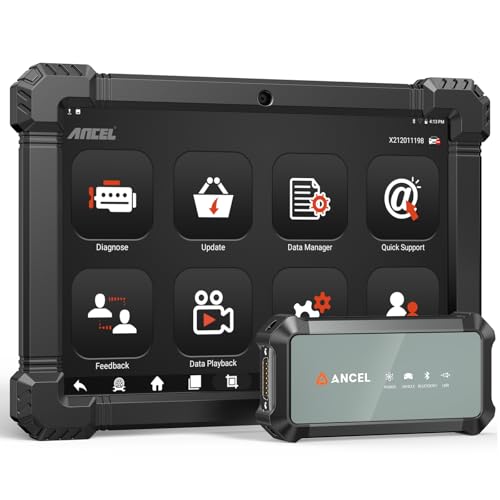
- 2026 ALL-IN-ONE HEAVY DUTY TRUCK SCANNER – BUILT FOR DIESEL DIAGNOSTICS:The ANCEL X7HD PRO combines full-system diagnostics, bi-directional control, ECU coding, HDOBD/OBD2 functions, and 42+ reset services in one powerful heavy duty truck scanner. This diesel scan tool helps technicians, fleet owners, and repair shops diagnose problems faster, reduce downtime, and complete more repairs without switching between multiple truck diagnostic tools. Features a 10.1" Android tablet, Bluetooth & Wi-Fi, live data graphing, and 2 years of f-ree updates
- 42+ RESET FUNCTIONS – MORE THAN A BASIC TRUCK CODE READER:Perform essential service functions including forced DPF regeneration, injector coding, speed limiter adjustment, idle adjustment, oil reset, ABS reset, SRS reset, EPB reset, throttle reset, and suspension calibration. Designed for real truck maintenance and fleet service, this commercial truck diagnostic scanner helps reduce dealer visits, avoid unnecessary downtime, and handle more repair jobs with one diesel diagnostic tool
- ACTIVE TEST & ECU CODING – ADVANCED BIDIRECTIONAL SCAN TOOL FOR TRUCKS:Quickly locate faults by activating components and sending commands directly to vehicle systems. Test injectors, ABS, throttle, cooling systems, and other modules in real time without unnecessary disassembly. ECU coding and module matching help adapt replacement parts, restore factory settings, and reduce repeat repairs, making this semi truck scan tool ideal for advanced troubleshooting and daily shop work
- FULL-SYSTEM HDOBD/OBD2 DIAGNOSTICS – WIDE TRUCK & ENGINE COVERAGE:Read and clear codes, monitor live data, freeze frame, and diagnose engine, transmission, ABS, body, and other major systems. Compatible with Freightliner
 , Kenworth, Peterbilt, Volvo, Mack, International, and other commercial truck brands, plus Cummins, Caterpillar, Detroit, Paccar, and Navistar diesel engines. Also supports full OBD2/EOBD diagnostics for standard vehicles, making it a versatile truck obd2 scanner for mixed fleets and repair shops
 - PROFESSIONAL HARDWARE + RELIABLE SUPPORT – BUILT FOR DAILY SHOP USE:This professional diesel diagnostic computer features a 10.1" touchscreen, Android 10.0 system, 6000mAh battery, Bluetooth/Wi-Fi connectivity, and built-in front & rear cameras for documenting repairs and remote troubleshooting. Includes 2 years of fr-ee updates, 1-year w-arranty, and responsive technical support. Contact [email protected] before purchase to confirm compatibility and supported functions for your truck or diesel engine

- 【Built for Heavy Duty Diesel Diagnostics】Designed for SAE J1939 and J1708 compliant trucks, buses, and diesel-powered commercial vehicles. HD601 truck scanner diagnostic tool helps owner-operators, small fleets, mobile technicians, and independent repair shops quickly identify fault codes, view live data, and make informed repair decisions—saving time, reducing downtime, and avoiding unnecessary shop visits
- 【Full System Diagnostics+All HD OBD Modes】The New HD601 heavy duty truck scanner delivers full-system diagnostics on SAE J1939 and J1708-compliant commercial vehicles—digging into engine, transmission, ABS, fuel, every system that keeps your rig rolling. It supports all HD OBD modes, giving you live data, freeze frame, ECU info, vehicle info, emissions data tracking, plus code reading and clearing. Not just what broke, but why—so you fix it right the first time. Pinpoint issues faster, cut repair costs, and spend less time on the shoulder
- 【Wide Heavy-Duty Vehicle Coverage】Supports a wide range of heavy-duty vehicle manufacturers and systems, including Freightliner, Kenworth, Peterbilt, Volvo, International, Detroit, Cummins, Paccar, Allison, Eaton, Bendix, Wabco, and more. Coverage varies by vehicle make, model, year, and system configuration. Contact our support team before purchase if compatibility verification is needed
- 【Speaks Major Truck Protocol】The New HD601 diesel truck scanner is built for American-made trucks—and supports the heavy‑duty protocols you' re most likely to run into on the road: SAE J1939, J1708/J1587, ISO 15765‑4, ISO 14230‑4, ISO 9141‑2, J1850 PWM/VPW, ISO 27145‑4, and EURO‑6. For most trucks, model years, and systems, it speaks the language your vehicle understands. Just plug it in and start diagnosing—no guesswork, no gatekeeping. Note: vehicle functions and module availability may vary by manufacturer and model year
- 【Save Hundreds on Diagnostic Fees】Why pay $150–300 for someone to read your codes? With the New ANCEL heavy duty truck scanner, you can pull fault codes yourself—in minutes, without leaving the truck. One or two uses pays for the tool. After that, every diagnostic is money back in your pocket. Smart investment for owner-operators, techs, and small fleets. Read and clear stored fault codes in minutes. Active fault codes may require repairs before they can be cleared
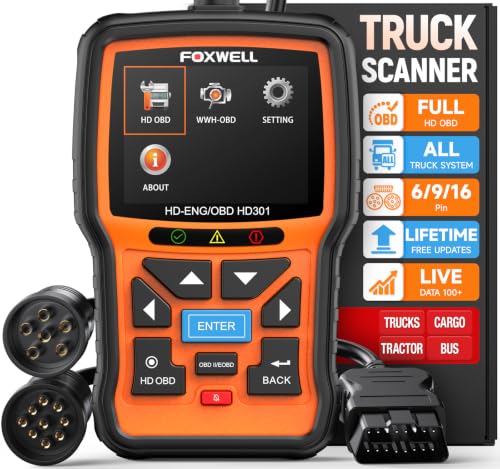
- 【One Tool, Total Fleet Coverage: 6/9/16 Pin Ready】Featuring an integrated 16-pin OBD2 connector and professional-grade 6-pin & 9-pin adapters, this heavy duty truck scanner provides extensive support for J1939, J1708, J1587, ISO 14230-4, ISO 15765-4 and ISO 9141-2, ISO 27145-4 protocols. It offers reliable diagnostic coverage for major American diesel brands—including Cummins, Paccar, Caterpillar, Detroit, and Freightliner—making it a versatile semi truck scanner for managing any diverse fleet.
- 【2 in 1 Diesel Code Reader & Advanced HD OBDII】Equipped with professional-grade diesel scanner capabilities, the HD301 diesel scanner features intuitive Read/Erase codes and turn off the "Check Engine" light. With the built-in DTC Lookup library, you can instantly access fault code definitions on-device without searching the internet. It also retrieves hundreds of essential live sensor data—such as coolant temperature, fuel pressure, and engine RPM—in a stable text format for precise and rapid troubleshooting. (Please note that the HD301 can not support DPF Regen.)
- 【Full System Truck Diagnostic】The FOXWELL HD301 heavy duty scan tool is engineered to deeply access and scan all available electronic control modules specifically for truck, including Engine, Transmission, ABS, SRS, Chassis, and Body Control. This professional truck scanner diagnostic tool allows you to identify issues across the entire vehicle, ensuring your rig stays in peak condition for the long haul.
- 【Versatile for most big Rigs: Commercial, Passenger & Beyond】Engineered for more than just trucks, this heavy duty scan tool offers extensive coverage for pickups, buses, trailers, and even marine vessels. From construction machinery (excavators, loaders) to agricultural equipment (tractors, harvesters), it provides a true all-in-one diagnostic solution.
- 【Plug-and-Play & No Subscription】Designed for the road! No WiFi, no batteries, and no complex App setup required. Simply plug it into your vehicle’s diagnostic port to start scanning immediately. Enjoy lifetime free software updates to keep your HD301 diesel truck scanner current with the latest vehicle models and features—without any hidden subscription fees—While overcoming language barriers with support for Spanish and English.

Last update on 2026-06-23 / Affiliate links / Images from Amazon Product Advertising API
This product presentation was made with AAWP plugin.