
NHTSA ID Number: 10144512
Manufacturer Communication Number: NTB15-049p
TSB/Document Date: 2018-09-17
Summary
TELEMATICS SERVICE INFORMATION This bulletin only applies to vehicles equipped with a Telematics Communication Unit (TCU). This bulletin has been amended. Changes have been made to page 10 for 2018 Armada. Please discard previous versions of this bulletin.
Classification:
Reference:
EL15-006p
Date:
NTB15-049p
August 3, 2018
TELEMATICS SERVICE INFORMATION
This bulletin has been amended. Changes have been made to page 10 for 2018 Armada.
Please discard previous versions of this bulletin.
APPLIED
VEHICLES:
2016-2018 Altima (L33) – SL with Technology Package
2018 Armada (Y62)
2017-2018 GT-R (R35)
2018 LEAF (ZE1)
2016-2018 Maxima (A36) – Platinum
2017-2018 Murano (Z52) – Platinum
2017 Pathfinder (R52) – SV and Platinum, SL with Tech Package,
SL with Premium Package
2018 Pathfinder (R52) – SL and Platinum, SV with Tech Package
2016-2018 Rogue (T32) – SL
2017-2018 Rogue Hybrid (T32) – SL
2017-2018 Rogue Sport (J11) – SL and SV with Premium Package
2016-2018 Sentra (B17) – SR and SL with Tech Package
2016-2018 Titan/Titan XD (A61) – SL and Platinum, Pro-4X with
Convenience Package
SERVICE INFORMATION
The Applied Vehicles are equipped with a wireless communication device called a
Telematics Communication Unit (TCU). With an active NissanConnectSM Services
subscription, the TCU communicates with the NissanConnectSM Services Data Center to
provide various security and convenience services.
This bulletin contains important service procedures that must be performed properly in
order to set-up and maintain the telematics system for the Applied Vehicles.
Nissan Bulletins are intended for use by qualified technicians, not 'do-it-yourselfers'. Qualified technicians are
properly trained individuals who have the equipment, tools, safety instruction, and know-how to do a job
properly and safely. NOTE: If you believe that a described condition may apply to a particular vehicle, DO
NOT assume that it does. See your Nissan dealer to determine if this applies to your vehicle.
1/24
Sections in this bulletin:
Turning ON the TCU During PDI (2016-2017 Applied Vehicles ONLY) – Page 3
NOTE: If the “Turning ON the TCU During PDI” procedure is not followed correctly,
the vehicle cannot be used in Dealer Demo mode or enrolled in NissanConnectSM
Services. Should this occur, the “Turning ON the TCU During PDI” process will need
to be performed again.
Turn ON TCU – Page 4
TCU Replacement – Page 10
SOS Light Diagnosis Information – Page 24
Overview of required steps for TCU replacement:
1. Save the VIN DATA using CONSULT-III Plus (C-III plus).
2. Write down the SIM ID number from the original TCU.
3. Remove the original TCU from the vehicle.
4. Write down the IMEI from the original TCU and replacement TCU.
5. Install the replacement TCU in the vehicle.
6. Write the VIN DATA using C-III plus.
7. Some models: perform Manual TCU Configuration.
8. Write down the SIM ID number from the new TCU.
9. Some models: register the Intelligent Keys.
10. Turn ON the TCU
11. Deactivate (unregister) the original TCU, and activate (register) the replacement
TCU by calling 1-844-631-2928. For LEAF vehicles, call 1-800-922-1528.
12. Check TCU cellular reception.
2/24
NTB15-049p
TURNING ON THE TCU DURING PDI
NOTE:
This procedure is for 2016-2017 Applied Vehicles ONLY.
In most instances, the TCU is ON when delivered to the dealership. See the steps
below to determine if the TCU is ON or OFF.
1. With the vehicle in an area of known good reception, turn
the ignition ON and check whether or not the green light on
the SOS button is illuminated (see Figure 1a).
Light not
illuminated
NOTE: It may be difficult to tell if the green light is
illuminated if the vehicle is outside in bright sunlight.
If the green light is illuminated, the process to turn ON
the TCU is complete and no further action is needed.
Figure 1a
If the green light is not illuminated, go to Turn ON
TCU on the next page.
2. After the TCU is turned ON, check whether or not the green light on the SOS button is
illuminated.
If the green light is still not illuminated, verify the vehicle is unsold.
If the vehicle has been sold, the customer will need to be enrolled in
NissanConnectSM Services for the SOS light to be illuminated and for
NissanConnectSM Services to be enabled.
Refer to SOS Light Diagnosis Information on page 24.
3. Perform steps to Check TCU Cellular Reception - see page 7.
4 Turn the ignition OFF.
5. Pull OUT the extended storage switch to return the vehicle to shipping mode.
NOTE: If the “Turning ON the TCU During PDI” procedure is not followed correctly, the
vehicle cannot be used in Dealer Demo mode or enrolled in NissanConnectSM Services.
Should this occur, the “Turning ON the TCU During PDI” process will need to be
performed again.
3/24
NTB15-049p
TURN ON TCU
1. Make sure the vehicle is not in shipping mode (shipping mode = extended storage
switch pulled OUT).
If needed, use the following steps to confirm the vehicle is not in shipping mode:
a. Make sure the ignition is OFF.
b. Open the driver’s door and leave it open.
c. Locate the interior fuse panel and remove the cover.
d. Push the white extended storage switch IN.
e. Turn the ignition ON.
f. Turn the ignition OFF.
g. Wait at least 2 seconds, and then turn the ignition ON.
h. Make sure the extended storage warning message is not displayed in the
combination meter/display.
2. Connect the C-III plus VI to the vehicle.
3. Set the parking brake and confirm the ignition is ON.
4. Launch C-III plus on the CONSULT PC.
4/24
NTB15-049p
5. Select Diagnosis (One
System).
Step
5
Figure 1b
6. Select Telematics.
Step
6
Figure 2b
7. Select Work Support.
Step
7
Figure 3b
5/24
NTB15-049p
8. Select TCU ACTIVATE
SETTING.
Step
8
Step
9
9. Select Start.
Figure 4b
10. Select Start.
Step
10
Figure 5b
11. Select ON to turn ON the TCU.
Step
11
12. Make sure Current status is
ON.
On
Step 12; make sure
current status is ON
13. Select END.
Step
13
Figure 6b
6/24
NTB15-049p
Check TCU Cellular Reception
NOTE: It may take up to 3 minutes for the vehicle icon to turn white after the ignition is
turned ON.
1. Check TCU cellular reception.
Example
Check cellular
reception
Figure 1c
Examples of good reception:
Figure 2c
Examples of no/poor reception:
Figure 3c
7/24
NTB15-049p
2. Press the Info or APPS button.
Figure 4c
EXAMPLE
3. Select NissanConnect Services.
Figure 5c
EXAMPLE
4. Select Connected Search.
Figure 6c
8/24
NTB15-049p
5. Enter a POI (Point of Interest) location, and select “OK” or “Search”.
Example: “Starbucks”
EXAMPLE
Figure 7c
6. Confirm the POI location displays.
EXAMPLE
Figure 8c
7. If the “Connected Search” does not complete successfully:
For an unsold vehicle, call NissanConnectSM Services Powered by SiriusXM at
1-844-631-2928.
If the vehicle has been sold, the customer will need to be enrolled in
NissanConnectSM Services for the SOS light to be illuminated and for
NissanConnectSM Services to be enabled. Refer to SOS Light Diagnosis
Information on page 24.
9/24
NTB15-049p
TCU REPLACEMENT
NOTE:
Each TCU is registered to a specific Vehicle Identification Number (VIN).
TCUs cannot be “swapped” between vehicles. Once a TCU is registered to a
vehicle, the TCU cannot be used in another vehicle.
During this procedure, Intelligent Key Registration must be performed for the
vehicles listed in this table. You MUST have ALL customer keys collected.
2016 – 2018 Altima
2018 Armada
2016 – 2018 Maxima
2017 – 2018 Murano
2017 – 2018 Pathfinder
2018 Rogue
2016 – 2018 Titan / Titan XD
2018.5 Rogue Sport *
The new/replacement TCU must come from Nissan North America parts supply.
Some vehicles require Manual TCU Configuration after replacement. Refer to step
21 on page 16.
The VIN MUST be written to the replacement TCU after installation.
* Intelligent Key Registration is required for 2018.5 Rogue Sport vehicles ONLY. To
determine if your vehicle applies, see step 12 on page 13 and locate the TCU ID number
(Figure 7d). If the TCU ID number begins with “2047”, all customer keys must be
collected for registration.
IMPORTANT: Are you replacing the TCU in a 2018 Armada?
No
Continue to step 1, below.
Yes
Use C-III plus to check BCM part number.
Is the BCM part number 284B1-6GX0A?
No – Continue to step 1, below.
Yes – Replace the BCM and then continue to step 1 below.
Refer to the Electronic Service Manual (ESM) section
ELECTRICAL POWER CONTROL > BODY CONTROL SYSTEM
> REMOVAL AND INSTALLATION > BCM for BCM replacement.
Save VIN Data
1. Set the parking brake.
2. Connect the C-III plus VI to the vehicle.
3. Turn the ignition ON.
4. Launch C-III plus on the CONSULT PC.
10/24
NTB15-049p
5. Select Diagnosis (One
System).
Step
5
Figure 1d
6. Select Telematics.
Step
6
Figure 2d
11/24
NTB15-049p
7. Select Work Support.
Step
7
Figure 3d
8. Select SAVE VIN DATA.
Step
8
9. Select Start.
Step
9
Figure 4d
10. Select Start.
Step
10
NOTE: If the VIN data cannot be
saved, you will have to manually
enter the VIN later in this
procedure.
Figure 5d
12/24
NTB15-049p
11. Select End.
Step
11
Figure 6d
Write Original SIM ID Number on the Repair Order
12. Write the original SIM ID number on the repair order.
a. Navigate C-III plus to the screen shown in Figure 7d.
Diagnosis (One System) > TELEMATICS > ECU Identification
b. Locate the SIM ID number and write it on the repair order as “Original SIM ID”.
xxxxxxxxx
xxxxxxxxxx
xxxxxxxxxx
xxxxxxxxxxxxxxxx
xxxxxxxxxxxxxxxx
SIM ID
number
Figure 7d
13/24
NTB15-049p
Remove the Original TCU
13. Remove the TCU from the vehicle. Refer to the Electronic Service Manual (ESM) for
removal information.

- 💯【Conta.ct us for Support Directly】If you met any...
- 🔥🔥🔥【2026 AUTEL FLAGSHIP MK900BT MK900-BT, NEW...
- 🚗【3000+ ACTIVE TESTS (50➡3000+), SAME AS MS...
- 🚗【40+ HOT SERVICES FOR 150 MAKES (28+➡40+)】Full...
- 🚗【OE ALL SYSTEM DIAGNOSE, AUTO SCAN 2.0: SCAN LICENSE...

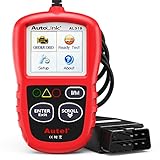
- 【TURN OFF CEL】 This AL319 car scanner diagnostic tool...
- 【EXTENSIVE APPLICATION】 Autel AL319 Compatible with...
- 【FOR END USER & DIYERS】 This error code reader AL319 is...
- 【USER-FRIENDLY DESIGN】 This OBD2 scanner and check...
- 【HIGH-QUALITY SERVICES】 12 months war.ranty from the...
Last update on 2026-06-23 / Affiliate links / Images from Amazon Product Advertising API
If the PDF is very large, it may not load in the preview below.
Some older TSBs had multiple PDFs — visit the NHTSA Website to view all PDFs.
If the TSB PDF does not show, download or view it on the NHTSA Website.
Click on the (+) Plus Sign
Then Click on Associated Document(s)
Search NHTSA Database for Recalls
Search NHTSA Database for Vehicle Investigations
View Latest Vehicle Investigations
Search NHTSA Database for Vehicle Complaints
View Latest Vehicle Complaints
TSB/Document ID: NTB15-049p
Replacement Service Bulletin Number:
MFR Communication Date: 2018-08-03
MFR Internal Campaign ID/Software Version:
Communication Type: Service Bulletin/Repair Instructions
NHTSA Components: EQUIPMENT
MFR Component System:
MFR Component Subsystem:
Previous TSB | Next TSB |
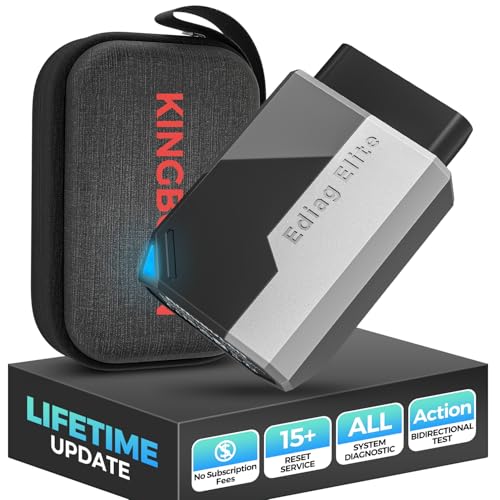
- Obd2 Bluetooth Scanner Lifetime Update: Ediag Elite offers revolutionary Advantage Lifetime Updates with unlimited access to the superior 15 reset service, bidirectional testing and full system diagnostics.The Ediag Elite is an excellent Bluetooth obd2 scanner diagnostic tool ideal for diy's and private car owners
- Bidirectional Control for Quickly Locating Problems: The Bidirectional Scan tool allows you to send commands directly from your smartphone to your vehicle for active testing. This feature helps to quickly narrow down problems such as air conditioning clutches, windows, doors, sunroofs, etc., reducing diagnostic time for mechanics and helping Diy users locate faults more easily. In addition, Ediag Elite provides fault analysis and repair guidance to help you solve problems efficiently.
- 15 Maintenance Resets: The current version introduces 15 popular special features: Oil Reset, Headlight Matching, Bleeding Reset, TPMS Reset, BMS Reset, Gear Box Relearn, Throttle Learning, Injector Coding, SAS Reset and more special functions in system diagnose menu. These functions make it easy for owners to carry out the necessary maintenance and servicing, ensuring that your vehicle stays in top condition, prolonging its service life and preventing common problems and breakdowns. Note: The Special function vary by model& year, Reach us check compatibility.
- Wide Compatibility CANFD & FCA
 Autoauth: Compatible with GM, Ford, Toyota, Chrysler, Honda, Mazda, Nissan, Mitsubishi, Hyundai, KIA with standard OBD2 port from 1996 to newer. More car brands and features will be released gradually. Newest Ediag Elite scanner supports CANFD Protocol and FCA cars. Note: Coverage may vary on different vehicle by model& year ,Please contact us to confirm compatibility before purchase.
 - Perfect for Monitoring The Health of Your Vehicle: Ediag Elite is designed to make vehicle maintenance simple and efficient. With intelligent AutoVIN quick recognition, it is easy to connect to your car without the need for manual input. Real-time data is visualized in a variety of formats, including graphs, numeric, meter displays and clear 4-in-1 data charts, allowing you to effortlessly monitor real-time data. Data logging/reporting is available for playback and further analysis.
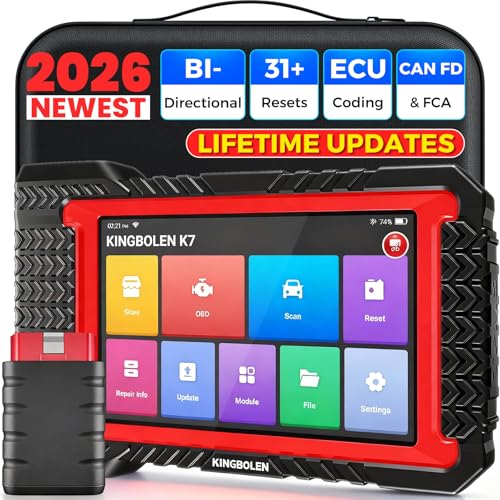
- No Annual Fees & 2026 Upgraded CAN FD: Why pay $199/year or more for updates? The 2026 newest Kingbolen K7 obd2 scanner features have been upgraded to Lifetime Updates without subscription fees, saving you significant costs in the long run. K7 scan tool also adds the CAN FD protocol for the latest GM models (2019+), enabling faster data transfer, reducing the risk of undetected errors
- 2026 Newest Top-tier Car Scanner: Kingbolen K7 diagnostic scan tool is equipped with most capabilities for daily repair/maintenance: Wireless diagnosis via Bluetooth, Bidirectional Test, ECU Online/Offline Code, 31+ Resets, PMI for Ford, Lincoln, Mazda, Global version for 100+ brand vehicles and 17 languages, no area limit, FCA AutoAuth
- OE-Level Full Systems Scan Tool: K7 professional diagnostic scanner with Auto Vin can do one-click to scan ECUs on most of vehicles, like pcm, ecm, eps, bcm, tpms, sas, a/c system... to read/clear code, view live data, freeze frame, read ecu info. 4-in-1 data stream graphics can make data viewing more intuitive. Detailed diagnostic reports will help you easily master the car situation as it can be shared by bluetooth or email! Adding workshop information can help your customers to know more
- Bidirectional Test/Active Test & ECU Code: Stop guessing and start fixing. Bidirectional scan tool Kingbolen K7 can perform real active test that can send commands to the vehicle's ECU to drive the actuators to work, like window, rear mirrors, sunroof, door, solenoids, wipers, headlamp, etc, helping you quickly find out bad parts and pinpoint faulty issues. K7 bidirectional scanner will be a good choice to save money and time on car repairs when performing complex maintenance and repair
- 31 Reset Functions: Avoid expensive dealership visits for simple services. Experience tells us that just a small repair service may cost a lot of money. Kingbolen K7 is a professional diagnostic scanner with 31 common maintenance services like Oil /SAS/EPB/TPMS Reset, Battery Matching, ABS Bleeding, Injector Code, etc. It effectively handles most of the car reset and relearning jobs, perfect for experienced DIYers and mechanics. Note: Functions in the menu vary across vehicles. Kindly check the compatibility before purchase
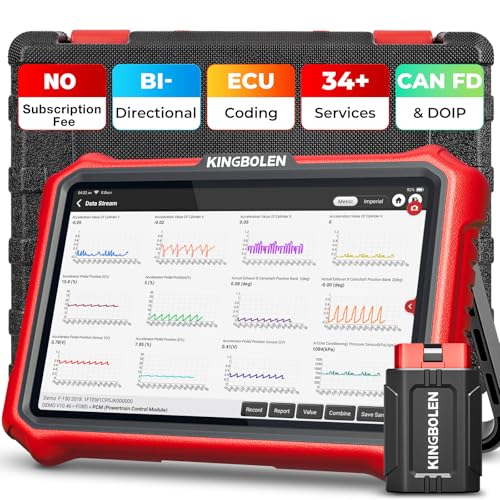
- 【Lifetime Database & Software Updates— No Subscription Fee, No Feature Lock, Save you $399/Y】KINGBOLEN K8 Pro's software can already be permanently upgraded and used for while software of other same price product still needs annual fee of almost $400. K8 pro scanner has packed all capabilities auto technicians would ever need for repair & maintenance services: Added CAN-FD & DOIP protocol, Bluetooth Wireless Diagnosis, Bidirectional Test, ECU Online/Offline Code & Guided Functions for VW, for Audi...34+ Restes, Autoauth for FCA SGW, Larger 4GB+64GB memory, 12600mAh battery, 8'' touch screen with 1280 * 800 Resolution. A Kickstand can allow the tablet to sit at a comfortable angle
- 【Newly Added CAN FD & DOIP Protocol】As Upgrade Version of Kingbolen K8, K8 Pro obd2 scanner supports CANFD and DOIP protocol, which will save you 200+ bucks as no need extra buy for special adapter. CANFD protocol suits for the latest GM(2019-), reducing the risk of undetected errors. The DoIP protocol (comes with DoIp cable) fits for 2017+ BMW(F&G chassis), for Jaguar & Land Rover after 2017, for Volvo after 2018. Plus, K8 Pro's Memory from 2G+32G expanded to 4G+64G, update period extended from 2 years to permanent
- 【34+ Hot Special Functions & V.A.G Guide】KINGBOLEN K8 pro bluetooth obd2 scanner covers almost all common services including Oil Reset, EPB, SAS, BMS Reset, ABS bleed, Throttle Reset, Suspension, Injector Code, Power Balance, Transmission Adaptation, Fuel Trim Learn, HVAC Control Module Calibrate, Language Change, A/F Settings, Stop/Start Reset, Crankshaft Sensor Relearn, TPMS, PMI function and etc. Imagine how much money and time you spend on car maintenance every year? K8 pro car scanner will be a good helper and saver for your car. V.A.G Guided function provides step-by-step guide to work for Volkswagen/Audi/Skoda. Note: Please send us model/year/vin to check compatibility before order
- 【Powerful Bidirectional Test/Active Test & ECU Code】As a bidirectional scan tool, KINGBOLEN K8 pro allows you to request information from a vehicle's ECU or send commands to the vehicle's modules to perform specific tests and functions, such as EVAP Tests, Turn on/off radiator fan, Window/Mirror/Door Lock Test, Pump and Value Tests, Sound horn Test, et. Without using the vehicle control system and dismantling car’s parts, it can quickly and accurately pinpoint the fault causes, simple operation saves time and money
- 【Wireless OE-Level All Systems Diagnostics】Equipped with Bluetooth VCI, you can do car diagnostics out of the car (up to 33F/10M) without being confined to a small space inside the car. Provides the convenience of Auto VIN, K8 pro allowing for easy access and diagnosis of all available modules on a wide range of vehicles, like PCM, ECM, BCM, TPMS, SAS, Fuel System, etc, to perform read/clear codes, view live data, freeze frame, perform active tests, and read ECU info... 12-In-1 Data Stream Graphics make data viewing more intuitive.Diagnostic reports can be shared via QR Code, Bluetooth or email.Built-in Browser and Fault Code Library allows you directly query the fault code when diagnosing
Last update on 2026-06-23 / Affiliate links / Images from Amazon Product Advertising API
This product presentation was made with AAWP plugin.