
NHTSA ID Number: 10127568
Manufacturer Communication Number: VOS-15-09
TSB/Document Date: 2018-01-29
Summary
Service Information (ODIS Service Installation Phase 2 ? Software Installation & Configuration Instructions): This document describes the initial download, installation and configuration of ODIS Service diagnostic software on eligible diagnostic laptop and tablet devices. These instructions are specific to the preparation of brand new diagnostic laptop and tablet devices, i.e.: devices where ODIS Service was NOT previously installed.
Service Information
14. Click the Target platform dropdown selection arrow, select the diagnostic device model number
or type that applies to the device, and then select Next:
15. Click the Diagnostic interface dropdown selection arrow, select the applicable diagnostic
interface that will be used with the diagnostic diagnostic device, and then select Next:
(cont.)
Page 8 of 22
© 2015 Volkswagen Group of America, Inc.
All rights reserved. Information contained in this document is based on the latest information available at the time of printing and is subject to the copyright and other intellectual
property rights of Volkswagen Group of America, Inc., its affiliated companies and its licensors. All rights are reserved to make changes at any time without notice. No part of this
document may be reproduced, stored in a retrieval system, or transmitted in any form or by any means, electronic, mechanical, photocopying, recording, or otherwise, nor may these
materials be modified or reposted to other sites, without the prior expressed written permission of the publisher.
Service Information
16. Click Next:
17. Ensure Copy license to the license folder is checked, and then click Browse…:
18. Open the device folder on the Windows desktop, and Open the “License” subfolder.
19. Select / highlight the license (.dat) file (DO NOT double-click), and then click Open:
Note:
DO NOT double-click the license file in
its saved location!
(cont.)
Page 9 of 22
© 2015 Volkswagen Group of America, Inc.
All rights reserved. Information contained in this document is based on the latest information available at the time of printing and is subject to the copyright and other intellectual
property rights of Volkswagen Group of America, Inc., its affiliated companies and its licensors. All rights are reserved to make changes at any time without notice. No part of this
document may be reproduced, stored in a retrieval system, or transmitted in any form or by any means, electronic, mechanical, photocopying, recording, or otherwise, nor may these
materials be modified or reposted to other sites, without the prior expressed written permission of the publisher.
Service Information
20. Ensure the license file directory path appears in the installation window. Select Next:
21. No action needed. Select Next:
22. Wait while several different phases of the installation take place:
(cont.)
Page 10 of 22
© 2015 Volkswagen Group of America, Inc.
All rights reserved. Information contained in this document is based on the latest information available at the time of printing and is subject to the copyright and other intellectual
property rights of Volkswagen Group of America, Inc., its affiliated companies and its licensors. All rights are reserved to make changes at any time without notice. No part of this
document may be reproduced, stored in a retrieval system, or transmitted in any form or by any means, electronic, mechanical, photocopying, recording, or otherwise, nor may these
materials be modified or reposted to other sites, without the prior expressed written permission of the publisher.
Service Information
23. Click Finish:
24. Confirm that the following icons appear on the Windows desktop:
Offboard Diagnostic Information System:
ODIS Service Diagnostic Interface Configuration:
Note:
If the ODIS Service Diagnostic Configuration icon does not appear after the
completion of single-setup, please contact VWGoA Diagnostic Tester Software
Single-Setup steps completed. Proceed to Section 3.2 – Page 12
Page 11 of 22
© 2015 Volkswagen Group of America, Inc.
All rights reserved. Information contained in this document is based on the latest information available at the time of printing and is subject to the copyright and other intellectual
property rights of Volkswagen Group of America, Inc., its affiliated companies and its licensors. All rights are reserved to make changes at any time without notice. No part of this
document may be reproduced, stored in a retrieval system, or transmitted in any form or by any means, electronic, mechanical, photocopying, recording, or otherwise, nor may these
materials be modified or reposted to other sites, without the prior expressed written permission of the publisher.
Service Information
3.2 – Import Security Certificate to Application
Brand-specific diagnostic data is also downloaded from the VWAG Group Services web-server. To enable
this, the security certificate obtained during installation Phase 1 must be imported to the ODIS Service
application.
The diagnostic device’s hardware key must be entered as a password during the certificate importation
process.
1. Double-click the Offboard Diagnostic Information System icon:
2. Wait while the application starts:
3. Select Installing the client certificate:
(cont.)
Page 12 of 22
© 2015 Volkswagen Group of America, Inc.
All rights reserved. Information contained in this document is based on the latest information available at the time of printing and is subject to the copyright and other intellectual
property rights of Volkswagen Group of America, Inc., its affiliated companies and its licensors. All rights are reserved to make changes at any time without notice. No part of this
document may be reproduced, stored in a retrieval system, or transmitted in any form or by any means, electronic, mechanical, photocopying, recording, or otherwise, nor may these
materials be modified or reposted to other sites, without the prior expressed written permission of the publisher.
Service Information
4. Click Select:
4. From the device folder on the Windows desktop, Open the “Certificate” subfolder:
5. Select / highlight the certificate (.pfx) file (DO NOT double-click), and then click Open:
Note:
DO NOT double-click the certificate file
in its saved location!
6. Ensure the certificate file directory path appears in the Certificate import window:
(cont.)
Page 13 of 22
© 2015 Volkswagen Group of America, Inc.
All rights reserved. Information contained in this document is based on the latest information available at the time of printing and is subject to the copyright and other intellectual
property rights of Volkswagen Group of America, Inc., its affiliated companies and its licensors. All rights are reserved to make changes at any time without notice. No part of this
document may be reproduced, stored in a retrieval system, or transmitted in any form or by any means, electronic, mechanical, photocopying, recording, or otherwise, nor may these
materials be modified or reposted to other sites, without the prior expressed written permission of the publisher.
Service Information
7. From the device folder on the Windows desktop, Open the “Hardware Key” text document:
8. Select and Copy the first 32 characters (only) of the hardware key. Example:
The characters are saved in Windows “clipboard” memory.
9. Paste the 32-characters copied above into the Password: entry field, and then select Import:
8. Click OK:
The PostSetup – Configuration data input dialog reappears.
Security Certificate Importation steps completed. Proceed to Section 3.3 – Page 15
Page 14 of 22
© 2015 Volkswagen Group of America, Inc.
All rights reserved. Information contained in this document is based on the latest information available at the time of printing and is subject to the copyright and other intellectual
property rights of Volkswagen Group of America, Inc., its affiliated companies and its licensors. All rights are reserved to make changes at any time without notice. No part of this
document may be reproduced, stored in a retrieval system, or transmitted in any form or by any means, electronic, mechanical, photocopying, recording, or otherwise, nor may these
materials be modified or reposted to other sites, without the prior expressed written permission of the publisher.
Service Information
3.3 – Diagnostic Database Download & Installation – “Post-Setup”
1. Click the Forward Arrow button:
2. If additional user interface languages are desired, select them here. Heed the Note: below, and then
click the Forward Arrow button:
Note:
Selecting additional languages significantly
increases the download and installation time!
3. Wait while the connection is established:
(cont.)
Page 15 of 22
© 2015 Volkswagen Group of America, Inc.
All rights reserved. Information contained in this document is based on the latest information available at the time of printing and is subject to the copyright and other intellectual
property rights of Volkswagen Group of America, Inc., its affiliated companies and its licensors. All rights are reserved to make changes at any time without notice. No part of this
document may be reproduced, stored in a retrieval system, or transmitted in any form or by any means, electronic, mechanical, photocopying, recording, or otherwise, nor may these
materials be modified or reposted to other sites, without the prior expressed written permission of the publisher.
Service Information
4. Click the Forward Arrow button:
Note:
The diagnostic data version information
illustrated here is an example only! Versions
are updated regularly.
5. Wait while the diagnostic data download and installation takes place:
Notes:
• The Progress dialog window may appear to stall or lock at times during this process. This is
normal. Please be patient!
• Download times depend on single brand or dual brand data (dual = longer), the dealership
network download speed and network traffic (slower Mbps + busy = longer).
6. Read and close the Release Notes window.
7. Read the Warnings/notes information, scroll down and click OK.
The ODIS Service main window appears.
The VW brand design is displayed by default.
Postsetup – Diagnostic Data Installation steps completed. Proceed to Section 4.0 – Page 17
Page 16 of 22
© 2015 Volkswagen Group of America, Inc.
All rights reserved. Information contained in this document is based on the latest information available at the time of printing and is subject to the copyright and other intellectual
property rights of Volkswagen Group of America, Inc., its affiliated companies and its licensors. All rights are reserved to make changes at any time without notice. No part of this
document may be reproduced, stored in a retrieval system, or transmitted in any form or by any means, electronic, mechanical, photocopying, recording, or otherwise, nor may these
materials be modified or reposted to other sites, without the prior expressed written permission of the publisher.
Service Information
4.0 – Post-Setup Configuration
Prior to placing the diagnostic device into service, a number of configuration steps are required.
Configurations take place via the Admin operating mode. Settings can be changed at any time.
4.1 – Administration - General
The following subsections describe configurations using the Admin > General operating mode.
1. From the ODIS Service main screen, select Admin:
The General category tab appears first by default. Available function / configuration subcategories are
listed in the left-hand display menu of each tabbed category.
4.1.1 – Brand Design
The brand logo and user interface colors are configured with the Brand design function.
1. Select Brand design and choose the desired brand theme from the dropdown menu. Click Save /
Yes:
Page 17 of 22
© 2015 Volkswagen Group of America, Inc.
All rights reserved. Information contained in this document is based on the latest information available at the time of printing and is subject to the copyright and other intellectual
property rights of Volkswagen Group of America, Inc., its affiliated companies and its licensors. All rights are reserved to make changes at any time without notice. No part of this
document may be reproduced, stored in a retrieval system, or transmitted in any form or by any means, electronic, mechanical, photocopying, recording, or otherwise, nor may these
materials be modified or reposted to other sites, without the prior expressed written permission of the publisher.
Service Information
4.1.2 – Language
The language displayed by the user interface is configured with the Language function.
If additional languages were chosen during post-setup, the languages are selectable here.
1. Only if languages other than English (US) were added, select Language, and then choose the
desired language from the dropdown menu. Click Save / Yes:
4.1.3 – Update
The schedule for automatic updates is configured with the Update function.
1. Select Update, and then review the available update schedule settings:
2. Configure the update cycle and time appropriate for your facility: Click Save / Yes:
Note:
For detailed instructions and additional information refer to Service Information – ODIS Service
document title: Online Update Guide
Page 18 of 22
© 2015 Volkswagen Group of America, Inc.
All rights reserved. Information contained in this document is based on the latest information available at the time of printing and is subject to the copyright and other intellectual
property rights of Volkswagen Group of America, Inc., its affiliated companies and its licensors. All rights are reserved to make changes at any time without notice. No part of this
document may be reproduced, stored in a retrieval system, or transmitted in any form or by any means, electronic, mechanical, photocopying, recording, or otherwise, nor may these
materials be modified or reposted to other sites, without the prior expressed written permission of the publisher.
Service Information
4.1.4 – Dealer Data
If desired, configure the name of the dealership to appear in diagnostic logs.
1. Select Dealer data: Enter the name of the dealership in the Facility ID entry field: Click Save /Yes:
Note:
Do not exceed 100 characters including spaces.
Exceeding the character allowance may cause
GFF log transmissions to fail!
4.2 – Administration - Support
The following subsections describe configurations using the Admin > Support operating mode.
4.2.1 – Contact Data
Contact information must be saved for Support Button requests.
1. From the Admin operating mode main screen, select the Support tab: The Contact data subsection is
displayed first by default:
2. Fill in all contact details, including a valid email address: Click Save / Yes:
Page 19 of 22
© 2015 Volkswagen Group of America, Inc.
All rights reserved. Information contained in this document is based on the latest information available at the time of printing and is subject to the copyright and other intellectual
property rights of Volkswagen Group of America, Inc., its affiliated companies and its licensors. All rights are reserved to make changes at any time without notice. No part of this
document may be reproduced, stored in a retrieval system, or transmitted in any form or by any means, electronic, mechanical, photocopying, recording, or otherwise, nor may these
materials be modified or reposted to other sites, without the prior expressed written permission of the publisher.
Service Information
4.2.2 – Email Outgoing Server
Dealership network connection parameters must be configured before using the Support Button.
1. Select E-mail outgoing server: Enter information as applicable and specific to your dealership
network. Click Save / Yes:
Notes:
• For detailed instructions refer to Service Information – ODIS Service document title: ODIS
Service Email Outbox Configuration Guide
• If dealership specifics are not available, refer to Service Information – ODIS Service document
title: Dedicated Email Server Configuration
4.3 – Administration - Connections
The following subsections describe configurations using the Admin > Connections operating mode.
4.3.1 – Brand Settings Data
The connection to VWAG Group Services (to transmit GFF logs, etc.) is configured via Brand settings.
1. From the Admin operating mode main screen, select the Connections tab. The Brand settings
subsection is displayed first by default:
(cont.)
Page 20 of 22
© 2015 Volkswagen Group of America, Inc.
All rights reserved. Information contained in this document is based on the latest information available at the time of printing and is subject to the copyright and other intellectual
property rights of Volkswagen Group of America, Inc., its affiliated companies and its licensors. All rights are reserved to make changes at any time without notice. No part of this
document may be reproduced, stored in a retrieval system, or transmitted in any form or by any means, electronic, mechanical, photocopying, recording, or otherwise, nor may these
materials be modified or reposted to other sites, without the prior expressed written permission of the publisher.
Service Information
2. Change the Connection type in the dropdown menu(s) from CPN to Internet: Click Save / Yes:
IMPORTANT!
Failure to change the connection type from CPN to Internet will result in the inability to
download online updates!
4.3.2 – Mirror Server 2
Please confirm the Mirror Server 2 URL specified for the US /CDN market:
1. Select Mirror Server 2:
2. Confirm the Mirror Server URL appears as: https://mirrorserver2.vwhub.com/dav/
Post-Setup Configuration steps completed. Proceed to Section 4.4 - Page 22
Page 21 of 22
© 2015 Volkswagen Group of America, Inc.
All rights reserved. Information contained in this document is based on the latest information available at the time of printing and is subject to the copyright and other intellectual
property rights of Volkswagen Group of America, Inc., its affiliated companies and its licensors. All rights are reserved to make changes at any time without notice. No part of this
document may be reproduced, stored in a retrieval system, or transmitted in any form or by any means, electronic, mechanical, photocopying, recording, or otherwise, nor may these
materials be modified or reposted to other sites, without the prior expressed written permission of the publisher.
Service Information
4.4 – Additional Instructions
The additional configurations etc. listed below must be performed as applicable before placing the
diagnostic device into service. All instructions documents are posted on ServiceNet.
Perform the VAS 5054A Diagnostic Interface Bluetooth & EDIC Configuration:
Refer to Service Information – Diagnostic Device Hardware & Windows document title:
VAS 5054A Diagnostic Interface – Bluetooth & EDIC Configuration
Perform the VAS 5054A Diagnostic Interface USB Configuration:
Refer to Service Information – Diagnostic Device Hardware & Windows document title:
VAS 5054A Diagnostic Interface – USB Configuration
Where applicable, perform the VAS 6154 Diagnostic Interface Configuration:
Refer to Service Information – Diagnostic Device Hardware & Windows document title:
VAS 6154 Diagnostic Interface – Introduction & Startup Guide
Where applicable, connect and configure a VAS 6356 Test Instruments Box:
Refer to Service Information – Diagnostic Device Hardware & Windows document title:
VAS 6356 Test Instruments Box – Software Configuration
5.0 – Online Updates
Dealerships are responsible for ensuring all diagnostic devices used on vehicles covered by new vehicle
warranty are updated with the latest ODIS Service application and diagnostic data.
The initial installation of application and diagnostic data from the web-server was current as of the date of
its release. However, revised and additional application and diagnostic data may have been
released afterwards via online updates.
All available online updates must be downloaded and installed when they are released.
For details on online update setup and functions, refer to Service Information - ODIS Service document
title: Online Update Guide.
Page 22 of 22
© 2015 Volkswagen Group of America, Inc.
All rights reserved. Information contained in this document is based on the latest information available at the time of printing and is subject to the copyright and other intellectual
property rights of Volkswagen Group of America, Inc., its affiliated companies and its licensors. All rights are reserved to make changes at any time without notice. No part of this
document may be reproduced, stored in a retrieval system, or transmitted in any form or by any means, electronic, mechanical, photocopying, recording, or otherwise, nor may these
materials be modified or reposted to other sites, without the prior expressed written permission of the publisher.

- Advanced VCI Box, Industry-leading J2534 Pass-Thru...
- High-Speed OEM-Level Diagnostics & Programming: Unlock true...
- Coverage for 17 Car Brands & Ultra Reliability: Works...
- User-Friendly RLink Platform & Expert Support: TOPDON’s...
- 6.6 ft USB-C Cable & Portable Storage Case: The RLink J...
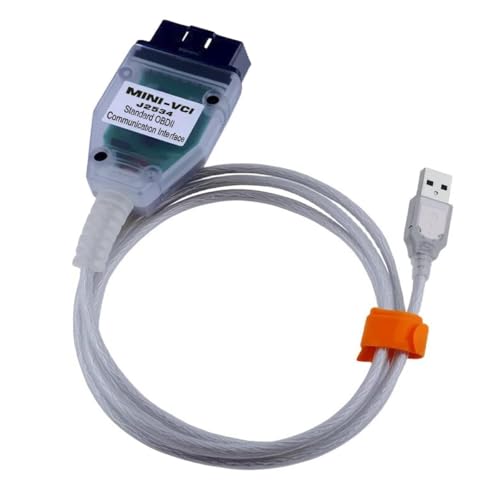
Last update on 2026-06-12 / Affiliate links / Images from Amazon Product Advertising API
If the PDF is very large, it may not load in the preview below.
Some older TSBs had multiple PDFs — visit the NHTSA Website to view all PDFs.
If the TSB PDF does not show, download or view it on the NHTSA Website.
Click on the (+) Plus Sign
Then Click on Associated Document(s)
Search NHTSA Database for Recalls
Search NHTSA Database for Vehicle Investigations
View Latest Vehicle Investigations
Search NHTSA Database for Vehicle Complaints
View Latest Vehicle Complaints
TSB/Document ID: VOS-15-09
Replacement Service Bulletin Number:
MFR Communication Date: 2015-12-17
MFR Internal Campaign ID/Software Version:
Communication Type: Service Bulletin/Repair Instructions
NHTSA Components: ELECTRICAL SYSTEM:SOFTWARE
MFR Component System:
MFR Component Subsystem:
Previous TSB | Next TSB |

- [2026 Top-Tier Hardware and Software Upgrade]: Topdon ArtiDiag900 Lite scanner has enhanced hardware and latest features, including Android 11.0, 5x faster CPU, 10000mAh battery for 12 hours of continuous operation, stable wireless diagnosis with Bluetooth 5.0, 8-inch touchscreen. Added bi-directional control, wireless diagnosis, battery testing (optional), and DTC repair guide
- [TOPDON Bidirectional Scan Tool]: This bidirectional obd2 scanner sends commands to the vehicle's ECU for active testing, enabling users to accurately and quickly locate faulty components such as injectors, coolant pumps, windows, wipers, headlights, mirrors, etc. The bidirectional control scanner is the ideal choice for workshops/automotive repair shops as it significantly reduces mechanic's diagnostic time.
- [Wireless Bluetooth Diagnostic Experience]: The AD900 Lite scan tool comes with a Bluetooth 5.0 VCI, supporting a wireless diagnostic range of up to 33 feet (10 meters), allowing you to diagnose without being confined to cables or tight spaces. Stable and fast wireless diagnosis provides a comfortable repair environment. It also offers VCI cables to increase connectivity options.
- [DTC Repair Guide Function]: Easily diagnose issues with your vehicle and receive guidance on repairs with the topdon scan tool's fault code definitions for all systems,maximize your diagnostic capabilities. This function is compatible with Chrysler
 /Dodge/Jeep/Fiat 2010-2014 and expanding with continual updates,the AritDiag 900 Lite car diagnostic scanner is the must-have tool for any technician or DIY enthusiast.
 - [OE-Level Full System Diagnostics]:AritDiag900 Lite full system diagnostic scanner can scan ALL available modules(Engine, Transmission, Airbag, ABS, ESP, TPMS, Gateway, Steering, Radio, Air conditioning, ect.) to✔read ECU info, ✔read/clear codes, ✔view live data stream, ✔retrieves freeze-frame, ✔perform active tests, and more. With just a simple click, it provides you with accurate and in-depth diagnostics.

- Bi-Directional Control, Quickly Locate Problems: Turn your phone into a professional diagnostic tool. You can send commands from your phone to the ECU to test injectors, cooling fans, headlights, A/C clutch, windows, wipers, and more. See which one doesn't respond. Helps you quickly locate the problem and save time. No need to tear things apart, avoid blind disassembly.
- Flexible Subscription, Choose Advanced Features as Needed: TopScan Lite provides free-for-life access to core diagnostics, including full system scan, code reading, performance tests, and repair information. After purchase, advanced features (bi-directional control, service operations, live data, code clearing, and AI functions) are free-for-the-first-year. After the first year, if you want to use advanced features, you need to subscribe on a monthly, quarterly, or yearly basis. As new models and reset functions are updated, the tool will also be continuously upgraded.
- Full System Diagnostics, No Fault Hides: Unlike basic diagnostic tools that only cover 4 systems, TopScan can scan all systems. Read and clear trouble codes, view live data streams, and generate a complete vehicle health report – all issues are clear at a glance. Covers 10,000+ vehicle models and is compatible with 99.99% of vehicles.
- AI Assistant - TopFix: Think of TopFix as your personal AI mechanic. It leverages a repair database and OEM data to deliver clear, step-by-step repair solutions. Features include AI Q&A, one-click translation, and a full repair log, making your diagnostic process simpler and more efficient.
- 8+ Hot Resets, Keep Your Car in Top Shape: One-tap resets for oil, throttle, EPB, steering angle, DPF, ABS, BMS, and airbag. It enables car owners to easily perform essential maintenance, ensuring the vehicle stays in optimal condition and extends its service life.
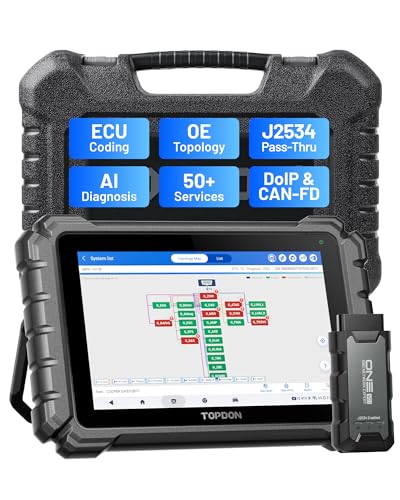
- Dual WiFi & 10.1" Touchscreen: Provides a stable, high-speed wireless link 3x faster than bluetooth, and a responsive, professional interface. Topdon ONE obd2 scanner diagnostic tool ensures smooth, non-lagging diagnostic scan, boosting mechanic efficiency
- J2534 Pass-Thru Support: The included ONE VCI supports the J2534 standard, allowing it to function as a pass-thru device when paired with OEM diagnostic software.Through TOPDON’s RLink platform, technicians can perform dealer-level coding, expanding in-house capabilities without investing in multiple factory automotive scan tools
- OE Topology Mapping: Visualize the vehicle’s ECU network exactly as it’s built.Zoom, pan, and highlight specific modules to pinpoint component issues with precision.Topology mapping displays real-time communication between modules
- 50 Plus Service Functions: Covers high-demand services like ADAS calibration, DPF regen, TPMS reset, ABS bleed, and throttle adaptation.Expands your service menu, allows you to charge premium rates, and turns away zero jobs due to lack of tooling. Vehicle-specific functionality may vary
- Advaned ECU Coding: 10 of the most serviced brands in North America, including full ECU coding and flash hidden support for BMW, VW, Au-di, Benz, Porsche, Toyota, Ni ssan and more. Enables module replacement, feature customization, and personal settings with automatic backup or restore.Lets your shop safely offer high-margin customization services, attracting more customers and boosting profit
Last update on 2026-06-12 / Affiliate links / Images from Amazon Product Advertising API
This product presentation was made with AAWP plugin.