
NHTSA ID Number: 10127568
Manufacturer Communication Number: VOS-15-09
TSB/Document Date: 2018-01-29
Summary
Service Information (ODIS Service Installation Phase 2 ? Software Installation & Configuration Instructions): This document describes the initial download, installation and configuration of ODIS Service diagnostic software on eligible diagnostic laptop and tablet devices. These instructions are specific to the preparation of brand new diagnostic laptop and tablet devices, i.e.: devices where ODIS Service was NOT previously installed.
Service Information
Offboard Diagnostic Information System Service (ODIS Service)
Number: VOS-15-09
Subject: ODIS Service Installation Phase 2 – Software Installation Date: Dec. 17, 2015
& Configuration Instructions
Supersedes VOS-15-05 due to revised download and installation process & additional instructions.
Table of Contents
Page
Section
1.0
Introduction
1.1
General Information - Must Read!
2
1.2
Preparation Overview
2
1.3
Process Overview - Must Read!
2
2.0
Preparation
3
2.1
Diagnostic Device Hardware & Network Prerequisites
3
2.2
Software Download & Installation Prerequisites
4
2.3
Confirm Windows® Update Setting
4
3.0
Installation
5
3.1
Download & Install Application Data – “Single-Setup”
5
3.2
Import Security Certificate to Application
12
3.3
Diagnostic Data Download & Installation – “Post-Setup”
15
4.0
5.0
2
Post-Setup Configuration
17
4.1
Administration - General
17
4.2
Administration - Support
19
4.3
Administration - Connections
20
4.4
Additional Instructions
22
Online Updates
22
Notes:
• Please read these instructions carefully and in their entirety before performing any
procedures. If you do not understand these instructions, arrange to have a qualified person
perform these procedures.
• Heed all prerequisite requirements and notes, and follow all instruction steps in the Section
order given.
• Discard all printed copies of this document after use. Revised versions may be issued at any
time. Always check ServiceNet for the latest version.
Page 1 of 22
© 2015 Volkswagen Group of America, Inc.
All rights reserved. Information contained in this document is based on the latest information available at the time of printing and is subject to the copyright and other intellectual
property rights of Volkswagen Group of America, Inc., its affiliated companies and its licensors. All rights are reserved to make changes at any time without notice. No part of this
document may be reproduced, stored in a retrieval system, or transmitted in any form or by any means, electronic, mechanical, photocopying, recording, or otherwise, nor may these
materials be modified or reposted to other sites, without the prior expressed written permission of the publisher.
Service Information
1.0 – Introduction
1.1 – General Information
This document describes the initial download, installation and configuration of ODIS Service
diagnostic software on eligible diagnostic laptop and tablet devices. These instructions are specific to the
preparation of brand new diagnostic laptop and tablet devices, i.e.: devices where ODIS Service was
NOT previously installed.
Instructions for the initial installation of ODIS Service are broken down into two separately-titled
instruction document “Phases”: Installation Phase 1 and Installation Phase 2. Both installation
instruction documents are posted on ServiceNet.
Checkboxes are provided throughout this document to note fulfilled prerequisites and completed sections.
Notes:
• As of December 2015, the initial installation of ODIS Service software takes place via a
Volkswagen AG Group Services web-server.
• Installation DVDs are no longer used. To prevent confusion, please locate and discard all
previous installation version DVDs.
1.2 – Preparation Overview
The preparation guidelines:
• Ensure diagnostic device eligibility for ODIS Service installation and use.
• Ensure that the requisite license and certificate files were obtained and stored. (Phase 1
Instructions completed.)
• Address device physical, related Windows software and dealership network issues to ensure
trouble-free downloads and installations.
1.3 – Process Overview
Software download, installation & configuration processes take place in the following stages:
Download and install V3.0.0 application data from VWAG Group Services web-server
Import certificate to application
Download and install diagnostic database from web-server
Configure ODIS Service installation
Configure diagnostic interface (VAS 5054A etc.)*
*Instructions must be obtained from additional documents posted on ServiceNet.
Page 2 of 22
© 2015 Volkswagen Group of America, Inc.
All rights reserved. Information contained in this document is based on the latest information available at the time of printing and is subject to the copyright and other intellectual
property rights of Volkswagen Group of America, Inc., its affiliated companies and its licensors. All rights are reserved to make changes at any time without notice. No part of this
document may be reproduced, stored in a retrieval system, or transmitted in any form or by any means, electronic, mechanical, photocopying, recording, or otherwise, nor may these
materials be modified or reposted to other sites, without the prior expressed written permission of the publisher.
Service Information
2.0 – Preparation
2.1 – Diagnostic Device Hardware & Network Prerequisites
Windows 7
Antivirus software and network firewall temporarily disabled (where applicable).
Device must have a functional USB functions.
Type of diagnostic interface to be used is known, e.g.: VAS 5054A etc.
Network connection: Ethernet cable or WLAN. (Minimum recommended network download speeds:
6 Mbps (single brand) or 8 Mbps (dual brand).)
Device connected to A/C power adapter and booted to Windows desktop.
Diagnostic tablets mounted in base station with USB mouse and keyboard connected.
2.2 – Software Download & Installation Prerequisites
Prerequisites Checklist
The following Installation Phase 1 – Preparation, License & Security Certificate Process
instruction steps are completed and outcomes obtained:
Preparation:
Diagnostic device assigned a “Device ID”
Primary and backup “device folders” created for license and security certificate storage.
License Process:
License requested from eShop and license request approval email received
License file downloaded from eShop to device folder on the diagnostic device desktop and
device folder on backup USB flash drive
Certificate Process:
Certificate requested from eCRMS and certificate request approval email received
Certificate file downloaded from eCRMS to device folder on the backup USB flash drive and
copied to the device folder on the diagnostic device desktop
Certificate imported to Windows®
ATTENTION!
Software installation from the web-server is NOT possible without device-specific license
and certificate files, and recorded hardware key!
Page 3 of 22
© 2015 Volkswagen Group of America, Inc.
All rights reserved. Information contained in this document is based on the latest information available at the time of printing and is subject to the copyright and other intellectual
property rights of Volkswagen Group of America, Inc., its affiliated companies and its licensors. All rights are reserved to make changes at any time without notice. No part of this
document may be reproduced, stored in a retrieval system, or transmitted in any form or by any means, electronic, mechanical, photocopying, recording, or otherwise, nor may these
materials be modified or reposted to other sites, without the prior expressed written permission of the publisher.
Service Information
2.3 – Confirm Windows Update Setting
To ensure trouble-free ODIS Service software download and installation from the web-server, the
diagnostic device must not be downloading or installing Windows updates at the same time.
To confirm the preferred Windows update setting as instructed in the diagnostic device’s Unpacking and
Setup instructions, proceed as follows:
1. Go to: Windows Start > Control Panel > Windows Update > Change Settings
2. In the Important Updates category, confirm that the update option: Check for updates but let me
choose whether to download and install them is selected as illustrated below:
If this option is selected, select Cancel:
If this option is not selected, select it now from the dropdown, and then select OK:
3. Close the remaining Control Panel Windows.
Note:
If it was necessary to change the update setting, check if a Windows update is currently in
process before installing ODIS Service. If a Windows update is in process, allow it to finish and
only then proceed with ODIS Service installation.
All Preparation steps completed. Proceed to Section 3.0 – Page 5
Page 4 of 22
© 2015 Volkswagen Group of America, Inc.
All rights reserved. Information contained in this document is based on the latest information available at the time of printing and is subject to the copyright and other intellectual
property rights of Volkswagen Group of America, Inc., its affiliated companies and its licensors. All rights are reserved to make changes at any time without notice. No part of this
document may be reproduced, stored in a retrieval system, or transmitted in any form or by any means, electronic, mechanical, photocopying, recording, or otherwise, nor may these
materials be modified or reposted to other sites, without the prior expressed written permission of the publisher.
Service Information
3.0 – Installation
3.1 – Download & Install Application Data – “Single Setup”
1. Open Internet Explorer
2. Type the following address in the browser’s address bar, and then click the “Go to” arrow:
3. Select OK:
Note:
If multiple certificate confirmation
prompts appear, select and confirm
the one indicated as:
Issuer: VWGoA ODIS RootCA
Issuer: VWGoA ODIS RootCA XXXX
Valid From: X/X/201X to X/X/201X
Click here to view certificate prope…
4. Navigate through the server Indexes in the following order:
Odis > Trade-Retail > software > installation
5. From the installation Index, double-click the
OffboardDiagSetup-Service VWMCD 3 X X XXXXXXX.exe file:
(cont.)
Page 5 of 22
© 2015 Volkswagen Group of America, Inc.
All rights reserved. Information contained in this document is based on the latest information available at the time of printing and is subject to the copyright and other intellectual
property rights of Volkswagen Group of America, Inc., its affiliated companies and its licensors. All rights are reserved to make changes at any time without notice. No part of this
document may be reproduced, stored in a retrieval system, or transmitted in any form or by any means, electronic, mechanical, photocopying, recording, or otherwise, nor may these
materials be modified or reposted to other sites, without the prior expressed written permission of the publisher.
Service Information
6. Click the Save - dropdown selection arrow, and then select Save and Run:
Note:
Selecting Save and run starts the installation process automatically after the download is complete.
7. No action needed:
8. When the download is complete, Close the browser session.
9. No action needed:
10. Confirm English (US) is selected, and then select OK:
(cont.)
Page 6 of 22
© 2015 Volkswagen Group of America, Inc.
All rights reserved. Information contained in this document is based on the latest information available at the time of printing and is subject to the copyright and other intellectual
property rights of Volkswagen Group of America, Inc., its affiliated companies and its licensors. All rights are reserved to make changes at any time without notice. No part of this
document may be reproduced, stored in a retrieval system, or transmitted in any form or by any means, electronic, mechanical, photocopying, recording, or otherwise, nor may these
materials be modified or reposted to other sites, without the prior expressed written permission of the publisher.
Service Information
11. Select Next:
12. Select Next:
13. Select Next:
(cont.)
Page 7 of 22
© 2015 Volkswagen Group of America, Inc.
All rights reserved. Information contained in this document is based on the latest information available at the time of printing and is subject to the copyright and other intellectual
property rights of Volkswagen Group of America, Inc., its affiliated companies and its licensors. All rights are reserved to make changes at any time without notice. No part of this
document may be reproduced, stored in a retrieval system, or transmitted in any form or by any means, electronic, mechanical, photocopying, recording, or otherwise, nor may these
materials be modified or reposted to other sites, without the prior expressed written permission of the publisher.

- Advanced VCI Box, Industry-leading J2534 Pass-Thru...
- High-Speed OEM-Level Diagnostics & Programming: Unlock true...
- Coverage for 17 Car Brands & Ultra Reliability: Works...
- User-Friendly RLink Platform & Expert Support: TOPDON’s...
- 6.6 ft USB-C Cable & Portable Storage Case: The RLink J...
Last update on 2026-06-12 / Affiliate links / Images from Amazon Product Advertising API
If the PDF is very large, it may not load in the preview below.
Some older TSBs had multiple PDFs — visit the NHTSA Website to view all PDFs.
If the TSB PDF does not show, download or view it on the NHTSA Website.
Click on the (+) Plus Sign
Then Click on Associated Document(s)
Search NHTSA Database for Recalls
Search NHTSA Database for Vehicle Investigations
View Latest Vehicle Investigations
Search NHTSA Database for Vehicle Complaints
View Latest Vehicle Complaints
TSB/Document ID: VOS-15-09
Replacement Service Bulletin Number:
MFR Communication Date: 2015-12-17
MFR Internal Campaign ID/Software Version:
Communication Type: Service Bulletin/Repair Instructions
NHTSA Components: ELECTRICAL SYSTEM:SOFTWARE
MFR Component System:
MFR Component Subsystem:
Previous TSB | Next TSB |
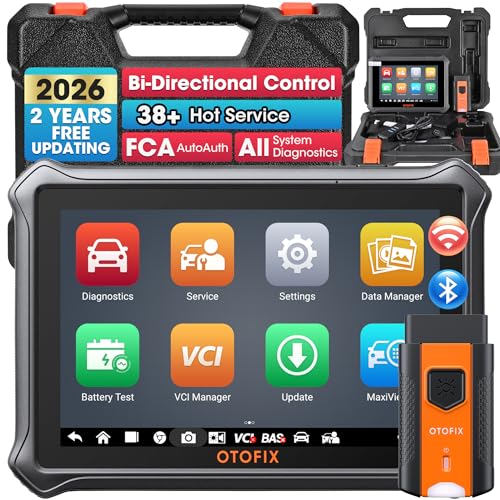
- 🎉[OTOFIX D1 Lite, Perfect Cost-effective Diagnostic Tool]: OTOFIX D1 Lite, a newest bidirectional scan tool from OTOFIX company, is a great choice for DIYers and repair shops. 👉This obd2 scanner diagnostic tool packs all practical functions: OE level all systems diagnoses, Bi-Directional Control, 38+ reset services fixing 99% of common problems, support DoIP & CANDF protocols and FCA
 AutoAuth, high-end hardware configuration. Worldwide vehicles and 🔥2 Years Free Updating🔥 covered.
 - 🎉[Bi-Directional Scan Tool, Active Test]: OTOFIX D1 Lite bluetooth obd2 scanner can also command ECUs and monitor the operation of the actuators to track down the problems of certain parts, like windows, sunroof, wipers, fuel pumps, etc., saving repair time & trouble. This makes OTOFIX D1 Lite the most cost-effective bidirectional scan tool.
- 🎉[2026 Newest, 38+ Hot Reset Functions]: Equipped with 38+ reset functions in one, the OTOFIX D1 lite automotive scanner diagnostic tool allows you to troubleshoot 99% of common vehicle problems. You can use this car diagnostic scanner holding enough functions to easily repair common vehicle models in your repair shops. Including Oil Reset, Injector Coding, Throttle, DPF Reset, SCR Reset, Gear Learning, Clutch Learning, Suspension, etc. Note* Reset functions vary by model.
- 🎉[OE Level Full Systems Diagnostics]: Unlike the 2-system and 4-system diagnostic tools, the OTOFIX auto scan tool can complete comprehensive system diagnostics within 5 minutes. It accesses and scans all available onboard systems like for Engine /AT /ABS /EPB /BMS /TPMS /SRS /SAS /Audio System /BCM /Air Conditioning / etc., to read & clear codes, view live data, and check ECU information. Note: Active test is not involved.
- 🎉[Powerful Hardware Configuration]: Designed with a fashion appearance & a 7” touchscreen and a weight of 463g, this OTOFIX D1 Lite OBD2 diagnostic scanner scan tool is convenient for everywhere and easy to use & store. Android9.0 OS and 2+64GB memory enhance multi-task smoothness and diagnostic operation, no more wasting too much time. 5800mAh battery allows hours-lasting use. WiFi & VCI1 also bring faster communication for your diagnostics.

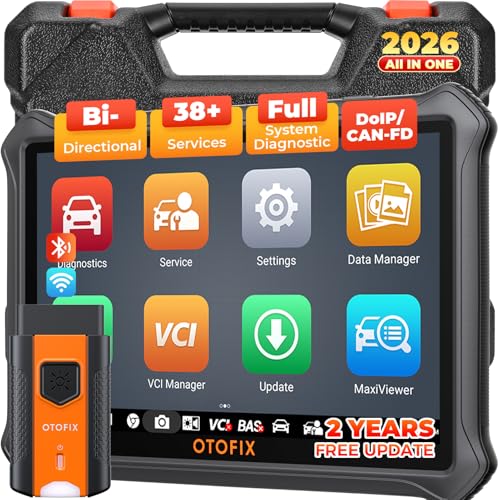
- 🏆【2026 TOP OBD2 Scanner Diagnostic Tool】OTOFIX D1 Lite wireless obd2 scanner has upgraded hardware configuration and car coverage. The newly upgraded D1 Lite with 🔥OS Android 9.0🔥1.5Ghz 4 core high efficiency processor🔥2GB RAM+64GB ROM large storage🔥5800mAh large battery, more stable and longer lasting diagnostics🔥 38+ Reset🔥action tests🔥full system diagnostic🔥Supports MV105 endoscope🔥21+ Language Supports🔥100000+ vehicle coverage to meet all your daily maintenance needs.
- 👍【Bi-Directional Control / Active Test】D1 Lite obd2 scanner has bidirectional control(worth $300+), which is the most beloved feature among mechanic. If your headlights or car windows are broken, going to a repair shop will cost a lot of money. You can use D1 Lite to send execution commands to the ECU module and identify the repair status. Such as ABS, car windows, doors, valves, wipers, headlights, etc., effectively shorten diagnostic time and reduce diagnostic costs.
- 🔥【All Systems Diagnostics, In-depth Checking】This advanced OBD2 Scanner D1 Lite can perform OE-level diagnosis of all systems including engine, transmission, airbag, ABS, ESP, TPMS, gateway, steering, radio, and air conditioning for more than 100 brands. This diagnostic scanner supports essential functions, such as reading ECU version info, reading and clearing fault codes, and reading data streams.With just a simple click, it provides you with accurate and in-depth diagnostics.
- 🏆【38+ Reset Hot Functions】For repair workshops, holding an OTOFIX D1 Lite Auto scanner is a strong advantage over others. Its 38+ maintenance functions provide various solutions for all module repairs, including Oil Reset, TPMS Reset, Injector Coding, Suspension, Throttle Matching, etc., which will usher your repair business to a new pinnacle. Continuously updating will never make the functionality & compatibility out-of-date.
- 🏆【150+ Models, 10000+ Car Coverage & 16 Languages】D1 Lite is a comprehensive car diagnostic scan tool, help you to troubleshoot car issues fast for 95% US, European, Asian auto makes. ✅ With frequent updates and optimizations allow D1 Lite to cover more vehicles to meet your needs. ✅ Multilingual menu allows auto mechanics around the world to use it without language barriers. 🚩Note: Kindly send us the S/N of the device to authorize new language updates before changing the menu language.
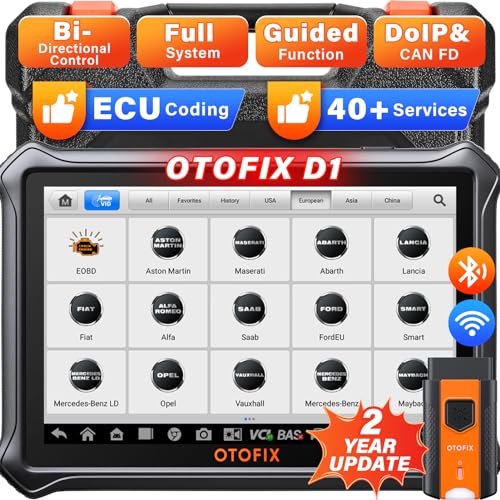
- 2026 Newest Wireless Bluetooth Scan Tool D1: OTOFIX D1 Diagnostic scanner is upgraded version with Enhanced Hardwares & Newest Functions, FASTER and SMARTER! ✅Alternative Bluetooth 5.0 +USB connect✅2G+64GB✅Android 9.0 OS✅5G & 2.4 GHz Dual WiFi✅5800mAh battery👍VAG Guided Function👍ECU Online Coding👍CANFD&DOIP👍40+ Services👍Bi-Directional Control👍Full Systems Diagnose👍2 Years Free Update👍150+ Vehicle Coverage🎁Contact to get gift: otofixaftersales-amz@ outlook.com
- ECU Coding to Unlock the Hidden Features: OTOFIX D1 obd2 scanner diagnostic tool newly adds ECU Coding which can Online Coding(ONLY for VW/Au.di/Sk0da), Variant Coding/Offline Programming, Flash Hidden Functions, Reset Adaptive Data, Match Replaced Components, Customize OE-Settings. Such as: halogen fog lamps retrofitted with xenon fog lamps, different capacity battery retrofit, disbale auto start-stop, sunroof initialization, injector calibration, etc. PS: Coding functions vary by model&year.
- Full Bidirectional Control for Active Car Tests: The D1 OTOFIX scanner also offers bi-directional control, allowing you to perform powerful active tests on car subsystems. This means that you can check the working status and functionality of open & close solenoids, energize injectors, turn cooling fan on & off, and more, all from the device itself.🚩The D1 bi-directional obd2 scanner can quickly help you to check if a system or component goes well,Improving 200% Efficiency.**Note that Active Tests available depend on the make/model/year of your car.
- 40+ Popular Maintenance Functions: OTOFIX D1 obd scanner for car performs 40+ hot services, including Oil Reset, EPB, TPMS, BMS, E.GR, G.PF, D.PF, SAS Calibration, ABS Bleeding, Injector Coding, Gearbox Match, Suspension, Crankshaft Relearn, Power Balance, etc., still growing. Great choice for DIYers, technician, repair shop. 🚩Get MORE special functions from "Car Brand>System>Service". Check compatibility before purchase via 📧 otofixaftersales-amz@ outlook.com.
- OE-Level All Systems Diagnostic + One-Click AutoVIN & AutoSCAN: OTOFIX D1 scanner automotriz gives you the ability to troubleshoot entire car systems including engion system,transmission system,body system,chassis,etc. 🚩One of the standout features of the D1 obd2 scanner diagnostic tool is the one-click AutoVIN & AutoScan function. This feature allows you to quickly and easily scan all diagnosable ECUs with just one click, and identify any problems hidden in your vehicle's systems.
Last update on 2026-06-12 / Affiliate links / Images from Amazon Product Advertising API
This product presentation was made with AAWP plugin.