
NHTSA ID Number: 10127568
Manufacturer Communication Number: VOS-15-09
TSB/Document Date: 2018-01-29
Summary
Service Information (ODIS Service Installation Phase 2 ? Software Installation & Configuration Instructions): This document describes the initial download, installation and configuration of ODIS Service diagnostic software on eligible diagnostic laptop and tablet devices. These instructions are specific to the preparation of brand new diagnostic laptop and tablet devices, i.e.: devices where ODIS Service was NOT previously installed.
Service Information
Offboard Diagnostic Information System Service (ODIS Service)
Number: VOS-15-09
Subject: ODIS Service Installation Phase 2 – Software Installation Date: Dec. 17, 2015
& Configuration Instructions
Supersedes VOS-15-05 due to revised download and installation process & additional instructions.
Table of Contents
Page
Section
1.0
Introduction
1.1
General Information - Must Read!
2
1.2
Preparation Overview
2
1.3
Process Overview - Must Read!
2
2.0
Preparation
3
2.1
Diagnostic Device Hardware & Network Prerequisites
3
2.2
Software Download & Installation Prerequisites
4
2.3
Confirm Windows® Update Setting
4
3.0
Installation
5
3.1
Download & Install Application Data – “Single-Setup”
5
3.2
Import Security Certificate to Application
12
3.3
Diagnostic Data Download & Installation – “Post-Setup”
15
4.0
5.0
2
Post-Setup Configuration
17
4.1
Administration - General
17
4.2
Administration - Support
19
4.3
Administration - Connections
20
4.4
Additional Instructions
22
Online Updates
22
Notes:
• Please read these instructions carefully and in their entirety before performing any
procedures. If you do not understand these instructions, arrange to have a qualified person
perform these procedures.
• Heed all prerequisite requirements and notes, and follow all instruction steps in the Section
order given.
• Discard all printed copies of this document after use. Revised versions may be issued at any
time. Always check ServiceNet for the latest version.
Page 1 of 22
© 2015 Volkswagen Group of America, Inc.
All rights reserved. Information contained in this document is based on the latest information available at the time of printing and is subject to the copyright and other intellectual
property rights of Volkswagen Group of America, Inc., its affiliated companies and its licensors. All rights are reserved to make changes at any time without notice. No part of this
document may be reproduced, stored in a retrieval system, or transmitted in any form or by any means, electronic, mechanical, photocopying, recording, or otherwise, nor may these
materials be modified or reposted to other sites, without the prior expressed written permission of the publisher.
Service Information
1.0 – Introduction
1.1 – General Information
This document describes the initial download, installation and configuration of ODIS Service
diagnostic software on eligible diagnostic laptop and tablet devices. These instructions are specific to the
preparation of brand new diagnostic laptop and tablet devices, i.e.: devices where ODIS Service was
NOT previously installed.
Instructions for the initial installation of ODIS Service are broken down into two separately-titled
instruction document “Phases”: Installation Phase 1 and Installation Phase 2. Both installation
instruction documents are posted on ServiceNet.
Checkboxes are provided throughout this document to note fulfilled prerequisites and completed sections.
Notes:
• As of December 2015, the initial installation of ODIS Service software takes place via a
Volkswagen AG Group Services web-server.
• Installation DVDs are no longer used. To prevent confusion, please locate and discard all
previous installation version DVDs.
1.2 – Preparation Overview
The preparation guidelines:
• Ensure diagnostic device eligibility for ODIS Service installation and use.
• Ensure that the requisite license and certificate files were obtained and stored. (Phase 1
Instructions completed.)
• Address device physical, related Windows software and dealership network issues to ensure
trouble-free downloads and installations.
1.3 – Process Overview
Software download, installation & configuration processes take place in the following stages:
Download and install V3.0.0 application data from VWAG Group Services web-server
Import certificate to application
Download and install diagnostic database from web-server
Configure ODIS Service installation
Configure diagnostic interface (VAS 5054A etc.)*
*Instructions must be obtained from additional documents posted on ServiceNet.
Page 2 of 22
© 2015 Volkswagen Group of America, Inc.
All rights reserved. Information contained in this document is based on the latest information available at the time of printing and is subject to the copyright and other intellectual
property rights of Volkswagen Group of America, Inc., its affiliated companies and its licensors. All rights are reserved to make changes at any time without notice. No part of this
document may be reproduced, stored in a retrieval system, or transmitted in any form or by any means, electronic, mechanical, photocopying, recording, or otherwise, nor may these
materials be modified or reposted to other sites, without the prior expressed written permission of the publisher.
Service Information
2.0 – Preparation
2.1 – Diagnostic Device Hardware & Network Prerequisites
Windows 7
Antivirus software and network firewall temporarily disabled (where applicable).
Device must have a functional USB functions.
Type of diagnostic interface to be used is known, e.g.: VAS 5054A etc.
Network connection: Ethernet cable or WLAN. (Minimum recommended network download speeds:
6 Mbps (single brand) or 8 Mbps (dual brand).)
Device connected to A/C power adapter and booted to Windows desktop.
Diagnostic tablets mounted in base station with USB mouse and keyboard connected.
2.2 – Software Download & Installation Prerequisites
Prerequisites Checklist
The following Installation Phase 1 – Preparation, License & Security Certificate Process
instruction steps are completed and outcomes obtained:
Preparation:
Diagnostic device assigned a “Device ID”
Primary and backup “device folders” created for license and security certificate storage.
License Process:
License requested from eShop and license request approval email received
License file downloaded from eShop to device folder on the diagnostic device desktop and
device folder on backup USB flash drive
Certificate Process:
Certificate requested from eCRMS and certificate request approval email received
Certificate file downloaded from eCRMS to device folder on the backup USB flash drive and
copied to the device folder on the diagnostic device desktop
Certificate imported to Windows®
ATTENTION!
Software installation from the web-server is NOT possible without device-specific license
and certificate files, and recorded hardware key!
Page 3 of 22
© 2015 Volkswagen Group of America, Inc.
All rights reserved. Information contained in this document is based on the latest information available at the time of printing and is subject to the copyright and other intellectual
property rights of Volkswagen Group of America, Inc., its affiliated companies and its licensors. All rights are reserved to make changes at any time without notice. No part of this
document may be reproduced, stored in a retrieval system, or transmitted in any form or by any means, electronic, mechanical, photocopying, recording, or otherwise, nor may these
materials be modified or reposted to other sites, without the prior expressed written permission of the publisher.
Service Information
2.3 – Confirm Windows Update Setting
To ensure trouble-free ODIS Service software download and installation from the web-server, the
diagnostic device must not be downloading or installing Windows updates at the same time.
To confirm the preferred Windows update setting as instructed in the diagnostic device’s Unpacking and
Setup instructions, proceed as follows:
1. Go to: Windows Start > Control Panel > Windows Update > Change Settings
2. In the Important Updates category, confirm that the update option: Check for updates but let me
choose whether to download and install them is selected as illustrated below:
If this option is selected, select Cancel:
If this option is not selected, select it now from the dropdown, and then select OK:
3. Close the remaining Control Panel Windows.
Note:
If it was necessary to change the update setting, check if a Windows update is currently in
process before installing ODIS Service. If a Windows update is in process, allow it to finish and
only then proceed with ODIS Service installation.
All Preparation steps completed. Proceed to Section 3.0 – Page 5
Page 4 of 22
© 2015 Volkswagen Group of America, Inc.
All rights reserved. Information contained in this document is based on the latest information available at the time of printing and is subject to the copyright and other intellectual
property rights of Volkswagen Group of America, Inc., its affiliated companies and its licensors. All rights are reserved to make changes at any time without notice. No part of this
document may be reproduced, stored in a retrieval system, or transmitted in any form or by any means, electronic, mechanical, photocopying, recording, or otherwise, nor may these
materials be modified or reposted to other sites, without the prior expressed written permission of the publisher.
Service Information
3.0 – Installation
3.1 – Download & Install Application Data – “Single Setup”
1. Open Internet Explorer
2. Type the following address in the browser’s address bar, and then click the “Go to” arrow:
3. Select OK:
Note:
If multiple certificate confirmation
prompts appear, select and confirm
the one indicated as:
Issuer: VWGoA ODIS RootCA
Issuer: VWGoA ODIS RootCA XXXX
Valid From: X/X/201X to X/X/201X
Click here to view certificate prope…
4. Navigate through the server Indexes in the following order:
Odis > Trade-Retail > software > installation
5. From the installation Index, double-click the
OffboardDiagSetup-Service VWMCD 3 X X XXXXXXX.exe file:
(cont.)
Page 5 of 22
© 2015 Volkswagen Group of America, Inc.
All rights reserved. Information contained in this document is based on the latest information available at the time of printing and is subject to the copyright and other intellectual
property rights of Volkswagen Group of America, Inc., its affiliated companies and its licensors. All rights are reserved to make changes at any time without notice. No part of this
document may be reproduced, stored in a retrieval system, or transmitted in any form or by any means, electronic, mechanical, photocopying, recording, or otherwise, nor may these
materials be modified or reposted to other sites, without the prior expressed written permission of the publisher.
Service Information
6. Click the Save - dropdown selection arrow, and then select Save and Run:
Note:
Selecting Save and run starts the installation process automatically after the download is complete.
7. No action needed:
8. When the download is complete, Close the browser session.
9. No action needed:
10. Confirm English (US) is selected, and then select OK:
(cont.)
Page 6 of 22
© 2015 Volkswagen Group of America, Inc.
All rights reserved. Information contained in this document is based on the latest information available at the time of printing and is subject to the copyright and other intellectual
property rights of Volkswagen Group of America, Inc., its affiliated companies and its licensors. All rights are reserved to make changes at any time without notice. No part of this
document may be reproduced, stored in a retrieval system, or transmitted in any form or by any means, electronic, mechanical, photocopying, recording, or otherwise, nor may these
materials be modified or reposted to other sites, without the prior expressed written permission of the publisher.
Service Information
11. Select Next:
12. Select Next:
13. Select Next:
(cont.)
Page 7 of 22
© 2015 Volkswagen Group of America, Inc.
All rights reserved. Information contained in this document is based on the latest information available at the time of printing and is subject to the copyright and other intellectual
property rights of Volkswagen Group of America, Inc., its affiliated companies and its licensors. All rights are reserved to make changes at any time without notice. No part of this
document may be reproduced, stored in a retrieval system, or transmitted in any form or by any means, electronic, mechanical, photocopying, recording, or otherwise, nor may these
materials be modified or reposted to other sites, without the prior expressed written permission of the publisher.

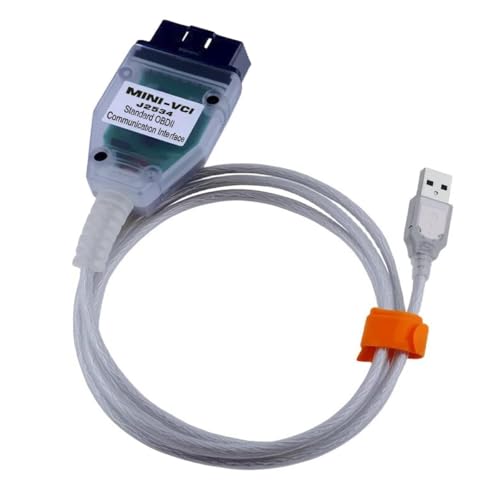
- Advanced VCI Box, Industry-leading J2534 Pass-Thru...
- High-Speed OEM-Level Diagnostics & Programming: Unlock true...
- Coverage for 17 Car Brands & Ultra Reliability: Works...
- User-Friendly RLink Platform & Expert Support: TOPDON’s...
- 6.6 ft USB-C Cable & Portable Storage Case: The RLink J...
Last update on 2026-06-12 / Affiliate links / Images from Amazon Product Advertising API
If the PDF is very large, it may not load in the preview below.
Some older TSBs had multiple PDFs — visit the NHTSA Website to view all PDFs.
If the TSB PDF does not show, download or view it on the NHTSA Website.
Click on the (+) Plus Sign
Then Click on Associated Document(s)
Search NHTSA Database for Recalls
Search NHTSA Database for Vehicle Investigations
View Latest Vehicle Investigations
Search NHTSA Database for Vehicle Complaints
View Latest Vehicle Complaints
TSB/Document ID: VOS-15-09
Replacement Service Bulletin Number:
MFR Communication Date: 2015-12-17
MFR Internal Campaign ID/Software Version:
Communication Type: Service Bulletin/Repair Instructions
NHTSA Components: ELECTRICAL SYSTEM:SOFTWARE
MFR Component System:
MFR Component Subsystem:
Previous TSB | Next TSB |
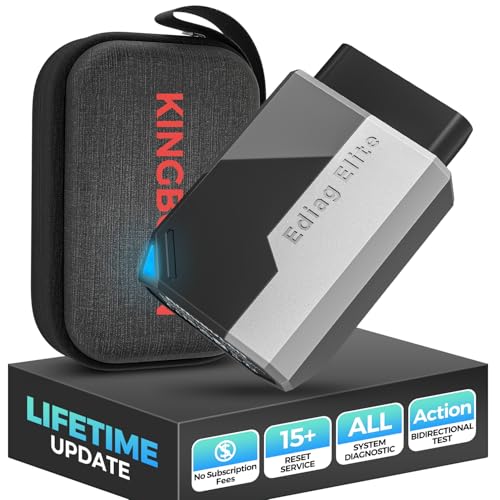
- OBD2 Bluetooth Scanner Lifetime Update: Ediag Elite offers revolutionary Advantage Lifetime Updates with unlimited access to the superior 15+ reset service, bidirectional testing and full system diagnostics.The Ediag Elite is an excellent Bluetooth OBD2 scanner diagnostic tool ideal for DIY's and private car owners.
- Bidirectional Control for Quickly Locating Problems: The Bidirectional Scan tool allows you to send commands directly from your smartphone to your vehicle for active testing. This feature helps to quickly narrow down problems such as air conditioning clutches, windows, doors, sunroofs, etc., reducing diagnostic time for mechanics and helping DIY users locate faults more easily. In addition, Ediag Elite provides fault analysis and repair guidance to help you solve problems efficiently.
- 15+ Maintenance Resets: The current version introduces 15+ popular special features: Oil Reset, Headlight Matching, Bleeding Reset, TPMS Reset, BMS Reset, Gear Box Relearn, EGR Learning, Throttle Learning, Injector Coding, SAS Reset and more special functions in system diagnose menu. These functions make it easy for owners to carry out the necessary maintenance and servicing, ensuring that your vehicle stays in top condition, prolonging its service life and preventing common problems and breakdowns. Note: The Special function vary by model& year, Reach us check compatibility.
- Wide Compatibility CANFD & FCA
 Autoauth: Compatible with GM, Ford, Toyota, Chrysler, Honda, Mazda, Nissan, Mitsubishi, Hyundai, KIA with standard OBD2 port from 1996 to newer. More car brands and features will be released gradually. Newest Ediag Elite scanner supports CANFD Protocol and FCA cars. Note: Coverage may vary on different vehicle by model& year ,Please contact us to confirm compatibility before purchase.
 - Perfect for Monitoring The Health of Your Vehicle: Ediag Elite is designed to make vehicle maintenance simple and efficient. With intelligent AutoVIN quick recognition, it is easy to connect to your car without the need for manual input. Real-time data is visualized in a variety of formats, including graphs, numeric, meter displays and clear 4-in-1 data charts, allowing you to effortlessly monitor real-time performance. Data logging/reporting is available for playback and further analysis.
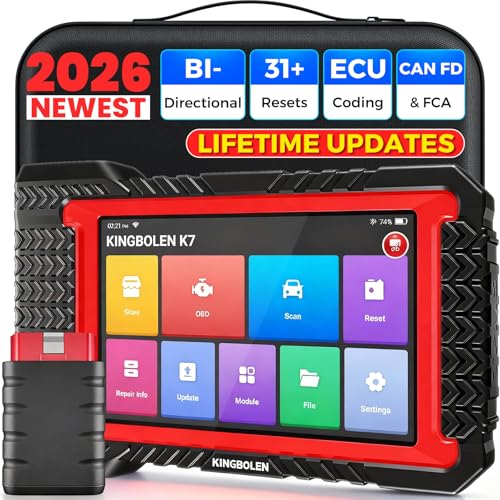
- No Annual Fees & 2026 Upgraded CAN FD: Why pay $199/year or more for updates? The 2026 newest Kingbolen K7 obd2 scanner features have been upgraded to Lifetime Updates without subscription fees, saving you significant costs in the long run. K7 scan tool also adds the CAN FD protocol for the latest GM models (2019+), enabling faster data transfer, reducing the risk of undetected errors
- 2026 Newest Top-tier Car Scanner: Kingbolen K7 diagnostic scan tool is equipped with most capabilities for daily repair/maintenance: Wireless diagnosis via Bluetooth, Bidirectional Test, ECU Online/Offline Code, 31+ Resets, PMI for Ford, Lincoln, Mazda, Global version for 100+ brand vehicles and 17 languages, no area limit, FCA AutoAuth
- OE-Level Full Systems Scan Tool: K7 professional diagnostic scanner with Auto Vin can do one-click to scan ECUs on most of vehicles, like pcm, ecm, eps, bcm, tpms, sas, a/c system... to read/clear code, view live data, freeze frame, read ecu info. 4-in-1 data stream graphics can make data viewing more intuitive. Detailed diagnostic reports will help you easily master the car situation as it can be shared by bluetooth or email! Adding workshop information can help your customers to know more
- Bidirectional Test/Active Test & ECU Code: Stop guessing and start fixing. Bidirectional scan tool Kingbolen K7 can perform real active test that can send commands to the vehicle's ECU to drive the actuators to work, like window, rear mirrors, sunroof, door, solenoids, wipers, headlamp, etc, helping you quickly find out bad parts and pinpoint faulty issues. K7 bidirectional scanner will be a good choice to save money and time on car repairs when performing complex maintenance and repair
- 31 Reset Functions: Avoid expensive dealership visits for simple services. Experience tells us that just a small repair service may cost a lot of money. Kingbolen K7 is a professional diagnostic scanner with 31 common maintenance services like Oil /SAS/EPB/TPMS Reset, Battery Matching, ABS Bleeding, Injector Code, etc. It effectively handles most of the car reset and relearning jobs, perfect for experienced DIYers and mechanics. Note: Functions in the menu vary across vehicles. Kindly check the compatibility before purchase

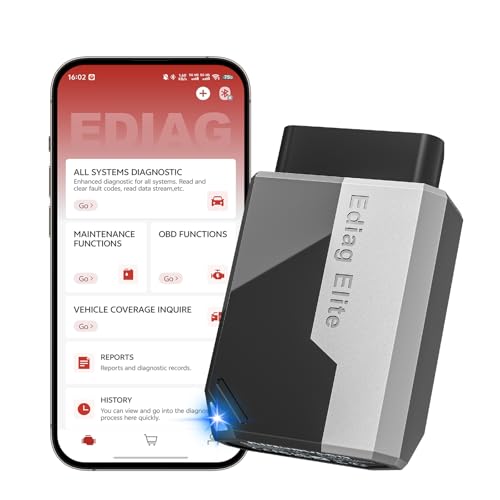
- 【Cost-effective Diagnostic Scan Tool】Lifetime updates without fee, No subscription fee required, No IP restrictions, Ediag Elite bluetooth scanner stands out. It can perform in-depth Full System diagnostics,15+ Reset Services, powerful Active Test, CANFD & FCA AutoAuth. Connect your phone via Bluetooth for diagnosis, providing a faster, smarter and smoother diagnostic experience. Easy to put in pocket, convenient to carry, keep track of the car's status anytime, anywhere. Best bang for your bucks.
- 【15+ Reset Service, Easy Problem Solving】 KINGBOLEN Ediag Elite obd2 scanner diagnostic scan tool comes with 15+ professional reset functions, including: Oil Reset, ABS Bleeding, Injector Code, SAS Reset, TPMS Reset, BMS Reset, AFS Reset, Sunroof Calibration, Brake Reset and more special functions in system diagnose menu. The ideal bluetooth scanner for mechanics and DIY enthusiasts, which can save unnecessary maintenance costs and significantly shorten repair time.
- 【Comprehensive Full Systems Diagnostic】 The Ediag Elite obd2 scanner bluetooth supports full system In-Depth diagnosis. It can read/clear fault codes, read real-time data/freeze frame, module information, and perform testing and reset functions for ECM, BCM, ABS, SRS, TPMS, TCM, BMS, SAS, A/C & RTM systems ect. It works with most car models after 1996, cover more than 150+ car brands. Supports 22 global languages for your convenience(EN, FR, ES, DE, IT, RU, PT, JP, TU...)
- 【Powerful Bidirectional Scan Tool & Active Test】 The obd2 code reader for Ediag Elite can perform real time active test that can send commands to the vehicle’s ECU to drive the actuators to work, such as turn on the radiator fan, modulate the throttle, open/close windows, etc. It can help you quickly find out the bad components and the cause of the fault, which can save you a lot of time. With BT 5.2 wireless connectivity, you can enjoy wireless diagnostics up to 33 feet.
- 【FCA AutoAuth & CANFD Compatibility】 Ediag Elite scan tool offers support with FCA Gateway Access, allowing you to perform protected functions on FCA vehicles, including Chrysler, Dodge, Jeep, Alfa Romeo, Fiat vehicles, etc.(Note:just allows you to access the FCA, but need to have your own FCA account) Supports the CAN-FD protocol, provide high-speed vehicle diagnostic communication and data transfer, working perfectly on GM vehicles produced after 2020, saving $100 to buy a CAN FD adapter.
Last update on 2026-06-12 / Affiliate links / Images from Amazon Product Advertising API
This product presentation was made with AAWP plugin.