
NHTSA ID Number: 10122669
Manufacturer Communication Number: AOS-12-21
TSB/Document Date: 2017-11-08
Summary
Supersedes AOS-12-17 due to use of ODIS Service Update Installation DVD V1.1.2 and new information. Phase 2 is the second of three documentation phases in the initial installation of ODIS Service on current VAS diagnostic devices. This document describes the software installation and configuration processes of the latest version ODIS Service software installation DVD. Use this document to perform the initial installation of ODIS Service on existing or new VAS diagnostic devices where ODIS Service was not previously installed. Completion of these installation and configuration steps is prerequisite to performing ODIS Service Installation Phase 3 - Security Certificate Request & Installation. For information on all documentation phases of the installation process and staged software DVD shipment schedule, please refer to Service Information - ODIS Service document title: ODIS Service - Introduction and Installation Documentation Guide. Installation Phases 1 through 3 must be completed prior to using ODIS Service for vehicle diagnosis. Installation of this software requires a specific procedure which must be performed in its entirety prior to using the application. The preparation and license request processes, as well as receipt of the device-specific license file as specified in the ODIS Service Installation Phase 1 - Preparation and License Request Instructions must be completed prior to proceeding with these instructions. Prior to installation, we encourage installers to first read this document in its entirety to become familiar with the step-by-step processes.
Service Information
Offboard Diagnostic Information System Service (ODIS Service)
Subject: ODIS Service Installation Phase 2 - Software Installation
& Configuration Instructions
Number: AOS-12-21
Date: Dec. 11, 2012
Supersedes AOS-12-17 due to use of ODIS Service Update Installation DVD V1.1.2 and new information.
1.0 – Introduction
Phase 2 is the second of three documentation phases in the initial installation of ODIS Service on current
VAS diagnostic devices.
This document describes the software installation and configuration processes of the latest version
ODIS Service software installation DVD. Use this document to perform the initial installation of ODIS
Service on existing or new VAS diagnostic devices where ODIS Service was not previously installed.
Completion of these installation and configuration steps is prerequisite to performing ODIS Service
Installation Phase 3 - Security Certificate Request & Installation. For information on all documentation
phases of the installation process and staged software DVD shipment schedule, please refer to Service
Information - ODIS Service document title: ODIS Service - Introduction and Installation
Documentation Guide. Installation Phases 1 through 3 must be completed prior to using ODIS Service for
vehicle diagnosis.
Installation of this software requires a specific procedure which must be performed in its entirety prior to
using the application. The preparation and license request processes, as well as receipt of the devicespecific license file as specified in the ODIS Service Installation Phase 1 - Preparation and License
Request Instructions must be completed prior to proceeding with these instructions.
Prior to installation, we encourage installers to first read this document in its
entirety to become familiar with the step-by-step processes.
We recommend printing a copy of these instructions. Check boxes are provided to note the fulfillment of
Prerequisites and the completion of each instruction Section.
Notes:
The initial installation and configuration should be performed by the ODIS Service Administrator
appointed by the dealership prior to the Phase 1 device preparation and license request process.
The instruction steps in this document are based on the Device ID, Hardware Key and Order
Number Record-Keeping method suggested in the Phase 1 Instructions - Section 3.0. If an
alternate Device ID etc. record-keeping method was applied, act accordingly to retrieve and install
the saved license file.
Follow all instruction steps in the exact order given. Heed all Prerequisites and Notes!
Load and configure software in an area that is quiet, clean, and without distraction or interruption.
The type of device and CD/DVD drive condition determines the installation time. Allow at least 1 hour
for laptops and 1.5 hours for VAS 5052A & VAS 5051B1B.
If assistance with specific instruction steps is needed, contact VWGoA DTSS: 1-888-896-1298.
For lost or damaged DVDs please contact Arvato Corporation at: www.audi.techliterature.com.
Page 1 of 23
ver1.4
© 2012 Audi of America, Inc.
All rights reserved. Information contained in this document is based on the latest information available at the time of printing and is subject to the copyright and other intellectual
property rights of Audi of America, Inc., its affiliated companies and its licensors. All rights are reserved to make changes at any time without notice. No part of this document may
be reproduced, stored in a retrieval system, or transmitted in any form or by any means, electronic, mechanical, photocopying, recording, or otherwise, nor may these materials be
modified or reposted to other sites, without the prior expressed written permission of the publisher.
Service Information
ATTENTION!
Important Content Information:
ODIS Service V.1.1.2 contains VW diagnostic data equivalent to VAS-PC VW Brand
V19.18.00, but excludes diagnostic data for Hybrid models.
Until further notice, if certain 2013 model year vehicles are not recognized
by the software, or a Hybrid model requires troubleshooting, please use
VAS-PC.
2.0 – Software Installation
2.1 – Preparation and License Request Prerequisites
All preparation and request instructions in the ODIS Service Installation Phase 1 - Preparation and
License Request Instructions document must be completed and all necessary outcomes achieved:
Diagnostic device(s) assigned with unique Device ID.
USB flash drive prepared with Device ID folders containing License and Certificate
subfolders.
Diagnostic device Hardware Key generated via eShop and saved/recorded in Master List
Wordpad document on USB flash drive.
License request submitted via eShop.
License file received via email and copied to applicable Device ID / License subfolder
on USB flash drive.
Preparation & License Request Prerequisite steps complete
2.2 – Software and License Installation
Prerequisites:
VAS 5051B: Must have minimum 1GB standard or upgraded RAM, updated to Windows XP®
Diagnostic device updated to VAS-PC Base V19.01.01.
ODIS Service update installation DVD Version 1.1.2 – Order No. 004.5002.02.21 on hand.
Prepared USB Flash Drive on hand.
Diagnostic device with functioning CD/DVD drive and USB.
Diagnostic device plugged in to power adapter and booted to Windows® desktop.
Note the Device ID of the diagnostic device on which the installation is being made.
VAS 5052A & VAS 6160/V tablets: Connect a USB mouse and keyboard for easier input.
ATTENTION!
If the diagnostic device was NOT previously updated to VAS-PC Base V19.01.01, perform the
Base update BEFORE the initial installation of ODIS Service!
Continued …3/
Page 2 of 23
© 2012 Audi of America, Inc.
All rights reserved. Information contained in this document is based on the latest information available at the time of printing and is subject to the copyright and other intellectual
property rights of Audi of America, Inc., its affiliated companies and its licensors. All rights are reserved to make changes at any time without notice. No part of this document may
be reproduced, stored in a retrieval system, or transmitted in any form or by any means, electronic, mechanical, photocopying, recording, or otherwise, nor may these materials be
modified or reposted to other sites, without the prior expressed written permission of the publisher.
Service Information
1. Insert prepared USB flash drive with saved license file(s) into available port on diagnostic device.
2. Insert ODIS Service Update Installation DVD V1.1.2 into CD/DVD drive.
3. From the Windows desktop, double-click My Computer:
4. Open the CD/DVD directory OS1.1.2 AU vw NoHybrid (E:):
5. Wait while the directory contents are read, and then Double-click OffboardDiagSetup-Service_1…:
6. Confirm English (US) is highlighted. Click OK.
7. Click Next:
8. No action needed. Click Next:
Page 3 of 23
© 2012 Audi of America, Inc.
All rights reserved. Information contained in this document is based on the latest information available at the time of printing and is subject to the copyright and other intellectual
property rights of Audi of America, Inc., its affiliated companies and its licensors. All rights are reserved to make changes at any time without notice. No part of this document may
be reproduced, stored in a retrieval system, or transmitted in any form or by any means, electronic, mechanical, photocopying, recording, or otherwise, nor may these materials be
modified or reposted to other sites, without the prior expressed written permission of the publisher.
Service Information
9. No action needed. Click Next:
10. Add English (GB) and Deutsch (DE) user interface languages from the dropdown menus (add others
if desired). Click Next:
Note:
Steps 11 and 12 configure the installed software to the diagnostic device platform and diagnostic
interface (connection) method. If the correct diagnostic platform & interface (connection)
methods are not selected, an “Invalid License File” error will appear during the Post-Setup
Diagnostic Data Installation process (Section 2.0).
11. Select the applicable diagnostic device platform from the dropdown menu as follows:
VAS 5051B console: Select VAS 5051B
VAS 5052A tablet: Select VAS 5052A
VAS 6150/X laptop & VAS 6160/V tablet: Select Standard PC/notebook
Click Next:
Select the applicable platform from the dropdown menu.
Page 4 of 23
© 2012 Audi of America, Inc.
All rights reserved. Information contained in this document is based on the latest information available at the time of printing and is subject to the copyright and other intellectual
property rights of Audi of America, Inc., its affiliated companies and its licensors. All rights are reserved to make changes at any time without notice. No part of this document may
be reproduced, stored in a retrieval system, or transmitted in any form or by any means, electronic, mechanical, photocopying, recording, or otherwise, nor may these materials be
modified or reposted to other sites, without the prior expressed written permission of the publisher.
Service Information
12. Confirm that the applicable diagnostic interface (connection) appears as follows: Select from
dropdown menu if necessary:
VAS 5051B console: VAS 5051B with diagnostic cable
VAS 5052A tablet: VAS 5052A with radio head VAS 5054A
VAS 6150/X laptops & VAS 6160/V tablet: Notebook/PC with radio head VAS 5054A
Click Next:
Confirm that the applicable diagnostic interface appears.
13. On diagnostic laptops and tablets only, a Bluetooth interface alert window appears. Click Next.
ATTENTION!
Steps 14 through 17 describe the installation of the device-specific license file!
Due to a translation error, the license file is referenced incorrectly in the following
installation routine windows as a “certificate file”.
Individual license files received via email and saved on the USB flash drive can only be
installed on the device from which its matching Hardware Key was generated during
the license request process on eShop!!
Ensure that license files stored on the prepared flash drive always correspond to their
Device ID, Hardware Key and request Order Number!
14. Ensure Copy certificate to the installation folder is checked. Click Search:
Page 5 of 23
© 2012 Audi of America, Inc.
All rights reserved. Information contained in this document is based on the latest information available at the time of printing and is subject to the copyright and other intellectual
property rights of Audi of America, Inc., its affiliated companies and its licensors. All rights are reserved to make changes at any time without notice. No part of this document may
be reproduced, stored in a retrieval system, or transmitted in any form or by any means, electronic, mechanical, photocopying, recording, or otherwise, nor may these materials be
modified or reposted to other sites, without the prior expressed written permission of the publisher.
Service Information
15. Navigate to directory for prepared USB flash drive.
16. Open the applicable Device ID folder.
17. Open the License subfolder.
18. Select / highlight the license (.dat) file, then click Open (as illustrated below).
Note:
Do Not double click on the license file in its saved location on the USB flash drive!
19. Ensure the license file is copied to the installation window: Click Next:
20. No action needed (DO NOT uncheck virtual keyboard). Click Next:
Page 6 of 23
© 2012 Audi of America, Inc.
All rights reserved. Information contained in this document is based on the latest information available at the time of printing and is subject to the copyright and other intellectual
property rights of Audi of America, Inc., its affiliated companies and its licensors. All rights are reserved to make changes at any time without notice. No part of this document may
be reproduced, stored in a retrieval system, or transmitted in any form or by any means, electronic, mechanical, photocopying, recording, or otherwise, nor may these materials be
modified or reposted to other sites, without the prior expressed written permission of the publisher.
Service Information
21. No action needed. Click Next:
22. Wait while several different phases of file installation take place.
23. When the “DesktopLinkHwConfiguration” setup message appears, click No:
24. Click Finish:
25. Close the ODIS (E:) directory Window.
Software & License Installation steps complete
Continued …8/
Page 7 of 23
© 2012 Audi of America, Inc.
All rights reserved. Information contained in this document is based on the latest information available at the time of printing and is subject to the copyright and other intellectual
property rights of Audi of America, Inc., its affiliated companies and its licensors. All rights are reserved to make changes at any time without notice. No part of this document may
be reproduced, stored in a retrieval system, or transmitted in any form or by any means, electronic, mechanical, photocopying, recording, or otherwise, nor may these materials be
modified or reposted to other sites, without the prior expressed written permission of the publisher.
Service Information
2.0 – Post-Setup Diagnostic Data Installation
The first time ODIS Service is started after the initial installation via DVD, the PostSetup - Configuration
data installation must be performed. Post-setup installs diagnostic data from the DVD. With V1.1.2, the
post-setup takes place in two parts from two different target directories.
2.1 – Post Setup – Part 1
1. From the Windows desktop, locate and click the DiagStarter…. Icon:
2. Select Offboard Diagnostic Information System:
3. Wait while the program starts:
4. When the ODS9004E Infrastructure - Mirror Server2 error message appears, click OK:
5. Click Select local directory:
Page 8 of 23
© 2012 Audi of America, Inc.
All rights reserved. Information contained in this document is based on the latest information available at the time of printing and is subject to the copyright and other intellectual
property rights of Audi of America, Inc., its affiliated companies and its licensors. All rights are reserved to make changes at any time without notice. No part of this document may
be reproduced, stored in a retrieval system, or transmitted in any form or by any means, electronic, mechanical, photocopying, recording, or otherwise, nor may these materials be
modified or reposted to other sites, without the prior expressed written permission of the publisher.
Service Information
6. Expand [+] the My Computer and US OS1.1.2 AU vw NoHybrid (E:) directories. Select / highlight
the postsetup folder and click OK:
7. Confirm target directory appears as: file:///E:/postsetup ...then click the blue Forward Arrow button:
8. The postsetup diagnostic data on disc is summarized. Click the blue Forward Arrow button again:
Page 9 of 23
© 2012 Audi of America, Inc.
All rights reserved. Information contained in this document is based on the latest information available at the time of printing and is subject to the copyright and other intellectual
property rights of Audi of America, Inc., its affiliated companies and its licensors. All rights are reserved to make changes at any time without notice. No part of this document may
be reproduced, stored in a retrieval system, or transmitted in any form or by any means, electronic, mechanical, photocopying, recording, or otherwise, nor may these materials be
modified or reposted to other sites, without the prior expressed written permission of the publisher.
Service Information
9. Wait while the diagnostic data installation takes place:
Note:
The Progress indicator window may appear to stall or lock at times during the data installation. This
is normal. Please be patient!
10. When the Post Setup – Part 1 data installation is complete, the ODS9004E Infrastructure - Mirror
Server2 error message and Configuration data Input windows will appear: Click OK / Cancel:
The ODIS Service application will automatically shut down and restart. The Volkswagen brand design
appears by default.
Proceed with the Post Setup – Part 2 procedure starting on Page 11.
Continued .../11
Page 10 of 23
© 2012 Audi of America, Inc.
All rights reserved. Information contained in this document is based on the latest information available at the time of printing and is subject to the copyright and other intellectual
property rights of Audi of America, Inc., its affiliated companies and its licensors. All rights are reserved to make changes at any time without notice. No part of this document may
be reproduced, stored in a retrieval system, or transmitted in any form or by any means, electronic, mechanical, photocopying, recording, or otherwise, nor may these materials be
modified or reposted to other sites, without the prior expressed written permission of the publisher.
Service Information
2.2 – Post Setup – Part 2
1. From the ODIS Service main screen, select the Admin operating mode:
2. Select the Connections tab and Mirror Server 2 configuration category:
Continued …12/
Page 11 of 23
© 2012 Audi of America, Inc.
All rights reserved. Information contained in this document is based on the latest information available at the time of printing and is subject to the copyright and other intellectual
property rights of Audi of America, Inc., its affiliated companies and its licensors. All rights are reserved to make changes at any time without notice. No part of this document may
be reproduced, stored in a retrieval system, or transmitted in any form or by any means, electronic, mechanical, photocopying, recording, or otherwise, nor may these materials be
modified or reposted to other sites, without the prior expressed written permission of the publisher.
Service Information
3. Delete the existing Mirror Server URL by backspacing out all characters in the field as illustrated:
4. Manually type in:
file:///E:/update
in the Mirror Server URL field ...then click Save / Yes:
Continued …13/
Page 12 of 23
© 2012 Audi of America, Inc.
All rights reserved. Information contained in this document is based on the latest information available at the time of printing and is subject to the copyright and other intellectual
property rights of Audi of America, Inc., its affiliated companies and its licensors. All rights are reserved to make changes at any time without notice. No part of this document may
be reproduced, stored in a retrieval system, or transmitted in any form or by any means, electronic, mechanical, photocopying, recording, or otherwise, nor may these materials be
modified or reposted to other sites, without the prior expressed written permission of the publisher.
Service Information
5. From the ODIS Service main screen (lower right), expand the Extras category and select Update:
6. Click Yes:
The ODIS Service application will automatically shut down and restart. On restart, the update target
manually entered in Step 4 is read and a System Updater window is displayed.
7. Click the blue forward arrow button:
8. Wait while the data installation takes place.
Note:
The Progress indicator window may appear to stall or lock at times during the data installation. This
is normal. Please be patient!
Page 13 of 23
© 2012 Audi of America, Inc.
All rights reserved. Information contained in this document is based on the latest information available at the time of printing and is subject to the copyright and other intellectual
property rights of Audi of America, Inc., its affiliated companies and its licensors. All rights are reserved to make changes at any time without notice. No part of this document may
be reproduced, stored in a retrieval system, or transmitted in any form or by any means, electronic, mechanical, photocopying, recording, or otherwise, nor may these materials be
modified or reposted to other sites, without the prior expressed written permission of the publisher.
Service Information
When the Post Setup – Part 2 data installation is complete, ODIS Service will automatically shut down
and restart.
9. Remove the ODIS Service Update Installation DVD from CD/DVD drive and store in a safe place.
Post Setup Diagnostic Data Installation steps completed
4.0 – Post-Setup Configuration
The following subsections describe ODIS Service configuration using the Administration (Admin)
operating mode.
The Admin configuration steps that follow must be performed prior to placing the updated diagnostic
device back into service. All Admin settings can be changed at any time.
After selecting any of the tabbed sections in the Admin function, click Help > Online Help to view a
description of that section’s contents:
4.1 – Administration - General
The following subsection describes ODIS Service configurations using the Admin > General operating
mode.
1. From the ODIS Service main screen, select the Admin operating mode:
The General tab is displayed first by default.
Page 14 of 23
© 2012 Audi of America, Inc.
All rights reserved. Information contained in this document is based on the latest information available at the time of printing and is subject to the copyright and other intellectual
property rights of Audi of America, Inc., its affiliated companies and its licensors. All rights are reserved to make changes at any time without notice. No part of this document may
be reproduced, stored in a retrieval system, or transmitted in any form or by any means, electronic, mechanical, photocopying, recording, or otherwise, nor may these materials be
modified or reposted to other sites, without the prior expressed written permission of the publisher.
Service Information
4.1.1 – Brand Design
The brand logo and user interface colors are configured with the Brand design function. The
Volkswagen Brand design appears first by default.
1. Select Brand design and choose the desired brand theme from the dropdown menu. Click Save /
Yes:
4.1.2 – Language
The language displayed by the user interface is configured with the Language function. The available
languages are those selected in addition to English (US) at the start of the software installation process.
1. Select Language: Chose the desired language from the dropdown menu. Click Save / Yes:
Page 15 of 23
© 2012 Audi of America, Inc.
All rights reserved. Information contained in this document is based on the latest information available at the time of printing and is subject to the copyright and other intellectual
property rights of Audi of America, Inc., its affiliated companies and its licensors. All rights are reserved to make changes at any time without notice. No part of this document may
be reproduced, stored in a retrieval system, or transmitted in any form or by any means, electronic, mechanical, photocopying, recording, or otherwise, nor may these materials be
modified or reposted to other sites, without the prior expressed written permission of the publisher.
Service Information
4.1.3 – Updates
The update schedule for incremental software and diagnostic data updates via a network connection is
configured with the Update function.
1. Select Update: Review the available update schedule settings:
2. Configure the update cycle and time appropriate for your facility: Place check marks in the days
desired (We recommend checking all days). Click Save / Yes:
Note:
When incremental updates become available via a network connection, update prompts appear in
accordance with your configured schedule whenever ODIS Service is started or shut down. Always
heed the size and estimated download times of available updates and schedule them
accordingly!
Page 16 of 23
© 2012 Audi of America, Inc.
All rights reserved. Information contained in this document is based on the latest information available at the time of printing and is subject to the copyright and other intellectual
property rights of Audi of America, Inc., its affiliated companies and its licensors. All rights are reserved to make changes at any time without notice. No part of this document may
be reproduced, stored in a retrieval system, or transmitted in any form or by any means, electronic, mechanical, photocopying, recording, or otherwise, nor may these materials be
modified or reposted to other sites, without the prior expressed written permission of the publisher.
Service Information
4.1.4 – Keyboard
If desired, switch the virtual keyboard on or off as desired for the applicable diagnostic device.
1. Select Keyboard settings: If desired, place a checkmark next to Use the virtual keyboard. Click
Save / Yes:
4.1.5 – Dealer Data
If desired, configure the name of the dealership to appear in the saved diagnostic logs.
1. Select Dealer data: Enter the name of the dealership in the Facility ID entry field (do not exceed 100
characters including spaces). Click Save / Yes:
Page 17 of 23
© 2012 Audi of America, Inc.
All rights reserved. Information contained in this document is based on the latest information available at the time of printing and is subject to the copyright and other intellectual
property rights of Audi of America, Inc., its affiliated companies and its licensors. All rights are reserved to make changes at any time without notice. No part of this document may
be reproduced, stored in a retrieval system, or transmitted in any form or by any means, electronic, mechanical, photocopying, recording, or otherwise, nor may these materials be
modified or reposted to other sites, without the prior expressed written permission of the publisher.
Service Information
4.2 – Administration - Support
The following subsection describes ODIS Service configurations using the Admin > Support operating
mode.
1. From the Admin operating mode main screen, select the Support tab: The Contact data section is
displayed first by default:
4.2.1 – Contact Data
Contact information is saved as necessary for Support button requests.
1. Fill in all pertinent contact details. Ensure a valid email address is entered: Click Save / Yes:
Page 18 of 23
© 2012 Audi of America, Inc.
All rights reserved. Information contained in this document is based on the latest information available at the time of printing and is subject to the copyright and other intellectual
property rights of Audi of America, Inc., its affiliated companies and its licensors. All rights are reserved to make changes at any time without notice. No part of this document may
be reproduced, stored in a retrieval system, or transmitted in any form or by any means, electronic, mechanical, photocopying, recording, or otherwise, nor may these materials be
modified or reposted to other sites, without the prior expressed written permission of the publisher.
Service Information
4.2.2 – Email Outbox Server
The Email Outbox Server - Connection parameters that are specific to the dealership network must
be configured before using the Support button.
1. Select E-mail outbox server: Select and/or fill in all information as applicable and specific to the
dealership network. Click Save / Yes:
ATTENTION!
If you are unaware of the connection parameter details required here, ask your
dealership systems/email administrator or IT Professional for assistance!
Email types and their server connection parameters are always specific to each
dealership network. As a result, DTSS consultants cannot assist with specific advice!
For additional information, refer to Service Information - ODIS Service document title:
ODIS Service Email Outbox Configuration located in the Workshop Equipment > ODIS
Service section in ServiceNet.
We recommend that the dealership-specific settings required here be recorded for
future reference.
Continued …20/
Page 19 of 23
© 2012 Audi of America, Inc.
All rights reserved. Information contained in this document is based on the latest information available at the time of printing and is subject to the copyright and other intellectual
property rights of Audi of America, Inc., its affiliated companies and its licensors. All rights are reserved to make changes at any time without notice. No part of this document may
be reproduced, stored in a retrieval system, or transmitted in any form or by any means, electronic, mechanical, photocopying, recording, or otherwise, nor may these materials be
modified or reposted to other sites, without the prior expressed written permission of the publisher.
Service Information
4.3 – Administration - Connections
The following subsection describes software configuration using the Admin > Connections operating
mode.
1. From the Admin operating mode main screen, select the Connections tab. The Brand settings data
section is displayed first by default:
4.3.1 – Brand Settings Data
The connection to VWAG Group systems (to transmit GFF logs, etc.) is configured via Brand settings.
1. Change the default Connection type in the dropdown menu(s) from CPN to Internet: Click Save /
Yes:
Page 20 of 23
© 2012 Audi of America, Inc.
All rights reserved. Information contained in this document is based on the latest information available at the time of printing and is subject to the copyright and other intellectual
property rights of Audi of America, Inc., its affiliated companies and its licensors. All rights are reserved to make changes at any time without notice. No part of this document may
be reproduced, stored in a retrieval system, or transmitted in any form or by any means, electronic, mechanical, photocopying, recording, or otherwise, nor may these materials be
modified or reposted to other sites, without the prior expressed written permission of the publisher.
Service Information
4.3.2 – Mirror Server 2
The connection to the URL for incremental online updates is configured via Mirror Server 2.
With this update installation, the existing update directory must be reset to the Mirror Server 2 URL for the
US /CDN market.
1. Select Mirror Server 2. Click Reset:
The Mirror Server 2 URL for the US/CDN market is automatically read from the license file and reset.
2. Confirm the Mirror Server URL now appears as: https://mirrorserver2.vwhub.com/dav/
Continued …22/
Page 21 of 23
© 2012 Audi of America, Inc.
All rights reserved. Information contained in this document is based on the latest information available at the time of printing and is subject to the copyright and other intellectual
property rights of Audi of America, Inc., its affiliated companies and its licensors. All rights are reserved to make changes at any time without notice. No part of this document may
be reproduced, stored in a retrieval system, or transmitted in any form or by any means, electronic, mechanical, photocopying, recording, or otherwise, nor may these materials be
modified or reposted to other sites, without the prior expressed written permission of the publisher.
Service Information
4.4 – Delete VAS-PC Desktop Icon
1. Minimize the ODIS Service application.
2. From the Windows desktop, right click the VAS-PC icon.
3. Select Delete from the dropdown. Click Yes.
ATTENTION!
The VAS-PC icon must be deleted from the Windows desktop! If VAS-PC is started from
the desktop the device may lockup during VAS-PC operation, requiring a hard reboot.
During regular use, do not start VAS-PC from the Windows > Start > Programs listing.
Start ALL diagnostic sessions from the DiagStarter desktop icon:
…and then select either ODIS Service or VAS-PC from the DiagStarter interface:
Please inform all Service Personnel accordingly!
Post-Setup Configuration steps completed
5.0 – Post-Installation File Management & Backup
5.1 – General Information
If ODIS Service becomes corrupted or ceases to function, it may be necessary to uninstall and reinstall
the application software using the latest version installation DVD.
To uninstall ODIS Service, go to Start > Programs / All Programs > Offboard Diagnostic Information
System Service > Odis Service uninstallation program
If ODIS Service is uninstalled and subsequently reinstalled, the license file that was initially copied
to/installed from the prepared USB flash drive must be reinstalled. If a recovery of Windows XP® is
necessary, both the license and certificate files initially copied to/installed from the prepared USB flash
drive must be reinstalled. As a result, it is important to backup all license and security certificate files,
and retain the Master List record of the individual hardware keys for future support reference.
Continued …23/
Page 22 of 23
© 2012 Audi of America, Inc.
All rights reserved. Information contained in this document is based on the latest information available at the time of printing and is subject to the copyright and other intellectual
property rights of Audi of America, Inc., its affiliated companies and its licensors. All rights are reserved to make changes at any time without notice. No part of this document may
be reproduced, stored in a retrieval system, or transmitted in any form or by any means, electronic, mechanical, photocopying, recording, or otherwise, nor may these materials be
modified or reposted to other sites, without the prior expressed written permission of the publisher.
Service Information
Note:
The following instructions are based on the Device ID and Record-Keeping method suggested in the
Phase 1 Instructions – Section 3.0. If an alternate record-keeping method was chosen, backup the
license and certificate files accordingly and inform key service personnel.
5.2 – Backup Device ID Folder on Diagnostic Device
Perform the following procedure on all individual devices on which ODIS Service was installed:
1. Insert prepared USB flash drive with Master List and Device ID folders into an available port on a
diagnostic device.
2. Note the Device ID of the device.
3. Open the USB flash drive directory and locate the device’s Device ID folder.
4. Copy the device’s Device ID folder and Paste it to the Windows desktop or location of your choosing
on the device.
5. Rename the pasted folder: “ODIS Service Backup Files” (or similar).
6. Safely remove / eject USB flash drive and retain.
7. Inform key service personnel and urge technician users to not tamper with the backup folder.
5.3 – Backup USB Flash Drive
1. Obtain additional, empty USB flash drive.
2. Insert empty USB flash drive into an available port on any PC or laptop.
3. Rename the USB flash drive: “ODIS Service Backup” (or similar).
4. Insert prepared USB flash drive with Master List and Device ID folders into an available port on the
PC or laptop.
5. Copy the Master List and Device ID folders to the additional USB flash drive.
6. Retain both USB flash drives in a safe location and inform key service personnel accordingly.
Post-Installation Backup steps completed
Page 23 of 23
© 2012 Audi of America, Inc.
All rights reserved. Information contained in this document is based on the latest information available at the time of printing and is subject to the copyright and other intellectual
property rights of Audi of America, Inc., its affiliated companies and its licensors. All rights are reserved to make changes at any time without notice. No part of this document may
be reproduced, stored in a retrieval system, or transmitted in any form or by any means, electronic, mechanical, photocopying, recording, or otherwise, nor may these materials be
modified or reposted to other sites, without the prior expressed written permission of the publisher.


- Advanced VCI Box, Industry-leading J2534 Pass-Thru...
- High-Speed OEM-Level Diagnostics & Programming: Unlock true...
- Coverage for 17 Car Brands & Ultra Reliability: Works...
- User-Friendly RLink Platform & Expert Support: TOPDON’s...
- 6.6 ft USB-C Cable & Portable Storage Case: The RLink J...
Last update on 2026-06-23 / Affiliate links / Images from Amazon Product Advertising API
If the PDF is very large, it may not load in the preview below.
Some older TSBs had multiple PDFs — visit the NHTSA Website to view all PDFs.
If the TSB PDF does not show, download or view it on the NHTSA Website.
Click on the (+) Plus Sign
Then Click on Associated Document(s)
Search NHTSA Database for Recalls
Search NHTSA Database for Vehicle Investigations
View Latest Vehicle Investigations
Search NHTSA Database for Vehicle Complaints
View Latest Vehicle Complaints
TSB/Document ID: AOS-12-21
Replacement Service Bulletin Number:
MFR Communication Date: 2012-12-11
MFR Internal Campaign ID/Software Version:
Communication Type: Service Bulletin/Repair Instructions
NHTSA Components: ELECTRICAL SYSTEM:SOFTWARE
MFR Component System:
MFR Component Subsystem:
Previous TSB | Next TSB |
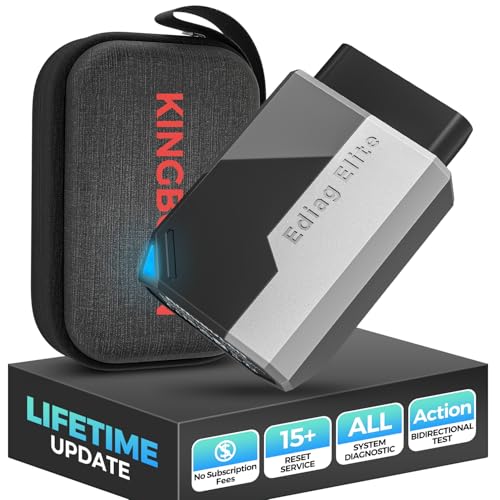
- Obd2 Bluetooth Scanner Lifetime Update: Ediag Elite offers revolutionary Advantage Lifetime Updates with unlimited access to the superior 15 reset service, bidirectional testing and full system diagnostics.The Ediag Elite is an excellent Bluetooth obd2 scanner diagnostic tool ideal for diy's and private car owners
- Bidirectional Control for Quickly Locating Problems: The Bidirectional Scan tool allows you to send commands directly from your smartphone to your vehicle for active testing. This feature helps to quickly narrow down problems such as air conditioning clutches, windows, doors, sunroofs, etc., reducing diagnostic time for mechanics and helping Diy users locate faults more easily. In addition, Ediag Elite provides fault analysis and repair guidance to help you solve problems efficiently.
- 15 Maintenance Resets: The current version introduces 15 popular special features: Oil Reset, Headlight Matching, Bleeding Reset, TPMS Reset, BMS Reset, Gear Box Relearn, Throttle Learning, Injector Coding, SAS Reset and more special functions in system diagnose menu. These functions make it easy for owners to carry out the necessary maintenance and servicing, ensuring that your vehicle stays in top condition, prolonging its service life and preventing common problems and breakdowns. Note: The Special function vary by model& year, Reach us check compatibility.
- Wide Compatibility CANFD & FCA
 Autoauth: Compatible with GM, Ford, Toyota, Chrysler, Honda, Mazda, Nissan, Mitsubishi, Hyundai, KIA with standard OBD2 port from 1996 to newer. More car brands and features will be released gradually. Newest Ediag Elite scanner supports CANFD Protocol and FCA cars. Note: Coverage may vary on different vehicle by model& year ,Please contact us to confirm compatibility before purchase.
 - Perfect for Monitoring The Health of Your Vehicle: Ediag Elite is designed to make vehicle maintenance simple and efficient. With intelligent AutoVIN quick recognition, it is easy to connect to your car without the need for manual input. Real-time data is visualized in a variety of formats, including graphs, numeric, meter displays and clear 4-in-1 data charts, allowing you to effortlessly monitor real-time data. Data logging/reporting is available for playback and further analysis.
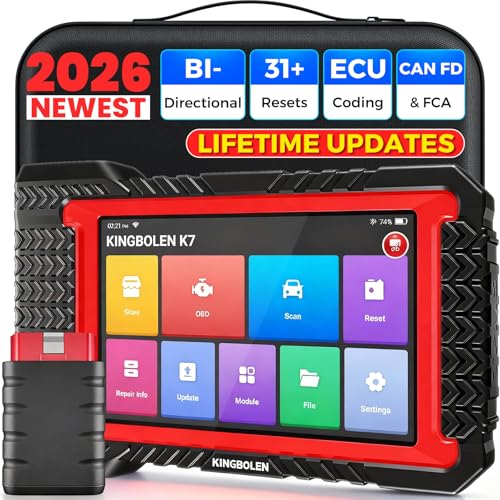
- No Annual Fees & 2026 Upgraded CAN FD: Why pay $199/year or more for updates? The 2026 newest Kingbolen K7 obd2 scanner features have been upgraded to Lifetime Updates without subscription fees, saving you significant costs in the long run. K7 scan tool also adds the CAN FD protocol for the latest GM models (2019+), enabling faster data transfer, reducing the risk of undetected errors
- 2026 Newest Top-tier Car Scanner: Kingbolen K7 diagnostic scan tool is equipped with most capabilities for daily repair/maintenance: Wireless diagnosis via Bluetooth, Bidirectional Test, ECU Online/Offline Code, 31+ Resets, PMI for Ford, Lincoln, Mazda, Global version for 100+ brand vehicles and 17 languages, no area limit, FCA AutoAuth
- OE-Level Full Systems Scan Tool: K7 professional diagnostic scanner with Auto Vin can do one-click to scan ECUs on most of vehicles, like pcm, ecm, eps, bcm, tpms, sas, a/c system... to read/clear code, view live data, freeze frame, read ecu info. 4-in-1 data stream graphics can make data viewing more intuitive. Detailed diagnostic reports will help you easily master the car situation as it can be shared by bluetooth or email! Adding workshop information can help your customers to know more
- Bidirectional Test/Active Test & ECU Code: Stop guessing and start fixing. Bidirectional scan tool Kingbolen K7 can perform real active test that can send commands to the vehicle's ECU to drive the actuators to work, like window, rear mirrors, sunroof, door, solenoids, wipers, headlamp, etc, helping you quickly find out bad parts and pinpoint faulty issues. K7 bidirectional scanner will be a good choice to save money and time on car repairs when performing complex maintenance and repair
- 31 Reset Functions: Avoid expensive dealership visits for simple services. Experience tells us that just a small repair service may cost a lot of money. Kingbolen K7 is a professional diagnostic scanner with 31 common maintenance services like Oil /SAS/EPB/TPMS Reset, Battery Matching, ABS Bleeding, Injector Code, etc. It effectively handles most of the car reset and relearning jobs, perfect for experienced DIYers and mechanics. Note: Functions in the menu vary across vehicles. Kindly check the compatibility before purchase
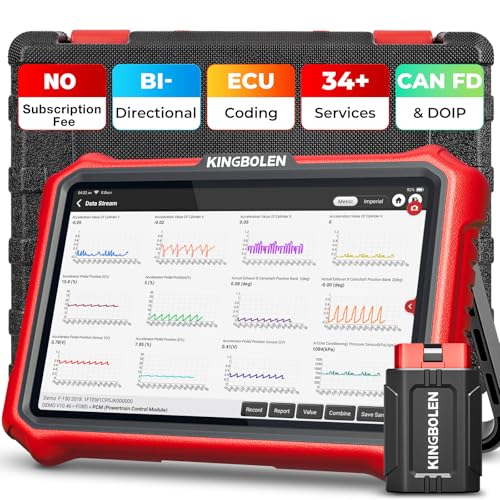
- 【Lifetime Database & Software Updates— No Subscription Fee, No Feature Lock, Save you $399/Y】KINGBOLEN K8 Pro's software can already be permanently upgraded and used for while software of other same price product still needs annual fee of almost $400. K8 pro scanner has packed all capabilities auto technicians would ever need for repair & maintenance services: Added CAN-FD & DOIP protocol, Bluetooth Wireless Diagnosis, Bidirectional Test, ECU Online/Offline Code & Guided Functions for VW, for Audi...34+ Restes, Autoauth for FCA SGW, Larger 4GB+64GB memory, 12600mAh battery, 8'' touch screen with 1280 * 800 Resolution. A Kickstand can allow the tablet to sit at a comfortable angle
- 【Newly Added CAN FD & DOIP Protocol】As Upgrade Version of Kingbolen K8, K8 Pro obd2 scanner supports CANFD and DOIP protocol, which will save you 200+ bucks as no need extra buy for special adapter. CANFD protocol suits for the latest GM(2019-), reducing the risk of undetected errors. The DoIP protocol (comes with DoIp cable) fits for 2017+ BMW(F&G chassis), for Jaguar & Land Rover after 2017, for Volvo after 2018. Plus, K8 Pro's Memory from 2G+32G expanded to 4G+64G, update period extended from 2 years to permanent
- 【34+ Hot Special Functions & V.A.G Guide】KINGBOLEN K8 pro bluetooth obd2 scanner covers almost all common services including Oil Reset, EPB, SAS, BMS Reset, ABS bleed, Throttle Reset, Suspension, Injector Code, Power Balance, Transmission Adaptation, Fuel Trim Learn, HVAC Control Module Calibrate, Language Change, A/F Settings, Stop/Start Reset, Crankshaft Sensor Relearn, TPMS, PMI function and etc. Imagine how much money and time you spend on car maintenance every year? K8 pro car scanner will be a good helper and saver for your car. V.A.G Guided function provides step-by-step guide to work for Volkswagen/Audi/Skoda. Note: Please send us model/year/vin to check compatibility before order
- 【Powerful Bidirectional Test/Active Test & ECU Code】As a bidirectional scan tool, KINGBOLEN K8 pro allows you to request information from a vehicle's ECU or send commands to the vehicle's modules to perform specific tests and functions, such as EVAP Tests, Turn on/off radiator fan, Window/Mirror/Door Lock Test, Pump and Value Tests, Sound horn Test, et. Without using the vehicle control system and dismantling car’s parts, it can quickly and accurately pinpoint the fault causes, simple operation saves time and money
- 【Wireless OE-Level All Systems Diagnostics】Equipped with Bluetooth VCI, you can do car diagnostics out of the car (up to 33F/10M) without being confined to a small space inside the car. Provides the convenience of Auto VIN, K8 pro allowing for easy access and diagnosis of all available modules on a wide range of vehicles, like PCM, ECM, BCM, TPMS, SAS, Fuel System, etc, to perform read/clear codes, view live data, freeze frame, perform active tests, and read ECU info... 12-In-1 Data Stream Graphics make data viewing more intuitive.Diagnostic reports can be shared via QR Code, Bluetooth or email.Built-in Browser and Fault Code Library allows you directly query the fault code when diagnosing
Last update on 2026-06-23 / Affiliate links / Images from Amazon Product Advertising API
This product presentation was made with AAWP plugin.