
NHTSA ID Number: 10120171
Manufacturer Communication Number: VOS-14-16
TSB/Document Date: 2017-10-21
Summary
Service Information (ODIS Service Installation Phase 1 - Preparation & License Request Instructions (eShop)): The initial installation of ODIS Service on VAS diagnostic devices is broken down into 3 separate installation instruction ?Phases?. Phases 1 through 3 must be performed on one device at a time to completion prior to using ODIS Service. All Phase instructions are published separately on ServiceNet. The new device preparation and ODIS Service software license request processes are described in this document.
Service Information
Offboard Diagnostic Information System Service (ODIS Service)
Subject: ODIS Service Installation Phase 1 - Preparation &
License Request Instructions (eShop)
Number: VOS-14-16
Date: June 10, 2014
Supersedes VOS-14-11: Windows® XP references deleted.
Table of Contents
Page
Section
1.0
Introduction - Must Read!
2
1.1
General Information
2
1.2
License Request Process Overview
2
2.0
Process Recommendations
2
3.0
Device Preparation
3
3.1
Diagnostic Device Eligibility
3
3.2
Device Hardware & Network Prerequisites
3
3.3
Supplementary Materials
3
3.4
Assign Device ID
4
3.5
Prepare License & Certificate File Management Folder
4
4.0
License Request (eShop)
5
5.0
Download License File
13
Notes:
• The following procedures must be performed by qualified personnel only!
• Please read these instructions in their entirety before performing these procedures. If you do not
have previous experience loading software or do not understand these instructions,
arrange to have a qualified person perform these procedures.
• Heed all prerequisite requirements and notes, and follow all instruction steps in the Section
order given, including instructions cross-referenced in documents posted on ServiceNet.
• Perform the procedures in an area that is quiet, clean and without distraction or interruption.
• Discard all printed copies of this document after use. Revised versions may be issued at any
time. Always check ServiceNet for the latest version.
Page 1 of 16
© 2014 Volkswagen Group of America, Inc.
All rights reserved. Information contained in this document is based on the latest information available at the time of printing and is subject to the copyright and other intellectual
property rights of Volkswagen Group of America, Inc., its affiliated companies and its licensors. All rights are reserved to make changes at any time without notice. No part of this
document may be reproduced, stored in a retrieval system, or transmitted in any form or by any means, electronic, mechanical, photocopying, recording, or otherwise, nor may these
materials be modified or reposted to other sites, without the prior expressed written permission of the publisher.
Service Information
1.0 – Introduction
1.1 – General Information
The initial installation of ODIS Service on VAS diagnostic devices is broken down into 3 separate
installation instruction “Phases”. Phases 1 through 3 must be performed on one device at a time to
completion prior to using ODIS Service. All Phase instructions are published separately on ServiceNet.
The new device preparation and ODIS Service software license request processes are described in
this document. If an installed license is corrupted, or the original or backup copy of the license file is
misplaced, use these instructions to request and download a replacement license. In these cases, identify
and locate the applicable section from the Table of Contents.
Completion of these Phase 1 instructions on new devices is prerequisite to performing ODIS Service
Installation Phase 2 – Software Installation & Configuration.
The navigation and prompt screenshots described and illustrated in this document apply to eligible VAS
diagnostic devices with Windows 7.
1.2 – License Request Process Overview
• After the recommended personnel and device preparation steps are completed, license requests
are submitted online via the eShop V2.0 application administered by VWAG.
• The online license request must be made using the diagnostic device on which ODIS Service will
be installed. The license file is associated with the diagnostic devices’ unique hardware key.
• The online request process takes approximately 10 minutes.
• Regardless if license requests are made for a single-brand dealer or a dual-brand dealer, only one
license file is needed per device. The license file determines the brand-specific diagnostic data
(single or dual) installed during the ODIS Service installation routine.
• After submission, each license request is reviewed by VWGoA and approved as applicable.
• When the license request is received and approved, confirmation emails are sent to the email
address entered during the request process. (Please ensure that a valid email address is
entered in the request. VWGoA and VWAG are not responsible for misdirected license request
approval emails).
• License requests submitted before 1:00 PM EST are typically approved within three hours.
License requests submitted after 1:00 PM EST may take up to one business day to be
approved.
• When approved, the license file is downloaded from eShop to the diagnostic device.
2.0 – Process Recommendations
Individuals tasked with device preparation and license requests must be competent with Windows®
operating system fundamentals, software installation and configuration, and have access to the eShop
and eCRMS applications on vwhub & ServiceNet. Access to an email account is also required. We
recommend that the same individual perform the entire installation process:
1.
2.
3.
4.
Prepare the device, request the license and manage the license file (Phase 1)
Install and configure the ODIS Service software (Phase 2)
Request and install the ODIS Service security certificate (Phase 3)
Set up the Infomedia functions where applicable.
Page 2 of 16
© 2014 Volkswagen Group of America, Inc.
All rights reserved. Information contained in this document is based on the latest information available at the time of printing and is subject to the copyright and other intellectual
property rights of Volkswagen Group of America, Inc., its affiliated companies and its licensors. All rights are reserved to make changes at any time without notice. No part of this
document may be reproduced, stored in a retrieval system, or transmitted in any form or by any means, electronic, mechanical, photocopying, recording, or otherwise, nor may these
materials be modified or reposted to other sites, without the prior expressed written permission of the publisher.
Service Information
3.0 – Device Preparation
Checkboxes are provided throughout this document to note fulfilled prerequisites and completed sections.
3.1 – Diagnostic Device Eligibility
The following VAS diagnostic devices are currently eligible for ODIS Service installation
Model Number
Type
Notes
VAS 6150A
VAS 6150B
VAS 6150C
VAS 6160
VAS 6160A
Tablet
Eligible VAS diagnostic devices must
either be upgraded from Windows XP
to Windows 7 using the VWGoA
supplied DVDs, or have Windows 7
installed from new.
ATTENTION!
Installation on commercially available laptop and tablet devices is not supported. License
requests for non VAS-diagnostic devices are rejected.
3.2 – Device Hardware & Network Prerequisites
ONE eligible device chosen as specified above.
Required Microsoft® Internet Explorer (IE) version: IE 9*
Device must have a functional CD/DVD drive and USB functions.
Network connection via Ethernet cable or WLAN enabled.
Antivirus software temporarily disabled (where applicable).
Device connected to A/C power adapter and booted to Windows desktop.
VAS Diagnostic Tablets: Connect USB mouse and keyboard for easier input.
*ATTENTION!
License requests from IE10 or IE11 are not possible. For details refer to Service Information –
ODIS Service document title: Microsoft® Internet Explorer Version Requirement - Configure
Windows® 7 Updates
3.3 – Supplementary Materials
Error-free license requests and software installations rely on identifying all individual devices in service.
To enable this, we recommend obtaining the following:
Self-adhesive labels.
Optional: Permanent marker.
Continued …4/
Page 3 of 16
© 2014 Volkswagen Group of America, Inc.
All rights reserved. Information contained in this document is based on the latest information available at the time of printing and is subject to the copyright and other intellectual
property rights of Volkswagen Group of America, Inc., its affiliated companies and its licensors. All rights are reserved to make changes at any time without notice. No part of this
document may be reproduced, stored in a retrieval system, or transmitted in any form or by any means, electronic, mechanical, photocopying, recording, or otherwise, nor may these
materials be modified or reposted to other sites, without the prior expressed written permission of the publisher.
Service Information
3.4 – Assign Device ID
Existing diagnostic device: To request a replacement license, the previously-assigned device ID
will suffice. Skip to Section 3.5 below.
New diagnostic device: Assign a device ID using the method suggested below:
1. Apply a self-adhesive label to the new device in a clean, conspicuous area.
2. Mark the new devices’ model designation along with a numeric descriptor on the label as per the
following suggestion:
•
6150C_1, 6160A_1 (The underscore 1 indicates only one of each device is in service).
•
6150C_1, 6150C_2, 6150C_3 etc. (The underscore numbers indicate more than one of the
same device are in service).
If self-adhesive labels are not available, neatly mark the device ID on the device with permanent marker.
3.5 – Prepare License & Certificate File Management Folder
The diagnostic devices’ alpha-numeric hardware key is determined and recorded during the eShop
license request process.
When available, the license and certificate files are downloaded and stored in a prepared folder on the
diagnostic device’s Windows desktop prior to their installation during Phase 2 and Phase 3.
Following is a suggested method to prepare the folder etc. for the license and certificate files, and record
the device hardware key for retrieval later.
1. Create an empty folder on the Windows desktop: right-click > New > Folder
2. Name the folder with the device ID either previously-assigned or newly-assigned in Section 3.4. This
folder is referenced throughout the remaining instructions as the “device folder”.
3. Open the device folder and create two subfolders: Name one folder “License” and the other folder
“Certificate”.
4. Create a Text document in the device folder: right-click > New > Text document. Save the
document as: “Hardware Key”.
Device folder example:
Device Preparation steps completed. Proceed to Section 4.0 – Page 5.
Page 4 of 16
© 2014 Volkswagen Group of America, Inc.
All rights reserved. Information contained in this document is based on the latest information available at the time of printing and is subject to the copyright and other intellectual
property rights of Volkswagen Group of America, Inc., its affiliated companies and its licensors. All rights are reserved to make changes at any time without notice. No part of this
document may be reproduced, stored in a retrieval system, or transmitted in any form or by any means, electronic, mechanical, photocopying, recording, or otherwise, nor may these
materials be modified or reposted to other sites, without the prior expressed written permission of the publisher.
Service Information
4.0 – License Request (eShop)
Prerequisites:
All Section 3.0 - Preparation steps completed!
Reminder: The diagnostic device on which ODIS Service will be installed must be used to
make the license request.
1. Launch Internet Explorer (IE9 required) and logon to ServiceNet.
2. Go to: Workshop Equipment > Offboard Diagnostic Information System Service (ODIS Service).
3. Optional: Logon to vwhub and go to My Page or Service > Related Sites.
4. Click on the link to ODIS eShop.
Note:
First time users of eShop are prompted to register first before proceeding. Click the Registration
icon and fill in the required information. When done, click the Register button, confirm the entered
information, and then click Back to home page.
5. Check the eShop version displayed below the Navigation menu: Must be 2.000 or higher:
6. Click the Products Overview Icon:
Continued …6/
Page 5 of 16
© 2014 Volkswagen Group of America, Inc.
All rights reserved. Information contained in this document is based on the latest information available at the time of printing and is subject to the copyright and other intellectual
property rights of Volkswagen Group of America, Inc., its affiliated companies and its licensors. All rights are reserved to make changes at any time without notice. No part of this
document may be reproduced, stored in a retrieval system, or transmitted in any form or by any means, electronic, mechanical, photocopying, recording, or otherwise, nor may these
materials be modified or reposted to other sites, without the prior expressed written permission of the publisher.
Service Information
6.
Select Offboard Diagnostic System Service via the Action arrow icon: If two selections appear as
illustrated below, select either one:
7. Click the shopping cart icon for a brand product. Wait a moment, and then proceed as applicable:
Single-brand dealer: Click To the basket:
Dual-brand dealer: Click the additional brand shopping cart icon, wait a moment, and then click
To the basket:
Continued …7/
Page 6 of 16
© 2014 Volkswagen Group of America, Inc.
All rights reserved. Information contained in this document is based on the latest information available at the time of printing and is subject to the copyright and other intellectual
property rights of Volkswagen Group of America, Inc., its affiliated companies and its licensors. All rights are reserved to make changes at any time without notice. No part of this
document may be reproduced, stored in a retrieval system, or transmitted in any form or by any means, electronic, mechanical, photocopying, recording, or otherwise, nor may these
materials be modified or reposted to other sites, without the prior expressed written permission of the publisher.
Service Information
Note:
Dual-brand dealers must ALWAYS select both brand products during the request process!
8. Click To the order:
DO NOT change the Quantity dropdown value ( 1 ):
9. Click the hardware key icon (
) for a brand product as illustrated:
Continued …8/
Page 7 of 16
© 2014 Volkswagen Group of America, Inc.
All rights reserved. Information contained in this document is based on the latest information available at the time of printing and is subject to the copyright and other intellectual
property rights of Volkswagen Group of America, Inc., its affiliated companies and its licensors. All rights are reserved to make changes at any time without notice. No part of this
document may be reproduced, stored in a retrieval system, or transmitted in any form or by any means, electronic, mechanical, photocopying, recording, or otherwise, nor may these
materials be modified or reposted to other sites, without the prior expressed written permission of the publisher.
Service Information
10. Click Run:
11. Click Run:
12. Click OK. The alpha-numeric hardware key is saved in Windows “clipboard” memory:
13. Right-click a Hardware key entry field for a Brand product and Paste the hardware key (saved in
clipboard memory) into the field:
Continued …9/
Page 8 of 16
© 2014 Volkswagen Group of America, Inc.
All rights reserved. Information contained in this document is based on the latest information available at the time of printing and is subject to the copyright and other intellectual
property rights of Volkswagen Group of America, Inc., its affiliated companies and its licensors. All rights are reserved to make changes at any time without notice. No part of this
document may be reproduced, stored in a retrieval system, or transmitted in any form or by any means, electronic, mechanical, photocopying, recording, or otherwise, nor may these
materials be modified or reposted to other sites, without the prior expressed written permission of the publisher.
Service Information
14. Right-click the computer designation/description field for the same Brand product and Paste the
hardware key into the field:
15. Dual-brand requests: Repeat steps 13 and 14 to populate (Paste) the hardware key in the
remaining Brand Hardware key AND computer designation entry fields as illustrated:
Page 9 of 16
© 2014 Volkswagen Group of America, Inc.
All rights reserved. Information contained in this document is based on the latest information available at the time of printing and is subject to the copyright and other intellectual
property rights of Volkswagen Group of America, Inc., its affiliated companies and its licensors. All rights are reserved to make changes at any time without notice. No part of this
document may be reproduced, stored in a retrieval system, or transmitted in any form or by any means, electronic, mechanical, photocopying, recording, or otherwise, nor may these
materials be modified or reposted to other sites, without the prior expressed written permission of the publisher.
Service Information
16. Minimize the Internet Explorer window with the current eShop session.
17. Restore the device folder view and Open the Hardware Key text document created earlier:
18. Paste the hardware key (still saved in clipboard memory) as text into the Hardware Key document.
19. Save and Minimize the document.
20. Minimize the device folder view.
21. Restore the Internet Explorer window with the current eShop session.
22. Confirm the hardware key is saved in All Hardware key AND computer designation entry fields as
illustrated, and then click To the order:
IMPORTANT!
All Hardware key AND computer designation entry fields MUST BOTH contain the hardware
key from the device before proceeding with the next steps.
Page 10 of 16
© 2014 Volkswagen Group of America, Inc.
All rights reserved. Information contained in this document is based on the latest information available at the time of printing and is subject to the copyright and other intellectual
property rights of Volkswagen Group of America, Inc., its affiliated companies and its licensors. All rights are reserved to make changes at any time without notice. No part of this
document may be reproduced, stored in a retrieval system, or transmitted in any form or by any means, electronic, mechanical, photocopying, recording, or otherwise, nor may these
materials be modified or reposted to other sites, without the prior expressed written permission of the publisher.
Service Information
23. Confirm that the requested products appear in the top portion of the Order (delivery data) display.
24. Check the I accept the general terms of business selection, enter the email address to which the
license request confirmation emails will be sent, and then click Check order:
25. Confirm the highlighted email address, and then click Order to submit the license request:
Continued …12/
Page 11 of 16
© 2014 Volkswagen Group of America, Inc.
All rights reserved. Information contained in this document is based on the latest information available at the time of printing and is subject to the copyright and other intellectual
property rights of Volkswagen Group of America, Inc., its affiliated companies and its licensors. All rights are reserved to make changes at any time without notice. No part of this
document may be reproduced, stored in a retrieval system, or transmitted in any form or by any means, electronic, mechanical, photocopying, recording, or otherwise, nor may these
materials be modified or reposted to other sites, without the prior expressed written permission of the publisher.
Service Information
26. Click the Order (HTML) link:
27. Locate and note the Order Number from the HTML document.
28. Restore the Hardware Key document previously saved and minimized.
29. Record the order number and request date in the Hardware Key document for future reference.
Optional: Select, Copy and Paste the contents of the Order HTML document into the text document.
30. Save and Close the Hardware Key document, and Close the device folder.
31. Close the Order HTML document.
32. From the eShop Navigation menu, click To the dealer portal:
33. From the Dealer portal, click Logout and then Close Internet Explorer.
License Request steps completed. Proceed to Section 5.0 – Page 13.
ATTENTION!
In order to prevent license file installation errors during Installation Phase 2, it is imperative that
each hardware key is accurately associated with a device ID and license request order number.
Accurate record-keeping now will prevent problems and delays later!
Page 12 of 16
© 2014 Volkswagen Group of America, Inc.
All rights reserved. Information contained in this document is based on the latest information available at the time of printing and is subject to the copyright and other intellectual
property rights of Volkswagen Group of America, Inc., its affiliated companies and its licensors. All rights are reserved to make changes at any time without notice. No part of this
document may be reproduced, stored in a retrieval system, or transmitted in any form or by any means, electronic, mechanical, photocopying, recording, or otherwise, nor may these
materials be modified or reposted to other sites, without the prior expressed written permission of the publisher.
Service Information
5.0 – Download License File
Two emails are sent to the email address entered in the license request:
The first email confirms that the license request is staged for review and approval.
Followed thereafter by…
A second email which notifies that the license request is approved.
Sample:
If a request is submitted for a non-authorized device or the hardware key is missing from the request,
license request denials are sent via the second email.
ATTENTION!
WAIT until the license approval notification email is received before proceeding with the
following procedure.
After the license approval notification email is received, proceed as follows:
1. Note the order number and date from the approval notification email.
2. Retrieve the diagnostic device on which the license request was made.
3. From the Windows desktop, locate and Open the previously-prepared device folder.
4. Open the Hardware Key document created earlier:
5. Confirm that the order number recorded in the Hardware Key document is the same as that in the
license approval notification email, and then Close the document.
6. Launch Internet Explorer and go to: Workshop Equipment > Offboard Diagnostic Information
System Service (ODIS Service).
7. Optional: Logon to vwhub and go to My Page or Service > Related Sites.
Continued …14/
Page 13 of 16
© 2014 Volkswagen Group of America, Inc.
All rights reserved. Information contained in this document is based on the latest information available at the time of printing and is subject to the copyright and other intellectual
property rights of Volkswagen Group of America, Inc., its affiliated companies and its licensors. All rights are reserved to make changes at any time without notice. No part of this
document may be reproduced, stored in a retrieval system, or transmitted in any form or by any means, electronic, mechanical, photocopying, recording, or otherwise, nor may these
materials be modified or reposted to other sites, without the prior expressed written permission of the publisher.
Service Information
8. Click on the link to ODIS eShop and confirm the eShop version indicated below the Navigation menu
is 2.000 or higher:
9. From the eShop Navigation menu, select License:
10. Confirm that the Creation date of the available license matches that in the approval notification
email, then click the File download arrow:
US-CDNXXXXX
Continued …15/
Page 14 of 16
© 2014 Volkswagen Group of America, Inc.
All rights reserved. Information contained in this document is based on the latest information available at the time of printing and is subject to the copyright and other intellectual
property rights of Volkswagen Group of America, Inc., its affiliated companies and its licensors. All rights are reserved to make changes at any time without notice. No part of this
document may be reproduced, stored in a retrieval system, or transmitted in any form or by any means, electronic, mechanical, photocopying, recording, or otherwise, nor may these
materials be modified or reposted to other sites, without the prior expressed written permission of the publisher.
Service Information
11. Click the dropdown selection arrow:
12. Select Save As:
13. Navigate to the Desktop, and then locate and Open the device folder.
14. Open the License subfolder:
15. Click Save:
Continued …16/
Page 15 of 16
© 2014 Volkswagen Group of America, Inc.
All rights reserved. Information contained in this document is based on the latest information available at the time of printing and is subject to the copyright and other intellectual
property rights of Volkswagen Group of America, Inc., its affiliated companies and its licensors. All rights are reserved to make changes at any time without notice. No part of this
document may be reproduced, stored in a retrieval system, or transmitted in any form or by any means, electronic, mechanical, photocopying, recording, or otherwise, nor may these
materials be modified or reposted to other sites, without the prior expressed written permission of the publisher.
Service Information
16. From the eShop Navigation menu, click To the dealer portal:
17. From the Dealer portal, click Logout and then Close Internet Explorer.
Notes:
• Please ensure that the device’s license.dat file was successfully saved in the License
subfolder. If the license file was not successfully saved, repeat Steps 6 through 15.
• Do not proceed to Installation Phase 2 if the license is not downloaded and saved as
specified above. The saved license file will be accessed and installed during the ODIS
Service Installation Phase 2 - Software & Configuration process.
• Do not double-click on the license file (to open it) in its saved location!
License Request and License File Download steps completed.
Proceed with Installation Phase 2. Refer to Service Information – ODIS Service document title:
ODIS Service Installation Phase 2 – Software Installation & Configuration Instructions.
Page 16 of 16
© 2014 Volkswagen Group of America, Inc.
All rights reserved. Information contained in this document is based on the latest information available at the time of printing and is subject to the copyright and other intellectual
property rights of Volkswagen Group of America, Inc., its affiliated companies and its licensors. All rights are reserved to make changes at any time without notice. No part of this
document may be reproduced, stored in a retrieval system, or transmitted in any form or by any means, electronic, mechanical, photocopying, recording, or otherwise, nor may these
materials be modified or reposted to other sites, without the prior expressed written permission of the publisher.

- Advanced VCI Box, Industry-leading J2534 Pass-Thru...
- High-Speed OEM-Level Diagnostics & Programming: Unlock true...
- Coverage for 17 Car Brands & Ultra Reliability: Works...
- User-Friendly RLink Platform & Expert Support: TOPDON’s...
- 6.6 ft USB-C Cable & Portable Storage Case: The RLink J...
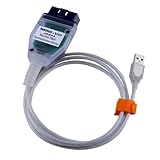
Last update on 2026-06-12 / Affiliate links / Images from Amazon Product Advertising API
If the PDF is very large, it may not load in the preview below.
Some older TSBs had multiple PDFs — visit the NHTSA Website to view all PDFs.
If the TSB PDF does not show, download or view it on the NHTSA Website.
Click on the (+) Plus Sign
Then Click on Associated Document(s)
Search NHTSA Database for Recalls
Search NHTSA Database for Vehicle Investigations
View Latest Vehicle Investigations
Search NHTSA Database for Vehicle Complaints
View Latest Vehicle Complaints
TSB/Document ID: VOS-14-16
Replacement Service Bulletin Number:
MFR Communication Date: 2014-06-10
MFR Internal Campaign ID/Software Version:
Communication Type: Service Bulletin/Repair Instructions
NHTSA Components: EQUIPMENT:OTHER:OWNERS/SERVICE/OTHER MANUAL
MFR Component System:
MFR Component Subsystem:
Previous TSB | Next TSB |

- Stay Updated with Lifetime Access: This obd2 scanner includes lifetime free software updates for all app service functions. With a single payment, enjoy full access to diagnostics, reset tools, and maintenance features — zero subscription fees. A budget-friendly choice for weekend mechanics, home car owners, and DIYers, supporting vehicles from 1996 onward. Come to us with your VIN to check compatibility.
- Full Bidirectional Control/Active Tests & Stable Wireless Connectivity: This car code reader features full bidirectional control, allowing you to send commands to the vehicle's ECU for active tests on components such as fuel pumps, injectors, A/C clutches, windows, sunroofs, and more. This car scanner diagnostic tool helps DIYers quickly diagnose and test vehicle parts, cutting down troubleshooting and repair time. With BT 4.0 wireless connectivity, you can enjoy cable-free diagnostics up to 33 feet. Stand in your garage and test windows, wipers, or even engine components—all without needing to move around your car.
- Portable Car Scanner with 26 Special Functions: Scheduled vehicle maintenance with the A30M car diagnostic scanner can keep your vehicle in peak condition and save you big on dealership trips. The XTOOL A30M obd2 scanner diagnostic tool features essential reset and relearn functions, such as Oil Reset, EPB Reset (Electronic Parking Brake Release), SAS, ABS Brake Bleeding, Throttle Body Relearn, Injector Coding, Crank Sensor Relearn, Headlight Adjustment, and Tire Size Reset. Note: Service functions may vary by vehicle model – check compatibility beforehand!
- Wide Compatibility CAN FD & FCA
 Autoauth: This obd2 scanner diagnostic tool is compatible with over 85+ car brands from the U.S., Europe, and Asia, providing extensive coverage through a BT connection with your smartphone or iPad. Now upgraded to support the latest protocols, it includes FCA AutoAuth access for Chrysler, Jeep, Dodge, and Fiat (2018+), and supports CAN FD for GM (2020+) models, giving you greater access to newer vehicles and systems. Note: The FCA AutoAuth account is not included with the device. Users must register and pay separately through the official FCA AutoAuth website to access diagnostic functions for vehicles that require it.
 - Up to 8 Live Data Streams Graphing – Real-Time Graphing for Deeper Insight: This car scanner supports up to 8 live data streams simultaneously with intuitive, real-time graphing. Gain comprehensive insights into your vehicle’s performance, making it easier to spot issues, detect trends, and make informed diagnostic decisions with confidence.
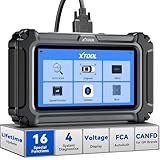
- Comprehensive OBD2 Scanner with 16 Resets: The XTOOL D5S car code reader and vehicle reset tool provides an advanced diagnostic solution with 16 commonly needed reset functions, including Electronic Parking Brake Reset (EPB Reset), SAS, BMS Reset (Battery Test), Throttle Body Relearn, TPMS Reset, ABS Bleeding, Injector Coding, Gearbox Match, Suspension Adjustment, Headlight, Window Initialization, Crank Sensor Relearn and more. Equipped with CAN FD Protocol and FAC AutoAuth, the D5S obd2 scanner diagnostic tool ensures compatibility with a broad range of modern vehicles, allowing users to address common maintenance needs quickly. NOTE: Please Check the Compatibility before ordering.
- 4 Main System Car Scanner & Full OBD2 Diagnostics: The XTOOL D5S car code reader is ideal for home mechanics, DIYers, and professionals, providing access to Transmission/Engine/ABS/SRS systems to read DTCs, Live data can be displayed in text or up to 4 PID data graphs, along with full OBD2 diagnostics to check the engine light on, other obd2 issues and routine maintenance. This car diagnostic scanner ensures you can keep your vehicles in top condition, avoiding costly repairs or unexpected breakdowns. NOTE: Some vehicles display three systems after connection because the transmission and engine of some vehicles are integrated into one.
- Check Engine Code Reader & Real-Time Engine Monitoring: Whether you're a car owner, a DIYer, or run a repair shop, the XTOOL D5S obd2 scanner diagnostic tool makes engine diagnostics fast and frustration-free, reading and explaining trouble codes in seconds—no confusion. Check live data like fuel trim, 02 sensor voltage, RPM, and coolant temp to pinpoint mis~fires, rough idle, or sensor issues. After repairs, simply use the D5S check engine code reader and reset tool to turn off the check engine light and confirm the problem’s fixed—saving time, money, and unnecessary shop visits. - Note: If the check engine light comes back on, it indicates the original problem still exists.
- Portable Car Scanner for ABS and SRS: XTOOL D5S gives you peace of mind when ABS or airbag warning lights come on. It reads and clears ABS codes to help you fix brake sensor, traction control, or wheel speed issues, and supports ABS bleeding after repairs like caliper or master cylinder replacement. For airbag systems, it scans and clears SRS codes related to airbags, seatbelt tensioners, and crash sensors. Whether you're doing repairs at home or running a small shop, the D5S is a cost-effective solution for safety diagnostics. Note: If a fault code returns after clearing, it usually means the issue hasn’t been fully resolved. Please check the compatibility before ordering.
- Transmission Warning Light ON? Here’s the Transmission Diagnostic and Reset Tool You Need: The XTOOL D5S is more than just a basic car scanner—it’s an easy-to-use transmission diagnostic tool. From rough shifts to slipping gears, the D5S lets you read and clear transmission trouble codes, monitor real-time TCM data, and perform transmission resets after fluid changes or repairs. Whether you’re a hands-on car owner or a pro running a busy shop, this OBD2 scanner with transmission functions helps you catch problems early—saving you time, money, and future headaches.. Note: Clearing fault codes is equivalent to a reset on some vehicles, but not all. For help, contact XTOOL Tech Support.
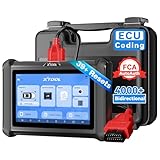
- Top Reasons to Choose the D7S OBD2 Scanner: XTOOL D7S car scan tool, an upgrade of XTOOL D7, offers comprehensive features for automotive technicians, workshops, and DIY enthusiasts 1. Upgraded Hardware: 2+64GB memory, rear camera, intuitive interface, foldable bracket 2. Complete Diagnostics: FCA Autoauth, OE-level all system scan, 39+ maintenance services, 4K+ bidirectional, CANFD/DoIP protocol 3. Advanced Capabilities: ECU c0ding, PMI functions 4. Wide Compatibility: Support 10,000+ models, covering 99% vehicle brands 5. Multi-language: Available in 22+ languages, No IP Restrictions 6. 3-Year Updates: Save 300 bucks on software updates for the latest features and optimizations
- 2026 Upgraded D7S Car Scanner Features: The newly 2026 D7S V2.0 scanner for car brings exciting features for advanced vehicle diagnostics and enhanced user experience 1. FCA AutoAuth: Now supports FCA SGW module for Chrysler, for Jeep, for Dodge (2018+), for Fiat (2017+), enabling faster vehicle communication without gateway restrictions 2. PMI (Offline ECU Pr0gramming): Allows for Ford, for Lincoln, and for Mazda ECU pr0gramming for new modules 3. Optimized Diagnostic Report 2.0: Personalized reports with logos and customer info for auto shops. Note: Compatibility varies by cars, please check before order
- 39+ Services/Resets/Adaptations/Relearns/Calibrations: XTOOL D7S full system car scanner diagnostic tool tackles 99% of common car issues through its 36+ special functions, including Oil Reset, EPB, SAS, BMS, Throttle Reset, Injector C0ding, ABS Bleed, TPMS Reset, Power Balance, etc and also covers specific-vehicle functions like Crank Sensor Relearn, ABS Initialization, Cylinder Power Balance, Fuel Trim Reset, Idle Relearn etc. This car diagnostic scanner enhances efficiency, making repairs and maintenance hassle-free. Tip: DO NOT for All vehicles, please check compatibility first
- Cost-effective ECU C0ding Scan Tool for Specific Brands: Enhance your vehicle's performance with XTOOL D7S! This obd2 scanner all systems bidirectional offers advanced capabilities at an affordable price, supports online for BMW, for Benz and offline for BENZ, for MIT, along with PMI functions for Ford, for Mazda, and for Lincoln. Ideal for technicians and DIY enthusiasts, this automotive scanner diagnostic tool optimizes vehicle performance and enhances the driving experience. Note: Not for all cars and modules, please send car VIN to check the compatibility before purchase
- OE All System Diagnostic & 8 Pids Graphing: XTOOL D7S is a comprehensive all system bi directional obd2 scanner that delivers dealer-level diagnostics, completely controlling over your vehicle’s performance and health. This automotive scan tool can read and clear DTCs, view live data and ECU information, retrieve freeze frames, and perform active tests and full obd2 functions. This bi-directional scan tool can can identify your vehicle's make, model, and year information with just one click and show up to 8 PIDs live data with options for CSV viewing, playback, and recording for in-depth analysis. It is easy-to-use for both professionals and beginners, helping pinpoint issues efficiently
Last update on 2026-06-12 / Affiliate links / Images from Amazon Product Advertising API
This product presentation was made with AAWP plugin.