
NHTSA ID Number: 10118356
Manufacturer Communication Number: A911630 2039515-
TSB/Document Date: 2017-10-04
Summary
The customer complains that the Audi connect online service in their 2012-2013 A6 or A7 vehicle only reaches 2G service. The customer has received a letter from T-Mobile and/or Audi of America regarding the issue. The VIN on the letter matches the VIN on the vehicle that is being serviced. The vehicle can be within or outside of the New Vehicle Limited Warranty. A telephone module that supports 3G service on the 1900MHZ band was installed beginning with model year 2014 vehicles. No repairs are necessary for model year 2014 vehicles and later. Video shows the service procedure.
Technical Service Bulletin
91 MMI3G+ Audi connect only reaches 2G service - Telephone module replacement instructions for A6 &
A7
91 16 30 2039515/6 February 25, 2016. Supersedes Technical Service Bulletin Group 91 number 15-20 dated
October 16, 2015 for reasons listed below.
Model(s)
Year
VIN Range
Vehicle-Specific Equipment
A6, A7
2011 - 2013
All
Audi connect
Condition
REVISION HISTORY
Revision
Date
Purpose
6
-
Revised Service (Removed affected cities; added information about notification
letter)
Revised Warranty (Changed labor code for SVM update)
5
10/16/2015
Revised Condition (Updated affected areas)
Revised Service (Added note about updated part number and moved driver script
after ZUG update)
4
7/28/2015
Revised Condition (Updated affected areas)
Revised Warranty (Added labor time; added GFF time)
• The customer complains that the Audi connect online service in their 2012-2013 A6 or A7 vehicle only reaches
2G service.
• The customer has received a letter from T-Mobile and/or Audi of America regarding the issue.
• The VIN on the letter matches the VIN on the vehicle that is being serviced. The vehicle can be within or
outside of the New Vehicle Limited Warranty.
Tip: This bulletin applies only to model year 2012-2013 A6 and A7 vehicles. For other models, see TSB
2039476. This bulletin does not apply to model year 2014 or newer. Starting with model year 2014, the new
telephone module was installed in production.
© 2016 Audi of America, Inc.
Page 1 of 14
All rights reserved. Information contained in this document is based on the latest information available at the time of printing and is subject to the copyright and other intellectual property rights of
Audi of America, Inc., its affiliated companies and its licensors. All rights are reserved to make changes at any time without notice. No part of this document may be reproduced, stored in a retrieval
system, or transmitted in any form or by any means, electronic, mechanical, photocopying, recording, or otherwise, nor may these materials be modified or reposted to other sites, without the prior
expressed written permission of the publisher.
Technical Service Bulletin
Technical Background
Recently, T-Mobile (the service provider for Audi connect) has repurposed some of the GSM spectrum (3G on
2100Mhz band) to maximize 4G LTE coverage in certain metropolitan areas.
Devices that do not support 3G service on the 1900MHZ band (including MMI main units of model year 2012-2013
A6 and A7 vehicles) will only receive 2G service when the switch is completed.
Production Solution
A telephone module that supports 3G service on the 1900MHZ band was installed beginning with model year 2014
vehicles. No repairs are necessary for model year 2014 vehicles and later.
Service
The telephone module can be replaced with an upgraded module that supports the additional 3G GSM
spectrum. In some cases, only an MMI software update is required.
Tip: The upgraded telephone module will only allow 3G to be received again in markets where T-Mobile has
repurposed the GSM spectrum for 4G LTE. It will not allow Audi connect to receive 4G LTE, which is not possible
with the MMI3G+ hardware.
Before starting the repair:
• Check the part number label of the currently-installed MMI main unit. If
the MMI main unit was replaced due to a GPS location issue, the
updated part already contains the newer UMTS Telephone
Module. The updated part number is 4G0035746E, 4G0035746F,
4G0035746G, or 4G0035746H. If the part number suffix matches, the
hardware repair is not required. If the customer is allowed to switch to
AT&T and already has the updated part, an MMI software update may
be required. If so, skip to the Software updates section below.
• Review the Required Parts and Tools section of this bulletin.
• Obtain the telephone module retrofit kit listed in the Required Parts and
Tools section of this bulletin (if needed).
• Obtain the ZUG K0814 update on SD card listed in the Required Parts
and Tools section of this bulletin.
• If the hardware module is being swapped:
• Obtain the telephone driver script from ServiceNet
(ServiceNet>>AUDI>>Technician References>>Audi MMI Scripts).
The file name is MMI3GP_UMTS_Driver_Script.zip. Extract the
three files to a separate SD card. Ensure that all three files are
© 2016 Audi of America, Inc.
Figure 1. QR code for viewing the
video with a QR code reader on
phones and tablets. Alternatively, the
video can be accessed through
computer internet browsers at the
link provided in this bulletin.
Page 2 of 14
All rights reserved. Information contained in this document is based on the latest information available at the time of printing and is subject to the copyright and other intellectual property rights of
Audi of America, Inc., its affiliated companies and its licensors. All rights are reserved to make changes at any time without notice. No part of this document may be reproduced, stored in a retrieval
system, or transmitted in any form or by any means, electronic, mechanical, photocopying, recording, or otherwise, nor may these materials be modified or reposted to other sites, without the prior
expressed written permission of the publisher.
Technical Service Bulletin
extracted to the root location on the SD card (do not store the files in
a folder on the SD card and do not copy the zip to the SD card; files
must be extracted).
• Verify that the VAS6613 ESD work surface contains three grounding
straps. The repair cannot be completed without all three grounding
straps, including the ESD mat.
• Watch the “91 MMI3G+ Telephone Module Replacement
Instructions for A6 & A7” video at
• https://audi-external.kzoplatform.com/swf/player/301 (Figure 1).
(See TSB 2039206 for more information about viewing videos.)
Repair procedure if updated hardware is required:
Note:
This exchange of the telephone module should only be performed in a clean environment due to sensitive
electronics. The repair should not be performed in a workshop environment.
1. Remove the MMI main unit from the vehicle according to the instructions in the Elsa Repair Manual at:
Electrical System>>Communication>>91 Communication>>Infotainment System>>Information Electronics
Control Module 1 J794, Removing and Installing.
2. Prepare for the ESD work surface by cleaning the work area of all loose debris and then drying the area with a
towel. Doing so ensures that no debris will be rolled into the mat when it is rolled up after use, which could
cause long-term damage to the ESD work surface.
3. Place the ESD anti-static mat onto the surface. Ensure that all three grounding straps are securely strapped to
the ESD mat.
4. Ground the ESD mat by plugging the 110V grounding
strap into a wall socket or power strip (Figure 2). If a
power strip is used, it must be plugged into a
grounded wall outlet. (See attached user instructions
for VAS6613 titled “VAS6613 ESD Workspace
Guide.pdf”.)
Figure 2. VAS6613 ESD work surface grounding plug.
© 2016 Audi of America, Inc.
Page 3 of 14
All rights reserved. Information contained in this document is based on the latest information available at the time of printing and is subject to the copyright and other intellectual property rights of
Audi of America, Inc., its affiliated companies and its licensors. All rights are reserved to make changes at any time without notice. No part of this document may be reproduced, stored in a retrieval
system, or transmitted in any form or by any means, electronic, mechanical, photocopying, recording, or otherwise, nor may these materials be modified or reposted to other sites, without the prior
expressed written permission of the publisher.
Technical Service Bulletin
5. Ground yourself by placing the elastic strap around
your wrist. Make sure it is securely touching your skin.
It cannot be loose-fitting or over your shirt cuff (Figure
3).
Figure 3. VAS6613 ESD work surface grounding wrist
strap.
6. Ground the MMI main unit by placing an alligator clip
on the back, ensuring that it makes contact with the
metal housing of the main unit. The most secure
location is at the bottom of the metal bracket (Figure
4).
A foam block can be used as a spacer under the main
unit to keep the grounding strap connected (Figure 5).
Figure 4. VAS6613 ESD work surface grounding
device clip.
© 2016 Audi of America, Inc.
Page 4 of 14
All rights reserved. Information contained in this document is based on the latest information available at the time of printing and is subject to the copyright and other intellectual property rights of
Audi of America, Inc., its affiliated companies and its licensors. All rights are reserved to make changes at any time without notice. No part of this document may be reproduced, stored in a retrieval
system, or transmitted in any form or by any means, electronic, mechanical, photocopying, recording, or otherwise, nor may these materials be modified or reposted to other sites, without the prior
expressed written permission of the publisher.
Technical Service Bulletin
Figure 5. Foam block used as a spacer under the
main unit.
Warning:
Your wrist, the ESD mat, and the main unit must remain grounded during the entire process.
7. Start by touching the screw driver to the ESD mat
to discharge any static that may be built up in the
tool. Next, remove the five screws that are holding
the MMI top cover in place. The two screws near
the faceplate (Figure 6, green arrows) are longer
than the others, have thread lock on them, and
may require extra effort to remove. Keep these
screws separated from the others at all times.
Figure 6. MMI main unit with screw locations for top
cover.
© 2016 Audi of America, Inc.
Page 5 of 14
All rights reserved. Information contained in this document is based on the latest information available at the time of printing and is subject to the copyright and other intellectual property rights of
Audi of America, Inc., its affiliated companies and its licensors. All rights are reserved to make changes at any time without notice. No part of this document may be reproduced, stored in a retrieval
system, or transmitted in any form or by any means, electronic, mechanical, photocopying, recording, or otherwise, nor may these materials be modified or reposted to other sites, without the prior
expressed written permission of the publisher.
Technical Service Bulletin
8. Break the white warranty seal on the back of the
main unit (Figure 7).
Figure 7. Break the white warranty seal.
9. Using a flat head screw driver, your fingers or a
plastic wedge trim tool, remove the top cover by
prying it from the back of the cover at the location
seen in Figure 8. If a flat head screw driver is used
then touch the tool to the ESD mat to discharge
the tool prior to touching the main unit.
The top cover of the main unit has four metal tabs
that are slotted into the plastic front face plate
(Figure 9). Slightly lift on the rear of the cover and
pull back on the cover until the metal tabs are
released. Lift up on the cover and pull it away from
the face plate at the same time to prevent bending
the top cover’s metal tabs (Figure 10). If the metal
tabs bend during this process, straighten them with Figure 8. Pry to cover off using plastic trim wedge tool.
a pair of pliers.
Note:
Removal of the top cover is only allowed once.
This ensures that system components are not
contaminated with metal screw filings or other
debris that can occur after multiple attempts of
opening the main unit.
© 2016 Audi of America, Inc.
Page 6 of 14
All rights reserved. Information contained in this document is based on the latest information available at the time of printing and is subject to the copyright and other intellectual property rights of
Audi of America, Inc., its affiliated companies and its licensors. All rights are reserved to make changes at any time without notice. No part of this document may be reproduced, stored in a retrieval
system, or transmitted in any form or by any means, electronic, mechanical, photocopying, recording, or otherwise, nor may these materials be modified or reposted to other sites, without the prior
expressed written permission of the publisher.
Technical Service Bulletin
Figure 9. Top cover metal tabs indicated by the red
arrows.
Figure 10. Pull up and back to prevent damaging the
faceplate slots (Note: the orange/black holder is not
required).
© 2016 Audi of America, Inc.
Page 7 of 14
All rights reserved. Information contained in this document is based on the latest information available at the time of printing and is subject to the copyright and other intellectual property rights of
Audi of America, Inc., its affiliated companies and its licensors. All rights are reserved to make changes at any time without notice. No part of this document may be reproduced, stored in a retrieval
system, or transmitted in any form or by any means, electronic, mechanical, photocopying, recording, or otherwise, nor may these materials be modified or reposted to other sites, without the prior
expressed written permission of the publisher.
Technical Service Bulletin
Note:
Do not flip the main unit over at this point. The CD
drive, which was held in place by the top cover
screws, is no longer secured. If the CD drive
moves significantly, the ribbon cable can detach
from the circuit board and disable the CD drive’s
functionality (Figure 11).
Figure 11. CD drive mounting points are now free.
10. On the back of the main unit, remove the retaining
screw that holds the telephone module in place
(Figure 12).
Figure 12. Telephone module retaining screw indicated
by the red arrow.
© 2016 Audi of America, Inc.
Page 8 of 14
All rights reserved. Information contained in this document is based on the latest information available at the time of printing and is subject to the copyright and other intellectual property rights of
Audi of America, Inc., its affiliated companies and its licensors. All rights are reserved to make changes at any time without notice. No part of this document may be reproduced, stored in a retrieval
system, or transmitted in any form or by any means, electronic, mechanical, photocopying, recording, or otherwise, nor may these materials be modified or reposted to other sites, without the prior
expressed written permission of the publisher.
Technical Service Bulletin
11. Carefully lift up the telephone module, using both
ends as points of contact when pulling up (Figure
13). The module is held in place with a computer
socket-type attachment and will release when
enough force is used.
Figure 13. Lift up on both ends of the telephone module
as indicated by the red arrows.
12. Before proceeding, write down the serial number
of the new replacement UMTS telephone module
(Figure 14).
Figure 14. Serial number of the PPIS UMTS telephone
module indicated by the red arrows and red box.
© 2016 Audi of America, Inc.
Page 9 of 14
All rights reserved. Information contained in this document is based on the latest information available at the time of printing and is subject to the copyright and other intellectual property rights of
Audi of America, Inc., its affiliated companies and its licensors. All rights are reserved to make changes at any time without notice. No part of this document may be reproduced, stored in a retrieval
system, or transmitted in any form or by any means, electronic, mechanical, photocopying, recording, or otherwise, nor may these materials be modified or reposted to other sites, without the prior
expressed written permission of the publisher.
Technical Service Bulletin
13. Place the new UMTS telephone module into the
socket, making sure it is level before snapping it
into place. Use both ends of the telephone module
when pressing it into place. Do not press down
using the purple FAKRA connector (Figure 15).
Figure 15. Do not press down using the purple FAKRA
connector.
14. Re-secure the telephone module retaining screw
into the back of the MMI main unit.
15. Place the main unit top cover back into the MMI
main unit housing.
16. Re-secure all five top cover screws.
Note:
Ensure that each screw is in its original location.
Using one of the longer screws in the wrong
location can damage the MMI. If the CD drive is
not aligned properly it can cause difficulty when
applying torque to the top cover screws.
© 2016 Audi of America, Inc.
Page 10 of 14
All rights reserved. Information contained in this document is based on the latest information available at the time of printing and is subject to the copyright and other intellectual property rights of
Audi of America, Inc., its affiliated companies and its licensors. All rights are reserved to make changes at any time without notice. No part of this document may be reproduced, stored in a retrieval
system, or transmitted in any form or by any means, electronic, mechanical, photocopying, recording, or otherwise, nor may these materials be modified or reposted to other sites, without the prior
expressed written permission of the publisher.
Technical Service Bulletin
17. Place the new warranty seal from the retrofit kit
next to the original warranty seal (Figure 14).
Figure 14. Place the new warranty seal over the location
indicated by the red arrows.
18. Place the repair label on the top of the main unit
cover. Do not cover any part number label with the
repair label and do not cover the yellow laser
warning (Figure 15). Fill out all fields on the repair
label.
Note:
Do not cover the yellow laser warning label. The
repair label may need to be placed on sideways
due to space limitations
Figure 15. The white area indicates the suggested
location for the repair label on the top cover of the main
unit. Do not cover any existing part number labels or the
laser warning.
19. Reinstall the MMI main unit in the vehicle and
proceed to Software updates.
Software updates (required for all repairs):
1.
Turn the vehicle ignition on. When the system is fully initialized, perform TSB 2028141 to update the ZUG
software to K0814, using the required software update SD card listed in the Required Parts and Tools section
of this bulletin.
Tip: Ensure that the SVM portion of the update is completed successfully without errors. If any issues
© 2016 Audi of America, Inc.
Page 11 of 14
All rights reserved. Information contained in this document is based on the latest information available at the time of printing and is subject to the copyright and other intellectual property rights of
Audi of America, Inc., its affiliated companies and its licensors. All rights are reserved to make changes at any time without notice. No part of this document may be reproduced, stored in a retrieval
system, or transmitted in any form or by any means, electronic, mechanical, photocopying, recording, or otherwise, nor may these materials be modified or reposted to other sites, without the prior
expressed written permission of the publisher.
Technical Service Bulletin
arise with SVM, contact TAC.
2.
Obtain the telephone driver script from ServiceNet. The file name is MMI3GP_UMTS_Driver_Script.zip, and
it is located at ServiceNet>>AUDI>>Technician References>>Audi MMI Scripts.
3.
Copy the telephone driver script to a PC and extract the three files to the root of an SD card. (The three files
are labeled “reboot”, “graphics”, and “copie_scr.sh”).
4.
Turn the vehicle ignition on and allow the MMI main unit to fully initialize. It may take up to three minutes for
the main unit to fully initialize due to the hardware replacement. All options will be white in the Telephone
menu of the MMI when the system has fully initialized.
5.
Insert the SD card into the left SD card slot of the main unit. Once the card is inserted, the system will
automatically start the update script. When the script completes, a prompt or message will show on the
screen indicating that the driver update is complete.
Tip: If the message does not show after one minute, eject and reinsert the SD card back into the main
unit. If the driver script is not allowed to complete, the MMI main unit will not be able to recognize any SIM
card. Contact TAC if there are any issues with this step.
6.
Remove the SD card and perform a three-finger reset on the MMI main unit. (See attachment
“MMI_SHORTCUT_KEYS.PDF”, which explains which keys to push for the reset for each Audi model.)
7.
Once the system is fully initialized, insert the customer’s SIM card and verify that the system can receive a
signal.
Tip: If, after the ZUG software update the MMI main unit cannot recognize any SIM cards, repeat steps
4-7. Follow the attached SIM Card Troubleshooting Guide if the driver script has already been executed
correctly. If the system still does not recognize any SIM cards, contact TAC.
8.
Perform a quick verification test to ensure that all functions of the MMI are operating correctly:
• Place the customer’s SIM card into the SIM card slot. Ensure that 3G reception is obtained and test data
downloads by connecting a device to the vehicle’s Wi-Fi hotspot.
• Place an audio CD into the CD drive and check for normal playback.
• Check that Bluetooth pairing is working
• Verify that the AMI system is working
• Check AM/FM/SAT radio operation outside the shop
• Check that Navigation is receiving more four or more satellites (Navigation>>Route then scroll up to top,
then Select and scroll up to top again to obtain the number of satellites being received)
© 2016 Audi of America, Inc.
Page 12 of 14
All rights reserved. Information contained in this document is based on the latest information available at the time of printing and is subject to the copyright and other intellectual property rights of
Audi of America, Inc., its affiliated companies and its licensors. All rights are reserved to make changes at any time without notice. No part of this document may be reproduced, stored in a retrieval
system, or transmitted in any form or by any means, electronic, mechanical, photocopying, recording, or otherwise, nor may these materials be modified or reposted to other sites, without the prior
expressed written permission of the publisher.
Technical Service Bulletin
Warranty
Claim Type:
1SP
Service Number: 9170
Damage Code:
0040
Labor
Operations:
Only if MMI software update is required:
Update MMI software and perform SVM
9170 0299
120 TU
If hardware replacement and software update are required:
UMTS telephone module retrofit
9170 1999
165 TU
GFF
0150 0000
Time stated on
diagnostic
protocol
(Max 40 TU)
Diagnostic Time: Road test prior to service procedure
Road test after service procedure
No allowance
0 TU
No allowance
0 TU
Technical diagnosis at dealer’s discretion
(Refer to Section 2.2.1.2 and Audi Warranty Online for DADP allowance details)
Claim Comment: As per TSB #2039515/6
All warranty claims submitted for payment must be in accordance with the Audi Warranty Policies and Procedures
Manual. Claims are subject to review or audit by Audi Warranty.
© 2016 Audi of America, Inc.
Page 13 of 14
All rights reserved. Information contained in this document is based on the latest information available at the time of printing and is subject to the copyright and other intellectual property rights of
Audi of America, Inc., its affiliated companies and its licensors. All rights are reserved to make changes at any time without notice. No part of this document may be reproduced, stored in a retrieval
system, or transmitted in any form or by any means, electronic, mechanical, photocopying, recording, or otherwise, nor may these materials be modified or reposted to other sites, without the prior
expressed written permission of the publisher.
Technical Service Bulletin
Required Parts and Tools
Part Number
Part Description
Quantity
8T0 051 431
PPIS UMTS telephone module for MMI3G+
1
VAS6613
ESD work surface
1
T10057
Radio removal tools
1
T40056A
Torx T8 screwdriver
1
3409
Trim removal wedge
1
Blank SD card for driver script (
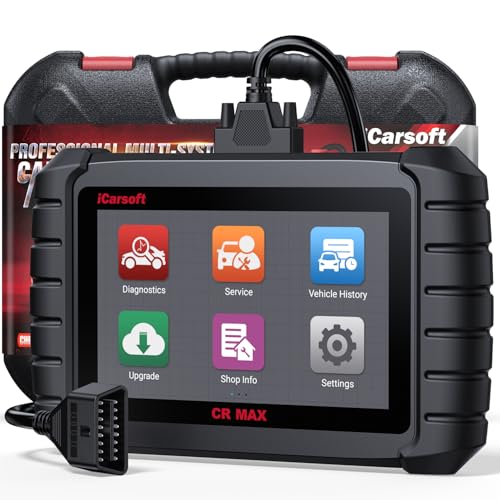
- Why Choose the 2026 CR MAX -Upgrade the latest diagnostic...
- Newst in Innovation Full Services - iCarsoft auto car...
- Up to 50 Reset Services - Performs: Oil Reset...
- REVOLUTIONARY 40000+BIDIRECTIONAL ACTIVE TESTS: Upgraded CR...
- Advanced ECU CODING: Unlock Your Vehicle's Full Potential...
- 【Looking for More Professional Vehicle Scan...
- 【OE-Level 4 Systems OBD2 Scanner】iCarsoft E...
- 【4 Systems Diagnosis for 10000+ Vehicles】 iCarsoft E...
- 【6 Reset Services】iCarsoft E660 2026 Upgrade Version is...
- 【118+ Real Time Record & Live Graph View】iCarsoft E...

If the PDF is very large, it may not load in the preview below.
Some older TSBs had multiple PDFs — visit the NHTSA Website to view all PDFs.
If the TSB PDF does not show, download or view it on the NHTSA Website.
Click on the (+) Plus Sign
Then Click on Associated Document(s)
Search NHTSA Database for Recalls
Search NHTSA Database for Vehicle Investigations
View Latest Vehicle Investigations
Search NHTSA Database for Vehicle Complaints
View Latest Vehicle Complaints
TSB/Document ID: A911630 2039515-
Replacement Service Bulletin Number:
MFR Communication Date: 2016-02-25
MFR Internal Campaign ID/Software Version:
Communication Type: Service Bulletin/Repair Instructions
NHTSA Components: ELECTRICAL SYSTEM
MFR Component System:
MFR Component Subsystem:
Previous TSB | Next TSB |

- [Notice] When you receive a used device, it may be a customer return resold by Amazon without inspection. You can exchange it for a new one through Amazon. As this situation is unavoidable, we sincerely apologize. For any issues, contacting us via Amazon's "Messages" is the best way. THINKSCAN 689BT Bidirectional Scan Tool Can Be Used Immediately After It is Turned On, Without Complicated Registration Process, Which is More Convenient & Quick.
- Full Bi-Directional Control & 3000+ Active Tests: Take control and test components like actuators, fuel injectors, relays, and cooling fans in real time. You’ll quickly see if the problem is in the part itself or the control module — saving you hours of guesswork and frustrating trial-and-error.
- Advanced ECU Coding Capabilities: Handle module matching and hidden feature activation with confidence. When you replace an ECU or want to customize settings, this obd2 scanner diagnostic bi directional tool gives you the professional-level capabilities you need without the dealership price tag.
- 34+ Useful Reset and Maintenance Functions: Complete everyday service tasks smoothly with a wide range of helpful reset and maintenance functions. Whether you’re keeping up with regular upkeep or tackling a specific job, this scanner makes maintenance simpler and less stressful for both DIYers and pros.
- Comprehensive Full System Diagnostics: Diagnose every major system — Engine, Transmission, ABS, SRS, TPMS, and more — all in one place. Finally stop wondering if you’re missing something important; get the full picture and clear codes with ease.

- Top Reasons to Choose the D7S OBD2 Scanner: XTOOL D7S car scan tool, an upgrade of XTOOL D7, offers comprehensive features for automotive technicians, workshops, and DIY enthusiasts 1. Upgraded Hardware: 2+64GB memory, rear camera, intuitive interface, foldable bracket 2. Complete Diagnostics: FCA
 Autoauth, OE-level all system scan, 39+ maintenance services, 4K+ bidirectional, CANFD/DoIP protocol 3. Advanced Capabilities: ECU c0ding, PMI functions 4. Wide Compatibility: Support 10,000+ models, covering 99% vehicle brands 5. Multi-language: Available in 22+ languages, No IP Restrictions 6. 3-Year Updates: Save 300 bucks on software updates for the latest features and optimizations
 - 2026 Upgraded D7S Car Scanner Features: The newly 2026 D7S V2.0 scanner for car brings exciting features for advanced vehicle diagnostics and enhanced user experience 1. FCA AutoAuth: Now supports FCA SGW module for Chrysler, for Jeep, for Dodge (2018+), for Fiat (2017+), enabling faster vehicle communication without gateway restrictions 2. PMI (Offline ECU Pr0gramming): Allows for Ford, for Lincoln, and for Mazda ECU pr0gramming for new modules 3. Optimized Diagnostic Report 2.0: Personalized reports with logos and customer info for auto shops. Note: Compatibility varies by cars, please check before order
- 39+ Services/Resets/Adaptations/Relearns/Calibrations: XTOOL D7S full system car scanner diagnostic tool tackles 99% of common car issues through its 36+ special functions, including Oil Reset, EPB, SAS, BMS, Throttle Reset, Injector C0ding, ABS Bleed, TPMS Reset, Power Balance, etc and also covers specific-vehicle functions like Crank Sensor Relearn, ABS Initialization, Cylinder Power Balance, Fuel Trim Reset, Idle Relearn etc. This car diagnostic scanner enhances efficiency, making repairs and maintenance hassle-free. Tip: DO NOT for All vehicles, please check compatibility first
- Cost-effective ECU C0ding Scan Tool for Specific Brands: Enhance your vehicle's performance with XTOOL D7S! This obd2 scanner all systems bidirectional offers advanced capabilities at an affordable price, supports online for BMW, for Benz and offline for BENZ, for MIT, along with PMI functions for Ford, for Mazda, and for Lincoln. Ideal for technicians and DIY enthusiasts, this automotive scanner diagnostic tool optimizes vehicle performance and enhances the driving experience. Note: Not for all cars and modules, please send car VIN to check the compatibility before purchase
- OE All System Diagnostic & 8 Pids Graphing: XTOOL D7S is a comprehensive all system bi directional obd2 scanner that delivers dealer-level diagnostics, completely controlling over your vehicle’s performance and health. This automotive scan tool can read and clear DTCs, view live data and ECU information, retrieve freeze frames, and perform active tests and full obd2 functions. This bi-directional scan tool can can identify your vehicle's make, model, and year information with just one click and show up to 8 PIDs live data with options for CSV viewing, playback, and recording for in-depth analysis. It is easy-to-use for both professionals and beginners, helping pinpoint issues efficiently

- 【✅Compared to BOSSCOMM IF742, IF745 Offers Full-System Diagnostics】The BOSSCOMM IF745 car diagnostic scanner is an upgraded model of IF742. In addition to supporting all OBD2 Code Reader functions and 6 reset options (ABS/EPB/SAS/BMS/Oil/Throttle), it expands diagnostics from 4 systems (Check Engine/ABS/SRS/Transmission) to vehicle All systems, including Steering, Suspension, and Body Electronics. This provides deeper, more comprehensive diagnostic capabilities.
- 【✨10 OBD2 Functions】The BOSSCOMM IF745 scan tool’s DTC Lookup instantly translates fault codes into user-friendly explanations, its I/M Readiness feature streamlines emissions testing with a single tap, and Freeze Frame lets you pinpoint the exact moment of a fault for in-depth root-cause diagnosis. Combined with a live data dashboard and advanced diagnostics (O2S, OBMon, EVAP), it delivers comprehensive insights for confident troubleshooting.
- 【✨Deep Diagnostics for All Vehicle System Modules】Beyond code reading/clearing and ECU information retrieval, our all-in-one data stream feature lets you inspect all current fault codes and their locations across the vehicle’s systems. This vehicle code reader helps you turn off dashboard warning lights and perform a comprehensive self-check of your car at home—no more back-and-forth trips to the repair shop or hefty inspection fees.
- 【✨6 Essential Resets: ABS Bleeding, Oil, EPB, SAS, Throttle, BMS】The BOSSCOMM IF745 obd2 scanner diagnostic tool swiftly purges air from brake lines to restore braking sensitivity, fine-tunes maintenance cycles to eliminate false alerts, resolves parking brake issues with one-click control, recalibrates steering sensors for stability, optimizes engine idling/acceleration for smoother performance, and deeply resets battery systems to extend lifespan and range via precise parameter adjustments.❗NOTE: Does NOT support bidirectional control, coding, or programming.
- 【✨10,000+ Car Models, AutoVIN, 13 Languages】The BOSSCOMM IF745 vehicle scanner diagnostic tool covers 73+ global car brands and offers support in 13 languages, making it perfect for DIYers, auto mechanics, or as a thoughtful gift. With a single-click AutoVIN feature, it instantly retrieves vehicle serial numbers, streamlining diagnostics for users globally. This adaptable tool balances user-friendliness with precision, catering to both personal and professional requirements.✅Unsure about compatibility? Compatibility will vary on vehicles' model and year, pls reach us via 📧 [email protected] 📧 before purchase.
This product presentation was made with AAWP plugin.