
NHTSA ID Number: 10056391
Manufacturer Communication Number: ITB-14-043
TSB/Document Date: 2014-11-19
Summary
INFINITI : SEE DOCUMENT SEARCH BUTTON FOR OWNER LETTER. ON SOME VEHICLES, A PRODUCT UPDATE, FOR IN TOUCH AUDIO SYSTEM SOFTWARE, IS BEING OFFERED AND IS DESIGNED TO IMPROVE FUNCTIONALITY OF IN TOUCH SYSTEM. MODEL 2014 Q50. *PE UPDATE 12/12/14. *PE UPDATED 3/31/15. *PE
Classification:
Reference:
Date:
EL14-042
ITB14-043
September 24, 2014
SB-10056391-3520
CUSTOMER SATISFACTION INITIATIVE
2014 Q50 AUDIO SOFTWARE UPDATE
APPLIED VEHICLE:
2014 Q50 (V37)
NOTE: You MUST use Service Comm to confirm:
Bulletin Applicability
SERVICE INFORMATION
As part of Infiniti’s commitment to continually improve both the quality and durability of our products, Infiniti is
offering owners of the 2014 Q50 the opportunity to have their vehicle’s InTouch Audio system software
upgraded with a production change that has been incorporated in the Q50 manufactured after their vehicle was
produced. With this Q50 Customer Satisfaction Initiative, all Infiniti retailers are authorized to perform this
service upgrade at no cost to the customer for parts or labor. This Customer Satisfaction Initiative is intended
to address related symptoms a Q50 customer may currently be experiencing, and to add additional features, to
maximize the driving experience of Q50 owners by preventing the related symptoms from occurring in the
future.
REASON FOR SOFTWARE UPDATE
Like many digital devices, the Infiniti InTouch™ system is designed to allow for software updates. This planned
update to the Infiniti InTouch™ system software will upgrade your software to current production levels, and is
designed to improve the functionality of the Infiniti InTouch™ system, and your overall driving experience.
Enhancements include:
App availability
o Email
o Calendar
o Facebook®
o Google® search
Improved audio volume control
Improved system stability
In order to take advantage of Infiniti's Q50 Customer Satisfaction Initiative, Infiniti Q50 owners must contact
their Infiniti retailer and schedule a service appointment.
Infiniti is taking this action to ensure Q50 owners have continued satisfaction with their vehicle. Please
encourage Infiniti Q50 owners who may be affected by the Q50 Customer Satisfaction Initiative to take
advantage of this opportunity to update their Q50 vehicle.
Infiniti Bulletins are intended for use by qualified technicians, not 'do-it-yourselfers'. Qualified technicians are properly trained
individuals who have the equipment, tools, safety instruction, and know-how to do a job properly and safely. NOTE: If you believe
that a described condition may apply to a particular vehicle, DO NOT assume that it does. See your Infiniti retailer to determine if this
applies to your vehicle.
1/29
SERVICE PROCEDURE
The software update required for this procedure is contained on “P4248-ITGEN5 2.0 USB memory stick”:
Each dealer was previously mailed one P4248-ITGEN5 2.0
USB memory stick, free of charge.
Should you require an additional P4248-ITGEN5 2.0 USB
memory stick due to loss or damage, it can be ordered free of
charge by contacting Denso Products Services Americas:
By email (preferred method) – [email protected]
(make sure to supply your dealer code and shipping address in
the email).
By phone – 1-888-285-4236 (ask for navi help desk).
Figure A
Install Software Update
CAUTION:
Do not start the software update if you notice any malfunctions such as a “frozen” screen.
Make sure the vehicle has at least ¼ tank of fuel before starting the software update.
Do not stop the engine while updating the software.
The engine must continue to run while software updates are in process. The update processes can take up
to 60 minutes (1 hour), depending on the current software version.
Make sure the engine hood is open and stays open during the entire procedure.
Do not press the ignition button (start/stop button) during software updates or damage to the DCU (Display
Control Unit) may occur.
Make sure you are using P4248-ITGEN5 2.0 USB memory stick (see Figure A on page 2).
NOTE:
In on page 5 (Reset App Data and Settings) of the following procedure; the Clock, Compass, Driving
Performance, and Maintenance Note Apps will all be reset to the default factory settings. All user settings
will be lost.
There is an FAQ section at the end of the Service Procedure.
There are five parts to this software update procedure:
Software Update
Reset App Data and Settings
Head Unit Proxy update
Verify Apps Software Update
Return vehicle settings to default and remove smartphone from system
Verify Software Update
2/29
ITB14-043
IMPORTANT: For Hybrid vehicles it is necessary to open the driver door, and keep it open, to ensure the
engine continues running during the entire update process.
Software Update
1. Turn the ignition ON. (Engine running or READY to drive mode.)
Keep the transmission in Park and the parking brake set.
2. Wait for the lower display screen to fully initialize:
Wait for the following messages to clear from the bottom of the lower screen:
Loading…Please Wait
Now Loading All APPS
Loading Completed
If this pop up screen “After registering…”
appears (Figure 1), select Later.
When screens are fully initialized, the bottom
of the lower screen will show the center dot
highlighted; “○○●○○” (See Figure 2).
3. Turn the audio system OFF.
Figure 1
Center dot
Figure 2
4. Insert the USB memory stick into a USB port.
After about 15 seconds the upper display will
automatically show the update screen shown
in Figure 4.
If the screen in Figure 3 appears, this
reprogram has already been done. Proceed to
and perform Reset the App Data and
Settings on page 5.
NOTE: Confirm that you are using
P4248-ITGEN5 2.0 USB Flash Drive.
USB ports are located in the center
console box.
Either USB port is OK to use.
Figure 3
3/29
ITB14-043
5. Select Yes to begin the Software Update.
XXXXXXXXX
XXXXXXXXX
XXXXXXXXX
XXXXXXXXX
Figure 4
Confirm the progress bar is shown and starts
moving. (The system is now loading the new
software into the vehicle.)
Update time is approximately 60 minutes. It is
OK to leave the vehicle unattended while the
update is installing.
Figure 5
6. Complete the Software Update as follows:
a. Confirm the “Program updated” screen is
displayed.
b. Remove the USB memory stick from the USB
port.
c. Select Restart.
d. Wait for screens to fully initialize; the bottom of
the lower screen must show the center dot
highlighted; “○○●○○”
Figure 6
7. Turn the ignition OFF for 60 seconds.
NOTE: The display in the center of the instrument cluster will turn OFF after about 60 seconds.
8. Turn the ignition back ON and allow the display to fully initialize.
Center dot highlighted; “○○●○○” as shown in Figure 2.
9. Insert the USB memory stick into a USB port a second time.
If the screen in Figure 4 appears, the reprogram has not completed.
Perform steps 5 through 9 again.
If the screen in Figure 3 appears (displayed for 2-3 seconds), the reprogram has completed.
Remove the USB memory stick and turn the ignition OFF and then proceed to page 5 and the
procedure to “Reset the App Data and Settings”.
4/29
ITB14-043
Reset the App Data and Settings
NOTE:
This step will reset Clock, Compass, Driving Performance, and Maintenance Note Apps to the default
factory settings. All user settings will be lost.
Do not perform “Reset Settings” in the System Diagnostic menu. This will erase all settings and you will
lose the configuration of the DCU. If configuration is lost, you must manually configure the Multi AV
using CONSULT-III plus.
1. Turn the ignition ON. (Engine running or READY to drive mode.)
Keep the transmission in Park and the parking brake set.
2. Wait for the lower display screen to fully initialize:
Wait for the following messages to clear from the bottom of the lower screen:
Loading…Please Wait
Now Loading All APPS
Loading Completed
If this pop up screen “After registering…”
appears (Figure 7), select Later.
When screens are fully initialized, the bottom
of the lower screen will show the center dot
highlighted; “○○●○○” (See Figure 8).
Figure 7
Figure 8
Center dot
5/29
ITB14-043
3. Reset App Data and Settings as follows:
For vehicles with Navigation first select the
right arrow ( > ) once.
Right arrow
Figure 9
Step 3a
a. Select App Garage (with or without
Navigation).
Figure 10
Step 3b
b. Select App Garage Settings.
Figure 11
c. Scroll the screen down and then select
Factory Data Reset.
NOTE: The screen may need to be scrolled to the
bottom to show Factory Data Reset.
Step 3c
Scroll here
Figure 12
6/29
ITB14-043
d. Select Yes.
Step 3d
Figure 13
NOTE:
If the pop up screen “XXXXX has stopped unexpectedly” appears (Figure 14), select OK.
Wait for pop up screen “Resetting…” disappears.
The screen will then return to the “App Garage Setting” screen.
Figure 14
4. Repeat steps “c” and “d” a second time (perform steps “c” and “d” a total of 2 times) and then proceed to
step 5.
7/29
ITB14-043
5. Reset the time and date.
Vehicles with Navigation proceed to step 6;
the time and date will update automatically.
Vehicles without Navigation reset with steps
“a” through “h” below and then proceed to
step 6.
Step 5b
a. Select MENU.
b. Select Settings.
Figure 15
Step 5c
c. Select Clock.
Figure 16
Step 5d
d. Select the right arrow ( > ) once.
Figure 17
e. Adjust Time (hr.& Min)
f.
Select Settings below time.
g. Adjust calendar (Year, Month, Day)
Adjust hr, Min,
Year, Month
and Day.
h. Select Settings below calendar.
6. Turn the ignition OFF and wait for 1 minute.
7. Turn the ignition back ON and allow the display to
fully initialize and then proceed to Head Unit
Proxy Update.
Center dot highlighted; “○○●○○” as shown in
Figure 2.
Figure 18
8/29
ITB14-043
Head Unit Proxy Update
IMPORTANT:
In the following steps an Android™ smartphone or iPhone ® will be required. Do not use the customer’s
device.
Recommended phones for this update can be found on page 26.
Perform following procedure using service department WiFi only.
1. Install the “Infiniti InTouch” App onto the chosen smartphone (if not already present) from applicable
software store below:
Android smartphone: Google Play.
iPhone: Apple iTunes App Store.
2. After Infiniti InTouch has been downloaded to the phone, establish a connection between the vehicle and
Smartphone.
For iPhone skip to step 8 on page 10 to connect through a USB cable.
For Android smartphone proceed to step 3 to pair through Bluetooth.
3. Select MENU.
4. On the vehicle’s lower touch screen select
Settings.
Step 4
NOTE: Refer to Figure 15 for non-Navi screen.
Figure 19
Step 5
5. Select Bluetooth.
Figure 20
6. Select Connect Device and then Add New.
Step 6
Android smartphone may show it’s device
address instead of “My-Car”.
Figure 21
9/29
ITB14-043
7. On the Android select:
a. Settings
b. Bluetooth
c. and then My Car or device address
Step 7c
Step 7b
Step 7a
Figure 22
d. Select OK for “Bluetooth pairing request”.
When a connection has been made the screen in Figure 24 will appear.
NOTE: If there are any additional pop-up requests (Contacts request, Map request, etc.), select OK; this
may take several minutes to transfer contacts.
Message when connected.
Step 7d
Figure 23
Figure 24
10/29
ITB14-043
e. After the phone has been successfully paired
with the vehicle the message shown in
Figure 25 will be displayed.
Figure 25
f.
Wait for all Icons to become available as
shown in Figure 27.
Figure 26
Figure 27
8. If using an iPhone, connect the device with a USB cable directly to the USB port in the center console and
then proceed to step 9.
When smartphone is connected, if message “New iPod Device Detected. Create/Replace iPod
voice recognition data?” may be displayed, select NO.
11/29
ITB14-043
NOTE: the following Figures use screen shots from an iPhone. The Android is similar.
IMPORTANT: Verify that the phone has good data reception (can access internet) before continuing. If the
phone does not have good data reception, move vehicle to an area for better reception.
9. Start “Infiniti InTouch” App and then:
a. Select United States, and then select OK.
b. Select Accept for “Infiniti InTouch Apps Service Terms and conditions”.
c. Select Use as Guest.
If message “Allow app to access the network” appears, select Yes.
Step 9
Step 9a
Figure 28
Step 9c
If this message
appears select Yes
Step 9b
Figure 30
Figure 29
12/29
ITB14-043
d. After “Connected” is displayed on the smartphone, select Next.
If the InTouch app will not connect, turn the ignition OFF wait 15 seconds and turn ignition back
ON.
e. Select Manage My Apps for iOS, or My Vehicle Subscription for Android.
f.
Turn OFF ALL Apps except Google “Online Search”.
Screen may need to be scrolled down to turn off additional Apps.
Step 9e
Step 9d
All Apps except
Online Search must
be turned OFF.
Figure 31
10. Download Online Search from the smartphone to the vehicle.
a. Select the vehicle’s MENU screen and then:
For vehicles with navigation scroll the screen to right (Figure 32) and then select App Garage.
For vehicles without navigation select App Garage (Figure 33).
With
navigation
Without
navigation
Figure 32
Figure 33
13/29
ITB14-043
b. Scroll the App Garage screen to the bottom
(Figure 34).
Scroll here
Figure 34
c. When the Online Search has downloaded:
The left hand scroll bar will move UP
slightly, but the app will still be hidden
(Figure 35).
Moves up slightly
Figure 35


- [J2534 Pass-Thru Programmer] - TOPDON RLink J2534 is...
- [All-in-One OEM Reprogramming and Diagnostics] - When...
- [Tested, Trusted, and Proven for Accuracy] - TOPDON RLink...
- [One-Click Installation, Continuous Updates] - The exclusive...
- [Works with Windows Compatibility and OEM Software...

This product presentation was made with AAWP plugin.
If the PDF is very large, it may not load in the preview below.
Some older TSBs had multiple PDFs — visit the NHTSA Website to view all PDFs.
If the TSB PDF does not show, download or view it on the NHTSA Website.
Click on the (+) Plus Sign
Then Click on Associated Document(s)
- CSC-10056391-2661.pdf (242.83 KB)
- CSC-10056391-9418.pdf (136.69 KB)
- SB-10056391-3520.pdf (2.45 MB)
- SB-10056391-3955.pdf (2.45 MB)
- SB-10056391-5762.pdf (806.67 KB)
Search NHTSA Database for Recalls
Search NHTSA Database for Vehicle Investigations
View Latest Vehicle Investigations
Search NHTSA Database for Vehicle Complaints
View Latest Vehicle Complaints
TSB/Document ID: ITB-14-043
Replacement Service Bulletin Number: ITB-14-043-A
MFR Communication Date: 2014-12-06
MFR Internal Campaign ID/Software Version:
Communication Type: Service Bulletin/Repair Instructions
NHTSA Components: ELECTRICAL SYSTEM:SOFTWARE
MFR Component System:
MFR Component Subsystem:
Previous TSB | Next TSB |
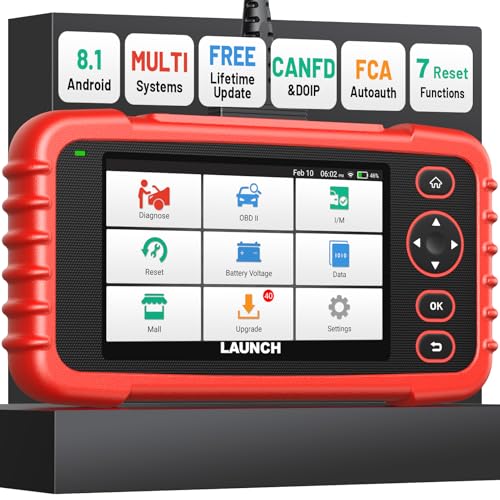
- [Newly Added in 2026: 7 Reset Functions] The 2026 new version of the OBD2 scanner diagnostic tool CRP123X V3.0 Elite has new special functions for F.REE: Throttle Ad.aptation, Oil/SAS/BMS/Brake Reset, D-P.F Re.generation and ABS Service. Before you visit a mechanic, launch obd2 Scanner CRP123X Elite can perform a more in-depth diagnosis of the car system and provide accurate data within minutes. What's more, the list of compatible models has been expanded. Upgrading frequency is regular, occurring monthly even weekly.
- 🔥[FCA AutoAuth + CAN FD & DoIP] As an upgraded version of the LAUNCH CRP123X/CRP129X, FOXWELL NT614, and ANCEL FX2000, The Newest LAUNCH CRP123X V3.0 auto diagnostic scanner supports the following new protocols: CAN-FD for 2020 and newer G.M and Chrysler
 models, as well as DoIP for V.olvo, Land Rover/Jaguar, and B.MW F/G chassis. With integrated AutoAuth, you can diagnose 2018 and newer FCA cars equipped with S.GW. Note: CAN-FD and DoIP protocols require an additional obd2 cable. *Menus vary by make, model, and year of gasoline or diesel engine vehicle. Email us your VIN data.
 - 🔥[No extra software fee. Works on 90 vehicle brands.] Most OBD2 scanners work with vehicles manufactured after 2001. However, the LUNCH OBD2 scanner is compatible with OBDII-equipped vehicles built after 1996 and works with more than 90 vehicle brands. One-click lifetime updates over WIFI 2.4&5.0Ghz keep the car software current and ensure constant coverage additions, diagnose vehicles from 1996 to 2026 with a massive global database. Android 8.1 ensures lightning-fast boot-up and processing.
- [Accurate & Intuitive Multi System Diagnosis] Will you be confused about what happens when the warning light of transmission, ABS, and SRS Airbag check engine flashes? Launch obd2 scanner diagnostic tool CRP123X V3.0 to pinpoint the problem components for a faster diagnosis for your car instead of taking your car to the dealership. Generate vehicle health reports with one click and share them via email over Wi-Fi to help avoid blind maintenance. And will turn off the warning light for you after fixing the problem, make to know more about your cars and do your own repair.
- [Multiple Display of Live Data + DTC Code Definition Explanation] Launch car tools show real-time data of oil temp, pressure, transmission temp, engine speed, coolant temperature, you will know which car part is abnormal. Data can be shown in a single, multi- graph, and merge two graphs for analysis(or 4-in-1 merged waveform graph),you can save, share, print, or email the overall inspection report for easier analysis.🔥Code Search,DTC Library provide massive information. Inbuilt “Feedback” module provides customized repair suggestions from our certified professionals.
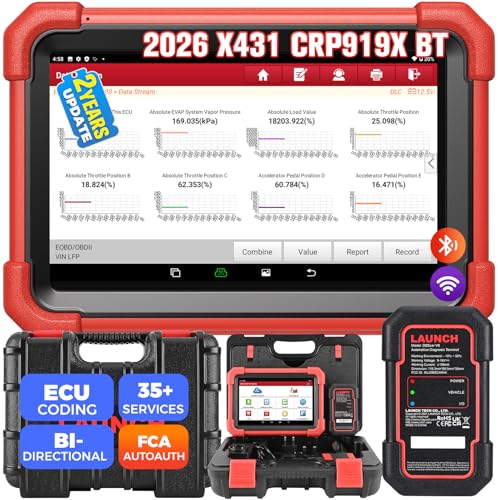
- 【2026 Most-cost-effective LAUNCH Scanner】 LAUNCH X431 CRP919XBT, upgraded from CRP919X, includes a VCI for wireless data transmission (3Mbps max). ✅HARDWARE: MTK's chip + doubled memory & battery capacity ensure 5X faster & smoother navigation than OBD2 scanner diagnostic tools in the same category. ✅SOFTWARE: Its productive features (same as LAUNCH X431 scanners), 99% car coverage, more-frequent software renewals, field-tested accurate database, are superior to most competitors on market.
- 【FCA AutoAuth + CANFD&DOIP】 LAUNCH X431 CRP919XBT uses a newly-developed wireless connector “DBSCar VII VCI” instead of a connection cable. You can be at workbench or any location around vehicle while running diagnostics. ✅With this VCI, this OBD2 scanner supports new protocols of tomorrow: CANFD for 2020-now GM&Chrysler Models; DoIP for Volvo, Land Rover/Jaguar, BMW F/G Chassis. ✅And with integrated AutoAuth, you can diagnose 2018+ FCA SGW-equipped cars without separate adapters.
- 【ECU Coding & 35+ Reset Services】 For just 500 bucks you’ll get fully-featured ECU coding & resets/relearns from LAUNCH X431 CRP919XBT. 👍Online Code for VW/Audi/Skoda/Ford/Lincoln/Mazda; 👍Open/close hidden functions; 👍Personalized modifications/changeover; 👍Shortcut to 35+ special functions like “Oil Reset/Brake Reset/Throttle Adaptation” etc., to quickly meet your daily repair needs. 🚩100+ more resets/relearns are under “car brand – system” waiting to explore.
- 【All Brands All System Scan】 With a market focus, LAUNCH X431 CRP919XBT boasts a complete filed-tested database for your deeper dive into car's health to handle more complex repairs. Back up by leading LAUNCH technology, you can do all system coding/scans/read&clear codes/bidirectional control/resets covering 99% cars, unlike many scanners for cars on market (x-tool) with fake advertisement claiming to “do it all” but in reality, they ONLY work for certain cars with limited services.
- 【Bi-directional Control】This LAUNCH bidirectional scan tool CRP919XBT allows technicians to command specific vehicle components (like solenoids, relays) to monitor real-time working status, without using the vehicle controls. Achieve fast, accurate diagnostics and take control like never before. Turn on the radiator fan, modulate the throttle, open or close windows, operate mirrors, Injector Buz Test, turn on interior and exterior lights, sound horn, etc.
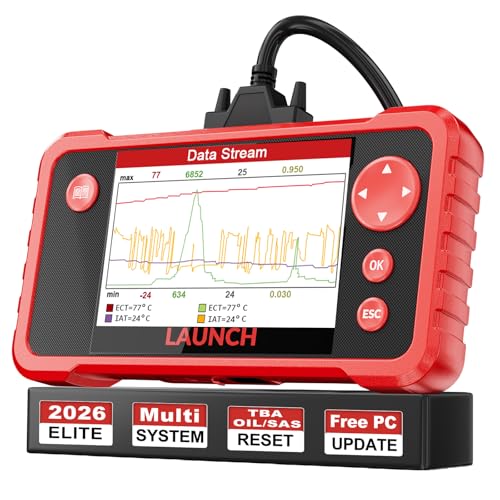
- 【Great Ideal For Every Car Owner】Prefect choice for your father, husband, brother or boyfriend. EVERY CAR OWNER WILL NEED IT! Also, the lifetime update is provided for more vehicle coverage, bug fixes. SAVE AT LEAST $1000+ PER YEAR!Get LAUNCH CRP123 V2.0 car diagnostic scanner and give your lover a surprise!*R each us to Get the Extra Gifts :Protective Case Storage Bag.
- 【Newly Added 3 Reset Functions】CRP123 V2.0 obd2 scanner with upgrades it offers Throttle Adaptation,Oil Reset and SAS Reset functions for FREE now!! Optimize your engine performance with Throttle Adaptation, reset your oil life system with ease to save time and money on maintenance, and enhance your vehicle's handling and safety with SAS Reset.Covering more daily repairs,become the most cost-effective product in its price range,save your time and money!
- 【 Read & Clear/Reset Engine/ABS/SRS/Transmission Diagnostic Scan Tool 】LAUNCH CRP123 V2.0 OBD2 Scanner can test Engine, Transmission, ABS and Airbag four systems, also reads and resets code, displays data stream graphic, stores and playbacks dynamic data stream,helps to quick analysis and diagnosis.
- 【 Error Fault Code Reader】Except the full 10 modes OBD2 diagnostic functions like, retrieving I/M readiness, Freeze Frame Data, Read Dynamic Data stream and Vehicle Information, O2 Sensor Test, EVAP Test of Fuel Tank System (Mode 8) and Advanced On-board Monitoring (Mode 6), launch crp123 v2.0 obd2 scanner can not only reveal what error codes your car is producing, but also erase your vehicle’s check engine light after problem fixed, the DTC help and explanation also tell you the exact problem.
- 【 Live Data Graphing + Read/Record/Playback Data stream + Print diagnostic data 】Live Data Graphing,more intuitive to know your vehicle’s problem.4 inches Screen Screen ;Print Function:Print the diagnose result easily; with user manual and register & update tutorial video uploaded in the link by us,you can Look up it anytime by ONE-CLICK.
This product presentation was made with AAWP plugin.
Last update on 2026-06-09 / Affiliate links / Images from Amazon Product Advertising API