
NHTSA ID Number: 11029949
Manufacturer Communication Number: PIC6629C
TSB/Document Date: 2026-03-11
Summary
This PI is to instruct dealer on diagnostic procedures that need to be completed prior to replacing a radio or IPC display
All
All
All
GMC
Sierra EV
2024-2026
All
All
All
All
Copyright 2026 General Motors . All Rights Reserved.
Page 2
Brand:
March, 2026
Model:
Bulletin No.: PIC6629C
Model Year:
from
VIN:
to
from
to
GMC
Terrain
2025-2026
All
All
All
All
Yukon
2022-2026
All
All
All
All
Yukon XL
2022-2026
All
All
All
All
Involved Region or Country
North America
Additional Options (RPO)
IVA, IVD, IVE, IOK
Condition
Customer may comment about an issue with either the radio or IPC display. Please
reference the appropriate procedure based on the symptom list in the correction section
of this document.
Cause
Concerns may be caused by software or hardware anomalies
Correction
• (IVA, IVD, and IVE only) If the entire display (cluster and radio) is blank or black refer to Whole or both displays
are blank.
• If only one display is blank refer to If one display is blank section of this document.
• If one or both displays are flickering refer to the If one or both displays are flickering going blank but comes
back.
• If touch input is unresponsive, refer to Radio display does not respond to touch or radio appears to be
constantly restarting.
• If the power/mute, and/or home button, or volume knob is not working refer to Volume knob, home button, and
or power/mute button inoperative.
• For HVAC button concerns refer to the One or multiple HVAC hard buttons inoperative (GMC Acadia, Terrain,
Sierra EV, Yukon and Hummer only).
Note: If a customer comes in stating that their display went blank or black at some point, but is currently not blank or
black, please update the radio to the latest software and clear DTCs and attempt to duplicate the customers concern
before proceeding with this diagnostic.
Note: For Escalade and Escalade IQ only, if the passenger side of the display is inoperative, please investigate an
issue with the passenger infotainment system refer to SI diagnostics
Note: If at any point the display recovers following any of the procedures below, please update the radio to the latest
software
Note: If there is obvious damage to the display it is not necessary to follow the procedure below and a replacement
display can be ordered
Whole or both displays are blank (IVA, IVD and IVE only)
Examples of whole or both displays are blank or black
Bulletin No.: PIC6629C
March, 2026
Page 3
7019592
7019593
Verify if the screen is black (appears off), or if a backlight is present on the display refer to specific procedure below
based on symptom see pictures below
Display is backlit but there is no image
1. If back light is present, but there is no display this means that the display is powered on, but there is poor signal
from the radio or a bad connection, first check for any relevant DTCs.
2. If DTCs are present refer to SI diagnostics. If SI leads you to a radio or display replacement, please refer back to
this diagnostic.
Page 4
March, 2026
Bulletin No.: PIC6629C
3. Refer to PIC6540 and attempt to reboot the radio, if radio display does not return, please refer back to this
diagnostic and proceed to next step.
4. Please disconnect and reconnect the connections at the display.
5. If concern is corrected by disconnecting and reconnecting the display, check for a possible cable or connection
issue and replace/repair the cable or wiring if necessary.
6. If that does not correct the concern, please refer to PIT6393 for IVD and IVE radio, PIC6611 for IVA radio for
further diagnosis.
7. If after following PIT6393 or PIC6611 and the radio was ruled out or replaced and the concern is still present, all
displays are on restriction and when ordering a display from the ESC you must answer the following attestation
question at the bottom of this document.
Display appears powered off (no backlight)
1. Verify the radio is powered on and is communicating with the scan tool.
2. If radio is not communicating refer to PIT6393 for IVD and IVE radios and PIT6611 for IVA radios as there is an
issue with the radio, not the display.
If there is communication check for relevant DTCs. If DTCs are present refer to SI diagnostic.
If SI instructs you to replace the radio or display, please refer back to this document and proceed to the next step.
3. Refer to PIT6540 to attempt to restart the radio, if radio display does not return refer back to this document.
4. Disconnect and reconnect all connections at the display and verify power and ground are present. If the screen
recovers after a disconnect and reconnect of the display, please investigate a possible connection or wiring issue
within the display wiring.
5. If display is still not turning on and there is communication with the radio refer to PIT6393 for IVD and IVE radio, or
PIC6611 for IVA radios for further diagnosis.
6. If after following PIT6393 or PIC6611 and the radio was ruled out or replaced and the concern is still present, all
displays are on restriction and when ordering a display from the ESC you must answer the following attestation
question at the bottom of this document.
If one display is blank
Below are examples of one, or portion of the display is blank
Bulletin No.: PIC6629C
March, 2026
Page 5
7019594
7019595
Page 6
March, 2026
Bulletin No.: PIC6629C
7019596
7019597
Note: For RPO IOK only, this procedure will only apply to the radio display. If there is an issue with the IPC, this
procedure does not apply and follow SI diagnostics for IPC concerns.
Display is backlit
1. If back light is present, but there is no display this means that the display is powered on, but is there poor signal
from the radio or a bad connection, first check for any relevant DTCs.
2. If DTCs are present refer to SI diagnostics. If SI leads you to a radio, or display replacement, please continue with
this diagnostic.
3. Refer to PIC6540 and attempt to reboot the radio, if radio display does not return, please refer back to this
diagnostic and proceed to next step.
Bulletin No.: PIC6629C
March, 2026
Page 7
4. Please disconnect and reconnect the LVDS connection at the radio and the display that is blank.
5. If concern is corrected by disconnecting and reconnecting the LVDS cable, check for a possible cable or
connection issue with the LVDS cable and replace the cable if necessary.
6. If that does not correct the concern please refer to PIT6393 for IVD and IVE radio, PIC6611 for IVA, or PIC6602
for IOK radio for further diagnosis.
7. If after following PIT6393, PIC6611, or PIC6602 and the radio was ruled out or replaced and the concern is still
present, all displays are on restriction and when ordering a display from the ESC you must answer the following
attestation question at the bottom of this document.
Display appears powered off (no backlight)
1. Check for any relevant DTCs.
2. If DTCs are present refer to SI diagnostics. If SI leads you to a radio, or display replacement, please continue with
this diagnostic.
3. Refer to PIT6540 to attempt to restart the radio, if radio display does not return refer back to this document.
4. Disconnect and reconnect all connections at the display and verify power and ground are present. If the screen
recovers after a disconnect and reconnect of the display, please investigate a possible connection or wiring issue
within the display wiring.
5. If display is still not turning on refer to PIT6393 for IVD and IVE radio, PIC6611 for IVA radios, or PIC6602 for IOK
for further diagnosis.
6. If after following or coming from PIT6393, PIC6611, or PIC6602 and the radio was ruled out or replaced and the
concern is still present, all displays are on restriction and when ordering a display from the ESC you must answer
the following attestation question at the bottom of this document.
If one or both displays are flickering, going blank but comes back
Note: For IOK only this procedure will only apply to the radio display if there is an issue with the IPC, this procedure
does not apply and follow SI diagnostics for IPC concerns.
Note: If the display is flickering only while in a camera view, refer to SI for camera diagnosis.
Note: If flickering is only observed while using phone projection, verify that customers cellular device is up to date
and refer to SI for phone projection for further diagnosis.
1. Check for any relevant DTCs.
2. If DTCs are present refer to SI diagnostics. If SI leads you to a radio, or display replacement, please continue with
this diagnostic.
3. Verify radio is up to date and if it is not, attempt to update the radio.
4. Once radio is up to date and the concern is still present, verify the power and ground connections at the displays
and the LVDS cable between the display and radio. If concern is corrected by disconnecting and reconnecting the
power and ground at the displays, or the LVDS cable between the radio and displays check for a possible cable or
connection issue and repair as necessary.
5. If condition still exists, please refer to PIT6393 for IVD and IVE radio, PIC6611 for IVA radio, or PIC6602 for IOK
for further diagnosis.
6. If after following PIT6393, PIC6611, or PIC6602 and the radio was ruled out or replaced and the concern is still
present, all displays are on restriction and when ordering a display from the ESC you must answer the following
attestation question at the bottom of this document.
Radio display does not respond to touch or radio appears to be constantly restarting
1. Attempt to restart the radio, refer to PIC6540.
2. If PIC6540 does not correct the concern, please do a fuse pull of the radio.
Page 8
March, 2026
Bulletin No.: PIC6629C
3. If a fuse pull does not work, please disconnect the battery for 15 minutes and reconnect.
Caution: For EVs only - Please refer to SI Battery Negative Cable Disconnection and Connection for proper
procedure of disconnecting and reconnecting the 12 volt battery.
4. If the concern is still present disconnect and reconnect the connections at the display.
5. If the concern is still present refer to PIC6393 for IVD and IVE, PIC6611 for IVA, or PIC6602 for IOK.
6. If after following PIT6393, PIC6611, or PIC6602 and the radio was ruled out or replaced and the concern is still
present, all displays are on restriction and when ordering a display from the ESC you must answer the following
attestation question at the bottom of this document.
Volume knob, home button, and or power/mute button inoperative (IVA, IVD, and IVE only)
1. Verify mute and volume buttons from the steering wheel are operable, if they do not work refer to PIT6393 or
PIC6611.
2. If steering wheel buttons work, update the radio to the latest software.
3. Attempt to restart the radio, refer to PIC6540.
4. If PIC6540 does not correct the concern, please do a fuse pull of the radio.
5. If a fuse pull does not work, please disconnect the battery for 15 minutes and reconnect.
Caution: For EVs only - Please refer to SI Battery Negative Cable Disconnection and Connection for proper
procedure of disconnecting and reconnecting the 12 volt battery.
6. If the concern is still present disconnect and reconnect the connections at the display.
7. If the concern is still present refer to PIC6393 for IVD and IVE or PIC6611 for IVA.
8. If after following PIT6393 or PIC6611 and the radio was ruled out or replaced and the concern is still present, all
displays are on restriction and when ordering a display from the ESC you must answer the following attestation
question at the bottom of this document.
Volume knob, home button, and or power/mute button inoperative (IOK only)
Note: For the 2025 Silverado 1500, Sierra 1500, 2025 Silverado 2500/3500HD and Sierra 2500/3500HD built before
June 6, 2025, with this condition, refer to 25-NA-313 before proceeding.
1. Attempt to restart the radio, refer to PIC6540.
2. If PIC6540 does not correct the concern, please do a fuse pull of the radio.
3. If a fuse pull does not work, please disconnect the battery for 15 minutes and reconnect.
4. If the concern is still present disconnect and reconnect the connections at the display.
5. If the concern is still present refer to PIC6602.
6. If after following PIC6602 and the radio was ruled out or replaced and the concern is still present, all displays are
on restriction and when ordering a display from the ESC you must answer the following attestation question at the
bottom of this document.
One or multiple HVAC hard buttons inoperative (GMC Acadia, Terrain, Sierra EV, Yukon and Hummer only)
1. Check for any relevant DTCs.
2. If DTCs are present refer to SI diagnostics. If SI leads you to a radio, or display replacement, please continue with
this diagnostic.
3. Refer to PIT6540 to attempt to restart the radio, if the buttons still do not work, refer back to this document.
4. Update radio to the latest software.
5. Verify you can control the HVAC through the display instead of the buttons.
Bulletin No.: PIC6629C
March, 2026
Page 9
6. If only the hard buttons do not work, replace the display, if neither the display or the hard buttons work proceed to
the next step.
7. Disconnect and reconnect all connections at the display and verify power and ground are present. If the buttons
regain functionality after a disconnect and reconnect of the display, please investigate a possible connection or
wiring issue within the display wiring.
8. If the buttons still do not work refer to PIT6393 for IVD and IVE radio, PIC6611 for IVA radios, or PIC6602 for IOK
for further diagnosis.
9. If after following or coming from PIT6393, PIC6611, or PIC6602 and the radio was ruled out, please refer to SI for
an issue with the HVAC system.
Attestation question: Have you followed PIC6629 based on one of the symptoms/condition below and the vehicle
requires a display replacement?
• Physical damage
• Whole or both displays are blank
• One display is blank
• Radio and/or IPC display is flickering section
• Radio display does not respond to touch
• Volume knob, home button, and or power/mute button inoperative
• One or multiple HVAC hard buttons are inoperative (GMC Acadia, Terrain, Sierra EV, Yukon and Hummer only)
Page 10
March, 2026
Bulletin No.: PIC6629C
Warranty Information
For vehicles repaired under the Bumper-to-Bumper coverage (Canada Base Warranty coverage), use the following
labor operation. Reference the Applicable Warranties section of Investigate Vehicle History (IVH) for coverage information.
Labor
Operation
3429852
3481408
Description
Labor Time
Radio reset
0.5
Disconnect and reconnect
the display
Envision,
Enclave
Encore GX,
Envista – 0.3
LYRIQ, XT4,
CT5, OPTIQ,
VISTIQ – 0.3
CELESTIQ,
Escalade,
and
ESCALADE
IQ – 1.2
Silverado EV
not WT,
Equinox EV,
Blazer EV,
Equinox,
Tahoe (IVE
only) – 0.5**
Colorado and
Canyon
Radio display
–0.3
Colorado and
Canyon IPC
display - ST
Acadia Radio
display– 0.9
Acadia IPC
display – 1.0
Sierra EV
Radio display
– 0.3
Sierra EV
IPC
display-0.8
Terrain Radio
display – 0.7
Terrain IPC
display – 0.4
Traverse
Radio
display– 0.4
Traverse IPC
display – 0.3
Yukon (IVE
only) Radio
display- 1.1
Yukon (IVE
only) IPC
display – ST
Trax,
Trailblazer –
0.5**
Silverado and
Sierra pickup
radio display
IOK only –
0.7
MY22 and 24
Tahoe and
Yukon Radio
display with
IOK – 0.5
Corvette
radio display
with IOK-1.6
Hummer
Bulletin No.: PIC6629C
March, 2026
Version
4
Modified
11/11/2025 - Created on.
11/13/2025 - Updated to add CELESTIQ to the models
12/12/2025 - Updated to add labor time for Traverse
03/05/2026 - Updated to clarify verbiage in correction
GM bulletins are intended for use by professional technicians, NOT a "do-it-yourselfer". They are written to inform these
technicians of conditions that may occur on some vehicles, or to provide information that could assist in the proper
service of a vehicle. Properly trained technicians have the equipment, tools, safety instructions, and know-how to do a job
properly and safely. If a condition is described, DO NOT assume that the bulletin applies to your vehicle, or that your
vehicle will have that condition. See your GM dealer for information on whether your vehicle may benefit from the
information.
Page 11
WE SUPPORT VOLUNTARY
TECHNICIAN
CERTIFICATION

- Seamless Bluetooth Connectivity: Car stereo with Bluetooth...
- Powerful, Clear Audio Performance: Equipped with a built-in...
- High-Quality Music Playback via USB: Enjoy clear, detailed...
- Compact 1-DIN Design: Single din radio is designed with a...
- Simple Sound Customization: Dedicated Direct EQ Keys let you...

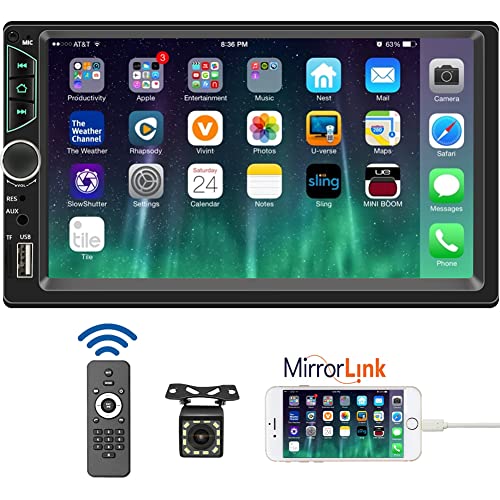
- 【High Quality Car Stereo Player】- Our double din car...
- 【Double Din Car Stereo Phone Mirror Link】- Support...
- 【7 inch Double Din Car Radio With Bluetooth 5.0 and FM...
- 【Car Stereo Double Din Inputs】- USB /SD/AUX input. car...
- 【Standard Double Din Stereo with Backup Camera】- Parking...
If the PDF is very large, it may not load in the preview below.
Some older TSBs had multiple PDFs — visit the NHTSA Website to view all PDFs.
If the TSB PDF does not show, download or view it on the NHTSA Website.
Click on the (+) Plus Sign
Then Click on Associated Document(s)
Search NHTSA Database for Recalls
Search NHTSA Database for Vehicle Investigations
View Latest Vehicle Investigations
Search NHTSA Database for Vehicle Complaints
View Latest Vehicle Complaints
TSB/Document ID: PIC6629C
Replacement Service Bulletin Number:
MFR Communication Date: 2026-03-05
MFR Internal Campaign ID/Software Version:
Communication Type: Service Bulletin/Repair Instructions
NHTSA Components: UNKNOWN OR OTHER
MFR Component System:
MFR Component Subsystem:
Previous TSB | Next TSB |

- [Notice] When you receive a used device, it may be a customer return resold by Amazon without inspection. You can exchange it for a new one through Amazon. As this situation is unavoidable, we sincerely apologize. For any issues, contacting us via Amazon's "Messages" is the best way. THINKSCAN 689BT Bidirectional Scan Tool Can Be Used Immediately After It is Turned On, Without Complicated Registration Process, Which is More Convenient & Quick.
- Full Bi-Directional Control & 3000+ Active Tests: Take control and test components like actuators, fuel injectors, relays, and cooling fans in real time. You’ll quickly see if the problem is in the part itself or the control module — saving you hours of guesswork and frustrating trial-and-error.
- Advanced ECU Coding Capabilities: Handle module matching and hidden feature activation with confidence. When you replace an ECU or want to customize settings, this obd2 scanner diagnostic bi directional tool gives you the professional-level capabilities you need without the dealership price tag.
- 34+ Useful Reset and Maintenance Functions: Complete everyday service tasks smoothly with a wide range of helpful reset and maintenance functions. Whether you’re keeping up with regular upkeep or tackling a specific job, this scanner makes maintenance simpler and less stressful for both DIYers and pros.
- Comprehensive Full System Diagnostics: Diagnose every major system — Engine, Transmission
 , ABS, SRS, TPMS, and more — all in one place. Finally stop wondering if you’re missing something important; get the full picture and clear codes with ease.

- Top Reasons to Choose the D7S OBD2 Scanner: XTOOL D7S car scan tool, an upgrade of XTOOL D7, offers comprehensive features for automotive technicians, workshops, and DIY enthusiasts 1. Upgraded Hardware: 2+64GB memory, rear camera, intuitive interface, foldable bracket 2. Complete Diagnostics: FCA Autoauth, OE-level all system scan, 39+ maintenance services, 4K+ bidirectional, CANFD/DoIP protocol 3. Advanced Capabilities: ECU coding, PMI functions 4. Wide Compatibility: Support 10,000+ models, covering 99% vehicle brands 5. Multi-language: Available in 22+ languages, No IP Restrictions 6. 3-Year Updates: Save 300 bucks on software updates for the latest features and optimizations
- 2026 Upgraded D7S Car Scanner Features: The newly 2026 D7S V2.0 scanner for car brings exciting features for advanced vehicle diagnostics and enhanced user experience 1. FCA AutoAuth: Now supports FCA SGW module for Chrysler, for Jeep, for Dodge (2018+), for Fiat (2017+), enabling faster vehicle communication without gateway restrictions 2. PMI (Offline ECU Programming): Allows for Ford, for Lincoln, and for Mazda ECU programming for new modules 3. Optimized Diagnostic Report 2.0: Personalized reports with logos and customer info for auto shops. Note: Compatibility varies by cars, please check before order
- Cost-effective ECU Coding Scan Tool for Specific Brands: Enhance your vehicle's performance with XTOOL D7S! This obd2 scanner all systems bidirectional offers advanced capabilities at an affordable price, supports online for BMW, for Benz and offline for BENZ, for MIT, along with PMI functions for Ford, for Mazda, and for Lincoln. Ideal for technicians and DIY enthusiasts, this automotive scanner diagnostic tool optimizes vehicle performance and enhances the driving experience. Note: Not for all cars and modules, please send car VIN to check the compatibility before purchase
- OE All System Diagnostic & 8 Pids Graphing: XTOOL D7S is a comprehensive all system bi directional obd2 scanner that delivers dealer-level diagnostics, completely controlling over your vehicle’s performance and health. This automotive scan tool can read and clear DTCs, view live data and ECU information, retrieve freeze frames, and perform active tests and full obd2 functions. This bi-directional scan tool can can identify your vehicle's make, model, and year information with just one click and show up to 8 PIDs live data with options for CSV viewing, playback, and recording for in-depth analysis. It is easy-to-use for both professionals and beginners, helping pinpoint issues efficiently
- 3 Years Software Update, Value for Money: With 3 years of software updates and 22+ languages(no IP restrictions), XTOOL D7S auto scanner code scanner ensures ongoing compatibility for the latest car models and improved diagnostic functions. This all system vehicle diagnostic scanner comes with a 30-day return policy and a 24-month repair for dependable performance. XTOOL are dedicated to your satisfaction, so enjoy seamless support and lifetime expert assistance. Should you encounter any issues or concerns, don’t hesitate to reach out XTOOL. D7S with newest update with 22 languages freely transfer without authorization, check details from setting-language or from XTOOL

- 【✅Compared to BOSSCOMM IF742, IF745 Offers Full-System Diagnostics】The BOSSCOMM IF745 car diagnostic scanner is an upgraded model of IF742. In addition to supporting all OBD2 Code Reader functions and 6 reset options (ABS/EPB/SAS/BMS/Oil/Throttle), it expands diagnostics from 4 systems (Check Engine/ABS/SRS/Transmission) to vehicle All systems, including Steering, Suspension, and Body Electronics. This provides deeper, more comprehensive diagnostic capabilities.
- 【✨10 OBD2 Functions】The BOSSCOMM IF745 scan tool’s DTC Lookup instantly translates fault codes into user-friendly explanations, its I/M Readiness feature streamlines emissions testing with a single tap, and Freeze Frame lets you pinpoint the exact moment of a fault for in-depth root-cause diagnosis. Combined with a live data dashboard and advanced diagnostics (O2S, OBMon, EVAP), it delivers comprehensive insights for confident troubleshooting.
- 【✨Deep Diagnostics for All Vehicle System Modules】Beyond code reading/clearing and ECU information retrieval, our all-in-one data stream feature lets you inspect all current fault codes and their locations across the vehicle’s systems. This vehicle code reader helps you turn off dashboard warning lights and perform a comprehensive self-check of your car at home—no more back-and-forth trips to the repair shop or hefty inspection fees.
- 【✨6 Essential Resets: ABS Bleeding, Oil, EPB, SAS, Throttle, BMS】The BOSSCOMM IF745 obd2 scanner diagnostic tool swiftly purges air from brake lines to restore braking sensitivity, fine-tunes maintenance cycles to eliminate false alerts, resolves parking brake issues with one-click control, recalibrates steering sensors for stability, optimizes engine idling/acceleration for smoother performance, and deeply resets battery systems to extend lifespan and range via precise parameter adjustments.❗NOTE: Does NOT support bidirectional control, coding, or programming.
- 【✨10,000+ Car Models, AutoVIN, 13 Languages】The BOSSCOMM IF745 vehicle scanner diagnostic tool covers 73+ global car brands and offers support in 13 languages, making it perfect for DIYers, auto mechanics, or as a thoughtful gift. With a single-click AutoVIN feature, it instantly retrieves vehicle serial numbers, streamlining diagnostics for users globally. This adaptable tool balances user-friendliness with precision, catering to both personal and professional requirements.✅Unsure about compatibility? Compatibility will vary on vehicles' model and year, pls reach us via 📧 [email protected] 📧 before purchase.
This product presentation was made with AAWP plugin.