
NHTSA ID Number: 11028485
Manufacturer Communication Number: V0125092080124_3
TSB/Document Date: 2026-02-06
Summary
Software Version Management
6. Read 12V battery data
To ensure the battery data for the later battery adaptation does not have to be specially freed up, this is read
at this point and must be written down as follows:
•
In the “Test plan” tab, press the “Select self-test” button
•
Select “Service work”
•
Select “Checks on 12V system”
•
Select “Read 12V battery adaptation” and attach to test plan
•
In the “Test plan” tab, start the “Read 12V battery adaptation” test program with the “Perform test”
button.
•
Write down the returned data (recommended: copy and save on the ODIS tester).
•
Then continue with “7. Perform software compound update”.
7. Perform software compound update
NOTICE
The following points must be observed before and during the update:
– The ODIS tester must be updated to the latest version. See: Elsa2Go > Infomedia > Current ODIS
Service Version.
– The ignition and the radio/ navigation device must be switched on.
– Make sure that a suitable 12V battery charger is connected to support the 12V battery.
– During the software update switch off all unnecessary electric consumers (for example ventilation, seat
heater, lights and so on).
– Make sure that during the software update no electro-magnetic radiation sources (for example, mobile
phones or cordless phones) are used in or near the vehicle.
– To ensure the highest transmission stability for software update of control units only USB hardwire
connection of the diagnosis interface -VAS 6154B or VAS6154A- is allowed. A WiFi connection can
lead to a failure of the software update.
– The driver’s door must remain open during the software update.
– The vehicle must remain in park (gear position “P”) during the software update.
– Place one vehicle key on the reader coil (flatly in the center console cupholder).
7.1 Perform software update part 1 (S4210F543)
Start software update part 1:
•
In the “Test plan” tab, press the “Select self-test” button
•
Select “Software version management”
•
Select “Adapting software” and attach to test plan
•
In the “Test plan” tab, start the “Adapting software” test program with the “Perform test” button.
•
Select “1. Update software via action code”
‒
•
Enter action code 1: S4210F543
Start software compound update and follow remaining program process.
NOTICE
Do not continue if a Windows Firewall notification appears (see figure 14). Attempting to proceed without
resolving incorrect firewall settings can cause the update to fail.
– All network options must checked. See service references noted under “2. Review prerequisites and
perform preliminary work”
Figure 14. Windows Firewall notification (error)
CAUTION
The update may take several minutes to start. Multiple control units are updated during this procedure.
Some control units require a longer update time than others.
– DO NOT cancel the update procedure, turn the ignition off, remove the battery charger, or interrupt the
update procedure in any way. Doing so could cause irreparable damage to control units.
– If the software update fails for any reason, ODIS feedback must be sent prior to further diagnosis. This
ensures the failure/error is reported. Failure to do so may result in non-payment of consequential
requests for additional time or parts.
•
If there is an “NOT OK” note for one or several control units (see figure 15), the update must be
attempted again (go back to step 7).
Figure 15: Example “NOT OK” response
•
If there is an “OK” (correct) note after all control unit names in the results list, continue with the test
plan.
•
In the event of error messages: See information under "17. Support”.
CAUTION
Do not proceed to the next step without 100% successful completion of this step!
– In case of errors, see: “17. Support”
– If errors cannot be resolved, then ODIS feedback must be sent prior to further diagnosis.
•
Only after the final “OK” result is finished without any errors, continue with “7.2. ICAS1 factory reset”.
7.2 ICAS1 factory reset
Before carrying out the second action code, a factory reset must be carried out on ICAS1 as follows:
•
In the “Test plan” tab, press the “Select self-test” button
•
Select "Software Version Management (SVM)"
•
Select "Special measures"
•
Select "Special functions"
•
Select “ResetToFactory” and attach to test plan
•
In the “Test plan” tab, start the “ResetToFactory” test program with the “Perform test” button.
‒
Select “1. ECU Reset (to Factory Setting)” (see figure 16)
‒
Enter diagnostic address 0019 and follow the test program.
Figure 16: Factory Reset
•
Then continue with “7.3. Perform software update part 2 (F543)”.
7.3 Perform software update part 2 (F543)
Start software update part 2:
•
In the “Test plan” tab, press the “Select self-test” button
•
Select “Software version management”
•
Select “Adapting software” and attach to test plan
•
In the “Test plan” tab, start the “Adapting software” test program with the “Perform check” control
button.
•
Select “1. Update software via action code”
‒
•
Enter action code 2: F543
Start software compound update and follow remaining program process.
CAUTION
The update may take several minutes to start. Multiple control units are updated during this procedure.
Some control units require a longer update time than others.
– DO NOT cancel the update procedure, turn the ignition off, remove the battery charger, or interrupt the
update procedure in any way. Doing so could cause irreparable damage to control units.
– If the software update fails for any reason, ODIS feedback must be sent prior to further diagnosis. This
ensures the failure/error is reported. Failure to do so may result in non-payment of consequential
requests for additional time or parts.
•
If there is an “NOT OK” note for one or several control units (see figure 17), the update must be
attempted again (go back to step 7).
Figure 17: Example “NOT OK” response
•
If there is an “OK” (correct) note after all control unit names in the results list, continue with the test
plan.
•
In the event of error messages: See information under "17. Support”.
CAUTION
Do not proceed to the next step without 100% successful completion of this step!
– In case of errors, see: “17. Support”
– If errors cannot be resolved, then ODIS feedback must be sent prior to further diagnosis.
•
Only after the final “OK” result is finished without any errors, continue with “8. Perform function restore
(FES)”.
8. Perform function restore (FES)
Perform the function restoration (FES) as follows:
•
In the “Test plan” tab, press the “Select self-test” button
•
Select "Software Version Management (SVM)"
•
Select “Function clearing system (FES)” (see figure 18)
•
Select “3. Restore function”
•
Enter diagnostic address 0019 and carry out function restoration.
Figure 18: Function enable system (FES)
CAUTION
Do not proceed to the next step without 100% successful completion of this step!
– In case of errors, see: “17. Support”
– If errors cannot be resolved, then ODIS feedback must be sent prior to further diagnosis.
•
Then continue with “9. Perform VKMS adaptation”.
9. Perform VKMS adaptation
Perform the VKMS adaptation as follows:
•
In the “Test plan” tab, press the “Select self-test” button
•
Select “Diagnostic capable systems”
•
Select “0025 – Immobilizer”
•
Select “0025 – VKMS functions”
•
Select and perform "VKMS adaptation” (see figure 19)
Figure 19: VKMS adaptation
•
Then continue with “10. Adapt 12V battery”.
10. Adapt 12V battery
Perform the 12V battery adaptation as follows.
•
In the “Test plan” tab, press the “Select self-test” button
•
Select “Service work”
•
Select “Tests on the 12V system”
•
Select “Carry out 12V battery adjustment” (see figure 20) and attach to test plan
•
In the “Test plan” tab, start the “Carry out 12V battery adjustment” test program with the “Perform test”
button.
•
Follow the instructions in the test program and input the data recorded under “4. Read 12V battery
data”
Figure 20: 12V battery adaptation
•
Then continue with “11. Complete test plan”.
11. Complete GFF tests in test plan list
With the software update there is the possibility that several basic settings/parameters may be lost on the
affected vehicles.
•
Complete Guided Fault Finding (GFF) tests pertaining to basic settings (i.e., windows and steering
angle sensor) as populated in the test plan list.
•
The event entry in the diagnostic address 0015: U101300: Control module not coded, active/static
causes static entries in further control units of the driver assist system.
‒
•
The event entry in the diagnostic address 0044: B1168F2: Steering angle sensor no initialization, active
/static causes static entries in further control units of the driver assist system.
‒
•
Possible remedy: Perform Guided Fault Finding (GFF): “0015 - Replace control unit”
Possible remedy: Perform basic setting with Guided Fault Finding (GFF). Then delete the event
memory list again.
End the diagnostic session with the diagnosis stop button (see figure 21).
Figure 21: Diagnosis stop button
•
When prompted to continue GFF select “NO” (see figure 22). The fault memory will then be
automatically deleted.
Figure 22: Do not continue GFF
•
Static faults created by the flash process will remain.
•
When prompted, select “YES” to populate a new test plan list (see figure 23).
Figure 23: Calculate new test plan list
•
Complete all GFF tests that remain in the test plan list.
•
If applicable, refer to technical bulletin(s) that address irrelevant DTCs (ghost codes).
•
Then continue with “12. Test drive the vehicle”.
12. Test drive vehicle
Test drive the vehicle in order to establish the dynamic calibration and correct function of the vehicle.
•
The software flash may result in the loss of adaptation of the Travel Assist Function. The steps below
must be performed after completion of the flash.
‒
Note the customer’s selected cruise control mode (see figure 24).
‒
Cycle through all modes until “ACC” mode is selected.
‒
With “ACC” mode selected, perform the road test above 20 mph/35 kph to calibrate the 3-phase
motor. Note, a momentary loss of acceleration during the calibration is normal.
‒
After the 3-phase motor calibration is completed, press the “SET” button to activate the ACC
system.
‒
Once the ACC system is activated, the procedure is complete.
‒
Return the cruise control settings back to the previous customer settings.
Figure 24:
NOTICE
Static faults may be stored during the software update and the ID. Light may not operate correctly after the
software update. It may be necessary to perform the following to allow the faults to be erased and restore
normal ID. Light function:
– 1. Drive the vehicle a short distance (around the parking lot, for example).
– 2. Perform a bus sleep.
•
Then continue with “13. Perform bus sleep”.
13. Perform bus sleep
A bus sleep is performed with the ODIS tester as follows:
•
In the “Test plan” tab, press the “Select self-test” button
•
Select “Diagnostic capable systems”
•
Select “0019 – Diagnosis interface for data bus”
•
Select “0019 – Diagnosis interface for data bus, functions”
•
Select and perform “0019 – Establish bus sleep mode”
•
Then continue with “12. End the diagnosis”
14. End the diagnostic session
The diagnostic session ends as follows:
•
•
End the diagnostic session with the diagnosis stop button (see figure 20 above).
‒
When prompted to continue GFF select “NO” (see figure 22 above). The fault memory will then
be automatically deleted.
‒
When prompted, select “YES” to populate a new test plan list (see figure 23 above).
If no relevant event entries are actively/statically available, the diagnosis session can be ended.
‒
•
•
When prompted, select “NO” to end the diagnostic session without populating a new test plan list.
Note, the following event entries are irrelevant:
‒
B184C00: Activation active
‒
U17A000: Diagnosis filter not activated
‒
B163002: Predictive route data signal error
Continue with “13. Restore customer settings”.
15. Restore customer settings
Restore the vehicle settings using the customer settings documented under “2. Document vehicle settings”.
16. Software version table
The production ID.S version (before update) is indicated by the PR-number found under PR-family SVR (e.
g., V7B).
Diagnostic
Address
0001
Before Update (Production Software)
After Update
ID.S 4.1
ID.S 5.0
ID.S 5.4
PR no. V7B
PR no. V7C
PR no. V7G
3630
4065
4065
ID.S 5.4.3KD
4065
0003
0740
0754
0757
0757
0006
0571
0571
0571
0571 + ZDC*
0008
0146
0247
0262
0262
0009
0530
0555
0562
0562
0013
0099
0232
0250
0250
0015
0141
0151
0151


- Advanced VCI Box, Industry-leading J2534 Pass-Thru...
- High-Speed OEM-Level Diagnostics & Programming: Unlock true...
- Coverage for 17 Car Brands & Ultra Reliability: Works...
- User-Friendly RLink Platform & Expert Support: TOPDON’s...
- 6.6 ft USB-C Cable & Portable Storage Case: The RLink J...
Last update on 2026-06-23 / Affiliate links / Images from Amazon Product Advertising API
If the PDF is very large, it may not load in the preview below.
Some older TSBs had multiple PDFs — visit the NHTSA Website to view all PDFs.
If the TSB PDF does not show, download or view it on the NHTSA Website.
Click on the (+) Plus Sign
Then Click on Associated Document(s)
Search NHTSA Database for Recalls
Search NHTSA Database for Vehicle Investigations
View Latest Vehicle Investigations
Search NHTSA Database for Vehicle Complaints
View Latest Vehicle Complaints
TSB/Document ID: V0125092080124_3
Replacement Service Bulletin Number:
MFR Communication Date: 2026-01-05
MFR Internal Campaign ID/Software Version: ID.S 5.43KD
Communication Type: Service Bulletin/Repair Instructions
NHTSA Components: UNKNOWN OR OTHER
MFR Component System:
MFR Component Subsystem:
Previous TSB | Next TSB |

- 💯【Conta.ct us for Support Directly】If you met any issues about: Received a registered device/ Language Changing/ Function not Support/ VCI150 Blueto-oth connector malfunction/ Subscription Renewal, please conta.ct us via 📞autelsupply @outlook. com🛣️, we will provide perfect solution for you. ⚠️Note: Autel MK900BT comes with 1-Year Free Software Update, most features will remain active after update subscription expires. 1. For questions regarding updates or need more useful accessories, please conta.ct us via 📞autelsupply @outlook.com🛣️. 2. If the device fails to charge or turn on, please conta.ct us via 📞autelsupply @outlook. com🛣️, we will handle it promptly.
- 🔥🔥🔥【2026 AUTEL FLAGSHIP MK900BT MK900-BT, NEW MODEL OF MK808S MK900 MX900 MK808BT MX808S】2026 newest Autel MK900BT retains all features of MK808S MX900 MX808S MK808Z MK808Z-BT MK808K-BT, while EXTRA added powerful functions (value 2000+ bucks). The Pro-level Autel MK900BT makes a big leaps: 28+➡40+, 50+➡3000+ Active Tests, 2026 NEW✅CAN FD & DOIP protocols ✅Pre&Post diagnostic report ✅WIFI Print ✅Auto VIN&Auto Scan 2.0 ✅Scan VIN/ License ✅Battery Test (Need purcha.se BT506). If found defect or us.ed, please conta-ct 📞autelsupply @outlook. com📞 get perf-ect solut.ion.
- 🚗【3000+ ACTIVE TESTS (50➡3000+), SAME AS MS906 PRO】Differ from MS906BT MS906 MP808 MK808 MX808 MK808BT only 50 tests, Autel scanner MK900BT escaner automotriz professional offers 3000+ active tests, it can send command to ECUs & monitor actuators operation, quickly locating faulty components. Bidirectional scanning takes your diagnostics to the next level with menu lists 3000+ active tests, such as windows, rear mirrors, sunroof, wipers, fuel injector, coolant fans, radiator fan, AC clutch, coolant pump and more. Note: Functions are not available for all vehicles, please send vehicle VIN to us check compatibility.
- 🚗【40+ HOT SERVICES FOR 150 MAKES (28+➡40+)】Full level-up of OBD2 code reader MaxiCOM MK808S MK808 MK808Z MX808 MK808Z-BT with 28 service, Autel scan tool MK900BT/ MK900-BT offers 40+ maintenance service on 150+ brands 10,000 vehicles from 1996-2025-2026. Hottest Services like: Oil Reset, ABS Bleed, SAS Calibration, Injector Coding, SRS, Throttle Reset, Gearbox Reset, Battery Registration etc. Added 12+ advanced resets: rain slash light sensor reset, HVA.C/ SUS calibration etc. Welcome to send Vehicle Make>Model>Year>VIN>Functions you required to 📞autelsupply @ outlook . com📞 check compatibility.
- 🚗【OE ALL SYSTEM DIAGNOSE, AUTO SCAN 2.0: SCAN LICENSE/ AUTO VIN】2026 new release Autel MaxiCOM MK900-BT scan tool embodies all system diagnostic with its 8in display for all vehicles. Like Sna.p-on tools, it can perform ✔Read/Clear Codes✔Displays 5-in-1 Live Data✔Record & Playback Data✔Retrieve Info on all available systems like ABS ECM BCM SRS TCM etc. In addition to Auto VIN technology, Autel MK900BT adds Scan License/ Auto Scan 2.0 to identify vehicle’s VIN/ license, make, year, model, no need manual input; One-click WiFi Printing of Pre&Post comparison diagnostic reports, highlight root causes of problems.
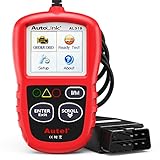
- 【TURN OFF CEL】 This AL319 car scanner diagnostic tool supports Reading and Clearing DTCs, DTC Look Up, displaying Live Data, Freeze Frame & I/M Readiness, view vehicle information, etc., to figure out the root cause of the Check Engine Light (CEL) and turn it off, helping you catch any potential issues early and avoid excessive costs from unnecessary repairs.
- 【EXTENSIVE APPLICATION】 Autel AL319 Compatible with 7 languages (English, French, Spanish, etc.) and various post-1996 OBD II protocol vehicles (Toyota
 , Nissan, Honda, Ford, etc.), this OBD II scanner provides accurate and fast diagnosis for worldwide car owners.
 - 【FOR END USER & DIYERS】 This error code reader AL319 is “plug and play” and comes with an easy interface. Even if you’re not familiar with vehicle repair, you can quickly take control of this obd2 scanner, and get the information you want.
- 【USER-FRIENDLY DESIGN】 This OBD2 scanner and check engine code reader features a patented One-Click I/M Readiness, TFT color display, built-in speaker, LED Indicator etc. The cable is long enough without being too long and getting in the way. No batteries are needed.
- 【HIGH-QUALITY SERVICES】 12 months war.ranty from the date of purchase and lifetime free update are offered by this Automobile OBDII scan tool. Welcome to contact us via Q&A, email, or hotline, and our after-sale-service team for technical support.
 ,
, 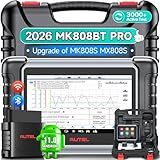
- 👨🎓Tips Before Order: 🚩All function are vehicle-specific - send VIN(17 digits)/Make/Model/Year & needed function via 📞auteldirect @ outlook . com📞 to check before order. 🚩Register tool: a) Follow on-screen guide; or b) Register em-ail on Autel we-b, then bind using SN(back of device) + verification code (find in tool settings or con-tact us via above em-ail). MK808BT PRO comes with ✅English, if need Spanish, please s.end device SN to add. ✅1-year war-ranty. ✅$150 worth 1yr fr-ee updates(New users: ignore renewal alerts). ⚠️📢Post-expiry: Most functions remain functional,for exclusions, refer to A+ Tips. ⚠️Fee for FCA AutoAuth Ga.teway(optional): $50/year, charged by AutoAuth,not Autel.
- 【2026 MK808BT PRO: Same as MK900BT, up of MK900 MX900 MK808S MX808S】Why pay more? 2026 MK808BT PRO functions as MK900BT and saves you 100USD. At same c0st, you now get diagnostic 8X faster and sup-port for 150+ models(1996-2026).💡Dramatically Improved: ✔️Faster & Smarter OS: Android 4.4➡ Android 11 ✔️More Services: 28+➡ 40+ ✔️Bidirectional Control: 50+➡ 3,000+ ✔️Enhanced Hardware: 1/32G➡ 4G/64G ✔️2.4GHz➡ 5G Dual WiFi ✔️Working range: 0.9m➡ 10m+ 🔋Battery test is clear on the large 7in display(BT506 required). 🔔Your Autel scanner is shipped brand new. For any issues(used, damaged, incompatible), e-m-a-il 📞auteldirect @ outlook . com📞 for priority resolution.
- 👍【New Next-Level Bidirectional Control, 50➡3000+ Tests, Covers Daily Repairs】Unlike the Autel DS708 DS808 MP808 MK808 and MX808 car diagnostic scanners, which offer only 50 functional tests, the Autel bidirectional scan tool MK808BT PRO is equipped with over 3000 active tests. These tests are widely used on car subsystems to help technicians quickly check if the car's actuators are functioning properly. Such as ABS, windows, rearview mirrors, wipers, sunroofs, fuel injectors, AC clutches, coolant fans, radiator fans, coolant pumps,etc. Tips📢: All functions are vehicle-specific, not universal to all vehicles,pls send VIN to 📞auteldirect @ outlook . com📞check compatibility before order.
- 👍【28+ Hot Services for 150+ Makes】Autel scan tool MK808BT PRO, upgraded with a BT VCI Mini(valued at 120USD), surpasses the old wired OBDII scanner MK808S MK900, by providing a convenient 33ft wireless working range, offering greater freedom and comfort compared to the 3.3ft cable limit of the MK900 MK808S MX808S car scanner. New features include VIN Check across different modules for comparison and 28+ resets, such as injector coding, ABS autobleed, Oil reset, SAS cali.bration, BMS, throttle relearn, suspension adjustments, etc. ⚠️📢Tips: Service functions are vehicle-specific, not universal to all vehicles, pls send VIN to 📞auteldirect @ outlook . com📞check compatibility before order.
- 👍【All Available Module Diagnosis - OE-Level Scanner】The OE versatile OBDII scan tool MK808BT PRO escaner para autos effectively works with all car systems: ABS, ECM, BCM, SRS, TCM,etc. It identifies vehicles via AutoVIN/manual input/select, like S.nap-on tools, it can ✔read/clear 7000+ DTCs, ✔read ECU info, ✔view 5-in-1 live data, ✔perform active tests, and ✔reset services. ✔Reports can be shared via QR-code and printed, working globally and 21+ multilingual. Supports 150+ US/EU/Asian makes, with ongoing updates from 2024 to 2026. ⚠️Note📢: The AutoVIN function usually works for post-2006 cars, depending on if the vehicle's VIN is stored in the ECU. You can always do manual input/select.
Last update on 2026-06-23 / Affiliate links / Images from Amazon Product Advertising API
This product presentation was made with AAWP plugin.