
NHTSA ID Number: 11026607
Manufacturer Communication Number: LI82.85-P-079530
TSB/Document Date: 2025-12-15
Summary
Complaint The following most common complaints may be observed: • Brief connectivity interruptions when using Apple CarPlay over Wi-Fi • Audio cuts out • Device not recognized • No operation possible Cause There are multiple possible causes for an iPhone disconnecting from a vehicle’s head unit while using Apple CarPlay. These include hardware, software, and environmental factors: Environmental Interference: External Sources: • Passing under toll bridges, driving near airports, or areas with heavy electronic interference can cause connection drops. Cellular Networks: • Interference from nearby cell towers operating on similar frequencies (usually 2.4GHz or 5GHz) can disrupt the signal. Storage Location: • Keeping your phone in a handbag or surrounded by other objects inside the vehicle can create physical or electronic interference. Device and Software Topics: Head Unit Software/Hardware: • Hardware causes or outdated firmware in the vehicle’s head unit can prevent a stable connection. iPhone Software/Hardware: • Similar causes in the iPhone, including outdated iOS versions or hardware causes, may affect performance. Reset or Reboot: • Automatic rebooting or resetting of either the head unit or the iPhone will temporarily disrupt CarPlay. Connection and Settings: Wired Connections • Cables: A compromised or poor-quality iPhone-USB cable can cause intermittent or total loss of connection. • USB Ports: Dust, debris, or physical deformation in the USB port of either the head unit or the iPhone can also lead to disconnects. Wireless Connections: • Intermittent Bluetooth/Wi-Fi: Unstable wireless communication (Bluetooth/Wi-Fi) can frequently break the Car- Play connection. Power Management: • Battery Saver Mode: Enabling low power mode may restrict background processes, affecting CarPlay. • Vehicle’s Electrical System: Unstable power delivery from the car’s battery or electrical interruptions can cause the head unit to malfunction. Phone & App Configuration: Phone Settings: • Settings (especially Bluetooth or Wi-Fi) on your iPhone can interfere with the CarPlay link. Third-Party Apps/Profiles: • Installed apps or configuration profiles may conflict with CarPlay’s operation. • Native apps are apple maps, apple music, audio books, apple news, podcasts, messages and phone. All other apps are considered third party apps. App Conflicts: • Running conflicting apps that require similar system resources as CarPlay can cause instability. Mobile Data Plan: • Streaming from online sources without sufficient mobile data can result in lost connectivity. Other Factors: Heat & Overheating: • If either the phone or the head unit overheats, they may disable certain functions to prevent damage, leading to disconnection. User Actions: • Accidentally disconnecting the device in settings, or physically moving or bumping the phone or cable, may disrupt the connection. Remedy Guided Diagnostic Path for Apple CarPlay Connection Issues Please follow the steps below to systematically diagnose and resolve CarPlay concerns: Update Devices: • Ensure the iPhone is updated to the latest available iOS version. • Ensure the vehicle’s head unit is updated to the latest software version available. Isolate the Issue: • Check whether the symptom persists with another iPhone running the latest iOS version. • Test both wireless and wired CarPlay connections: • Does the issue only occur with wireless CarPlay? • Does the wired connection to the phone function correctly? Further Troubleshooting Steps: • Reboot the iPhone. • Reboot the head unit via the settings menu (user data reset). • Remove saved CarPlay connections • Delete the head unit information from the iPhone (see attached video for guidance). • Delete the iPhone from the head unit’s list of paired devices. • Remove the head unit entry from CarPlay settings on the iPhone. • Re-initiate pairing between the head unit and the iPhone to establish a new connection certificate. See attachment for complete text.
If the PDF is very large, it may not load in the preview below.
Some older TSBs had multiple PDFs — visit the NHTSA Website to view all PDFs.
If the TSB PDF does not show, download or view it on the NHTSA Website.
Click on the (+) Plus Sign
Then Click on Associated Document(s)


- Advanced VCI Box, Industry-leading J2534 Pass-Thru...
- High-Speed OEM-Level Diagnostics & Programming: Unlock true...
- Coverage for 17 Car Brands & Ultra Reliability: Works...
- User-Friendly RLink Platform & Expert Support: TOPDON’s...
- 6.6 ft USB-C Cable & Portable Storage Case: The RLink J...
This product presentation was made with AAWP plugin.
Search NHTSA Database for Recalls
Search NHTSA Database for Vehicle Investigations
View Latest Vehicle Investigations
Search NHTSA Database for Vehicle Complaints
View Latest Vehicle Complaints
TSB/Document ID: LI82.85-P-079530
Replacement Service Bulletin Number:
MFR Communication Date: 2025-12-12
MFR Internal Campaign ID/Software Version:
Communication Type: Service Bulletin/Repair Instructions
NHTSA Components: ELECTRICAL SYSTEM
MFR Component System:
MFR Component Subsystem:
Previous TSB | Next TSB |
All model series with MBUX CIVICi2 and CIVICi3
- Connectivity interruptions for Apple CarPlay
Topic number
LI82.85-P-079530
Version
2
Function group
82.85 - Navigation and Communication systems
Date
12/12/25
Validity
All model series with MBUX CIVICi2 with Code 528 or
Code 529
Reason for change
adding CIVICi3
Complaint
The following most common complaints may be observed:
• Brief connectivity interruptions when using Apple CarPlay over Wi-Fi
• Audio cuts out
• Device not recognized
• No operation possible
Cause
There are multiple possible causes for an iPhone disconnecting from a vehicle’s head unit while using Apple CarPlay.
These include hardware, software, and environmental factors:
Environmental Interference:
External Sources:
• Passing under toll bridges, driving near airports, or areas with heavy electronic interference can cause connection
drops.
Cellular Networks:
• Interference from nearby cell towers operating on similar frequencies (usually 2.4GHz or 5GHz) can disrupt the
signal.
Storage Location:
• Keeping your phone in a handbag or surrounded by other objects inside the vehicle can create physical or electronic
interference.
15.12.2025 18:28
© Copyright Mercedes-Benz AG
AG
SAHARRY
Page 1 / 4
Device and Software Topics:
Head Unit Software/Hardware:
• Hardware causes or outdated firmware in the vehicle’s head unit can prevent a stable connection.
iPhone Software/Hardware:
• Similar causes in the iPhone, including outdated iOS versions or hardware causes, may affect performance.
Reset or Reboot:
• Automatic rebooting or resetting of either the head unit or the iPhone will temporarily disrupt CarPlay.
Connection and Settings:
Wired Connections:
• Cables: A compromised or poor-quality iPhone-USB cable can cause intermittent or total loss of connection.
• USB Ports: Dust, debris, or physical deformation in the USB port of either the head unit or the iPhone can also
lead to disconnects.
Wireless Connections:
• Intermittent Bluetooth/Wi-Fi: Unstable wireless communication (Bluetooth/Wi-Fi) can frequently break the CarPlay connection.
Power Management:
• Battery Saver Mode: Enabling low power mode may restrict background processes, affecting CarPlay.
• Vehicle’s Electrical System: Unstable power delivery from the car’s battery or electrical interruptions can cause
the head unit to malfunction.
Phone & App Configuration:
Phone Settings:
• Settings (especially Bluetooth or Wi-Fi) on your iPhone can interfere with the CarPlay link.
Third-Party Apps/Profiles:
• Installed apps or configuration profiles may conflict with CarPlay’s operation.
• Native apps are apple maps, apple music, audio books, apple news, podcasts, messages and phone. All other
apps are considered third party apps.
15.12.2025 18:28
© Copyright Mercedes-Benz AG
SAHARRY
Page 2 / 4
App Conflicts:
• Running conflicting apps that require similar system resources as CarPlay can cause instability.
Mobile Data Plan:
• Streaming from online sources without sufficient mobile data can result in lost connectivity.
Other Factors:
Heat & Overheating:
• If either the phone or the head unit overheats, they may disable certain functions to prevent damage, leading to
disconnection.
User Actions:
• Accidentally disconnecting the device in settings, or physically moving or bumping the phone or cable, may disrupt
the connection.
Remedy
Guided Diagnostic Path for Apple CarPlay Connection Issues
Please follow the steps below to systematically diagnose and resolve CarPlay concerns:
Update Devices:
• Ensure the iPhone is updated to the latest available iOS version.
• Ensure the vehicle’s head unit is updated to the latest software version available.
Isolate the Issue:
• Check whether the symptom persists with another iPhone running the latest iOS version.
• Test both wireless and wired CarPlay connections:
• Does the issue only occur with wireless CarPlay?
• Does the wired connection to the phone function correctly?
Further Troubleshooting Steps:
• Reboot the iPhone.
• Reboot the head unit via the settings menu (user data reset).
• Remove saved CarPlay connections
15.12.2025 18:28
© Copyright Mercedes-Benz AG
SAHARRY
Page 3 / 4
• Delete the head unit information from the iPhone (see attached video for guidance).
• Delete the iPhone from the head unit’s list of paired devices.
• Remove the head unit entry from CarPlay settings on the iPhone.
• Re-initiate pairing between the head unit and the iPhone to establish a new connection certificate.
Documentation and Additional Testing:
• If possible, provide a picture or short video showing the symptom.
• Check if similar symptoms occur when using Android Auto (if available)
If complaint persists please open a tips case with the attached questionnaire fully completed. A request for head unit
logging may be needed. If determined the head unit logs are needed to further diagnose the symptom the instructions
to do so will be provided in the TIPS case.
Attachments
File
Description
Deleting Carplay Connection from iPhone.MP4
Settings -> General -> Carplay -> Delete MBUX
ACP+Questionnaire+.pdf
Please complete this questionnaire
Disclaimer
NOTE: The information contained in this document is intended for use by trained, professional technicians with the
knowledge to properly and safely perform diagnosis and repairs on Mercedes-Benz vehicles, using Mercedes-Benz
approved tools and equipment. It informs service technicians about conditions that could occur in certain vehicles and
provides information that could assist in proper vehicle diagnosis, service, or repair. It does not indicate that a defect
is present in any vehicle referenced in this document nor does it imply warranty coverage. DO NOT assume that a
symptom or condition, or a described cause of a symptom or condition, affects any particular vehicle or groups of vehicles, or that a described repair applies to any particular vehicle or groups of vehicles. There can be multiple causes
resulting in the same or similar symptoms or conditions described in this document, and trained professional service
technicians must use their diagnostic skills to make evaluations on a case-by-case basis. The information contained
in this document does not guarantee warranty coverage nor does it extend the vehicle’s warranty in any way.
Symptoms
Communication/information > Entertainment > USB input > Malfunction
Communication/information > Entertainment > USB input > Not detected
Communication/information > Entertainment > USB input > Audio output faulty
Communication/information > Entertainment > Apple CarPlay > Malfunction
Communication/information > Entertainment > Apple CarPlay > No connection possible
Operation numbers/damage codes
Op. no.
Operation text
15.12.2025 18:28
© Copyright Mercedes-Benz AG
Time
Damage
code
Note
H
820D2
Refer to this Tips Document for warranty claims
SAHARRY
Page 4 / 4

- [2026 Top-Tier Hardware and Software Upgrade]: Topdon ArtiDiag900 Lite scanner has enhanced hardware and latest features, including Android 11.0, 5x faster CPU, 10000mAh battery for 12 hours of continuous operation, stable wireless diagnosis with Bluetooth 5.0, 8-inch touchscreen. Added bi-directional control, wireless diagnosis, battery testing (optional), and DTC repair guide
- [TOPDON Bidirectional Scan Tool]: This bidirectional obd2 scanner sends commands to the vehicle's ECU for active testing, enabling users to accurately and quickly locate faulty components such as injectors, coolant pumps, windows, wipers, headlights, mirrors, etc. The bidirectional control scanner is the ideal choice for workshops/automotive repair shops as it significantly reduces mechanic's diagnostic time.
- [Wireless Bluetooth Diagnostic Experience]: The AD900 Lite scan tool comes with a Bluetooth 5.0 VCI, supporting a wireless diagnostic range of up to 33 feet (10 meters), allowing you to diagnose without being confined to cables or tight spaces. Stable and fast wireless diagnosis provides a comfortable repair environment. It also offers VCI cables to increase connectivity options.
- [DTC Repair Guide Function]: Easily diagnose issues with your vehicle and receive guidance on repairs with the topdon scan tool's fault code definitions for all systems,maximize your diagnostic capabilities. This function is compatible with Chrysler
 /Dodge/Jeep/Fiat 2010-2014 and expanding with continual updates,the AritDiag 900 Lite car diagnostic scanner is the must-have tool for any technician or DIY enthusiast.
 - [OE-Level Full System Diagnostics]:AritDiag900 Lite full system diagnostic scanner can scan ALL available modules(Engine, Transmission, Airbag, ABS, ESP, TPMS, Gateway, Steering, Radio, Air conditioning, ect.) to✔read ECU info, ✔read/clear codes, ✔view live data stream, ✔retrieves freeze-frame, ✔perform active tests, and more. With just a simple click, it provides you with accurate and in-depth diagnostics.
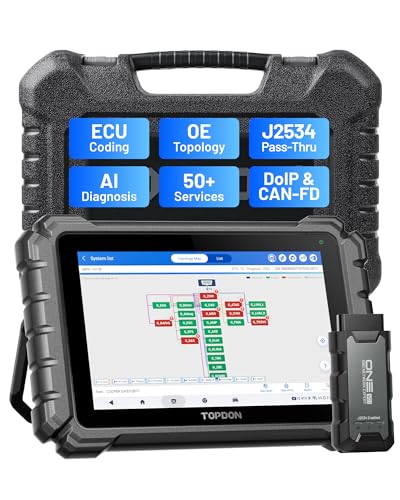
- Dual WiFi & 10.1" Touchscreen: Provides a stable, high-speed wireless link 3x faster than bluetooth, and a responsive, professional interface. Topdon ONE obd2 scanner diagnostic tool ensures smooth, non-lagging diagnostic scan, boosting mechanic efficiency
- J2534 Pass-Thru Support: The included ONE VCI supports the J2534 standard, allowing it to function as a pass-thru device when paired with OEM diagnostic software.Through TOPDON’s RLink platform, technicians can perform dealer-level coding, expanding in-house capabilities without investing in multiple factory automotive scan tools
- OE Topology Mapping: Visualize the vehicle’s ECU network exactly as it’s built.Zoom, pan, and highlight specific modules to pinpoint component issues with precision.Topology mapping displays real-time communication between modules
- Topfix AI Assistant: Covers 5 million plus fault codes and delivers instant causes, symptoms, and repair guidance with professional wiring diagrams for each code.Slashes diagnostic time, boosts first-time fix accuracy, and increases shop revenue
- 50 Plus Service Functions: Covers high-demand services like ADAS calibration, DPF regen, TPMS reset, ABS bleed, and throttle adaptation.Expands your service menu, allows you to charge premium rates, and turns away zero jobs due to lack of tooling. Vehicle-specific functionality may vary.

- Bi-Directional Control, Quickly Locate Problems: Turn your phone into a professional diagnostic tool. You can send commands from your phone to the ECU to test injectors, cooling fans, headlights, A/C clutch, windows, wipers, and more. See which one doesn't respond. Helps you quickly locate the problem and save time. No need to tear things apart, avoid blind disassembly.
- Full System Diagnostics, No Fault Hides: Unlike basic diagnostic tools that only cover 4 systems, TopScan can scan all systems. Read and clear trouble codes, view live data streams, and generate a complete vehicle health report – all issues are clear at a glance. Covers 10,000+ vehicle models and is compatible with 99.99% of vehicles.
- Flexible Subscription, Choose Advanced Features as Needed: TopScan Lite provides free-for-life access to core diagnostics, including full system scan, code reading, performance tests, and repair information. After purchase, advanced features (bi-directional control, service operations, live data, code clearing, and AI functions) are free-for-the-first-year. After the first year, if you want to use advanced features, you need to subscribe on a monthly, quarterly, or yearly basis. As new models and reset functions are updated, the tool will also be continuously upgraded.
- AI Assistant - TopFix: Think of TopFix as your personal AI mechanic. It leverages a repair database and OEM data to deliver clear, step-by-step repair solutions. Features include AI Q&A, one-click translation, and a full repair log, making your diagnostic process simpler and more efficient.
- 8+ Hot Resets, Keep Your Car in Top Shape: One-tap resets for oil, throttle, EPB, steering angle, DPF, ABS, BMS, and airbag. It enables car owners to easily perform essential maintenance, ensuring the vehicle stays in optimal condition and extends its service life.
This product presentation was made with AAWP plugin.
Last update on 2026-05-12 / Affiliate links / Images from Amazon Product Advertising API