
NHTSA ID Number: 11020138
Manufacturer Communication Number: No. 2503
TSB/Document Date: 2025-07-02
Summary
Tech live look information for dynamics 365 remote assist application. Please ignore previous submission for this as this provides the correct date.
PORSCHE
Tech Live Look Information
TLLI 2503
Dynamics 365 Remote Assist User Guide
USA Only
Vehicle Type:
All Porsche
Subject:
User Guide for the Dynamics 365 Remote Assist Application
Information:
The steps below will make you familiar with using the HoloLens 2 and Dynamics 365 Remote Assist to
place and receive Tech Live Look support calls.
AfterSales
June 2, 2025
Page 1 of 8
PORSCHE
Tech Live Look Information
TLLI 2503
Dynamics 365 Remote Assist User Guide
USA Only
Step 1 – Powering on the device
•
Wear the HoloLens 2 as shown. Adjust the top strap and
rear-fitting knob for comfort. For the best experience,
ensure that the device is level from front to back.
•
Press the power button once to wake the device from
sleep. Wait approximately 30 seconds to see the PIN
unlock screen.
Step 2 – Entering the PIN
•
When your HoloLens has booted, a menu will appear
asking you to input your PIN code.
•
Using your index finger, select “PIN”
•
Type in your PIN to unlock the device: 8675309
AfterSales
June 2, 2025
Page 2 of 8
PORSCHE
Tech Live Look Information
TLLI 2503
Dynamics 365 Remote Assist User Guide
USA Only
Step 3 – Navigating to Wi-Fi settings
•
After entering the PIN, a start menu will appear showing
your time of day, Wi-Fi network, volume level, and battery
percentage.
•
Using your index finger, select the Wi-Fi network (should
say “No Internet” upon device arrival)
Step 4 – Setting up Wi-Fi Network
•
Once inside the Wi-Fi settings page, ensure that Wi-Fi is
turned on.
•
Select your corresponding network, then select Connect
•
If you’re prompted for a network password, type it and
select Next
•
Click the X on the top right corner of the page and return
to the Start Menu by clicking the Microsoft logo on your
wrist.
AfterSales
June 2, 2025
Page 3 of 8
PORSCHE
Tech Live Look Information
TLLI 2503
Dynamics 365 Remote Assist User Guide
USA Only
Step 5 – Getting Familiar with HoloLens 2
•
From the start menu, select the Tips application and
press the Play Button on the Tips cube that pops up.
•
Complete the training for Hands within the application.
This application will help you get familiar with how to use
the HoloLens 2 and touch interface.
•
When completed, open the Start Menu and exit the
immersive app by pressing the Home Button on the
bottom of the Start Menu
Step 6 – Opening Dynamics 365 Remote Assist
•
Open the Start Menu and select the Remote Assist
application, press the Play Button on the cube to finish
opening the application
•
Once launched, you will be prompted to hit the Sign In
button.
•
On your first time opening the application, you may get a
series of tutorial hints.
AfterSales
June 2, 2025
Page 4 of 8
PORSCHE
Tech Live Look Information
TLLI 2503
Dynamics 365 Remote Assist User Guide
USA Only
Step 7 – Operating Dynamics 365 Remote Assist
•
Once within the Dynamics 365 Remote Assist
application, you will see your main menu
•
There are four tabs you can select:
•
Call: Search for contacts and initiate calls
•
Assets: Capture data about physical assets with
or without annotations
•
Files: Access files from your OneDrive
•
Settings: Configure various settings, switch
environments, watch tutorials, etc
Step 8 – Verify Correct Environment
•
Before initiating a call for the first time, verify you are in
the correct environment
•
First go to Settings and select Dynamics 365
Environments
•
The correct environment is TLL-Remote Assist
AfterSales
June 2, 2025
Page 5 of 8
PORSCHE
Tech Live Look Information
TLLI 2503
Dynamics 365 Remote Assist User Guide
USA Only
Step 9 – Initiating a Call
•
To start a call, select or search for your intended contact
from the contacts list in the Call tab
•
Search for the name of the desired contact and click their
profile icon to initiate the call.
•
When completed, press the Red Phone Button to end the
call.
Step 10 – Receiving a Call
•
While working in the Remote Assist application, you can
receive a call from an individual, a group, or from a
meeting in progress.
•
A notification display will pop up and you will select the
Video Icon to accept the call with your video on, showing
the remote collaborators your view.
•
When completed, press the Red Phone Button to end the
call.
AfterSales
June 2, 2025
Page 6 of 8
PORSCHE
Tech Live Look Information
TLLI 2503
Dynamics 365 Remote Assist User Guide
USA Only
Step 11 – Call Tools (Annotations)
•
While on a call, you will have the option to use mixedreality annotations to highlight areas of interest.
Step 12 – Powering Off & Securing Device
•
At the end of use of the device, tap the power button once
to return the device to sleep mode.
•
Plug in your device to charge and store the device as
instructed.
•
Your device will automatically lock itself and apply
software updates during sleep mode.
AfterSales
June 2, 2025
Page 7 of 8
PORSCHE
Tech Live Look Information
TLLI 2503
Dynamics 365 Remote Assist User Guide
USA Only
Support Process:
If you have any questions regarding this update, please submit a PRMS ticket under Special Tools --> Tech Live Look
For updated versions of this document or other TLL documentation, please visit this link on PPN:
https://ppn.porsche.com/portal/community/porsche_cars_north_america/after_sales/service/tech-live-look
© 2025 Porsche Cars North America,
AfterSales
June 2, 2025
Page 8 of 8

- 💯【Conta.ct us for Support Directly】If you met any...
- 🔥🔥🔥【2026 AUTEL FLAGSHIP MK900BT MK900-BT, NEW...
- 🚗【3000+ ACTIVE TESTS (50➡3000+), SAME AS MS...
- 🚗【40+ HOT SERVICES FOR 150 MAKES (28+➡40+)】Full...
- 🚗【OE ALL SYSTEM DIAGNOSE, AUTO SCAN 2.0: SCAN LICENSE...

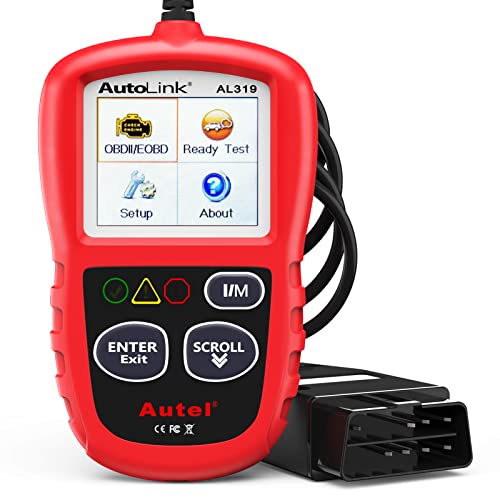
- 【TURN OFF CEL】 This AL319 car scanner diagnostic tool...
- 【EXTENSIVE APPLICATION】 Autel AL319 Compatible with...
- 【FOR END USER & DIYERS】 This error code reader AL319 is...
- 【USER-FRIENDLY DESIGN】 This OBD2 scanner and check...
- 【HIGH-QUALITY SERVICES】 12 months war.ranty from the...
Last update on 2026-06-23 / Affiliate links / Images from Amazon Product Advertising API
If the PDF is very large, it may not load in the preview below.
Some older TSBs had multiple PDFs — visit the NHTSA Website to view all PDFs.
If the TSB PDF does not show, download or view it on the NHTSA Website.
Click on the (+) Plus Sign
Then Click on Associated Document(s)
Search NHTSA Database for Recalls
Search NHTSA Database for Vehicle Investigations
View Latest Vehicle Investigations
Search NHTSA Database for Vehicle Complaints
View Latest Vehicle Complaints
TSB/Document ID: No. 2503
Replacement Service Bulletin Number:
MFR Communication Date: 2025-06-02
MFR Internal Campaign ID/Software Version:
Communication Type: Service Bulletin/Repair Instructions
NHTSA Components: UNKNOWN OR OTHER
MFR Component System:
MFR Component Subsystem:
Previous TSB | Next TSB |
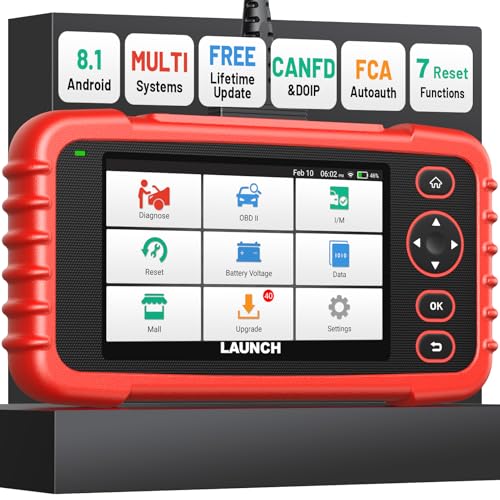
- [Newly Added in 2026: 7 Reset Functions] The 2026 new version of the OBD2 scanner diagnostic tool CRP123X V3.0 Elite has new special functions for F.REE: Throttle Ad.aptation, Oil/SAS/BMS/Brake Reset, D-P.F Re.generation and ABS Service. Before you visit a mechanic, launch obd2 Scanner CRP123X Elite can perform a more in-depth diagnosis of the car system and provide accurate data within minutes. What's more, the list of compatible models has been expanded. Upgrading frequency is regular, occurring monthly even weekly.
- 🔥[FCA AutoAuth + CAN FD & DoIP] As an upgraded version of the LAUNCH CRP123X/CRP129X, FOXWELL NT614, and ANCEL FX2000, The Newest LAUNCH CRP123X V3.0 auto diagnostic scanner supports the following new protocols: CAN-FD for 2020 and newer G.M and Chrysler
 models, as well as DoIP for V.olvo, Land Rover/Jaguar, and B.MW F/G chassis. With integrated AutoAuth, you can diagnose 2018 and newer FCA cars equipped with S.GW. Note: CAN-FD and DoIP protocols require an additional obd2 cable. *Menus vary by make, model, and year of gasoline or diesel engine vehicle. Email us your VIN data.
 - 🔥[No extra software fee. Works on 90 vehicle brands.] Most OBD2 scanners work with vehicles manufactured after 2001. However, the LUNCH OBD2 scanner is compatible with OBDII-equipped vehicles built after 1996 and works with more than 90 vehicle brands. One-click lifetime updates over WIFI 2.4&5.0Ghz keep the car software current and ensure constant coverage additions, diagnose vehicles from 1996 to 2026 with a massive global database. Android 8.1 ensures lightning-fast boot-up and processing.
- [Accurate & Intuitive Multi System Diagnosis] Will you be confused about what happens when the warning light of transmission, ABS, and SRS Airbag check engine flashes? Launch obd2 scanner diagnostic tool CRP123X V3.0 to pinpoint the problem components for a faster diagnosis for your car instead of taking your car to the dealership. Generate vehicle health reports with one click and share them via email over Wi-Fi to help avoid blind maintenance. And will turn off the warning light for you after fixing the problem, make to know more about your cars and do your own repair.
- [Multiple Display of Live Data + DTC Code Definition Explanation] Launch car tools show real-time data of oil temp, pressure, transmission temp, engine speed, coolant temperature, you will know which car part is abnormal. Data can be shown in a single, multi- graph, and merge two graphs for analysis(or 4-in-1 merged waveform graph),you can save, share, print, or email the overall inspection report for easier analysis.🔥Code Search,DTC Library provide massive information. Inbuilt “Feedback” module provides customized repair suggestions from our certified professionals.
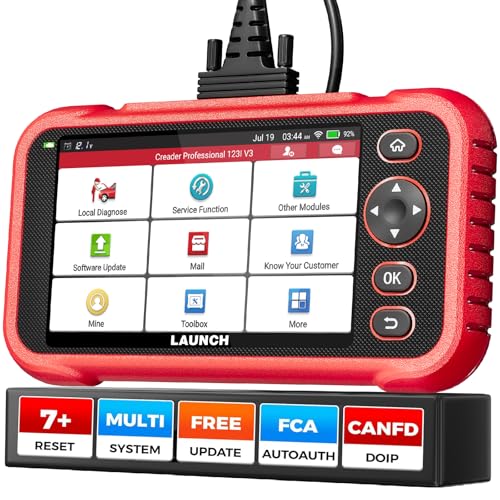
- 【2026 UPGRADED VERSION, NEW CHIPS, ADD MORE FUNCTIONS, No Extra Software Fee】Faster! The 2026 CRP123I V3.0 car diagnostic scanner has a new processor✅Android 8.1, 2+64GB of memory, 5-inch touchscreen (720P), 6100mAh rechargeable battery✅FCA SGW, New Protocol CANFD & DoIP✅Work with BST360 Battery Tester & i-TPMS Tire Pressure Detector Tool(Purchase Separately)✅2.4&5GHz dual WiFi,One-touch Lifetime Free update for 100+ Global brands(1996-2026),help you access,diagnose and fix more vehicles faster,upgrade of CRP123I V2.0.
- 【Newly Added 7 RESET FUNCTIONS】+ 【BATTERY VOLTAGE TEST】2026 New Ver. scan tool CRP123I V3.0 ADDS NEW SPECIAL FUNCTIONS-Throttle Adaptation,Oil Reset,SAS Reset,ABS Bleeding,BMS Reset,EPB Reset, DPF Regeneration,to maintain your vehicle system safely and efficiently.Graphing the battery voltage easier and more intuitive for the real-time monitors to check.It does not only reveal what error codes your car is producing,but also erase your vehicle's check engine light after the problem is fixed.
- 【Multi System Diagnostic Tool】LAUNCH CRP123I V3.0 obd2 scanner check ABS/SRS/AT/ENG systems &10 OBD2 modes, read/clear fault codes,Online Google Search, 4 IN 1 Graphing.Store and playback of dynamic data stream help to quick analysis and diagnosis. Generate vehicle health reports with one click and share them with your email via Wifi which helps avoid blind maintenance. CRP123I costs less, in the long run, saving you up to $2000 each year.
- 【Lifetime Free Update + FCA SGW +CAN FD & DoIP】This scan tool features One-click wifi update and fre e for fixing more bugs; Realtime battery voltage graphing helps to Judge the state of the battery; Auto Vin,facilitate accurate diagnosis and provide useful information.Besides,CRP123I V3.0 support AutoAuth for FCA SGW,For 2017 and later FCA Vehicles with Secure Gateway Module (SGW);New Protocol CANFD & DoIP cover more newer car and boost 4X faster data transfer(need extra adapters).
- 【Cover 10000+ Models & 100+ Car Brands】CRP123I V3.0 Elite code reader for cars and trucks is capable of diagnosing fault codes on more than 10000+ vehicles from 1996 to 2026 and 90+ car makes worldwide. Support almost all 12V OBDII cars such as SUVs, minivans, light-duty trucks, etc. It's an excellent tool for all types of mechanics from novice to pros. NOTICE: Compatibility will vary on vehicles' model and year, pls reach us via Q&A/message before purchase.
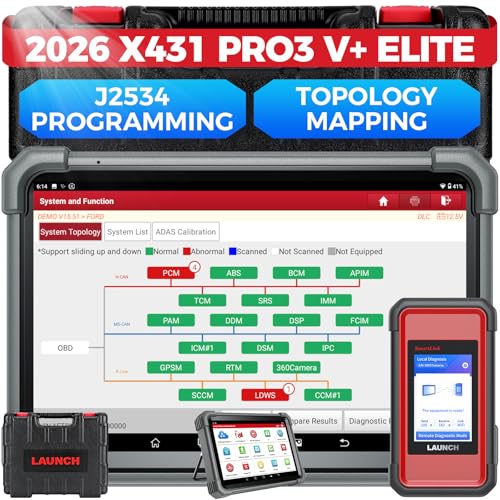
- [2026 X431 PRO3 V+ Elite] A great value for the X431 series that differs from similar diagnostic tools by adding: 1) J2534 protocol for over $800 in savings; 2) CANFD/DOIP support for enhanced communications; 3) Configuration of over $900 worth of HD(heavy truck) modules, needed purchase HD diagnostic software by HD vehicle model for use.; 4) A 10.1 inch Gorilla screen with 1280*800 resolution and 80% more touch screen sensitivity
- [J2534 Protocol Scan Tool] The J2534 Direct Access Device can be used as a factory scanning tool at no cost to you, saving you over $2,000. You can easily expand your ECU protocol capabilities for Toyota, Honda, VW, BMW, Ford, GM, Chrysler, Mercedes-Benz and more. The LAUNCH X431 PRO3 V+ ELITE Scan Tool is equipped with the newly upgraded smartlinkC V2.0. smartLinkC is a communication interface that supports the J2534 specification. It can also be used as a J2534 PassThru device to implement the J2534 protocol with a PC that has OEM diagnostic software installed.The J2534 protocol is the only way to solve problems ranging from drivability and power loss to poor fuel economy
- [Top Hardware Configuration, Upgraded Version of V+] LAUNCH Diagnostic Scanner adopts Android 10.0 OS; CPU is 4-core processor with 2.0 GHz, which greatly improves the speed of running multi-tasks. 2.4GHz/5GHz; 6300mAh/7.6V ultra-large capacity battery; 10.1 inch Gorilla screen, sunlight readable, 8MP camera; Auto VIN; 4GB+64GB storage; 20x transfer rate to save more vehicle files and customer data; New TYPE A interface to connect expansion tools such as oscilloscopes, sensors, etc.; Supports more than 25 software languages such as EN, DE, FR, SP and JP
- [60+ Reset 3000+ Active Test] Full Bi-Directional Scan Tool quickly detects problems and guides repairs based on the response of actuators such as air conditioning clutches, windows, doors, mirrors and more. With the touch of a finger, you can easily send command signals from the scanner to a variety of modular actuators, testing component integrity and functionality in minutes or even seconds to determine if a replacement or repair is needed. In addition, the machine enjoys 60+ special services such as oil reset, ABS brake bleed, EPB, SAS, BMS, suspension, injector reset and more, and undergoes rigorous field testing to ensure availability
- [Unrivaled Coverage, Over 200 Vehicle Brands] LAUNCH X431 PRO3 V+ Elite Automotive Scanner is suitable for over 200 vehicle brands, including commercial vehicles and new energy vehicles. This professional car scanner supports: 1) J2534/D-PDU protocol for HD trucks; DoIP/CANFD for Land Rover/Jaguar, BMW F/G chassis, GM, etc.; 2) FCA Autoauth, covering 2018+ Chrysler/Dodge/Fiat, etc. New/old models, all covered. Includes frequently updated vehicle software and car coverage for faster support of other new models
Last update on 2026-06-23 / Affiliate links / Images from Amazon Product Advertising API
This product presentation was made with AAWP plugin.