
NHTSA ID Number: 11014243
Manufacturer Communication Number: SB-18-28
TSB/Document Date: 2025-02-12
Summary
Transit bus repair to upgrade the ABS controller to communicate with clever ITS ABS monitoring.
ISSUE DATE:
SERVICE BULLETIN SUBJECT:
VINs or MODELS AFFECTED:
COMPLETE BY:
SERVICE BULLETIN #:
04/25/2018
Bendix ABS ECU Replacement
NYCT and other Customers with Clever Devices Monitoring
Next available service opportunity
SB-18-28
NOTICE! It is expected that this process will require 2 hours per bus. Please
schedule appropriately to minimize vehicle downtime.
BENDIX ABS ECU REPLACEMENT
Description
This replacement is necessary to correct a bug found in the Bendix ABS ECU software that was
causing relative wheel speed messages to be duplicated over CAN. The Bendix ABS ECU will need
to be swapped out and the commissioning/calibration process will have to be completed before the
vehicle can be returned to service.
Tools/Parts Required:
Tools Required:
• Torx Bit and Driver Set
• Allen Bit Socket (4mm)
• Torque Driver for Torx and Allen Bits (capable of up to 50 in-lb)
Parts Required:
• 035864 – ABS ECU (New Firmware for Clever Devices interface)
Programs Required:
• Bendix ACom Diagnostics 6.8
Bendix ABS ECU Replacement Procedure:
The purpose of this procedure is to replace the existing ABS ECU with a unit with new firmware.
1. Power off the vehicle and perform Proterra Lockout/Tagout.
2. At the rear of the bus interior, remove the screws that secure the rear deck cover panel,
remove the cover panel and set aside.
3. Locate the existing Bendix ABS ECU at the streetside rear corner of the rear deck plate.
4. Disconnect the harness from the existing ABS ECU.
2|Page
Headquarters: 1815 Rollins Road, Burlingame, CA 94010
East Coast Manufacturing: 1 Whitlee Court, Greenville, SC 29607
West Coast Manufacturing: 383 Cheryl Lane, City of Industry, CA 91789
5. Using a 4mm Allen bit socket (or Allen wrench), remove the four (4) screws, lock washers, and
flat washers that secure the ABS ECU to the vertical bracket on the rear deck plate.
6. Place the removed ABS ECU aside for return to Proterra/Bendix.
7. IMPORTANT! Document the Serial Number of the new ABS ECU and Vehicle ID (Bus
Number) that the new ABS ECU is being installed on.
8. Position the new ABS ECU (035864) in position against the body and using a 4mm Allen
wrench (or bit and driver), install and slightly tighten the four (4) socket head cap screws, lock
washers and flat washers securing the ABS ECU to the vertical bracket on the rear deck plate.
Flat Washer
Lock Washer
Screws
9. Using a Torque Driver, torque each of the four Socket Head Cap Screws to 44 in-lb.
3|Page
Headquarters: 1815 Rollins Road, Burlingame, CA 94010
East Coast Manufacturing: 1 Whitlee Court, Greenville, SC 29607
West Coast Manufacturing: 383 Cheryl Lane, City of Industry, CA 91789
10. Connect the harness to the newly installed ABS ECU.
11. Position the rear deck cover panel in place and install the screws that secure the rear deck
cover panel to the frame.
12. Remove Lockout/Tagout and power on the vehicle.
13. Completing the following Bendix ABS ECU Configuration Procedure.
4|Page
Headquarters: 1815 Rollins Road, Burlingame, CA 94010
East Coast Manufacturing: 1 Whitlee Court, Greenville, SC 29607
West Coast Manufacturing: 383 Cheryl Lane, City of Industry, CA 91789
Bendix ABS ECU Configuration Procedure:
The purpose of this procedure is to verify that the Bendix ABS ECU has the appropriate settings for
the vehicle.
1. Verify that the Vehicle Master Disconnect switch at the rear of the bus is ON.
2. At the Drivers Workplace, turn the Master Switch to the ON position to activate switched low
voltage power.
3. Ensure that the bus has at least 100 PSI of air pressure in the primary and secondary tanks.
Note: If the vehicle does not have air pressure, apply external air to the vehicle to refill the
tanks or temporarily turn on high-voltage to air up the tanks and then turn the bus OFF and
back ON so that only Low-Voltage is powered. If using an external air supply, the external air
may be left connected during the configuration procedure.
4. Raise the bus into the air and place jack stands under the frame AND axles.
WARNING! Follow proper site Safety Procedures for using lifts.
5. With the vehicle fully supported by jack stands, carefully lower the wheel lifts so that the
wheels can spin freely with the parking brake released.
6. Connect NEXIQ USB link adaptor to the rear deck OBD port using the pink “Volvo/Mack”
adapter and ensure the green power light illuminates. Connect the USB port to the laptop.
NEXIQ to
OBD
adapter
NEXIQ
adapter
Green
Power
Light
Rear
Deck
OBD Port
5|Page
Headquarters: 1815 Rollins Road, Burlingame, CA 94010
East Coast Manufacturing: 1 Whitlee Court, Greenville, SC 29607
West Coast Manufacturing: 383 Cheryl Lane, City of Industry, CA 91789
7. Open the ACom Diagnostics 6.8 program on the laptop.
8. Select the first line in the pop-up menu, “EC-60” controller.
9. Click the “Start with ECU” button, which should transfer you through a connection screen to the
main unit configuration window.
10. From the Home screen, click “Installation”.
11. Click through the Warning screen.
NOTICE! If the Installation Tests option is not available, then it may need to be unlocked on
your laptop - contact the responsible Engineering party for assistance.
IMPORTANT!: The vehicle frame needs to be set on jack stands since each wheel will need to
be turned independently to verify sensor function.
6|Page
Headquarters: 1815 Rollins Road, Burlingame, CA 94010
East Coast Manufacturing: 1 Whitlee Court, Greenville, SC 29607
West Coast Manufacturing: 383 Cheryl Lane, City of Industry, CA 91789
12. Verify the installation tests to be performed. The following Items should be checked from the
“Customize” menu of the Installation Tests main screen:
13. Scroll down on this screen to view the additional tests:
14. Click “OK” to save these settings and return to the Installation Tests main window, then return
to the Home screen.
7|Page
Headquarters: 1815 Rollins Road, Burlingame, CA 94010
East Coast Manufacturing: 1 Whitlee Court, Greenville, SC 29607
West Coast Manufacturing: 383 Cheryl Lane, City of Industry, CA 91789
15. From the Home screen click the “Controller Configuration” button to configure the system.
16. Click the “Modify” button.
17. Set the parameters on this screen to match the screenshot for the bulleted items below:
• Steer Axle = 522
• Drive Axle = 522
• ATC Control = Brake
522
522
BRAKE
18. Verify the configuration has the appropriate settings for the vehicle in question. When these
settings have been changed, select “Write” option.
8|Page
Headquarters: 1815 Rollins Road, Burlingame, CA 94010
East Coast Manufacturing: 1 Whitlee Court, Greenville, SC 29607
West Coast Manufacturing: 383 Cheryl Lane, City of Industry, CA 91789
19. Close the “Change Configuration” menu, back to the Configuration window, then click the
“Broadcast” button.
20. On the J1939 tab, ensure the communication parameters match the following screenshot and
then click “Write” to save this configuration.
21. From the home screen in ACOM Diagnostics 6.8, Click the “DTCs” button to check diagnostic
codes from the vehicle ABS system.
22. Investigate and correct all DTCs. There should be NONE active before proceeding.
9|Page
Headquarters: 1815 Rollins Road, Burlingame, CA 94010
East Coast Manufacturing: 1 Whitlee Court, Greenville, SC 29607
West Coast Manufacturing: 383 Cheryl Lane, City of Industry, CA 91789
23. Click “Clear” to clear the currently displayed DTCs.
24. Click “Read” to check the system for currently active DTCs.
NOTICE! If any active DTC codes re-appear, investigate and repair the problems before
starting the installation tests in the following section.
25. The “Component tests” screens can be used to diagnose and fix problems with ABS systems.
After all the non-standard codes have been corrected, click on the “DTC Events” tab and click
“Clear” to clear all historical DTCs left over from the vehicle build process.
Note: Now you are ready to begin the installation tests.
26. Return to the home screen, click “Installation”.
27. Click through the Warning screen.
NOTICE! If the Installation Tests option is not available, then it may need to be unlocked on
your laptop - contact the responsible Engineering party for assistance.
IMPORTANT!: The vehicle frame needs to be set on jack stands, with the wheels freely
hanging, since each wheel will need to be turned independently to verify sensor function.
10 | P a g e
Headquarters: 1815 Rollins Road, Burlingame, CA 94010
East Coast Manufacturing: 1 Whitlee Court, Greenville, SC 29607
West Coast Manufacturing: 383 Cheryl Lane, City of Industry, CA 91789
28. Click “Start/Next” button at the top of the installation menu. The program will communicate with
the controller and set up the system configuration one step at a time. Follow the instructions
and ALWAYS have someone watching on the outside of the vehicle for safety.
29. During the “Sensor Sequence test”, one person should manually spin each wheel when called
for to allow the ABS sensors to register readings.
30. For the sensor sequence test on the Drive axle, you must get under the vehicle and manually
unplug the LEFT wheel speed sensor to get only the RIGHT side reading. After spinning the
axle with one sensor unplugged, plug the sensor back in and spin both wheels for the “LEFT”
side sensor reading.
Note: If the procedure is stopped in the middle of the test for some reason (fix a sensor, lamp,
whatever), you will have to start ALL of the Installation tests over again from the beginning.
31. At the end of test sequence, enter the OEM name and vehicle VIN number for that vehicle.
32. YOU MUST Click the “SAVE” button before you close the window or else you will have to start
the tests all over again. Once this procedure is finished and the bus has been reset, the ABS
amber warning light on the dash should be off.
11 | P a g e
Headquarters: 1815 Rollins Road, Burlingame, CA 94010
East Coast Manufacturing: 1 Whitlee Court, Greenville, SC 29607
West Coast Manufacturing: 383 Cheryl Lane, City of Industry, CA 91789
33. Keep a copy of these ABS configuration records. It should be printed off or saved.
34. Close out of the Installation Test window, you are finished with the programming.
35. Disconnect from the vehicle ECU by closing out of all dialog boxes.
36. Unplug the NEXIQ unit from the diagnostic port.
37. Reset the bus, by turning it off and then on again.
38. Upon vehicle startup, verify that the amber ABS light on the dash is no longer lit continuously.
Note: Both the ABS and ATC indications should illuminate for a few seconds on startup and
then disappear.
39. Verify the ABS system activates the modulator valves on all front and rear wheels in sequence
on 24-Volt Key On.
Note: You should hear sounds like “click, click”…...”click, click”.
12 | P a g e
Headquarters: 1815 Rollins Road, Burlingame, CA 94010
East Coast Manufacturing: 1 Whitlee Court, Greenville, SC 29607
West Coast Manufacturing: 383 Cheryl Lane, City of Industry, CA 91789

- 💯【Conta.ct us for Support Directly】If you met any...
- 🔥🔥🔥【2026 AUTEL FLAGSHIP MK900BT MK900-BT, NEW...
- 🚗【3000+ ACTIVE TESTS (50➡3000+), SAME AS MS...
- 🚗【40+ HOT SERVICES FOR 150 MAKES (28+➡40+)】Full...
- 🚗【OE ALL SYSTEM DIAGNOSE, AUTO SCAN 2.0: SCAN LICENSE...

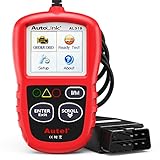
- 【TURN OFF CEL】 This AL319 car scanner diagnostic tool...
- 【EXTENSIVE APPLICATION】 Autel AL319 Compatible with...
- 【FOR END USER & DIYERS】 This error code reader AL319 is...
- 【USER-FRIENDLY DESIGN】 This OBD2 scanner and check...
- 【HIGH-QUALITY SERVICES】 12 months war.ranty from the...
Last update on 2026-06-23 / Affiliate links / Images from Amazon Product Advertising API
If the PDF is very large, it may not load in the preview below.
Some older TSBs had multiple PDFs — visit the NHTSA Website to view all PDFs.
If the TSB PDF does not show, download or view it on the NHTSA Website.
Click on the (+) Plus Sign
Then Click on Associated Document(s)
Search NHTSA Database for Recalls
Search NHTSA Database for Vehicle Investigations
View Latest Vehicle Investigations
Search NHTSA Database for Vehicle Complaints
View Latest Vehicle Complaints
TSB/Document ID: SB-18-28
Replacement Service Bulletin Number:
MFR Communication Date: 2021-10-05
MFR Internal Campaign ID/Software Version: SB-18-28
Communication Type: Service Bulletin/Repair Instructions
NHTSA Components: SERVICE BRAKES
MFR Component System:
MFR Component Subsystem:
Previous TSB | Next TSB |
- 🎉[OTOFIX D1 Lite, Perfect Cost-effective Diagnostic Tool]: OTOFIX D1 Lite, a newest bidirectional scan tool from OTOFIX company, is a great choice for DIYers and repair shops. 👉This obd2 scanner diagnostic tool packs all practical functions: OE level all systems diagnoses, Bi-Directional Control, 38+ reset services fixing 99% of common problems, support DoIP & CANDF protocols and FCA
 AutoAuth, high-end hardware configuration. Worldwide vehicles and 🔥2 Years Free Updating🔥 covered.
 - 🎉[Bi-Directional Scan Tool, Active Test]: OTOFIX D1 Lite bluetooth obd2 scanner can also command ECUs and monitor the operation of the actuators to track down the problems of certain parts, like windows, sunroof, wipers, fuel pumps, etc., saving repair time & trouble. This makes OTOFIX D1 Lite the most cost-effective bidirectional scan tool.
- 🎉[2026 Newest, 38+ Hot Reset Functions]: Equipped with 38+ reset functions in one, the OTOFIX D1 lite automotive scanner diagnostic tool allows you to troubleshoot 99% of common vehicle problems. You can use this car diagnostic scanner holding enough functions to easily repair common vehicle models in your repair shops. Including Oil Reset, Injector Coding, Throttle, DPF Reset, SCR Reset, Gear Learning, Clutch Learning, Suspension, etc. Note* Reset functions vary by model.
- 🎉[OE Level Full Systems Diagnostics]: Unlike the 2-system and 4-system diagnostic tools, the OTOFIX auto scan tool can complete comprehensive system diagnostics within 5 minutes. It accesses and scans all available onboard systems like for Engine /AT /ABS /EPB /BMS /TPMS /SRS /SAS /Audio System /BCM /Air Conditioning / etc., to read & clear codes, view live data, and check ECU information. Note: Active test is not involved.
- 🎉[Powerful Hardware Configuration]: Designed with a fashion appearance & a 7” touchscreen and a weight of 463g, this OTOFIX D1 Lite OBD2 diagnostic scanner scan tool is convenient for everywhere and easy to use & store. Android9.0 OS and 2+64GB memory enhance multi-task smoothness and diagnostic operation, no more wasting too much time. 5800mAh battery allows hours-lasting use. WiFi & VCI1 also bring faster communication for your diagnostics.
- 🏆【2026 TOP OBD2 Scanner Diagnostic Tool】OTOFIX D1 Lite wireless obd2 scanner has upgraded hardware configuration and car coverage. The newly upgraded D1 Lite with 🔥OS Android 9.0🔥1.5Ghz 4 core high efficiency processor🔥2GB RAM+64GB ROM large storage🔥5800mAh large battery, more stable and longer lasting diagnostics🔥 38+ Reset🔥action tests🔥full system diagnostic🔥Supports MV105 endoscope🔥21+ Language Supports🔥100000+ vehicle coverage to meet all your daily maintenance needs.
- 👍【Bi-Directional Control / Active Test】D1 Lite obd2 scanner has bidirectional control(worth $300+), which is the most beloved feature among mechanic. If your headlights or car windows are broken, going to a repair shop will cost a lot of money. You can use D1 Lite to send execution commands to the ECU module and identify the repair status. Such as ABS, car windows, doors, valves, wipers, headlights, etc., effectively shorten diagnostic time and reduce diagnostic costs.
- 🔥【All Systems Diagnostics, In-depth Checking】This advanced OBD2 Scanner D1 Lite can perform OE-level diagnosis of all systems including engine, transmission, airbag, ABS, ESP, TPMS, gateway, steering, radio, and air conditioning for more than 100 brands. This diagnostic scanner supports essential functions, such as reading ECU version info, reading and clearing fault codes, and reading data streams.With just a simple click, it provides you with accurate and in-depth diagnostics.
- 🏆【38+ Reset Hot Functions】For repair workshops, holding an OTOFIX D1 Lite Auto scanner is a strong advantage over others. Its 38+ maintenance functions provide various solutions for all module repairs, including Oil Reset, TPMS Reset, Injector Coding, Suspension, Throttle Matching, etc., which will usher your repair business to a new pinnacle. Continuously updating will never make the functionality & compatibility out-of-date.
- 🏆【150+ Models, 10000+ Car Coverage & 16 Languages】D1 Lite is a comprehensive car diagnostic scan tool, help you to troubleshoot car issues fast for 95% US, European, Asian auto makes. ✅ With frequent updates and optimizations allow D1 Lite to cover more vehicles to meet your needs. ✅ Multilingual menu allows auto mechanics around the world to use it without language barriers. 🚩Note: Kindly send us the S/N of the device to authorize new language updates before changing the menu language.
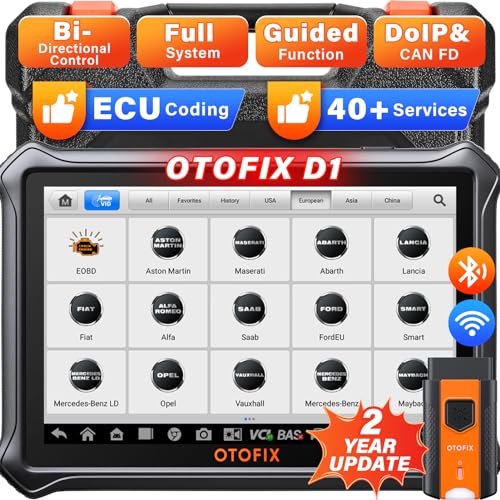
- 2026 Newest Wireless Bluetooth Scan Tool D1: OTOFIX D1 Diagnostic scanner is upgraded version with Enhanced Hardwares & Newest Functions, FASTER and SMARTER! ✅Alternative Bluetooth 5.0 +USB connect✅2G+64GB✅Android 9.0 OS✅5G & 2.4 GHz Dual WiFi✅5800mAh battery👍VAG Guided Function👍ECU Online Coding👍CANFD&DOIP👍40+ Services👍Bi-Directional Control👍Full Systems Diagnose👍2 Years Free Update👍150+ Vehicle Coverage🎁Contact to get gift: otofixaftersales-amz@ outlook.com
- ECU Coding to Unlock the Hidden Features: OTOFIX D1 obd2 scanner diagnostic tool newly adds ECU Coding which can Online Coding(ONLY for VW/Au.di/Sk0da), Variant Coding/Offline Programming, Flash Hidden Functions, Reset Adaptive Data, Match Replaced Components, Customize OE-Settings. Such as: halogen fog lamps retrofitted with xenon fog lamps, different capacity battery retrofit, disbale auto start-stop, sunroof initialization, injector calibration, etc. PS: Coding functions vary by model&year.
- Full Bidirectional Control for Active Car Tests: The D1 OTOFIX scanner also offers bi-directional control, allowing you to perform powerful active tests on car subsystems. This means that you can check the working status and functionality of open & close solenoids, energize injectors, turn cooling fan on & off, and more, all from the device itself.🚩The D1 bi-directional obd2 scanner can quickly help you to check if a system or component goes well,Improving 200% Efficiency.**Note that Active Tests available depend on the make/model/year of your car.
- 40+ Popular Maintenance Functions: OTOFIX D1 obd scanner for car performs 40+ hot services, including Oil Reset, EPB, TPMS, BMS, E.GR, G.PF, D.PF, SAS Calibration, ABS Bleeding, Injector Coding, Gearbox Match, Suspension, Crankshaft Relearn, Power Balance, etc., still growing. Great choice for DIYers, technician, repair shop. 🚩Get MORE special functions from "Car Brand>System>Service". Check compatibility before purchase via 📧 otofixaftersales-amz@ outlook.com.
- OE-Level All Systems Diagnostic + One-Click AutoVIN & AutoSCAN: OTOFIX D1 scanner automotriz gives you the ability to troubleshoot entire car systems including engion system,transmission system,body system,chassis,etc. 🚩One of the standout features of the D1 obd2 scanner diagnostic tool is the one-click AutoVIN & AutoScan function. This feature allows you to quickly and easily scan all diagnosable ECUs with just one click, and identify any problems hidden in your vehicle's systems.
Last update on 2026-06-23 / Affiliate links / Images from Amazon Product Advertising API
This product presentation was made with AAWP plugin.