
NHTSA ID Number: 11007901
Manufacturer Communication Number: TSB 24-2266
TSB/Document Date: 2024-09-19
Summary
Some 2022-2023 F-150 Lightning vehicles may exhibit diagnostic trouble codes (DTCs) U019B:00 stored in the secondary on-board diagnostic control module C (SOBDMC) and U0293:00 stored in the secondary on-board diagnostic control module A (SOBDM), inoperative high voltage to low voltage energy transfer feature and inoperative intelligent backup power feature. This is due to the software level of the gateway module A (GWM).
&
TECHNICAL SERVICE BULLETIN 24-2266
Inoperative High Voltage To Low Voltage Energy Transfer Feature And/Or —™ Sertember
Inoperative Intelligent Backup Power - DTC U019B:00 Stored In The
SOBDMC And DTC U0293:00 In The SOBDM
Model:
Ford
2022-2023 F-150 - Lightning
Issue: Some 2022-2023 F-150 Lightning vehicles may exhibit DTC U019B:00 stored in the SOBDMC and U0293:00
stored in the SOBDM, inoperative high voltage to low voltage energy transfer feature and inoperative intelligent
backup power feature. This is due to the software level of the GWM. To correct the condition, follow the Service
Procedure to reprogram the GWM software using the latest software version of the FDRS scan tool.
NOTE: The GWM software update that addresses the symptom listed in this bulletin may have been sent via
a software update delivered OTA to connected vehicles that have automatic updates enabled through the
center display screen. Enter the VIN in PTS and check the OTA Dashboard under the Connected Vehicle tab
for OTA update history. If an update to the GWM has successfully completed recently and the customer is
reporting the symptoms are no longer present, this article may not apply.
Action: Follow the Service Procedure to correct the condition on vehicles that meet all of the following criteria:
* 2022-2023 F-150 Lightning
* DTC U019B:00 stored in the SOBDMC and DTC U0293:00 stored in the SOBDM
Parts - Parts To Inspect And Replace Only If Necessary
Rervice Part Claim Quantity Package Order Quantity Peckeee
BAGM-H3 Only If Necessary (1 Only If Necessary (1 1 Batt
Possible) Possible) altery
Warranty Status: Eligible under provisions of New Vehicle Limited Warranty (NVLW)/Service Part Warranty
(SPW)/Service Part New Vehicle (SPNV)/Extended Service Plan (ESP) coverage. Limits/policies/prior approvals are
not altered by a TSB. NVLW/SPW/SPNV/ESP coverage limits are determined by the identified causal part and
verified using the OASIS part coverage tool.
Labor Times
age Operation .
2022-2023 F-150 Lightning: Reprogram The Appropriate Modules As Required By The MT242266 | Actual
Software Update And Service Procedure (Do Not Use With Any Other Labor Operations) Time
Repair/Claim Coding
Causal Part: 14G490
Condition Code: joa |
Service Procedure
NOTE: The time required to complete this procedure varies depending on several factors including the
number of module software updates required, available internet bandwidth, USB flash drive variability, and
the potential that CAN flashing (software update via the DLC with FDRS) may be required. Connect to the
internet with an ethernet cable, use a USB 3.2 Gen 2 or higher flash drive. When performing USB software
updates, using high speed USB ports on the laptop is recommended for faster file transfer.
1. Start an FDRS session and navigate to Toolbox tab > Datalogger > body control module (BCM) and select the
BATT_SOC PID. Verify the PID reads 50% or higher.
NOTE: Connecting the battery charger negative clamp directly to the battery negative terminal might result in
the SOC PID not immediately reflecting the improvement from charging.
(1). If SQC is less than 50%, charge the battery by attaching the battery charger's negative clamp to the engine or
chassis ground and not the negative battery terminal. Refer to WSM, Section 414-01.
(2). If the battery is unable to achieve a 50% SOG, use the Rotunda GRX-3590 or DCA-8000 testers to verify if
replacement is required.
+ If the battery does not need to be replaced, disconnect the Rotunda charger and perform a BMS reset using
the EDRS scan tool.
+ If the battery is replaced, fully charge the new battery, disconnect the Rotunda charger and perform a BMS.
reset using the FDRS scan tool.
2. Reconnect the battery charger and set it to maintain a vehicle voltage of 12.6-13.6 volts. A low battery SOC while
performing a software update to any module may result in a repeat Restart Required message in the vehicle's
center display screen or a message on the FDRS saying "Part Number Validation Failed" or "DID Validation
Failed".
3. Is there a software update available for any of the following modules?
> GWM
* ARIM
° Ipc
* CMR
(1). Yes - proceed to Step 4.
(2). No - this article does not apply.
4. Prepare to update the software for the GWM, TCU, APIM, IPC, and CMR.
(1). A 32GB or larger USB flash drive is required for GWM, APIM, TCU, IPC, and CMR software updates. USB 3.2
Gen 2 or higher is recommended for faster file transfer on both the computer port and the USB drive.
(2). Make sure the USB flash drive being used is formatted correctly. To see the available drives, hold down the
Windows icon keyboard key and press the E keyboard key. Right click on the USB flash drive and select
Properties. If File System under the General tab is not exFAT, the drive must be formatted.
(3). To format the USB flash drive:
+ Right click on the USB flash drive.
+ Select Format, select exFAT for the File System.
+ Select Default Allocation Size for the Allocation Unit Size.
(4). De-selecting Quick Format is not necessary and results in a lengthier operation.
5. Using the FDRS, begin module programming by selecting the "SW Updates" tab. Follow all on-screen instructions
carefully.
6. When prompted, connect the USB flash drive to the FDRS.
7. When prompted by the FDRS, safely remove/eject the USB flash drive from the FDRS. Start the vehicle (KOQER)
then connect the USB flash drive to the USB media hub to install the software into the module. When the USB
software update begins, the center display screen displays a message stating “Do Not Remove USB”. The update
may take 10 minutes or longer to complete.
NOTE: It may take up to 5 minutes for the vehicle to recognize the USB flash drive with software update.
8. When the vehicle's center display screen prompts to restart the vehicle:
(1). Turn the vehicle OFF.
(2). Wait 10 minutes.
(3). Restart the vehicle (KQER). The update is still in process at this time.
9. Follow FDRS on-screen prompts to complete the update.
NOTE: It may take up to 5 minutes before "Update Successful" appears in the vehicle's center display
screen. After 5 minutes if "Update Successful" pop-up is not shown on the center display screen, remove the
USB flash drive and select YES on the FDRS prompt stating “Was The USB Update Successful” ( FDRS
verifies if the module software update was successfully installed on the module).
10. Perform the software update for the GWM. Follow all update screens. If there is no GWM software update
available, proceed to Step 11.
(1). Follow the center display screen prompts.
(2). Follow EDRS prompts to complete the GWM programming.
* Once the pop up stating "Update Successful" appears in the center display screen, select Close, remove the
USB flash drive from the USB media hub, and select Yes on FDRS indicating the update installed successfully.
This initiates the remaining automated configuration steps and reports the module software part numbers and
application software levels to the Ford online database. Failure to follow this step results in an inaccurate
database as well as omitted, improperly installed, or improperly configured applications (features) such as
navigation (if equipped). It is normal for the module to reset during this step.
(3). Perform a network test using the FDRS scan tool.
(4). Proceed to Step 11.
11. Perform the software update for the APIM. Follow all update screens. If there is no APIM software update
available, proceed to Step 12.
(1). Follow the center display screen prompts.
(2). Follow EDRS prompts to complete the AP|M programming.
* Once the pop up stating "Update Successful" appears in the center display screen, select Close, remove the
USB flash drive from the USB media hub, and select Yes on FDRS indicating the update installed successfully.
This initiates the remaining automated configuration steps and reports the module software part numbers and
application software levels to the Ford online database. Failure to follow this step results in an inaccurate
database as well as omitted, improperly installed, or improperly configured applications (features) such as
navigation (if equipped). It is normal for the module to reset during this step.
(3). Perform a network test using the FDRS scan tool.
(4). Proceed to Step 12.
12. Perform the software update for the TCU. Follow all update screens. If there is no TCU software update available,
proceed to Step 13.
(1). Follow the center display screen prompts.
(2). Follow EDRS prompts to complete the TCU programming.
* Once the pop up stating "Update Successful" appears in the center display screen, select Close, remove the
USB flash drive from the USB media hub, and select Yes on FDRS indicating the update installed successfully.
This initiates the remaining automated configuration steps and reports the module software part numbers and
application software levels to the Ford online database. Failure to follow this step results in an inaccurate
database as well as omitted, improperly installed, or improperly configured applications (features) such as
navigation (if equipped). It is normal for the module to reset during this step.
(3). Perform a network test using the FDRS scan tool.
(4). Proceed to Step 13.
13. Perform the software update for the |PC. Follow all update screens. If there is no |PC software update available,
proceed to Step 14.
(1). Follow the center display screen prompts.
(2). Follow EDRS prompts to complete the IPC programming.
* Once the pop up stating "Update Successful" appears in the center display screen, select Close, remove the
USB flash drive from the USB media hub, and select Yes on FDRS indicating the update installed successfully.
This initiates the remaining automated configuration steps and reports the module software part numbers and
application software levels to the Ford online database. Failure to follow this step results in an inaccurate
database as well as omitted, improperly installed, or improperly configured applications (features) such as
navigation (if equipped). It is normal for the module to reset during this step.
14. Perform the software update for the CMR. Follow all update screens. If there is no CMR software update
available, proceed to Step 15.
(1). Follow the center display screen prompts.
(2). Follow EDRS prompts to complete the CMR programming.
+ Once the pop up stating "Update Successful" appears in the center display screen, select Close, remove the
USB flash drive from the USB media hub, and select Yes on FDRS indicating the update installed successfully.
This initiates the remaining automated configuration steps and reports the module software part numbers and
application software levels to the Ford online database. Failure to follow this step results in an inaccurate
database as well as omitted, improperly installed, or improperly configured applications (features) such as
navigation (if equipped). It is normal for the module to reset during this step.
(3). Perform a network test using the FDRS scan tool.
(4). Proceed to Step 15.
15. Perform a network test using the FDRS scan tool.
16. Are there any updates available for the GWM, TCU, APIM, IPC, and/or CMR?
(1). Yes - proceed to Step 10.
(2). No - repair is complete.
© 2024 Ford Motor Company
All rights reserved.
NOTE: The information in Technical Service Bulletins is intended for use by trained, professional technicians with the knowledge, tools, and
equipment to do the job properly and safely. It informs these technicians of conditions that may occur on some vehicles, or provides information
that could assist in proper vehicle service. The procedures should not be performed by "do-it-yourselfers". Do not assume that a condition
described affects your car or truck. Contact a Ford or Lincoln dealership to determine whether the Bulletin applies to your vehicle. Warranty Policy
and Extended Service Plan documentation determine Warranty and/or Extended Service Plan coverage unless stated otherwise in the TSB article.
The information in this Technical Service Bulletin (TSB) was current at the time of printing. Ford Motor Company reserves the right to supersede
this information with updates. The most recent information is available through Ford Motor Company's on-line technical resources.


- Advanced VCI Box, Industry-leading J2534 Pass-Thru...
- High-Speed OEM-Level Diagnostics & Programming: Unlock true...
- Coverage for 17 Car Brands & Ultra Reliability: Works...
- User-Friendly RLink Platform & Expert Support: TOPDON’s...
- 6.6 ft USB-C Cable & Portable Storage Case: The RLink J...
Last update on 2026-06-23 / Affiliate links / Images from Amazon Product Advertising API
If the PDF is very large, it may not load in the preview below.
Some older TSBs had multiple PDFs — visit the NHTSA Website to view all PDFs.
If the TSB PDF does not show, download or view it on the NHTSA Website.
Click on the (+) Plus Sign
Then Click on Associated Document(s)
Search NHTSA Database for Recalls
Search NHTSA Database for Vehicle Investigations
View Latest Vehicle Investigations
Search NHTSA Database for Vehicle Complaints
View Latest Vehicle Complaints
TSB/Document ID: TSB 24-2266
Replacement Service Bulletin Number:
MFR Communication Date: 2024-09-06
MFR Internal Campaign ID/Software Version:
Communication Type: Service Bulletin/Repair Instructions
NHTSA Components: UNKNOWN OR OTHER
MFR Component System:
MFR Component Subsystem:
Previous TSB | Next TSB |
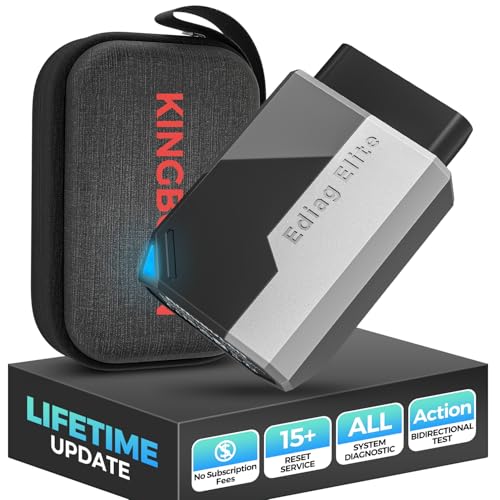
- Obd2 Bluetooth Scanner Lifetime Update: Ediag Elite offers revolutionary Advantage Lifetime Updates with unlimited access to the superior 15 reset service, bidirectional testing and full system diagnostics.The Ediag Elite is an excellent Bluetooth obd2 scanner diagnostic tool ideal for diy's and private car owners
- Bidirectional Control for Quickly Locating Problems: The Bidirectional Scan tool allows you to send commands directly from your smartphone to your vehicle for active testing. This feature helps to quickly narrow down problems such as air conditioning clutches, windows, doors, sunroofs, etc., reducing diagnostic time for mechanics and helping Diy users locate faults more easily. In addition, Ediag Elite provides fault analysis and repair guidance to help you solve problems efficiently.
- 15 Maintenance Resets: The current version introduces 15 popular special features: Oil Reset, Headlight Matching, Bleeding Reset, TPMS Reset, BMS Reset, Gear Box Relearn, Throttle Learning, Injector Coding, SAS Reset and more special functions in system diagnose menu. These functions make it easy for owners to carry out the necessary maintenance and servicing, ensuring that your vehicle stays in top condition, prolonging its service life and preventing common problems and breakdowns. Note: The Special function vary by model& year, Reach us check compatibility.
- Wide Compatibility CANFD & FCA
 Autoauth: Compatible with GM, Ford, Toyota, Chrysler, Honda, Mazda, Nissan, Mitsubishi, Hyundai, KIA with standard OBD2 port from 1996 to newer. More car brands and features will be released gradually. Newest Ediag Elite scanner supports CANFD Protocol and FCA cars. Note: Coverage may vary on different vehicle by model& year ,Please contact us to confirm compatibility before purchase.
 - Perfect for Monitoring The Health of Your Vehicle: Ediag Elite is designed to make vehicle maintenance simple and efficient. With intelligent AutoVIN quick recognition, it is easy to connect to your car without the need for manual input. Real-time data is visualized in a variety of formats, including graphs, numeric, meter displays and clear 4-in-1 data charts, allowing you to effortlessly monitor real-time data. Data logging/reporting is available for playback and further analysis.
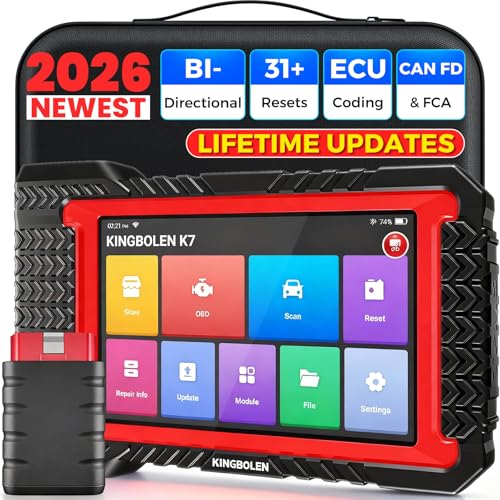
- No Annual Fees & 2026 Upgraded CAN FD: Why pay $199/year or more for updates? The 2026 newest Kingbolen K7 obd2 scanner features have been upgraded to Lifetime Updates without subscription fees, saving you significant costs in the long run. K7 scan tool also adds the CAN FD protocol for the latest GM models (2019+), enabling faster data transfer, reducing the risk of undetected errors
- 2026 Newest Top-tier Car Scanner: Kingbolen K7 diagnostic scan tool is equipped with most capabilities for daily repair/maintenance: Wireless diagnosis via Bluetooth, Bidirectional Test, ECU Online/Offline Code, 31+ Resets, PMI for Ford, Lincoln, Mazda, Global version for 100+ brand vehicles and 17 languages, no area limit, FCA AutoAuth
- OE-Level Full Systems Scan Tool: K7 professional diagnostic scanner with Auto Vin can do one-click to scan ECUs on most of vehicles, like pcm, ecm, eps, bcm, tpms, sas, a/c system... to read/clear code, view live data, freeze frame, read ecu info. 4-in-1 data stream graphics can make data viewing more intuitive. Detailed diagnostic reports will help you easily master the car situation as it can be shared by bluetooth or email! Adding workshop information can help your customers to know more
- Bidirectional Test/Active Test & ECU Code: Stop guessing and start fixing. Bidirectional scan tool Kingbolen K7 can perform real active test that can send commands to the vehicle's ECU to drive the actuators to work, like window, rear mirrors, sunroof, door, solenoids, wipers, headlamp, etc, helping you quickly find out bad parts and pinpoint faulty issues. K7 bidirectional scanner will be a good choice to save money and time on car repairs when performing complex maintenance and repair
- 31 Reset Functions: Avoid expensive dealership visits for simple services. Experience tells us that just a small repair service may cost a lot of money. Kingbolen K7 is a professional diagnostic scanner with 31 common maintenance services like Oil /SAS/EPB/TPMS Reset, Battery Matching, ABS Bleeding, Injector Code, etc. It effectively handles most of the car reset and relearning jobs, perfect for experienced DIYers and mechanics. Note: Functions in the menu vary across vehicles. Kindly check the compatibility before purchase
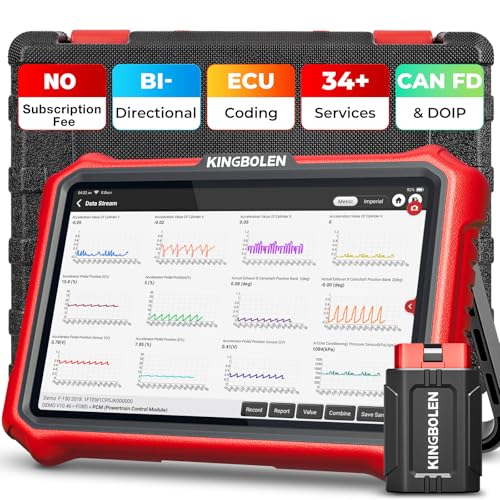
- 【Lifetime Database & Software Updates— No Subscription Fee, No Feature Lock, Save you $399/Y】KINGBOLEN K8 Pro's software can already be permanently upgraded and used for while software of other same price product still needs annual fee of almost $400. K8 pro scanner has packed all capabilities auto technicians would ever need for repair & maintenance services: Added CAN-FD & DOIP protocol, Bluetooth Wireless Diagnosis, Bidirectional Test, ECU Online/Offline Code & Guided Functions for VW, for Audi...34+ Restes, Autoauth for FCA SGW, Larger 4GB+64GB memory, 12600mAh battery, 8'' touch screen with 1280 * 800 Resolution. A Kickstand can allow the tablet to sit at a comfortable angle
- 【Newly Added CAN FD & DOIP Protocol】As Upgrade Version of Kingbolen K8, K8 Pro obd2 scanner supports CANFD and DOIP protocol, which will save you 200+ bucks as no need extra buy for special adapter. CANFD protocol suits for the latest GM(2019-), reducing the risk of undetected errors. The DoIP protocol (comes with DoIp cable) fits for 2017+ BMW(F&G chassis), for Jaguar & Land Rover after 2017, for Volvo after 2018. Plus, K8 Pro's Memory from 2G+32G expanded to 4G+64G, update period extended from 2 years to permanent
- 【34+ Hot Special Functions & V.A.G Guide】KINGBOLEN K8 pro bluetooth obd2 scanner covers almost all common services including Oil Reset, EPB, SAS, BMS Reset, ABS bleed, Throttle Reset, Suspension, Injector Code, Power Balance, Transmission Adaptation, Fuel Trim Learn, HVAC Control Module Calibrate, Language Change, A/F Settings, Stop/Start Reset, Crankshaft Sensor Relearn, TPMS, PMI function and etc. Imagine how much money and time you spend on car maintenance every year? K8 pro car scanner will be a good helper and saver for your car. V.A.G Guided function provides step-by-step guide to work for Volkswagen/Audi/Skoda. Note: Please send us model/year/vin to check compatibility before order
- 【Powerful Bidirectional Test/Active Test & ECU Code】As a bidirectional scan tool, KINGBOLEN K8 pro allows you to request information from a vehicle's ECU or send commands to the vehicle's modules to perform specific tests and functions, such as EVAP Tests, Turn on/off radiator fan, Window/Mirror/Door Lock Test, Pump and Value Tests, Sound horn Test, et. Without using the vehicle control system and dismantling car’s parts, it can quickly and accurately pinpoint the fault causes, simple operation saves time and money
- 【Wireless OE-Level All Systems Diagnostics】Equipped with Bluetooth VCI, you can do car diagnostics out of the car (up to 33F/10M) without being confined to a small space inside the car. Provides the convenience of Auto VIN, K8 pro allowing for easy access and diagnosis of all available modules on a wide range of vehicles, like PCM, ECM, BCM, TPMS, SAS, Fuel System, etc, to perform read/clear codes, view live data, freeze frame, perform active tests, and read ECU info... 12-In-1 Data Stream Graphics make data viewing more intuitive.Diagnostic reports can be shared via QR Code, Bluetooth or email.Built-in Browser and Fault Code Library allows you directly query the fault code when diagnosing
Last update on 2026-06-23 / Affiliate links / Images from Amazon Product Advertising API
This product presentation was made with AAWP plugin.