
NHTSA ID Number: 11007505
Manufacturer Communication Number: SF685-OWN LTR
TSB/Document Date: 2024-09-07
Summary
Field Service Campaign for Common Telematics Platform Cummins Engine. Certain vehicles spec’d with a Common Telematics Platform (CTP2) were shipped without the CTP2 due to shortages from the supplier.
Daimler Truck
North America LLC
Field Service Campaign
August 2024
SF685 A
Subject: Common Telematics Platform Cummins Engine
Models Affected: Specific model years 2022-2023 Freightliner
Cascadia; and Western Star 47X and 49X vehicles manufactured
September 4, 2021, through September 15, 2022.
General Information
Daimler Truck North America LLC (DTNA), on behalf of its Freightliner Trucks Division, and wholly owned
subsidiary, Western Star Truck Sales, Inc., is initiating Field Service Campaign SF685 to modify the vehicles
mentioned above.
Certain vehicles spec’d with a Common Telematics Platform (CTP2) were shipped without the CTP2 due to
shortages from the supplier.
The CTP2 module will be installed and activated.
There are approximately 1,418 vehicles involved in this campaign.
Additional Repairs
Dealers must complete all outstanding recall and field service campaigns prior to the sale or delivery of a
vehicle. A dealer will be liable for any progressive damage that results from its failure to complete campaigns
before sale or delivery of a vehicle.
Owners may be liable for any progressive damage that results from failure to complete campaigns within a
reasonable time after receiving notification.
Please contact Warranty Campaigns for consideration of additional charges prior to performing the repair.
Work Instructions
Please refer to the attached work instructions. Prior to performing the campaign, check the vehicle for a
completion sticker (Form WAR261).
Replacement Parts
Replacement parts are now available and can be obtained by ordering the kit number listed below from your
facing Parts Distribution Center (PDC).
If our records show your dealership has ordered any vehicle(s) involved in campaign number SF685, a list of
the customers and vehicle identification numbers will be available on the DTNA Portal via OWL. Please refer to
this list when ordering parts for this campaign.
Table 1 - Replacement Parts for SF685
Campaign Number
Kit Number
Kit Description
Qty.
SF685A
25-SF685-000
WAR261
KIT - SERVICE CTP2 MODULE
BLANK COMPLETION STICKER
1 ea
1 ea
Table 1
Removed Parts
There are no removed parts for this repair.
Page 1
Daimler Truck
North America LLC
Field Service Campaign
August 2024
SF685 A
Labor Allowance
Table 2 - Labor Allowance
Campaign
Number
Procedure
Time Allowed
(hours)
SRT Code
Corrective Action
SF685 A
Install and Activate CTP2
0.9
996-F220A
12-Repair Recall/Campaign
Table 2
IMPORTANT: When the campaign has been completed, locate the base completion label in the appropriate location on the vehicle, and attach the gray completion sticker provided in the field service kit (Form WAR261). If
the vehicle does not have a base completion label, clean a spot on the appropriate location of the vehicle and
first attach the base completion label (Form WAR259). If a field service kit is not required or there is no completion sticker in the kit, write the campaign number on a blank sticker and attach it to the base completion label.
Claims for Credit
You will be reimbursed for your parts, labor, and handling (landed cost for Export Distributors) by submitting
your claim through the warranty system within 30 days of completing this campaign. Please reference the
following information in OWL:
• Claim type is Field Service Campaign.
• In the Campaign field, enter the campaign number and appropriate condition code (SF685-A).
• In the Primary Failed Part field, enter 25-SF685-000.
• In the Parts section, enter the appropriate kit number as shown in the Replacement Parts Table.
• In the Labor section, enter the appropriate SRT from the Labor Allowance Table. Administrative time will
be included automatically as SRT 939-6010A for 0.3 hours.
• The VMRS Component Code is F99-999-005 and the Cause Code is A1 - Campaign.
• This Field Service Campaign will terminate on August 31, 2025. Dealers will be notified of any changes
to the termination date via an Important Campaign Information Letter (ICI) posted on the DTNA Portal.
IMPORTANT: OWL must be viewed prior to beginning work to ensure the vehicle is involved and the campaign
has not previously been completed. Check for a completion sticker before beginning work.
All claims must be submitted within 30 days of the repair and within 30 days of the termination date of the
campaign. U.S. and Canadian Dealers: All excess inventory to be returned to the PDC following the conclusion
of the campaign must be returned in resaleable condition to the Memphis PDC within 90 days from the
termination date. Please submit a PAR to request return to the Memphis PDC. Canadian Dealers: return kits to
your facing PDC. Export Distributors: Excess inventory is not returnable.
For questions, U.S. and Canadian dealers, contact the Warranty Campaigns Department via the Warranty
Support Center (WSC) located on the DTNA Portal. Export distributors submit a WSC inquiry or contact your
International Service Manager.
Page 2
Daimler Truck
North America LLC
Field Service Campaign
August 2024
SF685 A
Copy of Notice to Owners
Subject: Common Telematics Platform Cummins Engine
Models Affected: Specific model years 2022-2023 Freightliner Cascadia; and Western Star 47X and 49X
vehicles manufactured September 4, 2021, through September 15, 2022.
Daimler Truck North America LLC (DTNA), on behalf of its Freightliner Trucks Division, is initiating Field Service
Campaign SF685 to modify the vehicles mentioned above.
Certain vehicles spec’d with a Common Telematics Platform (CTP2), were shipped without the CTP2 due to
shortages from the module supplier.
The CTP2 module will be installed and activated.
Please contact an authorized DTNA dealer to arrange to have the campaign performed and to ensure that parts
are available at the dealership. The campaign will take approximately one hour and will be performed free of
charge. To locate an authorized dealer, search online at northamerica.daimlertruck.com/contact-us. Scroll down
to “Locate a Dealer,” and select the appropriate brand.
This Field Service Campaign will terminate on August 31, 2025. Please make sure the campaign is completed
prior to this date. Work completed after this date will be done at the customer’s expense.
As stated in the terms of your express limited warranty, DTNA will not pay for any damage caused by failure to
properly maintain your vehicle. DTNA considers the work necessary under this campaign to be proper
maintenance and will, therefore, not pay for any damage to your vehicle caused by your failure to have the
repairs that are the subject of this campaign performed in a reasonable time.
Contact the Warranty Campaigns Department at (800) 547-0712, 7 a.m. to 4 p.m. Pacific Time, M-F, e-mail
address: [email protected], or the Customer Assistance Center at (800) 385-4357, if you
have any questions or need additional information.
WARRANTY CAMPAIGNS DEPARTMENT
Enclosure
Page 3
Daimler Truck
North America LLC
Field Service Campaign
August 2024
SF685 A
Work Instructions
Subject: Common Telematics Platform Cummins Engine
Models Affected: Specific model years 2022-2023 Freightliner
Cascadia; and Western Star 47X and 49X vehicles manufactured
September 4, 2021, through September 15, 2022.
CTP2 Installation
1.
Check the base label (Form WAR259) for a completion sticker for SF685 (Form WAR261) indicating this
work has been done. The base label is usually located on the passenger door about 12 inches (30 cm)
below the door latch. If a sticker is present, no work is needed. If there is no sticker, proceed with the next
step.
2.
Park the vehicle on a level surface, shut down the engine, and set the parking brake. Chock the tires.
3.
Remove the electronics bay cover and the passenger-side lower dash cover. For instructions, see Section
60.06 of the applicable workshop manual.
NOTICE
Make sure that the cab floor is clear of debris and tools. If the vehicle power distribution module
(VPDM) is lowered on to debris, especially metal objects, it could permanently damage the VPDM.
IMPORTANT: The VPDM is positioned on the mounting tabs to assist with retaining the VPDM in position while
mounting fasteners are removed. Care should be taken so the VPDM does not fall to the floor after all four
mounting fasteners have been removed.
4.
Remove the four VPDM mounting fasteners, then gently lower the VPDM on to the cab floor. For instructions, see Group 54 of the applicable workshop manual.
5.
Position the new CTP2 ECU in the top shelf of the electronics bay, then press the ECU firmly towards the
back of the shelf. See Fig. 1. Lower the front of the CTP2 onto the surface of the shelf, and adjust its position horizontally until the tabs on the CTP2 are fully seated in the mounting slots.
Page 4
Daimler Truck
North America LLC
Field Service Campaign
August 2024
SF685 A
NOTE: Some vehicles may not have a harness to connect to the large blue CTP USB connector, shown in
Fig. 2. In such cases, the CTP USB connector remains empty.
6.
Connect the CTP2 electrical harness connector and antenna connectors to CTP2. See Fig. 1 for connector and antenna connection locations.
1
4
2
1
2
3
4
5
3
04/19/2023
f548210
1. 4G Cell Antenna
2. CTP Module
3. Tie Straps
4. Wi-Fi Antenna
Fig. 1, Electronics Bay
6
7
09/02/2020
f547316
1. Global Navigation Satellite System (GNSS) An2.
3.
4.
5.
6.
7.
tenna
2x Cellular Antenna
USB
Wi-Fi/Bluetooth Antenna
Main Connector
Anti-Tamper Tape
eVault Mounting Spring
Fig. 2, CTP2 Connection Locations
7.
Install the VPDM. For instructions, see Group 54 of the applicable workshop manual.
8.
Install the passenger-side lower dash cover and the electronics bay cover. For instructions, see Section
60.06 of the applicable workshop manual. Continue to CTP initialization.
CTP Initialization
1.
Connect an RP1210B-compliant vehicle diagnostic adaptor to the diagnostic connector on the vehicle.
2.
Connect the other end of the RP1210B-compliant vehicle diagnostic adaptor to the laptop.
3.
Turn the ignition key to the ON position.
4.
Open DiagnosticLink®.
IMPORTANT: Make sure that DiagnosticLink is updated to the latest version (8.20 at the time of publication, or
newer) before programming the vehicle. To update DiagnosticLink, from the menu bar, select ‘Tools,’ then select
‘Update’ from the dropdown menu.
5.
Allow all the automatic connections to complete.
Page 5
Daimler Truck
North America LLC
Field Service Campaign
August 2024
SF685 A
6.
In the ‘Connections’ window, right click and select ‘Close Connections.’ If any failed device connections
remain, shown with a red indicator, right click and select ‘Clear all Connection Errors.’
IMPORTANT: Some interior/protected locations such as repair shops and covered awnings may reduce cellular
network and GPS satellite coverage, which could prevent CTP initialization and may require the vehicle to be
moved out to an open area to improve the signal strength for CTP initialization.
7.
From the menu bar, select ‘File,’ then select ‘Connect.’ In the ‘Manual Connection’ window that appears,
select the following devices to manually connect to them:
• ICUC01T
• CGW04T
• CTP01T
IMPORTANT: Any other devices connected to DiagnosticLink (other than the three listed above) may cause the
initialization process to fail.
NOTE: ‘CTP01T,’ as displayed within DiagnosticLink, represents the CTP ECU device and not the type of CTP.
Both CTP1 and CTP2 will display as ‘CTP01T.’
8.
Wait until all the three devices are fully connected and the connection indicators turn green. See Fig. 3.
09/17/2020
f120814
Fig. 3, DiagnosticLink Logged Connections Panel
9.
Go to the ‘Parameters’ tab. DiagnosticLink will read the parameters of the connected ECUs. Wait until the
‘Reading parameters’ bar indicates this process is complete.
Page 6
Daimler Truck
North America LLC
Field Service Campaign
August 2024
SF685 A
10.
Select the ‘Initialize CTP’ tab. Verify the vehicle identification number (VIN) from CTP reads the default
‘AAAAAAAAAAAAAAAA,’ or the VIN from the connected vehicle. See Fig. 4. If not, remove the CTP, and
install a new CTP.
11.
Select ‘Initialize’ to run the initialization process.
6
2
1
4
3
5
04/19/2023
1. ‘Initialize CTP’ Tab
2. VIN from CTP
f121382
3. VIN from Connected Vehicle
4. ‘Initialize’ Button
5. Initialize Progress Text Field
6. CTP Current Status
Fig. 4, CTP Initialization
12.
If prompted, enter your credentials to connect DiagnosticLink to the server.
13.
Wait until the initialization process is complete, and the last line in the initialization progress text field
reads, ‘Vin written to device and required data was sent to server.’
14.
Monitor the ‘CTP Activation Status from ECU,’ shown in the ‘CTP current status’ panel. Within 10 minutes
from the end of the initialization process, the ‘CTP Activation Status from ECU’ should change and display
‘Active OK.’
If ‘GSM OK’ displays instead of ‘Activation OK’ when the initialization process is completed, then the vehicle needs to be moved to an open air environment for better GPS satellite coverage, before running the
CTP initialization again.
Is ‘Active OK’ displayed under the status?
YES → Go to step 16.
NO → Disconnect DiagnosticLink from the vehicle. Turn the ignition key to the OFF position. Wait for five
minutes, and attempt to initialize the CTP again, repeat the steps 3 through 14.
15.
Check again if ‘Active OK’ is now displayed under the status.
YES → Go to the next step.
NO → Contact Daimler Truck Technical Support at 1-855-253-0422, option 4, from 5 A.M. to 4 P.M. Pacific
Time, Monday through Friday.
Page 7
Daimler Truck
North America LLC
Field Service Campaign
August 2024
SF685 A
16.
With the ‘Initialize CTP’ tab still selected, select the ‘Full Screen’ button on the upper-right corner of the
window. See Fig. 5.
04/19/2023
f121384
Fig. 5, Switching to Full Screen Display
17.
Take a screenshot of the DiagnosticLink window while making sure the VIN and the last line in the initialization progress text field are visible, as shown in Fig. 6.
1
2
04/19/2023
1. VIN from CTP
f121383
2. Last Line in the Initialization Progress Text Field
Fig. 6, Screenshot of DiagnosticLink
Page 8
Daimler Truck
North America LLC
Field Service Campaign
August 2024
SF685 A
18.
Select the ‘Full Screen’ button again to return to the normal view.
19.
Verify the CTP is activated and enabled to communicate with the Daimler network.
19.1 Wait for up to 10 minutes to give the CTP ample time to establish a network connection.
19.2 Go to ‘Instrumentation,’ ‘Chart,’ then select the ‘Real Time Data: Real Time Value’ checkbox. Verify
‘Activation OK’ is displayed under ‘Value,’ as shown in Fig. 7.
Is ‘Activation OK’ displayed under ‘Value’?
YES → The CTP software update is successful. Capture a screenshot that shows ‘Activation OK,’
and save the screenshot along with the repair order. Go to step 20.
NO → Attempt to establish the network connection again. Follow the substeps 19.3 through 19.6.
19.3 Disconnect DiagnosticLink from the vehicle, and turn the ignition key to the OFF position.
19.4 Wait for at least five minutes, then turn the ignition key to the ON position.
19.5 Repeat steps 4 through 9 (on page 6) to connect to the three listed devices.
19.6 Wait up to an additional 10 minutes for the CTP to reattempt establishing the network connection. If
the CTP does not connect to the network even after 10 minutes, contact Daimler Truck Technical
Support at 1-855-253-0422, option 4, (5:00 A.M. to 4:00 P.M. Pacific time, Monday through Friday).
Page 9
Daimler Truck
North America LLC
Field Service Campaign
August 2024
SF685 A
2
1
3
4
05/11/2023
1. ‘Instrumentation’ Tab
2. ‘Chart’ Tab
f121199
3. ‘Real Time Data: Real Time Value’ Checkbox
4. ‘Activation OK’ Displayed under ‘Value’
Fig. 7, CTP Software Update Successful
20.
Disconnect DiagnosticLink from the vehicle, and remove the interface cable from the 9-pin diagnostic connector.
21.
Clean a spot on the base label (Form WAR259), and attach a campaign completion sticker for SF685
(Form WAR261), indicating this work has been completed.
Page 10
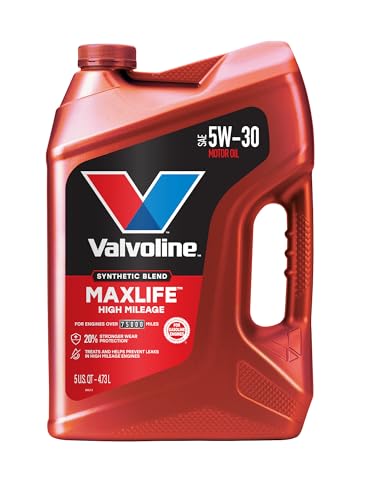
- Formulated for engines with 75,000 miles or more, Valvoline...
- Delivers 20% better wear protection and 15% better sludge...
- Extra detergents safeguard against friction, corrosion and...
- Advanced friction-fighting additives help maximize...
- Provides performance benefits for high mileage, new and...

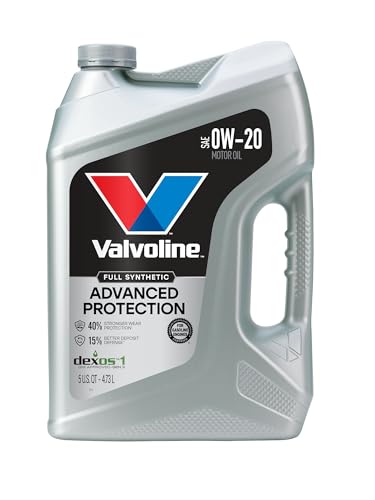
- Advanced protection against the four main causes of engine...
- Delivers 40% stronger wear protection than industry...
- Provides 15% better deposit defense vs. industry standards...
- Up to 2.5X better heat protection vs. industry standards to...
- Engineered for excellent low-temperature flow, reducing...
Last update on 2026-06-12 / Affiliate links / Images from Amazon Product Advertising API
If the PDF is very large, it may not load in the preview below.
Some older TSBs had multiple PDFs — visit the NHTSA Website to view all PDFs.
If the TSB PDF does not show, download or view it on the NHTSA Website.
Click on the (+) Plus Sign
Then Click on Associated Document(s)
Search NHTSA Database for Recalls
Search NHTSA Database for Vehicle Investigations
View Latest Vehicle Investigations
Search NHTSA Database for Vehicle Complaints
View Latest Vehicle Complaints
TSB/Document ID: SF685-OWN LTR
Replacement Service Bulletin Number:
MFR Communication Date: 2024-08-12
MFR Internal Campaign ID/Software Version: SF685
Communication Type: Service Campaign
NHTSA Components: ELECTRICAL SYSTEM
MFR Component System:
MFR Component Subsystem:
Previous TSB | Next TSB |

- [2026 Top-Tier Hardware and Software Upgrade]: Topdon ArtiDiag900 Lite scanner has enhanced hardware and latest features, including Android 11.0, 5x faster CPU, 10000mAh battery for 12 hours of continuous operation, stable wireless diagnosis with Bluetooth 5.0, 8-inch touchscreen. Added bi-directional control, wireless diagnosis, battery testing (optional), and DTC repair guide
- [TOPDON Bidirectional Scan Tool]: This bidirectional obd2 scanner sends commands to the vehicle's ECU for active testing, enabling users to accurately and quickly locate faulty components such as injectors, coolant pumps, windows, wipers, headlights, mirrors, etc. The bidirectional control scanner is the ideal choice for workshops/automotive repair shops as it significantly reduces mechanic's diagnostic time.
- [Wireless Bluetooth Diagnostic Experience]: The AD900 Lite scan tool comes with a Bluetooth 5.0 VCI, supporting a wireless diagnostic range of up to 33 feet (10 meters), allowing you to diagnose without being confined to cables or tight spaces. Stable and fast wireless diagnosis provides a comfortable repair environment. It also offers VCI cables to increase connectivity options.
- [DTC Repair Guide Function]: Easily diagnose issues with your vehicle and receive guidance on repairs with the topdon scan tool's fault code definitions for all systems,maximize your diagnostic capabilities. This function is compatible with Chrysler
 /Dodge/Jeep/Fiat 2010-2014 and expanding with continual updates,the AritDiag 900 Lite car diagnostic scanner is the must-have tool for any technician or DIY enthusiast.
 - [OE-Level Full System Diagnostics]:AritDiag900 Lite full system diagnostic scanner can scan ALL available modules(Engine, Transmission, Airbag, ABS, ESP, TPMS, Gateway, Steering, Radio, Air conditioning, ect.) to✔read ECU info, ✔read/clear codes, ✔view live data stream, ✔retrieves freeze-frame, ✔perform active tests, and more. With just a simple click, it provides you with accurate and in-depth diagnostics.

- Bi-Directional Control, Quickly Locate Problems: Turn your phone into a professional diagnostic tool. You can send commands from your phone to the ECU to test injectors, cooling fans, headlights, A/C clutch, windows, wipers, and more. See which one doesn't respond. Helps you quickly locate the problem and save time. No need to tear things apart, avoid blind disassembly.
- Flexible Subscription, Choose Advanced Features as Needed: TopScan Lite provides free-for-life access to core diagnostics, including full system scan, code reading, performance tests, and repair information. After purchase, advanced features (bi-directional control, service operations, live data, code clearing, and AI functions) are free-for-the-first-year. After the first year, if you want to use advanced features, you need to subscribe on a monthly, quarterly, or yearly basis. As new models and reset functions are updated, the tool will also be continuously upgraded.
- Full System Diagnostics, No Fault Hides: Unlike basic diagnostic tools that only cover 4 systems, TopScan can scan all systems. Read and clear trouble codes, view live data streams, and generate a complete vehicle health report – all issues are clear at a glance. Covers 10,000+ vehicle models and is compatible with 99.99% of vehicles.
- AI Assistant - TopFix: Think of TopFix as your personal AI mechanic. It leverages a repair database and OEM data to deliver clear, step-by-step repair solutions. Features include AI Q&A, one-click translation, and a full repair log, making your diagnostic process simpler and more efficient.
- 8+ Hot Resets, Keep Your Car in Top Shape: One-tap resets for oil, throttle, EPB, steering angle, DPF, ABS, BMS, and airbag. It enables car owners to easily perform essential maintenance, ensuring the vehicle stays in optimal condition and extends its service life.
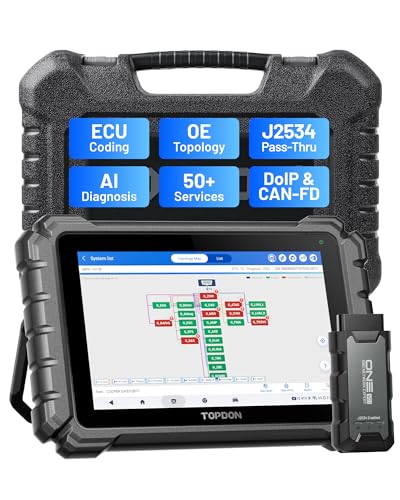
- Dual WiFi & 10.1" Touchscreen: Provides a stable, high-speed wireless link 3x faster than bluetooth, and a responsive, professional interface. Topdon ONE obd2 scanner diagnostic tool ensures smooth, non-lagging diagnostic scan, boosting mechanic efficiency
- J2534 Pass-Thru Support: The included ONE VCI supports the J2534 standard, allowing it to function as a pass-thru device when paired with OEM diagnostic software.Through TOPDON’s RLink platform, technicians can perform dealer-level coding, expanding in-house capabilities without investing in multiple factory automotive scan tools
- OE Topology Mapping: Visualize the vehicle’s ECU network exactly as it’s built.Zoom, pan, and highlight specific modules to pinpoint component issues with precision.Topology mapping displays real-time communication between modules
- 50 Plus Service Functions: Covers high-demand services like ADAS calibration, DPF regen, TPMS reset, ABS bleed, and throttle adaptation.Expands your service menu, allows you to charge premium rates, and turns away zero jobs due to lack of tooling. Vehicle-specific functionality may vary
- Advaned ECU Coding: 10 of the most serviced brands in North America, including full ECU coding and flash hidden support for BMW, VW, Au-di, Benz, Porsche, Toyota, Ni ssan and more. Enables module replacement, feature customization, and personal settings with automatic backup or restore.Lets your shop safely offer high-margin customization services, attracting more customers and boosting profit
Last update on 2026-06-12 / Affiliate links / Images from Amazon Product Advertising API
This product presentation was made with AAWP plugin.