
NHTSA ID Number: 11006912
Manufacturer Communication Number: 2024.26.100_082024.pdf
TSB/Document Date: 2024-09-04
Summary
Tesla does not provide physical owner's manual copies. Instead, all available owner’s manual content is integrated into the vehicle software, and only the content relevant for a given vehicle, based on vehicle configuration and software version installed, is displayed on its touchscreen. This file contains all available owner’s manual content for the vehicle converted to PDF format, and given the distribution method and NHTSA’s submission format requirements, it is the best available representative copy of owner’s manual content. However, a customer who accesses the owner’s manual via their vehicle’s touchscreen would only see the parts of this PDF file that are relevant to their vehicle.
• Bright light (such as from oncoming headlights or direct sunlight) interferes with the view of the camera(s).
The list above does not represent an exhaustive list of situations that may interfere with proper operation of Autopilot features.
For more information, see Limitations and Warnings on page 63.
Autopilot
Feature
Traffic-Aware
Cruise Control
Available When
• You are driving between 18 mph (30 km/h) and 90 mph (150 km/h)85 mph (140 km/h)
NOTE: You can activate Traffic-Aware Cruise Control at lower speeds if there is a vehicle detected at
least 5 feet (1.5 meters) ahead of Cybertruck.
Autosteer
• You are driving between 18 mph (30 km/h) and 90 mph (150 km/h)85 mph (140 km/h)
NOTE: You can activate Autosteer at lower speeds if there is a vehicle detected at least 5 feet (1.5
meters) ahead of Cybertruck.
NOTE: On a residential road, a road without a center divider, or a road that is not controlled access, the
maximum allowed cruising speed is limited and the displays a message. The restricted speed will be
the speed limit of the road plus 5 mph (10 km/h).
Navigate on
Autopilot
• You are driving between 18 mph (30 km/h) and 90 mph (150 km/h)85 mph (140 km/h).
NOTE: You can activate Navigate on Autopilot at lower speeds if there is a vehicle detected at least 5
feet (1.5 meters) ahead of Cybertruck.
• You are driving on a controlled-access highway. When you leave a controlled-access highway,
Navigate on Autopilot reverts to Autosteer.
Full Self-Driving
(Supervised)
• You are driving less than 85 mph (150 km/h).
NOTE: You can activate Full Self-Driving (Supervised) at lower speeds, including when Cybertruck is at
a standstill, whether or not there is a vehicle detected in front of Cybertruck.
51
Owner's Manual
Owners Manual
Autopilot
Feature
Available When
• Headlights are set to On or Auto. Although Full Self-Driving (Supervised) is available both during the
day and in low light conditions (dusk or dark), it aborts or is unavailable if headlights are set to Off.
When Full Self-Driving (Supervised) is engaged, Auto High Beam is automatically enabled (see
Headlights on page 278) and the wiper is set to Auto.
Owner's Manual
52
Owners Manual
Traffic Light and Stop Sign Control
NOTE: Traffic Light and Stop Sign Control is a BETA feature and works best on roads that are frequently driven by Tesla vehicles.
Traffic Light and Stop Sign Control attempts to stop at all traffic lights and may also stop at green lights.
Traffic Light and Stop Sign Control is designed to recognize and respond to traffic lights and stop signs, slowing Cybertruck
to a stop when using Traffic-Aware cruise control or Autosteer. This feature uses the vehicle's forward-facing cameras, in
addition to GPS data, and slows the car for all detected traffic lights, including green, blinking yellow, and off lights in addition
to stop signs and some road markings. As Cybertruck approaches an intersection, the touchscreen displays a notification
indicating the intention to slow down. You must confirm that you want to continue or Cybertruck stops at the red line
displayed on the touchscreen's driving visualization.
WARNING: NEVER make assumptions and predict when and where Traffic Light and Stop Sign Control will stop or
continue through an intersection or road marking. From a driver's perspective, the behavior of Traffic Light and Stop
Sign Control may appear inconsistent. Always pay attention to the roadway and be prepared to take immediate action. It
is the driver's responsibility to determine whether to stop or continue through an intersection. Never depend on Traffic
Light and Stop Sign Control to determine when it is safe and/or appropriate to stop or continue through an intersection.
Before Using
Before using Traffic Light and Stop Sign Control, you must:
• Ensure that forward-facing cameras are unobstructed (see Cleaning a Camera on page 198) and calibrated (see Drive to
Calibrate Cameras on page 199). Traffic Light and Stop Sign Control depends on the ability of the cameras to detect traffic
lights, stop signs, and road markings.
• Ensure that the latest version of maps has been downloaded to Cybertruck. Although Traffic Light and Stop Sign Control
primarily uses visual data received from the vehicle's cameras, greater accuracy is achieved when using the most recent
map data. To check which version of maps is currently downloaded, touch Controls > Software. You must connect to a WiFi network to receive updated maps (see Map Updates on page 98).
• Enable the feature. With the vehicle in Park, touch Controls > Autopilot > Traffic Light and Stop Sign Control. Once enabled,
Traffic Light and Stop Sign Control operates whenever Traffic-Aware Cruise Control or Autosteer is active.
How it Works
When Traffic Light and Stop Sign Control is enabled and you are using Autosteer, Traffic-Aware Cruise Control, or Full SelfDriving (Supervised), the touchscreen displays a popup message to inform you that an upcoming traffic light, stop sign, or
road marking has been detected. As it approaches the stop location, even at an intersection where the traffic light is green,
Cybertruck slows down and displays a red line to indicate where Cybertruck will stop. To continue through the intersection—
even if the traffic light is green —you must briefly press the accelerator pedal to give the vehicle permission to proceed. When
you've confirmed that you want to proceed, the red stop line turns gray and Cybertruck continues through the intersection
and resumes your set cruising speed.
NOTE: If Cybertruck is approaching a green light and detects that a vehicle in front of you is continuing through the
intersection, Cybertruck continues through the intersection without requiring your confirmation, provided you are not in a
turning lane and the vehicle can detect that your hands are on the steering wheel.
NOTE: If, after you briefly press the accelerator pedal to confirm that you want to continue through the intersection, the traffic
signal changes before you enter the intersection (for example, the light changes from green to yellow or from yellow to red),
Cybertruck may determine that it is not appropriate to proceed. Therefore, Cybertruck stops and you must press the
accelerator to proceed. At all times, it is your responsibility to ensure the vehicle stops or accelerates appropriately and safely.
WARNING: Traffic Light and Stop Sign Control DOES NOT turn Cybertruck through an intersection unless Full SelfDriving (Supervised) is engaged. When in a turning lane, Cybertruck stops at the red stop line. To proceed, briefly press
the accelerator pedal—Cybertruck continues straight through the intersection (even when in a turning lane), so you
MUST manually steer Cybertruck through the intersection (which cancels Autosteer).
Traffic Light and Stop Sign Control is designed to operate as described only when the following conditions are met:
• Autosteer, Full Self-Driving (Supervised), or Traffic-Aware Cruise Control is engaged.
• The cameras can detect an upcoming traffic light, stop sign or road marking (for example, cameras are unobstructed and
have a clear line-of-sight to the traffic light, stop sign, or road marking).
53
Owner's Manual
Owners Manual
• The touchscreen on Cybertruck is displaying an upcoming traffic light in "bold" format. Cybertruck does not acknowledge
traffic lights that the touchscreen shows as faded. If a traffic light is not directly ahead of the camera (for example, it is
located at an angle of the camera's view, or located in an adjacent lane) the touchscreen displays it as faded and
Cybertruck does not slow down and stop for it.
WARNING: If the touchscreen is not displaying a red stop line at an upcoming intersection, Cybertruck does not slow
down or stop. It is the driver's responsibility to pay attention to upcoming intersections and monitor traffic conditions to
determine when and if the vehicle should stop and then to take appropriate action as needed.
WARNING: Never depend on Traffic Light and Stop Sign Control to determine whether to stop at, or proceed through, an
intersection. Drive attentively by watching the road and paying attention to the roadway, upcoming intersections, traffic
conditions, crosswalks, and other road users. It is always the driver's responsibility to determine whether to stop or
proceed. Be prepared to take immediate action. Failure to do so can result in injury or death.
WARNING: In some situations, Traffic Light and Stop Sign Control may inaccurately detect a traffic light or stop sign,
causing Cybertruck to slow down unexpectedly. Be prepared to take immediate action at all times.
WARNING: You must briefly press the accelerator pedal to confirm that you want to proceed through an intersection,
regardless of the status of the traffic light. If you do not confirm, Cybertruck stops at the red stop line displayed on the
touchscreen, even if stopping may be inappropriate. Stopping at a green light may confuse other drivers and may result
in a collision, injury or death. Therefore, always pay attention to upcoming intersections and be prepared to manually
brake or accelerate in response to surroundings.
WARNING: Never assume that your ability to see a traffic light, stop sign, or road marking (especially at a complex
intersection, or an intersection in which a traffic light or sign is partially obstructed, etc.) means that Cybertruck can
also see it and respond appropriately.
WARNING: Even the most recent map data does not include all traffic lights and stop signs. Therefore, Traffic Light and
Stop Sign Control relies heavily on the ability of the cameras to detect traffic lights, stop signs, road markings, etc. As a
result, Cybertruck may ignore an intersection that is blocked from the camera's view (for example, obstructed by a tree
or a large vehicle or object, or located near a steep hill or sharp curve).
WARNING: Traffic Light and Stop Sign Control is not a substitute for attentive driving and sound judgment.
Owner's Manual
54
Owners Manual
Traffic Lights
When driving with Autosteer or Traffic-Aware Cruise Control engaged, and Traffic Light and Stop Sign Control enabled,
Cybertruck is designed to respond as follows when approaching intersections controlled by a traffic light:
Type of Traffic Light
Vehicle Intended Response
At a solid green traffic light, or at a traffic light that is currently off (not illuminated),
Cybertruck slows down.
If you are following a car in front of you that continues through the intersection, the
touchscreen displays a green stop line and provided your hands are detected on the
steering wheel, Cybertruck also continues. If a car is not in front of you, the touchscreen
displays a red stop line and you must confirm that you want to continue through the
intersection by briefly pressing the accelerator pedal. If you don’t confirm, Cybertruck
stops at the red stop line.
NOTE: Cybertruck resumes the set cruising speed when it continues through the
intersection, taking into consideration the speed of a vehicle in front of you.
Cybertruck slows down and comes to a complete stop at the red stop line displayed on
the touchscreen. When you want to continue through the intersection (for example, the
light turns green again, or once Cybertruck has come to a complete stop), you must
briefly press the accelerator pedal.
Cybertruck slows down and comes to a complete stop at the red stop line displayed on
the touchscreen. When you want to proceed through the intersection (for example, the
light turns green again), you must briefly press the accelerator pedal.
NOTE: If the traffic light changes after you've confirmed that you want to proceed (for
example, a green traffic light turns yellow), Cybertruck may stop instead of continuing,
especially if Cybertruck determines that it can safely stop before entering the
intersection.
NOTE: Cybertruck is not designed to proceed through an intersection when the traffic
light is red or if the light turns yellow in situations when there is adequate distance to
safely stop before entering the intersection.
NOTE: You can take over driving at any time by manually braking to cancel Autosteer or
Traffic-Aware Cruise Control.
55
Owner's Manual
Owners Manual
Type of Traffic Light
Vehicle Intended Response
Cybertruck slows down. To proceed, you must briefly press the accelerator pedal. If you
don’t, Cybertruck stops at the red stop line displayed on the touchscreen.
NOTE: To prevent Cybertruck from stopping, and to minimize how much it slows down as
it approaches, you can confirm that you want to proceed by briefly pressing the
accelerator pedal at any time after the touchscreen displays the red stop line. Cybertruck
resumes your set cruising speed immediately after you confirm (taking into consideration
the speed of a vehicle in front of you).
WARNING: Approach attentively and be prepared to press the brake pedal to slow
down or stop.
Cybertruck slows down and comes to a complete stop at the red stop line displayed on
the touchscreen. When you want to proceed through the intersection (for example, traffic
laws and conditions indicate it is safe and legal to proceed), you must briefly press the
accelerator pedal.
Owner's Manual
56
Owners Manual
Stop Signs and Road Markings
When driving with Autosteer or Traffic-Aware Cruise Control engaged, and Traffic Light and Stop Sign Control enabled,
Cybertruck is designed to respond as follows when approaching intersections controlled by stop signs, stop lines, or road
markings:
Type of Intersection
Vehicle Intended Response
Cybertruck assumes the right of way and continues straight without slowing down or
stopping.
No Traffic Control
Arm of T-junction
If Cybertruck detects a T-junction based on the map data, Cybertruck slows down and comes
to a complete stop at the red stop line displayed on the touchscreen. When you want to
proceed, you must take over steering and acceleration.
WARNING: Cybertruck may not stop at a T-junction that does not have a stop sign or
stop line, or if the T-junction is not included in the map data. Drive attentively and be
prepared to stop (when necessary and/or appropriate).
End of T-junction
Cybertruck slows down and comes to a complete stop at the red stop line displayed on the
touchscreen. When you want to proceed through the intersection, you must briefly press the
accelerator pedal.
NOTE: If you confirm that you want to proceed through an intersection controlled by a stop
sign by briefly pressing the accelerator pedal before Cybertruck has stopped, your
confirmation is ignored. Cybertruck is not designed to proceed through a stop sign without
stopping.
NOTE: Even when using Autosteer, and even if you have engaged a turn signal, you must turn
the steering wheel yourself (which cancels Autosteer) to complete a turn at an intersection.
Stop Sign
57
Owner's Manual
Owners Manual
Type of Intersection
Vehicle Intended Response
Stop Sign and Road Marking
Road Marking
WARNING: Cybertruck also slows down and stops at a roundabout. You must take over steering (which cancels
Autosteer) and briefly press the accelerator pedal to confirm that you want to continue through the roundabout.
WARNING: At crosswalks, Cybertruck may slow down and may stop, depending on whether the crosswalk is controlled
by a traffic light and whether the cameras detect pedestrians, bicyclists, etc. in the crosswalk. Pay particular attention at
crosswalks and be prepared to take over at any time. Failure to do so can result in injury or death.
Limitations
Depending on many different circumstances and environmental conditions, Traffic Light and Stop Sign Control may or may not
stop at:
• Railroad crossings.
• Keep-out zones.
• Toll booths.
• Crosswalk systems.
• Yield signs or temporary traffic lights and stop signs (such as at construction areas).
• Miscellaneous traffic U-turn lights, bicycle and pedestrian crossing lights, lane availability lights, etc.
In addition, Traffic Light and Stop Sign Control is particularly unlikely to operate as intended, can disengage, or may not
operate, when one or more of the following conditions are present:
• Driving through consecutive light-controlled intersections that are very close to each other.
• Visibility is poor (heavy rain, snow, fog, etc.) or weather conditions are interfering with camera operation.
• Bright light (such as direct sunlight) is interfering with the view of the camera(s).
• A camera is obstructed, covered, damaged, or not properly calibrated.
Owner's Manual
58
Owners Manual
• Driving on a hill or on a road that has sharp curves on which the cameras are unable to see upcoming traffic lights or stop
signs.
• A traffic light, stop sign, or road marking is obstructed (for example, a tree, a large vehicle, etc.).
• Cybertruck is being driven very close to a vehicle in front of it, which is blocking the view of a camera.
WARNING: The limitations listed above are not an exhaustive list of reasons why Cybertruck may not operate as
expected. Many unforeseen circumstances can adversely impact the accurate operation of Traffic Light and Stop Sign
Control. Using this feature does not reduce or eliminate the need to drive attentively and responsibly. You must be
prepared to take appropriate and immediate action at all times.
Full Self-Driving (Beta)
When Full Self-Driving (Beta) (also referred to as Autosteer on City Streets) is engaged, Cybertruck attempts to drive to your
destination by following curves in the road, stopping at and negotiating intersections, making left and right turns, navigating
roundabouts, and entering/exiting highways.
Unlike Traffic-Aware Cruise Control, Autosteer, and Navigate on Autopilot, which are intended for use on multi-lane roadways
with clear lane markings, Full Self-Driving (Beta) is meant to work in a variety of driving scenarios. You can use Full SelfDriving (Beta) on any type of roadway, including residential and city streets.
Always remember that Full Self-Driving (Beta) does not make Cybertruck autonomous and requires a fully attentive driver who is
ready to take immediate action at all times. While Full Self-Driving (Beta) is engaged, you must monitor your surroundings and
other road users at all times.
Driver intervention may be required in certain situations, such as on narrow roads with oncoming cars, in construction zones,
or while going through complex intersections. For more examples of scenarios in which driver intervention might be required,
see Limitations and Warnings on page 63.
Full Self-Driving (Beta) uses inputs from cameras mounted at the front, rear, left, and right of Cybertruck to build a model of
the area surrounding Cybertruck (see Cameras on page 8). The Full Self-Driving computer installed in Cybertruck is designed
to use this input, rapidly process neural networks, and make decisions to safely guide you to your destination.
NOTE: Full Self-Driving (Beta) is a beta feature. As Tesla’s Full Self-Driving (Beta) capabilities evolve, Cybertruck is upgraded
through over-the-air software updates. Download updates as soon as they become available.
Like other Autopilot features, Full Self-Driving (Beta) requires a fully attentive driver and will display a series of escalating
warnings requiring driver response. You must keep your hands on the steering wheel while Full Self-Driving (Beta) is engaged.
In addition, the cabin camera monitors driver attentiveness (see #unique_196 on page ).
Use Full Self-Driving (Beta) in limited Beta only if you will pay constant attention to the road and be prepared to act
immediately, especially around blind corners, crossing intersections, and in narrow driving situations. For more information,
see Limitations and Warnings on page 63.
CAUTION: As Full Self-Driving (Beta) deployment expands, Tesla will gradually make it available to eligible customers in
select countries outside of the United States and Canada. Because every country contains unique infrastructure, driving
behaviors, and traffic patterns that Full Self-Driving (Beta) must adapt to over time, it is essential for drivers using Full
Self-Driving (Beta) in newly eligible countries to be extra attentive and overly cautious. You must be ready to take over
safely at any time.
WARNING: Full Self-Driving (Beta) is a hands-on feature that requires you to pay attention to the road at all times. Keep
your hands on the steering wheel at all times, be mindful of road conditions and surrounding traffic, pay attention to
pedestrians and cyclists, and always be prepared to take immediate action. Failure to follow these instructions could
cause damage, serious injury or death. It is your responsibility to familiarize yourself with the limitations of Full SelfDriving (Beta) and the situations in which it may not work as expected. For more information, see Limitations and
Warnings on page 63.
Before Using Full Self-Driving (Beta)
Before using Full Self-Driving (Beta), you must:
• Ensure that forward-facing cameras are unobstructed and calibrated (see Cameras on page 8). Full Self-Driving (Beta)
depends on the ability of the cameras to detect traffic lights, stop signs, and road markings.
59
Owner's Manual
Owners Manual
• Ensure that the latest version of maps has been downloaded to Cybertruck. Although Full Self-Driving (Beta) primarily uses
visual data received from the vehicle's cameras, greater accuracy is achieved when using the most recent map data. To
check which version of maps is currently downloaded, touch Controls > Software. You must connect to a Wi-Fi network to
receive updated maps (see Map Updates on page 98).
In addition, you must enable Full Self-Driving (Beta) before you can use it. To enable Full Self-Driving (Beta), touch Controls >
Autopilot > Autopilot Features > Full Self-Driving (Beta) and then, after carefully reading and understanding the popup window,
touch Yes.
NOTE: When Full Self-Driving (Beta) is enabled, Autosteer and Navigate on Autopilot are automatically disabled. In situations
where you would use Autosteer and Navigate on Autopilot, such as on a controlled-access, multi-lane highway, activate Full
Self-Driving (Beta) the same way you would Autosteer.
Customize Full Self-Driving (Beta) settings by touching Controls > Autopilot.
• Full Self-Driving (Beta) Profile: If desired, change the default setting of Average to Chill or Assertive. Chill provides a more
relaxed driving style and Assertive drives with more urgency.
• Minimal Lane Changes for the Current Drive: When selected, Full Self-Driving (Beta) makes fewer lane changes on the
current drive. Cybertruck will still make lane changes as necessary to follow the navigation route.
• Automatic Set Speed Offset: When enabled, Cybertruck drives at the speed that Autopilot determines to be the most
natural. This considers factors like road type, traffic flow, environmental conditions, the detected speed limit, and the
selected Full Self-Driving (Beta) profile setting.
To Use Full Self-Driving (Beta)
Once Full Self-Driving (Beta) is enabled, activate it the same way you would Autosteer (see Autosteer on page 324).
1. Enter a destination. If you do not choose a destination, Cybertruck chooses the most probable driving path or suggests a
destination based on your driving.
2. When the touchscreen displays the gray steering wheel icon, .
You can engage Full Self-Driving (Beta) at any speed less than 85 mph (150 km/h), including when Cybertruck is at a
standstill.
The touchscreen displays the maximum speed in blue. When you engage Full Self-Driving (Beta), the set cruising speed
defaults to the speed limit, plus any offset you’ve specified. If Autopilot is unable to determine the speed limit, the cruising
speed is your current speed, in addition to any specified offset.
To indicate that Full Self-Driving (Beta) is available but not engaged, the top corner of the touchscreen displays a gray
steering wheel icon next to the driving gear.
When Full Self-Driving (Beta) is engaged, the steering wheel icon is blue and a blue line represents your driving path.
When Full Self-Driving (Beta) is engaged, the touchscreen displays a visualization of the environment surrounding Cybertruck,
including the roadway and detected objects such as vehicles, pedestrians, curbs, bicyclists, and more. Objects shown in blue
represent priorities that Full Self-Driving (Beta) is actively controlling for at a given time.
NOTE: The Full Self-Driving (Beta) visualization may not be a holistic representation of the objects, road markings, road
signals, and other variables that Full Self-Driving (Beta) takes into account as it attempts to drive to your destination. While
Full Self-Driving (Beta) is engaged, it uses data from the cameras on Cybertruck that may not be represented in the
visualization (see Cameras on page 8).
NOTE: Full Self-Driving (Beta) uses Tesla’s vision-based system and therefore radar (if equipped) is disabled.
Owner's Manual
60
Owners Manual
The visualization will also inform you of the system’s intended action by displaying a message on the touchscreen, such as
when the vehicle is slowly creeping for visibility to take a turn at an intersection.
You can widen the visualization area to fullscreen. Enable the setting by touching Controls > Autopilot > Full Self-Driving (Beta)
> Expanded Full Self-Driving Visualization.
NOTE: You can override Full-Self Driving (Beta) at any time if you are uncomfortable or uncertain about the system’s intended
course of action. You are driving Cybertruck at all times.
Making Turns, Changing Lanes, and Negotiating Intersections
Full Self-Driving (Beta) changes lanes, makes left and right turns, follows on- and off-ramps, and takes forks in the road as
necessary to reach the destination. When Full Self-Driving (Beta) makes any such maneuver, the touchscreen displays a
message to inform you of the action being taken.
Like Autosteer and Traffic-Aware Cruise Control, Full Self-Driving (Beta) maintains your speed and following distance from the
vehicle ahead of Cybertruck, if there is one. Full Self-Driving (Beta) also slows down and stops at traffic lights and stop signs
as necessary, and reacts to pedestrians, cyclists, and other vehicles on the road.
WARNING: NEVER make assumptions and predict when and where Full Self-Driving (Beta) will stop or continue through
an intersection or road marking. From a driver's perspective, the behavior of Full Self-Driving (Beta) may appear
inconsistent. Always pay attention to the roadway and be prepared to take immediate action. It is the driver's
responsibility to determine whether to stop or continue through an intersection. Never depend on Full Self-Driving
(Beta) to determine when it is safe and/or appropriate to stop or continue through an intersection.
For example, if you are driving on a residential street and another vehicle backs out of a driveway ahead of Cybertruck, Full
Self-Driving (Beta) slows down or stops as appropriate. If the other vehicle stops backing out while partially blocking the
driving lane, Full Self-Driving (Beta) slows down and maneuvers around the other vehicle if the width of the lane allows it.
To tell Full Self-Driving (Beta) to change lanes while on a multi-lane roadway, engage the right or left turn signal. On city or
residential streets, engaging the right or left turn signal tells Full Self-Driving (Beta) to make a right or left turn, respectively.
Full Self-Driving (Beta) notifies you at the top of the visualization as it takes actions. For example, if Full Self-Driving (Beta) is
moving Cybertruck into a faster lane, it displays the message Changing lanes into faster lane / Use turn signal to cancel.
Or, if Full Self-Driving (Beta) is changing lanes to follow the navigation route, Changing lanes to follow route / Use turn signal to
cancel.
Unlike Navigate on Autopilot, Full Self-Driving (Beta) does not require confirmation before a lane change. To cancel a lane
change or turn, cancel the turn signal or intervene with the steering wheel or other vehicle controls.
To be notified by a Chime, Vibration, or Both of upcoming lane changes (in addition to the notification on the touchscreen),
touch Controls > Autopilot > Full Self-Driving (Beta) and then select a Lane Change Notification.
Full Self-Driving (Beta) also notifies you when it is slowing down for a stop sign or a traffic light. When the traffic in front of
you is slowing down, Full Self-Driving (Beta) shows blue arrows in the driving lane and slows down to maintain an appropriate
following distance from the vehicle ahead of you.
61
Owner's Manual
Owners Manual
WARNING: In rare cases, Full Self-Driving (Beta) may not appropriately slow down, come to a stop, or resume control for
a stop sign or traffic light. You may assist the system by lightly applying the accelerator, or can override Full Self-Driving
(Beta) at any time.
Once you’ve arrived at your destination, Full Self-Driving (Beta) stops Cybertruck and displays a message indicating that
navigation is complete.
Changing the Set Speed
While Full Self-Driving (Beta) is active, roll the right scroll wheel up to increase, or down to decrease, the set speed.
NOTE: In some cases, your speed is limited by the speed limit or the type of roadway. If this is the case, Full Self-Driving (Beta)
displays a message at the top of the visualization.\
Driver Attentiveness
Like other Autopilot features, Full Self-Driving (Beta) requires driver attentiveness. Your hands must be on the steering wheel at
all times while Full Self-Driving (Beta) is engaged, and you must monitor your surroundings, the road, and other road users.
WARNING: The use of devices designed to circumvent driver attentiveness is a violation of the terms of use for Full SelfDriving (Beta) and may result in the feature being permanently disabled on your vehicle and a ban on future use of the
feature.
Full Self-Driving (Beta) displays a message reminding the driver to apply slight force to the steering wheel. If Cybertruck does
not detect slight turning force on the steering wheel, the touchscreen flashes and eventually chimes repeatedly. Do not use
handheld devices while using Full Self-Driving (Beta). If the cabin camera detects a handheld device while Full Self-Driving
(Beta) is engaged, the touchscreen displays a message reminding you to keep your hands on the wheel.
Similarly, the cabin camera monitors your continued attentiveness when using Full Self-Driving (Beta). This system cannot be
disabled. The touchscreen displays a message reminding you to pay attention if you repeatedly look away from the road,
obstruct the camera, or prevent the system from identifying your gaze.
If you repeatedly ignore prompts to apply slight force to the steering wheel or to pay attention, Full Self-Driving (Beta)
disables for the rest of the drive and displays the following message requesting you to drive manually. If you don't resume
manual steering, Full Self-Driving (Beta) sounds a continuous chime, turns on the warning flashers, and slows the vehicle to a
complete stop.
If Full Self-Driving (Beta) repeatedly disengages due to driver attentiveness, your access to Full Self-Driving (Beta) may be
suspended.
There may be occasions where driver intervention is required and you must take over immediately to maintain safe driving.
Driver-initiated disengagements do not count as improper usage and are expected from the driver.
Canceling Full Self-Driving (Beta)
To disengage Full Self-Driving (Beta), do any of the following:
• Press the brake pedal.
• Take over and steer manually.
When you disengage Full Self-Driving (Beta) by steering manually, Traffic-Aware Cruise Control remains active (see Canceling
Autopilot on page 327).
In addition, Full Self-Driving (Beta) will disengage if any of the following occurs:
• You shift out of Drive.
• A door or trunk is opened.
• There is an Automatic Emergency Braking event (see Automatic Emergency Braking on page 74).
• The driver's seatbelt is released, and/or the driver gets out of their seat.
• You do not respond to repeated reminders to keep your hands on the wheel and subsequent messages on the touchscreen.
Owner's Manual
62
Owners Manual
• Full Self-Driving (Beta) becomes unavailable. This can happen for a number of reasons (for example, if a camera becomes
obscured). If Full Self-Driving (Beta) disengages, an alert will appear on the touchscreen to notify you and a chime will
sound. If this happens, take control of steering immediately.
When driver intervention is required, it is best to safely disengage as soon as possible. It is recommended to practice
disengaging from Full Self-Driving (Beta) in safe environment without other road users so you may become familiar with the
process.
Limitations and Warnings
This topic includes warnings, cautions, and limitations pertaining to the following Autopilot features.
•
•
•
• Autosteer on City Streets (Full Self-Driving (Supervised)) on page 66
•
•
•
WARNING: Read the following warnings and limitations carefully before using Autopilot. Failure to follow all warnings
and instructions can result in property damage, serious injury, or death.
NOTE: Ensure all cameras are clean and free of obstructions before each drive and before using Autopilot features (see
Cleaning a Camera on page 198). Dirty cameras as well as environmental conditions such as rain and faded lane markings, can
affect Autopilot performance. If a camera is obstructed or blinded, Cybertruck displays a message on the touchscreen and
Autopilot features may not be available. For more information on specific alerts, see Troubleshooting Alerts on page 508.
Traffic-Aware Cruise Control
While using Traffic-Aware Cruise Control, it is the driver’s responsibility to stay alert, drive safely, and be in control of the vehicle
at all times. Always keep your eyes on the road when driving and be prepared to take corrective action as needed.
In addition, it is the driver’s responsibility to cruise at a safe speed and maintain a safe following distance based on road
conditions and applicable speed limits. Be aware of the following limitations while Traffic-Aware Cruise Control is active.
• There may be situations where the cruising speed may not change when the speed limit changes.
• Traffic-Aware Cruise Control does not adapt driving speed based on road and driving conditions. Do not use Traffic-Aware
Cruise Control on winding roads with sharp curves, on icy or slippery road surfaces, or when weather conditions (such as
heavy rain, snow, fog, etc.) make it inappropriate to drive at a consistent speed.
• Do not rely on Traffic-Aware Cruise Control to maintain an accurate or appropriate following distance.
• Traffic-Aware Cruise Control may be unable to provide adequate speed control because of limited braking capability and
hills. It can also misjudge the distance from a vehicle ahead. Driving downhill can increase driving speed, causing
Cybertruck to exceed your set speed (and potentially the road's speed limit).
• Traffic-Aware Cruise Control may occasionally cause Cybertruck to brake when not required or when you are not
expecting it. This can be caused by closely following a vehicle ahead, detecting vehicles or objects in adjacent lanes
(especially on curves), etc.
• Due to limitations inherent in the onboard GPS (Global Positioning System), you may experience situations in which
Cybertruck slows down, especially near exits or off-ramps where a curve is detected and/or you are navigating to a
destination and not following the route.
• In some cases (such as having insufficient data), Traffic-Aware Cruise Control may not automatically reduce the set speed
on the highway interchange or off-ramp.
• Traffic-Aware Cruise Control may not detect all objects and, especially when cruising over 50 mph (80 km/h), may not
brake/decelerate when a vehicle or object is only partially in the driving lane or when a vehicle you are following moves out
of your driving path and a stationary or slow-moving vehicle or object is in front of you.
• Traffic-Aware Cruise Control may react to vehicles or objects that either do not exist, or are not in your lane of travel,
causing Cybertruck to slow down unnecessarily or inappropriately.
63
Owner's Manual
Owners Manual
WARNING: Traffic-Aware Cruise Control is particularly unlikely to operate as intended in the following types of
situations:
• The road has sharp curves or significant changes in elevation.
• Road signs and signals are unclear, ambiguous, or poorly maintained.
• Visibility is poor (due to heavy rain, snow, hail, etc. or poorly lit roadways at night)
• You are driving in a tunnel or next to a highway divider that interferes with the view of the camera(s)
• Bright light (such as from oncoming headlights or direct sunlight) interferes with the view of the camera(s).
WARNING: The list above does not represent an exhaustive list of situations that may interfere with proper operation of
Traffic-Aware Cruise Control. Traffic-Aware Cruise Control can cancel unexpectedly at any time for unforeseen
reasons. Always watch the road in front of you and stay prepared to take appropriate action. It is the driver's
responsibility to be in control of Cybertruck at all times.
WARNING: Traffic-Aware Cruise Control is designed for your driving comfort and convenience and is not a collision
warning or avoidance system. Never depend on Traffic-Aware Cruise Control to adequately slow down Cybertruck.
Always watch the road in front of you and be prepared to take corrective action at all times. Failure to do so can result in
serious injury or death.
WARNING: Although Traffic-Aware Cruise Control is capable of detecting pedestrians and cyclists, never depend on
Traffic-Aware Cruise Control to adequately slow Cybertruck down for them. Failure to do so can result in serious injury
or death.
Autosteer
WARNING: Autosteer is a hands-on feature. Keep your hands on the steering wheel at all times, be mindful of road
conditions and surrounding traffic, and always be prepared to take immediate action. Failure to follow these instructions
could cause damage, serious injury or death.
WARNING: Autosteer is intended for use on controlled-access highways with a fully attentive driver. Do not use
Autosteer in construction zones, or in areas where bicyclists or pedestrians may be present.
WARNING: Never depend on Autosteer to determine an appropriate driving path.
CAUTION: Autosteer and its associated functions are particularly unlikely to operate as intended when:
• Autosteer is unable to accurately determine lane markings. For example, lane markings are excessively worn, have
visible previous markings, have been adjusted due to road construction, are changing quickly (lanes branching off,
crossing over, or merging), objects or landscape features are casting strong shadows on the lane markings, or the
road surface contains pavement seams or other high-contrast lines.
• Visibility is poor (heavy rain, snow, fog, etc.) or weather conditions are interfering with sensor operation.
• A camera(s) or sensor(s) is obstructed, covered, or damaged.
• Driving on hills.
• Approaching a toll booth.
• Driving on a road that has sharp curves or is excessively rough.
• Bright light (such as direct sunlight) is interfering with the view of the camera(s).
• A vehicle is detected in your blind spot when you engage the turn signal.
• Cybertruck is being driven very close to a vehicle in front of it, which is blocking the view of the camera(s).
WARNING: Many unforeseen circumstances can impair the operation of Autosteer. Always keep this in mind and
remember that as a result, Autosteer may not steer Cybertruck appropriately. Always drive attentively and be prepared
to take immediate action.
WARNING: Autosteer is not designed to, and will not, steer Cybertruck around objects partially in a driving lane and in
some cases, may not stop for objects that are completely blocking the driving lane. Always watch the road in front of
you and stay prepared to take immediate action. It is the driver's responsibility to be in control of Cybertruck at all times.
Owner's Manual
64
Owners Manual
Auto Lane Change
CAUTION: When changing lanes using Auto Lane Change, It is the driver's responsibility to determine whether a lane
change is safe and appropriate. Therefore, before initiating a lane change, always check blind spots, lane markings, and
the surrounding roadway to confirm it is safe and appropriate to move into the target lane.
CAUTION: Be aware of the following limitations while using Auto Lane Change.
• Never depend on Auto Lane Change to determine an appropriate driving path. Drive attentively by watching the road
and traffic ahead of you, checking the surrounding area, and monitoring the touchscreen for warnings. Always be
prepared to take immediate action.
• Do not use Auto Lane Change on roads where traffic conditions are constantly changing and where bicycles and
pedestrians are present.
• The performance of Auto Lane Change depends on the ability of the camera(s) to recognize lane markings.
• Do not use Auto Lane Change on winding roads with sharp curves, on icy or slippery roads, or when weather
conditions (such as heavy rain, snow, fog, etc.) may be obstructing the view from the camera(s).
• Overtake Acceleration can cancel for many unforeseen reasons in addition to those listed above (for example, lack of
GPS data). Stay alert and never depend on Overtake Acceleration to increase your driving speed.
• Overtake Acceleration increases your driving speed whenever the appropriate turn signal is engaged, and
accelerates Cybertruck closer to the vehicle ahead. Although Traffic-Aware Cruise Control continues to maintain
distance from the vehicle ahead, it is important to be aware that your selected following distance is reduced when
Overtake Acceleration is active, particularly in cases where it may not be your intention to overtake the vehicle you
are following.
Stop Light and Stop Sign Warning
WARNING: Stop Light and Stop Sign Warning requires on-board maps to know that a particular stop light or stop sign
exists at a location. In some cases, map data is inaccurate or outdated and may not include all stop lights or stop signs.
Therefore, Stop Light and Stop Sign Warning may not detect all stop lights and stop signs.
WARNING: The Stop Light and Stop Sign Warning feature does not apply the brakes or decelerate Cybertruck and may
not detect all stop lights and stop signs. Stop Light and Stop Sign Warning is designed for guidance purposes only and
is not a substitute for attentive driving and sound judgment. Keep your eyes on the road when driving and never depend
on Stop Light and Stop Sign Warning to warn you of a stop light or stop sign.
WARNING: Stop Light and Stop Sign Warning is designed to warn you only when approaching a visible red stop sign,


- Advanced VCI Box, Industry-leading J2534 Pass-Thru...
- High-Speed OEM-Level Diagnostics & Programming: Unlock true...
- Coverage for 17 Car Brands & Ultra Reliability: Works...
- User-Friendly RLink Platform & Expert Support: TOPDON’s...
- 6.6 ft USB-C Cable & Portable Storage Case: The RLink J...
Last update on 2026-06-23 / Affiliate links / Images from Amazon Product Advertising API
If the PDF is very large, it may not load in the preview below.
Some older TSBs had multiple PDFs — visit the NHTSA Website to view all PDFs.
If the TSB PDF does not show, download or view it on the NHTSA Website.
Click on the (+) Plus Sign
Then Click on Associated Document(s)
Search NHTSA Database for Recalls
Search NHTSA Database for Vehicle Investigations
View Latest Vehicle Investigations
Search NHTSA Database for Vehicle Complaints
View Latest Vehicle Complaints
TSB/Document ID: 2024.26.100_082024.pdf
Replacement Service Bulletin Number:
MFR Communication Date: 2024-08-31
MFR Internal Campaign ID/Software Version: 2024.26.100
Communication Type: Over The Air
NHTSA Components: UNKNOWN OR OTHER
MFR Component System:
MFR Component Subsystem:
Previous TSB | Next TSB |

- Stay Updated with Lifetime Access: This obd2 scanner includes lifetime free software updates for all app service functions. With a single payment, enjoy full access to diagnostics, reset tools, and maintenance features — zero subscription fees. A budget-friendly choice for weekend mechanics, home car owners, and DIYers, supporting vehicles from 1996 onward. Come to us with your VIN to check compatibility.
- Full Bidirectional Control/Active Tests & Stable Wireless Connectivity: This car code reader features full bidirectional control, allowing you to send commands to the vehicle's ECU for active tests on components such as fuel pumps, injectors, A/C clutches, windows, sunroofs, and more. This car scanner diagnostic tool helps DIYers quickly diagnose and test vehicle parts, cutting down troubleshooting and repair time. With BT 4.0 wireless connectivity, you can enjoy cable-free diagnostics up to 33 feet. Stand in your garage and test windows, wipers, or even engine components—all without needing to move around your car.
- Portable Car Scanner with 26 Special Functions: Scheduled vehicle maintenance with the A30M car diagnostic scanner can keep your vehicle in peak condition and save you big on dealership trips. The XTOOL A30M obd2 scanner diagnostic tool features essential reset and relearn functions, such as Oil Reset, EPB Reset (Electronic Parking Brake Release), SAS, ABS Brake Bleeding, Throttle Body Relearn, Injector Coding, Crank Sensor Relearn, Headlight Adjustment, and Tire Size Reset. Note: Service functions may vary by vehicle model – check compatibility beforehand!
- Wide Compatibility CAN FD & FCA
 Autoauth: This obd2 scanner diagnostic tool is compatible with over 85+ car brands from the U.S., Europe, and Asia, providing extensive coverage through a BT connection with your smartphone or iPad. Now upgraded to support the latest protocols, it includes FCA AutoAuth access for Chrysler, Jeep, Dodge, and Fiat (2018+), and supports CAN FD for GM (2020+) models, giving you greater access to newer vehicles and systems. Note: The FCA AutoAuth account is not included with the device. Users must register and pay separately through the official FCA AutoAuth website to access diagnostic functions for vehicles that require it.
 - Up to 8 Live Data Streams Graphing – Real-Time Graphing for Deeper Insight: This car scanner supports up to 8 live data streams simultaneously with intuitive, real-time graphing. Gain comprehensive insights into your vehicle’s performance, making it easier to spot issues, detect trends, and make informed diagnostic decisions with confidence.
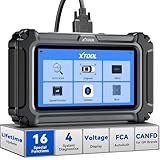
- Comprehensive OBD2 Scanner with 16 Resets: The XTOOL D5S car code reader and vehicle reset tool provides an advanced diagnostic solution with 16 commonly needed reset functions, including Electronic Parking Brake Reset (EPB Reset), SAS, BMS Reset (Battery Test), Throttle Body Relearn, TPMS Reset, ABS Bleeding, Injector Coding, Gearbox Match, Suspension Adjustment, Headlight, Window Initialization, Crank Sensor Relearn and more. Equipped with CAN FD Protocol and FAC AutoAuth, the D5S obd2 scanner diagnostic tool ensures compatibility with a broad range of modern vehicles, allowing users to address common maintenance needs quickly. NOTE: Please Check the Compatibility before ordering.
- 4 Main System Car Scanner & Full OBD2 Diagnostics: The XTOOL D5S car code reader is ideal for home mechanics, DIYers, and professionals, providing access to Transmission/Engine/ABS/SRS systems to read DTCs, Live data can be displayed in text or up to 4 PID data graphs, along with full OBD2 diagnostics to check the engine light on, other obd2 issues and routine maintenance. This car diagnostic scanner ensures you can keep your vehicles in top condition, avoiding costly repairs or unexpected breakdowns. NOTE: Some vehicles display three systems after connection because the transmission and engine of some vehicles are integrated into one.
- Check Engine Code Reader & Real-Time Engine Monitoring: Whether you're a car owner, a DIYer, or run a repair shop, the XTOOL D5S obd2 scanner diagnostic tool makes engine diagnostics fast and frustration-free, reading and explaining trouble codes in seconds—no confusion. Check live data like fuel trim, 02 sensor voltage, RPM, and coolant temp to pinpoint mis~fires, rough idle, or sensor issues. After repairs, simply use the D5S check engine code reader and reset tool to turn off the check engine light and confirm the problem’s fixed—saving time, money, and unnecessary shop visits. - Note: If the check engine light comes back on, it indicates the original problem still exists.
- Portable Car Scanner for ABS and SRS: XTOOL D5S gives you peace of mind when ABS or airbag warning lights come on. It reads and clears ABS codes to help you fix brake sensor, traction control, or wheel speed issues, and supports ABS bleeding after repairs like caliper or master cylinder replacement. For airbag systems, it scans and clears SRS codes related to airbags, seatbelt tensioners, and crash sensors. Whether you're doing repairs at home or running a small shop, the D5S is a cost-effective solution for safety diagnostics. Note: If a fault code returns after clearing, it usually means the issue hasn’t been fully resolved. Please check the compatibility before ordering.
- Transmission Warning Light ON? Here’s the Transmission Diagnostic and Reset Tool You Need: The XTOOL D5S is more than just a basic car scanner—it’s an easy-to-use transmission diagnostic tool. From rough shifts to slipping gears, the D5S lets you read and clear transmission trouble codes, monitor real-time TCM data, and perform transmission resets after fluid changes or repairs. Whether you’re a hands-on car owner or a pro running a busy shop, this OBD2 scanner with transmission functions helps you catch problems early—saving you time, money, and future headaches.. Note: Clearing fault codes is equivalent to a reset on some vehicles, but not all. For help, contact XTOOL Tech Support.
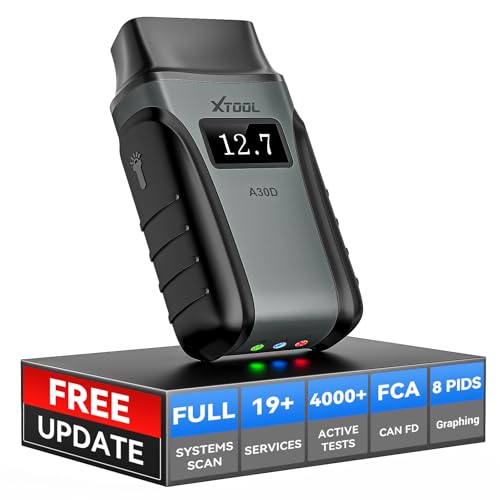
- Save $500+/Year with Pro-Level Diagnostics -No Subscriptions: The Portable XTOOL Anyscan A30D OBD2 scanner diagnostic tool includes free lifetime software updates for all app service functions, without extra cost. With a single payment, enjoy full access to diagnostics, relearn scan tools, and maintenance features. A cost-effective, smart choice for car owners and DIY enthusiasts, compatible with vehicles from 1996 onward. Please provide the car VIN and the special functions you need in advance so that we can confirm compatibility
- Bi-Directional Control for Faster Troubleshooting: Unlike a basic code reader, the A30D bi directional scan tool sends commands directly to your vehicle’s ECU to actively test components like fuel pump, valves, wipers, windows, doors, sunroof, and headlamps right from your smartphone. See component responses in real time without disassembly—perfect for brake jobs, electrical issues, and hard-to-find problems. This bidirectional obd2 scanner helps pinpoint faults faster, reduce guesswork, and avoid replacing good parts. An efficient, easy-to-use car scanner diagnostic tool built for DIYers, home garage users, and small-shop technicians who want real two-way scanner, not just codes
- 19 Reset Functions for Routine Maintenance: The A30D car diagnostic scanner provides 19 relearn functions without extra charges, including EPB Reset for parking brake replacement, TPMS Reset after tire changes, ABS Auto Bleeding, Oil Reset, SAS Reset, BMS Reset, Throttle Relearn, Injector C0ding, Gear Learning, Crank/Crankshaft/Cam/Ckp Sensor Relearn Tool, Transmission Match, Seat Calibration, Airbag Repair and more. This XTOOL A30D automotive scanner diagnostic tool supports preventive care, helping extend vehicle life and reduce costly shop visits. Functions vary by vehicle make and year—plz confirm compatibility before purchase
- Stable BT Connection & All-System & 8 Pids Live Data: The A30D wireless OBD2 scanner delivers a fast and stable wireless connection up to 33 feet, letting you move freely around the vehicle without tangled cables. Pair with with Android 9.0+ and iOS 10.0+ devices to turn your phone into a mobile auto scanner—perfect for home garages, driveways, or on-the-spot repairs. This full system scanner for cars provides real-time access to all major modules, including Engine, Gearbox, ABS, SRS, AC and more. with clear graphs, meters, and up to 8 PIDs displayed at once. This car code reader makes system monitoring visual, simple, easy to understand, and offering data logging for playback and deeper
- Wide Compatibility with CAN-FD & FCA Support: The A30D car computer diagnostic reader works with most 1996 and newer vehicles with a standard OBD2 port, including for Ford, for GM, for Toyota, for Honda, for Nissan,for Hyundai etc, with ongoing updates covering more car models and functions later. It also supports newer communication protocols like CAN-FD and FCA AutoAuth (Personal AutoAuth account and active subscription required, not included with the device!for Chrysler, for Dodge, for Jeep, for Fiat models). It is a future-ready automotive scanner diagnostic tool for households with multiple vehicles or part-time techs. Coverage vary by cars, plz check the compatibility first
Last update on 2026-06-23 / Affiliate links / Images from Amazon Product Advertising API
This product presentation was made with AAWP plugin.