
NHTSA ID Number: 10250483
Manufacturer Communication Number: ManualC
TSB/Document Date: 2024-02-20
Summary
Tesla does not provide physical owner's manual copies. Instead, all available owner?s manual content is integrated into the vehicle software, and only the content relevant for a given vehicle, based on vehicle configuration and software version installed, is displayed on its touchscreen. This file contains all available owner?s manual content for 2015-2020 Model X vehicles converted to PDF format, and given the distribution method and NHTSA?s submission format requirements, it is the best available representative copy of owner?s manual content. However, a customer who accesses the owner?s manual via their vehicle?s touchscreen would only see the parts of this PDF file that are relevant to their vehicle.
NOTE: Some gases, such as carbon monoxide, are not effectively removed by activated carbon.
12. When Model X is in Park, touch Schedule to set a recurring daily time when you want Model X to be ready to
drive by preconditioning the Battery and cabin climate and/or charging during off-peak hours (see Scheduled
Charging and Scheduled Departure on page 239).
13. The windshield defroster distributes air flow to the windshield. Touch once to defog the windshield (the icon turns
blue). Touch a second time to defrost the windshield. Touch a third time to turn off and restore the air
distribution, heating, and fan to their previous settings. In cold ambient temperatures, the exterior side mirrors are
also heated whenever the windshield defroster is operating. See Cold Weather Best Practices on page 213 for
more information on preparing for cold weather.
14. Touch to control the flow of air inside the cabin. Air can be drawn into Model X from outside or air can be
recirculated inside the cabin.
15. Use the slider to adjust the fan speed.
NOTE: Adjusting the fan speed may change the selected setting for how air is drawn into Model X in order to
increase or reduce air flow.
16. Touch to turn the air conditioning system on or off. Turning it off reduces cooling, but saves energy.
NOTE: Because Model X runs much quieter than a gasoline-powered vehicle, you may notice the sound of the air
conditioning compressor as it is operating. To minimize noise, reduce the fan speed.
17. Choose where air flows into the front cabin (windshield, face-level, or foot-level vents). You can choose one or
more vents.
208
Owners Manual
Climate Popup
Touch the temperature arrows on the bottom of the touchscreen to display a popup for easy access to some of the
most common climate controls:
NOTE: For one-touch access to seat heaters and defrosters, you can add these controls to My Apps. See
Customizing My Apps on page 8.
1. Touch to access the main climate controls screen.
2. Enable or disable heated or cooled seats (if equipped).
3. Enable or disable the front or rear windshield defrosters.
4. Modify the cabin temperature by dragging the slider. You can also enable temperature splitting which allows the
driver and front passenger to customize their own climate preferences. The front passenger can touch the
temperature icon on the bottom of the touchscreen or the main climate controls screen to adjust. Touch Split
again to disable climate splitting.
Keep Climate On, Dog, and Camp
The Keep Climate On, Dog, and Camp settings allow you to keep the climate control system running when in Park,
even after you've left Model X or choose to stay inside the vehicle. These settings are useful when it is important to
maintain the cabin temperature in hot or cold weather conditions. For example, when leaving groceries in Model X
on hot days, you may want to use Keep Climate On to prevent spoilage.
Dog is designed to maintain a comfortable cabin temperature for your pet while you actively and frequently monitor
this temperature using the mobile app (which requires both your phone and the vehicle to have cellular
connectivity). When in Dog, the touchscreen displays the current cabin temperature to inform people passing by
that your pet is safe. This setting is not intended for people, and should only be used for short periods of time while
you stay in close proximity should you need to return to the vehicle in situations where the temperature can no
longer be maintained.
Camp allows you to power electronics through the USB ports and low voltage outlet in addition to maintaining the
cabin temperature. The touchscreen remains on so you can play music, browse the internet, play games in the
arcade, or watch shows in Tesla Theater. You can also control media and climate settings from a paired phone. Camp
is ideal for remaining inside your vehicle, such as camping or staying with a child. While active, Sentry Mode and the
vehicle alarm system are disabled. Walk-Away Door Lock is inactive.
To operate Keep Climate On, Dog, or Camp:
1. Make sure the Battery's charge level is at least 20%.
2. Engage Park. The Keep Climate On, Dog, and Camp settings are available only when Model X is in Park.
3. If necessary, adjust the climate settings.
4. On the climate controls screen, touch Keep Climate On, Dog, or Camp.
NOTE: You can also control Dog and Camp from the mobile app, by swiping up from the gray bar on the Climate
screen.
209
Owners Manual
The climate control system attempts to maintain your climate settings until you shift out of Park or manually turn it
off. Avoid using Keep Climate On, Dog, or Camp when the Battery's charge level is low. If the Battery's charge level
drops below 20%, the Tesla mobile app attempts to repeatedly send notifications reminding you to check on
anything that you have left in Model X.
NOTE: Software updates cannot be performed when Keep Climate On, Dog, or Camp is active.
NOTE: The intrusion sensor (if equipped) automatically disables when Keep Climate On, Dog, or Camp is active.
However, you can override this behavior and keep the intrusion sensor enabled. To do so, touch Controls > Safety >
Tilt/Intrusion after enabling Keep Climate On, Dog, or Camp. However, note that keeping the intrusion sensor
enabled while Keep Climate On, Dog, or Camp is active can trigger an alarm event as a result of air movement inside
the cabin.
WARNING: Never leave a child unattended in your vehicle.
WARNING: Check local laws for any restrictions on leaving pets unattended in your vehicle.
WARNING: You are responsible for the safety of your dog or pet. Never leave them in Model X for long periods
of time. Constantly monitor the vehicle temperature and their well-being. Make sure you have sufficient cellular
coverage on your phone and time to return to the vehicle, if necessary.
WARNING: In the unlikely event that your climate control system needs service or is not working as expected,
avoid using Keep Climate On, Dog, and Camp. Never rely on your vehicle to protect something irreplaceable.
WARNING: You can adjust and monitor the climate control system remotely using the mobile app. However, if
you use the mobile app to turn off the climate control system, Keep Climate On, Dog, and Camp stop
operating.
Cabin Overheat Protection
Cabin Overheat Protection prevents the cabin from getting too hot in scorching ambient conditions. While not
necessary to activate whenever you leave Model X, the climate control system can reduce and maintain the
temperature of your vehicle’s cabin. This can prevent the cabin from getting too hot after leaving it parked in the
sun, making the vehicle more comfortable when you return. Cabin Overheat Protection may take up to 15 minutes to
enable once you exit the vehicle. This feature is intended for passenger comfort and has no impact on the reliability
of your vehicle's components.
To turn on, touch Controls > Safety > Cabin Overheat Protection and choose:
• On: The air conditioning operates when the cabin temperature exceeds 105° F (40° C). Customizing temperatures
may require the most recent version of the mobile app.
• Off: Disables Cabin Overheat Protection.
You can also enable Cabin Overheat Protection remotely through the mobile app by touching Climate. Swipe up on
the bottom menu and select a setting under Cabin Overheat Protection (see Mobile App on page 84).
Cabin Overheat Protection operates until 12 hours has elapsed once you exit Model X, or until the Battery energy
drops below 20%, whichever comes first. Using Cabin Overheat Protection requires energy from the Battery, which
may decrease range.
WARNING: Due to automatic shut-off, extreme outside conditions, or other potential inability to maintain the
selected temperature, the inside of the vehicle can become dangerously hot, even when Cabin Overheat
Protection is enabled. If you experience temperatures exceeding the selected temperature repeatedly, contact
Tesla service.
WARNING: Never leave children or pets in the vehicle unattended. Due to automatic shut-off or extreme
outside conditions, the inside of the vehicle can become dangerously hot, even when Cabin Overheat
Protection is enabled.
Climate Control Operating Tips
• When you use the mobile app to turn on the climate control system, it automatically turns off when the charge
level drops to 20%, or if two hours has passed. To cool or heat the cabin for a longer period of time, charge the
vehicle and re-enable your climate control preference through the mobile app.
210
Owners Manual
• You may hear the sound of the climate system inside the cabin of Model X when Parked. It makes a low fan noise.
The climate system attempts to dry itself out to minimize additional moisture or musty odors. This is a normal
operation and not a cause for concern.
• To conserve energy, turn on Range Mode (if equipped) to limit the power of the climate control system (touch
Controls > Pedals & Steering > Range Mode). Cabin heating and cooling may be less effective, but you can use
seat heaters to provide warmth in colder climates.
• If the climate control system is louder than you prefer, manually reduce the fan speed.
• In addition to cooling the interior, the air conditioning compressor also cools the Battery. Therefore, in hot
weather, the air conditioning compressor can turn on even if you turned it off. This is normal because the system’s
priority is to cool the Battery to ensure it stays within an optimum temperature range to support longevity and
optimum performance.
• Even when not in use, you may hear Model X emit a whining noise or the sound of water circulating. These sounds
are normal and occur when the internal cooling systems turn on to support various vehicle functions, such as
maintaining the low voltage battery and balancing the temperature of the high voltage Battery.
• To ensure the climate control system operates efficiently, close all windows and ensure that the exterior grille in
front of the windshield is free of ice, snow, leaves, and other debris.
• In very humid conditions, it is normal for the windshield to fog slightly when you first turn on the air conditioning.
• It is normal for a small pool of water to form under Model X when parked. Extra water produced by the
dehumidifying process is drained underneath.
• To reduce the temperature in the cabin in hot weather conditions, the fan may turn on to vent the cabin when the
vehicle is parked. This occurs only if the battery's charge level is above 20%.
211
Owners Manual
Vents
To direct the flow of air inside Model X, move the interior vents up, down, or from side to side.
NOTE: You can direct the outer face level vents toward the side windows to help defrost or defog them.
Cabin Air Filter(s)
Model X has one or more air filters to prevent pollen, industrial fallout, road dust and other particles from entering
through the vents.
NOTE: Cabin air filter(s) require periodic replacement. See Service Intervals on page 244.
212
Owners Manual
Cold Weather Best Practices
To ensure that Model X provides you with the best ownership experience possible in harsh cold weather conditions,
follow these best practices.
Before Driving
When snow and ice accumulate on your vehicle, moving parts, such as the door handles, windows, mirrors, and
wipers can freeze in place. To achieve maximum range and performance, it is helpful to warm the cabin and Battery
before you leave. There are several ways to do so:
• Touch Schedule, available on both the charging and climate control screens, to set a time when you want your
vehicle to be ready to drive (see Scheduled Charging and Scheduled Departure on page 239).
• In the mobile app, navigate to Climate to customize the temperature at which you want to heat the cabin. This
also warms the high voltage Battery as needed.
• In the mobile app, navigate to Climate > Defrost to melt snow, ice, and frost on the windshield, windows, and
mirrors. This also warms the high voltage Battery as needed.
NOTE: Tesla recommends activating climate settings at least 30-45 minutes before departure (see Operating
Climate Controls on page 206). Preconditioning times depend on outside temperature and other factors. The
mobile app will notify you once your vehicle has reached the desired preconditioning temperature.
Charge Port
• If your charge port latch freezes in place and a charging cable becomes stuck in the charge port, try manually
releasing the charge cable. See Manually Releasing Charge Cable on page 238.
• In extremely cold weather or icy conditions, it is possible that your charge port latch may freeze in place. In cases
where you cannot remove or insert the charge cable, or the vehicle is not Supercharging due to the latch being
frozen in place, use the Defrost Car setting in the mobile app. This can help thaw ice on the charge port latch so
the charge cable can be removed or inserted.
NOTE: You can also prevent the occurrence of a charge port latch freezing in place by using the Schedule settings
(see Scheduled Charging and Scheduled Departure on page 239).
NOTE: If your charge port latch is frozen in place, it may not lock the charging cable in place when inserted, but it
can still charge at a slow AC rate even if the latch is not engaged.
Charging
By using Trip Planner (if available in your market region) to navigate to a Tesla charging location, Model X pre-heats
the high voltage battery to ensure when you arrive at the charger, the temperature of the battery is optimal and
ready to charge. This reduces the amount of time it takes to charge. See (see Trip Planner on page 221).
NOTE: Tesla recommends using Trip Planner to navigate to a charging location for at least 30-45 minutes before
arrival to ensure optimal battery temperature and charging conditions. If the drive to the charging location is less
than 30-45 minutes, consider preconditioning the battery before driving (see Before Driving on page 213).
Windows
• In the mobile app, go to Climate, swipe up from the bottom and select Defrost Car, which helps melt snow, ice,
and frost on the windshield, windows, and mirrors.
• Use the mobile app to schedule a service appointment for Tesla to provide hydrophobic coating to the side and
rear windows (not the front) for a nominal fee.
Mirrors
If ice buildup is expected when parking, turn off Auto-Fold Mirrors. Touch Controls > Vehicle > Auto-Fold. Ice can
prevent exterior side mirrors from folding or unfolding.
NOTE: Side mirrors automatically heat as needed during preconditioning, or when the rear defroster is turned on.
213
Owners Manual
Wipers
If you expect snow or ice to build up when parked, touch Controls > Service > Wiper Service Mode. This raises
wipers against the windshield so they can defrost when the windshield defrosts (see Wipers and Washers on page
109). You can also turn on wiper defrosters (if equipped). See Operating Climate Controls on page 206.
Tires and Tire Chains
• Use winter tires to increase traction in snowy or icy conditions. You can purchase winter tires on http://
www.tesla.com (see Seasonal Tire Types on page 253).
• Tire chains provide additional traction when driving in snowy or icy conditions. Check local regulations to
determine if tire chains are recommended or required during winter months. See Using Tire Chains on page 253
for more information.
Your vehicle’s tire pressures will drop in cold ambient temperatures. If the TPMS indicator light appears, inflate the
tires before driving. The tires will lose one PSI for every 10° F (6° C) drop in outside temperature (see Tire Care and
Maintenance on page 247). Proper tire pressures help protect tires from potholes and improve range when properly
inflated.
While Driving
Cold weather can increase energy consumption because more power is required for driving, cabin and Battery
heating. Follow these suggestions to reduce energy consumption:
• Use seat heaters to keep warm. Seat heaters use less energy than the cabin heater. Lowering the cabin
temperature and using seat heaters reduces energy consumption (see Operating Climate Controls on page 206).
• Slow down your driving and avoid frequent and rapid acceleration.
• Turn on Range Mode (if equipped) to automatically limit the power that the climate control system uses to
maintain the temperature of the Battery and the cabin area. Range Mode also turns off signature lights (if
equipped) and adjusts the front and rear motor torque split to maximize range (see Getting Maximum Range on
page 240).
Regenerative Braking
Regenerative braking can be limited if the Battery is too cold. As you continue to drive, the Battery warms up and
regenerative power increases (see Regenerative Braking on page 112).
NOTE: Limited regenerative braking can be avoided if you allow enough time to precondition your vehicle or if you
use Schedule to precondition Model X before your departure time (see Scheduled Charging and Scheduled
Departure on page 239).
Blue Snowflake Icon
A blue snowflake icon appears on your instrument panel when some of the stored energy in the Battery is
unavailable because the Battery is cold. This portion of unavailable energy displays in blue on the Battery
meter. Regenerative braking, acceleration, and charging rates may be limited. The snowflake icon no longer
displays when the Battery is sufficiently warm.
After Driving
Leave Model X plugged in when not in use. This uses the charging system, rather than the battery itself, to keep the
battery warm (see High Voltage Battery Information on page 231).
Scheduled Departure
When parked, plug in Model X and use the Schedule settings, available on both the charging and climate control
screens, to set a time when you want to precondition Model X (see Scheduled Charging and Scheduled Departure on
page 239). Your vehicle determines the appropriate time to begin charging so it is complete during off-peak hours
and the cabin and Battery are warm by your set departure time. For more information, see Scheduled Charging and
Scheduled Departure on page 239.
214
Owners Manual
Storage
If you leave Model X parked for an extended period of time, plug the vehicle into a charger to prevent normal range
loss and to keep the Battery at an optimal temperature. Your vehicle is safe to stay plugged in for any length of time.
When not in use, Model X enters a sleep mode to conserve energy. Reduce the number of times you check your
vehicle’s status on the mobile app, as this automatically wakes up your vehicle and starts normal energy
consumption.
Navigation and Entertainment
Maps and Navigation
Map Overview
The touchscreen displays a map at all times (except when Model X is shifted into Reverse).
Use your finger(s) to interact with the map:
• To move the map in any direction, hold and drag a finger.
• To rotate the map in any direction, hold and turn two fingers.
• To zoom the map in or out, expand or pinch two fingers, respectively.
NOTE: When you rotate or move the map, your current location is no longer tracked. The message "Tracking
Disabled" displays briefly next to the map orientation icon and the icon turns gray. To re-enable tracking, touch the
map's orientation icon and choose North Up or Heading Up.
NOTE: The map zooms in and out automatically when a navigation route is active.
To change the orientation of the map, toggle between these options:
North Up - North is always at the top of the screen.
Heading Up - The direction you are driving is always at the top of the screen. The map rotates as you
change direction. This icon has an integrated compass that indicates the direction you are driving.
NOTE: Touching this icon while navigating to a destination displays the route overview.
The route overview is available when you are navigating to a destination. The route overview also
displays when you expand the turn-by-turn direction list (by swiping it downward). When you
collapse the turn-by-turn direction list by swiping it upward, the map displays your previously chosen
orientation.
Your current location is shown on the map. When you rotate or move the map, your current location is no longer
tracked. To re-enable tracking, touch the map's orientation icon to choose North Up or Heading Up. Touch anywhere
on the map to re-display it.
Map Display
When Model X is in Park, the following icons display on the map to allow you to customize the type of information
the map displays. To access these icons when driving, touch anywhere on the map (they disappear after a few
seconds).
215
Owners Manual
Display/hide satellite imagery (if equipped with premium connectivity).
Display/hide traffic conditions (if equipped with premium connectivity).
Display/hide map details (such as points of interest).
Drop a pin anywhere on the map by pressing and holding your finger on a desired location. When you drop a pin, or
touch an existing pin, the chosen location is centered on the map, and a popup screen provides information about
the location. From this popup, you can navigate to the location, call the location (if a phone number is available) and
add or remove the location from your list of favorite destinations (see Home, Work, and Favorite Destinations on
page 218).
Display/hide all charging locations and a popup list that includes the city and proximity of the
corresponding stations on the map. Charging locations include Tesla Superchargers, destination
charging sites, third-party fast chargers, and public chargers that you have used previously. See
Charging Locations on page 219.
Touch the lightning bolt icons in the popup list to filter by the types of chargers based on max power.
NOTE: In some market regions, third-party fast chargers are also included on the map as dark gray pins
when you display chargers.
Navigation Settings
The navigation settings icon displays when you touch ... once you start navigating to a destination.
NOTE: You can also access navigation settings by touching Controls > Navigation.
Touch the navigation settings icon to customize the navigation system to suit your preferences (the available
settings vary depending on your market region and vehicle configuration):
• Navigation Guidance: Touch Voice or Chime to choose the type of audio you want the navigation system to use
for navigation instructions.
• Touch - or + to increase or decrease the volume of spoken navigation instructions. Decreasing all the way to the
left, or touching the speaker icon, mutes the instructions. You can also mute/unmute navigation instructions by
touching the speaker icon. This volume setting applies only to the navigation system's spoken instructions.
Volume for Media Player and Phone is not changed.
NOTE: Your Model X automatically adjusts the volume based on driving speed and climate settings.
• Enable Automatic Navigation if you want Model X to automatically initiate a navigation destination when you get
in your vehicle. Destinations are predicted based on commonly driven routes, time of day, and calendar entries
(see Automatic Navigation on page 218).
• Enable Trip Planner (if available in your market region) to add supercharger stops as needed. Supercharging
stops are added to navigation routes with the goal of minimizing the amount of time you spend driving and
charging (see Trip Planner on page 221).
216
Owners Manual
• Enable Online Routing to be automatically rerouted to avoid heavy traffic (see Online Routing on page 221).
• Touch Avoid Ferries to be automatically routed to avoid ferries.
• Touch Avoid Tolls to be automatically routed to avoid tolls.
• Touch Use HOV Lanes to include High Occupancy Vehicle (HOV) lanes on navigation routes. This is particularly
useful when using Navigate on Autopilot (see Navigate on Autopilot on page 168).
NOTE: The navigation settings available can vary depending on region and vehicle configuration.
Navigating to a Destination
To navigate to a location, touch the search bar in the corner of the map and enter a destination, send the destination
from your phone, or speak a voice command (see Voice Commands on page 21). You can enter or speak an address,
landmark, business, etc. When you touch the search bar, you can also choose from the following types of locations:
• A saved Home or Work location (see Home, Work, and Favorite Destinations on page 218).
• A Charging destination (see Charging Locations on page 219).
• A Recent destination (the most recent destination is listed at the top).
• A destination you have marked as a Favorite (see Home, Work, and Favorite Destinations on page 218).
• A popular restaurant when you're feeling Hungry or a popular destination (such as museums and amusement
parks) when you're feeling Lucky (see Lucky and Hungry on page 218).
NOTE: If a data connection is not available, onboard maps allow you to navigate to any destination, but you must
enter the exact and complete address.
NOTE: You can start navigation remotely from your IOS® or Android™ device using the "share" functionality on your
device after allowing access to the Tesla mobile app.
When you specify a location, the touchscreen zooms out to provide an overview of the route you need to travel and
displays a turn-by-turn direction list. Estimated arrival time, driving time, and mileage displays at the bottom of the
direction list. Note the following about the turn-by-turn direction list:
• The Battery icon on the turn list provides a visual representation showing an estimate of how much energy will
remain when you reach your destination, and how much will remain if you make a round trip back to your current
location. See Predicting Energy Usage on page 220.
• If charging is needed to reach your destination and Trip Planner is enabled (and available in your market region),
the navigation route automatically includes Supercharger stops (see Trip Planner on page 221).
• If you won't have enough energy to reach your destination and there is no Supercharger on the route, an alert
tells you that charging is needed to reach your destination.
• Each turn is preceded by the distance to the maneuver.
• To see the bottom of the list, you may need to drag the list upward.
• Touch the top of the list to minimize it.
While navigating, the map tracks your location and displays the current leg of your trip. You can display the entire
route at any time by swiping down to expand the turn-by-turn direction list or touching the route overview icon.
To stop navigating, touch Cancel, located in the bottom corner of the turn-by-turn direction list.
If Navigate on Autopilot (if available in your market region) is enabled, you can turn it on for the
navigation route by touching Navigate on Autopilot in the turn-by-turn direction list (when the feature
is active, the icon is blue). Navigate on Autopilot is a full self-driving (Beta) feature that automatically
changes lanes and steers Model X on controlled-access roads (like highways and freeways), along a
navigation route. For details, see Navigate on Autopilot on page 168.
Selecting an Alternate Route
Depending on market region and vehicle configuration, this feature may not be available on your vehicle. Your vehicle
must be equipped with Premium Connectivity.
217
Owners Manual
After you have entered a destination with one stop, the map displays up to three alternate routes. This allows you to
easily compare total travel time and traffic information for each route. If you do not select a preferred route within
the timeout period, the fastest route is automatically selected.
Adding Stops to a Route
After you have entered a destination, you can edit your route by adding, deleting or reordering stops. Touch the
three dots at the bottom of the turn-by-turn direction list to view options to edit your route.
Add Stop allows you to add a stop by searching for a location or adding a Home, Recent or Favorite
destination. You can also add a stop by touching any pin on the map and selecting Add from the
popup.
Edit Stop allows you to set up a complex trip by adding or deleting stops on your route. Drag and drop
stops by touching the equal sign to reorder your trip.
Automatic Navigation
NOTE: Automatic Navigation may not be available in all market regions and on all vehicle configurations.
Automatic Navigation can predict a destination when you get in your vehicle. When your phone's calendar is synced
to Model X, and the calendar includes an event that takes place within two hours of when you get in your vehicle to
drive, Automatic Navigation suggests the location of the event (assuming a valid address is associated with the
event).
In addition, if you are Home and get in your vehicle on weekdays (Monday to Friday) from 5:00 AM to 11:00 AM,
Automatic Navigation can automatically route you to your specified Work location (see Home, Work, and Favorite
Destinations on page 218). Likewise, if you are at work on weekdays from 3:00 PM to 11:00 PM, Automatic
Navigation can automatically route you to your specified Home location.
To enable Automatic Navigation, touch Controls > Navigation > Automatic Navigation. You must have your phone's
calendar synced to Model X and the event must include a uniquely specified and valid address (see Phone, Calendar,
and Web Conferencing on page 90).
NOTE: Navigation instructions that you enter manually, or send to Model X, override routes suggested by Automatic
Navigation.
Lucky and Hungry
NOTE: "Lucky" and "Hungry" may not be available in all market regions and on all vehicle configurations.
In addition to navigating to a destination of your choice, Model X can also suggest nearby locations based on
whether you are feeling Hungry or Lucky. In the navigation search bar, touch Hungry or Lucky. Hungry suggests a
list of popular restaurants, whereas Lucky suggests a list of popular destinations (such as museums and amusement
parks). Once you discover a destination that interests you, touch Navigate to proceed to the destination.
This feature requires the latest version of Navigation maps. To download, connect Model X to Wi-Fi and touch
Controls > Software to check if an update is available (see Map Updates on page 222).
Home, Work, and Favorite Destinations
If you frequently drive to a destination, you can add it as a favorite to avoid entering the location's name or address
each time. When you add a destination as a Favorite, you can easily navigate to it by touching the navigation search
bar and then touching Favorites and choosing it from your list of favorite destinations.
218
Owners Manual
To add a destination to your Favorites list touch its pin on the map, then touch the star icon on the
popup screen that appears. Enter a name (or leave as-is to accept the default name), then touch Add
to Favorites. The star becomes solid and the destination is included on your Favorites list.
To delete a Recent or Favorite destination, touch it on the destination list and hold it down briefly until the X
appears. Then touch the X to delete it from the list.
Home and Work locations also display under the navigation search bar. Touch to set an address to the
corresponding location. After entering the address, touch Save as Home or Save as Work. Then simply touch these
shortcuts whenever you want to navigate home or to work.
To change or delete the corresponding address, press and hold the Home or Work icon. A popup allows you to enter
a new address and Save as Home or Save as Work. Or touch Clear Home or Clear Work to remove associated
addresses entirely.
NOTE: Based on your usage patterns, Model X may prompt you to save a location as Home or Work.
NOTE: Once a Home or Work location is saved, Model X may prompt you to navigate to your Work location in the
mornings and to your Home location in the evenings and provide an estimated driving time based on current traffic
conditions. See Automatic Navigation on page 218.
For security reasons, if you sell Model X, it is recommended that you delete your Home and Work locations. You can
delete these individually or you can perform a factory reset to erase all personal data (touch Controls > Service >
Factory Reset).
Charging Locations
To display charging locations on the map, touch the map's search bar, then touch Charging. Charging locations are
shown in a list (with the closest charging location at the top of the list) and represented by corresponding pins on
the map. Touch a pin to display more information, navigate to it, or mark it as a favorite.
Touch the lightning bolt icons to specify the types of charging locations you want the map to include (by default, the
map displays only superchargers):
Touch to include low power stations up to 25 kW, such as destination charging locations.
Touch to include medium power chargers 25 kW to 75 kW.
Touch to include high power chargers 75 kW and above.
NOTE: In some market regions, third-party fast chargers are also included as dark gray pins when you choose to
display all charging stations.
The appearance of a charging location's pin reveals status information about the location. Touch the pin to display
details.
219
Owners Manual
The Supercharger location is operational and the number displayed on the pin represents the number
of available Supercharger stalls.
NOTE: A Supercharger located on your current navigation route is colored black (or white, if the
touchscreen is in night mode).
The Supercharger location is experiencing a high volume of users and you may need to wait before
charging.
The Supercharger location may be operating at a reduced capacity.
The Supercharger location may be closed.
The Supercharger location has no data available but should be operational.
The location is either a destination charging location, a third-party fast charger, or a public charging
station that you have previously used. Touch to display more information such as usage restrictions and
available charge current.
NOTE: When the map is zoomed out and more than one destination charging location is available in an
area, the pin is round and displays the number of stations. Touch the pin to zoom in. Then you can
touch an individual pin for details about a specific location.
Touch a charging location's pin to display a popup from which you can:
• Determine it's exact location and approximate distance from your current location.
• View amenities that are available at the charging location, including restrooms, restaurants, lodging, shopping,
and Wi-Fi. On a supercharger popup, touch an amenity icon to search the surrounding area for the associated
amenity.
• Touch the arrow icon to navigate to the charging location.
NOTE: When navigating to a Supercharger (or third-party fast charger in some regions), Model X preconditions
the Battery to prepare for charging. This ensures you arrive with an optimal Battery temperature, reducing the
amount of time it takes to charge. In some circumstances (such as cold weather), it is normal for the motor(s) and
components to make noise as it generates heat to warm the Battery (see Charging on page 213).
• View how busy a Supercharger location typically is during different times of the day, along with corresponding
charging fees.
Predicting Energy Usage
When navigating to a destination, Model X helps you anticipate your charging needs by calculating the amount of
energy that remains when you reach your destination. When navigating, the map displays this calculation next to the
Battery icon on the turn-by-turn direction list (see Navigating to a Destination on page 217). When the turn-by-turn
direction list is compressed, touch the top of the list to expand it.
220
Owners Manual
The calculation that predicts how much energy you will use is an estimate based on driving style (predicted speed,
etc.) and environmental factors (elevation changes, wind speed and direction, ambient and forecasted temperatures,
air density and humidity, etc.). As you drive, Model X continuously learns how much energy it uses, resulting in
improved accuracy over time. It is important to note that Model X predicts energy usage based on the driving style
of the individual vehicle. For example, if you drive aggressively for a period of time, future range predictions will
assume higher consumption. Also, if you purchase a used Tesla vehicle, it is recommended that you perform a
factory reset (Controls > Service > Factory Reset) to ensure the predicted energy is as accurate as possible.
Throughout your route, Model X monitors energy usage and updates the estimate of energy remaining at the end of
your trip. A popup warning displays on the turn-by-turn direction list in these situations:
NOTE: Some factors that contribute to predicted energy (such as forecasted temperatures and wind speed) are
available only when Model X has internet connectivity.
• A yellow warning displays when you have very little energy remaining to reach your destination, requiring you to
drive slowly to conserve energy. For tips on conserving energy, see Getting Maximum Range on page 240.
• A red warning displays when you must charge to reach your destination.
To determine if you have enough energy for a round trip, touch the Battery icon on the turn-by-turn direction list to
display an estimated calculation of your round trip energy usage.
Online Routing
Model X detects real-time traffic conditions and automatically adjusts the estimated driving and arrival times. In
situations where traffic conditions will delay your estimated time of arrival and an alternate route is available, the
navigation system can reroute you to your destination. You can also specify the minimum number of minutes that
must be saved before you are rerouted. To turn this feature on or off, touch the map's settings icon (see Navigation
Settings on page 216), then touch Online Routing.
Trip Planner
Trip Planner (if available in your market region) helps you take longer road trips with confidence. If reaching your
destination requires charging, Trip Planner routes you through the appropriate Supercharger locations. Trip Planner
selects a route and provides charging times to minimize the amount of time you spend driving and charging. To
enable Trip Planner, touch the map's settings icon (see Navigation Settings on page 216), then touch Trip Planner.
When Trip Planner is enabled and charging is required to reach your destination, the turn-by-turn direction list
includes Supercharger stops, recommended charging times at each Supercharger, and an estimate of how much
energy will be available when you arrive at the Supercharger location.
NOTE: When navigating to a Supercharger or, in some regions, a third-party fast charger using Trip Planner, Model X
may allocate some energy to pre-heat the Battery to arrive at the Supercharger or third-party fast charger with an
optimal Battery temperature. This reduces charging time (see Charging on page 213).
To remove Supercharger stops and display directions only, touch Remove all charging stops at the bottom of the
turn-by-turn direction list. If you remove charging stops, the turn-by-turn direction list may display an alert indicating
that charging is needed to reach your destination. To add Supercharger stops back to the turn-by-turn direction list,
touch Add charging stops.
While charging at a Supercharger, the charging screen displays the remaining charging time needed to drive to your
next Supercharger stop, or destination (if no further charging is needed). If you charge for a shorter or longer length
of time, charging time at subsequent Supercharger stops is adjusted accordingly.
NOTE: You can also use the mobile app to monitor remaining charging time needed.
NOTE: If a Supercharger on your navigation route experiences an outage, Trip Planner displays a notification and
attempts to reroute you to a different Supercharger location.
If Trip Planner estimates that you won't have enough energy for your round trip, and there are no Superchargers
available on your route, Trip Planner displays an alert at the top of the turn-by-turn direction list notifying you that
charging is needed to reach your destination.
221
Owners Manual
Map Updates
As updated maps become available, they are automatically sent to Model X over Wi-Fi. To ensure you receive them,
periodically connect Model X to a Wi-Fi network (see Wi-Fi on page 87). The touchscreen displays a message
informing you when new maps are installed.
222
Owners Manual
Media
Overview
The Media Player displays on the touchscreen and is used to play various types of media. You can drag Media Player
upward to expand it (allowing you to browse), and downward to minimize it so that just the Miniplayer displays. The
convenient Miniplayer, which occupies the least amount of space on the touchscreen, displays what's currently
playing and provides only the basic functions associated with what's playing.

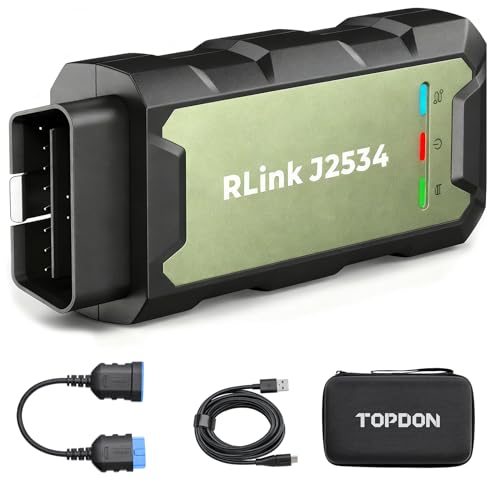
- Advanced VCI Box, Industry-leading J2534 Pass-Thru...
- High-Speed OEM-Level Diagnostics & Programming: Unlock true...
- Coverage for 17 Car Brands & Ultra Reliability: Works...
- User-Friendly RLink Platform & Expert Support: TOPDON’s...
- 6.6 ft USB-C Cable & Portable Storage Case: The RLink J...
If the PDF is very large, it may not load in the preview below.
Some older TSBs had multiple PDFs — visit the NHTSA Website to view all PDFs.
If the TSB PDF does not show, download or view it on the NHTSA Website.
Click on the (+) Plus Sign
Then Click on Associated Document(s)
Search NHTSA Database for Recalls
Search NHTSA Database for Vehicle Investigations
View Latest Vehicle Investigations
Search NHTSA Database for Vehicle Complaints
View Latest Vehicle Complaints
TSB/Document ID: ManualC
Replacement Service Bulletin Number:
MFR Communication Date: 2023-12-01
MFR Internal Campaign ID/Software Version:
Communication Type: Service Bulletin/Repair Instructions
NHTSA Components: EQUIPMENT
MFR Component System:
MFR Component Subsystem:
Previous TSB | Next TSB |

- [Notice] When you receive a used device, it may be a customer return resold by Amazon without inspection. You can exchange it for a new one through Amazon. As this situation is unavoidable, we sincerely apologize. For any issues, contacting us via Amazon's "Messages" is the best way. THINKSCAN 689BT Bidirectional Scan Tool Can Be Used Immediately After It is Turned On, Without Complicated Registration Process, Which is More Convenient & Quick.
- Full Bi-Directional Control & 3000+ Active Tests: Take control and test components like actuators, fuel injectors, relays, and cooling fans in real time. You’ll quickly see if the problem is in the part itself or the control module — saving you hours of guesswork and frustrating trial-and-error.
- Advanced ECU Coding Capabilities: Handle module matching and hidden feature activation with confidence. When you replace an ECU or want to customize settings, this obd2 scanner diagnostic bi directional tool gives you the professional-level capabilities you need without the dealership price tag.
- 34+ Useful Reset and Maintenance Functions: Complete everyday service tasks smoothly with a wide range of helpful reset and maintenance functions. Whether you’re keeping up with regular upkeep or tackling a specific job, this scanner makes maintenance simpler and less stressful for both DIYers and pros.
- Comprehensive Full System Diagnostics: Diagnose every major system — Engine, Transmission, ABS, SRS, TPMS, and more — all in one place. Finally stop wondering if you’re missing something important; get the full picture and clear codes with ease.

- Top Reasons to Choose the D7S OBD2 Scanner: XTOOL D7S car scan tool, an upgrade of XTOOL D7, offers comprehensive features for automotive technicians, workshops, and DIY enthusiasts 1. Upgraded Hardware: 2+64GB memory, rear camera, intuitive interface, foldable bracket 2. Complete Diagnostics: FCA
 Autoauth, OE-level all system scan, 39+ maintenance services, 4K+ bidirectional, CANFD/DoIP protocol 3. Advanced Capabilities: ECU c0ding, PMI functions 4. Wide Compatibility: Support 10,000+ models, covering 99% vehicle brands 5. Multi-language: Available in 22+ languages, No IP Restrictions 6. 3-Year Updates: Save 300 bucks on software updates for the latest features and optimizations
 - 2026 Upgraded D7S Car Scanner Features: The newly 2026 D7S V2.0 scanner for car brings exciting features for advanced vehicle diagnostics and enhanced user experience 1. FCA AutoAuth: Now supports FCA SGW module for Chrysler, for Jeep, for Dodge (2018+), for Fiat (2017+), enabling faster vehicle communication without gateway restrictions 2. PMI (Offline ECU Pr0gramming): Allows for Ford, for Lincoln, and for Mazda ECU pr0gramming for new modules 3. Optimized Diagnostic Report 2.0: Personalized reports with logos and customer info for auto shops. Note: Compatibility varies by cars, please check before order
- 39+ Services/Resets/Adaptations/Relearns/Calibrations: XTOOL D7S full system car scanner diagnostic tool tackles 99% of common car issues through its 36+ special functions, including Oil Reset, EPB, SAS, BMS, Throttle Reset, Injector C0ding, ABS Bleed, TPMS Reset, Power Balance, etc and also covers specific-vehicle functions like Crank Sensor Relearn, ABS Initialization, Cylinder Power Balance, Fuel Trim Reset, Idle Relearn etc. This car diagnostic scanner enhances efficiency, making repairs and maintenance hassle-free. Tip: DO NOT for All vehicles, please check compatibility first
- Cost-effective ECU C0ding Scan Tool for Specific Brands: Enhance your vehicle's performance with XTOOL D7S! This obd2 scanner all systems bidirectional offers advanced capabilities at an affordable price, supports online for BMW, for Benz and offline for BENZ, for MIT, along with PMI functions for Ford, for Mazda, and for Lincoln. Ideal for technicians and DIY enthusiasts, this automotive scanner diagnostic tool optimizes vehicle performance and enhances the driving experience. Note: Not for all cars and modules, please send car VIN to check the compatibility before purchase
- OE All System Diagnostic & 8 Pids Graphing: XTOOL D7S is a comprehensive all system bi directional obd2 scanner that delivers dealer-level diagnostics, completely controlling over your vehicle’s performance and health. This automotive scan tool can read and clear DTCs, view live data and ECU information, retrieve freeze frames, and perform active tests and full obd2 functions. This bi-directional scan tool can can identify your vehicle's make, model, and year information with just one click and show up to 8 PIDs live data with options for CSV viewing, playback, and recording for in-depth analysis. It is easy-to-use for both professionals and beginners, helping pinpoint issues efficiently

- 【✅Compared to BOSSCOMM IF742, IF745 Offers Full-System Diagnostics】The BOSSCOMM IF745 car diagnostic scanner is an upgraded model of IF742. In addition to supporting all OBD2 Code Reader functions and 6 reset options (ABS/EPB/SAS/BMS/Oil/Throttle), it expands diagnostics from 4 systems (Check Engine/ABS/SRS/Transmission) to vehicle All systems, including Steering, Suspension, and Body Electronics. This provides deeper, more comprehensive diagnostic capabilities.
- 【✨10 OBD2 Functions】The BOSSCOMM IF745 scan tool’s DTC Lookup instantly translates fault codes into user-friendly explanations, its I/M Readiness feature streamlines emissions testing with a single tap, and Freeze Frame lets you pinpoint the exact moment of a fault for in-depth root-cause diagnosis. Combined with a live data dashboard and advanced diagnostics (O2S, OBMon, EVAP), it delivers comprehensive insights for confident troubleshooting.
- 【✨Deep Diagnostics for All Vehicle System Modules】Beyond code reading/clearing and ECU information retrieval, our all-in-one data stream feature lets you inspect all current fault codes and their locations across the vehicle’s systems. This vehicle code reader helps you turn off dashboard warning lights and perform a comprehensive self-check of your car at home—no more back-and-forth trips to the repair shop or hefty inspection fees.
- 【✨6 Essential Resets: ABS Bleeding, Oil, EPB, SAS, Throttle, BMS】The BOSSCOMM IF745 obd2 scanner diagnostic tool swiftly purges air from brake lines to restore braking sensitivity, fine-tunes maintenance cycles to eliminate false alerts, resolves parking brake issues with one-click control, recalibrates steering sensors for stability, optimizes engine idling/acceleration for smoother performance, and deeply resets battery systems to extend lifespan and range via precise parameter adjustments.❗NOTE: Does NOT support bidirectional control, coding, or programming.
- 【✨10,000+ Car Models, AutoVIN, 13 Languages】The BOSSCOMM IF745 vehicle scanner diagnostic tool covers 73+ global car brands and offers support in 13 languages, making it perfect for DIYers, auto mechanics, or as a thoughtful gift. With a single-click AutoVIN feature, it instantly retrieves vehicle serial numbers, streamlining diagnostics for users globally. This adaptable tool balances user-friendliness with precision, catering to both personal and professional requirements.✅Unsure about compatibility? Compatibility will vary on vehicles' model and year, pls reach us via 📧 [email protected] 📧 before purchase.

This product presentation was made with AAWP plugin.