
NHTSA ID Number: 10247396
Manufacturer Communication Number: DocumentationF
TSB/Document Date: 2023-12-18
Summary
Tesla does not provide physical owner's manual copies. Instead, all available owner?s manual content is integrated into the vehicle software, and only the content relevant for a given vehicle, based on vehicle configuration and software version installed, is displayed on its touchscreen. This file contains all available owner?s manual content for 2012-2020 Model S vehicles converted to PDF format, and given the distribution method and NHTSA?s submission format requirements, it is the best available representative copy of owner?s manual content. However, a customer who accesses the owner?s manual via their vehicle?s touchscreen would only see the parts of this PDF file that are relevant to their vehicle.
If the PDF is very large, it may not load in the preview below.
Some older TSBs had multiple PDFs — visit the NHTSA Website to view all PDFs.
If the TSB PDF does not show, download or view it on the NHTSA Website.
Click on the (+) Plus Sign
Then Click on Associated Document(s)


- Advanced VCI Box, Industry-leading J2534 Pass-Thru...
- High-Speed OEM-Level Diagnostics & Programming: Unlock true...
- Coverage for 17 Car Brands & Ultra Reliability: Works...
- User-Friendly RLink Platform & Expert Support: TOPDON’s...
- 6.6 ft USB-C Cable & Portable Storage Case: The RLink J...
This product presentation was made with AAWP plugin.
Search NHTSA Database for Recalls
Search NHTSA Database for Vehicle Investigations
View Latest Vehicle Investigations
Search NHTSA Database for Vehicle Complaints
View Latest Vehicle Complaints
TSB/Document ID: DocumentationF
Replacement Service Bulletin Number:
MFR Communication Date: 2023-10-24
MFR Internal Campaign ID/Software Version:
Communication Type: Service Bulletin/Repair Instructions
NHTSA Components: EQUIPMENT
MFR Component System:
MFR Component Subsystem:
Previous TSB | Next TSB |
Owners documentation
Contents
Index....349
Owners Manual
Overview
Exterior
2
Owners Manual
1. Exterior lights (Lights on page 107)
2. Front doors (Keys and Doors on page 25)
3. Falcon wing doors (Keys and Doors on page 25)
4. Charge port (Charging Instructions on page 234)
5. Active spoiler (optional) (Active Spoiler on page 141)
6. Rear view mirrorForward looking camera (About Autopilot on page 154)Autopilot cameras (About Autopilot on
page 154)
7. Exterior mirrors (Mirrors on page 103)
8. Radar sensor (hidden from view in the above image) (About Autopilot on page 154)
9. Hood/Front trunk (Front Trunk on page 43)
10. Wheels and tires (Wheels and Tires on page 278)
11. Rear view camera (Rear Facing Camera(s) on page 139 and About Autopilot on page 154)
12. Rear trunk/liftgate (Rear Trunk on page 40)
13. Ultrasonic sensors (Park Assist on page 127 and About Autopilot on page 154)
3
Owners Manual
Interior Overview
1. Interior door handles (#unique_15 on page )
2. CruiseAutopilot stalk (Cruise Control on page 124) (Traffic-Aware Cruise Control on page 158 and Autosteer on
page 166)
3. Turn signal stalk (High Beam Headlights on page 108, Turn Signals on page 109, Wipers and Washers on page
111)
4. Steering wheel buttons - left (Using Left Steering Wheel Buttons on page 100)
5. Instrument panel (Instrument Panel on page 12)
6. Steering wheel buttons - right (Using Right Steering Wheel Buttons on page 101)
7. Drive stalk (How to Shift on page 105)
8. Touchscreen (Touchscreen on page 5)
9. Glovebox button (Glovebox on page 46)
10. Cabin climate control vents (Operating Climate Controls on page 207)
11. Power window switches (Opening and Closing on page 37)
12. Exterior mirror adjustment switches (Mirrors on page 103)
13. Seats (Front and Rear Seats on page 47)
14. Steering column adjuster (hidden from view in the above image) (Steering Wheel on page 99)
15. Horn (Horn on page 102)
4
Owners Manual
16. Brake pedal (Braking and Stopping on page 113)
17. Accelerator pedal (Acceleration Modes on page 134) Accelerator pedal (Regenerative Braking on page 114)
18. Hazard warning lights (Hazards on page 110)
19. Cup holders (Cup Holders on page 47)
Touchscreen
WARNING: Always pay attention to road and traffic conditions when driving. To minimize driver distraction and
ensure the safety of vehicle occupants as well as other road users, avoid using the touchscreen to adjust
settings while the vehicle is in motion.
Use the touchscreen to control many features that, in traditional cars, are controlled using physical buttons (for
example, adjusting the cabin heating and air conditioning, headlights, etc.). You also use the touchscreen to control
media, navigate, use entertainment features, and customize Model X to suit your preferences. For hands-free access
to common touchscreen controls, use voice commands (see Voice Commands on page 20).
If the touchscreen is unresponsive or demonstrates unusual behavior, you can restart it (see Restarting the
Touchscreen or Instrument Panel on page 8).
NOTE: Illustrations are provided to improve conceptual understanding only. Depending on vehicle options, software
version, market region and regional and language settings, the details displayed on the screen will differ.
5
Owners Manual
1. Status bar: Find car controls and status in the top bar (see Top Status Bar Icons on page 7).
2. Navigation: Change the orientation of the map, find or navigate to a destination, and change navigation settings
(see Maps and Navigation on page 216).
3. Controls: Control various features and customize Model X to suit your preferences. The Controls screen appears
over the map. Touch an option on the Controls screen to display the various settings and preferences associated
with the chosen option.
To search for a specific setting, touch Search at the top of the Controls screen. Make changes directly from the
result or touch the link to jump to that option in Controls.
When an information icon displays beside a specific setting, touch it to display a popup that
provides helpful details about the associated setting.
NOTE: Many vehicle controls, settings, and preferences (such as climate, media, and navigation) can be adjusted
hands-free using voice commands (see Voice Commands on page 20).
NOTE: You can send touchscreen feedback to Tesla by long-pressing this icon.
6
Owners Manual
4. Climate controls (driver): Use the left and right arrows to decrease/increase cabin temperature. Touch Split on
the popup to display separate controls for the driver and passenger. Touch the temperature icon to customize
climate control settings (see Operating Climate Controls on page 207).
5. My Apps: For one-touch access to frequently used apps and controls, you can choose what displays here. See
Customizing My Apps on page 7.
6. App Launcher: Touch the app launcher to open the app tray. Then touch any app to open it. The app you choose
displays on top of the map. To close an app, drag it downward.
7. Recent App(s): Displays the most recently used app(s). The number of recent apps displayed here depends on
how many apps have been added to My Apps. If you add the maximum number of apps to My Apps, only the
most recent app displays.
8. Climate controls (passenger): Displays when temperature controls have been Split to provide separate controls
for the driver and passenger.
9. Volume Control: Controls the volume of media player and phone calls (see Volume Controls on page 225). The
volume of navigation instructions is controlled separately (see Maps and Navigation on page 216).
Customizing My Apps
For one-touch access to commonly used apps and controls, you can customize what displays in the My Apps area on
the touchscreen's bottom bar:
1. Enter customization mode by touching and holding any app or control in the My Apps area. If this area is empty,
touch the App Launcher.
2. Simply drag any app or control from the app tray onto the My Apps area in the bottom bar.
NOTE: Seat heaters selected from the app tray appear next to the temperature, instead of in the My Apps area.
NOTE: When you've added the maximum number of apps or controls to My Apps, adding an additional app removes
the rightmost app.
NOTE: Remove an app or control from the My Apps area by touching and holding, then touching its associated "X".
Top Status Bar Icons
Touch to lock/unlock all doors and trunks.
4:20 pm
Your vehicle automatically updates the time. If the time is incorrect, confirm your vehicle has internet
and GPS connectivity with the latest software.
Displays when a software update is fully downloaded and ready to install. (See Software Updates on
page 244).
Add, configure, or quickly switch driver profiles (including Valet Mode and Easy Entry). See Driver
Profiles on page 135.
Control or program HomeLink devices (if equipped) (see Smart Garage on page 94).
7
Owners Manual
Displays when a notification is in effect. Touch to display information about the notification. To
display a list of the most recent notifications, with the most recent listed first, you can also touch
Service > Notifications.
Connected to a Wi-Fi network.
Connected to cellular network. Touch to connect to Wi-Fi (see Wi-Fi on page 89).
Connect to a Bluetooth device (see Bluetooth on page 90).
Status of the front passenger airbag (see Airbags on page 78).
Restarting the Touchscreen or Instrument Panel
You can restart your touchscreen if it is unresponsive or demonstrates unusual behavior.
NOTE: To ensure the safety of occupants as well as other road users, restart the touchscreen only when the vehicle is
in Park.
1. Shift into Park.
2. Hold down both scroll buttons on the steering wheel until the touchscreen turns black. Pressing the brake pedal
while holding down the scroll buttons does not have any impact and is not required.
3. After a few seconds, the Tesla logo appears. Wait approximately 30 seconds for the touchscreen to restart. If the
touchscreen is still unresponsive or demonstrating unusual behavior after a few minutes, try power cycling the
vehicle (if possible). See Power Cycling the Vehicle on page 98.
To reset the instrument panel, shift into Park and press the top two buttons on the steering wheel (Voice Commands
and Next) for 15-30 seconds, or until the screen turns black. A few seconds later, a Tesla logo appears. Wait
approximately 30 seconds for the instrument panel to restart.
NOTE: Pressing the scroll buttons only restarts the touchscreen. It does not restart any other vehicle component and
does not power Model X off and on.
8
Owners Manual
Customizing Display and Sound Settings
Touch Controls > Display to adjust display settings to suit your preferences:
• Appearance: Customize the display to be Dark or Light. When set to Auto, the brightness changes automatically
based on ambient lighting conditions.
• Brightness: Drag the slider to manually control the brightness level. If Display Mode is set to Auto, the
touchscreen further adjusts based on both the ambient lighting conditions and your brightness preference.
Model X remembers your chosen brightness preference and adjusts the touchscreen accordingly.
• Energy Saving: When toggled on, Model X reduces the amount of energy being consumed when not in use (for
newer vehicles, this is automated). See Getting Maximum Range on page 241.
• Screen Clean Mode: When enabled, your touchscreen darkens and temporarily disables to facilitate cleaning.
Follow the onscreen instructions to exit Screen Clean Mode.
• Touchscreen Language: Select the language that the touchscreen displays.
NOTE: Model X must be in Park to change the language. When you change the language, you experience a brief
delay as Model X shuts down and restarts the touchscreen.
• Voice Recognition Language: Choose the language to be used for voice commands.
• Voice Navigation Language: Choose the language that the navigation system uses for spoken instructions.
NOTE: For languages that require a download, select the language in the dropdown list to initiate the download
(Wi-Fi connection required).
• Time: Choose to display time in either 12 or 24 hour format.
• Energy Display: Choose to display remaining energy and charging units as either a percentage of battery energy
remaining, or as an estimate of the distance you can drive.When you choose Distance, you can display mileage
based on either:
◦ Rated - based on EPA testing in the United States.
◦ Ideal - assumes ideal driving conditions based on driving at a steady speed of 55 mph (89 km/h) on a flat
road, and using no additional energy (seat heaters, air conditioning, etc).
NOTE: When anticipating when you need to charge, use energy estimate as a general guideline only. Many factors
have an impact on energy consumption. See Factors Affecting Energy Consumption on page 241.
• Distance: Choose to display measurements in metric (kilometers, centimeters, etc.) or imperial (miles, inches, etc.)
units.
• Temperature: Choose to display temperature using Fahrenheit or Celsius.
• Tire Pressure: Choose to display tire pressures using BAR or PSI.
In addition to customizing the display, you can enable Joe Mode to reduce the volume of all chimes that are not
related to critical safety issues. Touch Controls > Safety > Joe Mode to enable.
Naming your Vehicle
To further personalize your vehicle, you can name it. Touch Controls > Software > Name Your Vehicle located on the
right side of the touchscreen below the image of your Model X. If your vehicle already has a name, simply touch the
existing name to change it. Enter the new name in the popup and touch Save. The name of your Model X also
appears in the Tesla mobile app.
Erasing Personal Data
You can erase all personal data (saved addresses, music favorites, HomeLink programming, etc.) and restore all
customized settings to their factory defaults. This is useful when transferring ownership of Model X. Touch Controls
> Service > Factory Reset. Before erasing, Model X verifies your credentials by prompting you to enter the user
name and password associated with your Tesla account.
9
Owners Manual
Interior Electronics
In addition to storage compartments and cup holders (see Interior Storage on page 46), the Model X interior
supports various electronics such as USB ports, , and a 12V power socket.
USB Ports
Your Model X has two USB ports located on the front of the center console that you can use to connect USB devices.
To play audio files stored on a USB drive connected to these ports, see Playing Media from Devices on page 226.
You can also use these ports to charge USB devices.
In addition, Model X has two charge-only USB ports located at the rear of the center console, and another chargeonly connection located between the third row seats (if equipped).
NOTE: You can charge four devices simultaneously using the two ports at the front of the center console and the
two at the rear of the console.
NOTE: Power is available whenever the vehicle is considered "awake" The vehicle may be awake for many reasons.
For example, when using features such as Summon, or when features such as Preconditioning, Cabin Overheat
Protection, Keep Climate On, Dog Mode, Camp Mode, Sentry Mode, etc. are enabled. The vehicle is also awake
whenever the low voltage battery is being charged or is in use, during HV charging, when the vehicle is
communicating with the mobile app, etc. Leaving an accessory plugged in does not deplete the low voltage battery.
Low Voltage Power Socket
Your Model X has a power socket located on the front of the center console. An additional low voltage power socket
is located in the rear trunk. Power is available whenever the instrument panel and touchscreen are on.
10
Owners Manual
The low voltage power sockets are suitable for accessories requiring up to 11A continuous draw (15A peak) or a
maximum of 150 continuous watts (180 watts peak).
NOTE: Power is available whenever the vehicle is considered "awake" The vehicle may be awake for many reasons.
For example, when using features such as Summon, or when features such as Preconditioning, Cabin Overheat
Protection, Keep Climate On, Dog Mode, Camp Mode, Sentry Mode, etc. are enabled. The vehicle is also awake
whenever the low voltage battery is being charged or is in use, during HV charging, when the vehicle is
communicating with the mobile app, etc. Leaving an accessory plugged in does not deplete the low voltage battery.
NOTE: In situations where Model X is unable to detect the key fob (low battery, interference, etc.), place it
immediately below the low voltage power socket in the center console where Model X can best detect it.
WARNING: The power socket and an accessory’s connector can become hot.
11
Owners Manual
Instrument Panel
Instrument Panel Overview
The instrument panel changes depending on whether Model X is:
• Off (shown below).
• Driving (see Instrument Panel - Driving on page 16Instrument Panel - Driving on page 18).
• Charging (see Charging Status on page 235).
When Model X is off, the instrument panel shows remaining estimated range, status of doors, and outside
temperature. When you press the brake, indicator lights flash on briefly along the top. Unless an indicator light
applies to a current situation, it should turn off. If an indicator light fails to turn on or off, contact Tesla.
NOTE: The following illustration is provided for demonstration purposes only. Depending on vehicle options,
software version, and market region, the information displayed may be slightly different.
The following indicators illuminate on the instrument panel to advise you or alert you of a specific condition.
A brake system fault is detected or the brake fluid level is low. See Braking and Stopping on page 113.
Contact Tesla immediately.
A brake booster fault has been detected. See Braking and Stopping on page 113.
An ABS (Anti-lock Braking System) fault is detected. See Braking and Stopping on page 113. Contact
Tesla immediately.
The parking brake is manually applied. See Parking Brake on page 116.
12
Owners Manual
A parking brake fault is detected. Contact Tesla. See Parking Brake on page 116.
Low beam headlights are on.
High beam headlights are on. Illuminates when high beams are on but the Auto High Beam setting if
equipped is turned off or if the Auto High Beam setting is turned on but is temporarily unavailable. See
High Beam Headlights on page 108.
High beam headlights are currently turned on, and Auto High Beam if equipped is ready to turn off the
high beams if light is detected in front of Model X. See High Beam Headlights on page 108.
High beam headlights are temporarily turned off because Auto High Beam if equipped is on and is
detecting light in front of Model X. When light is no longer detected, the high beams automatically turn
back on. See High Beam Headlights on page 108.
Parking lights (side marker lights, tail lights, and license plate lights) are on. See Lights on page 107.
Front fog lights, if equipped. See Lights on page 107.
Adaptive Front Lighting, if equipped. See Adaptive Front Lighting System (AFS) on page 109.
Electronic stability control systems are actively minimizing wheel spin by controlling brake pressure
and motor power (indicator flashes amber). See Traction Control on page 132. If this indicator remains
on, a fault is detected and you should immediately contact Tesla.
If a fault is detected that reduces the performance of the air suspension system, this amber indicator
light displays (see Air Suspension on page 118Air Suspension on page 120Air Suspension on page
122). If the problem persists, contact Tesla.
If a fault is detected that disables the air suspension system, a red indicator lights up on the instrument
panel (see Air Suspension on page 118Air Suspension on page 120Air Suspension on page 122).
Contact Tesla.
13
Owners Manual
Airbag safety. If this red indicator does not flash on briefly when Model X prepares to drive, or if it
remains on, contact Tesla immediately. See Airbags on page 78.
Vehicle Hold is actively applying the brakes. See Vehicle Hold on page 130.
Tire pressure warning. The pressure of a tire is out of range. If a fault with the Tire Pressure Monitoring
System (TPMS) is detected, the indicator flashes. For a TPMS fault, contact Tesla. See Tire Care and
Maintenance on page 248.
A door or trunk is open. See Keys and Doors on page 25, Rear Trunk on page 40, or Front Trunk on
page 43.
A seat belt for an occupied seat is not fastened. See Seat Belts on page 59.
Electronic stability control systems are no longer minimizing wheel spin. On a Rear Wheel Drive vehicle,
the traction control system has been turned off, or on an All-Wheel Drive vehicle, Slip Start has been
enabled. See Traction Control on page 132.
Model X is in Transport mode and can roll freely. It does not automatically shift into Park when you exit.
See Instructions for Transporters on page 285Instructions for Transporters on page 289.
Trailer mode (if equipped) is active. See Towing and Accessories on page 142.
Appears when some of the energy stored in the Battery may not be available due to cold weather
conditions. During these cold weather conditions, charging rates may also be limited. If Model X is
plugged in, you can heat your Battery by turning on climate control with the mobile app. The snowflake
icon disappears when the Battery is sufficiently warm.
Vehicle power is currently being limited because the energy remaining in the Battery is low or the
vehicle's systems are being heated or cooled.
Flashes green when the left turn signal is operating. Both turn signal indicators flash green when the
hazard warning flashers are operating.
14
Owners Manual
Flashes green when the right turn signal is operating. Both turn signal indicators flash green when the
hazard warning flashers are operating.
Popup Messages and Vehicle Alerts
Popup messages appear on the instrument panel. For example, a seat belt reminder appears if a seat belt is
unfastened in an occupied seat, an alert appears to notify you of an incoming phone call, a text message appears
(when applicable), and voice commands appear when in use.
You can view a list of vehicle alerts and notifications by touching the notifications icon on the touchscreen.
NOTE: Not all alerts provide additional information at this time.
15
Owners Manual
Instrument Panel - Driving
When Model X is driving (or ready to drive), the instrument panel shows your current driving status and a real-time
visualization of the road as detected by the Autopilot components (see About Autopilot on page 154). The
visualization automatically zooms in and out as needed to inform you when a vehicle is detected in your blind spot.
NOTE: The following illustration is provided for demonstration purposes only. Depending on vehicle options,
software version, and market region, the information displayed may be slightly different.
NOTE: Touch Controls > Autopilot > Full Self-Driving Visualization Preview (if equipped) to display more details
about the roadway and its surroundings, such as road markings, stop lights, objects (such as trash cans and poles),
etc.
1. Indicator lights display along the top to provide status (see Instrument Panel Overview on page 12).
2. When you are actively navigating to a destination, navigation instructions display here. Use the left steering wheel
buttons to change what displays on the left side of the instrument panel whenever navigation instructions are not
displayed (see Using Left Steering Wheel Buttons on page 100).
3. Autosteer is actively steering Model X. When Autosteer is available but you haven't activated it, the icon is gray
(see Autosteer on page 166).
4. Traffic-Aware Cruise Control is cruising at a set speed. When Traffic-Aware Cruise Control is available but you
haven't set a cruising speed, the icon is gray and the speed is not shown (see Traffic-Aware Cruise Control on
page 158).
5. Driving speed.
6. The speed limit (if available) that is currently being detected by Speed Assist (see Speed Assist on page 198).
7. On the Energy graph, dashed lines appear on the power meter if Model X is limiting power. The dashed lines
appear on the top portion (energy being used) when power available for acceleration is being limited, and on the
bottom portion (energy being gained) when power that can be gained by regenerative braking is limited. Model X
limits power for many reasons. Here are just a few examples:
◦ Acceleration may be limited when the Battery is reaching a low state of charge or if the powertrain is hot.
◦ Both acceleration and regenerative braking may be limited when the ambient temperature is either very high
or very low.
◦ Regenerative braking may be limited when the Battery is fully charged.
16
Owners Manual
NOTE: Use the right steering wheel buttons to control what displays on the right side of the instrument panel
(see Using Right Steering Wheel Buttons on page 101).
8. Pay attention to important alert messages that display here. If any alerts are in effect, you can view information
about them by touching the alert icon (exclamation mark) on the touchscreen’s status bar (the topmost area of
the touchscreen).
9. Use the right steering wheel buttons to change what displays on the right side of the instrument panel whenever
a phone call is not active (see Using Right Steering Wheel Buttons on page 101).
10. Total estimated driving distance (or energy) available. Instead of driving distance, you can display the percentage
of battery energy remaining. To do so, touch Controls > Display > Energy Display.
NOTE: When anticipating when you need to charge, use range estimates as a general guideline only.
11. Currently selected drive mode: Park, Reverse, Neutral, or Drive.
12. The car in front of you (if applicable).
NOTE: In situations where Autosteer is unable to detect lane markings, the driving lane is determined based on
the vehicle you are following. In these situations, the car in front of you is highlighted in blue.
13. Pay attention to important driving-related messages that appear at the bottom center of the instrument panel.
14. Your Model X.
15. When Autosteer is active and detects the driving lane, it is highlighted in blue (see Autosteer on page 166).
Depending on the current driving scenario, you may see neighboring lanes.
NOTE: If Navigate on Autopilot is active, the driving lane displays as a single blue line in front of Model X (see
Navigate on Autopilot on page 171).
WARNING: Although the instrument panel shows surrounding traffic, some vehicles may not be displayed.
Never rely on the instrument panel to determine if a vehicle is present (for example, in your blind spot). Always
use your mirrors and perform shoulder checks.
17
Owners Manual
Instrument Panel - Driving
When Model X is driving (or ready to drive), the instrument panel shows your current driving status. The visualization
automatically zooms in and out to as needed to inform you when a vehicle is detected in your blind spot.
NOTE: The following illustration is provided for demonstration purposes only. Depending on vehicle options,
software version, and market region, the information displayed may be slightly different.
1. Indicator lights display along the top to provide status (see Instrument Panel Overview on page 12).
2. When you are actively navigating to a destination, navigation instructions display here. Use the left steering wheel
buttons to change what displays on the left side of the instrument panel whenever navigation instructions are not
displayed (see Using Left Steering Wheel Buttons on page 100).
3. When you set a cruising speed using cruise control, the set speed displays on the cruise control icon (see Cruise
Control on page 124).
4. Driving speed.
5. The speed limit (if available) that is currently being detected by Speed Assist (see Speed Assist on page 198).
6. On the Energy graph, dashed lines appear on the power meter if Model X is limiting power. The dashed lines
appear on the top portion (energy being used) when power available for acceleration is being limited, and on the
bottom portion (energy being gained) when power that can be gained by regenerative braking is limited. Model X
limits power for many reasons. Here are just a few examples:
◦ Acceleration may be limited when the Battery is reaching a low state of charge or if the powertrain is hot.
◦ Both acceleration and regenerative braking may be limited when the ambient temperature is either very high
or very low.
◦ Regenerative braking may be limited when the Battery is fully charged.
7. Pay attention to important alert messages that display here. If any alerts are in effect, you can view information
about them by touching the alert icon (exclamation mark) on the touchscreen’s status bar (the topmost area of
the touchscreen).
8. Use the right steering wheel buttons to change what displays on the right side of the instrument panel whenever
a phone call is not active (see Using Right Steering Wheel Buttons on page 101).
9. Total estimated driving distance (or energy) available. Instead of driving distance, you can display the percentage
of battery energy remaining. To do so, touch Controls > Display > Energy Display.
18
Owners Manual
NOTE: When anticipating when you need to charge, use range estimates as a general guideline only.
NOTE: In cold weather, some of the stored energy in the Battery may not be available on your drive because the
Battery is too cold. When this happens, a portion of the Battery meter is blue and the driving distance value has a
snowflake image next to it. If Model X is plugged in, you can heat your Battery using wall power by turning on
climate control using the mobile app. When the Battery warms up, the blue portion on the meter and the
snowflake image are no longer displayed.
10. Currently selected drive mode: Park, Reverse, Neutral, or Drive.
11. The car in front of you (if applicable).
12. Pay attention to important driving-related messages that appear at the bottom center of the instrument panel.
13. Your Model X.
14. Driving lane (if detected). Depending on the current driving scenario, you may see neighboring lanes.
WARNING: Although the instrument panel shows surrounding traffic, some vehicles may not be displayed.
Never rely on the instrument panel to determine if a vehicle is present (for example, in your blind spot). Always
use your mirrors and perform shoulder checks.
19
Owners Manual
Voice Commands
Use voice commands to easily control settings and preferences without using the touchscreen. You can ask Model X
to do just about anything, such as adjusting climate controls and media preferences. Available commands include
most features that are managed by the touchscreen except driving-related commands, for example shifting drive
modes.
Voice commands are designed to understand natural requests. You can use voice commands to:
• Adjust climate preferences.
• Tweak the windshield wiper speed and frequency.
• Control various aspects of your vehicle.
• Navigate to a location.
• Call a contact.
• Interact with apps and settings.
To initiate a voice command, touch the voice button on the right side of the steering wheel. When you hear a chime,
make your request and the vehicle responds.
Examples of Voice Commands
Here is a list of example voice commands. This is not an exhaustive list. Tesla is constantly working to improve voice
commands.
NOTE: To choose the language you want to use for voice commands, touch Controls > Display > Voice Recognition
Language. Voice commands are not available in all languages.
Climate Controls
Adjust your climate preferences using voice commands:
• "Make it cooler"
• "Make it warmer"
• "Turn on/off the driver's seat heater"
20
Owners Manual
• "Cool down the passenger"
• "Direct airflow to my face"
• "Sync climate"
• "Increase/decrease the fan speed"
• "Turn on/off rear defroster"
• "Set the temperature/fan..."
• "Turn on recirculate"
Windshield Wipers
Update the windshield wiper speed and frequency based on changing road and weather conditions:
• "Speed up the wipers"
• "Increase/decrease windshield wiper speed by..."
• "Turn on/off the wipers"
Vehicle Controls
You can also modify various controls in your vehicle using voice commands:
NOTE: Your vehicle must be in Park to enable some voice commands (such as Sentry Mode, Dog Mode, etc.).
• "Sentry Mode on/off"
• "Keep my car safe"
• "Lock/unlock the doors"
• "Turn on Dog Mode"
• "Fold/unfold the mirrors"
• "Open/close charge port"
• "Start/stop charging"
• "Open service settings"
• "Open the glovebox"
Navigation
To search for, or navigate to, a location, say:
• "Where is [location]?"
• "Drive to [location]"
• "Navigate to [location]"
• "Show nearby Superchargers"
• "I'm feeling hungry/lucky" (see Maps and Navigation on page 216).
• "Stop navigation"
• "Mute voice guidance"
If you have defined a navigation address for your home or work locations, you can use a voice command to navigate
there by saying "Navigate home" or "Take me to work".
Contacts
To call or text a contact on your Bluetooth-connected phone (see Phone, Calendar, and Web Conferencing on page
92), say:
21
Owners Manual
• "Call [contact name/phone number]"
• "Text [contact name/phone number]"
Media
To listen to and adjust your media preferences, say:
• "Listen to [song name]"
• "Lower/raise the volume"
• "Skip to next"
• "Pause/play song"
• "Change the source to [media source]"
To improve voice command recognition accuracy, provide multiple cues in your command, such as artist and song.
Apps and Settings
Easily navigate through your apps and settings using voice commands:
• "Open [Toybox/browser/theater/phone]"
• "Search for..."
• "The screen is too bright"
• "Show me the Owner's Manual"
Some apps and settings are only accessible while in Park.
You can also file a bug report by saying "Report" , "Feedback", or "Bug report".
For more information on voice commands, go to https://www.tesla.com/support/voice-commands.
NOTE: Tesla is continuously improving the ability of Model X to recognize voice commands. To support these
ongoing quality improvements, Tesla captures short voice recordings anonymously. To protect your privacy, these
short recordings are not associated with your personal information or with your vehicle's identification number. Tesla
assures that it is not possible to search any system for a recording associated with a specific customer or vehicle.
Cameras
Your Model X includes the following components that actively monitor the surrounding area:
22
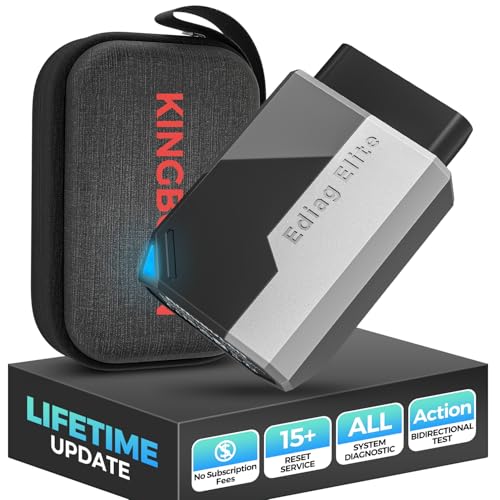
- OBD2 Bluetooth Scanner Lifetime Update: Ediag Elite offers revolutionary Advantage Lifetime Updates with unlimited access to the superior 15+ reset service, bidirectional testing and full system diagnostics.The Ediag Elite is an excellent Bluetooth OBD2 scanner diagnostic tool ideal for DIY's and private car owners.
- Bidirectional Test for Quickly Locating Problems: The Bidirectional Scan tool allows you to send commands directly from your smartphone to your vehicle for active testing. This feature helps to quickly narrow down problems such as air conditioning clutches, windows, doors, sunroofs, etc., reducing diagnostic time for mechanics and helping DIY users locate faults more easily. In addition, Ediag Elite provides fault analysis and repair guidance to help you solve problems efficiently.
- 15+ Maintenance Resets: The current version introduces 15+ popular special features: Oil Reset, Headlight Matching, Bleeding Reset, TPMS Reset, BMS Reset, Gear Box Relearn, Throttle Learning, Injector Coding, SAS Reset and more special functions in system diagnose menu. These functions make it easy for owners to carry out the necessary maintenance and servicing, ensuring that your vehicle stays in top condition, prolonging its service life and preventing common problems and breakdowns. Note: The Special function vary by model& year, Reach us check compatibility.
- Wide Compatibility CANFD & FCA
 Autoauth: Compatible with GM, Ford, Toyota, Chrysler, Honda, Mazda, Nissan, Mitsubishi, Hyundai, KIA with standard OBD2 port from 1996 to newer. More car brands and features will be released gradually. Newest Ediag Elite scanner supports CANFD Protocol and FCA cars. Note: Coverage may vary on different vehicle by model& year ,Please contact us to confirm compatibility before purchase.
 - Perfect for Monitoring The Health of Your Vehicle: Ediag Elite is designed to make vehicle maintenance simple and efficient. With intelligent Auto VIN quick recognition, it is easy to connect to your car without the need for manual input. Real-time data is visualized in a variety of formats, including graphs, numeric, meter displays and clear 4-in-1 data charts, allowing you to effortlessly monitor real-time data. Data logging/reporting is available for playback and further analysis

- No Annual Fees & 2026 Upgraded CAN FD: Why pay $199/year or more for updates? The 2026 newest Kingbolen K7 obd2 scanner features have been upgraded to Lifetime Updates without subscription fees, saving you significant costs in the long run. K7 scan tool also adds the CAN FD protocol for the latest GM models (2019+), enabling faster data transfer, reducing the risk of undetected errors
- 2026 Newest Top-tier Car Scanner: Kingbolen K7 diagnostic scan tool is equipped with most capabilities for daily repair/maintenance: Wireless diagnosis via Bluetooth, Bidirectional Test, ECU Online/Offline Code, 31+ Resets, PMI for Ford, Lincoln, Mazda, Global version for 100+ brand vehicles and 17 languages, no area limit, FCA AutoAuth
- OE-Level Full Systems Scan Tool: K7 professional diagnostic scanner with Auto Vin can do one-click to scan ECUs on most of vehicles, like pcm, ecm, eps, bcm, tpms, sas, a/c system... to read/clear code, view live data, freeze frame, read ecu info. 4-in-1 data stream graphics can make data viewing more intuitive. Detailed diagnostic reports will help you easily master the car situation as it can be shared by bluetooth or email! Adding workshop information can help your customers to know more
- Bidirectional Test/Active Test & ECU Code: Stop guessing and start fixing. Bidirectional scan tool Kingbolen K7 can perform real active test that can send commands to the vehicle's ECU to drive the actuators to work, like window, rear mirrors, sunroof, door, solenoids, wipers, headlamp, etc, helping you quickly find out bad parts and pinpoint faulty issues. K7 bidirectional scanner will be a good choice to save money and time on car repairs when performing complex maintenance and repair
- 31 Reset Functions: Avoid expensive dealership visits for simple services. Experience tells us that just a small repair service may cost a lot of money. Kingbolen K7 is a professional diagnostic scanner with 31 common maintenance services like Oil /SAS/EPB/TPMS Reset, Battery Matching, ABS Bleeding, Injector Code, etc. It effectively handles most of the car reset and relearning jobs, perfect for experienced DIYers and mechanics. Note: Functions in the menu vary across vehicles. Kindly check the compatibility before purchase

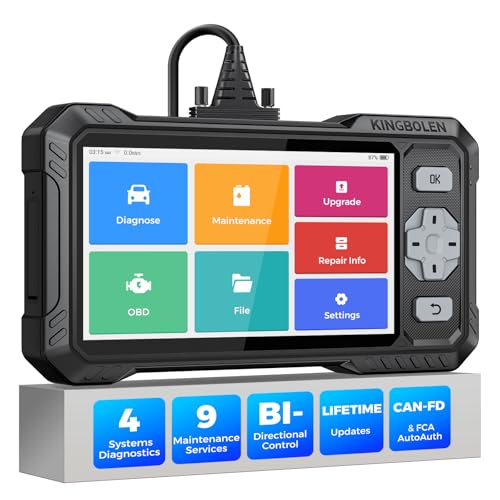
- WHY S608 STANDS OUT:2026 Kingbolen S608 is the only scanner <200 bucks that offers powerful active tests on Engine, ABS, SRS, and Transmission systems. Offers 9 resets,Covers 110+ global brands with a 6.2'' larger touchscreen
- KINGBOLEN'S NEW BIDIRECTIONAL SCAN TOOL: As the 2026 upgraded version of S600, our Newest S608 obd2 scanner has the powerful Bi-directional Control on Engine, ABS, SRS, and Transmission systems. It can send commands to the ECUs of actuators for functional tests and work status checks, such as ABS, fuel injectors, adjusting throttle, coolant pumps, EVAP test, fuel trim reset, etc. No more Guesswork. Quickly identify problem components without teardown, get fuss-free results in seconds.
- 【9 HOT RESET SERVICES CAR SCANNER】Tired of costly mechanic trips for common resets? The Kingbolen S608 obd2 scanner lets you do it yourself, even for beginners—quickly and effortlessly! It offers 9 hot reset functions: Oil/EPB Reset, ABS Bleeding, SAS Calibration, DPF Regeneration, Injector Coding, BMS Matching, Throttle Adaptation, Gear Learning. Stop paying mechanics for 5-minute jobs. Save hundreds per year! 🚗*Function vary from vehicle models. reach us to check compatibility firstly!
- 【4 SYSTEM DIAGNOSTIC TOOL + FULL OBDII FUNCTIONS】Kingbolen S608 is an OBDII scanner and 4 systems diagnostic tool made for home mechanics, DIYers, and professionals. You can access Engine, ABS, SRS, Transmission fault codes, track live data in graphs, and onboard DTC library lookup to find the right troubleshooting procedure, and diagnose with full 10 OBD2 test modes to fix most of emission issues. Give your aging cars routine maintenance to avoid costly repairs, a breakdown, or even a crash.
- 【NEW CAN FD, FCA/RENAULT SGW, 140+ BRANDS】Kingbolen S608 scanner for car supports 140+ vehicle brands, 100,000+ models, 28 languages and can be used worldwide. S608 stays up-to-date with modern vehicles, allows secure access to 2017+ FCA cars and 2015+ Renault cars (📢*Need to purchase an AutoAuth/Renault account by yourself), and supports the latest CAN-FD protocol for 2019+ GM/Chrysler, enabling 2X faster data transfer and more precise diagnostics. 🚗*Check compatibility before purchase.
This product presentation was made with AAWP plugin.
Last update on 2026-05-13 / Affiliate links / Images from Amazon Product Advertising API