
NHTSA ID Number: 10241844
Manufacturer Communication Number: 15-310-23R
TSB/Document Date: 2023-09-05
Summary
This Bulletin announces the best practices when troubleshooting Solterra connect concerns if the customer’s driver profile is not the primary driver profile and/or inability to activate Solterra Connect.
If the PDF is very large, it may not load in the preview below.
Some older TSBs had multiple PDFs — visit the NHTSA Website to view all PDFs.
If the TSB PDF does not show, download or view it on the NHTSA Website.
Click on the (+) Plus Sign
Then Click on Associated Document(s)
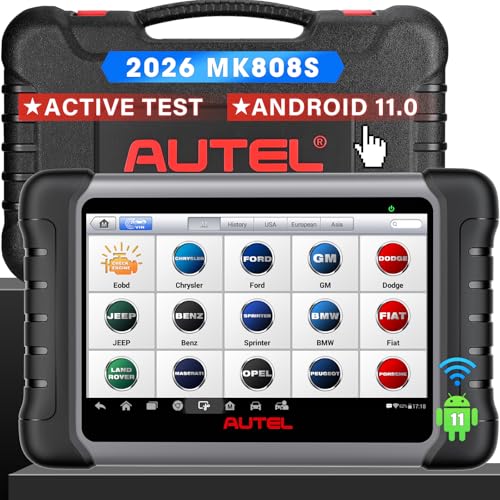
- 💝【Questions? We’re Here Anytime】MK808S is a...
- 🔥🔥🔥【2026 NEWLY RELEASED BI-DIRECTIONAL...
- 【28+ MOST POPULAR RESET SERVICE FOR 150 MAKES】Autel...
- 【ALL SYSTEM DIAGNOSTICS, FACTORY-LEVEL SCANNER】The...
- 【AUT0 SCAN & AUT0V1N, 10X FASTER】How much have you spent...


- 💯【Conta.ct us for Support Directly】If you met any...
- 🔥🔥🔥【2026 AUTEL FLAGSHIP MK900BT MK900-BT, NEW...
- 🚗【3000+ ACTIVE TESTS (50➡3000+), SAME AS MS...
- 🚗【40+ HOT SERVICES FOR 150 MAKES (28+➡40+)】Full...
- 🚗【OE ALL SYSTEM DIAGNOSE, AUTO SCAN 2.0: SCAN LICENSE...
This product presentation was made with AAWP plugin.
Search NHTSA Database for Recalls
Search NHTSA Database for Vehicle Investigations
View Latest Vehicle Investigations
Search NHTSA Database for Vehicle Complaints
View Latest Vehicle Complaints
TSB/Document ID: 15-310-23R
Replacement Service Bulletin Number:
MFR Communication Date: 2023-08-31
MFR Internal Campaign ID/Software Version:
Communication Type: Service Bulletin/Repair Instructions
NHTSA Components: ELECTRICAL SYSTEM
MFR Component System:
MFR Component Subsystem:
Previous TSB | Next TSB |
ATTENTION:
GENERAL MANAGER
q
PARTS MANAGER
q
CLAIMS PERSONNEL
q
IMPORTANT - All
Service Personnel
Should Read and
Initial in the boxes
provided, right.
SERVICE MANAGER
q
© 2023 Subaru of America, Inc. All rights reserved.
SERVICE INFORMATION BULLETIN
APPLICABILITY:
2023MY Solterra
SUBJECT:
Solterra Connect
NUMBER: 15-310-23R
DATE:
05/23/23
REVISED:
08/31/23
INTRODUCTION:
This Service Information Bulletin announces the best practices when troubleshooting Solterra
connect concerns if the customer’s driver profile is not the primary driver profile and/or inability to
activate Solterra Connect.
Solterra operation, diagnosis, and repairs differ significantly from previous Subaru models.
Technicians are required to complete Solterra training prior to performing any Solterra service
procedures. Solterra Service Manual, Owner’s Manual, Quick Start Guide, TechTIPs, and TSBs
MUST be reviewed before attempting to rectify Solterra customer concerns. Refrain from using
procedures and best practices designated for Subaru models other than Solterra on Solterra.
This document will outline a graduated escalation path of steps designed to reach a successful
Solterra Connect enrollment with the customer profile as the primary driver profile. Being
unprepared, not closely adhering to the procedure outlined here, or taking creative liberty with the
steps will result in failed results and extended downtime of the customer’s vehicle.
Before starting, the Technician must have the Solterra Connect Application (App) loaded on their
phone and registration completed. This registration does not incur any cost or obligation to any
subscription but will allow the Technician to add themselves as a driver to any Solterra. Please refer
to Appendix B on how to set up a Solterra Connect profile.
SERVICE PROCEDURE INFORMATION:
PREREQUISITES: Phones attempting to connect to Solterra MUST meet the following
prerequisites.
1. Bluetooth setting is turned on.
2. Wi-Fi is enabled.
3. GPS location data setting is turned on.
4. Acceptance of Solterra Connects request to use background data.
5. Once connected to the vehicle, the Service Communication Consent MUST be accepted.
6. Once connected to the vehicle, the Master Data Consent MUST be accepted.
CAUTION: VEHICLE SERVICING PERFORMED BY UNTRAINED PERSONS COULD
RESULT IN SERIOUS INJURY TO THOSE PERSONS OR TO OTHERS.
Subaru Service Bulletins are intended for use by professional technicians ONLY. They
are written to inform those technicians of conditions that may occur in some vehicles,
or to provide information that could assist in the proper servicing of the vehicle. Properly
trained technicians have the equipment, tools, safety instructions, and know-how to
do the job correctly and safely. If a condition is described, DO NOT assume that this
Service Bulletin applies to your vehicle, or that your vehicle will have that condition.
Subaru of America, Inc. is
ISO 14001 Compliant
ISO 14001 is the international standard for
excellence in Environmental Management
Systems. Please recycle or dispose of
automotive products in a manner that is friendly
to our environment and in accordance with all
local, state and federal laws and regulations.
Continued...
Bulletin Number: 15-310-23R; Revised: 08/31/23
Page 1 of 16
NOTES:
•
Declining the Solterra Connect requests for data access will not stop the installation of the
Solterra Connect App. It will not produce a warning message indicating that non-consent will
result in non-operation of the Solterra Connect App. When using the Solterra Connect App,
users must agree to all requests for data and location access, or the Solterra Connect App and
driver profile settings will NOT function as expected.
•
The Solterra is always connected to the Telematics Call Center, and no subscription is required
to connect to an operator by pushing the Solterra Connect button. Unlike other Subaru’s,
Solterra Connect is an opt-out telematics system that is always on. Enrollment is required for
the on-demand use of enhanced telematics services. Test calls can be performed by pressing
the Solterra Connect Button, identify themselves a Subaru Technician making a test call, then
requesting VIN and location.
•
When using Solterra Connect, ALWAYS use the most recent version of Android Play Store or
the Apple App Store available if your device does not accept automatic updates.
•
Technicians and/or customers having a previously created Toyota or Lexus App may receive
notifications stating an active account already exists. If this is encountered, use the same
credentials for Solterra Connect.
•
There are multiple ways to create a Solterra Connect account. There are Social Media shared
authentication options as well as creating a local account. Part of this process requires a
valid email and phone number. This information MUST BE VALID because connection will
require authentication Personal Identification Numbers (PINs) to be sent to the entered contact
information.
•
If any components such as the head unit of the DCM has been replaced, the procedure below
must be completed before proceeding with the rest of the steps in this TSB.
Continued...
Bulletin Number: 15-310-23R; Revised: 08/31/23
Page 2 of 16
PRECAUTIONS:
1. Verify state of charge for the 12v auxiliary battery located under the hood.
a. Test and charge the battery if required using the DCA-8000.
IMPORTANT: When a vehicle has the power switch in the “ON” position for an extended period,
excessive 12v battery drain can be resulted.
2. Set the Auto Power Off function to “OFF.”
a. When a vehicle has the power switch in the “ACC” position for more than 20 minutes (the
EV system is not operating) or “ON” for more than an hour with the shift position in P, the
power switch will automatically turn off. However, this function cannot entirely prevent
12v auxiliary battery discharge. Do not leave the vehicle with the power switch in “ACC”
or “ON” for long periods of time when the EV system is not operated.
OUTLINE OF STEPS:
1. Perform a Heath Check using GTS and save it as it will be necessary to send to Techline
should you be unable to complete any of the steps outlined in this bulletin. If DTCs are
present, do not continue with this document until the Solterra is DTC-free.
2. Verify that the Solterra Connect LED is illuminated Green beside the Solterra Connect button.
If the LED is not green, contact the Solterra Connect Call Center (866 384 3574) for operator
assistance as to why the Solterra Connect LED is not illuminated.
3. Perform a test call by pushing the Solterra Connect Button, connect to an operator, and request
the VIN and Location. If you do not connect to an operator, contact the Solterra Connect Call
Center at (866 384 3574) for operator assistance as to why calls cannot be completed from
inside the vehicle. If no resolution from the operator’s assistance can be achieved, do not
continue using this document and refer to the applicable Service Manual.
NOTE: Speaking with a Solterra Connect Call Center Agent may only sometimes result in a repair.
In some cases, it may be necessary to continue diagnosis using the Solterra Service Manual as
indicated in Step 3 or contact Techline.
When contacting Techline, please be prepared to provide the test results of the procedures outlined
in this document and the Solterra Service Manual on STIS. Be ready to send Techline head unit logs,
GTS data for the head unit, and telematics, including an all-system scan and a video of the concern
you are attempting to repair.
4. Ensure the phone has the Solterra Connect App loaded and the profile registered.
5. Perform HU reboot. Verify the customer is the primary driver profile, then follow Appendix
A: Solterra Connect Enrollment Overview.
6. Perform a 10-minute 12V under-the-hood battery disconnect. After at least 10 minutes have
elapsed, reconnect the 12V battery, and verify the customer is the primary driver profile, then
follow Appendix A: Solterra Connect Enrollment Overview.
Continued...
Bulletin Number: 15-310-23R; Revised: 08/31/23
Page 3 of 16
7. Add the Technician driver profile and make it the Primary Driver Profile. If successful, the
Technician can repeat this process with the customer’s phone and re-evaluate the operation.
A. Bluetooth, GPS, and Wi-Fi are turned on in the customer’s phone.
B. That background data usage has been accepted.
C. The Service Communication Consent is accepted.
D. The Master Data Consent is accepted.
8. As the primary driver, you will perform a head unit reset.
9. Add the customer driver profile as the primary driver ensuring.
A. Bluetooth, GPS, and Wi-Fi are turned on in the customer’s phone.
B. That background data usage has been accepted.
C. The Service Communication Consent is accepted.
D. The Master Data Consent is accepted.
NOTE: If the customer is not enrolled in telematics services and the primary driver profile after
performing these procedures, it will be necessary to provide a video of the Technician performing
this process. Unlike other Subaru Models, there is no remote visibility into the telematics system
operation. All diagnoses and repairs of the Solterra Telematics and Infotainment Systems are highly
dependent on technicians following the Solterra service manual, Solterra owner’s manual, quick Start
guide, TSBs, and TechTIPs due to the need for more visibility of operational data. Technicians must
be prepared to provide test results and videos when contacting Techline.
DIAGNOSTIC STEPS:
Please ensure that you have reviewed all the information on pages 1 through 3 before
continuing. Failure to understand operational requirements will result in failed customer
concern resolution.
PROCEDURE 1: Start here when customer is reporting problems with infotainment or telematics
operation when the primary driver profile has already been set.
PROCEDURE 2: If conditions are still present after Procedure 1 complete the 12V Battery
disconnection and follow Procedure 2.
PROCEDURE 3: This will instruct the Technician how to add his personal phone as the primary
driver profile for diagnostic purposes.
PROCEDURE 4: Reset of infotainment and telematics Solterra Connect for diagnostic purposes
to ensure that everything has been setup correctly on the customer’s phone and Solterra Vehicle
Settings.
PROCEDURE 1: REBOOT THE 21MM HEAD UNIT BY HOLDING THE POWER
BUTTON.
1. If the customer driver profile is the primary profile on the head unit screen, reboot the 21mm
head unit MUST be completed. Once the reboot procedure is complete, ensure the customer
driver profile is on the screen and set as primary.
Continued...
Bulletin Number: 15-310-23R; Revised: 08/31/23
Page 4 of 16
2. Next, verify that the customer’s phone has the most recent version of the Solterra Connect
APP loaded on the phone. Have the customer uninstall and reinstall Solterra Connect from
the Android Play Store or the Apple APP Store if necessary.
3. Second, verify that the customer’s phone has enabled Bluetooth, WIFI, and GPS location.
4. Third, open the Solterra Connect APP and go to Account in the lower right corner. Select:
Account > Data Privacy Portal > scroll up to see Data Consent status.
Confirm the customer has accepted the following:
A. Accepted the Service Communication Consent
B. Accepted the Master Data Consent.
IMPORTANT: If the customer profile is not present on the 21mm head unit before beginning,
complete the reboot of the head unit and then proceed to Procedure 3 to add the customer driver
profile and complete enrollment. This procedure MUST be performed with the customer’s phone
instead of the Technician’s or retailer supplied phone.
PROCEDURE 2: DISCONNECT THE 12V AUXILARY BATTERY FOR A 10 MINUTE
PERIOD.
If the customer driver profile is the primary profile on the head unit screen, and the has Procedure 1:
Reboot the 21 MM Head Unit by holding the power button has been completed with no change in
enrollment status, proceed with 12v battery disconnection.
1. CAREFULLY disconnect the negative terminal of
the 12v auxiliary battery.
2. Wait for a period of at least 10 minutes.
3. CAREFULLY reconnect the negative terminal of the
12v auxiliary battery and torque to 5.4Nm (4 ft-lbs.).
4. Once 12v power is reconnected, confirm the customer driver profile is on the screen and is set
as the primary.
5. Confirm the customer’s phone has the most recent version of the Solterra Connect APP loaded
on the phone. Have the customer uninstall and reinstall Solterra Connect from the Android Play
Store or the Apple APP Store if necessary.
6. Verify that the customer’s phone has enabled Bluetooth, WIFI, and GPS location.
Continued...
Bulletin Number: 15-310-23R; Revised: 08/31/23
Page 5 of 16
7. Open the Solterra Connect APP and go to Account in the lower right
corner. Then select Account > Data Privacy Portal > scroll up to see Data
Consent status. Ensure that the customer has the following:
A. Accepted the Service Communication Consent
B. Accepted the Master Data Consent.
IMPORTANT: If the customer profile is not present on the 21mm head unit
before beginning, complete the reset of the head unit using the power button
then proceed to Procedure 3 to add the customer driver profile and complete
enrollment. This procedure MUST be performed with the customer’s phone
instead of a Technician’s or retailer supplied phone.
PROCEDURE 3: TECHNICIANS ADD THEMSELVES AS PRIMARY DRIVER:
CRITICAL: Prior to proceeding, it is required that the Solterra Connect App is loaded on the
Technician’s or retailer supplied test phone. The Technician must ensure that Bluetooth, WIFI, and
GPS location are active on their phone.
1. On the 21mm head unit, select the gear icon button on the lower left corner of the screen.
NOTE: If a driver profile is stored, it will be visible on the right two thirds section of the head
unit screen.
2. Select the refresh button illuminated in blue.
Continued...
Bulletin Number: 15-310-23R; Revised: 08/31/23
Page 6 of 16
3. If the Technician’s phone is correctly configured and Solterra Connect APP is loaded, the
Technician should now appear as a detected profile. See figure 4 Appendix C for view of a
detected profile.
4. Click on the empty dot to the right of the Technician profile.
5. You will be prompted to enter the Person Identification Number (PIN) created when setting up
the Solterra Connect App for the first time. See figure 6 Appendix C for example.
Continued...
Bulletin Number: 15-310-23R; Revised: 08/31/23
Page 7 of 16
6. The Save Profile pop-up will appear on the screen. You MUST check the empty box that
indicating to save the profile as the primary driver profile. At this point, the profile should
be indicated as the primary driver profile. The customer profile may also be shown as a
secondary or guest profile on the screen.
7. Select “Add vehicle” in the Solterra Connect App on the phone being used.
NOTE: In cases when there is already a vehicle associated with the Solterra Connect App being used,
you MUST select “My Garage” at the top center of the Solterra Connect user interface and add the
vehicle from there.
8. Continue to follow the prompts on the Solterra connect App until completed. Ensure you have
accepted Master Data and Service Communication Consents by going to: Account > Data
Privacy Portal > scroll up to see Data Consent status.
9. With the current tester now becoming recognized as the primary driver, there is no carside trouble preventing the customer from becoming the primary driver and completing
enrollment.
10. This process can now be completed with the customer’s phone to make the customer profile
the primary driver and complete enrollment. If this cannot be achieved, it will be necessary
to perform a factory reset of the 21mm head unit. At the same time, the current tester is the
primary driver must then reattempt to add the customer profile and complete enrollment.
PROCEDURE 4: PERFORM A FACTORY RESET OF THE 21MM HEAD UNIT.
The current tester profile needs to be the primary driver profile to complete the 21mm head unit reset.
Procedure 3 MUST be previously completed before proceeding. In cases when the tester cannot be
added as the primary driver, if there is an existing driver profile, getting the PIN associated with the
profile may be necessary to complete the head unit factory reset.
IMPORTANT: Take note of any digital keys in use before performing a head unit factory reset.
Failure to remove any digital keys before activating the system reset will cause the vehicle to
become desynchronized and create new undesirable customer concerns.
DO NOT PERFORM the head unit factory reset until all digital keys have been removed from
the vehicle. If the removed digital key(s) is illuminated blue and the enable digital key button is
backlit blue this is an indication that digital keys are present.
Continued...
Bulletin Number: 15-310-23R; Revised: 08/31/23
Page 8 of 16
1. On the 21mm head unit, select the gear icon button on the lower left corner of the screen.
2. Scroll up until to find the Info and Security Menu then select it.
3. On the right, 2/3s of the screen, about halfway down the screen, will be where digital keys are
indicated.
4. If Remove Digital Keys is illuminated, keys are registered to the vehicle, and you must click
on Remove Digital Keys before clicking the System Reset in red at the bottom of the screen.
NOTE: There is no safety mechanism preventing skipping this step. The Technician must follow
directions before proceeding with the System Reset to avoid creating undesirable conditions with the
vehicle.
5. Once the digital keys have been removed, and the Remove Digital Keys are no longer on the
screen, click on the System Reset in red at the bottom. Confirm the reset by pressing the red
Reset button and the head unit will reboot at this time.
Continued...
Bulletin Number: 15-310-23R; Revised: 08/31/23
Page 9 of 16
6. Post reboot, the head unit should return to a state as if it was
first activated, presenting the language selection screen. Select
the appropriate language. This process aligns with STEP 1 of
Appendix A.
7. The next screen will ask for a phone number. This request is only
to text a link to download the Solterra Connect App and does not
perform any other function. You can enter a one and click Send to
move past this screen. This process aligns with STEP 1, continued
in Appendix A.
8. The customer’s phone should be available now, and the Solterra Connect App open.
9. If the customer still needs to complete registration with Solterra Connect, please click Register
and complete now. If the customer owns a Toyota and uses the Toyota Connect App, then they
will use the same credentials to login to the Solterra Connect APP.
10. Using the customer’s phone click ADD Vehicle. If the customer has multiple vehicles, you
must click My Garage to add the vehicle. This process aligns with STEP 2 of Appendix A.
11. Next, the QR code should appear on the screen. This process aligns with STEP 3 of
Appendix A.
12. Confirm the customer’s phone has the following:
A. Bluetooth, GPS, and Wi-Fi setting turned on.
B. That background data usage has been accepted.
C. The Service Communication Consent has been accepted.
D. The Master Data Consent has been accepted. This process aligns with STEP 4 of
Appendix A.
13. Complete linking of customers’ phones for Bluetooth, Carplay/Android Auto, Digital Keys,
etc. This process aligns with STEP 5 of Appendix A.
CRITICAL: It is imperative to link the vehicle key fob to the profile to ensure the customer has the
best in-car experience. Please refer to STEP 5 of Appendix A.
Continued...
Bulletin Number: 15-310-23R; Revised: 08/31/23
Page 10 of 16
Upon completing this procedure, the customer should be the primary driver profile and successfully
enrolled in the telematics trial subscription.
Suppose the customer is not the primary driver profile. Success can be confirmed by the satellite icon
on the upper right corner of the 21 mmm head unit being illuminated in blue. If the satellite icon
is not blue, or the Technician cannot follow and complete this procedure, be prepared with a video
of the failing steps and GTS health check when contacting Techline or your DQSM for additional
support.
Continued...
Bulletin Number: 15-310-23R; Revised: 08/31/23
Page 11 of 16
APPENDIX A: SOLTERRA CONNECT REGISTRATION:
All STEPS are to be performed inside the vehicle. Confirm the key is present the turn the
power switch to the “ON” position. Follow the guided interactions on the customer’s phone.
STEP 1:
STEP 2:
STEP 3:
STEP 4:
Continued...
Bulletin Number: 15-310-23R; Revised: 08/31/23
Page 12 of 16
STEP 5:
Continued...
Bulletin Number: 15-310-23R; Revised: 08/31/23
Page 13 of 16
APPENDIX B: SETTING UP A SOLTERRA CONNECT PROFILE.
The operation of Solterra Connect differs significantly from MySubaru. Understanding these
differences will allow you to successfully register a profile the first time connecting to a Solterra and
help customers ensure that Solterra Connect is set up correctly on their vehicle and device.
PRECAUTIONS:
1. CONFIRM the device has a data connection.
2. Wi-Fi MUST be turned on.
3. Bluetooth MUST be turned on.
4. GPS location services MUST be on.
5. Solterra Connect will require permission to use the device camera.
When using Solterra Connect, ALWAYS use the most recent version of Android Play Store or the
Apple App Store available if your device does not accept automatic updates.
IMPORTANT NOTE: Technicians or customers having a previously created Toyota or Lexus App
may receive notifications stating an active account already exists. If this is encountered use the same
credentials for Solterra Connect.
There are multiple ways to create a Solterra Connect account. There is social media shared
authentication options as well as creating a local account. Part of this process requires a valid
email and phone number. This information MUST BE VALID because connection will require
authentication Personal Identification Numbers (PINs) to be sent to the entered contact information.
STEP 1: Using the Solterra Connect application, select the desired
social media account you would prefer to use or fill out the request
information under the “Register for a new account” menu.
Continued...
Bulletin Number: 15-310-23R; Revised: 08/31/23
Page 14 of 16
STEP 2: Solterra Connect will require access to location and background data. It is necessary
to accept these requests for maximum functionality. Declining these requests will not prevent
installation or cause any errors, it will only limit the operations of Solterra Connect.
STEP 3: Once you have successfully connected, it is recommended
that you confirm acceptance of the Connected Services Master Data
Consent and the Service Connect Communication policies. This
verification can only be done while a Solterra is active in My
Garage. The necessary menus is only visible once there is a Solterra
in the My Garage section of the application. This can be found by
navigating: Account > Data Privacy Portal > (scroll up) Data
Consent Status
Continued...
Bulletin Number: 15-310-23R; Revised: 08/31/23
Page 15 of 16
STEP 4: It will be necessary to create a PIN within the Solterra Connect Application. This PIN is
essential for a Technician to perform diagnosis and/or repair that will require Technician to be the
primary driving profile on Solterra. If not prompted to create a PIN, navigate to: Account Settings >
Security Settings > Account PIN
Bulletin Number: 15-310-23R; Revised: 08/31/23
Page 16 of 16
- 💝【Questions? We’re Here Anytime】MK808S is a high-end flagship model that connects via wired OBD2 for faster, more stable, and reliable diagnosis compared to B,.T tools. If you have any questions about setup, activation, features, additional accessories, or update subscriptions, please reach us and we will respond promptly to assist you. It includes 1-Year F.ree Updates (124.5 bucks/year after), and most functions still work after expiration except a few online features. Please note some functions like full TPMS are not supported, reach us for model recommendations.
- 🔥🔥🔥【2026 NEWLY RELEASED BI-DIRECTIONAL CONTROL】As the 2026 upgraded version of MaxiChek MX808 MaxiDiag MD909 Pro MD906 Pro, our Newest MK808S auto diagnostic scanner for all cars inherits the powerful Bi-directional Control which makes it the most cost-effective scanner (without breaking the bank, same as MK900BT MS906 PRO MS906MAX). Active test is widely used on car subsystems to help you check if the car actuators are all in good condition. Such as windows, rear mirrors, sunroof, wipers...
- 【28+ MOST POPULAR RESET SERVICE FOR 150 MAKES】Autel versatile OBDII scanenr MK808S, full level-up of MX808, work as MX900, MK900, MK900-BT, supports 150+ car brands worldwide. Like the OBD2 code reader MaxiCOM MK808BT Pro, MK808S is equipped with 28+ hot services including 0il Reset, SAS Calibration, ABS Bleeding, Battery Registration, etc. MK808S ranks top in professional automotive tablets and keeps updating to support more newer modes from 2025 to 2026.
- 【ALL SYSTEM DIAGNOSTICS, FACTORY-LEVEL SCANNER】The MK808S dealer-level scanner, like Snap-on tools, effectively works all cars for all system diagnostics. It reads/clears codes, displays 5-in-1 Live Data, performs active tests, and special functions for all available modules. With a few clicks, you can easily understand the vehicle's condition. The convenient Wi-Fi printing feature allows you to generate a detailed report, highlighting the exact nature of the problem.
- 【AUT0 SCAN & AUT0V1N, 10X FASTER】How much have you spent on car maintenance? Even a minor issue can take up a significant amount of time. The MK808S is designed to improve your work efficiency. With its Aut0V1N technology, you can check your car's make, model, and year information with just one click. The Aut0Scan feature automatically scans all of the vehicle's modules and detects any fault codes. Check Aut0V1N compatibility by reaching us at 📞1-833-436-5880. Available Mon-Fri, 9 AM-6 PM EST.
- 💯【Conta.ct us for Support Directly】If you met any issues about: Received a registered device/ Language Changing/ Function not Support/ Blueto-oth connector malfunction/ Subscription Renewal, please conta.ct us via 📞autelsupply @outlook. com🛣️, we will provide perfect solution for you. ⚠️Note: Autel MK900BT comes with 1-Year Free Software Update, most features will remain active after update subscription expires. For questions regarding updates or need more useful accessories, please conta.ct us via 📞autelsupply @outlook.com🛣️. 2. If you encounter Blueto-oth adapter VCI150 malfunction, please tell us 📞autelsupply @outlook. com🛣️, we will handle it promptly.
- 🔥🔥🔥【2026 AUTEL FLAGSHIP MK900BT MK900-BT, NEW MODEL OF MK808S MK900 MX900 MK808BT MX808S】2026 newest Autel MK900BT retains all features of MK808S MX900 MX808S MK808Z MK808Z-BT MK808K-BT, while EXTRA added powerful functions (value 2000+ bucks). The Pro-level Autel MK900BT makes a big leaps: 28+➡40+, 50+➡3000+ Active Tests, 2026 NEW✅CAN FD & DOIP protocols ✅Pre&Post diagnostic report ✅WIFI Print ✅Auto VIN&Auto Scan 2.0 ✅Scan VIN/ License ✅Battery Test (Need purcha.se BT506). If found defect or us.ed, please conta-ct 📞autelsupply @outlook. com📞 get perf-ect solut.ion.
- 🚗【3000+ ACTIVE TESTS (50➡3000+), SAME AS MS906 PRO】Differ from MS906BT MS906 MP808 MK808 MX808 MK808BT only 50 tests, Autel scanner MK900BT escaner automotriz professional offers 3000+ active tests, it can send command to ECUs & monitor actuators operation, quickly locating faulty components. Bidirectional scanning takes your diagnostics to the next level with menu lists 3000+ active tests, such as windows, rear mirrors, sunroof, wipers, fuel injector, coolant fans, radiator fan, AC clutch, coolant pump and more. Note: Functions are not available for all vehicles, please send vehicle VIN to us check compatibility.
- 🚗【40+ HOT SERVICES FOR 150 MAKES (28+➡40+)】Full level-up of OBD2 code reader MaxiCOM MK808S MK808 MK808Z MX808 MK808Z-BT with 28 service, Autel scan tool MK900BT/ MK900-BT offers 40+ maintenance service on 150+ brands 10,000 vehicles from 1996-2025-2026. Hottest Services like: Oil Reset, ABS Bleed, SAS Calibration, Injector Coding, SRS, Throttle Reset, Gearbox Reset, Battery Registration etc. Added 12+ advanced resets: rain slash light sensor reset, HVA.C/ SUS calibration etc. Welcome to send Vehicle Make>Model>Year>VIN>Functions you required to 📞autelsupply @ outlook . com📞 check compatibility.
- 🚗【OE ALL SYSTEM DIAGNOSE, AUTO SCAN 2.0: SCAN LICENSE/ AUTO VIN】2026 new release Autel MaxiCOM MK900-BT scan tool embodies all system diagnostic with its 8in display for all vehicles. Like Sna.p-on tools, it can perform ✔Read/Clear Codes✔Displays 5-in-1 Live Data✔Record & Playback Data✔Retrieve Info on all available systems like ABS ECM BCM SRS TCM etc. In addition to Auto VIN technology, Autel MK900BT adds Scan License/ Auto Scan 2.0 to identify vehicle’s VIN/ license, make, year, model, no need manual input; One-click WiFi Printing of Pre&Post comparison diagnostic reports, highlight root causes of problems.
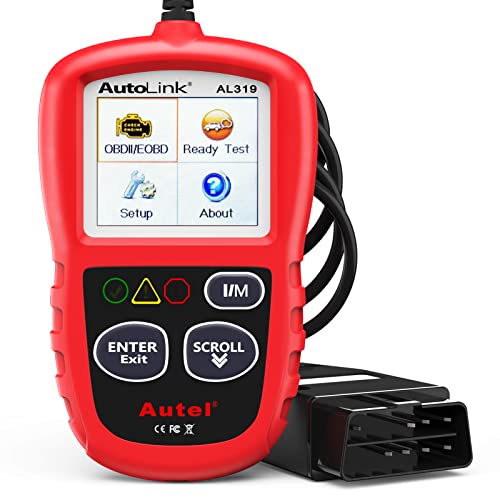
- 【TURN OFF CEL】 This AL319 car scanner diagnostic tool supports Reading and Clearing DTCs, DTC Look Up, displaying Live Data, Freeze Frame & I/M Readiness, view vehicle information, etc., to figure out the root cause of the Check Engine Light (CEL) and turn it off, helping you catch any potential issues early and avoid excessive costs from unnecessary repairs.
- 【EXTENSIVE APPLICATION】 Autel AL319 Compatible with 7 languages (English, French, Spanish, etc.) and various post-1996 OBD II protocol vehicles (Toyota
 , Nissan, Honda, Ford, etc.), this OBD II scanner provides accurate and fast diagnosis for worldwide car owners.
 - 【FOR END USER & DIYERS】 This error code reader AL319 is “plug and play” and comes with an easy interface. Even if you’re not familiar with vehicle repair, you can quickly take control of this obd2 scanner, and get the information you want.
- 【USER-FRIENDLY DESIGN】 This OBD2 scanner and check engine code reader features a patented One-Click I/M Readiness, TFT color display, built-in speaker, LED Indicator etc. The cable is long enough without being too long and getting in the way. No batteries are needed.
- 【HIGH-QUALITY SERVICES】 12 months war.ranty from the date of purchase and lifetime free update are offered by this Automobile OBDII scan tool. Welcome to contact us via Q&A, email, or hotline, and our after-sale-service team for technical support.
This product presentation was made with AAWP plugin.
Last update on 2026-05-12 / Affiliate links / Images from Amazon Product Advertising API