
NHTSA ID Number: 10240836
Manufacturer Communication Number: FAQ1401a
TSB/Document Date: 2023-08-21
Summary
Functions, Software & Hardware Issues
If the PDF is very large, it may not load in the preview below.
Some older TSBs had multiple PDFs — visit the NHTSA Website to view all PDFs.
If the TSB PDF does not show, download or view it on the NHTSA Website.
Click on the (+) Plus Sign
Then Click on Associated Document(s)



- Advanced VCI Box, Industry-leading J2534 Pass-Thru...
- High-Speed OEM-Level Diagnostics & Programming: Unlock true...
- Coverage for 17 Car Brands & Ultra Reliability: Works...
- User-Friendly RLink Platform & Expert Support: TOPDON’s...
- 6.6 ft USB-C Cable & Portable Storage Case: The RLink J...
This product presentation was made with AAWP plugin.
Search NHTSA Database for Recalls
Search NHTSA Database for Vehicle Investigations
View Latest Vehicle Investigations
Search NHTSA Database for Vehicle Complaints
View Latest Vehicle Complaints
TSB/Document ID: FAQ1401a
Replacement Service Bulletin Number:
MFR Communication Date: 2014-03-10
MFR Internal Campaign ID/Software Version:
Communication Type: Service Bulletin/Repair Instructions
NHTSA Components: EQUIPMENT:OTHER:OWNERS/SERVICE/OTHER MANUAL
MFR Component System:
MFR Component Subsystem:
Previous TSB | Next TSB |
Functions, Software & Hardware Issues
Note: New or Revised issues are marked accordingly.
The following prerequisites and FAQs apply to all VAS diagnostic devices unless noted otherwise.
Please confirm the following:
The device is plugged in to the power adapter or base station (where applicable) and switched
on.
The device battery is fully charged and maintained.
The device fully boots to the Windows desktop.
The latest “installation version” of ODIS Service is installed on the device. (Please refer to
Current ODIS Service Software Versions” document located in Service Net).
New
Q. Why am I receiving an invalid license error after installing Windows 7®?
A. The most likely cause is that you didn’t order a new license after installing Windows 7®. This is
necessary since the hardware ID changes.
New
Q. Do I need to request a new license and certificate after installing Windows 7®?
A. Yes. Installing Windows 7® will change the hardware ID, so a new license and certificate are
required.
New
Q. Once I update to Windows 7 and obtain my new license and certificate, do I need to keep my old
license and certificate that I have for Windows XP®?
A. No. Please delete all old license, certificates and hardware ID’s
New
Q. Which devices can run Windows 7®?
A. VAS6150A/B/C and VAS6160/A.
New
Q. Can I install my own copy of Windows 7® on my VAS6150?
A. It’s not recommended and will not be supported.
New
Q. Can VAS-PC be installed on a Windows 7® VAS device?
A. No. It will corrupt ODIS Service and cause you to perform a full BIOS Windows 7® recovery to
resolve.
New
Q. Why was my eShop license request denied?
A. The most likely cause of a denial is that the hardware ID was not placed in both fields. Please follow the
steps in our ServiceNet document ODIS Service Installation Phase 1 - Preparation & License
Request Instructions (eShop)
New
Q. Why shouldn’t I install Internet Explorer 10 or 11 on my Windows 7® VAS device?
A. Internet Explorer 10 or 11 will not work with ODIS Service Infomedia. If you have already
upgraded, a complete BIOS Windows 7® recovery is necessary to get Infomedia to work properly.
New
Q. How do I add the 5054A Diagnostic head to my VAS device?
A. The install steps are slightly different when running ODIS Service only. Please refer to “VAS 5054A
Transmitter Head – Bluetooth® & EDIC Configuration – ODIS Service Only”
New
Q. When I click on Info in ODIS Service, I’m prompted for an ID and PW. What do I use?
A. You will enter your VWHub.com ID and PW.
New
Q. Why won’t my Infomedia information doesn’t display?
A. This new feature is available with Windows 7® running ODIS Service 2.1.0. For further troubleshooting
steps, please follow the ServiceNet document ODIS Service Infomedia Setup Instructions.
Revised
Q. We received a new ODIS Service DVD but we haven’t installed the previous version on one of our
testers. Is it necessary to load the previous version first?
A. No, ODIS V2.1.0 is the latest “ Installation Version” and it’s a prerequisite for any “Update
Versions” that may follow until such time that a new “Installation Version” (complete uninstall &
reinstall) is required. Always refer to the “Current ODIS Service Software Versions” document located in
ServiceNet for the most up to date version information.
Q. What is best way to ensure ODIS Service is configured correctly to retrieve online updates?
A.
Check
Preparation
Dealership network bandwidth: Minimum 6 mbps (single franchise) or 8 mbps (dual franchise).
(Download speeds are easily determined via any of the “Speed Test” Internet sites).
ODIS Service security certificate must installed:
Refer to Service Information – ODIS Service document title: ODIS Service Installation Phase 3 –
Security Certificate Request & Installation Instructions
Open network connection available: Test > Internet Explorer > Google.
Anti-virus software configured with ODIS Service Mirrorserver2 URL exclusion: Refer to anti-virus
software documentation or ask IT Professional for assistance.
Check
VWAG Group Systems URLs allowed through firewall:
Refer to Service Information – VAS Tester document title: VAS Diagnostic Devices – Required
Open Internet Addresses (URLs).
Confirm Settings (ODIS Service running)
Connection method: > Admin > Connections > Connection Types: Set to Internet (not CPN)
Mirrorserver2 URL:
> Admin > Connections > Mirrorserver2 URL: Set to https://mirrorserver2.vwhub.com/dav/
If not as shown, click Reset.
Also confirm that the User and Password entry fields are empty.
Q. How do I configure the Email Outbox server?
A. As each dealership has unique network and email types, we are unable to assist with configuration
advice that is specific to your dealership. For information on various configuration options, please refer
to Service Information document: “ODIS Service Email Outbox Configuration Guide”.
Q. When I first click “Start Diagnostics”, a login screen appears. When I put in my GeKo ID and PW,
an error message appears. Do I need a different ID and PW for ODIS Service?
A. No. Click “Cancel” to proceed with diagnosis. The Global User ID prompt at start of diagnosis
does not apply to the North American market. Please refer to Service Information document: “Global
User ID Prompt at Start of Diagnosis” .
Q. I’m having trouble submitting a paperless GFF log using ODIS Service. What do I need to confirm
first?
A. A number of different causes could result in not being able send ODIS Service logs. Use the
following checklist:
Device connected to dealership network (run Internet Explorer to test):
ODIS Service certificate installed (as per Phase 3 instr.).
Got to Admin > Connections > Brand Settings section. Ensure that the configuration is set to
“Internet”.
Go to Admin > Connections > Mirror Server 2 configuration section. Ensure that the Mirror
Server 2 URL is: https://mirrorserver2.vwhub.com/dav/ …and that the Mirror Server user and
password entry fields are empty.
User enters valid GeKo ID and password in the Global User ID and password prompt.
To send a test log: Connect to a vehicle and run a vehicle module scan, then > Admin > Data >
Diagnostic log > Send.
Q. What password do I use to import my ODIS Service Certificate?
A. Use the first 32 alpha-numeric characters (only) of the Hardware ID which you saved during your
eShop license request.
Q. The GFF protocol log I sent from ODIS Service is not showing in GFF Paperless. How can I fix this?
A. If you received a “log was successfully sent” message when sending the GFF log but it’s not showing
in GFF Paperless, please ensure there are less than 100 characters in the Dealer data field under
Admin > General > Dealer data. Having more than 100 characters will cause the GFF log to not
show up in GFF Paperless. Typically, the field should only contain your dealer number and name.
Q. When I attempt to send my GFF log, I receive an error message of “The current operating mode
does not allow the diagnostic protocol to be sent. The system will try again later”.
A. This error indicates ODIS Service is in Road Test Mode. Under Extras, select Road test and Cancel
Road Test mode.
Q. Where can I see what Brand Version I have installed?
A. Under Info, Select Versions. The version is listed as didb_GFS-a.en_US: X.XXXX.XXXX. Note: The
XXXX indicates the version number which is similar to the old VAS PC Brand update naming
convention. If you have chosen other languages during ODIS Service installation, those will also
show. For example, German will be didb_GFS-a.de_US: X.XXXX.XXXX.
Q. What does the error ODS6501E General Database access error when opening ODIS Service
indicate?
A. Please contact Diagnostic Tester Software Support at 888-896-1298; we may be able to resolve this
without a re-load of ODIS Service.
Q. How fast of an Internet Connection should I have to allow for smooth online updates?
A. We recommend 6 Mbps for a single franchise or 8Mbps if you’re a dual franchise.

- [2026 Top-Tier Hardware and Software Upgrade]: Topdon ArtiDiag900 Lite scanner has enhanced hardware and latest features, including Android 11.0, 5x faster CPU, 10000mAh battery for 12 hours of continuous operation, stable wireless diagnosis with Bluetooth 5.0, 8-inch touchscreen. Added bi-directional control, wireless diagnosis, battery testing (optional), and DTC repair guide
- [TOPDON Bidirectional Scan Tool]: This bidirectional obd2 scanner sends commands to the vehicle's ECU for active testing, enabling users to accurately and quickly locate faulty components such as injectors, coolant pumps, windows, wipers, headlights, mirrors, etc. The bidirectional control scanner is the ideal choice for workshops/automotive repair shops as it significantly reduces mechanic's diagnostic time.
- [Wireless Bluetooth Diagnostic Experience]: The AD900 Lite scan tool comes with a Bluetooth 5.0 VCI, supporting a wireless diagnostic range of up to 33 feet (10 meters), allowing you to diagnose without being confined to cables or tight spaces. Stable and fast wireless diagnosis provides a comfortable repair environment. It also offers VCI cables to increase connectivity options.
- [DTC Repair Guide Function]: Easily diagnose issues with your vehicle and receive guidance on repairs with the topdon scan tool's fault code definitions for all systems,maximize your diagnostic capabilities. This function is compatible with Chrysler
 /Dodge/Jeep/Fiat 2010-2014 and expanding with continual updates,the AritDiag 900 Lite car diagnostic scanner is the must-have tool for any technician or DIY enthusiast.
 - [OE-Level Full System Diagnostics]:AritDiag900 Lite full system diagnostic scanner can scan ALL available modules(Engine, Transmission, Airbag, ABS, ESP, TPMS, Gateway, Steering, Radio, Air conditioning, ect.) to✔read ECU info, ✔read/clear codes, ✔view live data stream, ✔retrieves freeze-frame, ✔perform active tests, and more. With just a simple click, it provides you with accurate and in-depth diagnostics.
 /
/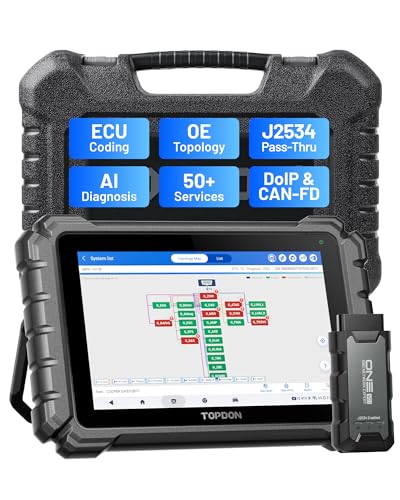
- Dual WiFi & 10.1" Touchscreen: Provides a stable, high-speed wireless link 3x faster than bluetooth, and a responsive, professional interface. Topdon ONE obd2 scanner diagnostic tool ensures smooth, non-lagging diagnostic scan, boosting mechanic efficiency
- J2534 Pass-Thru Support: The included ONE VCI supports the J2534 standard, allowing it to function as a pass-thru device when paired with OEM diagnostic software.Through TOPDON’s RLink platform, technicians can perform dealer-level coding, expanding in-house capabilities without investing in multiple factory automotive scan tools
- OE Topology Mapping: Visualize the vehicle’s ECU network exactly as it’s built.Zoom, pan, and highlight specific modules to pinpoint component issues with precision.Topology mapping displays real-time communication between modules
- Topfix AI Assistant: Covers 5 million plus fault codes and delivers instant causes, symptoms, and repair guidance with professional wiring diagrams for each code.Slashes diagnostic time, boosts first-time fix accuracy, and increases shop revenue
- 50 Plus Service Functions: Covers high-demand services like ADAS calibration, DPF regen, TPMS reset, ABS bleed, and throttle adaptation.Expands your service menu, allows you to charge premium rates, and turns away zero jobs due to lack of tooling. Vehicle-specific functionality may vary.

- Bi-Directional Control, Quickly Locate Problems: Turn your phone into a professional diagnostic tool. You can send commands from your phone to the ECU to test injectors, cooling fans, headlights, A/C clutch, windows, wipers, and more. See which one doesn't respond. Helps you quickly locate the problem and save time. No need to tear things apart, avoid blind disassembly.
- Full System Diagnostics, No Fault Hides: Unlike basic diagnostic tools that only cover 4 systems, TopScan can scan all systems. Read and clear trouble codes, view live data streams, and generate a complete vehicle health report – all issues are clear at a glance. Covers 10,000+ vehicle models and is compatible with 99.99% of vehicles.
- Flexible Subscription, Choose Advanced Features as Needed: TopScan Lite provides free-for-life access to core diagnostics, including full system scan, code reading, performance tests, and repair information. After purchase, advanced features (bi-directional control, service operations, live data, code clearing, and AI functions) are free-for-the-first-year. After the first year, if you want to use advanced features, you need to subscribe on a monthly, quarterly, or yearly basis. As new models and reset functions are updated, the tool will also be continuously upgraded.
- AI Assistant - TopFix: Think of TopFix as your personal AI mechanic. It leverages a repair database and OEM data to deliver clear, step-by-step repair solutions. Features include AI Q&A, one-click translation, and a full repair log, making your diagnostic process simpler and more efficient.
- 8+ Hot Resets, Keep Your Car in Top Shape: One-tap resets for oil, throttle, EPB, steering angle, DPF, ABS, BMS, and airbag. It enables car owners to easily perform essential maintenance, ensuring the vehicle stays in optimal condition and extends its service life.
This product presentation was made with AAWP plugin.
Last update on 2026-05-12 / Affiliate links / Images from Amazon Product Advertising API