
NHTSA ID Number: 10239368
Manufacturer Communication Number: VVT1421
TSB/Document Date: 2023-07-17
Summary
VAS 5054A Transmitter Head ? Bluetooth & EDIC Configuration ? ODIS Service Only
If the PDF is very large, it may not load in the preview below.
Some older TSBs had multiple PDFs — visit the NHTSA Website to view all PDFs.
If the TSB PDF does not show, download or view it on the NHTSA Website.
Click on the (+) Plus Sign
Then Click on Associated Document(s)
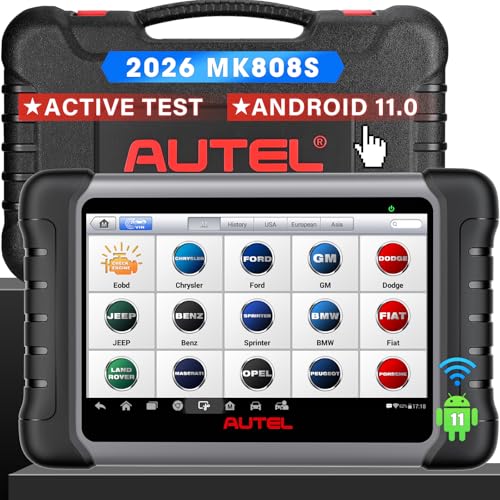
- 💝【Questions? We’re Here Anytime】MK808S is a...
- 🔥🔥🔥【2026 NEWLY RELEASED BI-DIRECTIONAL...
- 【28+ MOST POPULAR RESET SERVICE FOR 150 MAKES】Autel...
- 【ALL SYSTEM DIAGNOSTICS, FACTORY-LEVEL SCANNER】The...
- 【AUT0 SCAN & AUT0V1N, 10X FASTER】How much have you spent...


- 💯【Conta.ct us for Support Directly】If you met any...
- 🔥🔥🔥【2026 AUTEL FLAGSHIP MK900BT MK900-BT, NEW...
- 🚗【3000+ ACTIVE TESTS (50➡3000+), SAME AS MS...
- 🚗【40+ HOT SERVICES FOR 150 MAKES (28+➡40+)】Full...
- 🚗【OE ALL SYSTEM DIAGNOSE, AUTO SCAN 2.0: SCAN LICENSE...
This product presentation was made with AAWP plugin.
Search NHTSA Database for Recalls
Search NHTSA Database for Vehicle Investigations
View Latest Vehicle Investigations
Search NHTSA Database for Vehicle Complaints
View Latest Vehicle Complaints
TSB/Document ID: VVT1421
Replacement Service Bulletin Number:
MFR Communication Date: 2014-09-24
MFR Internal Campaign ID/Software Version:
Communication Type: Service Bulletin/Repair Instructions
NHTSA Components: EQUIPMENT
MFR Component System:
MFR Component Subsystem:
Previous TSB | Next TSB |
Service Information
VAS Tester
Number: VVT-14-21
Subject: VAS 5054A Transmitter Head – Bluetooth® & EDIC
Configuration – ODIS Service Only
Date: Sept. 24, 2014
®
Supersedes VVT-13-23. References to Windows XP and non-current diagnostic devices deleted.
Table of Contents
Page
Section
1.0
Introduction
1
2.0
Preparation - Must Read!
2
3.0
Windows Bluetooth® Configuration
2
3.1
General Information
2
3.2
Procedure
2
4.0
Diagnostic Interface (EDIC) Configuration
5
4.1
General Information
5
4.2
Procedure
5
VAS 5054A Configuration Settings
7
5.1
General Information
7
5.2
Procedure
7
5.0
1.0 – Introduction
Use the procedures in the following sections to configure a VAS 5054A Transmitter Head on VAS
diagnostic devices with Windows 7 and Offboard Diagnostic Information System Service (ODIS
Service) ONLY.
Notes:
• The following procedure must be performed by qualified personnel only!
• Please read these instructions in their entirety before performing these procedures. If you do not
understand these instructions, ask your dealership Systems Administrator or IT Professional
for assistance.
• Discard all printed copies of this document after use. Revised versions may be issued at any
time. Always check ServiceNet for the latest version.
Continued… 2/
Page 1 of 8
© 2014 Volkswagen Group of America, Inc.
All rights reserved. Information contained in this document is based on the latest information available at the time of printing and is subject to the copyright and other intellectual
property rights of Volkswagen Group of America, Inc., its affiliated companies and its licensors. All rights are reserved to make changes at any time without notice. No part of this
document may be reproduced, stored in a retrieval system, or transmitted in any form or by any means, electronic, mechanical, photocopying, recording, or otherwise, nor may these
materials be modified or reposted to other sites, without the prior expressed written permission of the publisher.
Service Information
2.0 – Preparation
Prerequisites
VAS diagnostic device connected to power adapter and booted to Windows desktop.
Windows 7 operating system
The latest version of ODIS Service installed and configured.
VAS-PC NOT installed.
ODIS Service not running during configuration.
VAS 6160/A: On-screen keyboard activated for number entry and USB mouse connected for easier
navigation.
Vehicle available.
1. Ensure the wireless operation switch is turned ON as applicable:
VAS 6150A
VAS 6150B & VAS 6150C
VAS 6160 & VAS 6160A
(Front panel behind handle)
(Middle right side behind WIRELESS door)
(Upper left side behind SC/EX door)
2. Note the VAS 5054A Serial Number (S#:) from a label on back of the transmitter housing.
3. Connect VAS 5054A to a vehicle Data Link Connector (DLC) and switch the ignition ON. The blue
LED on the transmitter head must flash.
3.0 – Windows Bluetooth Configuration
3.1 – General Information
The Windows Bluetooth configuration “pairs” the VAS 5054A with the diagnostic laptop/tablet for Bluetooth
(wireless) communication.
3.2 – Procedure
1. Click Windows Start:
2. Select Devices and Printers:
3. From the Devices and Printers window header (top left), select Add a Device:
A list of available Bluetooth devices is displayed.
Continued… 3/
Page 2 of 8
© 2014 Volkswagen Group of America, Inc.
All rights reserved. Information contained in this document is based on the latest information available at the time of printing and is subject to the copyright and other intellectual
property rights of Volkswagen Group of America, Inc., its affiliated companies and its licensors. All rights are reserved to make changes at any time without notice. No part of this
document may be reproduced, stored in a retrieval system, or transmitted in any form or by any means, electronic, mechanical, photocopying, recording, or otherwise, nor may these
materials be modified or reposted to other sites, without the prior expressed written permission of the publisher.
Service Information
Note:
The VAS 5054A serial number shown in the following illustrations is an example only! Each VAS
5054A is assigned a unique serial number.
4. Select/highlight the VAS5054 displayed. Confirm the number displayed between the < > symbols
matches the VAS 5054A serial number previously noted, then click Next:
5. Enter the VAS 5054A serial number as displayed (without < >) as the “pairing code”, then click Next:
Continued… 4/
Page 3 of 8
© 2014 Volkswagen Group of America, Inc.
All rights reserved. Information contained in this document is based on the latest information available at the time of printing and is subject to the copyright and other intellectual
property rights of Volkswagen Group of America, Inc., its affiliated companies and its licensors. All rights are reserved to make changes at any time without notice. No part of this
document may be reproduced, stored in a retrieval system, or transmitted in any form or by any means, electronic, mechanical, photocopying, recording, or otherwise, nor may these
materials be modified or reposted to other sites, without the prior expressed written permission of the publisher.
Service Information
6. When the confirmation window indicating the device has been added appears, click Close:
7. Return to the Devices and Printers window and double-click the newly-added VAS5054:
8. Select the Hardware Tab and note the COM port number:
Note:
The COM port number illustrated below is an example only! Each configuration is unique, so it is
important to record the COM port number assigned during your configuration.
9. Close the Properties window.
10. Configure the Diagnostic Interface (EDIC) > Section 4.0 - Page 5.
Page 4 of 8
© 2014 Volkswagen Group of America, Inc.
All rights reserved. Information contained in this document is based on the latest information available at the time of printing and is subject to the copyright and other intellectual
property rights of Volkswagen Group of America, Inc., its affiliated companies and its licensors. All rights are reserved to make changes at any time without notice. No part of this
document may be reproduced, stored in a retrieval system, or transmitted in any form or by any means, electronic, mechanical, photocopying, recording, or otherwise, nor may these
materials be modified or reposted to other sites, without the prior expressed written permission of the publisher.
Service Information
4.0 – Diagnostic Interface (EDIC) Configuration
4.1 – General Information
The diagnostic interface configuration enables data to be exchanged between the Bluetooth (wireless)
functions of the VAS 5054A and the ODIS Service diagnostic software.
4.2 – Procedure
1. From the Windows desktop, double click the ODIS Service Diagnostic Interface Configuration
program icon:
2. Select Add EDIC … :
3. Select VAS5054 from the dropdown menu, and then click OK:
Continued… 6/
Page 5 of 8
© 2014 Volkswagen Group of America, Inc.
All rights reserved. Information contained in this document is based on the latest information available at the time of printing and is subject to the copyright and other intellectual
property rights of Volkswagen Group of America, Inc., its affiliated companies and its licensors. All rights are reserved to make changes at any time without notice. No part of this
document may be reproduced, stored in a retrieval system, or transmitted in any form or by any means, electronic, mechanical, photocopying, recording, or otherwise, nor may these
materials be modified or reposted to other sites, without the prior expressed written permission of the publisher.
Service Information
4. Confirm the conditions listed, and then click OK:
5.
Select (highlight) the COM port number previously noted (Page 4 – Step 8), then click OK:
Note:
The COM port selection illustrated below is an example only! Each configuration is unique, so it is
important to select the COM port number previously noted during your configuration.
The configured VAS 5054A and COM port number appears in the Installed EDIC Interfaces display.
5. Click OK:
6. From the Windows desktop, click the ODIS Service icon.
7. Initiate a diagnostic session and confirm vehicle to diagnostic device communication.
The VAS diagnostic device can now be placed into service with its configured VAS 5054A.
Page 6 of 8
© 2014 Volkswagen Group of America, Inc.
All rights reserved. Information contained in this document is based on the latest information available at the time of printing and is subject to the copyright and other intellectual
property rights of Volkswagen Group of America, Inc., its affiliated companies and its licensors. All rights are reserved to make changes at any time without notice. No part of this
document may be reproduced, stored in a retrieval system, or transmitted in any form or by any means, electronic, mechanical, photocopying, recording, or otherwise, nor may these
materials be modified or reposted to other sites, without the prior expressed written permission of the publisher.
Service Information
5.0 – VAS 5054A Configuration Settings
5.1 – General Information
The VAS 5054A idle connection warning buzzer is configured with the EDIC Configuration Manager.
5.2 – Procedure
Prerequisites:
VAS 5054A Windows Bluetooth and EDIC configured as instructed in Sections 3.0 and 4.0.
VAS 5054A plugged in to vehicle Data Link Connector (DLC), blue LED flashing.
1. Click Windows Start:
2. Select All Programs > Softing D-PDU API for VCIs V1.20.XXX
2. Select EDIC Configuration Manager
3. With the paired VAS 5054A highlighted, click the Gear icon:
4. Click the Device tab:
Continued… 8/
Page 7 of 8
© 2014 Volkswagen Group of America, Inc.
All rights reserved. Information contained in this document is based on the latest information available at the time of printing and is subject to the copyright and other intellectual
property rights of Volkswagen Group of America, Inc., its affiliated companies and its licensors. All rights are reserved to make changes at any time without notice. No part of this
document may be reproduced, stored in a retrieval system, or transmitted in any form or by any means, electronic, mechanical, photocopying, recording, or otherwise, nor may these
materials be modified or reposted to other sites, without the prior expressed written permission of the publisher.
Service Information
5. Select and configure the Buzzer Time as desired, then click Apply to save the settings and Finish to
return to the main configuration window.
Note:
To prevent loss of communication during extended ODIS Service diagnostic sessions, we
recommend the PowerOff function remain disabled.
Page 8 of 8
© 2014 Volkswagen Group of America, Inc.
All rights reserved. Information contained in this document is based on the latest information available at the time of printing and is subject to the copyright and other intellectual
property rights of Volkswagen Group of America, Inc., its affiliated companies and its licensors. All rights are reserved to make changes at any time without notice. No part of this
document may be reproduced, stored in a retrieval system, or transmitted in any form or by any means, electronic, mechanical, photocopying, recording, or otherwise, nor may these
materials be modified or reposted to other sites, without the prior expressed written permission of the publisher.
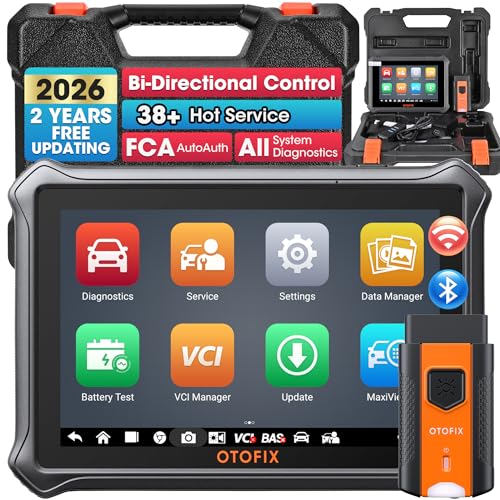
- 🎉[OTOFIX D1 Lite, Perfect Cost-effective Diagnostic Tool]: OTOFIX D1 Lite, a newest bidirectional scan tool from OTOFIX company, is a great choice for DIYers and repair shops. 👉This obd2 scanner diagnostic tool packs all practical functions: OE level all systems diagnoses, Bi-Directional Control, 38+ reset services fixing 99% of common problems, support DoIP & CANDF protocols and FCA
 AutoAuth, high-end hardware configuration. Worldwide vehicles and 🔥2 Years Free Updating🔥 covered.
 - 🎉[Bi-Directional Scan Tool, Active Test]: OTOFIX D1 Lite bluetooth obd2 scanner can also command ECUs and monitor the operation of the actuators to track down the problems of certain parts, like windows, sunroof, wipers, fuel pumps, etc., saving repair time & trouble. This makes OTOFIX D1 Lite the most cost-effective bidirectional scan tool.
- 🎉[2026 Newest, 38+ Hot Reset Functions]: Equipped with 38+ reset functions in one, the OTOFIX D1 lite automotive scanner diagnostic tool allows you to troubleshoot 99% of common vehicle problems. You can use this car diagnostic scanner holding enough functions to easily repair common vehicle models in your repair shops. Including Oil Reset, Injector Coding, Throttle, DPF Reset, SCR Reset, Gear Learning, Clutch Learning, Suspension, etc. Note* Reset functions vary by model.
- 🎉[OE Level Full Systems Diagnostics]: Unlike the 2-system and 4-system diagnostic tools, the OTOFIX auto scan tool can complete comprehensive system diagnostics within 5 minutes. It accesses and scans all available onboard systems like for Engine /AT /ABS /EPB /BMS /TPMS /SRS /SAS /Audio System /BCM /Air Conditioning / etc., to read & clear codes, view live data, and check ECU information. Note: Active test is not involved.
- 🎉[Powerful Hardware Configuration]: Designed with a fashion appearance & a 7” touchscreen and a weight of 463g, this OTOFIX D1 Lite OBD2 diagnostic scanner scan tool is convenient for everywhere and easy to use & store. Android9.0 OS and 2+64GB memory enhance multi-task smoothness and diagnostic operation, no more wasting too much time. 5800mAh battery allows hours-lasting use. WiFi & VCI1 also bring faster communication for your diagnostics.
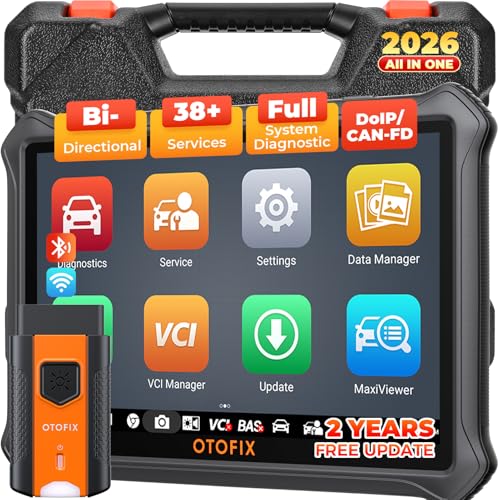
- 🏆【2026 TOP OBD2 Scanner Diagnostic Tool】OTOFIX D1 Lite wireless obd2 scanner has upgraded hardware configuration and car coverage. The newly upgraded D1 Lite with 🔥OS Android 9.0🔥1.5Ghz 4 core high efficiency processor🔥2GB RAM+64GB ROM large storage🔥5800mAh large battery, more stable and longer lasting diagnostics🔥 38+ Reset🔥action tests🔥full system diagnostic🔥Supports MV105 endoscope🔥21+ Language Supports🔥100000+ vehicle coverage to meet all your daily maintenance needs.
- 👍【Bi-Directional Control / Active Test】D1 Lite obd2 scanner has bidirectional control(worth $300+), which is the most beloved feature among mechanic. If your headlights or car windows are broken, going to a repair shop will cost a lot of money. You can use D1 Lite to send execution commands to the ECU module and identify the repair status. Such as ABS, car windows, doors, valves, wipers, headlights, etc., effectively shorten diagnostic time and reduce diagnostic costs.
- 🔥【All Systems Diagnostics, In-depth Checking】This advanced OBD2 Scanner D1 Lite can perform OE-level diagnosis of all systems including engine, transmission, airbag, ABS, ESP, TPMS, gateway, steering, radio, and air conditioning for more than 100 brands. This diagnostic scanner supports essential functions, such as reading ECU version info, reading and clearing fault codes, and reading data streams.With just a simple click, it provides you with accurate and in-depth diagnostics.
- 🏆【38+ Reset Hot Functions】For repair workshops, holding an OTOFIX D1 Lite Auto scanner is a strong advantage over others. Its 38+ maintenance functions provide various solutions for all module repairs, including Oil Reset, TPMS Reset, Injector Coding, Suspension, Throttle Matching, etc., which will usher your repair business to a new pinnacle. Continuously updating will never make the functionality & compatibility out-of-date.
- 🏆【150+ Models, 10000+ Car Coverage & 16 Languages】D1 Lite is a comprehensive car diagnostic scan tool, help you to troubleshoot car issues fast for 95% US, European, Asian auto makes. ✅ With frequent updates and optimizations allow D1 Lite to cover more vehicles to meet your needs. ✅ Multilingual menu allows auto mechanics around the world to use it without language barriers. 🚩Note: Kindly send us the S/N of the device to authorize new language updates before changing the menu language.
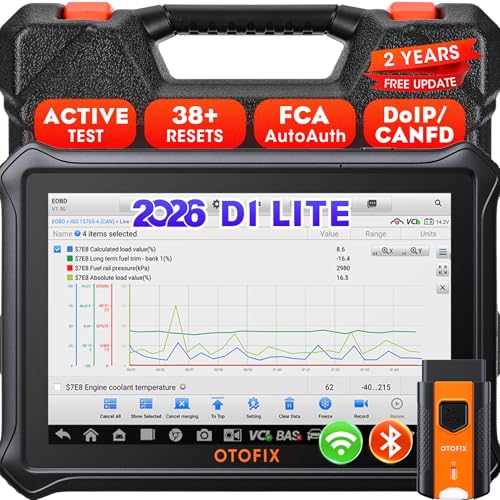
- 【2026 OTOFIX D1 Lite Gives the Best Value for Money】OTOFIX D1 Lite bidirectional scan tool is more FASTER and SMARTER with 2026 Enhanced Hardwares & New Functions! 👍Alternative Bluetooth +USB connect 👍2G+64GB 👍4x ARM Cortex-A35 (1.5GHz) Processor (5X Faster CPU) 👍Android 9.0 OS 👍5G GHz WiFi 👍CANFD&DOIP 👍 FCA AutoAuth 👍38+ Services 👍3K+ Bi-Directional Control 👍Full Systems Diagnose 👍2 Years Update 👍150+ Vehicle Coverage.
- 👍【Active Tests】 OTOFIX D1 Lite is a bi-directional scan tool that can send commands to, and also receive information from vehicle control modules. This way, you can quickly locate and repair faulty auto parts. For Example: send direct commands to ask the vehicle to turn on/off the radiator fan, lights, sound horn, fuel pump, modulate throttle, open/close windows, operate mirrors and more. *Note that only available tests will be displayed in the menu.
- 👍【38+ Service Functions】 OTOFIX D1 Lite scan tool offers 38+ of the hottest service functions that are commonly used for car repairs. That include Oil reset/SAS/EPB/BMS/Throttle/ABS bleeding, and 2065-new SUS/ADBLUE/NOX/Headlamp resets (and more) to help restore your car status after repairs are done. Compared to other diagnostic scanners for cars, the OTOFIX D1 Lite scanner is much more fully-featured. *Note that specific functions available depend on the make/model/year of your car.
- 👍【All System Diagnostics + Cloud Report Management】 This 2026 car scanner OTOFIX D1 Lite provides troubleshooting and data for all ECUs: read/clear DTCs, view graphic live data/VIN, and locate system faults for safe driving. With Cloud Report Management, you can save detailed reports to cloud servers and easily shared them with others via QR codes/emails/text messages. Others can access these reports from any device (smartphones/tablets/PCs …) anytime, and you can better manage repair work.
- 👍【99% Car Coverage】 This one-station car scanner diagnostic for all cars works on 150+ major car brands across the world. 1) It supports CAN-FD/DoIP protocols: compatible with GMCAVALIER/TRAX/Encore/Envision/GL8(LSY)/CT4/CT5 after 2019; Volvo after 2018; Land Rover/Jaguar after 2017; and BM.W F/G all chassis. 2) For models equipped with security modules (such as Renault & 2018+ FCA SGW), its built-in AutoAuth allows you to easily break diagnostic barriers after registration.
This product presentation was made with AAWP plugin.
Last update on 2026-05-11 / Affiliate links / Images from Amazon Product Advertising API