
NHTSA ID Number: 10230639
Manufacturer Communication Number: BJ TESTING
TSB/Document Date: 2023-02-11
Summary
BJ TESTING NHTSA06 REPLACEMENT - BJ Please ignore!!!! - BJ
If the PDF is very large, it may not load in the preview below.
Some older TSBs had multiple PDFs — visit the NHTSA Website to view all PDFs.
If the TSB PDF does not show, download or view it on the NHTSA Website.
Click on the (+) Plus Sign
Then Click on Associated Document(s)
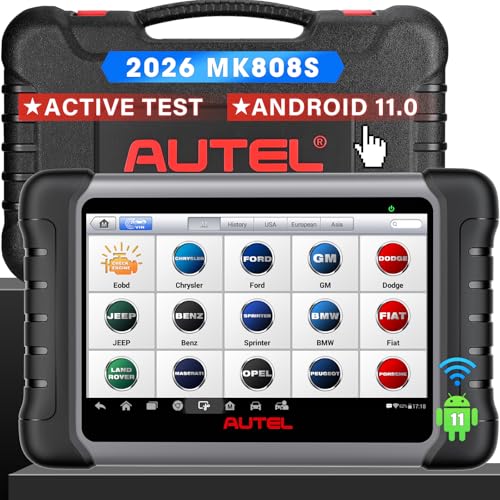
- 💝【Questions? We’re Here Anytime】MK808S is a...
- 🔥🔥🔥【2026 NEWLY RELEASED BI-DIRECTIONAL...
- 【28+ MOST POPULAR RESET SERVICE FOR 150 MAKES】Autel...
- 【ALL SYSTEM DIAGNOSTICS, FACTORY-LEVEL SCANNER】The...
- 【AUT0 SCAN & AUT0V1N, 10X FASTER】How much have you spent...


- 💯【Conta.ct us for Support Directly】If you met any...
- 🔥🔥🔥【2026 AUTEL FLAGSHIP MK900BT MK900-BT, NEW...
- 🚗【3000+ ACTIVE TESTS (50➡3000+), SAME AS MS...
- 🚗【40+ HOT SERVICES FOR 150 MAKES (28+➡40+)】Full...
- 🚗【OE ALL SYSTEM DIAGNOSE, AUTO SCAN 2.0: SCAN LICENSE...
This product presentation was made with AAWP plugin.
Search NHTSA Database for Recalls
Search NHTSA Database for Vehicle Investigations
View Latest Vehicle Investigations
Search NHTSA Database for Vehicle Complaints
View Latest Vehicle Complaints
TSB/Document ID: BJ TESTING
Replacement Service Bulletin Number:
MFR Communication Date: 2023-02-10
MFR Internal Campaign ID/Software Version:
Communication Type: Service Bulletin/Repair Instructions
NHTSA Components: EQUIPMENT ADAPTIVE/MOBILITY
MFR Component System:
MFR Component Subsystem:
Previous TSB | Next TSB |
Manufacturer Communications
Portal (MCP) User Guide v1.4
December 7, 2020
Prepared by:
U.S. Department of Transportation
National Highway Traffic Safety Administration
Office of Defects Investigation
1200 New Jersey Avenue, S.E.
Washington, D.C. 20590
Contents
INTRODUCTION ................................................................................................................................................... 1
OVERVIEW........................................................................................................................................................... 1
ACCOUNT SETUP ................................................................................................................................................. 2
LOGGING IN......................................................................................................................................................... 4
DASHBOARD........................................................................................................................................................ 5
CREATING A DRAFT SUBMISSION ....................................................................................................................... 8
General Information............................................................................................................................... 10
Product Selection ................................................................................................................................... 10
Components ........................................................................................................................................... 13
Communication Document .................................................................................................................... 12
Supplementary Information................................................................................................................... 13
Draft Submission Actions ....................................................................................................................... 15
DRAFT COMMUNICATIONS LISTING ................................................................................................................. 16
SUBMITTED COMMUNICATIONS LISTING ......................................................................................................... 16
AUDIT TRAIL ...................................................................................................................................................... 16
SUBMITTING A COMMUNICATION ................................................................................................................... 18
SUBMITTING “NOTHING TO REPORT” .............................................................................................................. 18
LOGGING OUT ................................................................................................................................................... 19
CONCLUSION..................................................................................................................................................... 19
i
List of Figures
Figure 1 Example Email Invitation................................................................................................................. 2
Figure 2 New User Password Setup Page...................................................................................................... 3
Figure 3 Reset Password Page....................................................................................................................... 4
Figure 4 MCP Login Page ............................................................................................................................... 4
Figure 5 Manufacturer Selection Page .......................................................................................................... 5
Figure 6 Dashboard Page (Initial) .................................................................................................................. 6
Figure 7 Draft Communications Listing ......................................................................................................... 7
Figure 8 Submitted Communications Listing ................................................................................................ 7
Figure 9 Communication Form ..................................................................................................................... 9
Figure 10 General Information Section ....................................................................................................... 10
Figure 11 Product Selection Section ........................................................................................................... 10
Figure 12 Add Products Window ................................................................................................................ 11
Figure 13 Add Products Window with Selections ....................................................................................... 12
Figure 14 Display of Selected Products ....................................................................................................... 12
Figure 15 Components Section ................................................................................................................... 13
Figure 16 Communication Document Section ............................................................................................ 14
Figure 17 Supplementary Information Section ........................................................................................... 14
Figure 18 Audit Trail Listing for Manufacturer ............................................................................................ 17
Figure 19 Audit Trail Listing for Draft Communication (Partial) .................................................................. 17
Figure 20 Audit Trail Listing for Submitted Communication (Partial) ......................................................... 18
ii
INTRODUCTION
Welcome to the National Highway Traffic Safety Administration (NHTSA) Manufacturer Communications
Portal (MCP). The law requires motor vehicle and equipment manufacturers to submit to NHTSA copies
of their communications to dealers, rental companies, or other owners or purchasers about a defect or
noncompliance and requires that such communications "shall be accompanied by an index to each
communication." 49 U.S.C. 30166(f).
The index must identify the make, model, and model year of the affected vehicles and include a concise
summary of the subject matter of the communication. 49 U.S.C. 30166(f)(2). This index requirement has
been in effect since October 1, 2012. See MAP–21, Public Law 112–141, §3, 126 Stat. 405,413 (2012).
The MCP provides an easy-to-use, online application that allows manufacturers to submit their
communications and the required index information to NHTSA. NHTSA recommends that
manufacturers use the MCP to submit copies of their communications to dealers, rental companies,
owners, or purchasers about a defect or noncompliance, rather than submitting them via e-mail.
Manufacturers using the MCP will no longer need to create and submit a separate index document.
Instead, the MCP will use the information provided by each manufacturer about each communication—
including the make, model, and model year of the affected vehicles and a concise summary of the
subject matter of the communication—to automatically generate the required index.
The MCP also provides for submitting a Nothing to Report notification for those months where no
communications were made.
This guide is designed to supplement the guidance provided in NHTSA Enforcement Guidance Bulletin
2016-01; Guidance on Submission and Treatment of Manufacturer Communications to Dealers, Owners,
or Purchasers about a Defect or Noncompliance, 81 Fed. Reg. 16,270-16,275 (Mar. 25, 2016).
OVERVIEW
Since motor vehicle and motor vehicle equipment manufacturers, including those for tires and car seats ,
,
are required to submit to NHTSA copies of their communications that were sent to dealers, rental
companies, or other owners or purchasers about a defect or noncompliance, MCP was developed to
allow you to submit and manage those communication submissions. In months when no
communications were sent, MCP enables you to provide a notification of that fact to NHTSA. This
document will provide you with the information you need to know about using MCP.
You will be able to access MCP using a standard Web browser (IE 11 or above, Chrome 60 or above,
Firefox 53 or above, Safari 10 or above) at the following address: https://mcp.nhtsa.gov. Only users
who have registered with NHTSA will be allowed to access MCP. Your user email address, along with a
password that you set, will be required to log in to the application.
Page 1 of 19
ACCOUNT SETUP
Initially you will be sent an email containing a link to allow you to set your password for accessing
MCP. That link will be unique to your email address and cannot be shared. If necessary, add
govdelivery.com to your email white list to ensure that the email arrives in your inbox. The email
that you receive will appear similar to the following:
Figure 1 Example Email Invitation
Selecting the “create password” link in the email will bring you to an MCP webpage where you can
specify and then confirm a password of your choosing, as long as it meets the requirements listed
below.
Page 2 of 19
Figure 2 New User Password Setup Page
Your password must consist of 12 to 40 characters and must contain at least:
•
•
•
•
Two numbers
One uppercase letter
One lowercase letter
One special character from this list: ! @ # $ % ^ & * ( ) _ + ? > < : .
You will be required to solve a reCAPTCHA challenge to verify that you are a human being and not a
robot trying to access the system without authorization.
You will then be able to log in to MCP using your email address and password. If you need to reset your
password, you can do so from a link on the MCP Login page. You will be sent an email with a link to the
password reset page.
Page 3 of 19
Figure 3 Reset Password Page
LOGGING IN
The MCP Login page can be accessed at https://mcp.nhtsa.gov. You can log in by entering your email
address that is associated with your MCP account and your password and then selecting the LOG IN
button.
Figure 4 MCP Login Page
Page 4 of 19
If you represent more than one manufacturer, when you log in you will be given the choice of which
manufacturer you are representing in this session in order to display the appropriate dashboard page.
Figure 5 Manufacturer Selection Page
A number of informational links and contact information for the MCP Help Desk are provided in the
footer of all MCP pages. After logging in, a link to Help in the footer will bring up this document. Where
applicable, tooltips are available to help understand a particular field or function. In case of missing
data or other errors, a message will be shown to highlight where corrections are needed.
DASHBOARD
Once you have successfully logged in, you will be shown the dashboard page. The manufacturer that
you are representing and your name will be shown at the top of the page along with a Logout link for
terminating your session.
Page 5 of 19
Figure 6 Dashboard Page (Initial)
The functionality on the dashboard mainly consists of the ability to create a new communication
submission, to work with previously created and saved draft submissions, and to view any past
submissions. The dashboard also provides an Audit Trail button that will bring up a history of all actions
taken for all of your MCP submissions and a mechanism for providing a Nothing to Report notification
for one of the last six months.
The first time accessing your account both the Draft Communications and Submitted Communications
areas will be collapsed. As you create draft and submitted communications, these areas may be shown
expanded, as explained below. The draft and past submissions areas will be collapsed if there are no
items to show in that particular area.
If you have any saved draft submissions, the Draft Communications area will be expanded so that you
will see those when you log in.
Page 6 of 19
Figure 7 Draft Communications Listing
If you have no saved drafts, but have previously submitted communications through MCP, then the
Submitted Communications area will be expanded when you log in.
Figure 8 Submitted Communications Listing
The draft and past submissions areas can also be independently expanded or collapsed as needed by
selecting the header bar showing a “+” or “-” symbol on the right. Selecting the header bar when the
“+” is displayed will expand that area. Conversely, selecting the header bar when the “-” is displayed will
collapse that area.
Page 7 of 19
For both the draft and past submissions you can reduce the displayed listing using the Search function.
Simply enter one or more characters in the Search box and the listing will immediately show only those
entries that contain the entered characters. You can separate multiple search character strings by a
space to limit the display to those entries containing all of the entered search strings. For the drafts
listing, the full Concise Summary will be searched for the entered text rather than just what is shown in
the table display. This can be very helpful for locating drafts based on text in the Concise Summary.
You can also select to display 5, 10, or 20 entries at a time. If there are more entries than the selected
number, you can use the page navigation items in the lower right to access other entries.
The Submitted Communications listing can also be restricted to those entries submitted in the last 30,
60, or 90 days, as well as showing all MCP submissions. The default value for this option is to show the
entries for the last 30 days.
CREATING A DRAFT SUBMISSION
Whenever you need to create a new communication submission, you will need to select the “Create a
New Submission” button on the dashboard. This will open a blank draft form for you to fill out. In order
to be able to track the submission, you must enter a Communication ID of up to 16 characters. This will
generate a Transaction ID that will serve as a link to this submission.
A blank draft form is shown below. Each of the sections will be explained in turn. If a draft has been
saved, an additional button labeled “Delete” will be available at the bottom of the form in case it
becomes necessary to delete the draft.
Page 8 of 19
Figure 9 Communication Form
Page 9 of 19
General Information
Figure 10 General Information Section
The form itself is divided into several sections. The first section is used for the following information:
•
•
•
Communication ID – Enter an identifier for the communication being submitted. Up to 16
keyboard characters may be entered.
Communication Date – Enter the date of, or date represented on, the communication being
submitted. The date must be selected using the calendar icon to the right of the field.
Concise Summary – Enter, in 2000 characters or less, a brief description of the communication's
most pertinent information and the general purpose for the communication. The counter
showing the number of characters that can be entered will update as you enter text. Per
NHTSA’s previous guidance, NHTSA recommends that a concise summary of the subject matter
of a manufacturer's communication, at a minimum, should identify the defect or
noncompliance, describe the effect of the defect or noncompliance, and describe the purpose or
type of the communication. In many cases, simply repeating the subject line or title of a
communication will be insufficient. Likewise, a generic description that does not actually
summarize the communication or describes multiple communications with minimal changes,
such as “service bulletin number 123” does not meet the statutory requirements.
Product Selection
Figure 11 Product Selection Section
The next section allows for the selection of the products that are the subjects of the communication
being submitted. If some products have already been selected for the current submission, you can use
Page 10 of 19
the Search field to limit the products shown to those that contain the characters entered in the text box.
The listing will immediately filter the records as characters are entered. Clearing the Search box will
again display all currently selected products.
Select the Add Products button to bring up a window that lists all products that are available to be
selected for the associated manufacturer. Products that have already been selected for the current
submission will not appear on the listing.
Figure 12 Add Products Window
Select the product in the listing to highlight it. You can highlight/un-highlight products individually by
holding down the Control key (or its equivalent) when you select a product. You can also highlight a
range of consecutive products by selecting the first product you want to highlight and then hold the
Shift key down and select the last product of the desired range. To select all products in the list,
highlight the first product in the list and then go to the last product in the list, scrolling if necessary,
and hold the Shift key down while selecting the last product to highlight the entire list. If there are any
products for the manufacturer that you are representing that are not listed and you need to include
those for the communication, select the NOT AVAILABLE item that can be found at the top of the
product listing when sorted normally. You MUST then provide in the Comments box on the main form
the same information for each of those missing products as is given for the listed products. For
example, enter in the Comments box text similar to:
Unlisted vehicle: Dryvit Phast 2019 Passenger Car
In this example “Dryvit” is the Make, “Phast” is the Model, “2019” is the Model Year, and “Passenger Car” is
the Product Type. Be aware that varying characteristics within a given model, such as trim line, engine size,
Page 11 of 19
etc., may not be considered a separate product. The final determination will be made by the NHTSA
reviewer.
Figure 13 Add Products Window with Selections
When the desired products are highlighted, select the Add Selected Products button to move those
products from the Add Products listing to the Selected Products listing on the draft form.
Figure 14 Display of Selected Products
You can access the Add Products window as often as necessary to compile the complete list needed for
the submission. Once a product has been added to the Selected Products for the submission, it will no
longer be shown on the Add Products listing.
You can select the Cancel button in the Add Products window to return to the draft form without adding
any products to the submission. You can also remove any product from the Selected Products listing by
selecting the Remove button on the row for that product. If you remove a product from the Selected
Page 12 of 19
Products listing, it will then become available again in the Add Products window.
You can also filter the Add Products listing using the fields available in the window. Make the
appropriate entries for the type of manufacturer you are representing and then select the Filter button
to show only those records that contain the text you entered. Select the Reset button to clear any
filtering entries and show the full list. You can filter using the following:
•
•
•
Make/Brand Name
Model/Tire Line
Model Year (Vehicles only)
Components
Figure 15 Components Section
The Components section provides a listing of a number of major component categories. From one to
five components from this listing must be selected for the submission. Choose the component(s) that
best represent the subject of the communication being submitted. This listing may change over time, so
be sure that you have selected the most appropriate components when the communication is
submitted. If the component is not listed or is not clearly defined, select “Unknown” from the
Components list.
Page 13 of 19
Communication Document
Figure 16 Communication Document Section
The next section allows you to select the actual communication document that you will be uploading for
the submission. Selecting the Select Document button will open a navigation window so that you can
locate the appropriate file. The file must be a PDF file greater than 0 B and no larger than 50 MB. The
filename should be no longer than 150 characters.
Once a file has been selected, a Remove button will become available in case it is necessary to replace
the selected file. You will be prompted to confirm the removal of the file from the submission. One,
and only one, file is allowed to be uploaded for a given submission.
Supplementary Information
Figure 17 Supplementary Information Section
The final section allows you to provide any additional information regarding the submission that is
important for the proper handling of your communication. A checkbox is available to indicate that the
submission contains Personally Identifiable Information (PII). There is also a Comments box that will
allow up to 1000 characters for you to provide comments, clarifications, missing product information,
elaborations on any PII, etc., that will help the NHTSA reviewers to fully understand your
communication submission. The counter showing the number of characters that can be entered will
update as you enter text.
Page 14 of 19
Draft Submission Actions
At the top of the form is a Return to Dashboard button that allows you to exit the current draft and go
back to the dashboard. If there are any unsaved changes on the draft, you will be prompted to confirm
that you want to return to the dashboard without saving those changes. Selecting Continue will lose any
unsaved changes and put you back at the dashboard. Selecting Cancel at the prompt will leave you on
the current draft.
Once a draft has been saved, an Audit Trail button and a Print button will be available at the top of the
form. The Audit Trail button will allow you to view and print a listing of the major actions taken on your
submission, from its initial creation through its final acceptance. Selecting the Print button will display
the information currently associated with the draft, with a secondary Print option to create a PDF file of
the listed information.
You can use the Save as Draft button at the bottom of the form at any time to save any progress you
have made in completing the form. The first time you save a draft a message will be shown at the top of
the draft to indicate if the save was successful. For subsequent saves the message will indicate whether
the draft was updated successfully and will show the Transaction ID.
IMPORTANT! There is a 30-minute inactivity timeout associated with your MCP session, so it is highly
recommended that you save your draft if you anticipate a period of inactivity that might approach the
30-minute limit. Any progress made since the last save will be lost if the timeout function is invoked. It
is best to save the draft periodically to avoid any inadvertent inactivity timeout.
Once you have completed the form and are ready to send your communication and its supporting
information to NHTSA, select the Submit button at the bottom of the form. If there are no incomplete
required fields or other issues, the current version of the form and its associated communication
document will be transmitted to NHTSA. Once the communication has been submitted, you will no
longer be able to edit it, so be sure that it is as complete and accurate as possible.
If errors are detected at the time of submission, one or more messages will be displayed on the draft
form in the areas that need correction. Please make the appropriate changes needed and re-submit
your communication. Contact the MCP Help Desk at [email protected] or call (202) 366-3348 if
you have any questions or issues with completing your submission.
If, for any reason, you would like to delete the draft communication you are working on, simply select
the Delete button at the bottom of the form. You will be asked to confirm your desire to delete the
current draft. Selecting the Delete button in the Confirm Delete pop-up window will remove your draft
from the system. Select the Cancel button in the Confirm Delete window to return to the draft.
You may also select the Cancel button at the bottom of the draft form to return to the dashboard
without saving any changes made since the last save. The action for the Cancel button is similar to that
for the Return to Dashboard button and will prompt you if there are any unsaved changes.
Page 15 of 19
DRAFT COMMUNICATIONS LISTING
The Draft Communications area on the dashboard provides a listing of all communication submissions
that are currently in a draft state. Selecting the Transaction ID will bring up the associated draft
submission for viewing, editing, or deleting. Hovering the cursor over the partial entry under Concise
Summary will display the full text of the Concise Summary. If there is a PDF icon shown in the Document
column, it can be selected for viewing the associated communication document. The information icon
in the Audit Trail column can be selected to view the Audit Trail for the associated draft submission.
SUBMITTED COMMUNICATIONS LISTING
The Submitted Communications area on the dashboard provides a listing of all communications that
were submitted through MCP. Editing and deleting are not allowed on submitted communications.
Selecting the Transaction ID will bring up a printable view of the submission information that can be
printed as a PDF file for external use. Hovering the cursor over the Communication ID will display the
Concise Summary for the submission. The PDF icon shown in the Document column can be selected for
viewing the associated communication document. The information icon in the Audit Trail column can be
selected to view the Audit Trail for the associated submission.
AUDIT TRAIL
The major actions that occur for both draft and submitted communications are captured in the Audit
Trail. This includes actions such as creating, saving, submitting, and deleting draft communications.
Changes to individual draft form fields are not captured in the Audit Trail. The NHTSA action of
accepting the submission will also be shown in the Audit Trail.
Buttons to access the Audit Trail are found on the dashboard and on the draft and submitted
communication pages. When accessed from the dashboard, the Audit Trail shows all recorded actions
for all MCP communications for the manufacturer. The listing can be filtered by date (Last 30 days, Last
60 days, Last 90 days, or All) and by searching for character strings in the table entries (similar to the
Search functions described earlier).
Page 16 of 19
Figure 18 Audit Trail Listing for Manufacturer
You can also select to display 10, 25, 50, or 100 entries at a time. If there are more entries than the
selected number, you can use the page navigation items in the lower right to access other entries.
If you are editing a draft or viewing a submission, selecting the Audit Trail button will display only the
entries for the current item. The same filtering and display options are available as for the dashboard
Audit Trail, except that the time range filter is not available for an individual draft or submission.
Selecting the information icon in the Audit Trail column of the dashboard tables will bring up the same Audit
Trail display as selecting the Audit Trail button when editing or viewing the individual item.
When viewing the Audit Trail for a draft communication, selecting the Edit this Draft button at the top of
the page will take you to the draft form.
Figure 19 Audit Trail Listing for Draft Communication (Partial)
When viewing the Audit Trail for a submitted communication, selecting the View this Submission button
at the top of the page will display all of the information associated with the submission.
Page 17 of 19
Figure 20 Audit Trail Listing for Submitted Communication (Partial)
At the top of the page all of the Audit Trail displays have a Return to Dashboard button to exit the Audit
Trail to the dashboard and a Print button that you can select to print what you see on the screen to a
PDF file for use outside of MCP.
SUBMITTING A COMMUNICATION
You can only submit your communication using the Submit button at the bottom of the draft form. If
there are no errors detected, your communication document and its associated information will be
transmitted to NHTSA.
Once you have successfully submitted the draft, it will no longer appear in the Draft Communications
area of the dashboard. An entry for your submission will be added to the Submitted Communications
area of the dashboard. This entry will show a Status of Submitted and the NHTSA ID column will show
“Pending”. Once NHTSA reviews and accepts your submission, the Status will change to Accepted and
the assigned NHTSA ID will be displayed. This change will be visible when the next log-in to MCP
following the submission’s acceptance refreshes the data on the dashboard.
SUBMITTING “NOTHING TO REPORT”
When the manufacturer has no communications as specified above to be submitted in a given month, a
notification of that fact is required to be made. A Nothing to Report checkbox is provided on the
dashboard page to simplify that notification. Selecting the checkbox displays a block with a drop-down
list where the subject month can be selected. You can only select one of the last six months to be
reported. Once the month selection has been made, selecting the Submit button within the block will
transmit the Nothing to Report notification to NHTSA.
When the Submit button in the block is selected, a message will be shown and no notification will be
submitted in the following cases:
• No month has been selected for the notification.
• One or more communications have already been submitted for the selected month.
• A previous Nothing to Report notification has already been made for the selected month.
Note: An actual communication can be submitted normally even if a Nothing to Report
Page 18 of 19
notification has already been submitted for the current month.
A successful notification submission will be shown in the Submitted Communications listing with a
Communication ID of “No comms yyyy-mm” where “yyyy-mm” indicates the subject month, e.g., “No
comms 2020-12” for the month of December 2020.
LOGGING OUT
Whenever you need to terminate your MCP session, use the Logout link next to your name at the top of
any page. If you have any unsaved changes, you will be prompted to save those changes before exiting.
Do not simply close your browser tab or otherwise terminate MCP. The Logout link provides a clean exit
for your session. Exiting your session in any other manner could lead to lost data or other unpredictable
results.
CONCLUSION
You should now be able to create, edit, and submit your communications.
If you have any questions regarding MCP, please contact the MCP Help Desk at [email protected]
or call (202) 366-3348.
Page 19 of 19
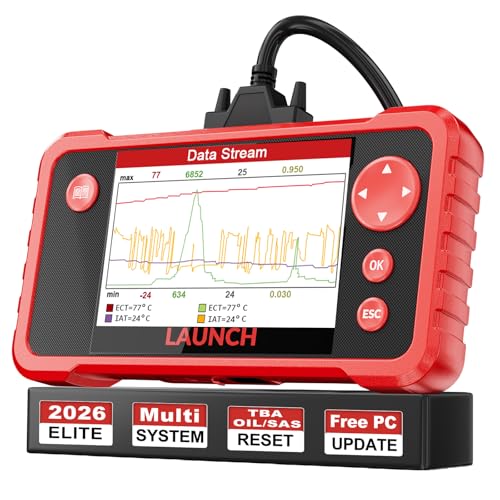
- 【Great Ideal For Every Car Owner】Prefect choice for your father, husband, brother or boyfriend. EVERY CAR OWNER WILL NEED IT! Also, the lifetime update is provided for more vehicle coverage, bug fixes. SAVE AT LEAST $1000+ PER YEAR!Get LAUNCH CRP123 V2.0 car diagnostic scanner and give your lover a surprise!*R each us to Get the Extra Gifts :Protective Case Storage Bag.
- 【Newly Added 3 Reset Functions】CRP123 V2.0 obd2 scanner with upgrades it offers Throttle Adaptation,Oil Reset and SAS Reset functions for FREE now!! Optimize your engine performance with Throttle Adaptation, reset your oil life system with ease to save time and money on maintenance, and enhance your vehicle's handling and safety with SAS Reset.Covering more daily repairs,become the most cost-effective product in its price range,save your time and money!
- 【 Read & Clear/Reset Engine/ABS/SRS/Transmission Diagnostic Scan Tool 】LAUNCH CRP123 V2.0 OBD2 Scanner can test Engine, Transmission, ABS and Airbag four systems, also reads and resets code, displays data stream graphic, stores and playbacks dynamic data stream,helps to quick analysis and diagnosis.
- 【 Error Fault Code Reader】Except the full 10 modes OBD2 diagnostic functions like, retrieving I/M readiness, Freeze Frame Data, Read Dynamic Data stream and Vehicle Information, O2 Sensor Test, EVAP Test of Fuel Tank System (Mode 8) and Advanced On-board Monitoring (Mode 6), launch crp123 v2.0 obd2 scanner can not only reveal what error codes your car is producing, but also erase your vehicle’s check engine light after problem fixed, the DTC help and explanation also tell you the exact problem.
- 【 Live Data Graphing + Read/Record/Playback Data stream + Print diagnostic data 】Live Data Graphing,more intuitive to know your vehicle’s problem.4 inches Screen Screen ;Print Function:Print the diagnose result easily; with user manual and register & update tutorial video uploaded in the link by us,you can Look up it anytime by ONE-CLICK.
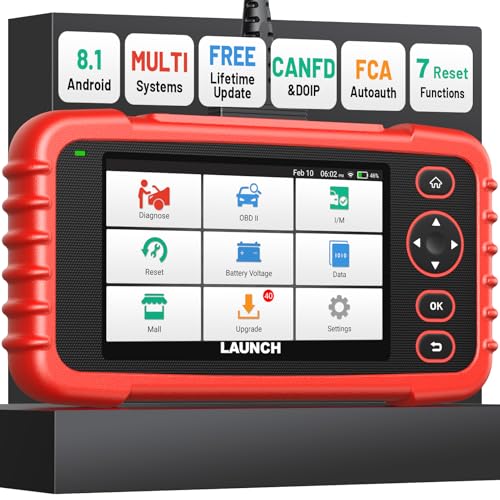
- [Newly Added in 2026: 7 Reset Functions] The 2026 new version of the OBD2 scanner diagnostic tool CRP123X V3.0 Elite has new special functions for F.REE: Throttle Ad.aptation, Oil/SAS/BMS/Brake Reset, D-P.F Re.generation and ABS Service. Before you visit a mechanic, launch obd2 Scanner CRP123X Elite can perform a more in-depth diagnosis of the car system and provide accurate data within minutes. What's more, the list of compatible models has been expanded. Upgrading frequency is regular, occurring monthly even weekly.
- 🔥[FCA AutoAuth + CAN FD & DoIP] As an upgraded version of the LAUNCH CRP123X/CRP129X, FOXWELL NT614, and ANCEL FX2000, The Newest LAUNCH CRP123X V3.0 auto diagnostic scanner supports the following new protocols: CAN-FD for 2020 and newer G.M and Chrysler
 models, as well as DoIP for V.olvo, Land Rover/Jaguar, and B.MW F/G chassis. With integrated AutoAuth, you can diagnose 2018 and newer FCA cars equipped with S.GW. Note: CAN-FD and DoIP protocols require an additional obd2 cable. *Menus vary by make, model, and year of gasoline or diesel engine vehicle. Email us your VIN data.
 - 🔥[No extra software fee. Works on 90 vehicle brands.] Most OBD2 scanners work with vehicles manufactured after 2001. However, the LUNCH OBD2 scanner is compatible with OBDII-equipped vehicles built after 1996 and works with more than 90 vehicle brands. One-click lifetime updates over WIFI 2.4&5.0Ghz keep the car software current and ensure constant coverage additions, diagnose vehicles from 1996 to 2026 with a massive global database. Android 8.1 ensures lightning-fast boot-up and processing.
- [Accurate & Intuitive Multi System Diagnosis] Will you be confused about what happens when the warning light of transmission, ABS, and SRS Airbag check engine flashes? Launch obd2 scanner diagnostic tool CRP123X V3.0 to pinpoint the problem components for a faster diagnosis for your car instead of taking your car to the dealership. Generate vehicle health reports with one click and share them via email over Wi-Fi to help avoid blind maintenance. And will turn off the warning light for you after fixing the problem, make to know more about your cars and do your own repair.
- [Multiple Display of Live Data + DTC Code Definition Explanation] Launch car tools show real-time data of oil temp, pressure, transmission temp, engine speed, coolant temperature, you will know which car part is abnormal. Data can be shown in a single, multi- graph, and merge two graphs for analysis(or 4-in-1 merged waveform graph),you can save, share, print, or email the overall inspection report for easier analysis.🔥Code Search,DTC Library provide massive information. Inbuilt “Feedback” module provides customized repair suggestions from our certified professionals.
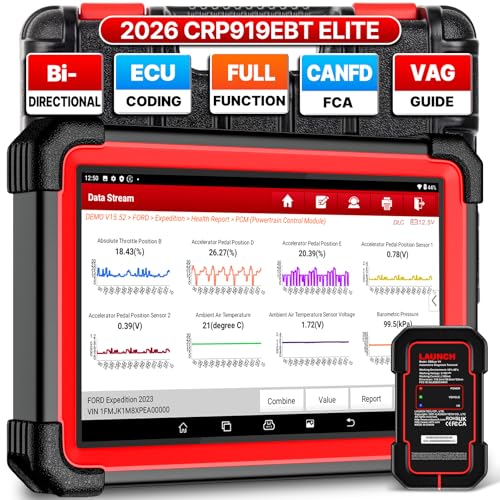
- 🔥【2026 TOP HARDWARE AND SOFTWARE UPGRADE,UPGRADED OF CRP919E】LAUNCH scanner CRP919EBT wireless obd2 scanner has upgraded TOP HARDWARE CONFIGURATION and ADD NEWEST FUNCTIONS. The more FASTER and SMARTER CRP919EBT with 🔥Bluetooths & USB 2-in-1 connect🔥Android 10.0 OS🔥2.0Ghz 4 core high efficiency processor 4GB RAM+64GB ROM large storage🔥6300mAh large battery, more stable and longer lasting diagnostics🔥VAG Guided🔥ECU Code🔥Bi-directional Control🔥35+ Resets🔥CANFD&DOIP🔥FCA AutoAuth🔥Full System Diagnostics🔥2 Yrs Update🔥Newly add BST360 battery tester & I-TPMS & VSP600 endoscope🔥23+ Languages. Provide an unparalleled diagnostic experience at an affordable price.
- 🚗【CAN FD & DOIP & FCA, SUPER PROTOCOL】LAUNCH X431 CRP919EBT is equipped with the DBSCAR VII Bluetooth connector supporting CANFD and DoIP. The CRP919EBT automotive diagnostic scanner supports CAN FD protocol (compatible with post-2020 GM vehicles). It also meets DoIP protocol requirements (adapter sold separately) for compatibility with BMW (E & F chassis) models from 2017 onward. Autoauth for FCA SGW supports FCA vehicles including Chrysler models from 2017 and later.
- ✔️【ADVANCED ECU CODE, ADAPTATION, CALIBRATION & INITIALIZATION】The LAUNCH X431 CRP919EBT automotive scanner delivers exceptional ECU code capabilities for customized vehicle setups. It provides dealer-level functionality to streamline maintenance and repairs, enabling ECU matching and learning for enhanced customization.
- 👍【BIDIRECTIONAL CONTROL, 4000+ ACTIVE TESTS】LAUNCH OBD2 scanner CRP919EBT features bi-directional control - the most demanded capability among mechanics. When headlights or windows malfunction, repairs can be costly. With CRP919EBT, execute ECU commands and assess repair status through systems including ABS, windows, valves, wipers, and headlights - streamlining diagnostics while slashing repair expenses.
- 🥇【35+ MOST POPULAR RESET SERVICE FOR 160 MAKES】Same as Snap-on scanners, CRP919EBT scan tool delivers 35+ reset functions for 160+ vehicle models, including: service oil reset, throttle adaptation, steering angle calibration, brake pad replacement code, tire pressure reset, ABS bleeding, battery registration, gear signal learning, and injector code, etc.
This product presentation was made with AAWP plugin.
Last update on 2026-05-12 / Affiliate links / Images from Amazon Product Advertising API